Over time, your Windows 11 C drive can accumulate various unnecessary files from system updates, daily computer use, application installations, and internet browsing. These files may take up a considerable amount of storage space, especially if you rarely clean up your computer. The good news is that many of them can be safely removed without affecting normal system operation. What to clean and how to proceed? This article shares all you need to know for disk cleanup C drive.
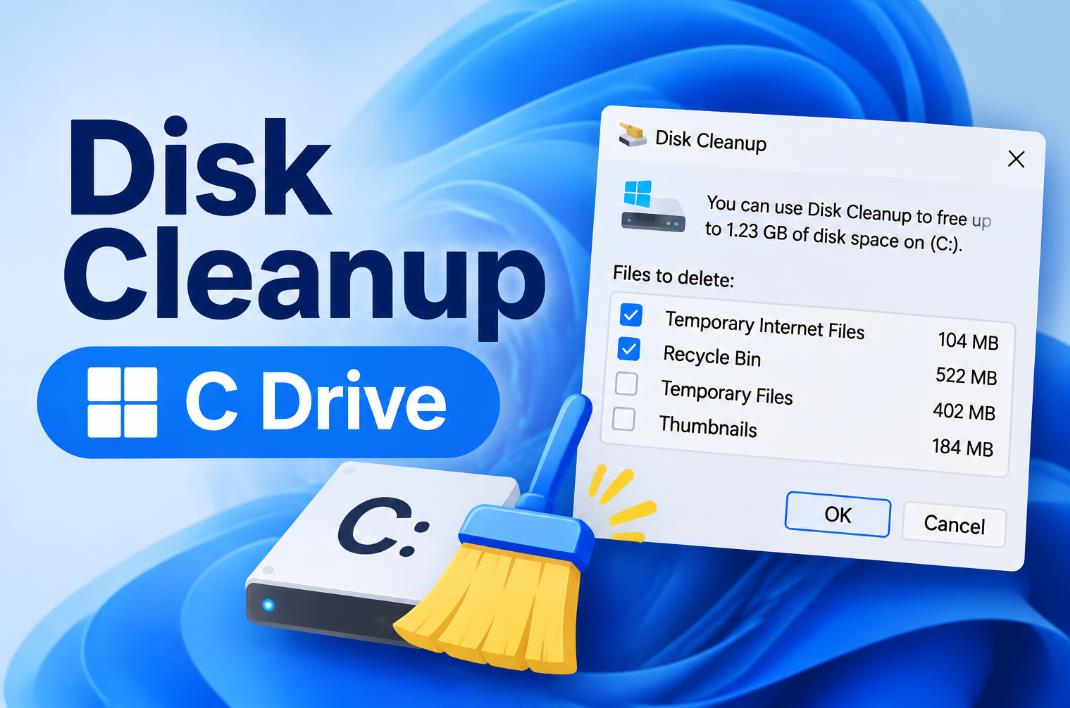
What Happens If You Never Perform Disk Cleanup C Drive
If you rarely perform C drive disk cleanup, unnecessary files may gradually accumulate and consume valuable storage space. Over time, a lack of free disk space can affect your Windows experience in several ways:
Low Disk Space Warnings: Windows may frequently display warnings when your C drive is running out of storage.
Windows Update Problems: Insufficient disk space may prevent Windows updates from downloading or installing.
Application Installation Issues: You may not have enough space to install new programs, games, or updates.
Reduced System Performance: Extremely low disk space can interfere with temporary file operations and affect overall system responsiveness.
Limited File Storage: You may struggle to save new documents, photos, videos, and other files.
Have you encountered these troubles? Even if not, schedule regular Windows C drive cleanup, since your C drive holds vital system data and accumulates junk files steadily.
What Files Can You Safely Delete from C Drive on Windows 11
Before deleting files from your C drive, it’s important to know which ones are safe to remove and which ones should be left untouched. Not every file that looks unnecessary is safe to delete. Removing important system files or application data by mistake may cause Windows errors, software malfunctions, or even prevent your computer from starting properly.
To avoid these problems, here are some common file types you can generally delete from your C drive on Windows 11.
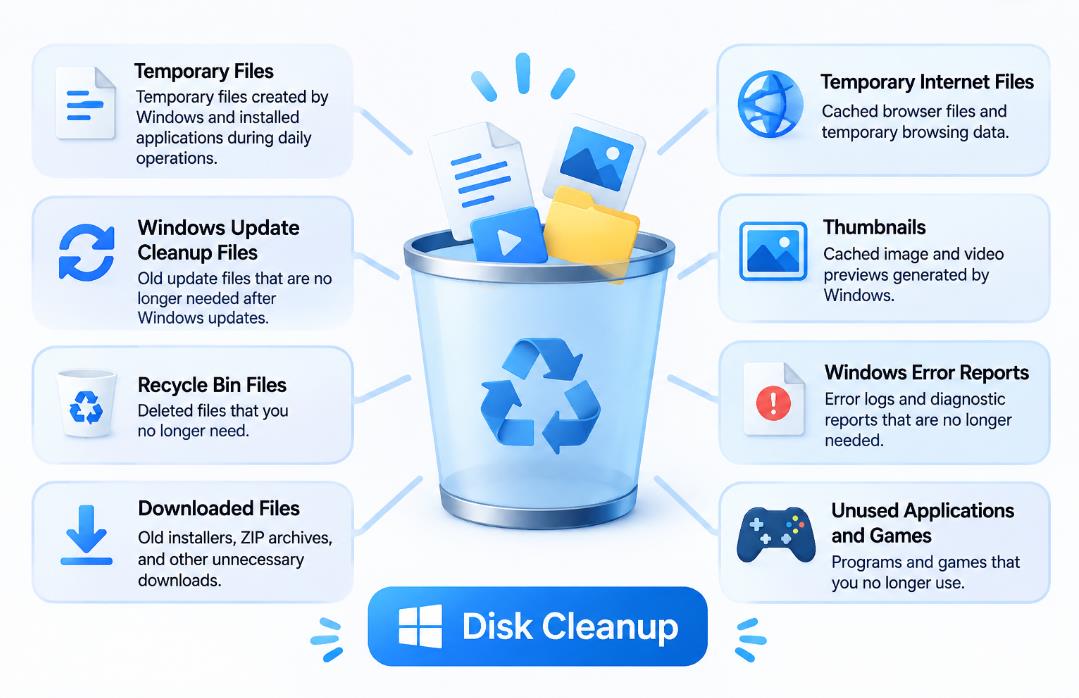
Temporary Files: Temporary files created by Windows and installed applications during daily operations.
Windows Update Cleanup Files: Old update files that are no longer needed after Windows updates.
Recycle Bin Files: Deleted files that you no longer need.
Downloaded Files: Old installers, ZIP archives, and other unnecessary downloads.
Temporary Internet Files: Cached browser files and temporary browsing data.
Thumbnails: Cached image and video previews generated by Windows.
Windows Error Reports: Error logs and diagnostic reports that are no longer needed.
Unused Applications and Games: Programs and games that you no longer use.
How to Perform Disk Cleanup C Drive - 7 Types of Files to Delete
Here are seven common types of files you can remove to free up space on your Windows 11 C drive. You can clear them safely through the built-in tool without risking your core system files.
1. Delete Temporary Files
Step 1. Press Win + R, input %temp%, and press Enter.
Step 2. Press Ctrl + A to select all and click Delete.
2. Remove Old Windows Update Files
Step 1. Open Settings > System > Storage > Temporary files.
Step 2. Find and select Windows Update Cleanup.
Step 3. Click Remove files.
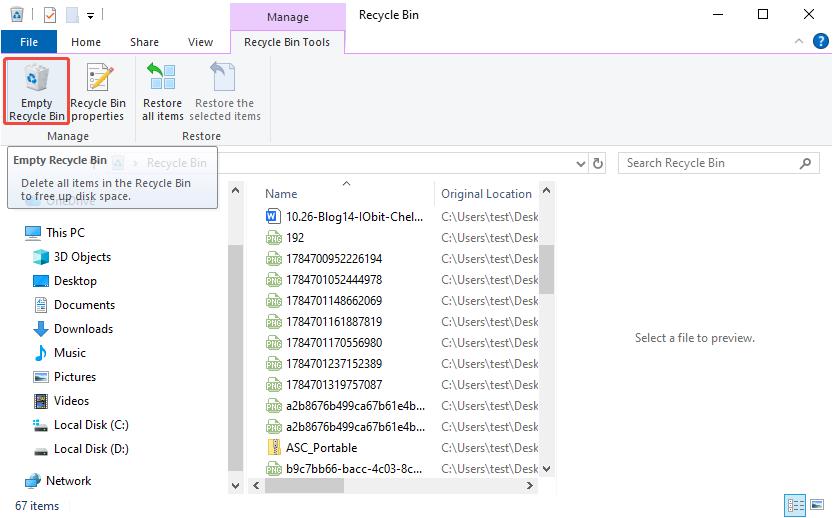
3. Empty the Recycle Bin
Step 1. Open the Recycle Bin on your desktop.
Step 2. Review the deleted files.
Step 3. Right-click and select Empty Recycle Bin.
4. Delete Unnecessary Downloads
Step 1. Press Win + E to open File Explorer.
Step 2. Navigate to This PC > Downloads.
Step 3. Sort files by size and delete downloads you no longer need.
5. Clear Browser Cache
Step 1. Open your browser and press Ctrl + Shift + Delete.
Step 2. Select Cached images and files.
Step 3. Choose a time range and click Clear data.
6. Uninstall Unused Applications and Games
Step 1. Open Settings > Apps > Installed apps.
Step 2. Find applications or games you no longer use.
Step 3. Click the three-dot menu and select Uninstall.
7. Remove Thumbnails and Cache Files
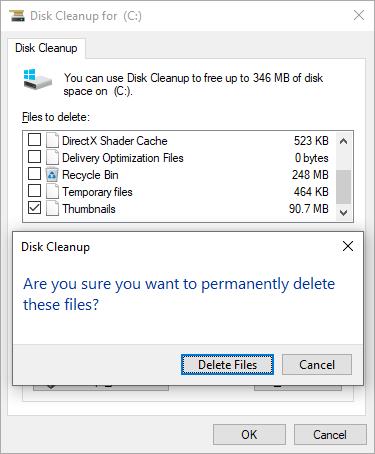
Step 1. Open Disk Cleanup and select the C: drive.
Step 2. Check Thumbnails in the file list.
Step 3. Click OK > Delete Files to remove the cached previews.
Alternative: Disk Cleanup C Drive Using an Automatic PC Cleaner in One Click
Manual C drive cleanup Windows 10/11 is time-consuming and likely to miss hidden junk files. Automated cleaning tools streamline the whole process. Advanced SystemCare runs a full scan with a single click, filters out safe-to-delete data, and clears C drive bloat so you skip tedious manual reviewing.
Advanced SystemCare Free
- Clean: 420 billion traces removed & 85 EB junk files cleaned
- Protect: 80 million unauthorized access blocked & 20 million bugs fixed
- Speed Up: 6 million hours of startup time saved & Turbo boost
- Optimize: Auto clean and auto care your PC with AI mode

What Can Advanced SystemCare Do for You
Advanced SystemCare is an all-in-one Windows optimizer built to enrich your automatic disk cleanup C drive. The free edition delivers safe, one-scan cleanup for system junk, browsing traces, program residuals, and cached media files. This hard disk cleaner supports Custom Clean to hunt bulky duplicates and overlooked large files on the C drive, making it a great fit for casual users.
Native Windows tools handle basic system clutter, while Advanced SystemCare reaches deeper into third-party app directories, fixing Windows 11 100 disk usage. Its AI Mode adapts scans to your usage pattern for lighter, regular upkeep. This best PC optimizer also packs extra tools for registry tidying, startup optimization, and real-time performance tuning. Beyond cleanup, it packs more than 30 handy mini tools for routine PC maintenance.
How to Clean C Drive with Advanced SystemCare
Advanced SystemCare lets you finish the entire C drive cleanup in one place, with built-in filters to pick safe junk and free disk space without extra complicated steps.
Step 1. Click the following button to download Advanced SystemCare to your PC.
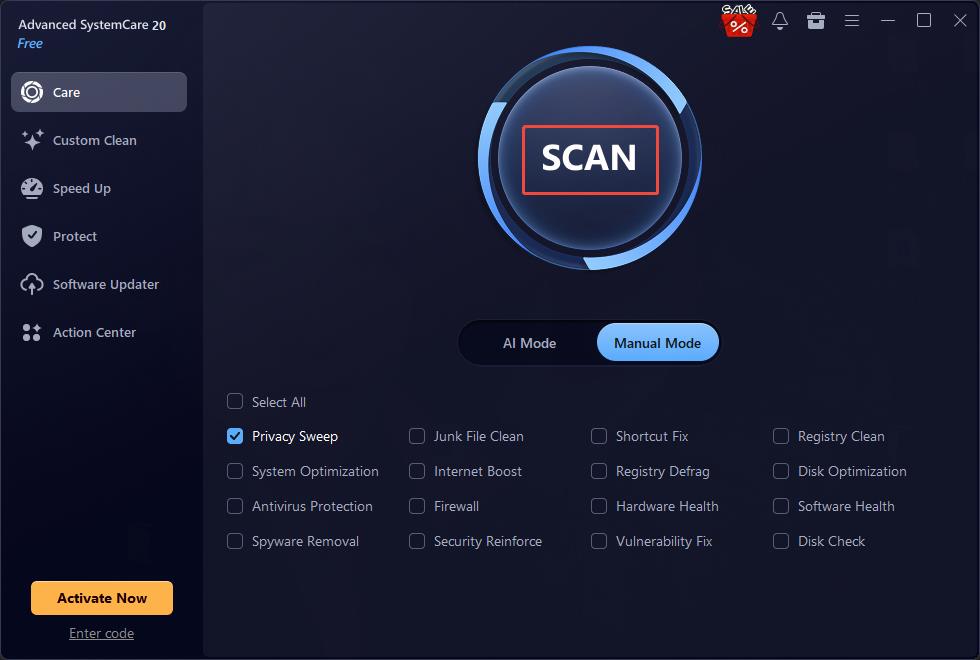
Step 2. Open the software. In the Care tab, tick Privacy Sweep and click SCAN. When the scan ends, click Fix to remove them.
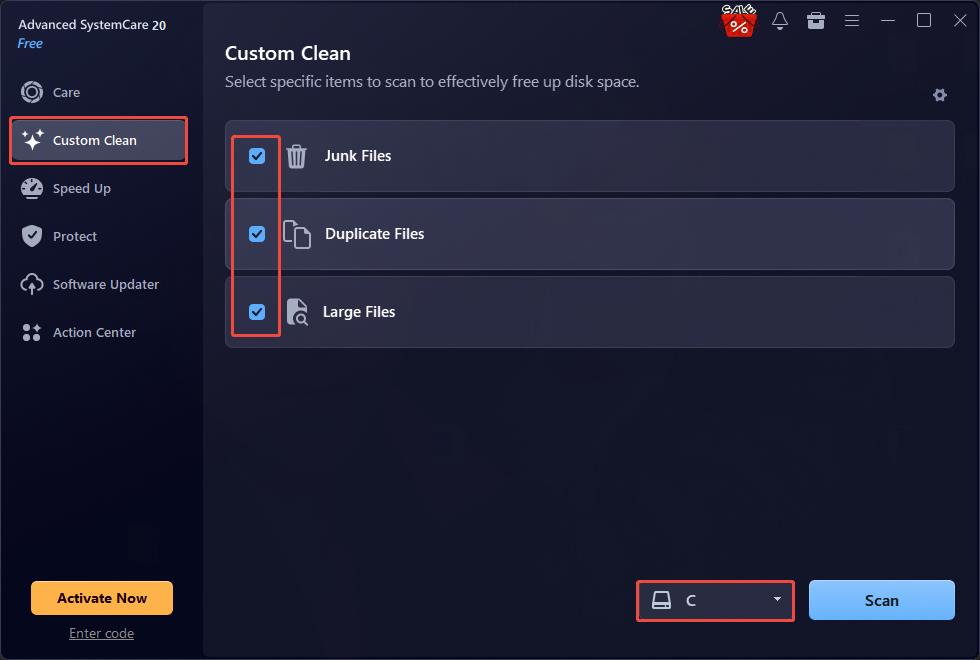
Step 3. Go to Custom Clean, tick Junk Files, Duplicate Files, and Large Files, choose the C drive, and click Scan. When it ends, click Clean Now to delete them.
Apart from clearing junk on your C drive, the tool also offers Speed Up and Protect features. Feel free to explore these features for all-round PC optimization.
FAQs about Disk Cleanup C Drive
1. Is Disk Cleanup a good idea?
Yes, Disk Cleanup is a great built-in utility. It safely removes accumulated junk files, frees valuable C drive space, and helps keep your Windows PC running smoothly.
2. Why is my C drive so full when I have cleared it?
Hidden system files, fresh temporary junk, the hibernation file, and the page file keep taking up space even after cleanup.
3. How to fix a C drive that is dirty?
A dirty C drive usually refers to file system errors. Run chkdsk C: /f and restart Windows to repair corrupted disk entries safely.
4. Why is my C drive full but I don’t have any files on it?
You see no personal files, yet reserved system storage, restore points, and locked hidden folders occupy a large chunk of your C drive.
The Bottom Line
Regular disk cleanup C drive keeps junk from building up and guards your Windows 11 PC against low-space troubles. You may stick with the native tool for basic tidying, or turn to Advanced SystemCare for effortless one-click cleanup and extra system optimization. Build this simple habit, and your C drive will stay roomy while your computer runs at its best.