Twitch ads can be difficult to remove because the ads are not plugin-powered, but embedded deeply into videos and streams, in the form of pre-roll ads and mid-roll ads. Only powerful DNS-related ads blockers manage to handle them.
What’s worse is that Twitch adopts a dynamic strategy in banning ad blockers. So ordinary methods cannot deliver stable ad-blocking services. Fret not, this guide covers four practical Twitch ad blockers to remove or reduce Twitch ads on browsers, Windows, and mobile devices.
Why Are Twitch Ads So Hard to Remove?
Unlike website banners and pop-ups, Twitch ads are much harder to get blocked (especially in the Twitch app). Ordinary ad blockers may be effective in removing simple page ads, but fall short in removing video ads. Twitch app inserts its ads inside live streams and videos, making it a big challenge for browser extensions and plugins to play a role.
You can see 4 types of Twitch ads:
Pre-roll ads: These play before you enter a live stream. They can appear when you first open a channel.
Mid-roll ads: These appear while you watch a stream. They can interrupt the content that you are already watching.
Display ads: These can appear around the Twitch page, including banners and other website elements.
Video and sponsored ads: Twitch can also use other ad formats that may not behave like standard webpage ads.
Even if you accidentally find an ads blocker that actually works, it very possibly doesn’t deliver a stable service. Twitch app detects and changes its ads delivery strategy to fight against ads blockers. In this scenario, a DNS-based Twitch ad blocker is the only way out for Twitch app users (website users can still use browser extensions to block ads).
Twitch Ad Blocker Chrome Extension: uBlock Origin
uBlock Origin is a free, open-source, browser-based content blocker that uses filter lists to block ads, trackers, and other unwanted website requests. This extension is welcomed by people who watch Twitch live streams on webpages. This tool has detailed filtering options, which surpass ordinary ad blockers.
BTW, for Chrome users, the full uBlock Origin extension is no longer available. The uBlock Origin project says Chrome users can use uBlock Origin Lite instead. The full version is still available on Firefox and Brave.
How to block ads on Twitch with uBlock Origin?
If you use a browser that supports the full extension, follow these steps:
Step 1. Install uBlock Origin from the official extension source for your supported browser.
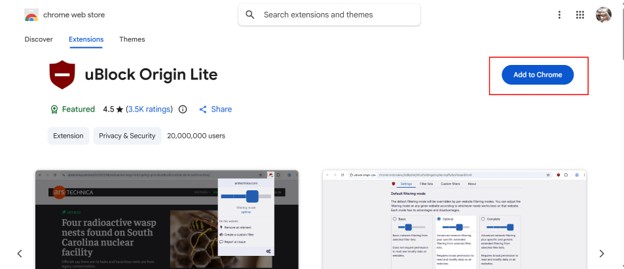
Step 2. Open Twitch and sign in to your account.
Step 3. Click the uBlock Origin icon and check whether the extension blocks requests on the Twitch page.
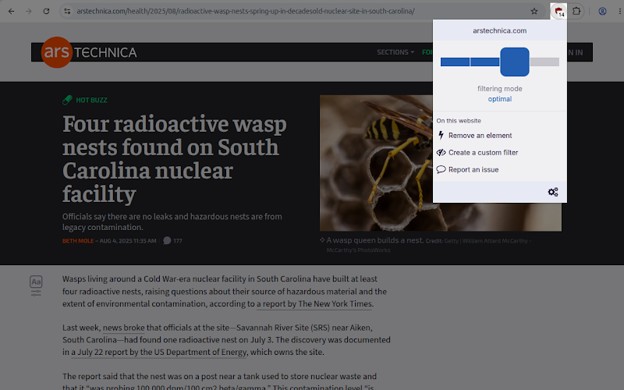
Step 4. Keep the filter lists updated. If Twitch changes its ad delivery, updated lists may provide better results.
Core Features of uBlock Origin
1. Advanced Filters — uBlock Origin supports large filter lists that can target ads, trackers, and unwanted web requests.
2. Low Resource Use — The project focuses on efficient content blocking without placing a heavy load on CPU and memory.
3. Custom Rules — Advanced users can create or adjust filtering rules when standard lists do not handle a specific website properly.
4. Twitch Support — The project states that uBlock Origin can block Twitch ads, although results can change when Twitch updates its ad delivery methods.
If you want another guide for browser advertising, see this guide on blocking ads in Chrome for free.
Twitch Ad Blocker for Windows: IObit Advanced SystemCare
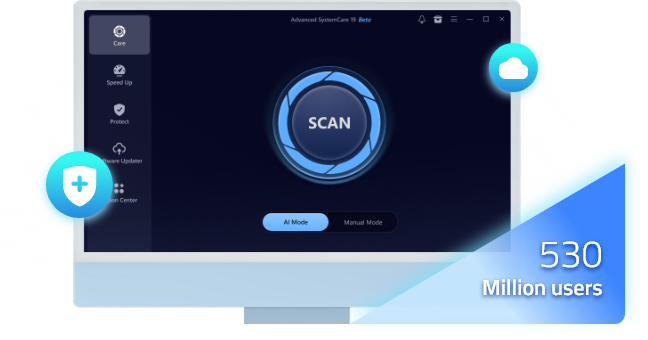
If you watch Twitch on Chrome, IObit Advanced SystemCare offers a browser protection feature to stably filter ads. This software offers PC boost functions as well to make sure your live stream is silky smooth. The best part is that the ads removal feature is free, and the operations are easy too; just toggle on this function and leave it in the background. No need to be a tech wizard, and you can handle everything.
Yet it is worth noticing that no Windows tool guarantees 100% ads blocking on Twitch. Twitch controls how its streams and advertisements are delivered, so results can vary.
How to set up IObit Advanced SystemCare as a Twitch ad blocker?
Step 1. Download and install IObit Advanced SystemCare on your Windows PC.
Step 2. Launch IObit Advanced SystemCare and open the Protect tab. Under Browser Protection, find Ads Removal and turn it on.
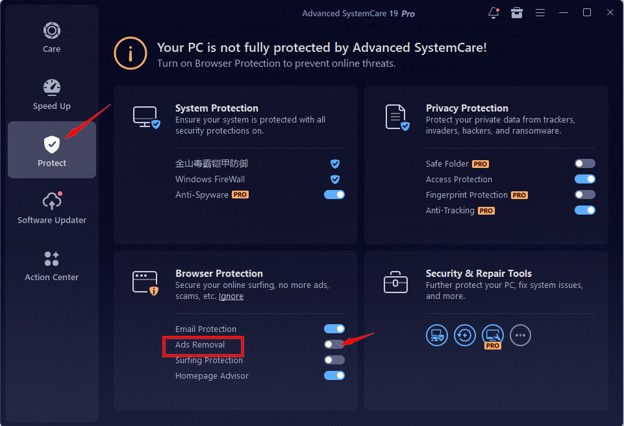
Step 3. Once enabled, Ads Removal will automatically block unwanted ads while you browse. If the protection does not take effect immediately, restart your browser.
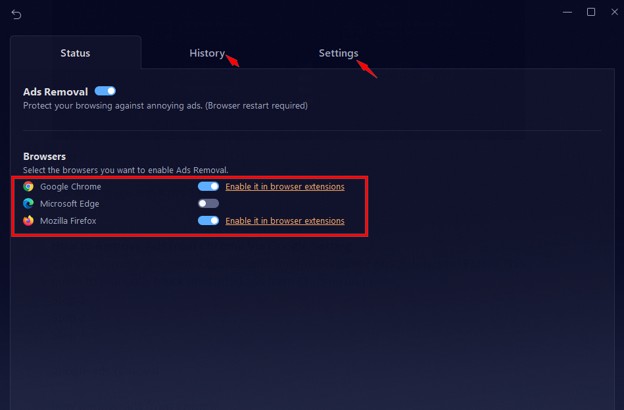
Step 4. Navigate to the History tab to check the traces of blocked ads.
Core Features of IObit Ad Blocker
1. Block Banner/Sponsored Ads — Browser Protection can block banner ads while you browse websites. And even block sponsored ads videos.
2. Block Pop-Up Ads — The browser protection features can help reduce unwanted pop-ups and other advertising elements.
3. Block Pre-roll Ads — This software proves to be effective in blocking YouTube pre-roll ads, no waiting 5 seconds to watch live streams or videos.
4. Website Whitelist — A whitelist can be useful when a website needs certain advertising or scripts to work correctly.
If your PC also feels slow when you start your browser, you can learn how to disable startup programs to unburden your system. For users who want a smooth and clean watching experience, this method is worth trying because it combines ad removal with other PC boost functions.
Twitch Ad Blocker: Block Twitch Ads with Brave Browser
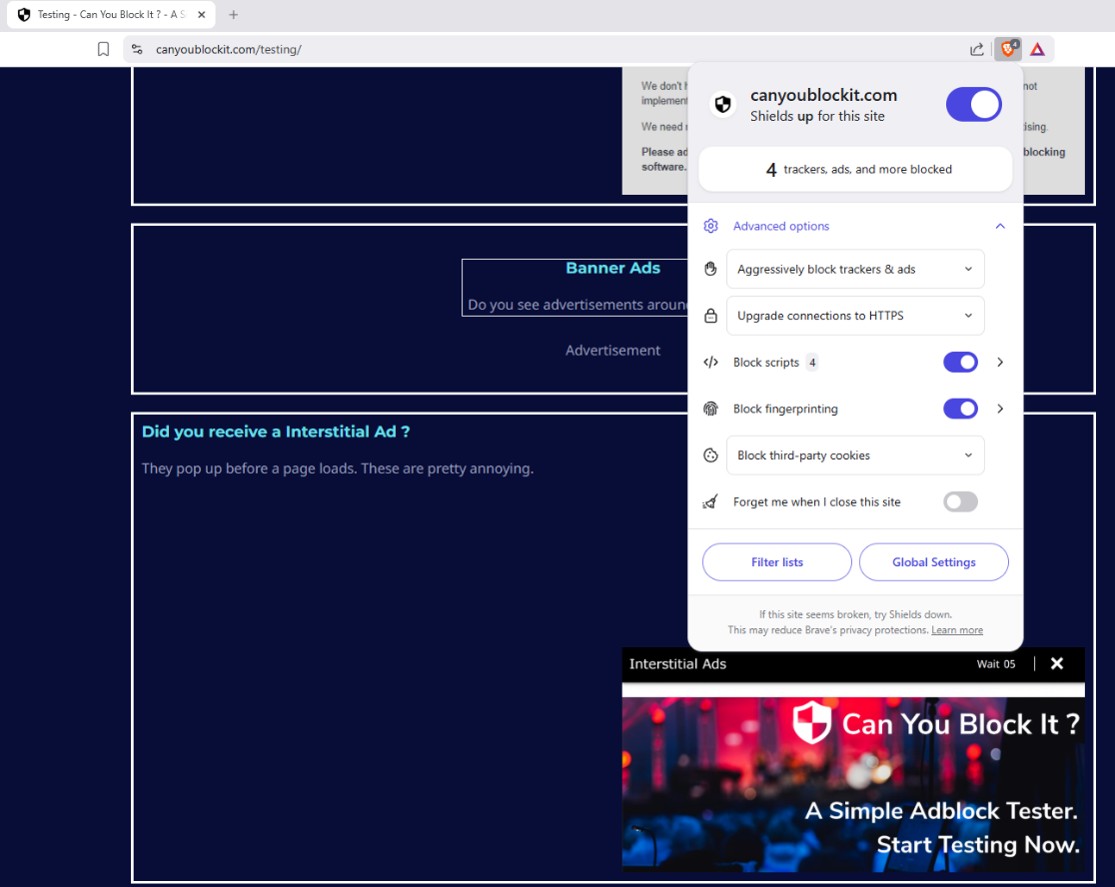
Brave is a browser with built-in ad and tracker blocking. Its Shields feature works without requiring a separate ad-blocking extension. Brave says Shields blocks third-party ads and trackers by default and allows users to change blocking settings for individual websites. This makes Brave a simple choice for people who do not want to remove Twitch ads on PC. It can also be useful on mobile because Brave provides built-in ad and tracker blocking on mobile browsers.
How to block ads in Twitch with Brave?
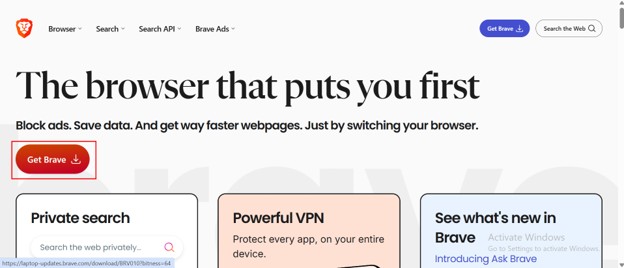
Step 1. Download and install the Brave browser.
Step 2. Open Twitch and visit the channel you want to watch.
Step 3. Click the Brave Shields icon beside the address bar.
Step 4. Make sure Block Trackers & Ads is enabled. If needed, open the advanced Shields settings and choose a stronger blocking setting.
Core Features of Brave Adblock Browser
1. Built-In Ad Blocking — Brave blocks many third-party ads without requiring a separate extension.
2. Tracker Blocking — Shields can block third-party trackers that follow browsing activity across websites.
3. Custom Site Controls — You can change Shields settings for individual websites when a page does not work correctly.
4. Mobile Support — Brave also provides built-in ad and tracker blocking on Android and iOS devices.
For many users, Brave provides a simple Twitch ad blocker setup because you do not need to manage a separate extension. If your goal is specifically to learn how to block ads in Twitch with Brave, the main process is simple: open Twitch, click Shields, and confirm that ad and tracker blocking is active.
How to Block Twitch Ads in Twitch App: DNS-Based Ad Blocker
Ad-blocking extensions do not work for applications, neither mobile app or desktop software. If you watch Twitch through the Twitch app, a browser-based Twitch ad blocker is not a wise option. A DNS-based service plays its role. It filters domain requests at the DNS level before your device connects to certain advertising or tracking domains. AdGuard DNS provides public DNS servers that block ads and trackers. Pretty ideal for blocking Twitch app ads.
How to block ads in Twitch app with AdGuard DNS?
Step 1. Open your device's network or DNS settings.
Step 2. Choose the option for Private DNS on supported Android devices.
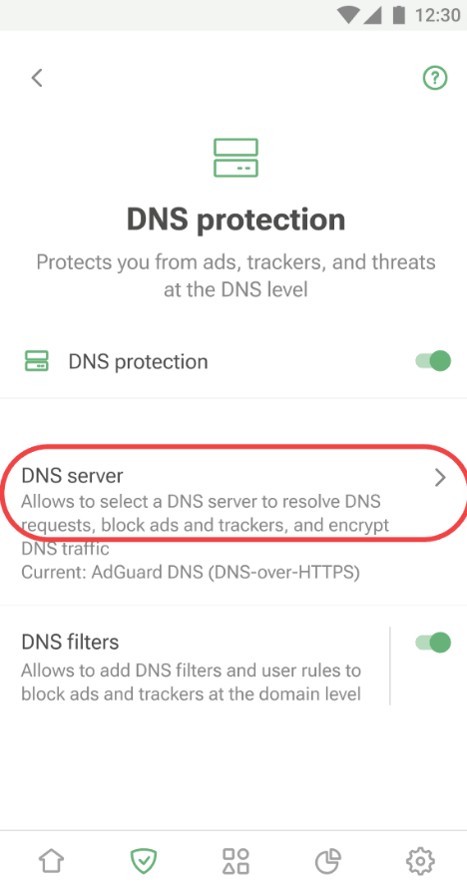
Step 3. Enter dns.adguard-dns.com as the Private DNS provider hostname.
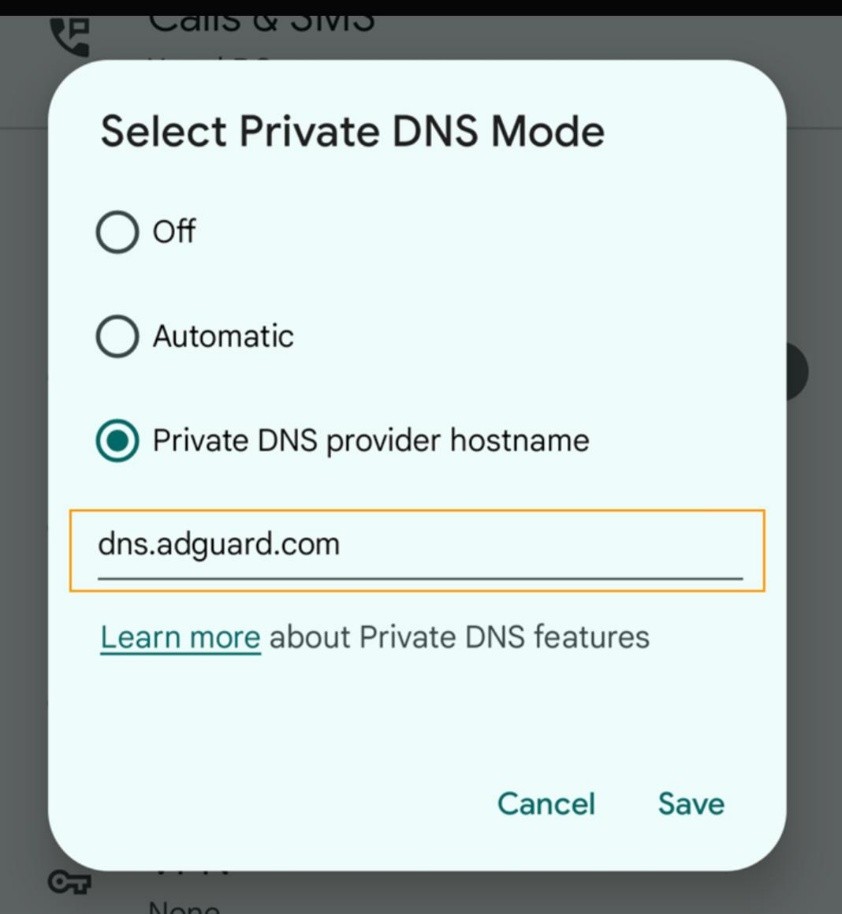
Step 4. Save the setting and reopen the Twitch app.
AdGuard's official instructions list dns.adguard-dns.com as its default public DNS server for blocking ads and trackers.
Core Features of AdGuard DNS
1. DNS-Level Filtering — AdGuard DNS can block known advertising and tracking domains before the device connects to them.
2. No Browser Extension Needed — DNS filtering works outside a normal browser, so it can cover supported apps and other network requests.
3. Multiple DNS Options — AdGuard provides default, non-filtering, and family-protection DNS servers for different needs.
4. Cross-Device Setup — AdGuard DNS provides setup options for Android, iOS, computers, and other devices.
So, if you are searching for how to block ads in Twitch app, DNS filtering is worth testing. However, you should not expect it to remove every Twitch video ad. DNS tools cannot filter an advertisement when Twitch delivers it through the same network path as the content you want.
You can also read this guide about ads removal for more ways to reduce unwanted advertising.
Conclusion
Twitch ads can be difficult to block because Twitch can change how it delivers advertising. A browser filter, Windows protection tool, built-in browser blocker, or DNS service can each help in different situations. For Windows users who want more than a basic Twitch ad blocker, IObit Advanced SystemCare is a useful option to try. Its browser protection includes ads removal while also providing other PC maintenance and protection features.
Advanced SystemCare Free
- Clean: 420 billion traces removed & 85 EB junk files cleaned
- Protect: 80 million unauthorized access blocked & 20 million bugs fixed
- Speed Up: 6 million hours of startup time saved & Turbo boost
- Optimize: Auto clean and auto care your PC with AI mode