Many Windows 11 users notice system sluggishness and seek a dependable tool to clean redundant registry records. Finding compatible software remains tricky, while editing keys manually via Regedit risks severe system crashes. A reliable registry tool clears out broken entries without touching vital system settings. This guide reviews 8 safe Windows 11 registry cleaner tools to help you clear out junk entries safely and get your PC running smoothly again.
Does Windows 11 Have a Built-in Registry Cleaner? - Quick Answer
No. Windows 11 lacks a built-in registry cleaning utility. Integrated tools like Disk Cleanup and Storage Sense act as a basic hard disk cleaner to remove temporary cache files and error logs. Microsoft leaves out automatic registry tools so users do not accidentally delete critical system keys. To clean registry Windows 11 systems safely, you need a dedicated Windows 11 cleaner built to spot dead entries without messing with active system services.
What Should You Look for in a Windows 11 Registry Cleaner
Selecting software requires care because deleting valid keys triggers startup failures. Before downloading any cleanup tool, check for these four must-have features:
Windows 11 Compatibility: Full 64-bit support to distinguish modern OS components from dead keys.
Automatic Registry Backup: Creates automatic backups or restore points before modifying entries.
High Scanning Precision: Low false-positive rates to protect shared DLLs.
Comprehensive System Care: The best Windows 11 cleaner also includes disk cleanup tools, helping resolve issues like Windows 11 100 disk usage caused by corrupted configuration logs.
8 Windows 11 Registry Cleaners Compared: Which Works Best
The right pick depends on what you need, whether that is a simple single-purpose scanner or a full suite with registry defragmentation. Below is an overview to help you pick the best registry cleaner Windows 11.
| Tool |
Win 11 Compatibility |
Auto Registry Backup |
Registry Defrag |
False Positive Risk |
| PC HelpSoft PC Cleaner |
✅ Yes |
✅ Yes
|
❌ No |
Low |
| IObit Advanced SystemCare |
✅ Yes |
✅ Yes |
✅ Yes |
Very Low |
| CCleaner |
✅ Yes |
✅ Yes |
❌ No |
Low |
| Revo Registry Cleaner |
✅ Yes |
✅ Yes |
❌ No |
Very Low |
| Wise Registry Cleaner |
✅ Yes |
✅ Yes |
✅ Yes |
Low |
| Eusing Free Registry Cleaner |
✅ Yes |
✅ Yes |
❌ No |
Moderate |
| Auslogics Registry Cleaner |
✅ Yes |
✅ Yes |
❌ No |
Low |
| Glarysoft Registry Repair |
✅ Yes |
✅ Yes |
❌ No |
Low |
How to Use 8 Windows 11 Registry Cleaners Step by Step - Features, Pros & Cons
We put 8 Windows 11 registry cleaners through rigorous hands-on testing, checking scan safety, detection precision, cleanup impact and overall stability. Below is our detailed, unbiased breakdown for every tool. You will find step-by-step operation guides, core standout features, clear advantages, and honest drawbacks uncovered during our tests.
1. PC HelpSoft PC Cleaner - All-in-One Registry & Junk Scanner
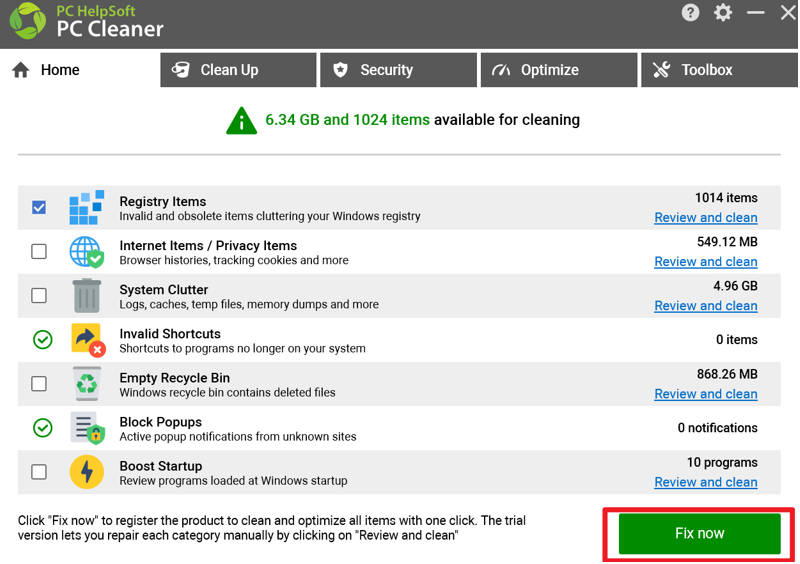
PC HelpSoft PC Cleaner identifies broken paths, obsolete uninstallation keys, and missing shared DLL references. It clears out broken file associations, trims startup programs, and works as a handy disk cleanup tool to free up drive space.
Step 1. Launch the program and click Start Scan on the main interface.
Step 2. Wait for the scan to finish and check only the Registry Items category.
Step 3. Review the detected registry errors and click Fix Now on the left panel.
Pros
Clear diagnostic reporting
Integrated junk cleanup
Cons
Deep repair requires an upgraded license
Lacks registry defrag
2. IObit Advanced SystemCare - Auto Registry Cleanup and PC Optimization
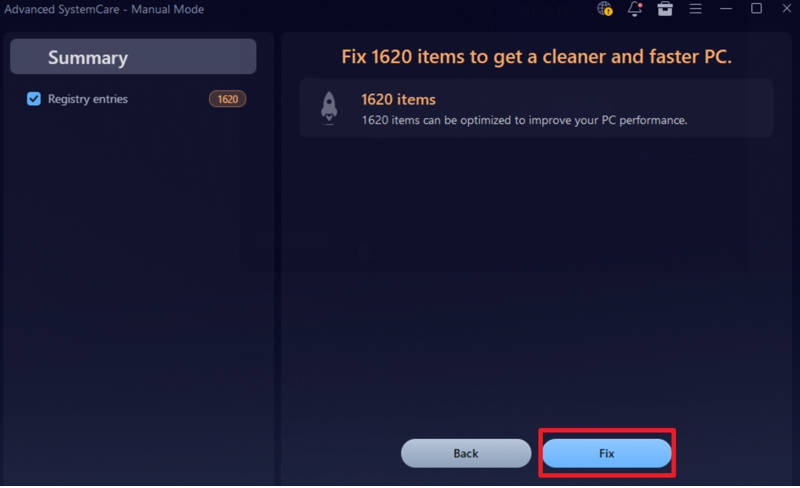
IObit Advanced SystemCare is an automated maintenance suite and recognized as a top registry cleaner Windows 11. Its main Registry Clean tool scans deep into system hives to clear out broken shortcuts, corrupt COM objects, and leftover uninstaller keys. Even better, the Registry Compact feature in this best PC optimizer defragments registry files to cut down disk lag and help apps open faster. What's more, the software backs up every changed entry and creates a system restore point before fixing anything, so you can undo changes in one click.
Advanced SystemCare Free
- Clean: 420 billion traces removed & 85 EB junk files cleaned
- Protect: 80 million unauthorized access blocked & 20 million bugs fixed
- Speed Up: 6 million hours of startup time saved & Turbo boost
- Optimize: Auto clean and auto care your PC with AI mode

On top of that, it offers real-time background monitoring to quickly clear junk files from daily app use and stop buildup. Beyond registry cleaning, the software also includes an active RAM optimizer Windows 11 to free up memory and a dedicated gaming optimizer that suspends unnecessary background processes for smoother frame rates.
Now, follow these simple steps to clean your registry:
Step 1. Download IObit Advanced SystemCare and finish installing it on your PC.
Step 2. Open the software, go to Care, select Registry Clean, and click the central SCAN button highlighted by the red arrow.
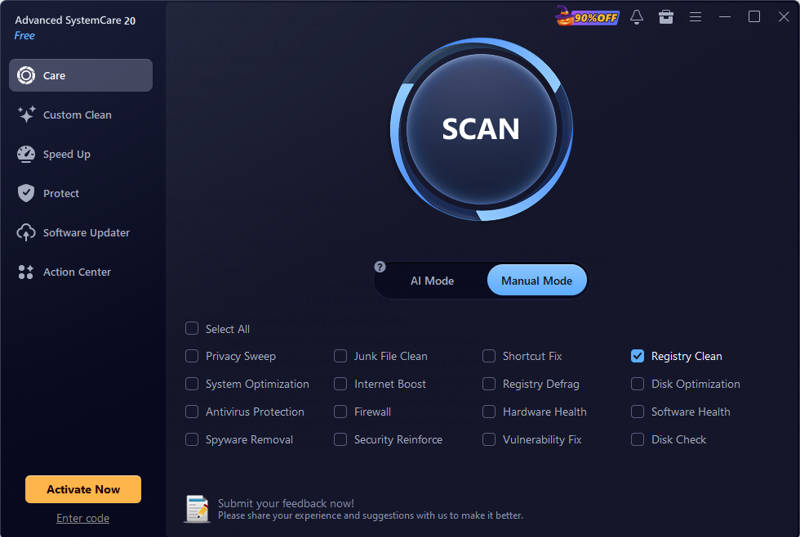
Step 3. Review the detected errors enclosed within the red box, then click Fix to clear them immediately.
Pros
Automatic registry backups
Hive defragmentation
AI-assisted precision
Cons
Automated scheduling requires the Pro version
Setup includes bundle offers
Anyone looking for a reliable registry cleaner Windows 11 tool will get a lot of value out of its all-in-one setup. Download IObit Advanced SystemCare now to clear out registry clutter and restore smooth PC performance.
3. CCleaner - Popular Registry and Junk Cleaner
CCleaner scans for broken file extensions, missing shared DLLs, and dead application paths. Its category filters allow users to exclude specific registry areas, while startup managers help trim unnecessary background programs.
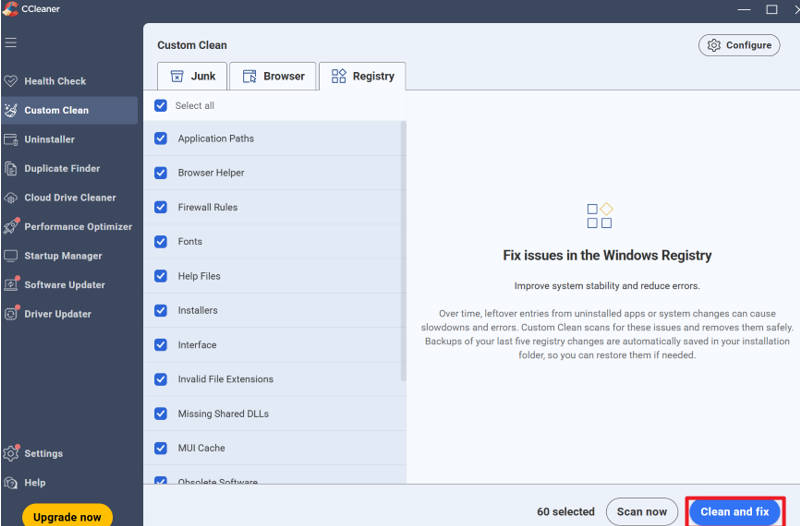
Step 1. Open CCleaner, go to Custom Clean on the left sidebar, and check Select All under Registry.
Step 2. Click Scan Now at the bottom right to detect broken entries and obsolete paths.
Step 3. Review the found registry issues, click Clean and fix, and save a backup file when prompted.
Pros
Prompts to back up the registry
Granular category filters
Cons
Free edition lacks scheduled background scans
Upgrade pop-ups
4. Revo Registry Cleaner - Uninstall Leftover Registry Scanner
Revo Registry Cleaner focuses on clearing out stubborn registry leftovers that standard uninstallers miss. It hunts down old program paths, broken right-click menu entries, and leftover installer keys to keep your registry tidy.
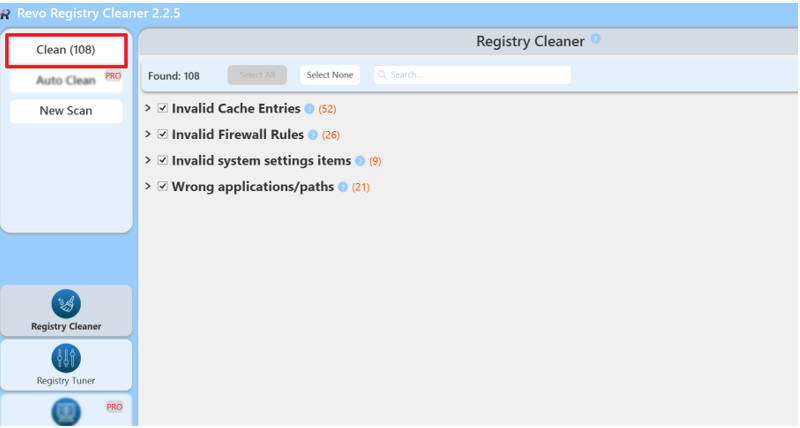
Step 1. Launch Revo Registry Cleaner and select your preferred scanning mode.
Step 2. Allow the utility to locate orphaned registry keys and broken links.
Step 3. Confirm the automatic backup creation and click Clean to remove entries.
Pros
Exceptional detection of residual uninstaller entries
Auto restore points
Cons
Deep scans take longer on large solid-state drives
Complex layout
5. Wise Registry Cleaner - Dedicated Registry Cleaner
Wise Registry Cleaner keeps registry upkeep simple with three scan modes: Fast Scan, Deep Scan, and Custom Scan. It marks detected entries with color-coded safety indicators to prevent users from altering vital keys. Its built-in defragmentation module also compacts fragmented hive files to shrink bloated registry files and keep Windows responsive.
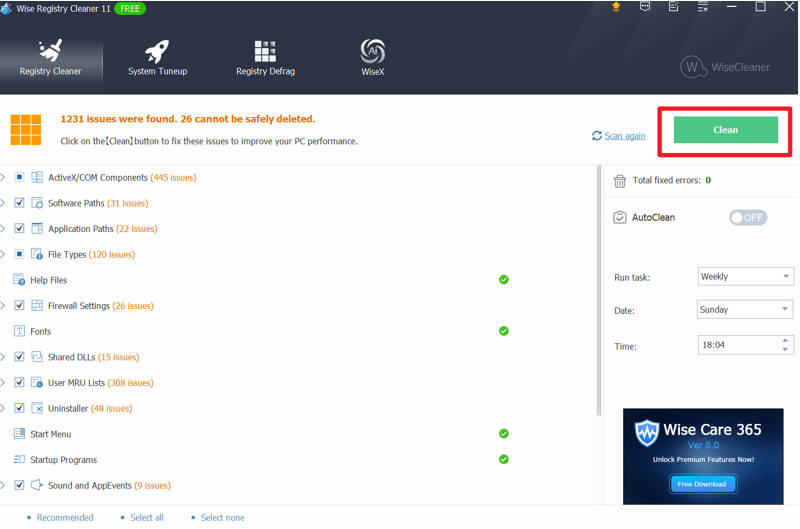
Step 1. Open Wise Registry Cleaner and click Scan.
Step 2. Review detected issues marked in green as safe to remove.
Step 3. Click Clean to delete obsolete items, or select Registry Defrag.
Pros
Color-coded safety indicators
Independent defragmentation tool
Cons
Deep Scan requires technical experience
Interface aesthetic looks dated
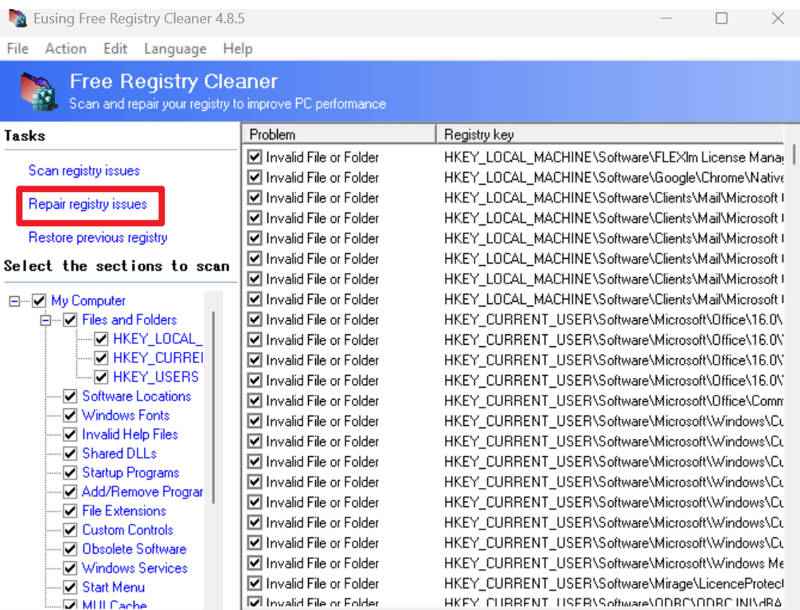
6. Eusing Free Registry Cleaner - Lightweight Free Registry Fixer
Eusing Free Registry Cleaner is a lightweight tool that checks 16 core registry areas, including startup items, font links, and custom controls. As an accessible free Windows 11 cleaner, it uses very little memory and runs smoothly on both older laptops and newer PCs.
Step 1. Launch Eusing Free Registry Cleaner and click Scan registry issue.
Step 2. Wait while the tool inspects invalid file paths and missing DLLs.
Step 3. Click Repair registry issue to resolve all detected entries safely.
Pros
100% free with complete access to core tools
Tiny memory footprint
Cons
Traditional interface lacks modern polish
Modest risk of false positives
7. Auslogics Registry Cleaner - Selective Registry Repair Tool
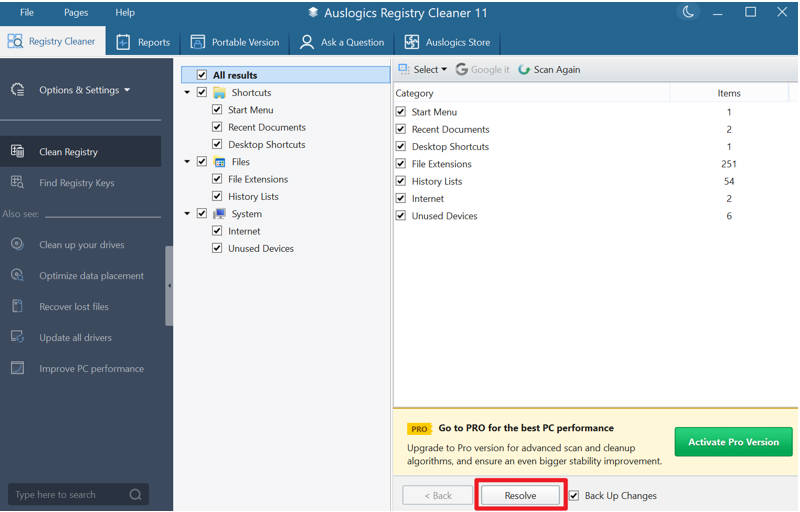
Auslogics Registry Cleaner lets you pick the exact registry areas you want to scan, including fonts, file associations, and application paths. Anyone looking for the best Windows 11 cleaner software will like its built-in Rescue Center, which saves a full backup of your registry keys before making any changes.
Step 1. Open Auslogics Registry Cleaner and choose your scan categories.
Step 2. Click Scan Now and evaluate the error severity ratings.
Step 3. Confirm the backup changes are checked, then click Resolve.
Pros
Clear severity indicators
Rescue Center simplifies rollback
Cons
Setup includes optional bundled offers
Automated scheduling requires Pro
8. Glarysoft Registry Repair - Safe Registry Problem Scanner
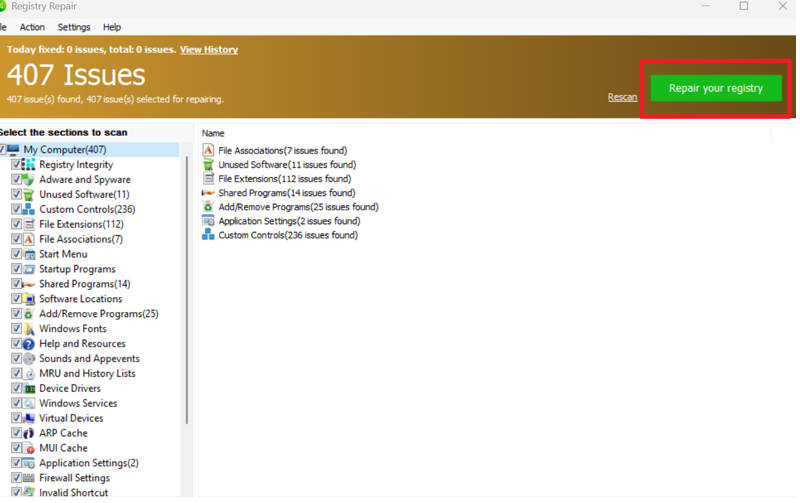
Glarysoft Registry Repair keeps registry cleanup simple for everyday users. It starts scanning as soon as you open the app, checking system hives for invalid keys, broken shell extensions, and corrupt associations. Its cautious scan rules make sure critical Windows services never get deleted by mistake.
Step 1. Launch Glarysoft Registry Repair, and it will trigger the automatic scan.
Step 2. Check the list of discovered registry problems grouped by section.
Step 3. Click Repair your Registry to resolve flagged items safely.
Pros
Automatic scan on launch
Conservative detection protects system files
Cons
Lacks detailed customization options
No registry defragmentation
The Bottom Line
A good Windows 11 registry cleaner clears out dead keys, removes leftover uninstaller data, and stops slowdowns caused by years of registry clutter. This guide covered 8 safe registry cleaner Windows 11 tools you can use without risking system crashes. Among them, IObit Advanced SystemCare stands out with its mix of deep registry cleaning, automatic backups, and everyday PC tune-up tools. Download the software to clean your registry and get a faster, smoother PC.