Does your Windows 11 PC feel cluttered with preinstalled utilities, promotional software, and unused programs? A Windows 11 debloater (also called a Windows debloater) helps remove unnecessary apps and recover space without reinstalling Windows.
Whether you want to debloat Windows 11 with an app or learn how to debloat Windows 11 using commands, this guide compares five options, safe removal practices, and practical steps.

What Is a Windows 11 Debloater?
A debloater removes unwanted applications and may adjust optional Windows features. Bloatware includes manufacturer trials, promotional apps, and programs you no longer use.
A Windows 11 debloater tool can recover disk space, simplify the Start menu, and reduce needless background activity. Some also offer privacy and interface tweaks.
Not every preinstalled component is bloatware: drivers and security services may be essential. This Windows 11 debloat guide prioritizes selective removal.
If leftover files are your main concern, comparing the best uninstaller for Windows 11 can help you choose a suitable cleanup tool. A safe Windows 11 debloat starts with identifying unnecessary apps rather than removing every built-in Windows component.
5 Best Windows 11 Debloater Tools & Methods
The best Windows debloater depends on whether you want basic removal or advanced customization. Here's a quick comparison of five practical solutions.
Option |
Best for |
Primary benefit |
IObit Uninstaller |
Beginners and everyday cleanup |
Batch removal and leftover cleanup |
O&O AppBuster |
Free Windows app management |
Portable app removal and reinstallation |
Win11Debloat |
Script-based debloating |
Selectable app removal and Windows tweaks |
Chris Titus Tech WinUtil |
Power users |
Combined debloating and maintenance tools |
Windows Settings |
Occasional cleanup |
No additional download needed |
1. IObit Uninstaller – Best for Easy Bloatware Removal
IObit Uninstaller is a practical Windows 11 debloat tool for users who want to remove unwanted software without writing commands. Alongside standard uninstall features, IObit Uninstaller 16 includes a dedicated Bloatware Remover for preinstalled Windows apps and components. It also helps find stubborn programs and leftover data after removal.
IObit Uninstaller Free
- Complete forced uninstallation for stubborn programs.
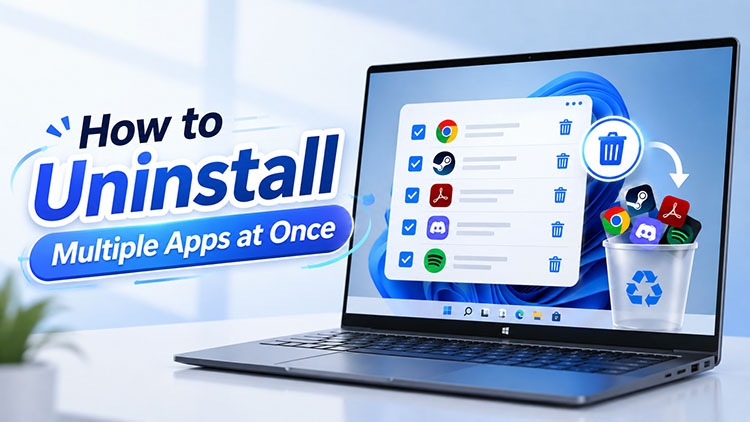
- Uninstall a batch of programs at once.
- Scan and remove leftover files, folders, and registry entries.
- Support the management of Universal Windows Platform apps.
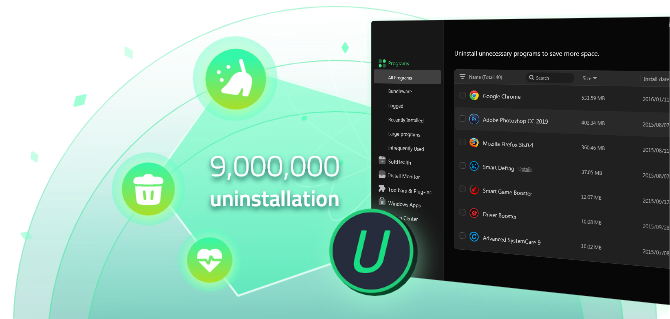
How to Use IObit Uninstaller:
Step 1. Download IObit Uninstaller from its official website and launch it.
Step 2. Open Toolbox > Bloatware Remover, or browse the installed programs and Windows Apps categories.
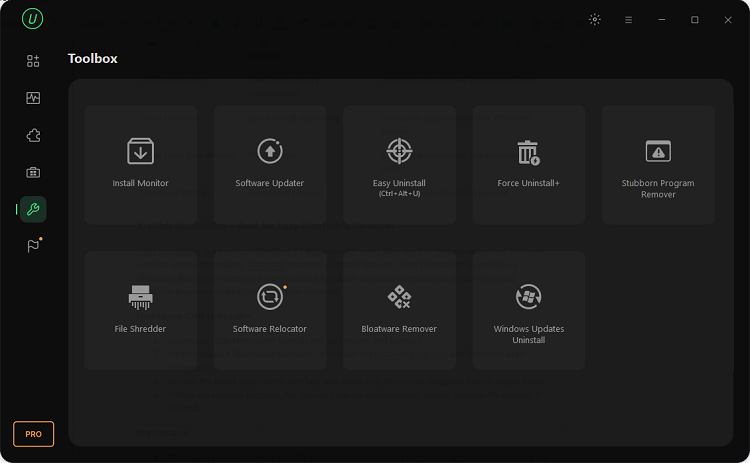
Step 3. Review the listed applications carefully and select only those you recognize and no longer need.
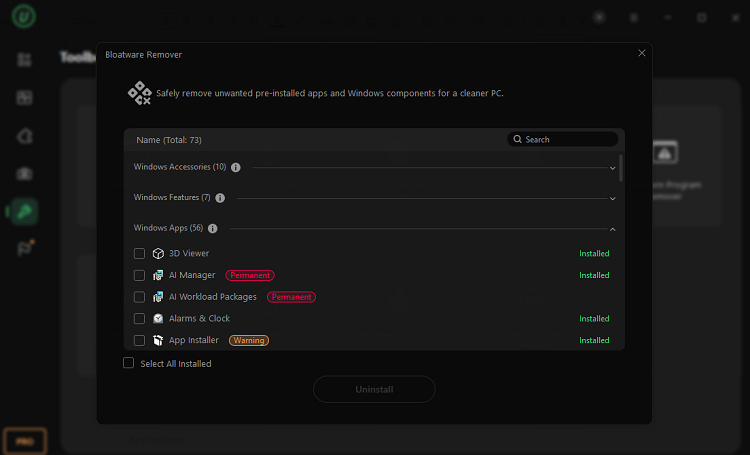
Step 4. Follow the removal prompts. For normal program uninstallation, enable residual-file cleanup if offered.
Key Features of IObit Uninstaller:
Bloatware Remover: Helps identify and remove unwanted preinstalled applications that may be difficult to uninstall through standard Windows settings.
Batch Uninstall: Lets you select multiple unnecessary programs together, reducing the time spent repeating individual uninstall procedures.
Stubborn Program Removal: Helps remove problematic software when conventional uninstallers fail or leave broken entries behind after removal.
Leftover Cleanup: Searches for residual files and registry entries associated with uninstalled programs, helping reduce avoidable clutter.
Bundleware Detection: Highlights additional software installed alongside other programs so you can review and remove unwanted extras.
If an application refuses to uninstall normally, this guide on how to force uninstall a program in Windows 11 explains additional removal methods.
Some IObit Uninstaller capabilities depend on the edition. Review the Free and Pro feature differences before purchasing.
2. O&O AppBuster – Best Free Portable Debloater
O&O AppBuster is a free, portable tool displaying preinstalled and certain hidden Windows apps.
Download the executable from the official site, launch it, and browse the app list. Select unwanted items and confirm removal. Eligible Windows apps can be reinstalled later, making it easier to correct accidental removals. You can also create a restore point before changing the system.
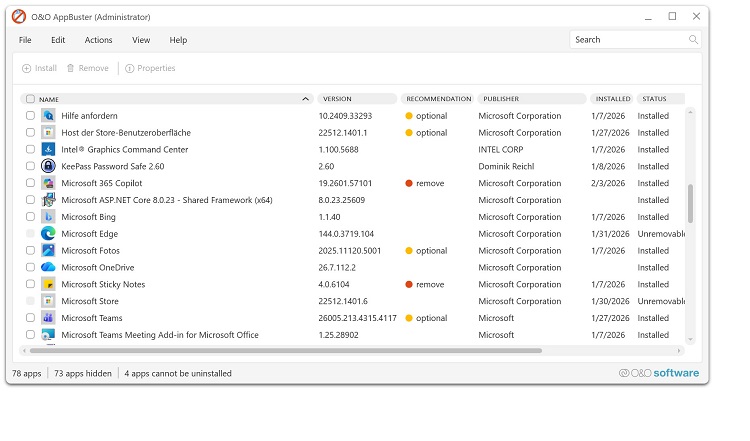
Best for: Free app management without installing a software suite; less suited to system-wide tweaks.
3. Win11Debloat – Best Open-Source Debloating Script
Win11Debloat is an open-source PowerShell script for users who want to debloat Windows 11, remove selected built-in apps, and customize optional privacy or interface settings.
Follow the official GitHub launch instructions, then inspect the available removal and customization options. Choose specific apps or settings rather than blindly applying presets. Because it can affect more than installed applications, read its descriptions before confirming changes.
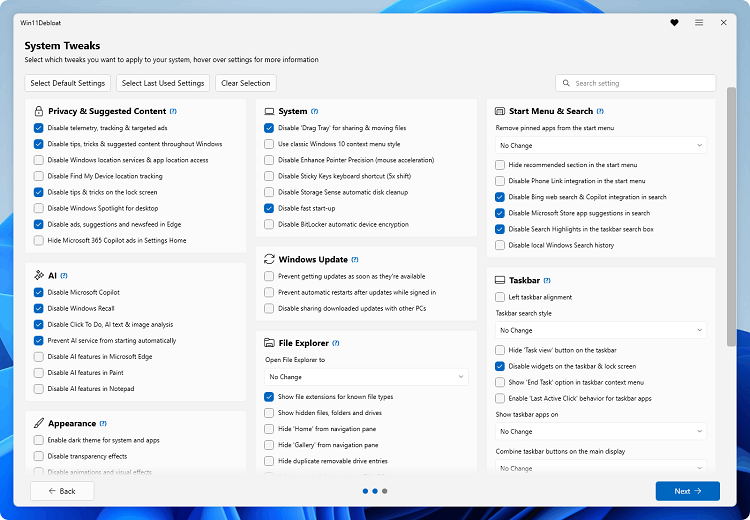
Best for: Users comfortable with Windows customization. Back up files before applying system-level tweaks.
4. Chris Titus Tech WinUtil – Best for Advanced Tweaks
Chris Titus Tech WinUtil combines debloating, software installation, maintenance, and Windows tweaks.
Follow the official GitHub instructions to launch the utility through administrator PowerShell. Review the available tweaks before applying them. WinUtil can also help install commonly used software and configure update preferences, making it useful when setting up a new PC.
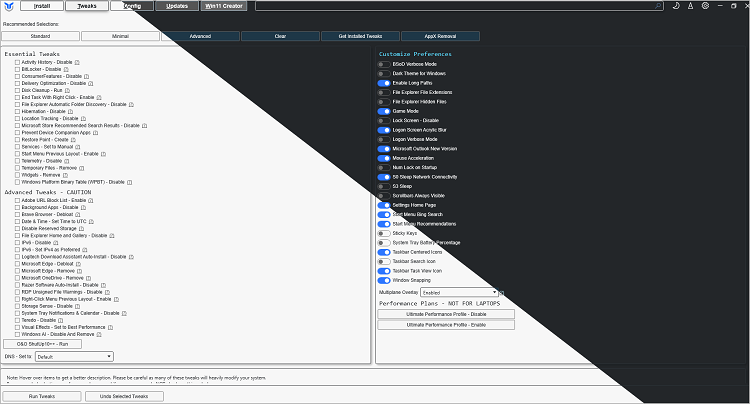
Best for: Power users. Avoid advanced presets unless you understand their effects.
5. Windows Settings – Best Built-In Method
For occasional cleanup, use Windows 11's built-in uninstall interface:
Step 1. Press Win + I to open Settings.
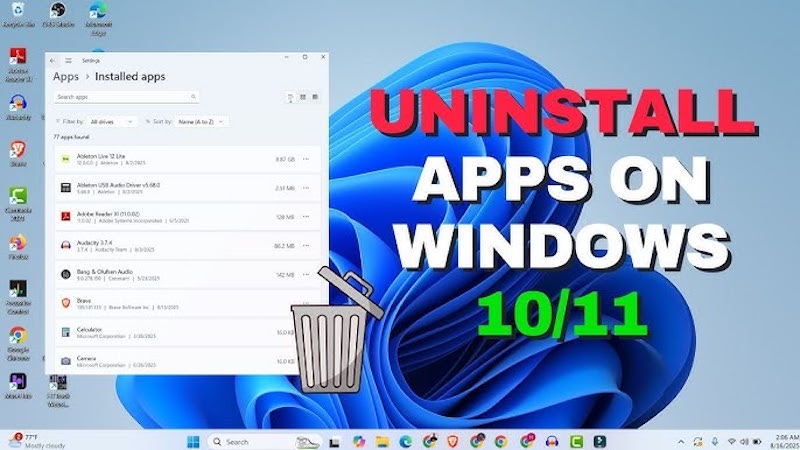
Step 2. Select Apps > Installed apps.
Step 3. Find the unwanted application and click its three-dot menu.
Step 4. Choose Uninstall and follow the prompts.
This can debloat Windows 11 without extra software, although some apps cannot be removed here and leftovers may remain.
Security suites may also require special removal procedures. For example, if you're replacing Norton antivirus, follow this guide on how to remove Norton from PC and ensure another security solution remains active.
How to Debloat Windows 11 with PowerShell
For targeted removal, the Windows 11 debloater PowerShell method can uninstall supported packages, such as Microsoft Solitaire Collection.
Step 1. Open PowerShell or Windows Terminal with a PowerShell tab.
Step 2. Check whether the package is installed for your account:
Get-AppxPackage -Name "Microsoft.MicrosoftSolitaireCollection"
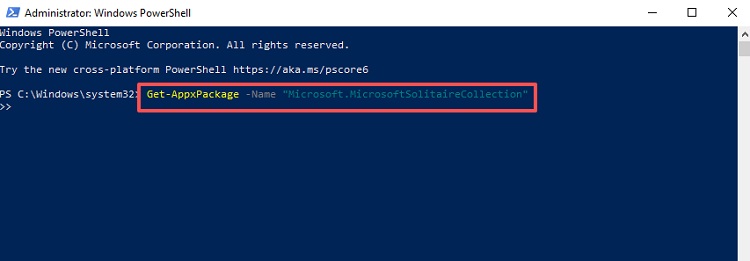
Step 3. If the app appears and you want to remove it, run:
Get-AppxPackage -Name "Microsoft.MicrosoftSolitaireCollection" | Remove-AppxPackage
Step 4. Run the first command again to confirm its current-user package is gone.
This targets the current account, not packages provisioned for future users. Avoid mass-removal commands that might affect essential Windows components.
What Bloatware Can You Safely Remove from Windows 11?
Before debloating, identify each application's purpose. Candidates include expired trials, unwanted games, promotional apps, and unused utilities. Check whether manufacturer apps control fans, keyboard shortcuts, or updates.
Avoid removing Windows Security, Microsoft Store dependencies, drivers, or core services. Doing so can break essential functionality.
Microsoft Edge also requires caution because uninstall availability depends on your Windows version and region. If you're considering its removal, consult this uninstall Microsoft Edge guide before making changes.
Back up important files and create a restore point before major changes; restore points cannot replace file backups. When in doubt, uninstall only one or two apps first and verify that your PC still works as expected.
Frequently Asked Questions About Windows 11 Debloater
Still wondering which Windows 11 debloater is right for your PC? Here are answers to common safety, download, and performance questions.
Is Using a Windows 11 Debloater Safe?
Usually, selective app removal is low risk. Problems are more likely when a tool disables essential services or removes packages you need. Stick to trustworthy sources and review each change.
If suspicious advertisements or browser redirects persist after uninstalling unwanted apps, follow a dedicated adware removal guide and scan your PC with reputable security software.
What Is the Best Free Windows 11 Debloater?
O&O AppBuster is a strong choice for free, portable Windows app removal. Win11Debloat offers broader script-based customization, while IObit Uninstaller Free supports everyday software cleanup.
Where Can I Find a Safe Windows 11 Debloater Download?
For a safe Windows 11 debloater download, use the developer's official website or verified GitHub repository. Avoid unknown download mirrors and bundled installers.
Will Debloating Windows 11 Improve Gaming Performance?
Removing unnecessary background applications may free some RAM or CPU resources, but FPS gains are not guaranteed. Drivers, graphics settings, and hardware still matter more.
Can I Restore Apps After Debloating Windows 11?
Often, yes. Some apps can be reinstalled from the Microsoft Store or their original installers; O&O AppBuster also supports reinstating eligible apps. Reversing advanced system tweaks may require additional steps.
Final Words: Choose the Right Windows 11 Debloater
The best Windows 11 debloater is the one that removes what you don't need without disrupting what you do. Windows Settings is sufficient for basic cleanup, while O&O AppBuster, Win11Debloat, and WinUtil offer different levels of control.
For straightforward unwanted-program removal plus residual cleanup, download IObit Uninstaller. Review your installed apps, remove unnecessary software selectively, and give your Windows 11 PC a cleaner start.
IObit Uninstaller Free
- Complete forced uninstallation for stubborn programs.
- Uninstall a batch of programs at once.
- Scan and remove leftover files, folders, and registry entries.
- Support the management of Universal Windows Platform apps.