Have you noticed the Windows Copilot icon on the Windows 11 taskbar? As AI grows more prominent on Windows 11, Copilot forms a core part of Microsoft’s AI strategy. However, not every user needs or prefers this built-in AI feature. When you find it unnecessary or intrusive, you can safely uninstall it. This post explains how to uninstall Copilot to achieve a cleaner, smoother Windows system.
Can You Remove Copilot from Windows 11
Some users are concerned about privacy, some think Copilot uses system resources, and others prefer a cleaner desktop experience. That’s why many people choose to uninstall Copilot.
Can you remove it? Is it OK to Uninstall Copilot? The answer is yes to both. Windows Copilot is not a critical Windows 11 component. Without it, your PC can work well. Now, learn how to uninstall Copilot Windows 11.
How to Uninstall Copilot Manually via Windows Built-in Methods
Windows offers two built-in ways to remove Copilot: Windows Settings and Control Panel. These methods are free and easy, and they can meet your basic uninstall needs. Note that these native ways cannot uninstall Copilot completely. When you need to achieve full removal, refer to the next section. Now, follow the guides below for basic removal.
Uninstall Copilot via Windows Settings
Windows Settings comes with a dedicated uninstall feature. This is the most-used manual uninstall path for Windows users.
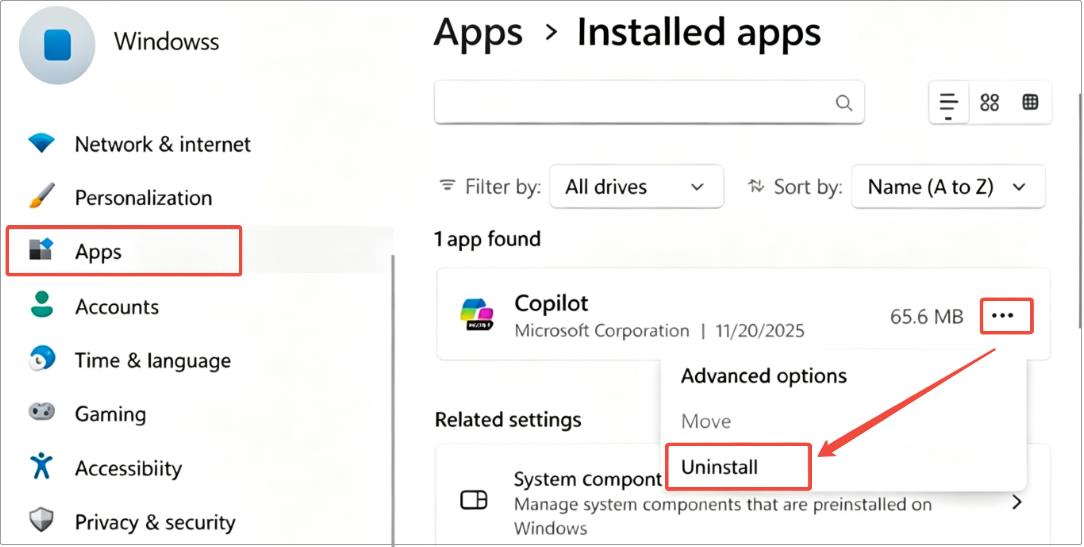
Step 1. Press Win + I to open Settings, go to the Apps tab, and select Installed apps.
Step 2. Find Copilot, click the three-dot icon, choose Uninstall, and follow the on-screen instructions to finish the process.
Uninstall Copilot in Control Panel
Control Panel offers a straightforward way to remove Copilot, and the whole process is quite simple.
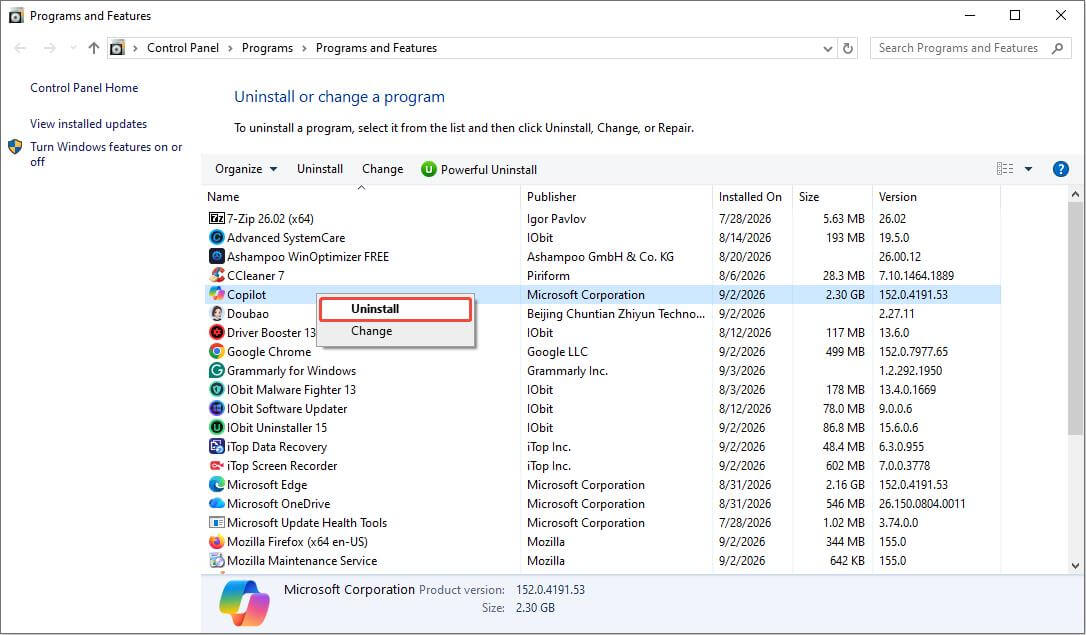
Step 1. Search for Copilot in the Windows Search bar, right-click it, and choose Uninstall.
Step 2. Select Copilot, right-click it, choose Uninstall, and follow the wizard to complete the uninstallation.
As mentioned earlier, these methods cannot fully uninstall Copilot. It will leave residual files that trigger odd background processes, waste disk space, etc. What’s more, sometimes, Copilot may not appear in the app list because of its deep integration with Windows.
To tackle these problems, you need an automated tool for easy and complete uninstallation. Now, keep reading to get it.
How to Uninstall Copilot in One Click with IObit Uninstaller Completely (Automatic)
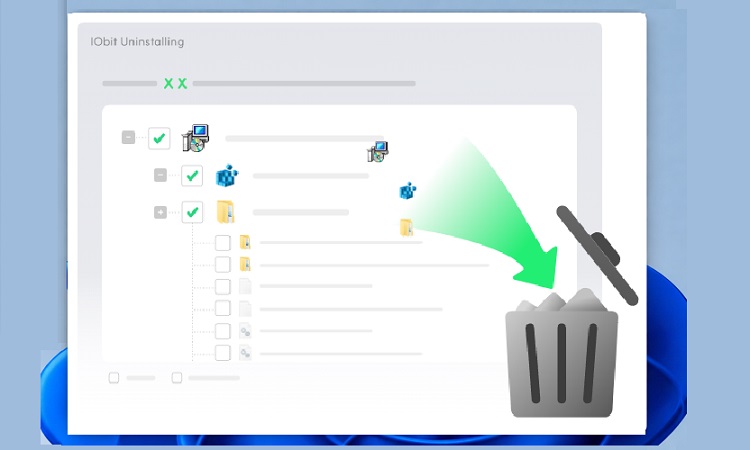
Manual Windows uninstall options come with drawbacks. IObit Uninstaller streamlines the whole process with one-click removal. Whether Copilot shows up in the app list or not, it scans and wipes related leftovers for deep uninstallation.
IObit Uninstaller Free
- Complete forced uninstallation for stubborn programs.
- Uninstall a batch of programs at once.
- Scan and remove leftover files, folders, and registry entries.
- Support the management of Universal Windows Platform apps.

Key Advantages of This Automated Copilot Uninstall Tool
As one of the best uninstallers for Windows 11, IObit Uninstaller comes with the following features for Copilot removal.
Detects hidden Copilot: It can detect and list hidden Windows Copilot that fails to show up inside the Windows app list.
Removes all associated residuals: It can wipe leftover files, folders and registry traces together with the main Copilot program automatically.
Forces uninstall software: It can force uninstall software, such as Copilot, Firefox, when it gets corrupted, its native uninstaller malfunctions, or Windows built-in utilities cannot remove it.
Supports diverse software types and batch uninstall: Besides Copilot, this tool handles tricky desktop apps, Microsoft Store apps, and more, and it can uninstall multiple apps at once to save your time.
Owns Install Monitor: It logs system changes during installation. When uninstalling later, it clears all related traces at once based on the logs to avoid leftovers.
Steps to Uninstall Copilot in IObit Uninstaller without Leftovers
With strong compatibility, this tool supports Windows 11/10/8.1/8/7. Now, download it to your PC, then learn how to remove Copilot from Windows 11 fully.
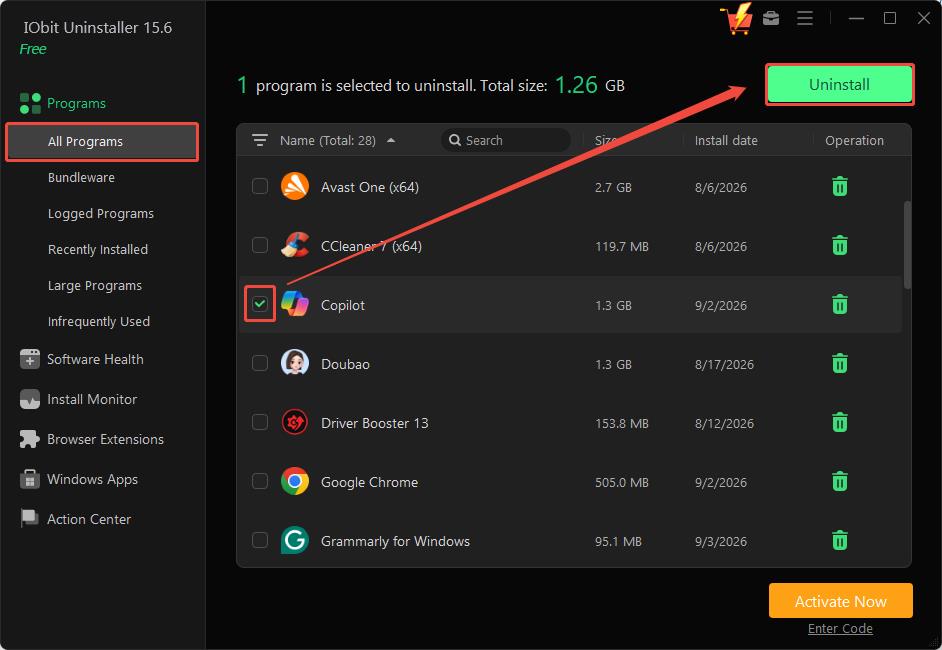
Step 1. Launch IObit Uninstaller on your computer, and enter the All Programs tab.
Step 2. Find and tick Copilot, then click the green Uninstall button as shown in the image below.
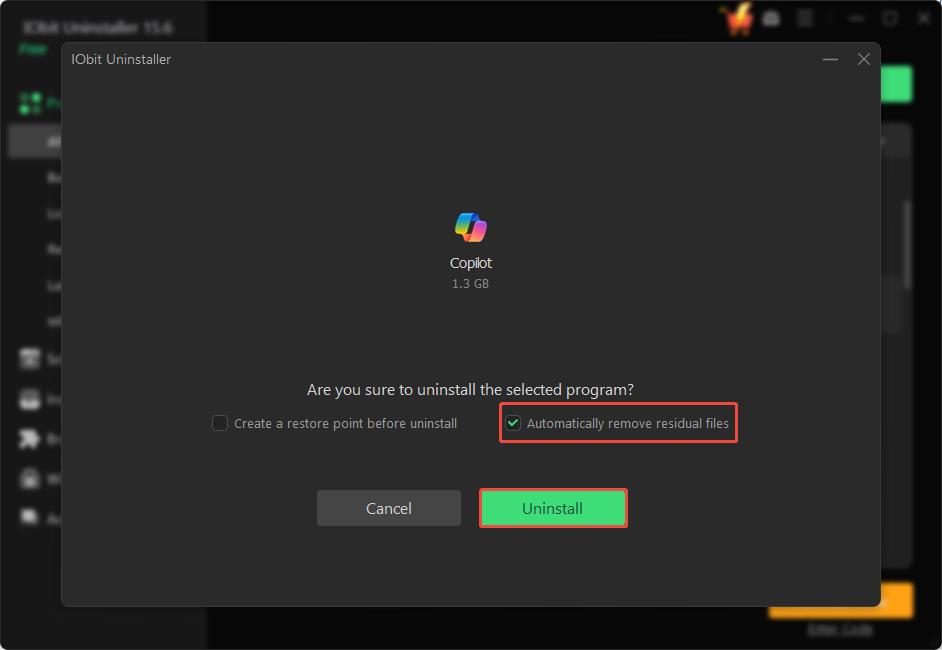
Step 3. In the pop-up window, check Automatically remove residual files, and click Uninstall.
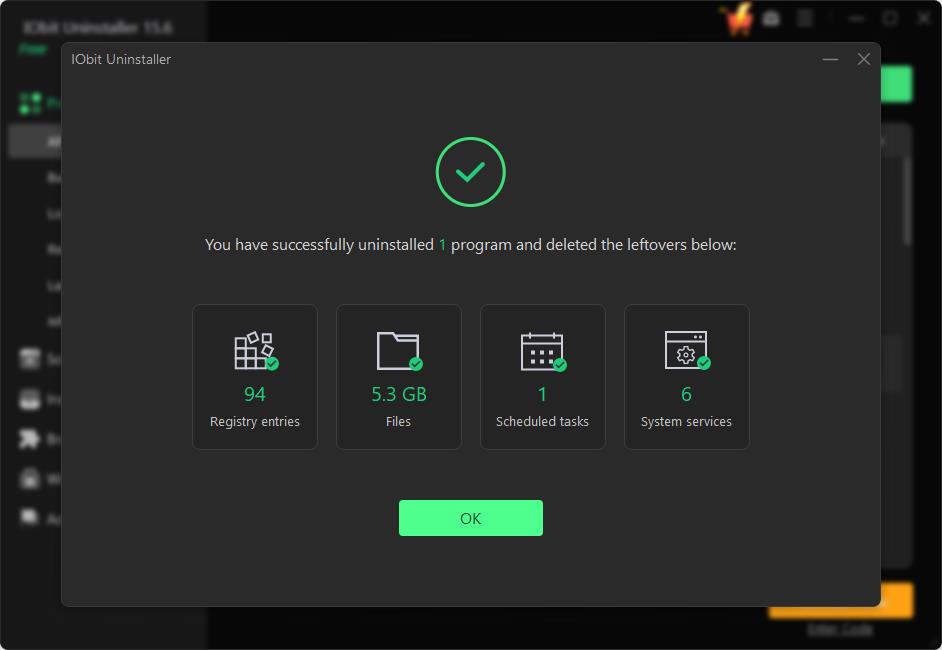
Step 4. When it completes, a window will show how many entries and files are deleted.
Beyond uninstall-related capabilities, IObit Uninstaller packs extra practical utilities to maintain your Windows system. It can remove browser extensions, detecting and deleting unwanted or suspicious add-ons for Chrome, Edge, and Firefox. What’s more, it comes with Software Health, detecting and cleaning leftovers, outdated apps, redundant files, and risky software settings.
Overall, this Uninstaller covers nearly all common Windows software-removal and basic system-maintenance needs. Download and try it for cleaner, safer uninstall tasks.
Bonus: How to Prevent Copilot from Reappearing - Disable Copilot at System Level
For most users, the previous uninstall steps are sufficient. Although the chance of Copilot reappearing after Windows updates is quite low, you can take this extra step if you want to rule out this risk entirely.
Copilot may remain dormant in your system after basic removal, and Windows cumulative updates could re-activate it. Disabling Copilot at the system level blocks its core functions at the operating-system layer to reduce this risk.
Below are available options for different Windows 11 editions. Select the proper one according to yours and follow the corresponding steps.
Option 1: For Pro/Enterprise - Disable Copilot via Group Policy
Step 1. Press Win + R, type gpedit.msc, and hit Enter to launch Local Group Policy Editor.
Step 2. Go to User Configuration > Administrative Templates > Windows Components > Windows Copilot.
Step 3. Double-click Turn off Windows Copilot, tick the Enabled option, and click OK.
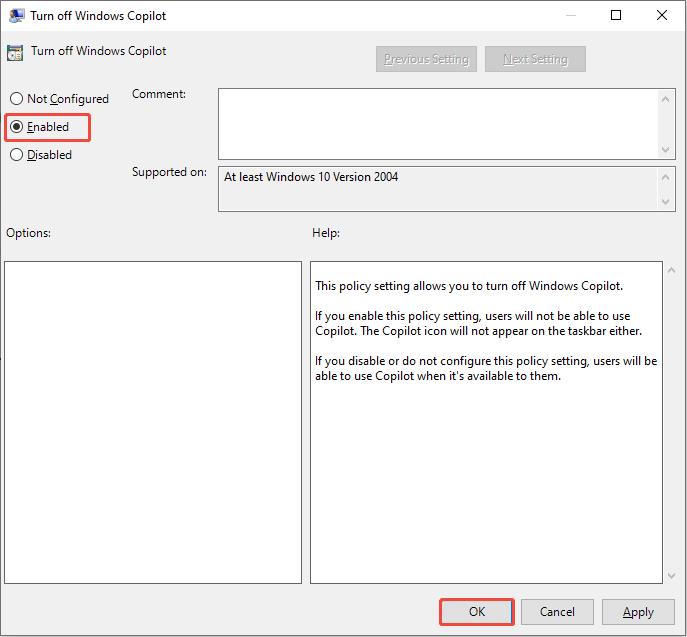
Step 4. Restart your Windows PC, and Copilot will be disabled after reboot.
Option 2: For Windows Home - Disable Copilot via Registry Editor
Step 1. Press Win + R, type regedit, and press Enter to open Registry Editor.
Step 2. Navigate to this path in the left sidebar:
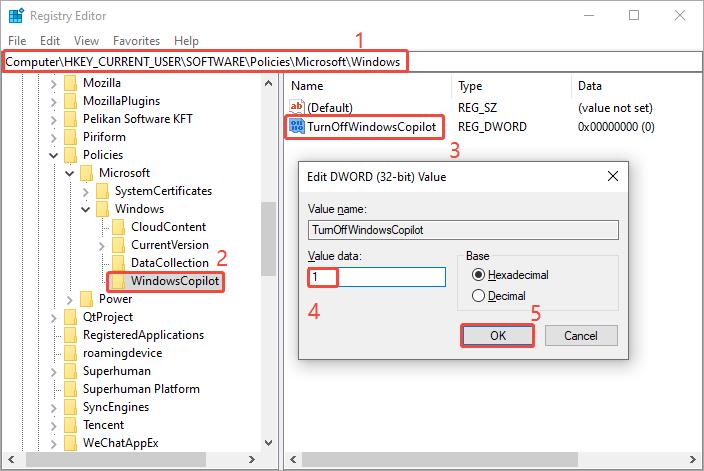
Computer\HKEY_CURRENT_USER\SOFTWARE\Policies\Microsoft\Windows
Step 3. Right-click the Windows folder, choose New > Key, and name the new key WindowsCopilot.
Step 4. In the right pane, right-click the blank area, choose New > DWORD (32-bit) Value, and name it TurnOffWindowsCopilot.
Step 5. Double-click TurnOffWindowsCopilot, set Value data to 1, then click OK.
Step 6. Reboot your computer to apply the change. Copilot will be disabled after restart.
The Bottom Line
The demand for uninstalling Windows Copilot keeps growing among Windows 11 users. Though it may feel overwhelming for some of you, this article walks you through both manual and automatic approaches, explaining how to uninstall Copilot. Wish you a quick, successful uninstall so you can put this issue behind you.