Imagine you’ve just finished a software trial period that came bundled with unwanted extras. Your Start menu is filled with unused programs, and your storage space keeps shrinking. At this point, you simply want to remove everything. However, Windows only allows you to remove programs one at a time. The process is not only time-consuming but also leaves behind unnecessary files. So, how to uninstall multiple apps at once? This guide is here for you. You can discover several useful methods and the best tools that can make this job fast and safe. Don’t miss out!

Can You Delete Multiple Apps at Once on Windows 11/10
Before looking into the ways to uninstall multiple programs at once Windows 10/11, let’s see methods for uninstallation on Windows. Generally, there are two approaches. One is to go to Settings > Apps > Installed apps and choose one app to uninstall; another is to go to Control Panel > Programs > Programs and Features, then find a program to uninstall.
However, both methods only allow you to remove one app at a time. So, how to delete multiple apps at once on Windows? The only native workaround is Command Prompt, which we will explore next. The method is a bit complicated, so just read on to find specific step-by-step instructions!
How to Uninstall Multiple Apps at Once Windows 11/10 with Commands
Command Prompt is a built-in Windows tool that allows you to execute system commands and automate tasks via text-based input. You can use it to uninstall multiple applications more efficiently without navigating through multiple menus. However, it requires extra caution because entering an incorrect app name or ID could uninstall the wrong software.
Here’s how to uninstall multiple apps at once Windows 11/10 with it easily.
Step 1. Search for Command Prompt and open the tool.
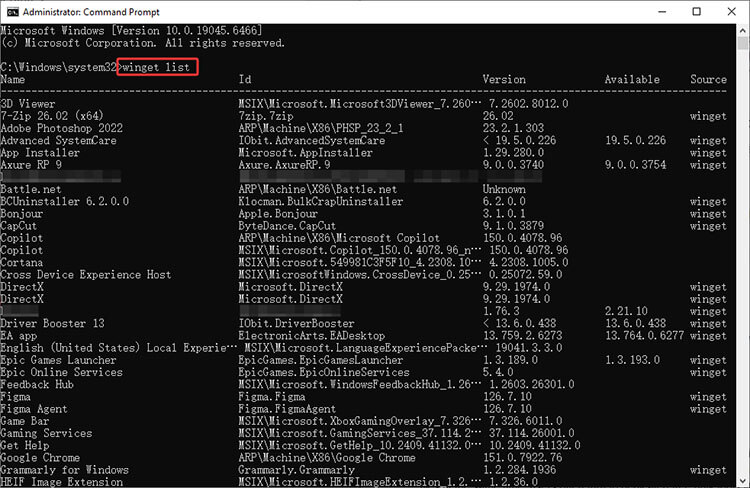
Step 2. Type the following command and press Enter to view all installed applications:
winget list
Carefully review the list and note the exact IDs of the applications you want to remove.
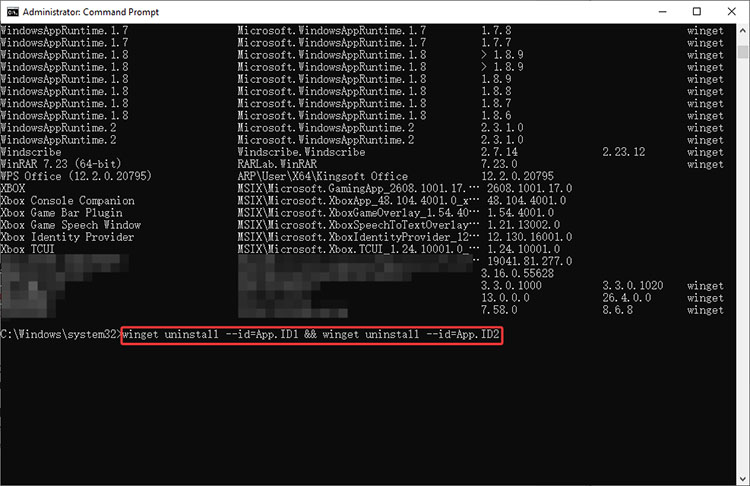
Step 3. Then run a combined uninstall command like this:
winget uninsta11 --id=App. ID1 && winget uninsta11 --id=App. ID2
You can replace each AppID with the correct program ID. Follow on-screen prompts to complete the uninstall process.
3 Best Bulk Uninstallers to Do What Windows Can’t Do
While the Command Prompt method is powerful, it can be slow and complicated, which is not ideal for average users. Moreover, it can not remove extensions, leftover files, or registry entries. Your system may still retain unnecessary data even after uninstalling programs.
If you are looking for a safer and more thorough solution, a dedicated bulk uninstaller is what you need. It allows you to select multiple items and remove them efficiently in one go. In this part, let’s check out the 3 best bulk uninstallers one by one.
1. IObit Uninstaller - Bulk Uninstall Programs & Extensions
IObit Uninstaller is an easy-to-use tool that supports batch uninstallation on Windows. This lightweight batch uninstaller can help you remove stubborn programs, Windows apps, browser extensions, and residual junk files that standard Windows uninstallers often leave behind. What makes things even better, it’s completely free to use.
How to uninstall multiple apps at once Windows 10/11?
Step 1: Download and install IObit Uninstaller on your Windows PC.
Step 2: Go to Programs > All programs. Choose multiple apps you want to remove here. Click Uninstall to proceed.
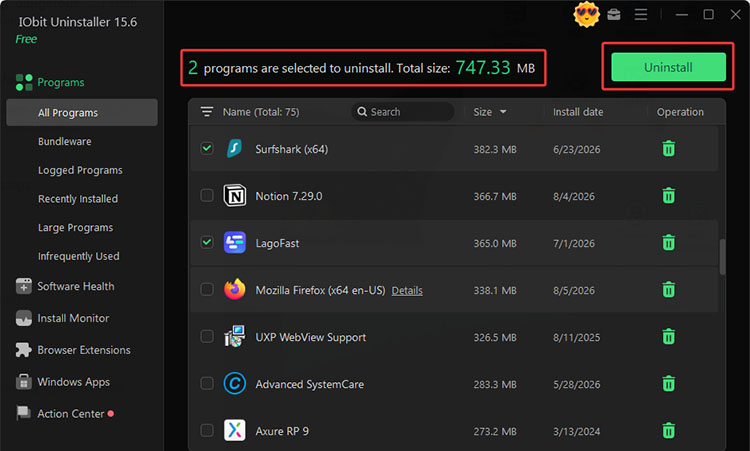 Step 3: In the next window, click on Automatically remove residual files to get rid of the leftovers.
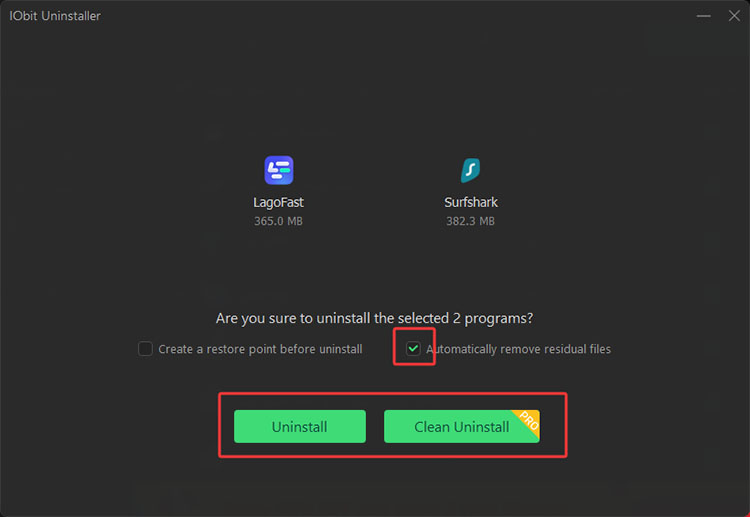
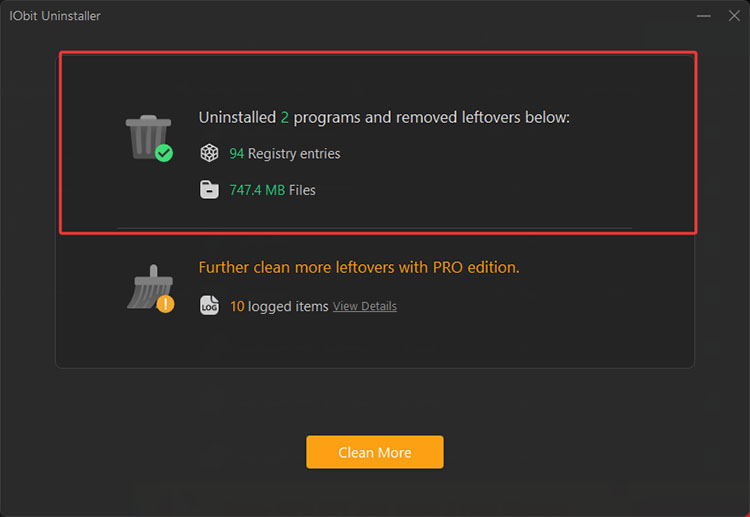
Step 4. IObit Uninstaller will perform a thorough clean and uninstall all the apps and their leftovers altogether.
Features:
• Uninstall Multiple Programs at Once Windows 10/11 & More
IObit Uninstaller is highly accessible and compatible with nearly all Windows versions. It’s the best free uninstaller for Windows 11/10/8/7/Vista/XP to remove multiple apps quickly and easily.
• Bulk Uninstall All You Want, Even Extensions
The batch uninstaller supports removal of all kinds of apps. For instance, third-party desktop apps, Microsoft apps, and browser extensions from Chrome, Edge, Firefox, and more.
• Remove Apps Completely Without Leftovers
IObit Uninstaller can force uninstall program and their leftovers thoroughly. You can remove residue folders, registry entries, and temporary data to achieve a cleaner PC.
• Monitor & Care for Install and Uninstall
Its Install Monitor tracks system changes during installations, and Software Health scans installed programs for potential issues, which helps you better manage software and maintain system stability.
IObit Uninstaller Free
- Complete forced uninstallation for stubborn programs.
- Uninstall a batch of programs at once.
- Scan and remove leftover files, folders, and registry entries.
- Support the management of Universal Windows Platform apps.

Drawbacks:
2. Bulk Crap Uninstaller - In-depth, Open-Source, and Customizable
Bulk Crap Uninstaller (BCU) is a free, open-source bulk program uninstaller known for its advanced automation and thorough software removal capabilities. It can successfully handle large-scale app removals and stubborn program cleanup on Windows. With leftover cleanup, forced uninstall, and support for portable or unregistered applications, it’s a powerful choice for users who look for flexible software management.
How to uninstall multiple programs at once Windows 10?
Step 1. Download the software from the official site and launch it.
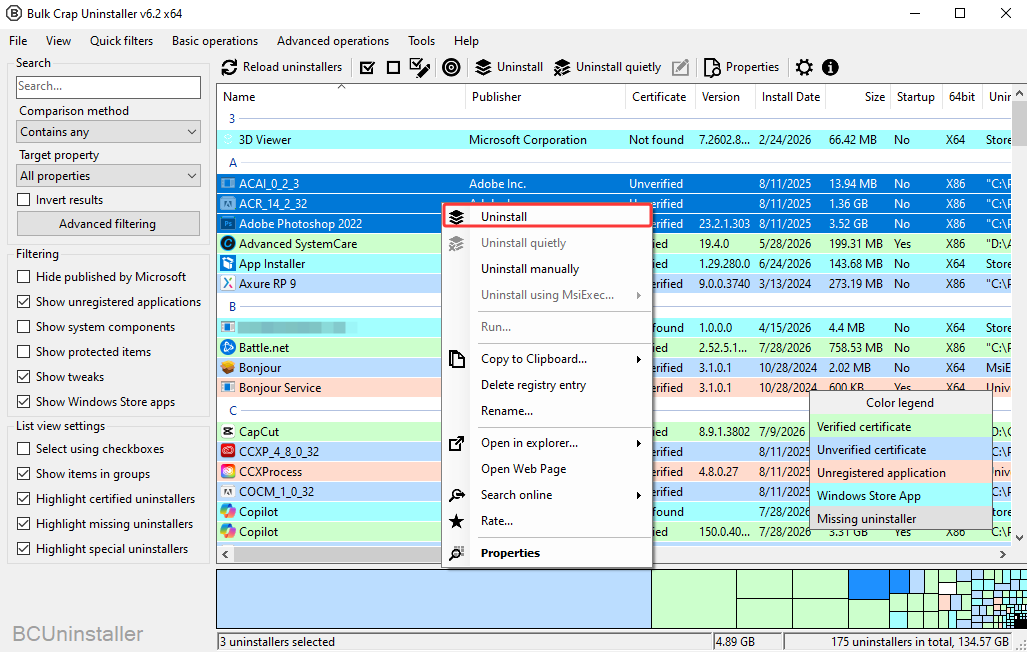
Step 2. Use the left-side filters (by publisher, size, install date, etc.) or the search box to narrow the list. Select multiple apps/entries for uninstallation.
Step 4. Right-click on the apps and choose Uninstall to confirm the removal.
Key features:
Advanced Filtering: Its powerful filtering system lets you quickly narrow down large app lists by name, type, and custom rules using regular expressions (Regex), which makes it easier to identify and batch-remove unwanted software.
Thorough App Detection: It detects a wide range of applications, including regular, hidden/damaged apps, portable/Windows Store apps, Steam games, Chocolatey packages, and other programs.
Automated Uninstall Options: The uninstaller can automatically uninstall applications based on predefined conditions with no user input. It can also quietly remove many programs that do not support native silent uninstallation.
Drawbacks:
3. HiBit Uninstaller - Batch Uninstaller with Useful Tools
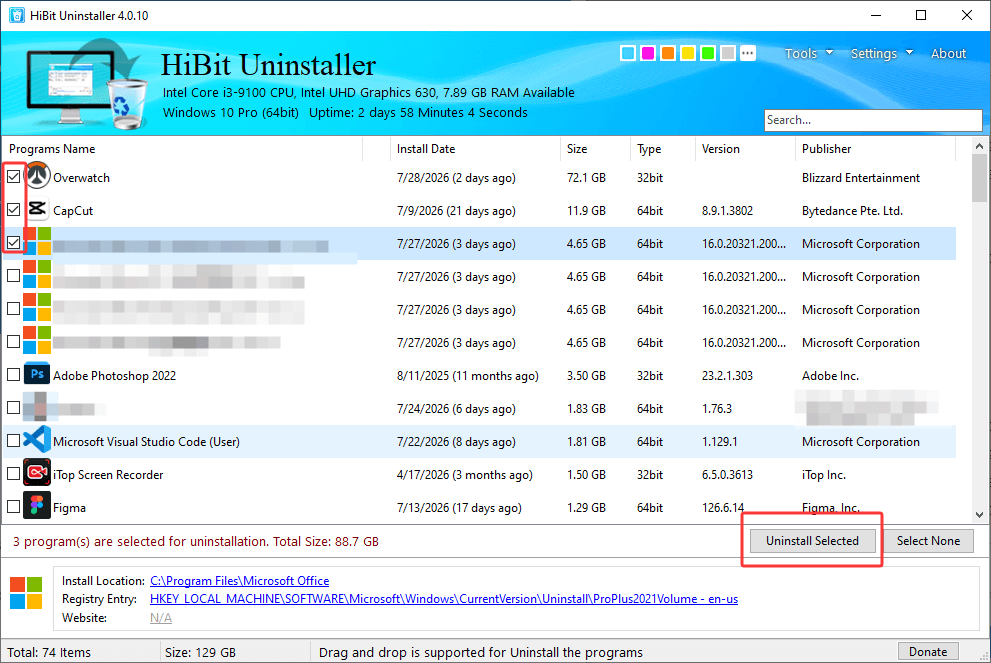
If you want a lighter, simpler option, HiBit Uninstaller is a free Windows tool designed to remove stubborn programs quickly and thoroughly. It combines ease of use with deep cleaning, which can delete leftover files, folders, and registry keys on your PC. It also supports batch uninstall, force removal for broken apps, and useful built-in system optimization tools.
How to delete multiple apps at once?
Step 1. Launch the software on your Windows PC. It will list all the installed apps.
Step 2. Select several apps you want to remove.
Step 3. Click on Uninstall selected to delete multiple apps at once.
Key Features:
Force Uninstall & Leftover Scanner: Built-in force uninstall and leftover scanning can remove programs even when their original uninstallers are broken or unable to complete the removal process.
Comprehensive Toolbox: Provides a junk-file cleaner, empty-folder finder, registry cleaner, startup manager, file shredder, etc., for tidying up your system after bulk software removal.
Broad App Support: Supports Windows Store apps and browser extensions. Plus, an interface that makes everyday software management straightforward.
Drawbacks:
FAQs About Bulk Uninstalls
With the methods and apps introduced above, you can uninstall all Windows apps and clean up leftovers easily. In this part, let’s check out some more common questions about bulk app removal.
Q1: Will a Bulk Uninstaller Remove Leftovers?
A1: Yes. Many dedicated bulk uninstallers can remove leftover files and folders after uninstalling programs. The three software options introduced above—IObit Uninstaller, Bulk Crap Uninstaller, and HiBit Uninstaller also provide leftover scanning and cleanup features to help remove residual data.
Q2: Can I Batch Uninstall Microsoft Store Apps?
A2: Yes. Some batch uninstallers support Microsoft Store apps. All of the 3 recommended software earlier can detect Windows Store apps for simultaneous removal.
Q3: Is There a Free Bulk Uninstaller to Uninstall Multiple Apps at Once?
A3: Yes. IObit Uninstaller, Bulk Crap Uninstaller, and HiBit Uninstaller all offer free versions that support multiple-app removal. They can help you select and uninstall unwanted programs in batches.
Q4: How to uninstall multiple programs at once on macOS?
A4: macOS does not provide a built-in feature for batch-uninstalling applications. You will need to use a third-party uninstaller that supports batch removal to uninstall multiple apps and clean up their associated files.
Final Thoughts
How to uninstall multiple apps at once? A bulk uninstaller is the best tool that comes in handy, and now you have the 3 best choices. Among the options covered, IObit Uninstaller is an outstanding tool with its batch uninstall, leftover cleanup, and software health features. Download IObit Uninstaller to simplify app removal and keep your Windows PC clean easily from now on!
IObit Uninstaller Free
- Complete forced uninstallation for stubborn programs.
- Uninstall a batch of programs at once.
- Scan and remove leftover files, folders, and registry entries.
- Support the management of Universal Windows Platform apps.