If you've ever been browsing the web or streaming a video and suddenly—bam—a flood of random pop-ups hijacks your screen, you're not alone. Millions of users deal with adware every single day, and it's genuinely frustrating. What can we do? Actually, adware removal can be easy. In this guide, we'll introduce you to the 5 best adware remover options for Windows and Mac in 2026.
What is Adware & Why Do You Need Adware Removal?
Adware—short for advertising-supported software—is a type of unwanted program that automatically displays ads on your screen, redirects your browser, or injects pop-ups into websites you visit. While not always outright malicious, adware can seriously degrade your device's performance and compromise your privacy by tracking your browsing habits.
An adware removal tool scans your system for known adware signatures, browser hijackers, and potentially unwanted programs. Once detected, it deletes the offending files, cleans up browser extensions, and reverses any system changes the adware made. Beyond just cleaning, many modern tools offer real-time protection to block adware before it ever gets installed, keeping your online security intact.
Quick Summary of the 5 Best Adware Removal Tools 2026
The table below gives you a side-by-side look at what each adware removal tool does best, how much it costs, and which systems it supports—so you can narrow down your options at a glance.
Adware Remover |
Key Features |
Price |
Best for |
OS Compatibility |
TotalAV |
Real-time antivirus, ad blocker, browser cleanup |
Free & Paid |
Non-technical users |
Windows, Mac, Android, iOS |
IObit Uninstaller |
Bloatware remover, batch uninstall, force uninstall |
Free |
Complete Windows cleanup |
Windows PC |
| IObit Malware Fighter |
Real-Time adware protection, anti-malware engine, anti-tracking |
Free |
Automatic adware detection & removal |
Windows PC |
Malwarebytes AdwCleaner |
Portable tool for cleaning adware, browser hijackers, and unwanted software |
Free |
Removing adware and unwanted browser components |
Windows |
MalwareFox Adware Removal |
Anti-adware engine, browser cleaner, real-time defense |
Free & Paid |
Advanced malware detection |
Windows, Android |
Intego ONE |
Mac-specific antivirus, adware removal, firewall |
Paid |
Mac users |
Mac |
Now that you have an overview of these adware cleaners, it’s time to take a closer look at them one by one.
TotalAV: Good Adware Remover for Non-Technical Users
TotalAV is a great pick if you want a simple, no-fuss adware removal tool that covers broader security too. It’s made for non-tech-savvy users, with a clean interface, fast scans, and nothing complicated to configure.
Rating: 4.0
OS: Windows PC, Mac, Android, iOS
Best for: Users who want easy, all-in-one protection
Core Features:
Real-time antivirus protection that actively blocks threats
Built-in ad blocker to eliminate pop-ups and intrusive ads
Browser cleanup to remove tracking cookies and unwanted extensions
System tune-up tools that safely uninstall unused applications
WebShield to block phishing and malicious websites
Pricing:
When to Use It:
How It Works for Adware Removal:
Step 1. Download TotalAV from the official website and install it.
Step 2. Launch the app and run a Smart Scan. The tool will scan your system for adware, malware, and other threats.
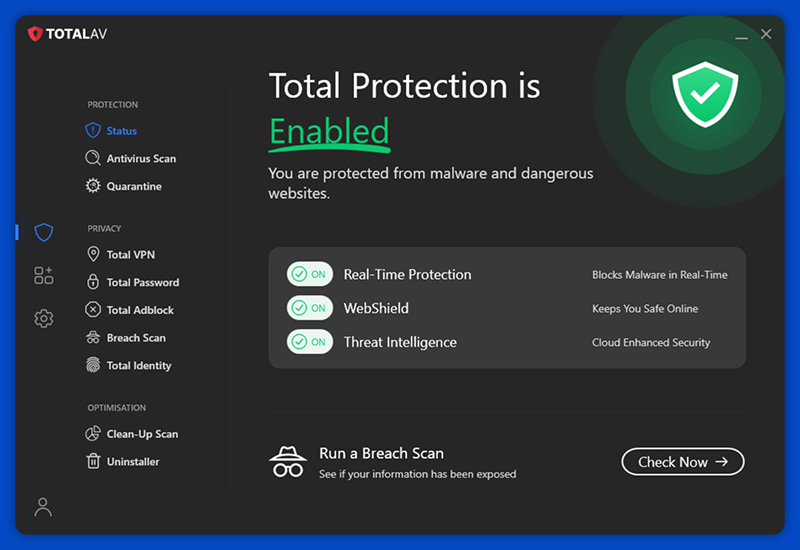
Step 3. Review the scan results and click "Fix All" to remove detected adware and clean up your browser.
IObit Uninstaller: Clean Adware Removal with Bloatware Remover
If you're looking for adware removal free of charge, IObit Uninstaller is worth considering. As one of the best uninstallers for Windows 11, it offers a Bloatware Remover that helps detect and remove preinstalled adware and unwanted programs.
IObit Uninstaller Free
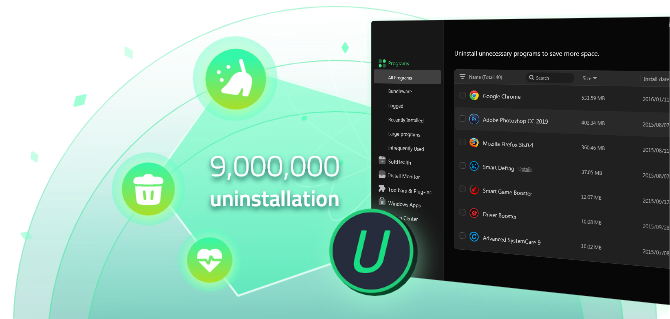
- Complete forced uninstallation for stubborn programs.
- Uninstall a batch of programs at once.
- Scan and remove leftover files, folders, and registry entries.
- Support the management of Universal Windows Platform apps.
Core Features:
Instant Adware & Bloatware Removal for Free: With its free Bloatware Remover, you can identify and remove unwanted software, including preinstalled adware.
Batch Removal for Unwanted Adware/Programs: Select multiple junk programs at once and remove them in a single action.
Clean & Easy Uninstall for Large Programs: Drag any program's icon onto the IObit Uninstaller window, and the best uninstaller for Windows 11 will handle the rest.
Force Uninstall Those You Can't Remove: IObit's force uninstall program Windows 11 aggressively removes these programs and cleans up leftover files and registry entries.
More Useful Tools for Program Removal: The Stubborn Program Remover and Install Monitor give you extra control over what stays on your system.
Pricing: Free to use
When to Use It:
How to Completely Remove Preinstalled Adware from PC
Step 1. Download and install IObit Uninstaller on your PC.
Step 2. Launch the program, then find the Toolbox and select Bloatware Remover. The tool will scan your system for preinstalled adware and unnecessary programs.
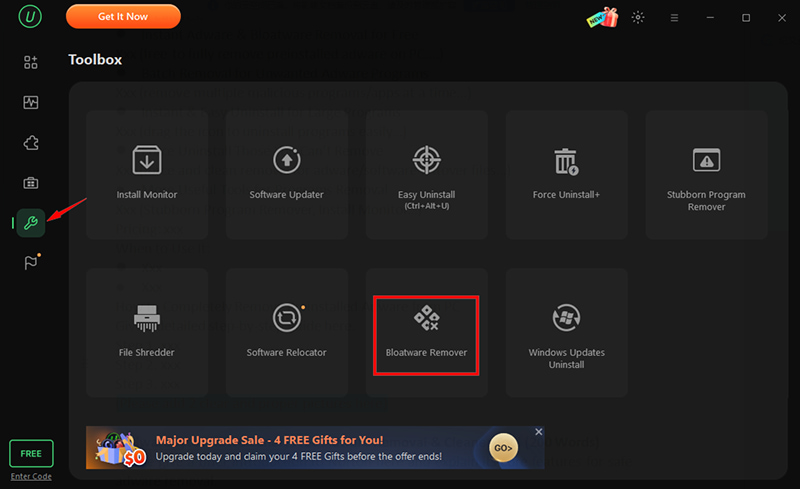
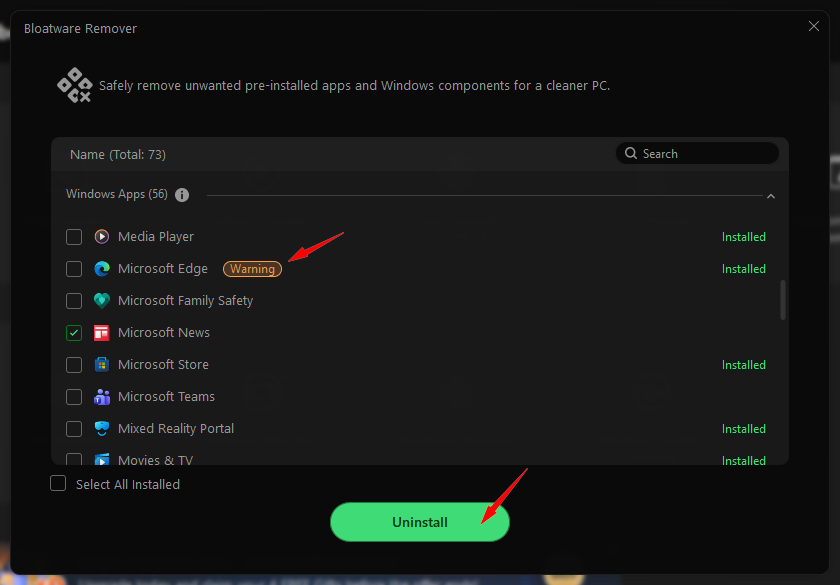
Step 3. Check the preinstalled adware you want to remove, then click Uninstall.
If you're dealing with stubborn programs that won't uninstall normally, check out our guide on how to force uninstall programs Windows 11 for additional solutions.
IObit Malware Fighter - Real-Time Protection for Adware & Malware
If you’re looking for an adware remover for real-time protection, IObit Malware Fighter is an effective, user-friendly tool designed to safeguard your PC against hidden threats. It’s an ideal solution for maintaining a clean, fast system.
Core Features:
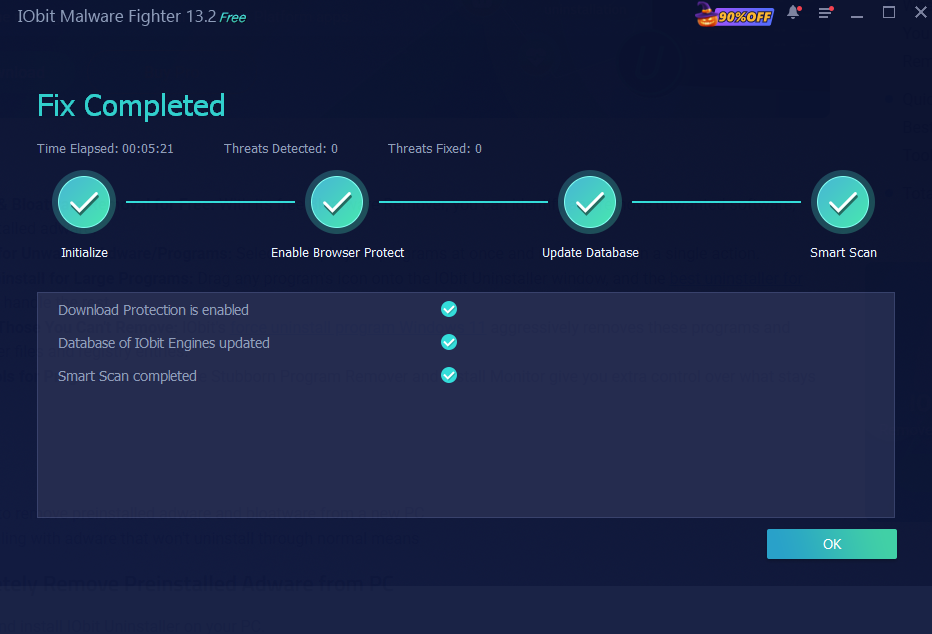
Combines IObit, Bitdefender, and Anti-Ransomware engines for comprehensive defense.
Real-time protection for adware, spyware, trojans, and other viruses.
Full adware detection with multiple scanning modes.
Cleans malicious browser extensions and tracking cookies.
Provides automatic Anti-tracking and DNS protection.
Pricing: Free to use
When to Use It:
How It Works for Adware Removal
Step 1. Free download & install on your PC.
Step 2. Click “Smart Scan” to run a quick detection of adware in your system.
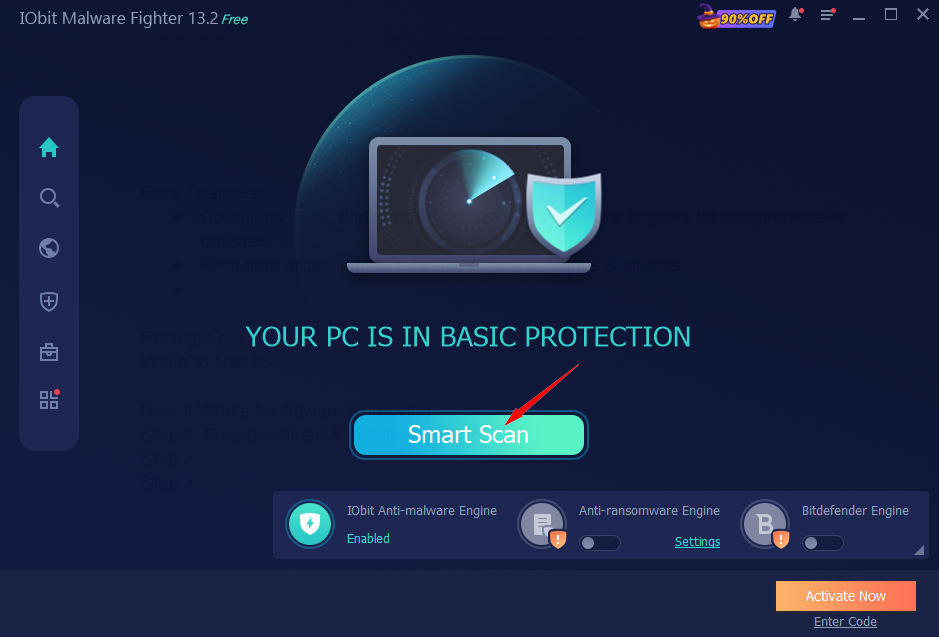
Step 3. After scanning, remove all hidden adware threats with one click. (Enable more antivirus options to maximize your PC security.)
Malwarebytes AdwCleaner: Free Adware Removal & Cleaner Tool
Malwarebytes AdwCleaner is arguably the most popular free adware cleaner out there. This lightweight, portable tool targets adware, browser hijackers, toolbars, and PUPs. And since it needs no installation, you can run it straight from a USB drive—super handy for cleaning an infected machine.
Core Features:
Portable scanner that requires no installation
Deep scanning for adware, spyware, and browser hijackers
Removes unwanted toolbars and browser extensions
Cleans tracking cookies and resets browser settings
Updated detection databases help AdwCleaner recognize emerging adware threats
Pricing: Free for a standard plan
When to Use It:
How It Works for Adware Removal:
Step 1. Download AdwCleaner from the official Malwarebytes website. No installation is needed—just run the executable file.
Step 2. Click the Scan button. AdwCleaner will quickly examine your system for adware, browser hijackers, and other unwanted programs.
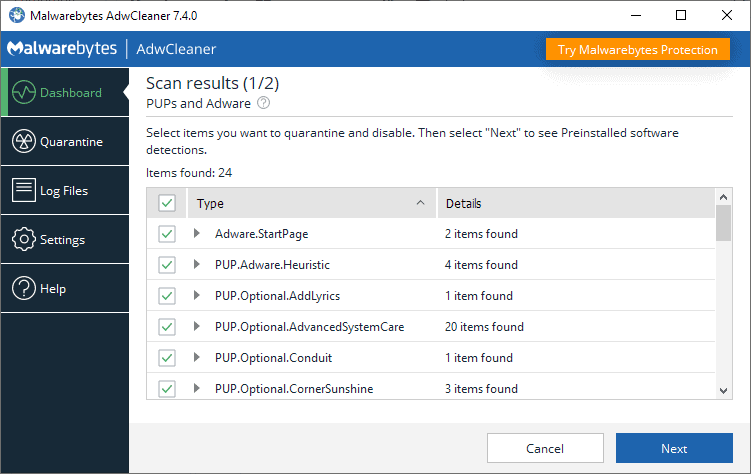
Step 3. After the scan is complete, check the detected items and click to remove them. You may need to restart your computer to complete the process.
And if you've been meaning to clean up your browser, learning how to remove extensions can make a big difference in preventing adware from creeping back in.
MalwareFox Adware Removal: Advanced Malware Detection
If you want to know how to remove adware completely, MalwareFox is the reliable adware removal tool you are searching for. It's a lightweight anti-malware solution that punches well above its weight class, using behavioral analysis to catch adware that signature-based scanners might miss.
Core Features:
Anti-Adware engine that detects and removes unwanted ads, pop-ups, and hijacking software
Browser Cleaner for clearing browser hijackers, adware, and unnecessary toolbars
Real-time protection against ransomware, spyware, and zero-day threats
Lightweight design using less than 50 MB of RAM
No pop-ups, no data selling—just straightforward protection
Pricing:
When to Use It:
How It Works to Remove Adware:
Step 1. Download MalwareFox and install it.
Step 2. Run a full system scan. MalwareFox will analyze running processes, browser settings, and installed programs for adware.
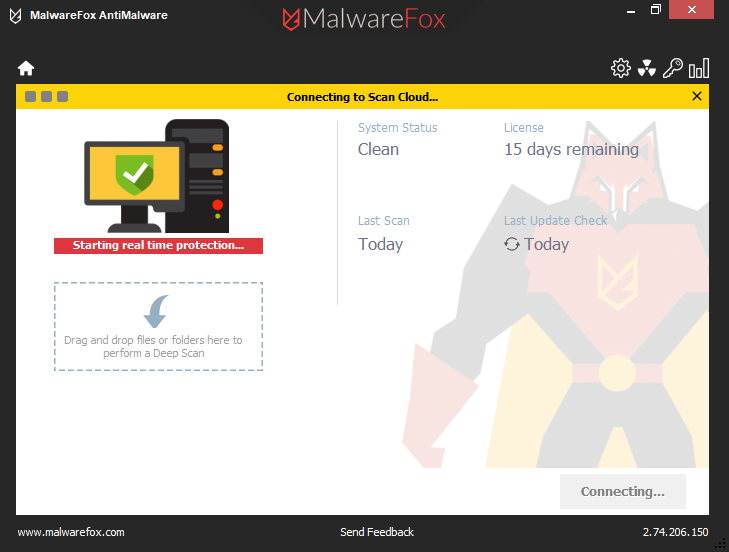
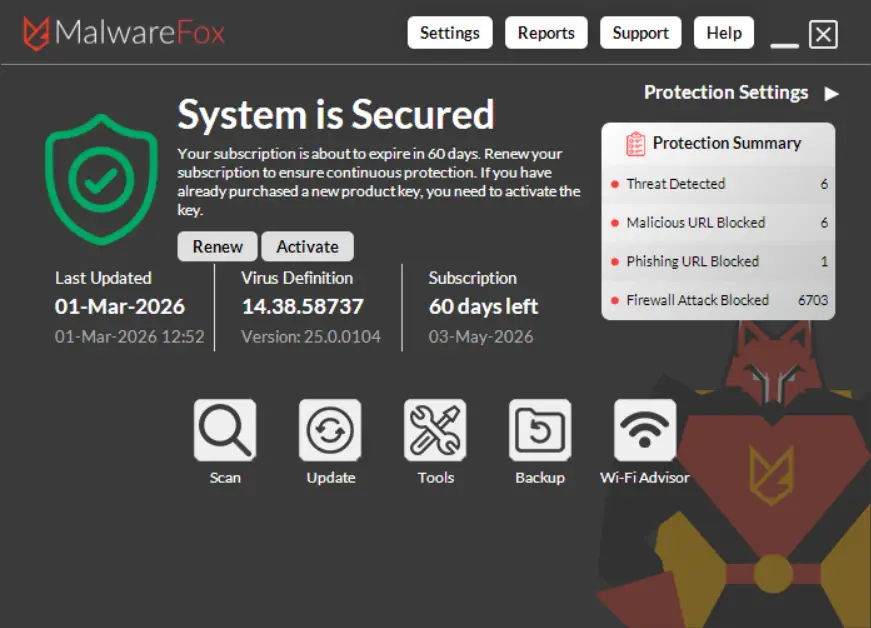
Step 3. Review the scan results and click "Remove" to eliminate detected adware and any associated browser hijackers.
For a more thorough cleanup, see our guide on how to deep uninstall apps on Windows 11 to learn how to remove leftover files after uninstalling a program.
Intego ONE: Excellent Adware Removal Tool for Mac Users
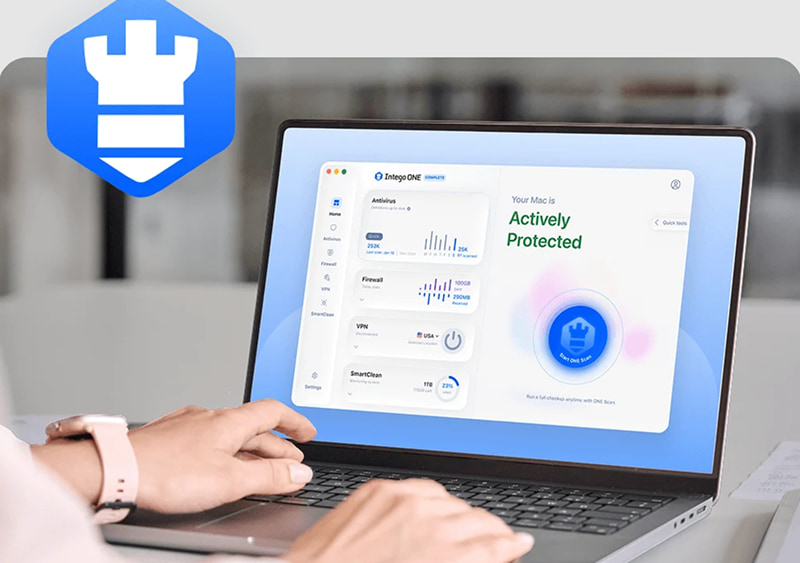
Mac users often think they’re immune to adware, but that’s not true. Intego ONE is built specifically for macOS, pairing real-time antivirus with dedicated adware removal. Add in a firewall and system optimization tools, and it’s a strong all-around choice for Mac owners.
Core Features:
Detects and eliminates viruses, spyware, adware, and other malware in real time
Built-in firewall to monitor incoming and outgoing connections
SmartClean optimization tools to keep your Mac running smoothly
Mac-specific threat detection that understands macOS adware patterns
Pricing:
Essential (Antivirus + Firewall):
• 1 Device: $29.99 for the first year
When to Use It:
How It Works for Adware Uninstalling:
Step 1. Download and install Intego ONE.
Step 2. Open the app and run a full scan. Intego ONE will check your Mac for adware, malware, and other threats.
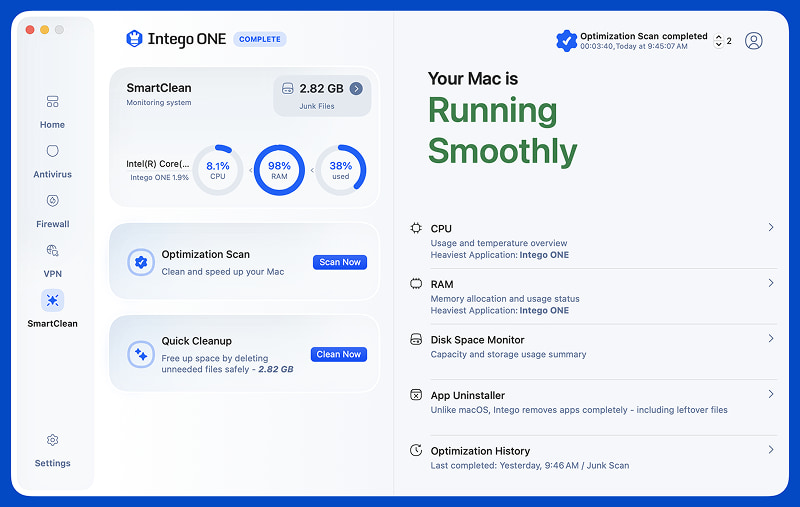
Step 3. Review the detected items and click "Fix" to remove adware and any related files.
Looking to remove a specific browser instead? Check out our guide on how to uninstall Microsoft Edge for detailed instructions and available options.
FAQs About Adware Removal Tools
1. Is adware removal tool safe to use?
Yes, reputable adware removal tools from established companies like Malwarebytes, IObit, and TotalAV are safe.
2. What's the main difference between adware removal and antivirus software?
Adware removal focuses specifically on adware, browser hijackers, toolbars, and PUPs—cleaning up unwanted ads and browser changes. Antivirus software protects against a broader range of malware, including viruses, Trojans, ransomware, and spyware. They overlap, and many security suites include both.
3. What is the best free adware removal tool?
Malwarebytes AdwCleaner is widely considered the best free adware remover for Windows. It's portable, effective, and doesn't nag you with upgrade prompts.
Final Thoughts
Overall, IObit Uninstaller is a strong choice for Windows users who need to remove preinstalled adware and deal with programs that are difficult to uninstall. Its free Bloatware Remover makes adware removal genuinely effortless. Ready to get rid of adware for good? Download IObit Uninstaller today and enjoy a cleaner, faster, ad-free PC.
IObit Uninstaller Free
- Complete forced uninstallation for stubborn programs.
- Uninstall a batch of programs at once.
- Scan and remove leftover files, folders, and registry entries.
- Support the management of Universal Windows Platform apps.