‘My mouse works fine, but sometimes it doesn't recognize some clicks.’
‘My mouse randomly disconnects for a few seconds.’
‘Sometimes the scroll wheel stops responding’
'Mouse cannot move but can click'
These are typical issues caused by outdated mouse drivers. Many of you won’t intentionally update mouse driver thinking that Windows does the work in every update. But the truth is, Windows usually doesn’t fetch you the newest version of the mouse driver. When your mouse drivers become outdated, you can face these annoying problems below:
1. Cursor lag 2. Stuttering 3. Random disconnects 4. Delayed clicks
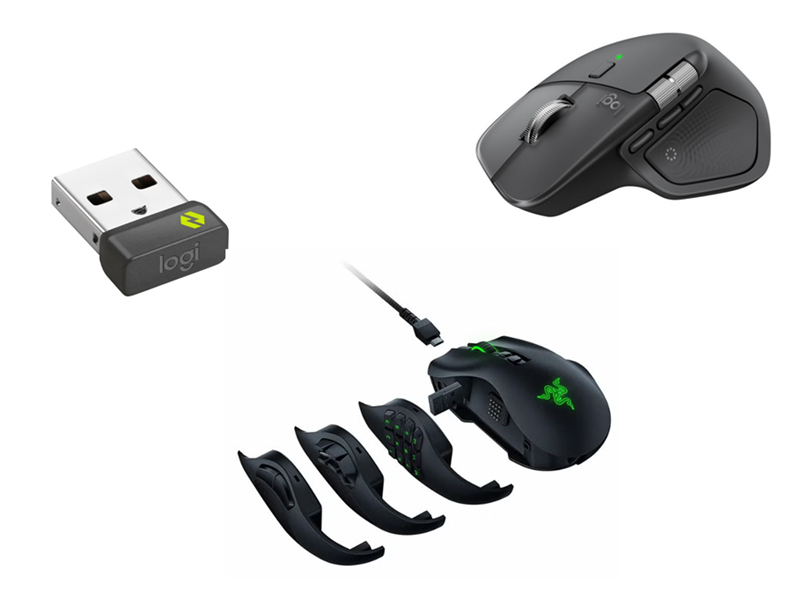
If you use a gaming mouse (Logitech Options+ or Razer programmable mouse), Logitech or Razer mice, the drivers often have compatibility issues every time Windows has big updates (e.g., Windows 10 > Windows 11).
1. Scroll wheel issues 2. Macros not working properly 3. Compatibility issues 4. Programmable button settings not working
If you don’t know where to download the newest mouse driver for your PC, please read on, and several auto driver updaters are recommended in this blog. Auto scan, auto fix, and download the newest version drivers for you.
How to Check If Your Mouse Driver Is Up to Date? Windows Device Manager
Open Windows Device Manager (Press Win+X and then Press M) and right click on the mouse driver, and you can see if it’s in its newest version.
How to Update Mouse Driver with Windows Device Manager on Windows 10 & 11?
Step 1. Open Windows Device Manager.
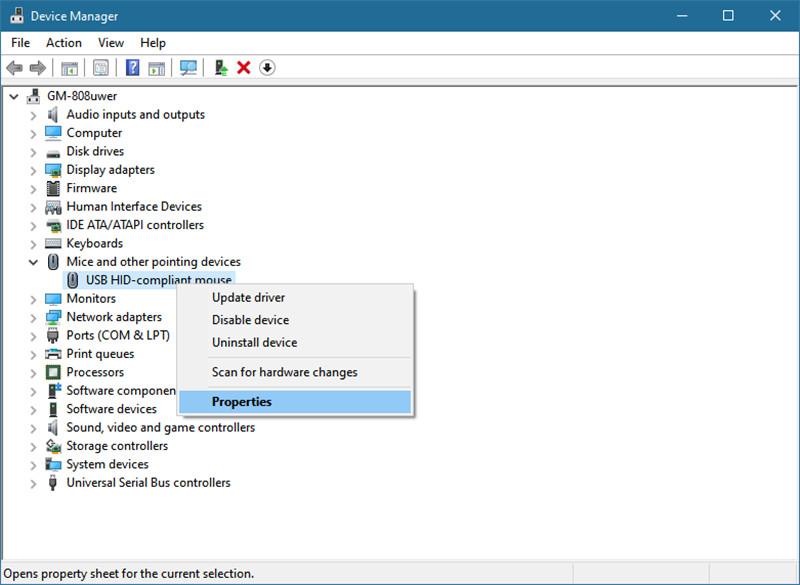
Step 2. Scroll to find Mice and Other Pointing Devices. Right-click on it and then hit ‘Properties.’
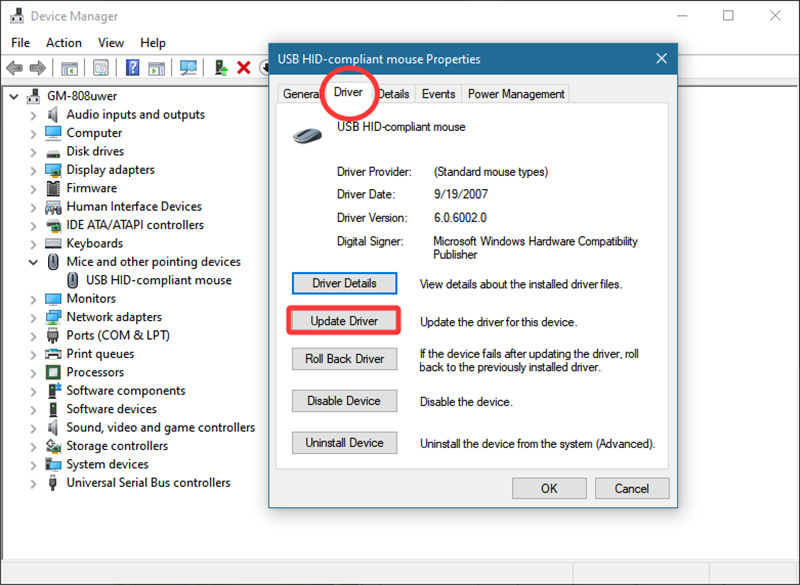
Step 3. Switch to the ‘Driver’ tab to check your mouse driver’s current info. You can see my mouse driver is very old. Follow the guidance in the image below and update the mouse driver.
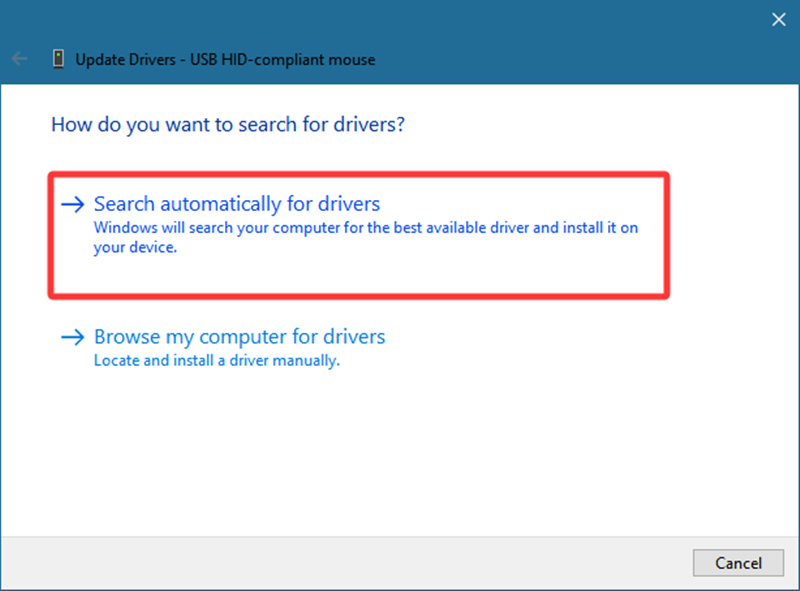
Step 4. A window pops out asking you if you want it to auto search your PC for a suitable mouse driver or you want to locate the driver yourself. Actually, neither way works since you don’t download any new mouse driver to your PC.
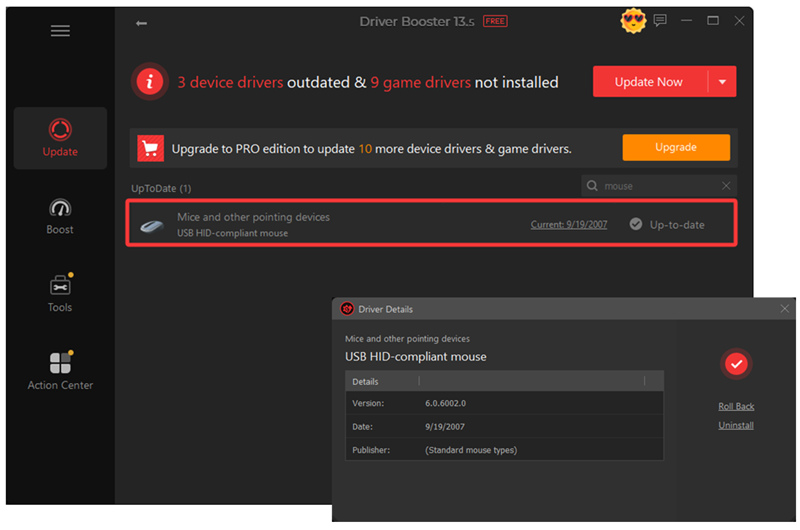
Fret not, you can use a free driver booster to auto-fetch you the newest mouse driver. You can use this software to install and uninstall drivers, which protect your PC from accidental misdoings. This software can also diagnose whether your mouse driver is missing/outdated/broken and offer fixes accordingly.
How to Update Mouse Driver Logitech? Logi Options+
For advanced users who use gaming mice to do programmable button settings, their mouse drivers are different from Windows default mouse drivers. If you download the dedicated software, Logi Options+ and the advanced mouse driver is inside. Normally, you don't need to worry about this driver since it can automatically update itself. But when Windows has big updates, for example, Windows 10 Version 1809 causes the mouse unrecognizable, Windows 11 22H2 (2022) makes Logitech and Razer mouse settings invalid, and Windows 11 25H2 (2025) causes severe click lags. All the compatibility issues above require users to reinstall or update their mouse driver.
How to update the Logitech mouse driver?
Unlike Windows mouse drivers, Logitech doesn't provide a separate "Logi Options+ driver" download. Instead, you update the Logi Options+ software, which installs and updates the required Logitech software components for supported devices.
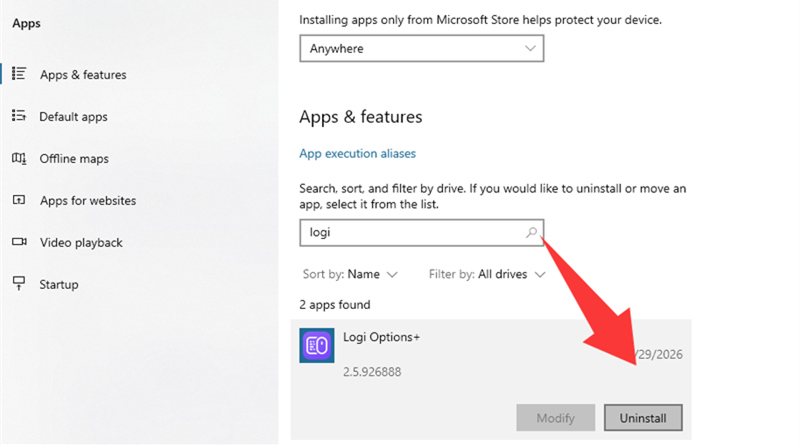
Step 1. Uninstall your Logi Options+.
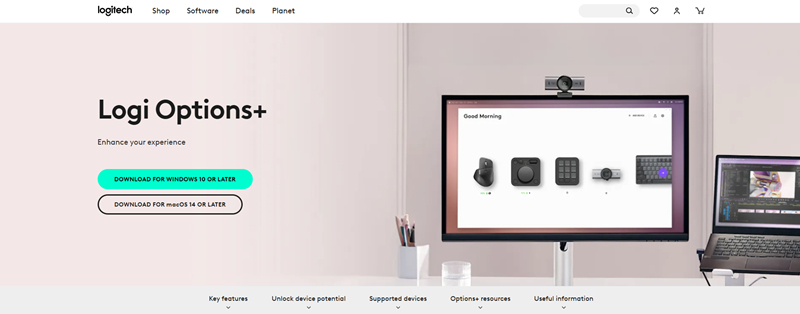
Step 2. Visit the official Logi Options+ download page.
Step 3. Follow the guidance to reinstall Logi Options+.
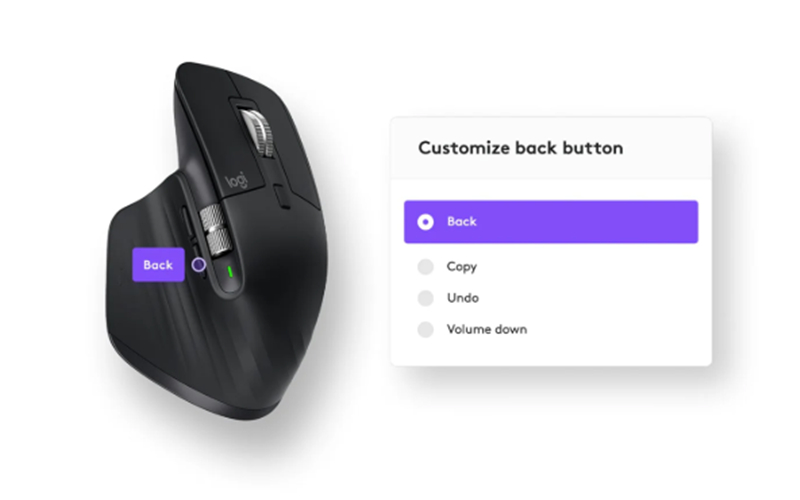
Bonus: What can Logi Options+'s programmable buttons do?
Logi Options+ is Logitech's official driver and device management software for compatible mice, keyboards, and other peripherals. Beyond installing the latest drivers, it unlocks advanced features such as customizable buttons,
DPI and scrolling settings
application-specific profiles
device firmware updates
multi-device control with Logitech Flow.
Do you need to manually update the Logitech Mouse driver?
Normally, you don't need to frequently update Logitech Options+, this software can update itself.
Notice: Windows Device Manager cannot update peripheral device drivers. The default program always fails to fetch the newest driver.
How to Update Mouse Drivers Razer Synapse?
Razer Synapse is observed to have more compatibility issues with Windows updates. When WIndows auto updates its HID-compliant mouse driver, USB controller driver, Bluetooth driver, and Razer Synapse is likely to have non-working issues. The mouse can be undetected, DPI resets after reboot, and the programmable button settings are reset. For gamers who use Razer Synapse for macros, sudden Windows updates are nightmares. But fret not, it's easy to address this problem.
Before uninstalling and reinstalling Razer Synapse:
#1. Update your HID, USB, and Bluetooth drivers to ensure compatibility with the latest Windows version.
#2. Uninstall and reinstall Windows default mouse driver.
If you are afraid to make mistakes and hurt your system, you can use IObit Driver Booster to accurately install, remove, and check for newest version driver updates.
Driver Booster Free
- Automatically scan and update drivers.
- Update game ready drivers for peak gaming performance.
- Identify and fix various common of hardware issues.
- Boost 30% of system performance for fast & smooth running.

How to update mouse drivers Razer?
If you uninstall and reinstall Razer Synapse, the advanced programmable component drivers will be updated too. If you have 'Macro doesn't work', 'Custom buttons stopped working', or 'DPI profiles disappeared', this is the most straightforward way to solve your problem.
Step 1. Go to Windows Apps and remove Razer Synapse.
Step 2. Navigate to https://www.razer.com/synapse-4?srsltid=AfmBOooduJHfc9hQN22g88VJECmDdjBcWbi5Y_xpnXZ7uMhxhDaIGqf5.
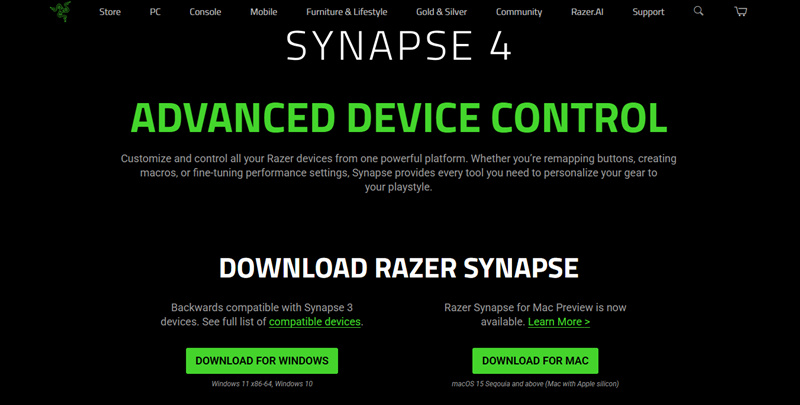
Step 3. Download Razer Synapse. And restart your PC.
Windows 10/11 Update Drivers Automatically - IObit Driver Booster
IObit Driver Booster is an automatic software that auto-scans, downloads, installs, and fixes drivers in the background. This foolproof software is for those who have a big problem inspecting their own PC. If you are looking for a one-click solution to address mouse driver problems, Bluetooth driver problems, and even CPU/GPU driver problems, IObit Driver Booster updates all the drivers for you.
Automatic Driver Scanning & Updates
Extensive Driver Database Support
Driver Backup and Recovery
Offline Driver Installation
Driver Booster Free
- Automatically scan and update drivers.
- Update game ready drivers for peak gaming performance.
- Identify and fix various common of hardware issues.
- Boost 30% of system performance for fast & smooth running.
What Other Drivers Need to Be Updated to Fix Mouse Driver Problems?
The mouse driver itself does not always cause mouse issues. Other system drivers, such as USB controller, Bluetooth, and chipset drivers, can also affect mouse connection, responsiveness, and overall performance.
| Driver |
Fixes Common Mouse Issues |
| USB Controller Driver |
Disconnects, detection failures, unstable USB connections |
| Bluetooth Driver |
Wireless lag, pairing problems, random disconnects |
| Chipset Drivers |
USB compatibility issues, slow detection, system instability |
Conclusion
Update mouse driver when issues like cursor lag, delayed clicks, random disconnects, and compatibility problems strike your PC. Besides the mouse driver itself, USB, Bluetooth, and chipset drivers also play an important role in maintaining stable mouse performance. Sometimes you have to manually update these drivers to make sure your PC runs as smoothly as it used to be. And IObit Driver Booster is the tool you need. Runs in the background, auto-scans, auto-updates when new drivers are available, and auto fix missing/broken/outdating drivers in one click.
Driver Booster Free
- Automatically scan and update drivers.
- Update game ready drivers for peak gaming performance.
- Identify and fix various common of hardware issues.
- Boost 30% of system performance for fast & smooth running.