Has your mouse cursor disappeared from your laptop, or is the pointer no longer showing up? This can be extremely frustrating and disrupt your daily activities. Fortunately, we have tested 11 quick and simple solutions to help you get your mouse cursor back.
Read on to find out how to fix the mouse cursor missing issue without a mouse and effectively resolve this issue.

5 Quick Fixes for Mouse Cursor Disappeared on Laptop
What to do if my cursor disappeared? Before moving on to more advanced solutions, let’s look at 5 quick ways to restore your mouse cursor. These solutions work for both wired and wireless mice.
Method 1: Reconnect Mouse Sensor or Cable
Mouse cursor disappeared? If you are using a wired mouse, try unplugging and then reconnecting the cable. For wireless mice, try re-pairing the sensor with your PC. Then, move the mouse to see if the cursor reappears on the screen.
Method 2: Check Cables or Batteries
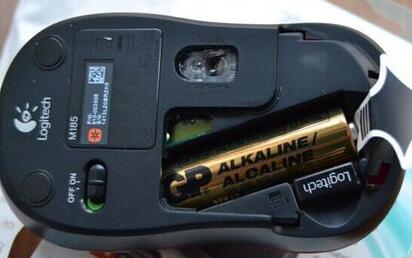
For wired mice, ensure the cable isn't damaged. If you are using a wireless mouse that has stopped working, try replacing the batteries to see if that helps restore the missing mouse pointer.
Method 3: Try Different USB Ports to Bring Back the Missing Cursor
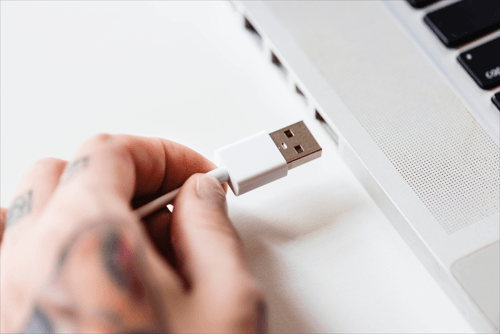
The missing cursor might be caused by a faulty USB port. Try plugging the mouse into a different USB port to see if the issue is resolved.
Method 4: Restart PC or Laptop to Fix Mouse Cursor Missing Issue
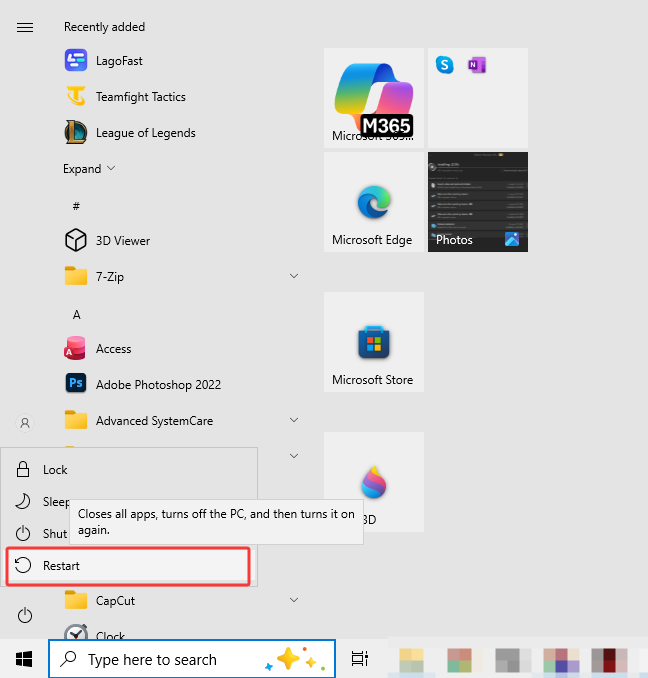
Sometimes, a simple restart can fix the missing mouse cursor problem.
1. Press the "Windows + X" keys simultaneously.
2. Navigate using the "Up ↑" arrow key.
3. Select the "Restart" option and confirm by pressing "Enter."
4. Once your PC restarts, move the mouse to check if the cursor appears on the screen.
Method 5: Test the Mouse on Another Computer
If the problem persists, try using the mouse on another computer to determine whether the issue lies with the mouse or the PC. If the mouse works correctly on another device, the problem is likely related to your computer. Don't worry; other solutions are available to help you.
TIPS: If the mouse cursor is missing, the Tab key becomes your ally. It allows you to navigate between different parts of the program using only the keyboard. When you reach the item you want to activate or deactivate, use the Space bar or the Enter key. You can also use the arrow keys to navigate between tabs.
6 Advanced Solutions to Fix Mouse Cursor Disappeared on Laptop
If the 5 quick methods didn't help you recover your missing mouse cursor on your laptop, don't worry. In this section, we present detailed, advanced solutions to restore your pointer, fix mouse setting issues, and ensure the cursor reappears correctly in all situations.
Method 6: Reactivate the Mouse Without Using a Mouse
1. Press Win + R to open the "Run" dialog box. Type "main.cpl" and press Enter to open the "Mouse Properties" window.
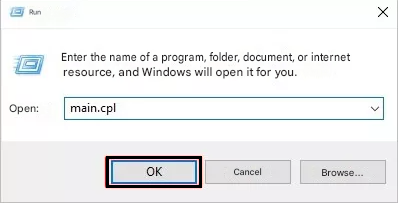
2. Navigate to the "Buttons" tab using the Tab key.
3. Press Tab repeatedly until a small dotted square appears around the "Enable" button, then press the Spacebar to activate it.
4. Use the Tab key to navigate to the "Apply" option, then press the Spacebar to confirm the settings.
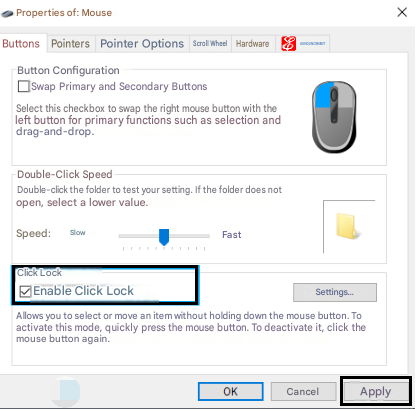
If the cursor disappears only when you are typing, the issue might be related to mouse settings. Here is how to fix this:
1. Open the "Mouse Properties" window as described in the previous steps.
2. Next, navigate to the "Pointer Options" tab using the arrow keys.
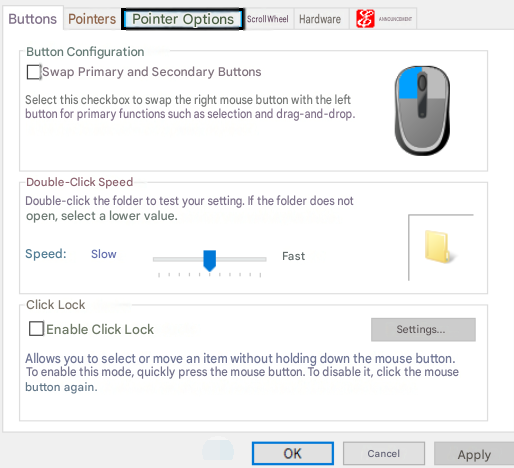
3. Once there, press Tab until the "Hide pointer while typing" checkbox is highlighted.
4. Press the Spacebar to uncheck the "Hide pointer while typing" box.
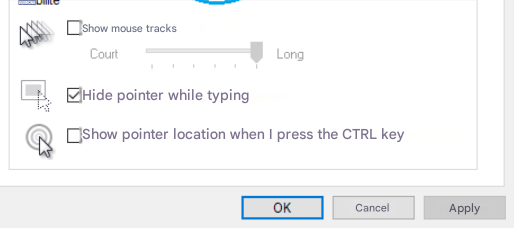
5. Use the Tab key to navigate to the "Apply" option, then press the Spacebar to apply the settings. Finally, use the Tab key to navigate to the "OK" option and press the Spacebar to complete the process.
6. These steps should restore your mouse cursor and resolve the issue of it disappearing while typing.
Method 7: Reactivate a Missing Laptop Mouse Cursor Using the Fn Key
Some laptops have function keys that allow you to toggle the mouse cursor on or off. If you have accidentally disabled the cursor, here is how to reactivate it:
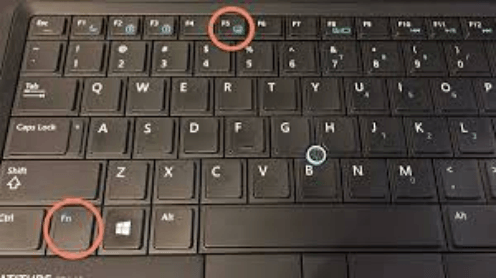
If you do not know the key combination for your laptop, press the Fn key and test the F1 through F10 keys one by one.
This simple method should allow you to easily restore your mouse cursor.
Also Read: How to Update Keyboard Drivers Automatically & Manually? [Windows 11/10] >>
Method 8: Enable the Touchpad to Restore the Missing Mouse Cursor
If you are encountering this issue while using the touchpad, it is possible that it was accidentally disabled in the system settings. Here is how to re-enable it:
1. Press Win + R to open the "Run" dialog box.
2. Type "main.cpl" and press Enter to open the "Mouse Properties" window.
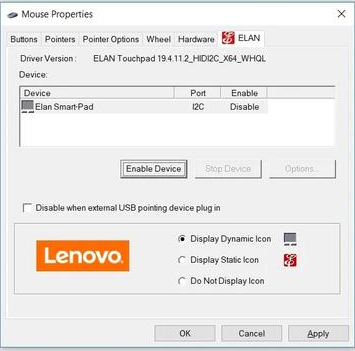
3. Use the Tab key to navigate to the Touchpad tab (usually labeled ELAN or Device Settings).
4. Use the Tab key to navigate to the "Enable device" option, then press the Spacebar to select it.
5. Use the Tab key to navigate to the "Apply" option, then press the Spacebar to apply the changes.
6. Finally, use the Tab key to navigate to the "OK" option, then press the Spacebar to complete the process.
Method 9: Disable Tablet Mode (for Touchscreen Devices)
If you are using a touchscreen device, Tablet Mode might be enabled, which can cause the mouse cursor to disappear. Here is how to disable it:
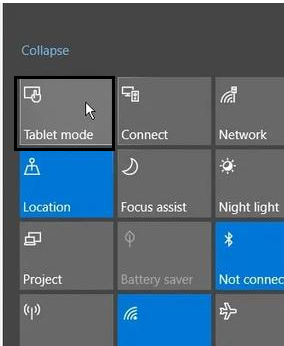
1. Tap the Action Center icon in the bottom-right corner of the screen.
2. Tap the Tablet Mode option to disable it. The icon should turn gray to indicate that it is disabled.
Method 10: Run Windows Built-In Troubleshooters
You can also use Windows' built-in troubleshooting tools to restore the mouse cursor. The Bluetooth troubleshooter, as well as the Hardware and Devices troubleshooter, can help resolve this issue. This troubleshooting feature sometimes provides powerful help. E.g., you can use it to fix audio drivers on Windows 11/10, and more.
To run the Hardware and Devices troubleshooter, follow these steps:
1. Press the Windows key and type "Settings" in the search bar.
2. Use the arrow keys to select the "Settings" option, then press Enter.
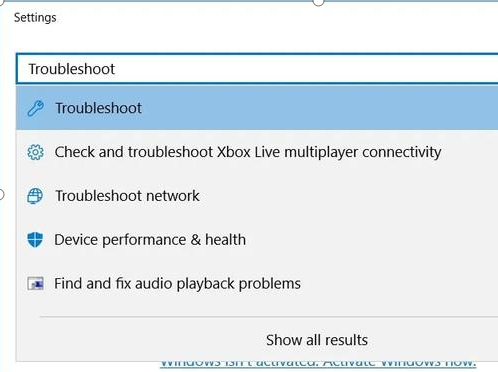
3. Type "Troubleshoot" in the search bar, then use the arrow keys to select the "Troubleshoot" option and press Enter.
4. In the next window, use the Tab key to navigate to the options in the right pane.
5. Once the option is highlighted, use the arrow keys to select the Hardware and Devices troubleshooter.
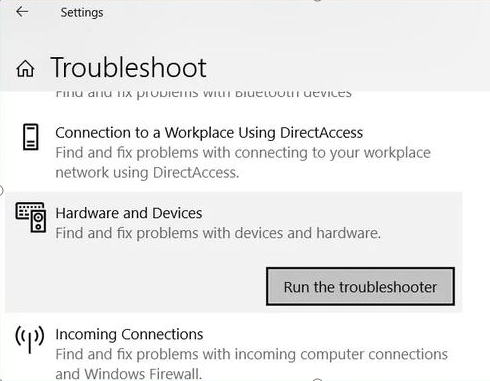
6. After selecting the troubleshooter, press Enter to continue.
7. Use the Tab key to highlight the "Run the troubleshooter" button, then press Enter to start the process.
Method 11: Restore a Missing Mouse Cursor by Updating Mouse Driver
A mouse cursor missing issue can result from an outdated or unupdated mouse driver. To restore normal cursor function, you need to update the mouse drivers. Here is how to do it:
1. Press Win + X, then use the arrow keys to select "Device Manager" and press Enter.
2. Use the Tab key to navigate to "Mice and other pointing devices."
3. Once highlighted, press Shift + F10 to open the context menu.
4. Use the arrow keys to select "Update driver" and press Enter.
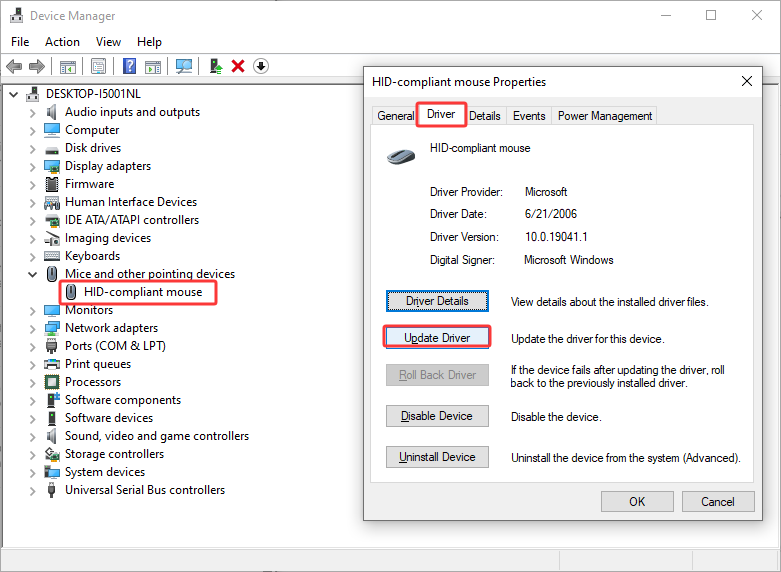
5. In the next window, use the arrow keys to select "Search automatically for drivers."
6. Follow the on-screen instructions to complete the update process.
To prevent the mouse cursor from disappearing due to an outdated, missing, or damaged mouse driver, it is recommended to regularly update your device drivers and components. This keeps them up to date and helps avoid the issues mentioned above.
We recommend using professional driver updaters like Driver Booster to detect and update outdated drivers with a single click. This solution allows you to automatically download and install the latest drivers for your devices.
Driver Booster Free
- Automatically scan and update drivers.
- Update game ready drivers for peak gaming performance.
- Identify and fix various common of hardware issues.
- Boost 30% of system performance for fast & smooth running.

Here is how to do it:
Step 1. Download and install Driver Booster.
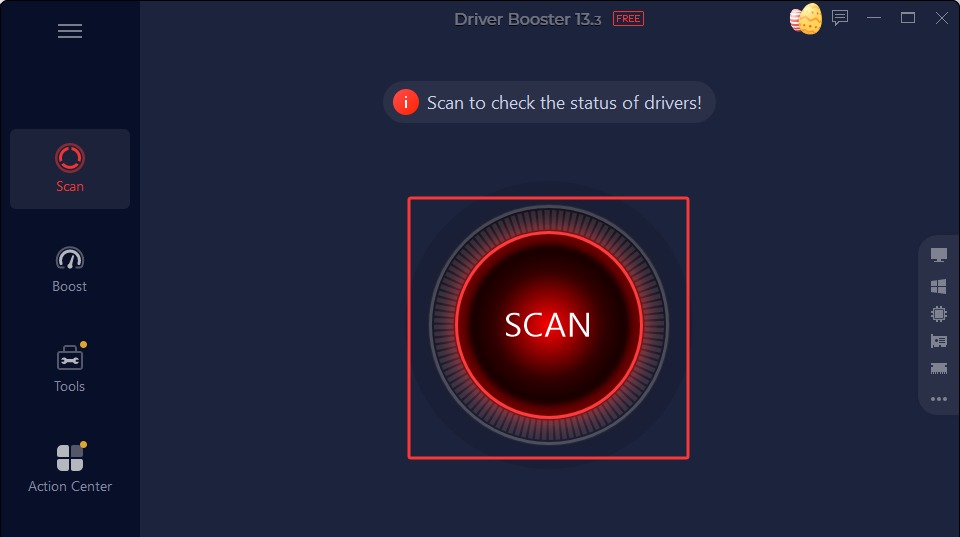
Step 2. Then, click SCAN to check the status of your dirvers.
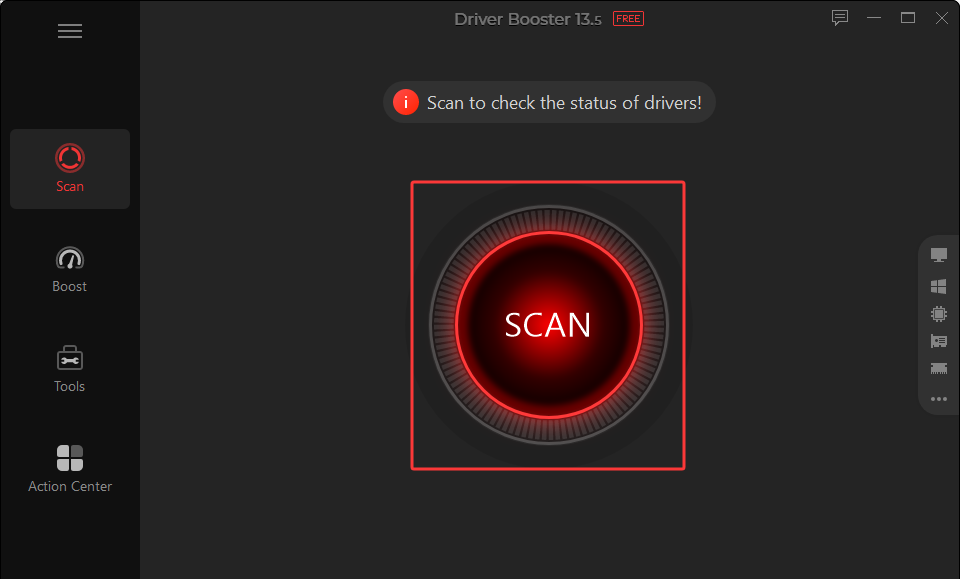
Step 3. Wait for the program to scan your system and detect outdated drivers. Click Update Now to install the latest driver updates.
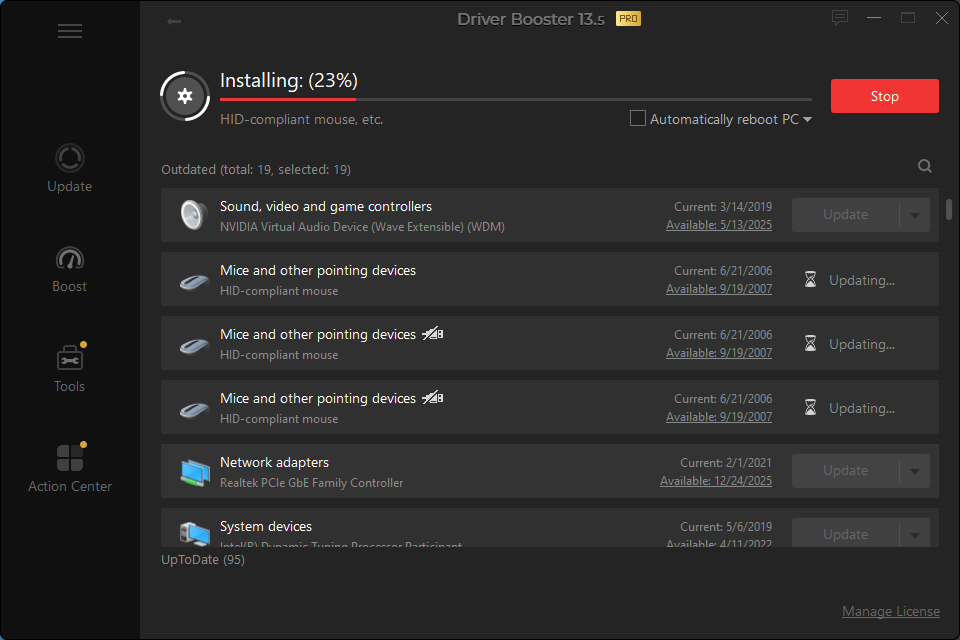
This is how this automatic driver updater helps you keep all drivers up-to-date and functioning well.
Mouse Cursor Missing on Multiple Monitors or Other Devices: What to Do?
Do you use multiple monitors or a projector? It may seem unlikely, but the mouse cursor could actually be on one of the other screens. In this case, simply moving the mouse a few centimeters won't be enough to make it reappear.
To find the cursor, move the mouse repeatedly to the left or right until it reappears on the main screen.
FAQ about the Mouse Cursor Disappeared Issue
Which keyboard key activates the mouse?
On some laptops, you can reactivate the cursor using the Fn key combined with a function key (F1 to F10)—for example, Fn + F5 for Toshiba or Fn + F9 for Asus/Lenovo.
How do I reactivate the mouse on a laptop?
Open Mouse Properties (Win + R → main.cpl) and enable the mouse or touchpad, or disable Tablet Mode if necessary.
How do I make the mouse pointer appear?
Move the mouse across all connected screens, check settings to ensure the pointer isn't hidden while typing, and test the mouse on another PC if necessary.
Is there a quick solution if I don’t have a mouse?
Use the keyboard: Tab to navigate, Enter or the spacebar to activate options, and the arrow keys to move between menus or tabs.
Why does my cursor disappear when using multiple monitors?
The cursor might be on another screen or projector; move it slowly to the left or right until it reappears on the main screen.
Conclusion
In summary, the mouse cursor disappeared on a laptop issue can be very frustrating, but with the right troubleshooting methods, you can usually resolve the issue quickly and easily. By following the steps outlined in this article, you should be able to restore your missing mouse cursor and resume your normal computer activities without any hassle.