Wondering how to update video drivers? This guide covers three proven methods to fix common display and performance problems, especially if you’re experiencing:
Game crashes
FPS drops
Black screens
Screen flickering
Video drivers are basically GPU drivers or Display drivers. This kind of device driver, once outdated, leads to big problems, including black/blue screen, glitchy video, FPS drops in gameplay, longer loading time, OBS recording failures, and crashes in games or editing software. This guide walks you through updating the latest video drivers from Nvidia, AMD, or your PC manufacturer to help restore smooth and stable performance.
What Do Video Drivers Do?
Video drivers, also known as GPU drivers or display drivers, control how your operating system communicates with your graphics hardware. They are essential for rendering images correctly, improving gaming performance, and keeping display-related software stable.
If you want smoother gameplay, better video playback, and fewer graphics-related issues, keeping your video drivers up to date should be part of regular PC maintenance.
The core functions of video drivers:
Control how images and video are displayed
Optimize GPU performance for games
Improve hardware acceleration during video streaming
Support ray tracing, 3D rendering, and graphics APIs
Fix bugs, glitches, and software crashes
Maintain compatibility with Windows updates and newer applications
Old or incompatible drivers can lead to:
Black screens or screen flickering
Game crashes
FPS drops or stuttering
Graphical glitches or poor rendering
Higher GPU or CPU usage in some workloads
Compatibility issues after Windows updates
Overheating or excessive battery drain in some cases
Outdated video drivers can seriously affect performance, but they do not mean you need to replace your PC. In many cases, updating your drivers is enough to restore stability and improve visual performance.
The methods below show how to update video drivers for free and help improve smooth gameplay at 2K or 4K resolutions.
How to Update Video Drivers Windows 11 All at Once Automatically?
If you want to check for outdated drivers and update them more efficiently, a driver updater can help automate the process. Tools such as IObit's Driver Booster are powerful Windows-based driver specialists offering ultimate solutions such as updating outdated drivers, fixing incompatible drivers, and backing up systems with restoring points.
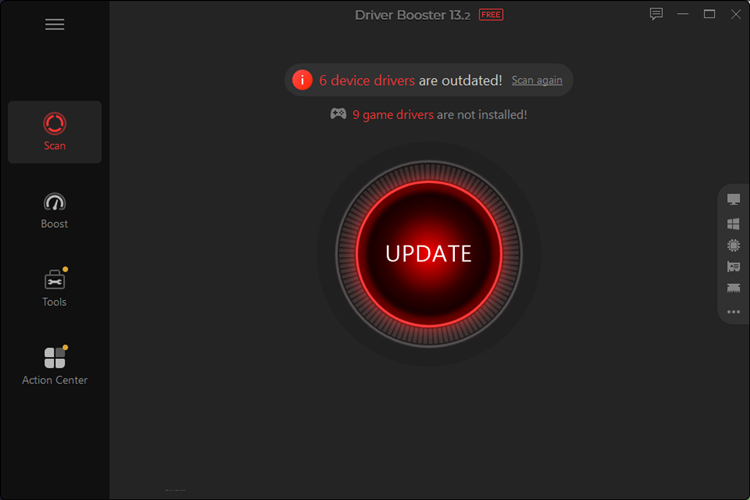
This all-in-one driver scanner and driver updater is the one-click solution you’ve been seeking. It scans all your discs in 5 minutes and lets you decide if you want to update all drivers automatically or manually. The best part of this software is that it keeps your system up-to-date by automatically downloading the latest version of drivers. All changes happen in the background, no extra occupation of your attention.
The features of Driver Booster that you need
Quickly scan all outdated device drivers on your PC
Fetch the latest drivers that match your system
Boost games with the dear gameplay boosting feature
Automatically inspect your PC and fix driver problems in the background
How to Use Driver Booster to Update All Drivers in One Click for Free?
Step 1. Download Driver Booster.
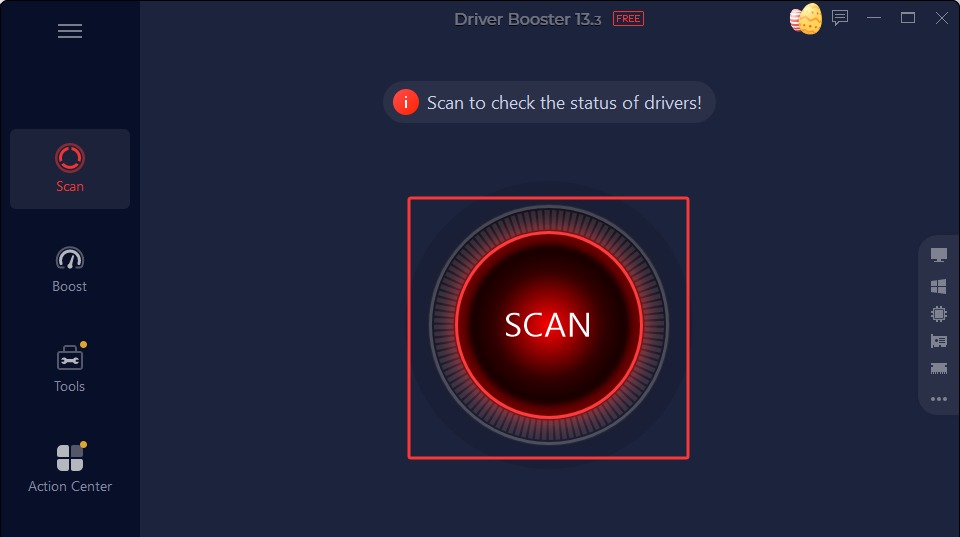
Step 2. Hit the ‘Scan’ button to sift out all outdated drivers on your discs.
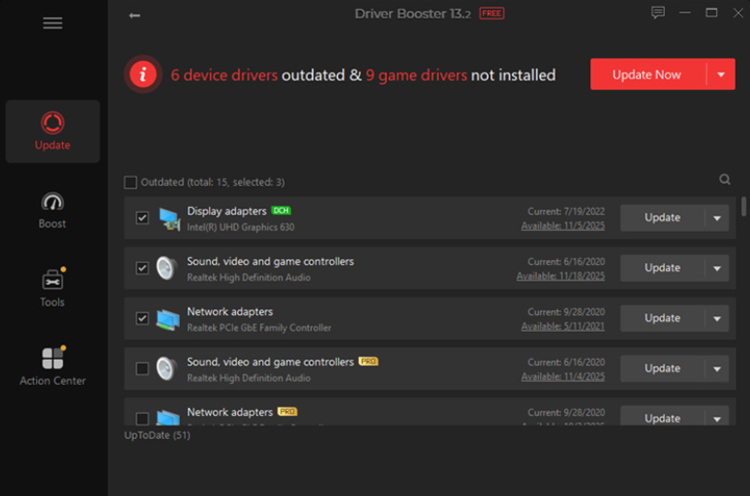
Step 3. Find the outdated video driver and update it.
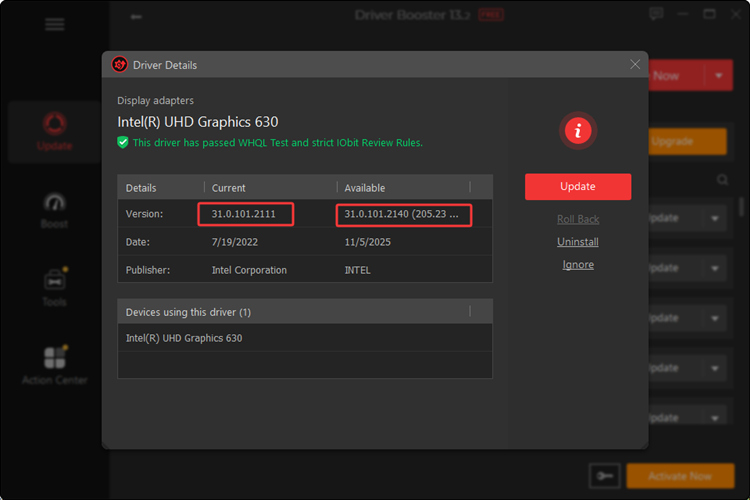
Step 4. Update other drivers if you care to.
Bonus Tip: Updating video drivers alone sometimes cannot solve all the problems. How to update drivers to fix choppy, glitchy, and crashing issues? You can consider updating the listed drivers below altogether to obtain a brand-new PC.
Hardware driver
Chipset driver
Storage driver
And for those who improve in-game experience, Driver Booster has a mature and free game booster tool built inside, helping to reduce ping and stabilize FPS. Please feel free to try it.
How to Update Video Drivers Without Software?
Windows does not fetch you the newest drivers. If you aim to update GPU drivers, chipset drivers, and OEM-specific drivers, you can get disappointed. Windows updated drivers only take up a small portion of all drivers, including network drivers, audio drivers, basic device drivers, and some generic display drivers.
Windows 10/11 update these drivers automatically:
In consideration of preventing hidden driver conflicts with the system, Windows conservatively chooses to update your drive to a safe and stable version, and usually, the updated drivers are not the latest version.
Windows doesn’t upgrade these key drivers below when leading regular system updates:
You can manually update these drivers via Windows’ Device Manager. The default program is
How to Update Video Drivers Using Windows Device Manager?
Step 1. In the Start Menu, search ‘Device Manager.’
Step 2. Find the Display Adapters, right-click on it.
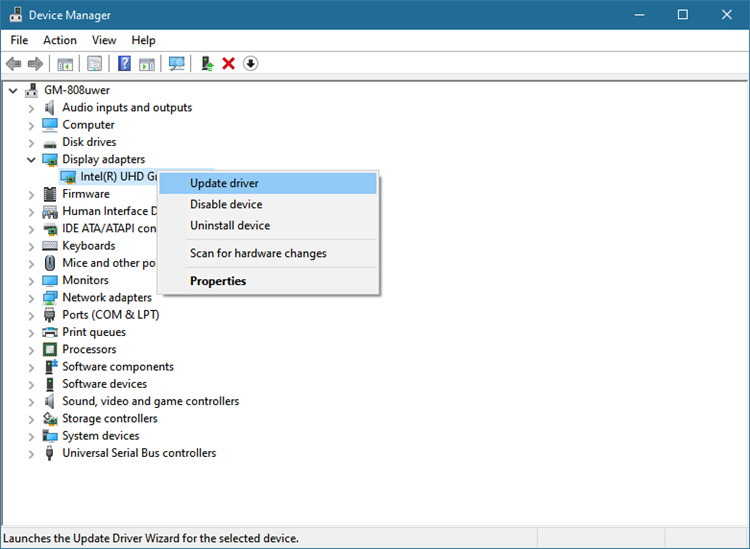
Step 3. From the pop-up window, click on ‘Search Automatically for drivers.’
Step 4. If there are any compatible drivers, download it.
How to Update All Drivers with Command Prompt?
Using Command prompt to update all drivers at once is not practical. This method has nothing to do with downloading any drivers, it is just a quick way to view the information of your installed drivers. Anyway, let’s see how to check your drivers at once with Command Prompt.
How to view all drivers at once with Command?
Step 1. Press Windows plus S to call out the search window.
Step 2. Type in ‘Command Prompt.’
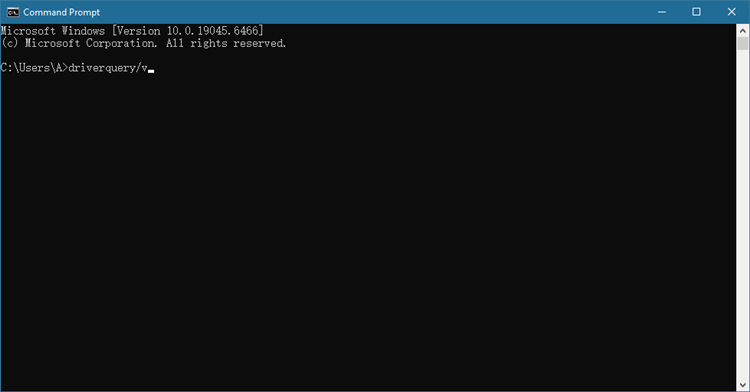
Step 3. Type in ‘Driverquery /v’ to scan all the installed and not installed drivers.
Step 4. When the auto scan ends, type in ‘Driverquery /SI’ and press Enter to check the driver information. But you cannot download any driver in this way.
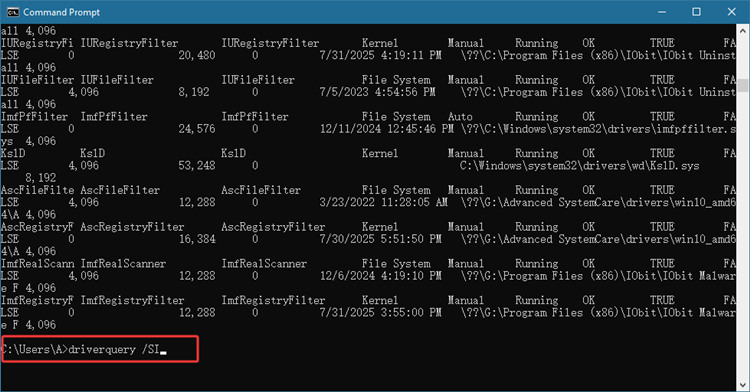
Note: You can clearly see in the list what drivers are too old and need instant updates. Locate these drivers and do pinpoint driver updating for them.
If you want to download one specific driver that Windows cannot provide, let’s say your display drivers, you should go to Nvidia or AMD’s official website to do a version match and download the right driver.
Bonus: How to Update Video Drivers for OBS?
If you ever receive a message from OBS that reads ‘Starting the output failed. Please check the log for details. Note: If you are using NVENC or AMD encoders, make sure your video drivers are up to date.’ This means your video driver needs an update now. Outdated or incompatible GPU drivers can interfere with hardware encoding and prevent OBS from recording properly.
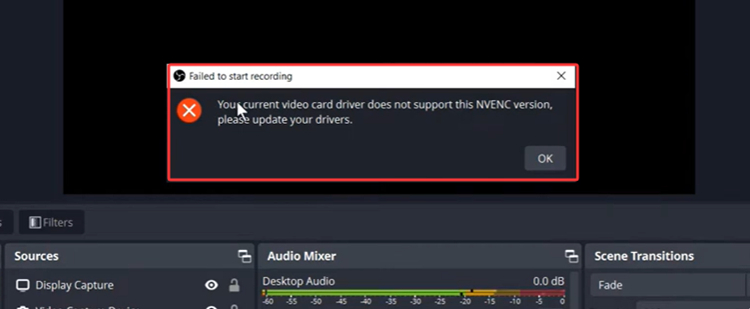
3 Methods to Address OBS Cannot Record
Go to the official website of Nvidia and AMD to check for available updates.
Downside of Updating Drivers Manually
Windows may report your driver is up to date, even when a newer version exists from Nvidia or AMD.
Sometimes a newer release may introduce compatibility issues. That is why you should always match the driver to your system version before installing.
Checking drivers one by one can be slow. Some users prefer automated tools to scan for compatible updates more efficiently.
The best solution to address OBS cannot record problems: update your video card driver with Driver Booster. This driver update software knows how to fetch compatible drivers for your system and auto download, install and auto-scan/update all your drivers in the background. Please feel free to try this free software.
Conclusion
This blog shares 3 hardcore yet free methods to address your outdated video driver problems. How to update video driver for free?
Use Device Manager for basic driver updates
Check Nvidia, AMD, or your OEM for newer compatible drivers
Use a driver updater to scan and manage multiple drivers more efficiently
The first two methods are free but kinda complicated. If you want to batch update all important drivers (especially compatible drivers based on your system), IObit's Driver Booster is a quick, safe, and green answer. Please feel free to try it.
Driver Booster Free
- Automatically scan and update drivers.
- Update game ready drivers for peak gaming performance.
- Identify and fix various common of hardware issues.
- Boost 30% of system performance for fast & smooth running.