You saw the notification: your NVIDIA drivers need to be updated. So you followed the instructions and completed the update. However, shortly afterward, your PC started experiencing graphics issues, such as stuttering, lag, or unstable performance.
Why did this happen?
The reason is simple: the latest driver version isn't always the most stable one. In some cases, older NVIDIA drivers have been tested by more users and proven to be more reliable.
So what can you do?
The solution is to roll back to NVIDIA old drivers. This guide will walk you through everything you need to know, including important preparations, how to install older NVIDIA drivers, and a few tips to ensure the process goes smoothly.
Why Do Users Want to Install Older Nvidia Drivers?
Most users believe that newest Nvidia drivers are always better. In many cases, that's true—each new release typically introduces new features, fixes existing bugs, and expands support for the latest games and applications.
However, updates can sometimes create new problems. That's why many users start looking for how to install previous Nvidia drivers after encountering issues following an update.
Some of the most common reasons include:
New drivers haven't always been tested under every real-world scenario and may not be completely stable. After updating, some users experience game crashes, software instability, or even blue screen errors. In contrast, older drivers have often had these issues identified and resolved over time.
Some users report lower frame rates, stuttering gameplay, blurry graphics, or increased latency after updating. To restore the smooth gaming experience they previously enjoyed, many choose to perform an Nvidia old drivers download.
Not every game or application is immediately optimized for the latest Nvidia driver release. As a result, users may encounter compatibility issues, such as programs failing to launch, unexpected crashes, or other performance problems.
For older NVIDIA graphics cards, driver development is often focused on newer hardware. In some cases, a well-tested older driver can deliver better performance and stability than the latest release.
Before Installing Older Nvidia Drivers: Backup Point Matters
Before learning how to install older Nvidia drivers, there is one important preparation step you shouldn't skip.
Think about it: if you're planning to solve your current issues by rolling back your driver, how do you know which version is the right one? And how can you be sure that the rollback won't create new problems for your system?
In many cases, the only way to find out is through trial and error. You may need to install a driver, test it, discover that it still has compatibility issues, uninstall it, and then repeat the process with another version.
If you'd rather avoid spending hours on this process—or you're concerned that manual driver changes could introduce unexpected risks—it's a good idea to create a driver backup beforehand with a professional driver management tool like IObit Driver Booster. By saving your current driver configuration, you can quickly restore it whenever a newly installed driver doesn't perform as expected. No need to re-download or reinstall anything.If the new driver causes crashes, performance issues, or compatibility problems, simply restore the previous version from your Driver Booster backup.
Driver Booster Free
- Automatically scan and update drivers.
- Update game ready drivers for peak gaming performance.
- Identify and fix various common of hardware issues.
- Boost 30% of system performance for fast & smooth running.

After scanning your system, Driver Booster helps you update to a verified, safe, and stable Nvidia driver version—not necessarily the newest one, but the one best suited to your system. This saves you from the hassle of searching, downloading, and testing drivers yourself.
How to Create a Backup Point with IObit Driver Booster
Step 1. Download and install IObit Driver Booster on your computer, then launch the software.
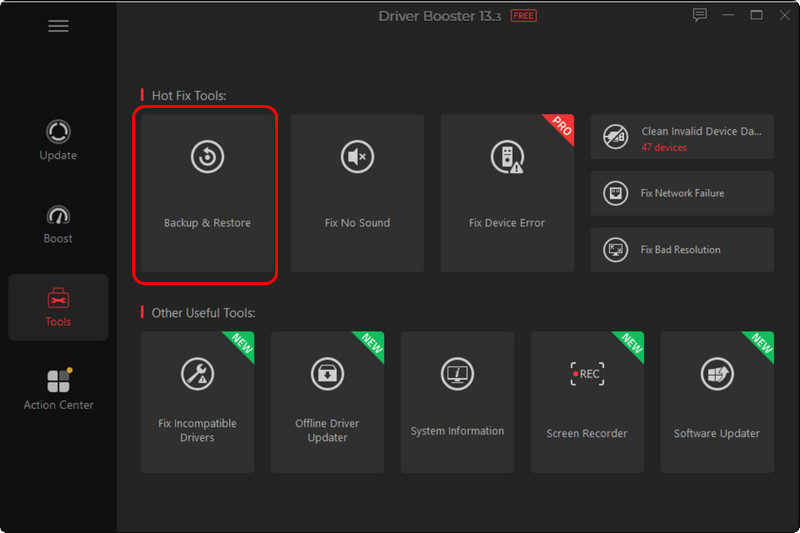
Step 2. Go to the Tools section on the main interface and click Backup & Restore under the Hot Fix Tools category.
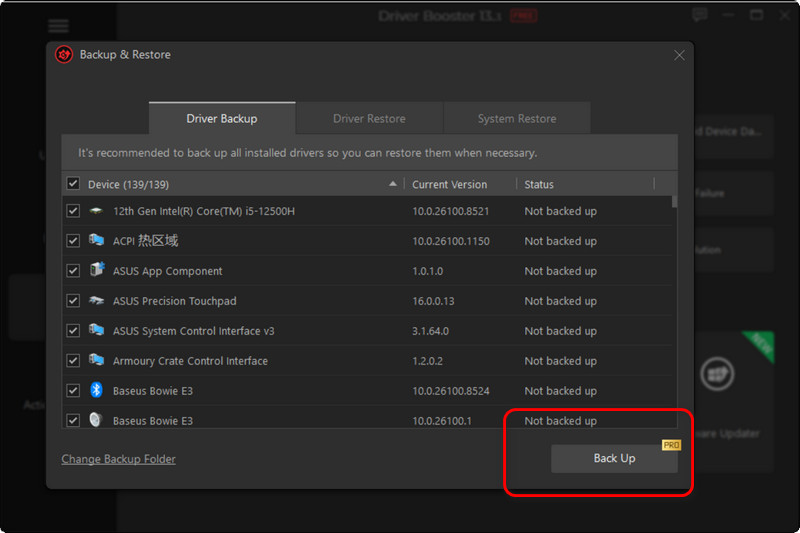
Step 3. Driver Booster will display a list of the drivers currently installed on your system. Select the drivers you want to back up, then click Backup to create a restore point.
How to Install Older Nvidia Drivers From Nvidia Official Website?
If you've already installed the latest Nvidia driver and are experiencing problems, the most straightforward solution is to remove the current version from your PC, then download and install an older driver version directly from NVIDIA's official website.
Here is how to install old Nvidia drivers Windows 11.
Step 1. First, uninstall the current Nvidia driver from your Windows PC. You can do this through Settings.
Go to Apps > Installed apps, locate your Nvidia driver, click it, and select Uninstall.
Step 2. Next, visit the official Nvidia drivers website using your browser. Use the available filters, such as language, operating system, GPU model, and product series, to find a driver version that matches your device.
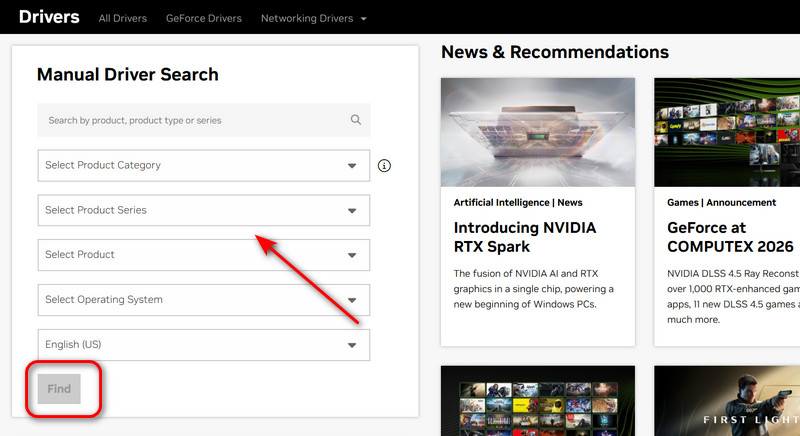
Step 3. You will see a list of available driver versions provided by NVIDIA. Click View to check the driver details. If the version looks suitable, click Download on the details page.
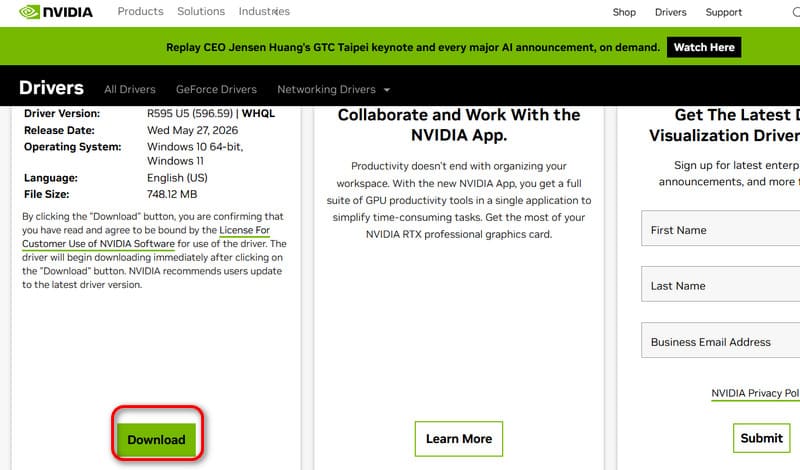
Step 4. Once the installation package has been downloaded, double-click it to start the installation. Then simply follow the on-screen instructions to complete the process.
Note: Rolling back to an older driver can help resolve stability, performance, or compatibility issues, but it should be considered a temporary solution rather than a permanent one.
You shouldn't stay on an older driver version indefinitely. Once NVIDIA releases a stable version that resolves the issue, it's recommended to update again for the following reasons:
Older drivers do not receive the latest security patches. Over time, this may leave your system more vulnerable to security threats and malware attacks.
Many newly released games are optimized specifically for recent NVIDIA driver versions. Using an older driver may prevent you from getting the best performance and features.
Windows continues to evolve through regular updates, and newer versions are typically tested alongside the latest drivers. Staying on an outdated Nvidia driver for too long may eventually lead to compatibility issues with future Windows updates.
How to Install Older Nvidia Drivers Via Device Manager?
For the issue of how to install old Nvidia drivers Windows 11, another common solution is to perform a rollback using Windows Device Manager.
Here is how to install older Nvidia drivers using Windows Device Manager.
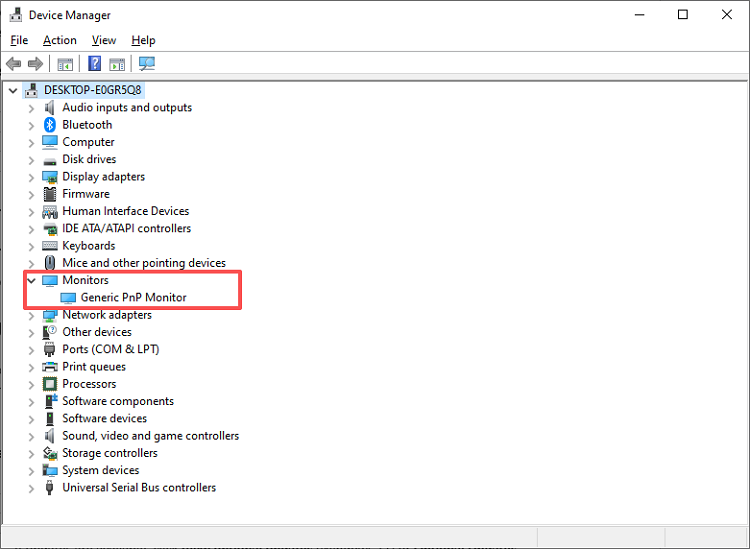
Step 1. You can search for and open Device Manager using the Windows search bar.
Step 2. In the Device Manager window, scroll down to Display adapters, then expand the category.
Step 3. Locate your installed Nvidia driver, right-click it, and select Properties from the menu.
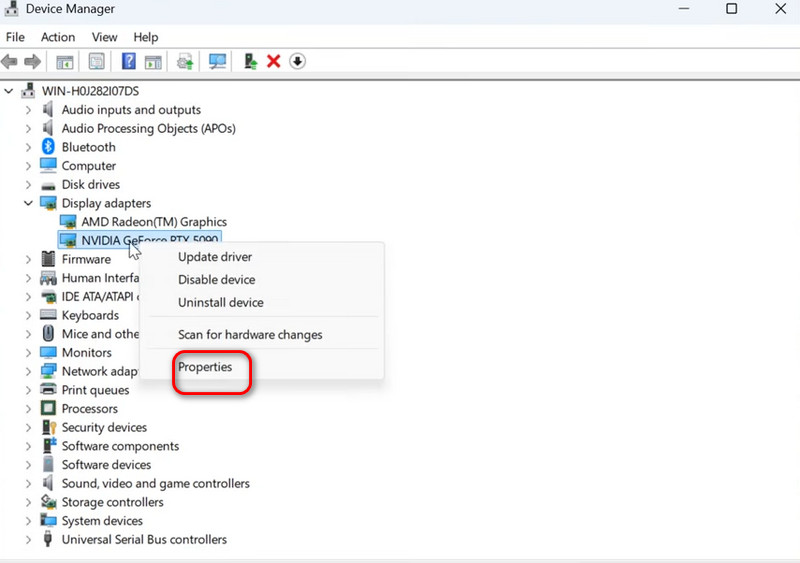
Step 4. A new window will appear. Go to the Driver tab and click Roll Back Driver.
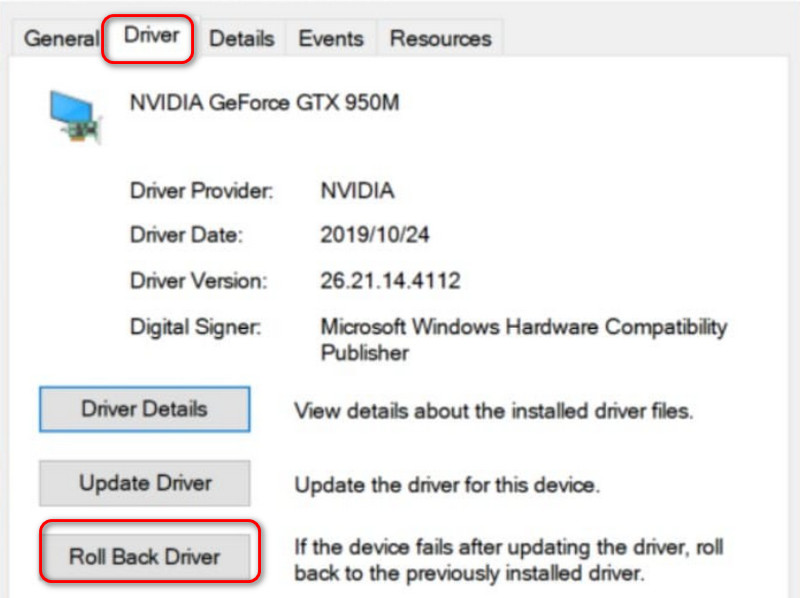
Note: This method is not completely risk-free, and you may encounter the following issues:
In some cases, the Roll Back Driver button may appear grayed out and unavailable. This usually happens when Windows has already removed the previous driver version, leaving no available version to roll back to.
Windows may automatically delete old driver files to free up storage space. As a result, there may be no previous version available for recovery, and you may need to manually download and reinstall the driver.
Bonus Tip: You Need to Stop Windows From Reinstalling the Latest Nvidia Driver
Now, your question about how to install older NVIDIA drivers should be fully resolved.
However, don't relax just yet. There's one more common issue you should be aware of: Windows Update may automatically install the latest NVIDIA driver in the background.
This means that even after successfully reverting to a stable version, Windows could automatically update your NVIDIA driver during a future system update and overwrite the version you're currently using.
For this reason, after completing the rollback process, it is recommended that you temporarily disable Windows automatic driver updates to prevent this from happening.
How to Stop Windows from Reinstalling the Latest NVIDIA Driver?
Step 1. Open System on your PC and select Advanced system settings.
Step 2. The System Properties window will appear. Click Device Installation Settings.
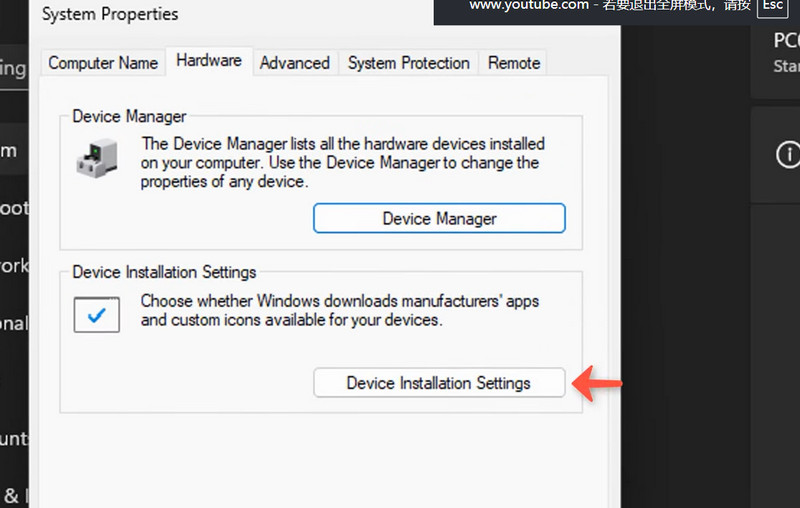
Step 3. A new pop-up window will ask whether you want Windows to automatically download available updates and drivers. Change the option from Yes to No.
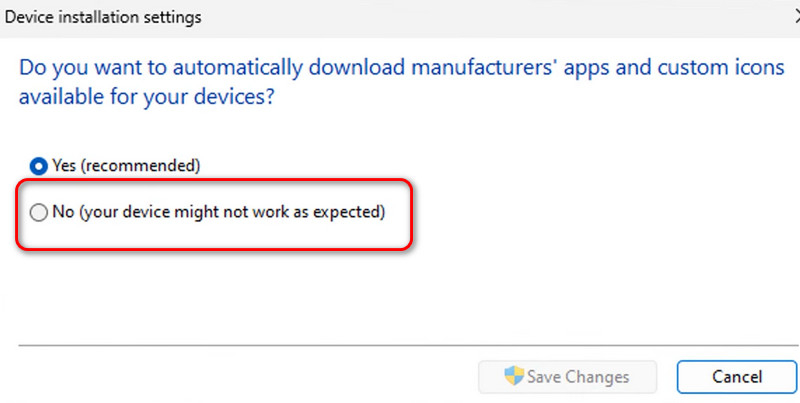
Step 4. Click Save Changes to apply the setting.
Conclusion
The most comprehensive guide on how to install older NVIDIA drivers is now at your fingertips.
In general, the most straightforward method is to uninstall the newer driver and manually reinstall an older version. However, for many users, figuring out which driver version is the right one to download can be challenging. Alternatively, you can use Device Manager to roll back your driver, but this option won't be available if Windows has already removed the previous driver files.
For a simpler and more reliable solution, this guide recommends using Driver Booster. Not only can it update your NVIDIA drivers to the latest stable version with a single click, but it also allows you to back up your current driver before making any changes. This way, if anything goes wrong, you can easily roll back to a previous version whenever needed.
Driver Booster Free
- Automatically scan and update drivers.
- Update game ready drivers for peak gaming performance.
- Identify and fix various common of hardware issues.
- Boost 30% of system performance for fast & smooth running.