The USB Device Not Recognized" error can be frustrating. Think about it, when you buy a new keyboard, mouse, and other peripheral devices for a better gaming experience, but end up with no response from your PC. You repeatedly try plugging and unplugging or switching USB ports, but nothing changes. And you should be aware that either the driver is missing or your USB port/device port is damaged.
How can I fix USB device not recognized? In this guide, you'll learn the most common causes of the error and discover step-by-step solutions to get your USB device recognized and working again quickly.
Check Whether Your USB Device Is Damaged or Not
Various factors can cause a USB device not to be recognized. If the problems come from USB ports, such as dust building up or the corrosion of ports, it is suggested to find local professional support. If the problems come from your PC, such as the missing/outdated USB driver, you can fix them by yourself. Let’s take a quick look and do a first round of inspection to verify your situation.
#1. Inspect the USB Port
A faulty USB port is one of the most common causes of connection problems. Check for these issues:
Physical damage: Bent pins, cracks, or a loose USB port can prevent proper contact.
Dust or oxidation: Dirt, lint, or corrosion inside the port may interrupt the electrical connection.
Loose front-panel USB connectors: On desktop PCs, front USB ports may stop working if the internal cable becomes disconnected from the motherboard.
Faulty USB hub or docking station: If you're using a USB hub, adapter, or docking station, connect the device directly to your computer to rule out hub-related issues.
How to test:
Step 1. Plug the USB device into a different USB port.
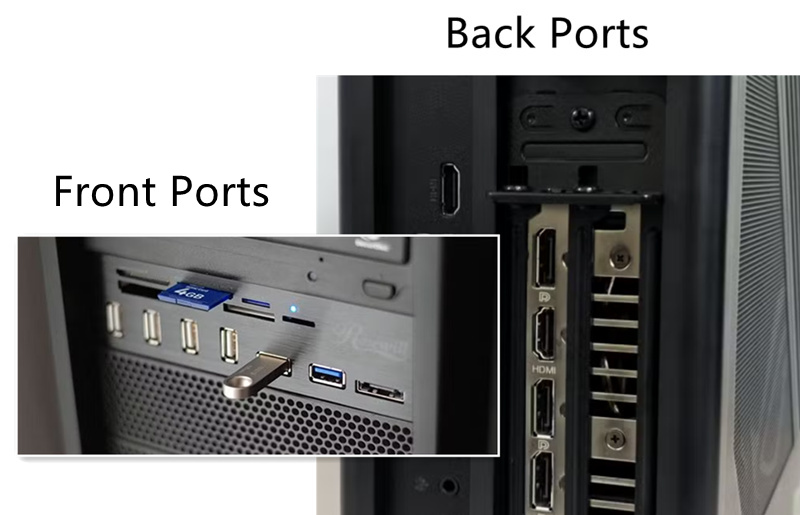
Step 2. Try a rear motherboard USB port instead of a front-panel port.
Step 3. Connect the USB device to another computer. If it isn't recognized there either, the device itself may be damaged.
#2. Check Your Computer's USB Interface
Sometimes the problem isn't the USB device—it's your computer's USB controller or hardware.
Test several different USB devices on the same computer.
If none of them work, the USB controller or motherboard may have a hardware issue.
If only one USB port fails while others work normally, that specific port is likely defective.
#3. Make Sure USB Connections Aren't Disabled
Some newer laptops and desktop PCs allow USB ports to be disabled through the BIOS/UEFI or by enterprise security policies. If all USB ports suddenly stop responding, check whether USB functionality has been turned off in your system firmware or by your organization's IT administrator.
#4. Update Outdated USB Drivers
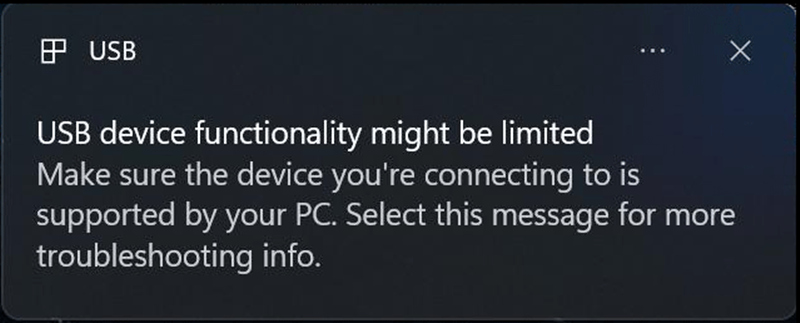
Even if the hardware is in good condition, outdated or corrupted USB drivers can prevent Windows from recognizing connected devices. This often happens after Windows updates, driver conflicts, or system changes. Updating or reinstalling the USB controller and chipset drivers can often restore normal USB functionality.
#5. USB Is Damaged and Not Recognized
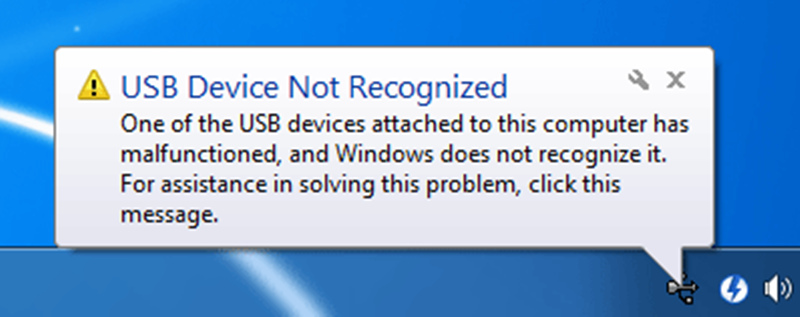
Some other actions can also cause your USB not to be recognized. For example, you force-unplug the USB from your computer when the connection is still on. Not only are the documents on your USB under big issues, but the USB also has a problem getting detected after this.
How to check if your USB is damaged and not recognized?
Method 1. Switch to other ports.
If all the ports don’t work for your USB, then the problem must be with your USB.
Method 2. Switch to other PCs.
If other PCs don’t recognize your USB, then you can check other methods.
How Can I Fix USB Device Not Recognized? Missing/Incompatible Drivers
Computer firmware is another major reason your USB device isn't recognized. The driver who is in charge of the USB connection is called the USB driver. The old USB driver that is incompatible with the current system version is not recognized.
How to fix this problem? Just update your driver to the latest version, and it can be detected by your system. One thing worth noticing is that Windows Device Manager, the default driver updater on your PC, is not a reliable tool. When you right-click on the External Hard Drive and attempt to update, a window pops up telling you it is already in the newest version. The only method is to use a reliable driver updater to scan, detect, and update USB drivers.
How to use IObit Driver Booster to update USB drivers?
Step 1. Download IObit Driver Booster.
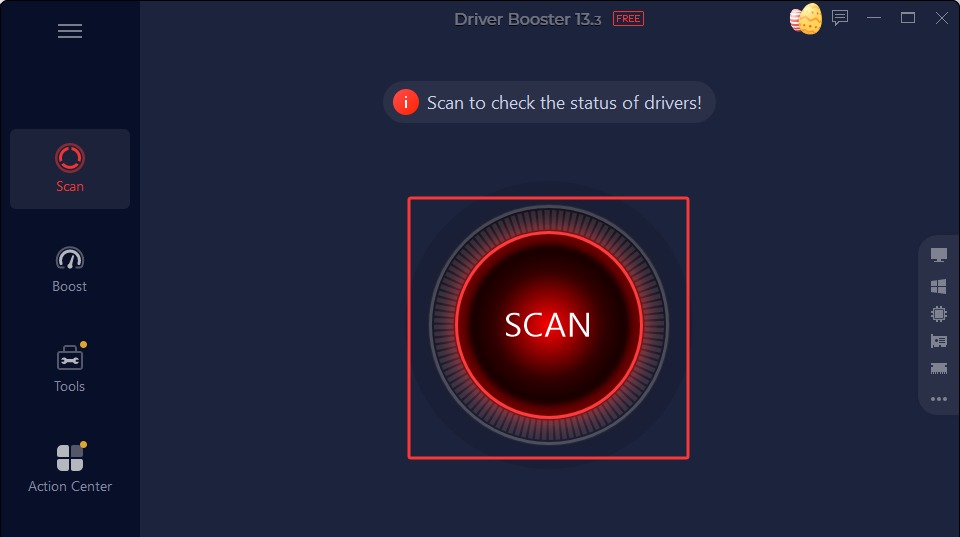
Step 2. Hit the ‘Scan’ button to do a full scan so you can see whether your system lacks a USB driver or your USB driver is outdated.
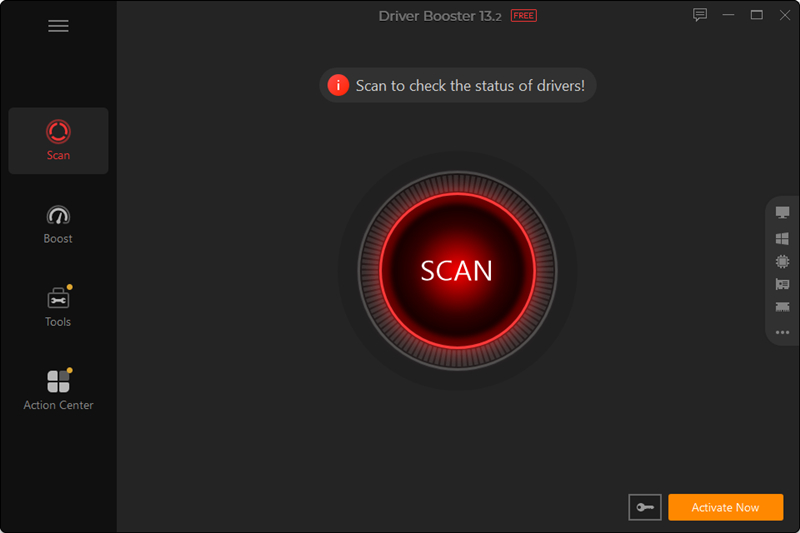
Step 3. Fix all the outdated drivers and reboot your PC.
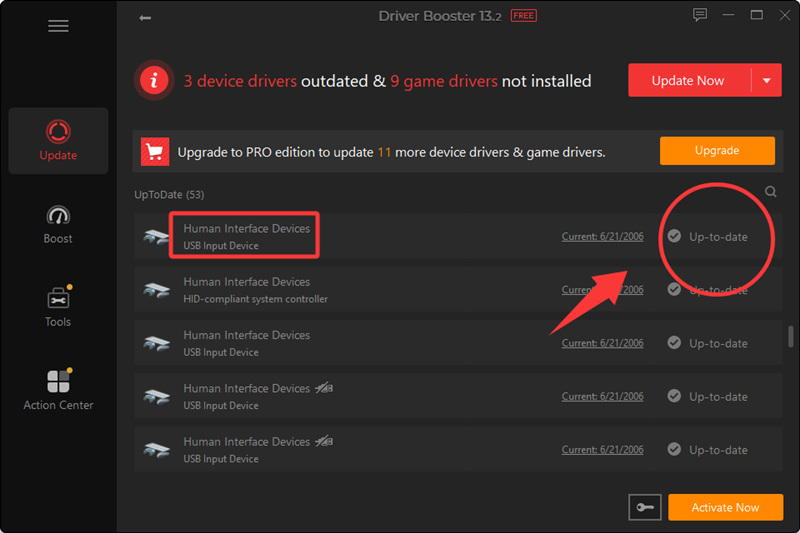
Step 4. Now plug in your USB to see if it appears.
This driver booster is an all-in-one driver troubleshooter.
The core features of IObit Driver Booster
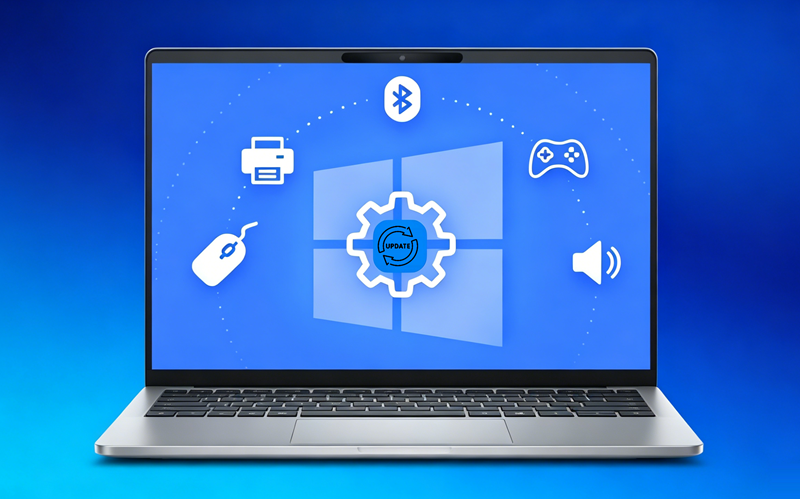
Quickly finds and installs the correct driver to solve USB device, printer, Bluetooth adapter, sound card, or Wi-Fi adapter problems.
Update GPU and game-related drivers to solve low FPS, stuttering, screen tearing, or game crashes.
Solve audio, network, display, or peripheral driver conflicts due to Windows Update.
Automatically detect and install essential drivers after reinstalling Windows.
How Can I Fix USB Device Not Recognized Using CMD?
If your USB flash drive is detected by Windows but doesn't appear in File Explorer or isn't accessible, Command Prompt (CMD) can help repair file system errors or reassign the drive. Before you begin, connect the USB drive to your PC and run Command Prompt as an administrator. If the USB drive has file system errors or bad sectors, the CHKDSK command may restore access.
How to fix USB flash drive not detected using CMD?
Step 1. Press Win + S, type cmd, then select Run as administrator.
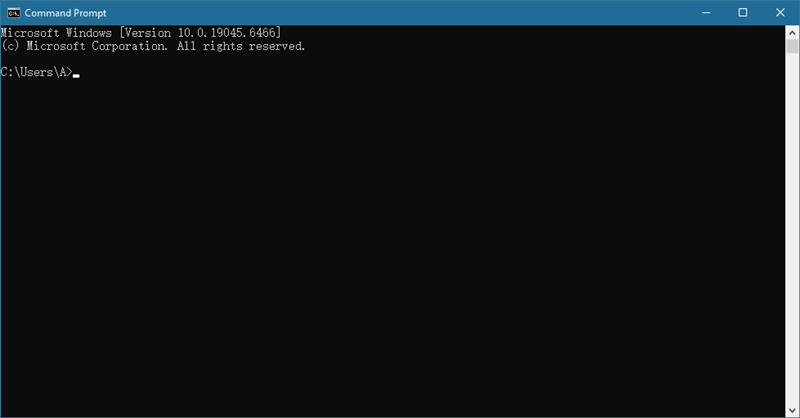
Step 2. Type the following command and press Enter:
chkdsk X: /f /r /x
Step 3. Replace X with your USB drive letter.
Command explanation:
/f – Fixes file system errors.
/r – Locates bad sectors and recovers readable data.
/x – Forces the drive to dismount before scanning.
Wait for the scan to complete, then reconnect the USB drive and check whether Windows recognizes it.
How Can I Fix USB Device Not Recognized Android?
The fastest way to address the Android device USB not recognized is by enabling File Transfer (MTP) Mode. One of the most common reasons an Android phone isn't recognized by a computer is that it's set to Charge Only mode instead of File Transfer (MTP).
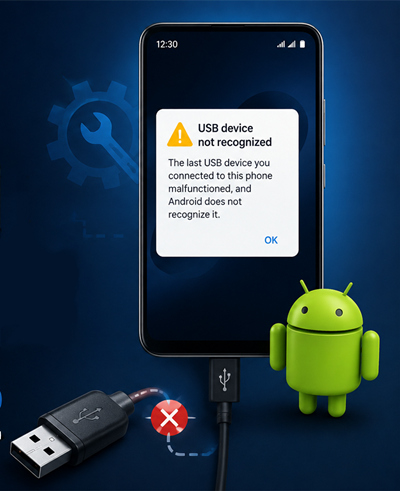
Here's how to fix it:
Step 1. Unlock your Android phone and connect it to your PC using a USB cable.
Step 2. Swipe down from the top of the screen to open the notification panel.
Step 3. Tap the USB charging this device notification.
Step 4. Under Use USB for, select File Transfer (MTP).
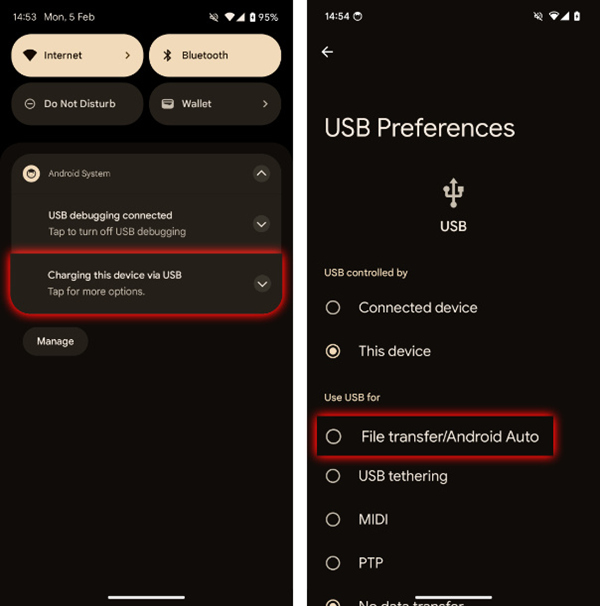
Wait a few seconds for Windows to detect your device.
If your phone still isn't recognized, try using a different USB cable. Some USB cables only support charging and cannot transfer data.
How Can I Fix USB Device Not Recognized iPhone?
If your iPhone is charging but isn't recognized by your Windows PC, the most common cause is that the device hasn't been trusted. Until you approve the connection, Windows cannot access your iPhone's data.
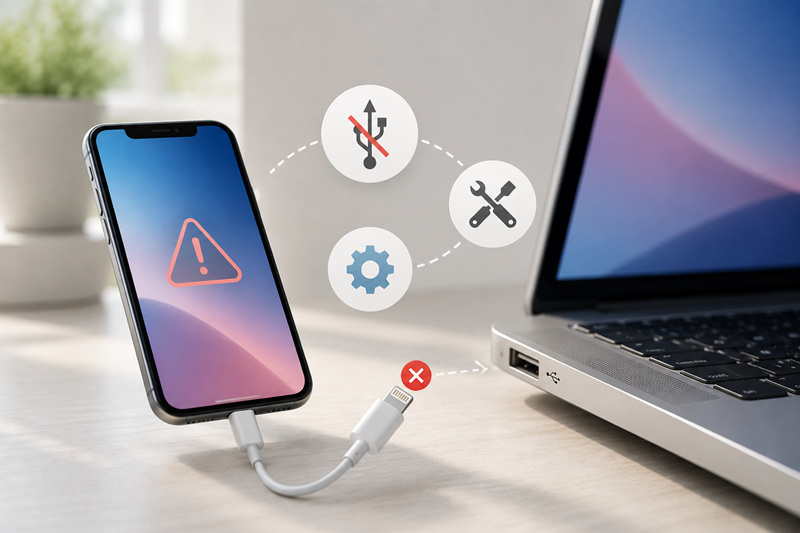
How to fix a USB flash drive not detected on an iPhone?
Step 1. Connect your iPhone to your PC using a USB cable.
Step 2. Unlock your iPhone.
Step 3. When the "Trust This Computer?" prompt appears, tap Trust.
Step 4. Enter your iPhone passcode to confirm.
Wait a few seconds for Windows to install the necessary drivers and recognize your iPhone.
If the Trust prompt doesn't appear, disconnect the iPhone, reconnect it, and make sure the phone is unlocked. Once trusted, your iPhone should appear in File Explorer, Apple Devices, or iTunes (depending on your setup).
What to Do If "Trust This Computer" Doesn't Appear
Now you need to reset Location & Privacy settings on your iPhone. If the "Trust This Computer" prompt never appears, your iPhone may have saved an incorrect trust configuration. Resetting the Location & Privacy settings forces iOS to display the prompt the next time you connect to your PC.
Follow these steps:
Step 1. Open Settings on your iPhone.
Step 2. Go to General → Transfer or Reset iPhone → Reset.
Step 3. Tap Reset Location & Privacy.
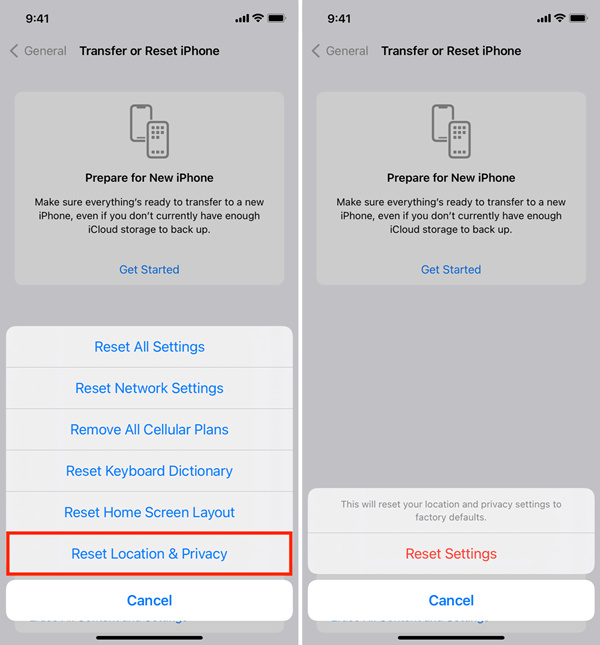
Step 4. Enter your iPhone passcode to confirm.
Step 5. Reconnect your iPhone to the PC and unlock the device.
When the "Trust This Computer?" prompt appears, tap Trust and enter your passcode.
Note: Resetting Location & Privacy does not erase your photos, apps, or personal data. It only resets privacy permissions, location settings, and trusted computer connections.
Conclusion
How can I fix USB device not recognized? A USB device not recognized error doesn't always mean your device is broken. In many cases, the issue can be resolved by checking the USB port, reconnecting the device, updating USB drivers, adjusting power settings, or repairing the drive with built-in Windows tools. If you're connecting an Android phone, iPhone, or USB flash drive, using the correct connection mode and ensuring the necessary drivers are installed can also restore the connection. BTW, for those who already know their undetected USB drives are caused by driver issues, IObit Driver Booster is a free and quick solution to fix USB connection problems.
Driver Booster Free
- Automatically scan and update drivers.
- Update game ready drivers for peak gaming performance.
- Identify and fix various common of hardware issues.
- Boost 30% of system performance for fast & smooth running.