External hard drives provide an easy way to store backups, photos, videos, and important documents. However, it can be frustrating when your external hard drive not showing up after connecting it to your computer. The problem may be caused by loose connections, outdated drivers, incorrect disk settings, or file system errors.
Fortunately, most detection issues can be resolved without third-party software. This guide explains the common causes behind a hard drive not showing up and walks you through several proven solutions. Whether your drive is missing in Windows or inaccessible in File Explorer, you'll learn practical methods to restore it quickly.
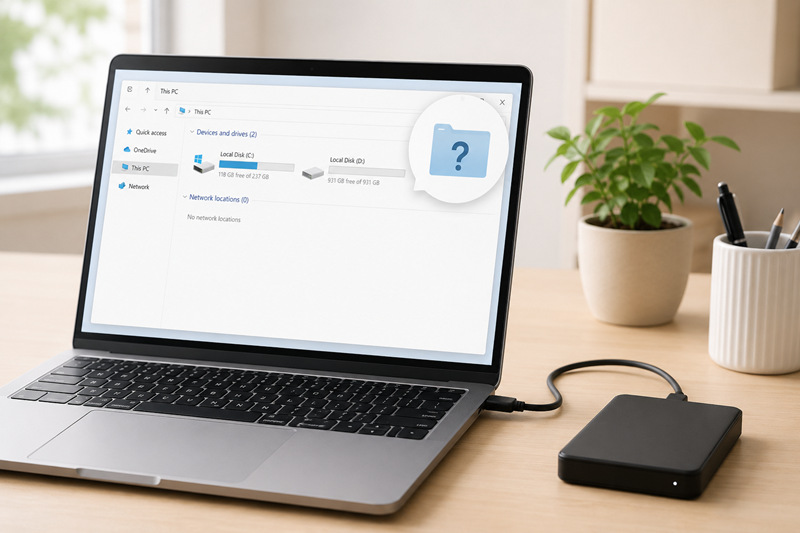
Method 1. Check the USB Connection & Hardware to Fix Hard Drive Not Showing Up
Don't go directly to Windows settings to troubleshoot connection problems; make sure the problem isn't caused by hardware issues like a damaged USB cable, faulty port, or insufficient power. These physical problems can cause your computer not reading external hard drive. Don't fret, check the tutorial below to see if it is a hardware issue or a settings issue.
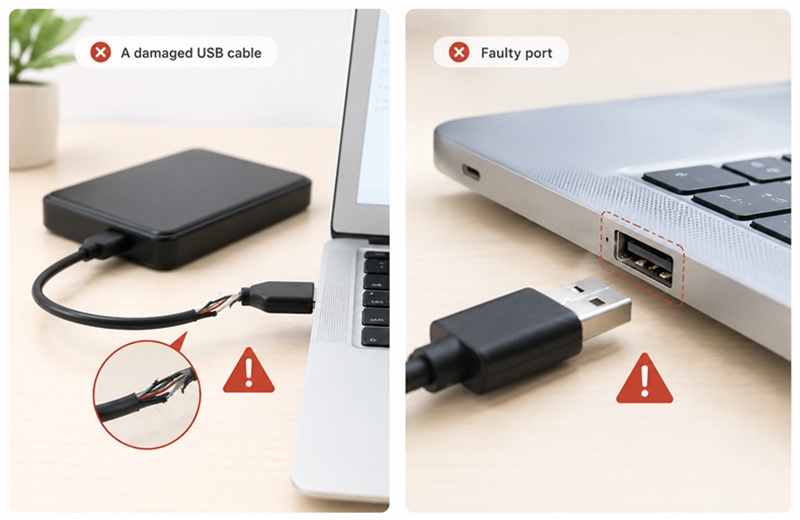
Step 1. Disconnect the external hard drive from your computer.
Step 2. Inspect the USB cable for visible damage or loose connectors.
Step 3. Connect the drive to another USB port, preferably a USB 3.0 port directly on your PC.
Step 4. If available, try another USB cable that supports data transfer.
Step 5. Connect the drive to another computer. If the drive works on another device, the issue is likely related to your Windows settings rather than the drive itself.
Step 6. If you're using a desktop computer, plug the drive into a rear motherboard USB port instead of a front-panel port.
Tip: Portable hard drives may require additional power. If your drive includes a power adapter, make sure it's connected securely.
Method 2. Assign or Change the Drive Letter to Solve Hard Disk External Not Detected
Sometimes Windows recognizes the drive but doesn't assign it a drive letter, making it invisible in File Explorer. Updating the drive letter through Disk Management is a safe and effective way to restore access.
Step 1. Press Win + X and select Disk Management.
Step 2. Locate your external hard drive in the list. It may appear without a drive letter or as an unallocated volume.
Step 3. Right-click the partition and choose Change Drive Letter and Paths.
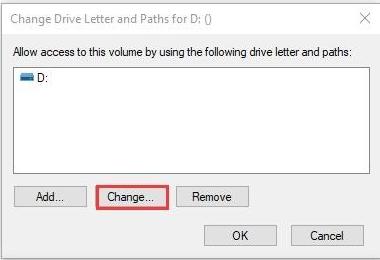
Step 4. Click Add or Change.
Step 5. Select an unused drive letter and click OK.
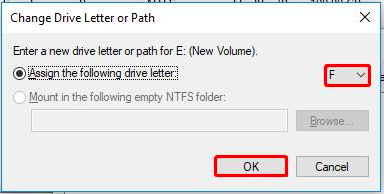
Step 6. Open File Explorer to check whether the drive is now accessible.
This method is especially useful if you notice your external hard drive not showing up in File Explorer even though Disk Management detects it.
Method 3. Update the USB and Storage Drivers to Solve Hard Drive Not Showing Up
Outdated USB & Storage drivers can cause devices to disconnect, transfer slowly, or fail to be recognized. Updating these drivers helps improve compatibility, stability, and overall system performance. You can update them manually with Device Manager if you know where to download and set up drivers for your PC. If not, using IObit Driver Booster to automatically detect and install the latest certified drivers is a better choice. Whichever method you prefer, here are the steps.
1. Update Driver with Device Manager
As introduced above, outdated or corrupted storage drivers can cause your computer not reading external hard drive, so it’s necessary to update them to improve compatibility. Here are the steps.
Step 1. Press Win + X and open Device Manager.
Step 2. Expand Disk drives.
Step 3. Right-click the external hard drive and select Update driver.
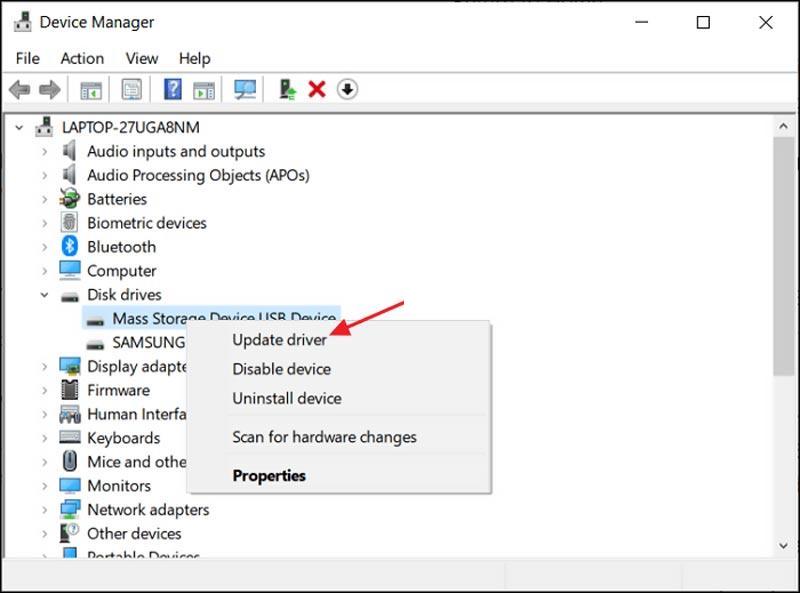
Step 4. Choose Search automatically for drivers.
Step 5. Repeat the process under Universal Serial Bus controllers, updating USB Root Hub and USB Mass Storage Device if available.
Step 6. Restart your computer after the updates are installed.
The thing is, Windows Device Manager insists the best driver is already installed. Actually, this method requires users to download the right version driver to their PC first. Device Manager only does the matching work, not downloading anything from Internet.
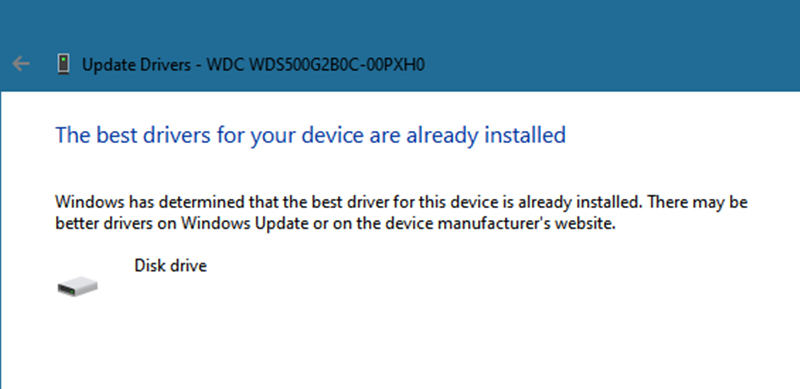
If you don't know the manufacturer that offers the hard disk driver, you need a dedicated driver utility, which we'll introduce in the next method. It's also a practical solution if you're looking for how to fix USB HDD not showing up after a Windows update.
2. Fix Driver Problems Automatically with a Driver Booster (Recommended)
A dedicated driver updater fetches the most compatible driver for your system. Driver Booster scans your PC for outdated, missing, or corrupted drivers and installs the latest official versions with one click for free. It's one of the best driver updater tools for resolving hardware detection problems, including external hard drive not detected errors caused by incompatible USB or chipset drivers.
Why Choose Driver Booster?
Instead of checking each driver one by one, Driver Booster automatically identifies driver-related issues that may prevent Windows from recognizing external devices. It can also help resolve other hardware problems, such as audio driver not working windows 11, unstable USB devices, and network adapter errors.
Key Features
Fix Device Errors - Repair common hardware issues such as no sound, network failures, device not recognized, and poor resolution.
One-Click Driver Scan And Update - Finds outdated drivers and updates them automatically with a single click.
Massive Driver Database - Provides access to millions of official drivers for storage, USB, chipset, audio, graphics, and more.
Fix Incompatible Drivers - Detect and replace incompatible or corrupted drivers to improve hardware compatibility and prevent crashes, freezes, and system instability.
Offline Driver Update - Installs required drivers even when the affected computer has no internet connection.
Steps to fix external hard drive not showing up using IObit Driver Booster:
Step 1. Download and install the latest version of Driver Booster from the official website. Launch the program after installation.
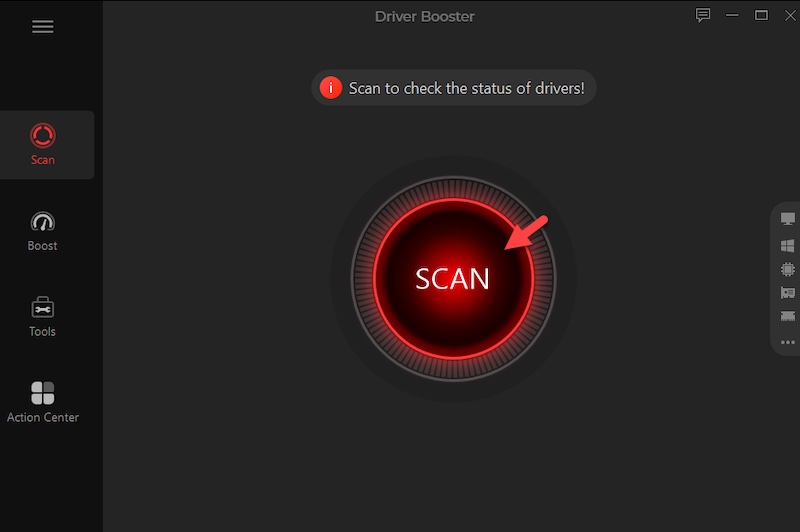
Step 2. Click the Scan button on the Home page. Driver Booster will automatically scan your PC for outdated, missing, and faulty drivers.
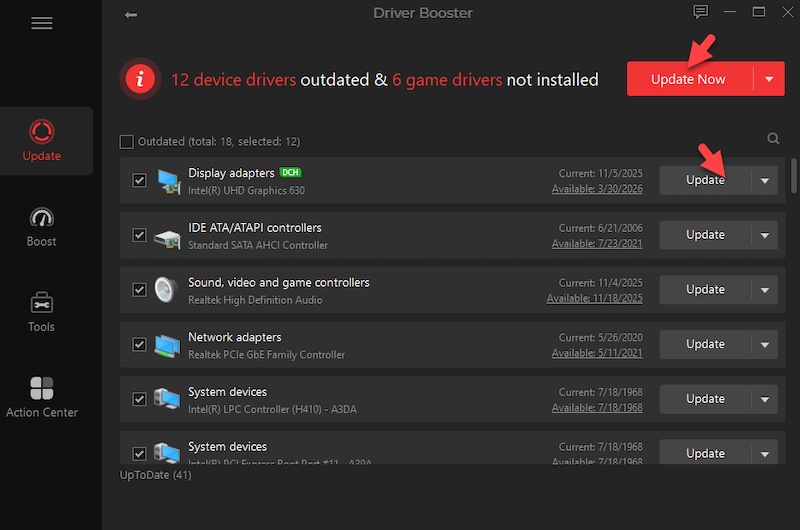
Step 3. After the scan finishes, Driver Booster displays all outdated drivers. Look for categories related to:
Then, click Update next to individual storage or USB drivers, or click Update Now to install all recommended driver updates automatically.
Method 4. Initialize or Format the Drive Partition to Solve HDD Not Showing Up
What to do if external hard drive is not detected? If Windows detects the drive but shows it as Unknown, Not Initialized, or RAW, the partition information may be damaged. Initializing or formatting the drive can restore its usability, although formatting will erase existing data.
Step 1. Open Disk Management.
Step 2. Locate the external hard drive. If it displays Not Initialized, right-click it and choose Initialize Disk.
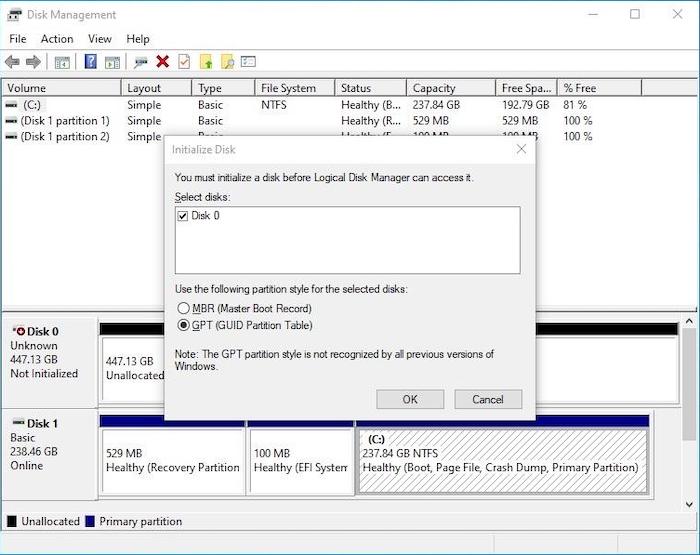
Step 3. Select GPT for modern computers or MBR for older systems.
Step 4. If the partition is marked as RAW or Unallocated, right-click it and select New Simple Volume Wizard.
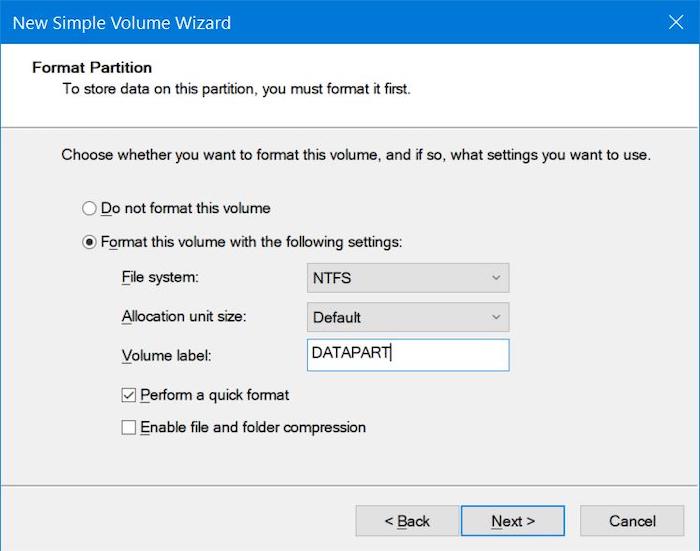
Step 5. Follow the wizard to assign a drive letter and choose NTFS or exFAT as the file system.
Note: Backup important files before formatting if the drive contains valuable data.
Method 5. Run CHKDSK to Fix Disk Errors That Cause Hard Drive Not Showing Up
File system corruption can cause PC not recognizing externarl hard drive. Running the built-in CHKDSK utility scans the disk for logical errors and repairs them automatically whenever possible.
Step 1. Type cmd into Windows Search.
Step 2. Right-click Command Prompt and select Run as administrator.
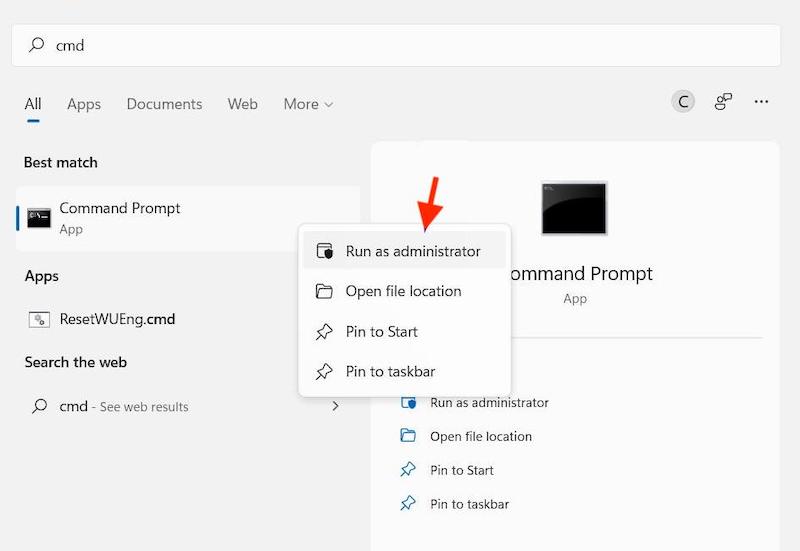
Step 3. Enter the following command:
chkdsk X: /f /r
Replace X with your external drive letter.
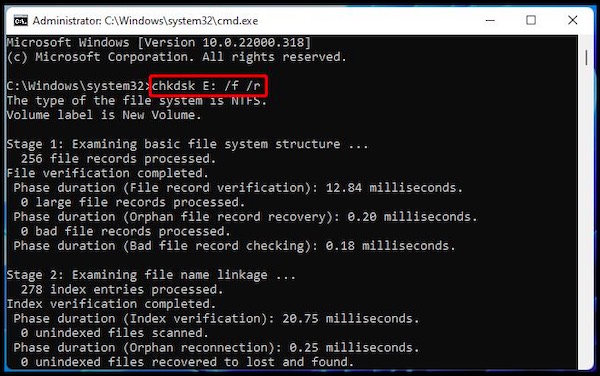
Step 4. Press Enter and wait for the scan to finish.
Step 5. Restart your computer after the repair completes.
If the scan repairs damaged sectors or file system errors, reconnect the drive and see whether the external hard drive not showing up Windows 11 or 10 issue has been resolved.
Method 6. Scan for Hardware Changes Changes to Solve Hard Drive Not Showing Up
Occasionally, Windows fails to refresh newly connected hardware. Performing a manual hardware scan forces the operating system to detect recently attached storage devices without requiring a full reinstall.
Step 1. Right-click the Start button (or press Windows Key + X) and select Device Manager from the menu.
Step 2. Navigate to the Action menu.
Step 3. Select Scan for hardware changes.
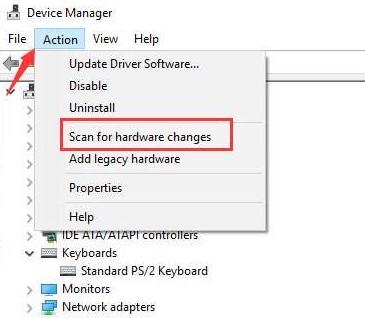
Step 4. Wait while Windows searches for connected devices.
Step 5. Disconnect and reconnect your external hard drive.
This is another effective method for users experiencing a hard disk external not detected. Especially after upgrading Windows or installing new hardware.
FAQs About External Hard Drive Not Showing Up
Why is my external hard drive connected but not showing up?
Common causes include damaged USB cables, outdated drivers, missing drive letters, corrupted partitions, or hardware conflicts. Start with the hardware checks, then update your drivers and review Disk Management.
Why does my external hard drive show in Disk Management but not File Explorer?
This usually happens when the drive has no assigned drive letter or uses an unsupported or corrupted file system. Assigning a new drive letter often restores access.
Can outdated drivers cause an external hard drive not to be detected?
Yes. Corrupted USB, chipset, or storage controller drivers can prevent Windows from recognizing connected devices. Updating them with Driver Booster is one of the quickest ways to restore compatibility.
What's the easiest way to fix an external hard drive that isn't detected?
If you want a fast solution, begin by checking the cable and USB port, then use Driver Booster to update all storage-related drivers automatically before trying more advanced repairs.
Conclusion
If your external hard drive not showing up after connecting it, don't panic. Most problems are caused by connection issues, missing drive letters, disk errors, or outdated drivers. Follow the methods above step by step, and you'll likely regain access without replacing the drive. For the quickest driver-related fix, Driver Booster can automatically update storage, chipset, and USB drivers, helping Windows recognize your external hard drive again.
Driver Booster Free
- Automatically scan and update drivers.
- Update game ready drivers for peak gaming performance.
- Identify and fix various common of hardware issues.
- Boost 30% of system performance for fast & smooth running.