A wireless mouse not working can be incredibly frustrating, especially when you're in the middle of work or gaming. Whether your cursor won't move, your clicks aren't responding, or your computer doesn't recognize the mouse at all, the issue is usually caused by batteries, Bluetooth, USB receivers, drivers, or Windows settings.
If you're wondering why my wireless mouse not working, don't worry. This guide covers all common causes and provides step-by-step solutions for Windows desktops and laptops. You'll also learn how to fix a wireless mouse not working Logitech, wireless mouse not working laptop, wireless mouse not working Windows 11, and wireless mouse not working on PC.
Why Is Your Wireless Mouse Not Working?
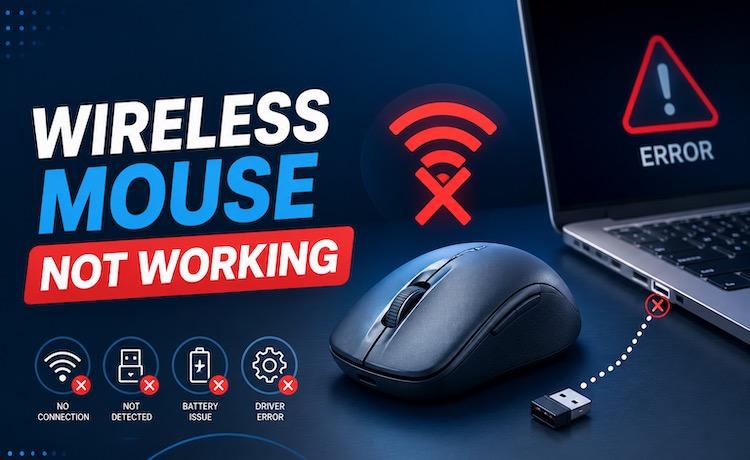
Before trying advanced fixes, it's helpful to understand why my wireless mouse not working. Common reasons include:
Dead or weak batteries
Loose USB receiver
Bluetooth connection issues
Corrupted mouse drivers
Outdated USB drivers
Power management settings
Windows updates are causing conflicts
Hardware damage
Fortunately, most of these problems can be fixed within minutes. If you want to solve this problem, follow these methods.
Method 1. Check the Battery and Power Switch
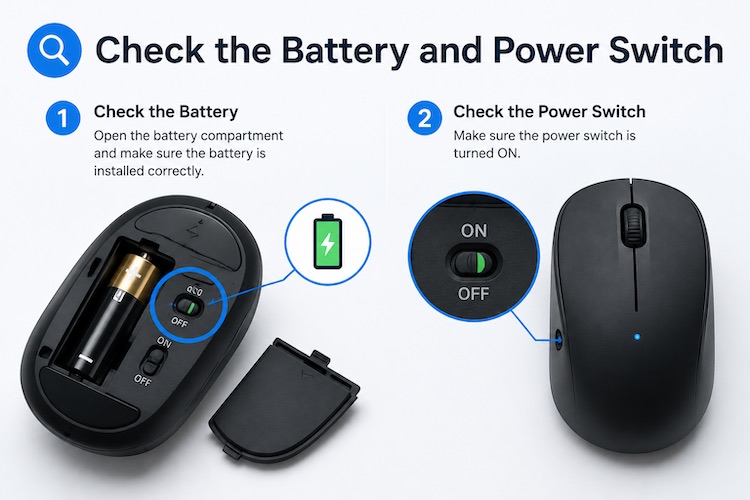
The simplest solution is often the correct one. Many users overlook low batteries or accidentally switch off mice. Before changing Windows settings, verify that the mouse is receiving enough power. This quick inspection can save significant troubleshooting time and immediately restore normal operation.
Step 1. Turn the mouse over.
Step 2. Ensure the power switch is set to ON.
Step 3. Replace the batteries with new ones.
Step 4. Recharge the mouse if it has a built-in battery.
Step 5. Check whether the LED indicator lights up.
Method 2. Reconnect the USB Receiver
If replacing batteries doesn't help, the USB receiver could be the problem. Dust, loose connections, or faulty USB ports often prevent Windows from recognizing wireless peripherals. Reconnecting the receiver allows Windows to detect the device again and establish a fresh connection.
Step 1. Remove the USB receiver.
Step 2. Wait 10 seconds.
Step 3. Plug it into another USB port.
Step 4. Avoid USB hubs during testing.
Step 5. Restart your PC to check if the problem is solved.
If your wireless mouse not working on PC, switching USB ports often resolves hardware communication issues.
Method 3. Pair the Mouse Again (Bluetooth Models)
Bluetooth mice may disconnect after Windows updates, sleep mode, or pairing conflicts. Removing the old connection and pairing the device again refreshes communication between Windows and the mouse. This process only takes a few minutes and fixes many intermittent connection issues.
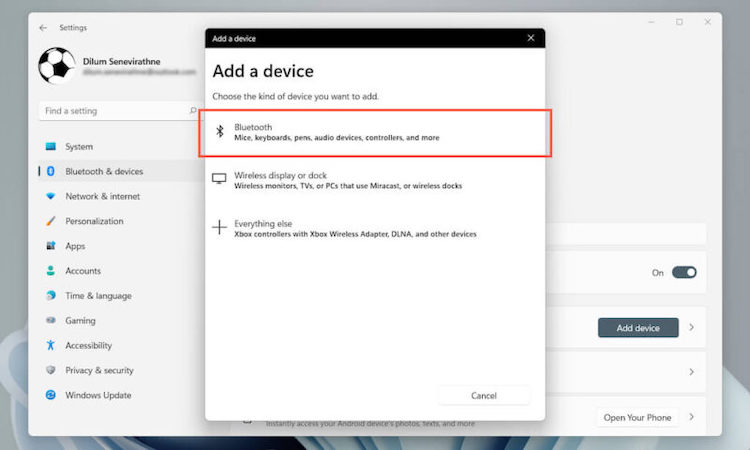
Step 1. Open the Start menu and select Settings > Bluetooth & devices.
Step 2. Click the More icon (three dots) next to your mouse and select Remove device. Confirm your option.
Step 3. Then, click Add device and repeat the pairing process to connect your mouse to your computer again.
Method 4. Update Mouse Drivers with Driver Booster (Recommended)
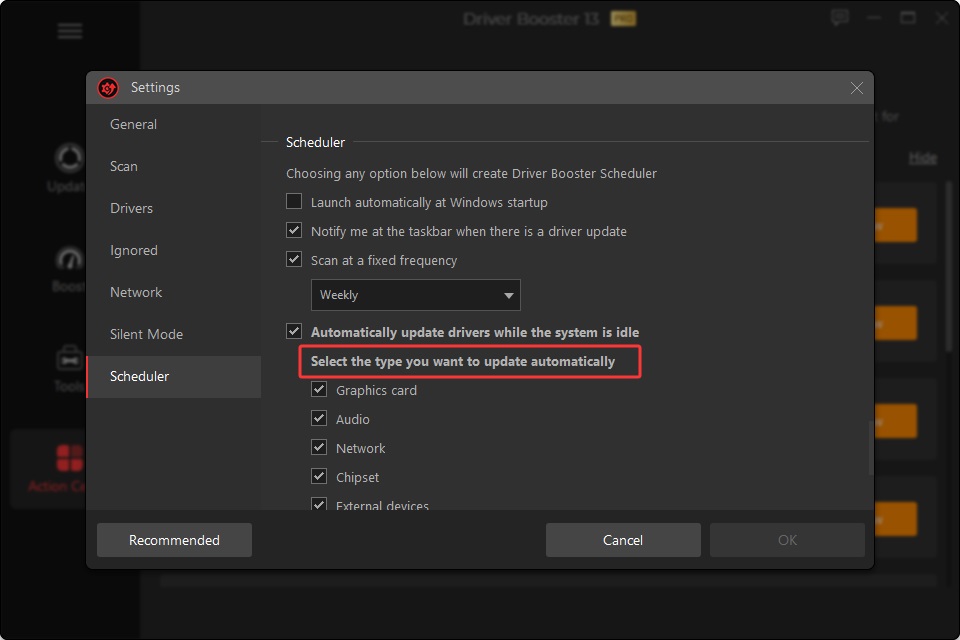
Driver problems are among the most common causes of mouse failures, especially after Windows updates. Instead of manually searching for the correct drivers, Driver Booster automatically scans for outdated, missing, and faulty drivers, then installs the latest compatible versions from its extensive driver database. If your wireless mouse is not working because of driver issues, outdated USB, Bluetooth, or chipset drivers, Driver Booster can quickly resolve the problem.
Additionally, it also creates driver backups before updates for easy restoration and supports graphics cards, network adapters, sound cards, USB controllers, and many other devices, making PC maintenance faster and easier.
Driver Booster Free
- Automatically scan and update drivers.
- Update game ready drivers for peak gaming performance.
- Identify and fix various common of hardware issues.
- Boost 30% of system performance for fast & smooth running.

How to Update Mouse Driver for Fixing Not Working Issue
Step 1. Download Driver Booster on your computer. Install and launch it after downloading.
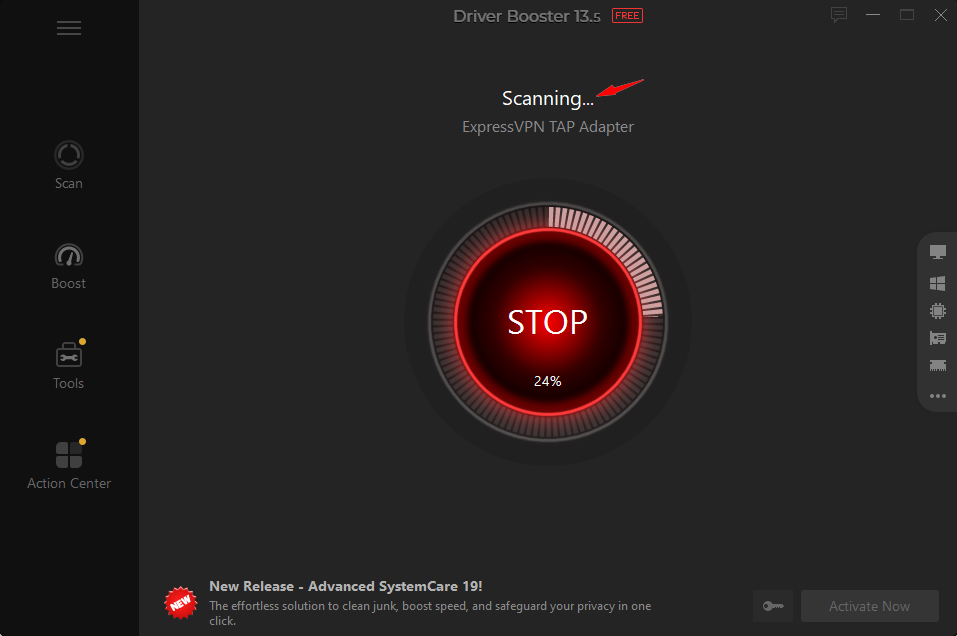
Step 2. Open Driver Booster and click the red Scan button to scan your outdated, broken, or missing drivers.
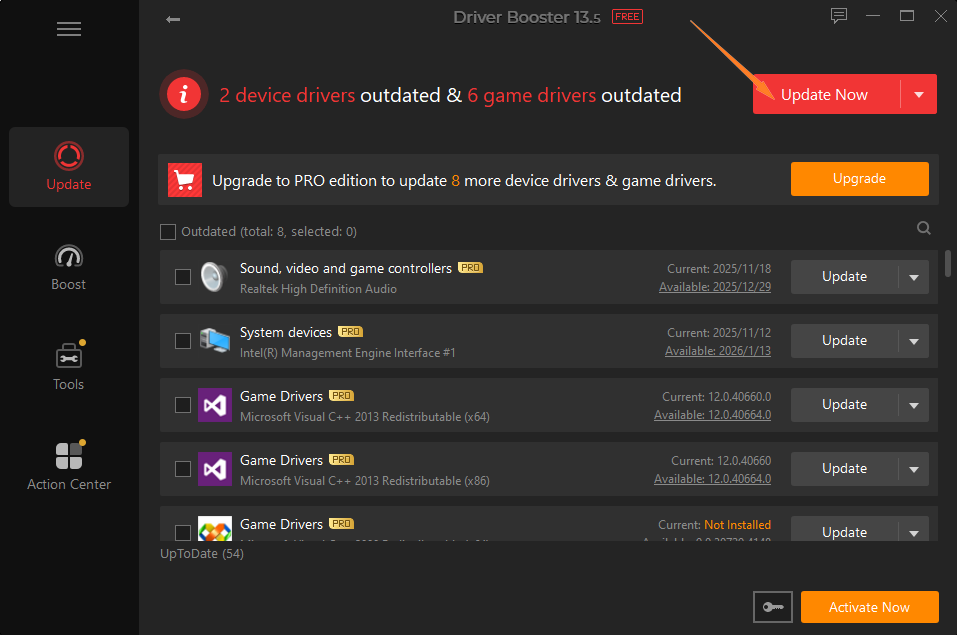
Step 3. Click “Update Now” to install all drivers at once. Or you can also update an individual driver by clicking “Update” next to the driver you want to update.
Why Choose Driver Booster?
Scan your PC and update outdated, missing, or faulty drivers with a single click, saving time and reducing the risk of installing incorrect drivers manually.
Access millions of certified drivers for mice, USB controllers, Bluetooth adapters, graphics cards, sound cards, and other hardware to improve compatibility and stability.
The automatic driver updater creates a backup before every driver update, allowing you to restore the previous version easily if a compatibility issue occurs.
Install essential network and device drivers on computers without an internet connection, making it easier to repair newly installed or disconnected systems.
Driver Booster can sometimes resolve multiple hardware problems at once and improve overall system stability by updating all critical drivers. If you’re facing the problem that the audio driver not working Windows 11, it can help you solve it.
Method 5. Update Windows
Microsoft frequently releases patches that improve Bluetooth compatibility, USB stability, and hardware recognition. Installing the latest updates can resolve bugs affecting wireless devices and ensure your operating system supports newer peripherals.
Step 1. Click on the Windows Start button.
Step 2. Click on Settings (which is a gear icon).
Step 3. Click on Windows Update from the left panel.
Step 4. Click Check for Updates.
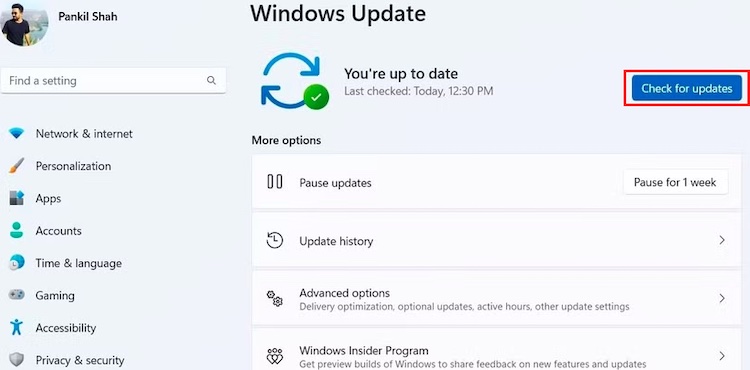
Step 5. Install available updates and restart your computer.
Method 6. Disable USB Power Saving
Windows sometimes turns off USB ports to save energy, especially on laptops. Unfortunately, this can disconnect wireless receivers unexpectedly. Disabling USB power management prevents Windows from shutting down the receiver while you're using the mouse.
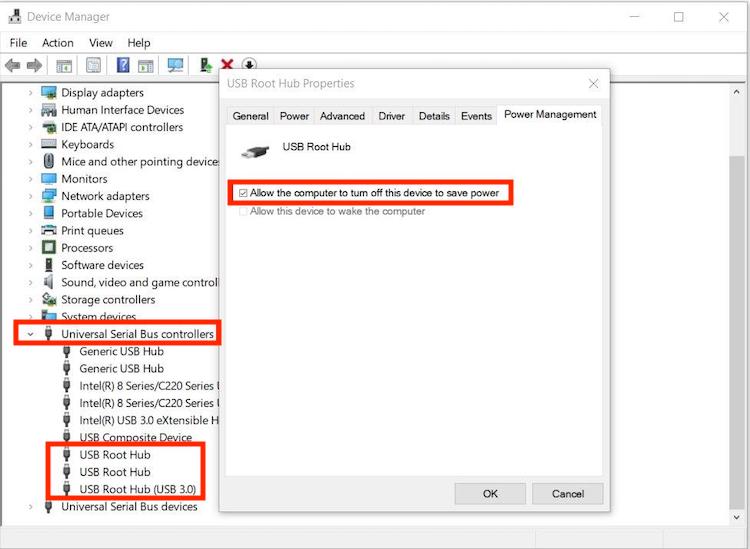
Step 1. Press Windows + X on your keyboard to open Device Manager.
Step 2. Expand Universal Serial Bus Controllers.
Step 3. Find USB Root Hub or USB Root Hub (USB 3.0).
Step 4. Right-click the device and select Properties.
Step 5. Open the Power Management tab.
Step 6. Uncheck Allow the computer to turn off this device.
Step 7. Click OK to save your changes.
Method 7. Reinstall the Mouse Driver
Corrupted driver files may prevent Windows from communicating correctly with your wireless mouse. Removing the current driver forces Windows to reinstall a fresh version after restarting, eliminating damaged configurations that may be causing the issue.
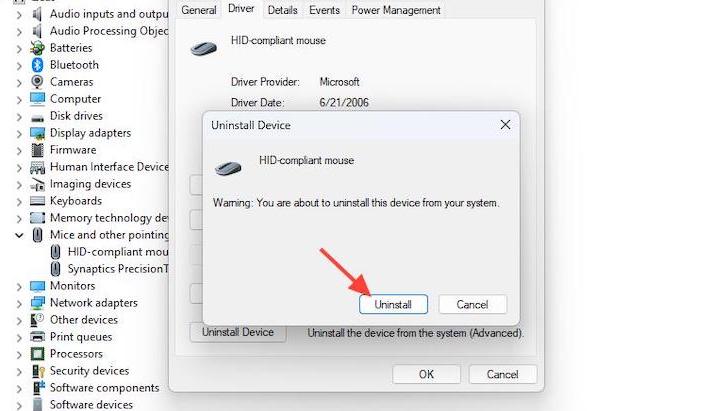
Step 1. Press Windows + X to open Device Manager.
Step 2. Expand Mice and other pointing devices category.
Step 3. Right-click your mouse device and select Uninstall device.
Step 4. Check Attempt to remove the driver for this device if the option appears.
Step 5. Click Uninstall to confirm.
Method 8. Fix Logitech Wireless Mouse Problems
If you own a Logitech mouse, additional software or receiver issues may be responsible. Logitech devices often rely on Logi Options+, Unifying Receiver, or Bolt Receiver software. Updating these components can quickly restore functionality if your wireless mouse not working Logitech.
Step 1. Install the latest Logitech software.
Step 2. Update your Logitech receiver firmware.
Step 3. Re-pair the receiver if supported.
Step 4. Restart Windows.
Step 5. Test the mouse again.
Method 9. Run the Hardware Troubleshooter
Windows includes built-in troubleshooting tools that automatically detect hardware communication issues. Although it won't fix every problem, it can identify missing services, disabled devices, or incorrect settings without requiring technical knowledge.
Step 1. Press Windows + R on your keyboard.
Step 2. Type msdt.exe -id DeviceDiagnostic and press Enter.
Step 3. It will open the Hardware and Devices Troubleshooter.
Step 4. In the Hardware and Devices window, click Next.
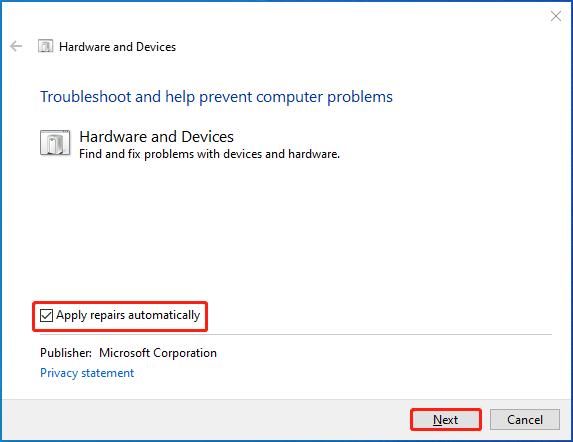
Step 5. Wait for Windows to detect hardware problems.
Step 6. Let the troubleshooter check connected devices, drivers, and system settings.
Step 7. Review the problems found by the troubleshooter.
Step 8. Click Apply this fix if a solution is available.
Step 9. Follow the on-screen instructions and wait until Windows completes the repair process.
Method 10. Test the Mouse on Another Computer
If none of the previous methods work, determine whether the mouse itself has failed. Testing it on another device helps separate hardware faults from Windows-related issues before purchasing a replacement.
Step 1. Connect the mouse to another PC.
Step 2. Test cursor movement.
Step 3. Try another wireless receiver if available.
Step 4. Replace the mouse if it fails on multiple computers.
Frequently Asked Questions
1. Why is my wireless mouse connected but not working?
The mouse may have outdated drivers, battery issues, USB receiver problems, Bluetooth pairing errors, or Windows power management settings preventing communication.
2. Why my wireless mouse not working after Windows Update?
Windows updates can replace or corrupt existing drivers. Updating or reinstalling the mouse and USB drivers usually fixes the issue.
3. How do I fix a wireless mouse not working on my laptop?
Check the batteries, reconnect the receiver, disable USB power saving, reinstall the driver, and update Windows.
4. Can outdated drivers stop a wireless mouse from working?
Yes. Corrupted or outdated drivers can prevent Windows from recognizing your mouse. Updating drivers is one of the most effective solutions.
Conclusion
A wireless mouse not working is usually caused by power, connection, or driver issues rather than hardware failure. Start with simple checks like batteries and USB ports before moving to driver updates or Windows settings. If you frequently encounter hardware problems, this automatic driver updater - Driver Booster provides an easy way to keep mouse, USB, chipset, and other drivers updated automatically, helping prevent similar issues in the future.
Driver Booster Free
- Automatically scan and update drivers.
- Update game ready drivers for peak gaming performance.
- Identify and fix various common of hardware issues.
- Boost 30% of system performance for fast & smooth running.