Hardware drivers help Windows communicate with hardware devices such as graphics cards, sound cards, printers, and network adapters. If drivers are outdated or missing, your devices may not work properly, and system performance can suffer.
Updating drivers can improve stability, boost performance, fix compatibility issues, and enhance security. It can also help prevent crashes, hardware errors, and connection problems.
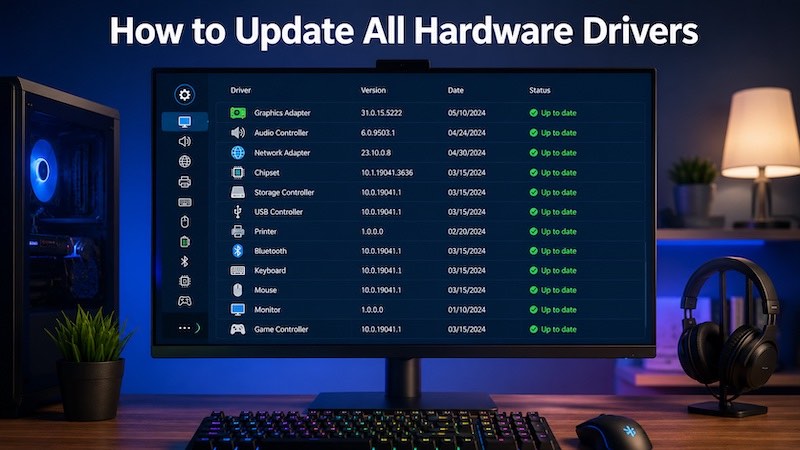
In this guide, you'll learn how to update all hardware drivers on Windows, including using Driver Booster, Windows Update, Device Manager, and manufacturer websites.
Why You Should Update All Hardware Drivers
Before exploring the different methods for updating drivers, it's important to understand the key benefits of keeping all your hardware drivers up to date. Then, you can decide whether to update all hardware drivers.
#1. Improve System Stability
Driver updates can fix bugs that cause crashes, freezes, blue screen errors, and hardware problems. Keeping your drivers updated helps your PC run more smoothly and reliably.
#2. Enhance Device Performance
Updated drivers can help your hardware perform better. For example, new graphics drivers may improve gaming performance, while updated network drivers can provide faster and more stable connections.
#3. Increase Security
Some driver updates fix security issues that could be used by malware or other threats. So, you can install the latest driver version to keep your computer safer.
#4. Ensure Compatibility with New Software
New Windows updates, games, and programs may need the latest drivers to work properly. Updating your drivers helps prevent compatibility issues and ensures everything runs as expected.
Things to Do Before Updating Drivers
Before updating your hardware drivers, take a few precautionary steps to avoid potential issues.
1. Create a System Restore Point
A system restore point allows you to revert Windows to a previous state if a driver update causes instability or hardware problems.
2. Back Up Important Files
Although driver updates are generally safe, it's always wise to back up important documents, photos, and other files before making system changes.
3. Check Your Windows Version
Knowing your Windows version can help you download the correct drivers and ensure compatibility with available updates.
How to Update All Hardware Drivers with Driver Booster (Recommended)
IObit Driver Booster is one of the easiest tools available for users who want to update all hardware drivers without manually checking each device. The software scans your computer for outdated, missing, or faulty drivers and updates them automatically. Instead of searching manufacturer websites or using Device Manager for individual updates, Driver Booster lets you update multiple drivers with just a few clicks, saving time and reducing the risk of installing the wrong driver. In addition to that, there are many other outstanding features of IObit Driver Booster.
Driver Booster Free
- Automatically scan and update drivers.
- Update game ready drivers for peak gaming performance.
- Identify and fix various common of hardware issues.
- Boost 30% of system performance for fast & smooth running.

Key Features of Driver Booster:
#1. One-Click Driver Updates
Driver Booster automatically scans your computer for outdated, missing, or faulty drivers and installs the latest versions with a single click. This eliminates the need to manually search for how to update drivers for each hardware component.
#2. Extensive Driver Database
Driver Booster uses a large driver database containing drivers for millions of devices from various hardware manufacturers. This broad coverage helps it identify and update drivers for graphics cards, sound cards, network adapters, printers, and many other devices.
#3. Automatic Update, Backup, and Restore
Before installing any driver update, Driver Booster creates a backup of the current driver. If the new driver causes compatibility issues or system instability, the previous version can be restored to return the device to its original working state.
#4. Offline Driver Update Support
Driver Booster includes an offline update feature that allows drivers to be installed on computers without internet access. It can prepare the necessary driver packages on another connected device and transfer them to the offline system for installation.
#5. Specialized Game-Ready Driver Updates
Driver Booster prioritizes graphics and gaming-related driver updates released by hardware manufacturers. These drivers are designed for the latest games and can provide better performance, fix known issues, and improve compatibility.
Steps to Update All Drivers with IObit Driver Booster
Step 1. Download and launch IObit Driver Booster on your computer.
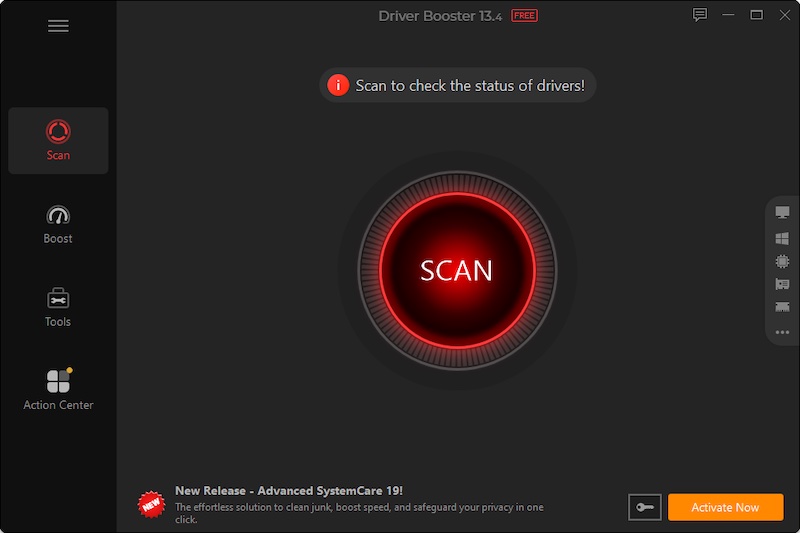
Step 2. You will see the main dashboard with a large SCAN button in the center. Click SCAN to check your system for outdated drivers, missing drivers, faulty drivers, and missing game components.
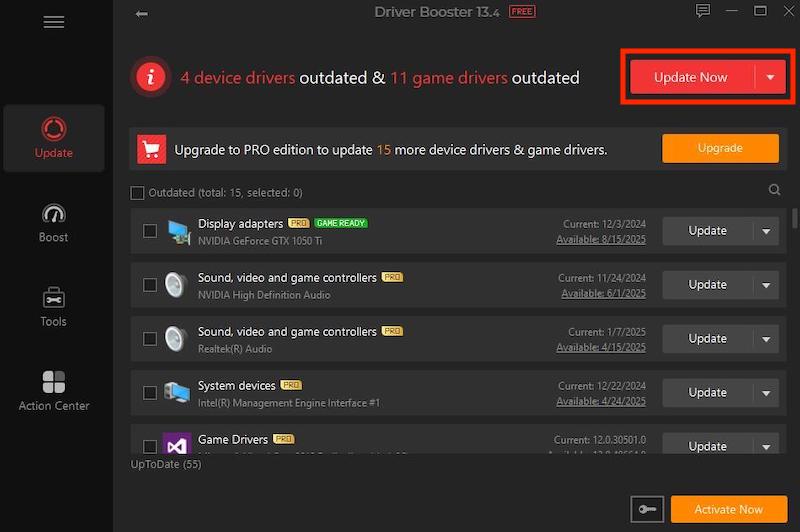
 Step 3. After scanning, Driver Booster displays a list of drivers that need updating. You can review individual driver updates and select the one you wish to update. Or you can click Update Now in the upper-right area of the results page to update all drivers at once.
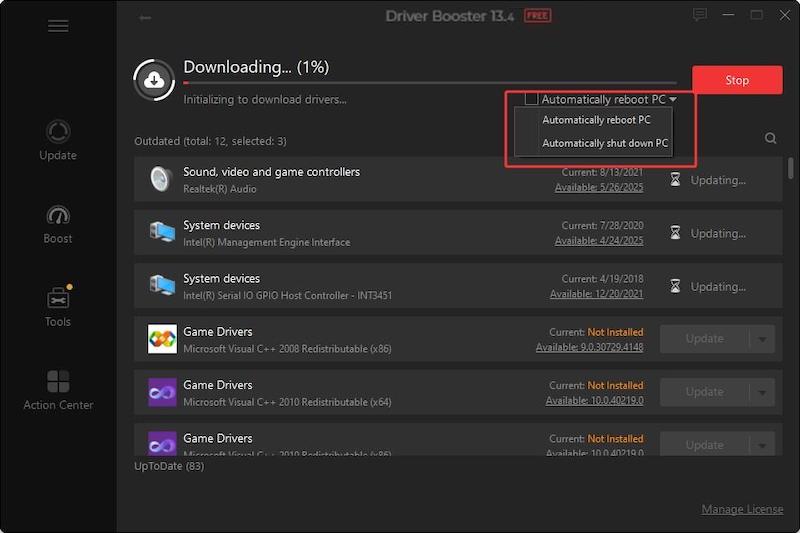
Step 4. Driver Booster downloads and installs each driver automatically. Depending on the number of updates and your internet speed, this process may take several minutes. Then, restart your computer.
How to Update All Hardware Drivers Windows 11 Through Windows Update
Microsoft distributes driver updates for many common hardware components through Windows Update, including network adapters, audio devices, printers, and some graphics hardware. The main advantage of this method is that Microsoft tests the drivers for compatibility with Windows, making installation simple and generally reliable. However, the downside is that Windows Update may not always provide the newest driver versions available from hardware manufacturers, which means you could miss out on the latest performance improvements, bug fixes, or device-specific features.
Steps to Update Drivers via Windows Update
Step 1. Press Windows + I to open Settings.
Step 2. Select Windows Update from the left panel.
Step 3. Windows will search for available updates, including eligible driver updates. Next, click Optional updates.
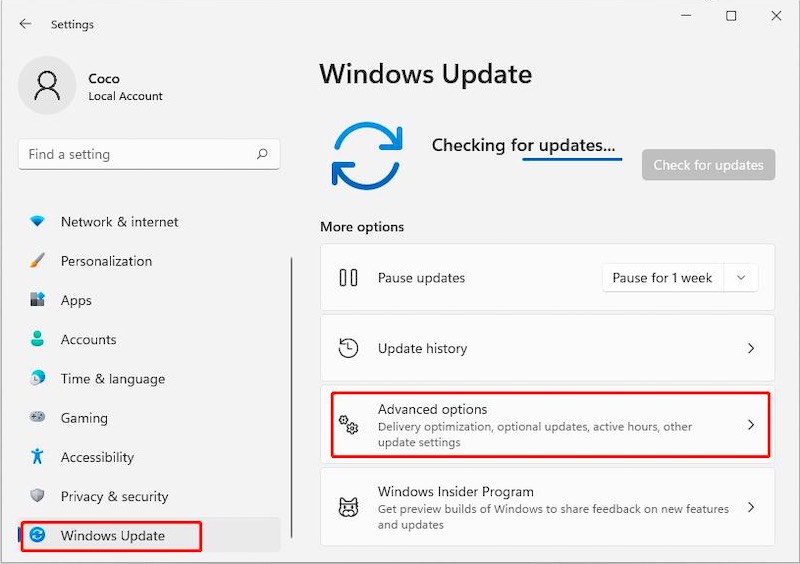
Step 4. Expand the Driver updates section and select the driver updates you want to install. Click Download & install.
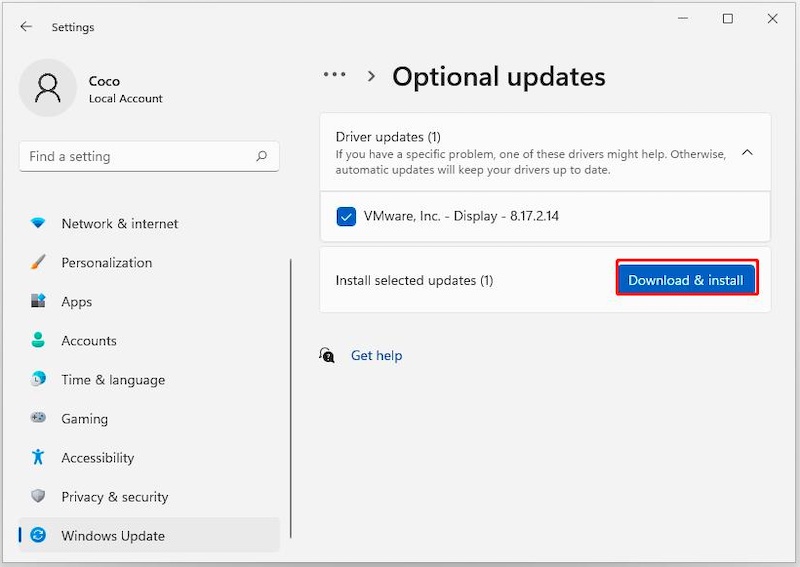 Step 5. When the installation is complete, click Restart Now to allow Windows to reboot and finish applying the new driver updates.
How to Update All Hardware Drivers Windows 10 & 11 Using Device Manager
Device Manager is best suited for updating individual hardware drivers, such as a graphics card, network adapter, or audio device, and for troubleshooting device-specific problems. Its main advantage is that it is built into Windows and does not require additional software. However, updating drivers through Device Manager can be time-consuming if you need to update multiple devices, and it may not always locate the latest driver versions available from hardware manufacturers.
Steps to Update My Hardware Drivers Using Device Manager
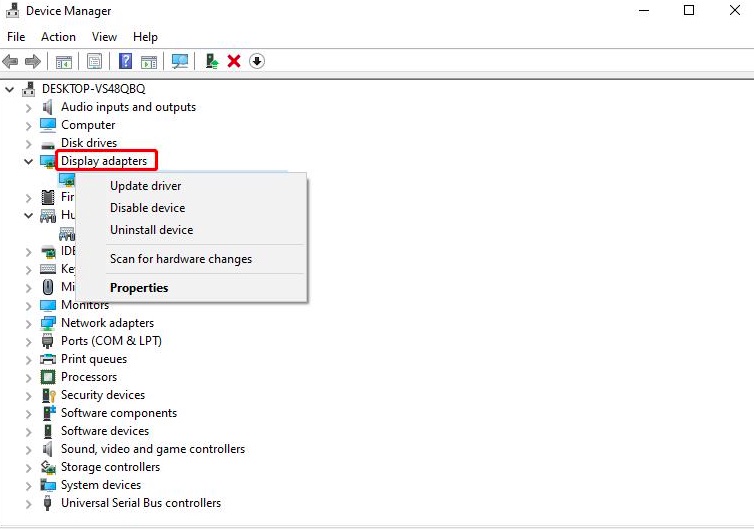
Step 1. Right-click the Start button and select Device Manager.
Step 2. In Device Manager, find the category containing the hardware you want to update. Click the arrow next to the category to expand it.
Step 3. Right-click the device you want to update and select Update driver.
How to Update All Hardware Drivers from Manufacturer Websites
Hardware manufacturers regularly release driver updates to improve performance, stability, security, and compatibility. Whether you're updating graphics cards, motherboard chipsets, network adapters, audio devices, printers, or other peripherals, you can usually find the latest drivers on the manufacturer's official support website. Downloading drivers directly from the source ensures you receive the most current and compatible versions for your hardware.
Step 1. Right-click the Start button and select Device Manager.
Step 2. In Device Manager, find the hardware you wish to update.
Step 3. Right-click the device and select Update driver. Choose Browse my computer for drivers.
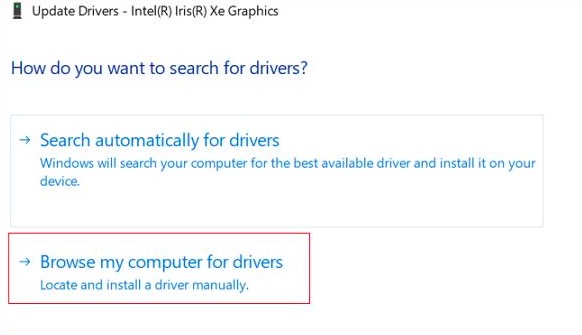
Step 4. Click Browse and select the folder containing the driver files. Click Next to install the driver.
How to Verify That All Drivers Are Updated?
After updating your hardware drivers, it's important to confirm that the installation was successful. Verifying your driver status helps ensure that all devices are running the latest versions and that no outdated or problematic drivers remain on your system. The following methods can help you check whether all your drivers are fully up to date.
Use Device Manager to view the installed driver version and compare it with the latest version offered by the manufacturer.
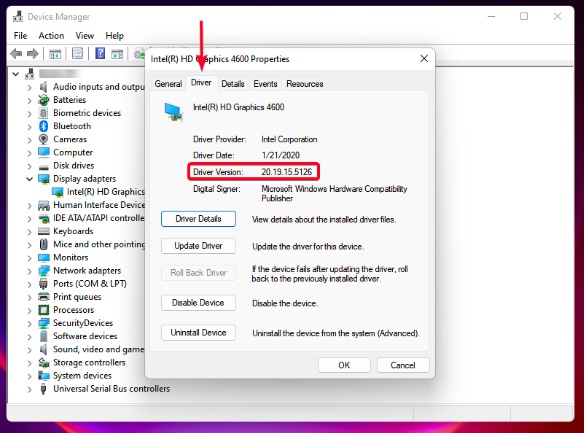
A driver updater such as Driver Booster can perform a full system scan and identify any remaining outdated drivers.
Verify that all devices are functioning correctly after updates, including graphics performance, audio playback, network connectivity, and peripheral operation.
Common Driver Update Problems and Fixes
While updating drivers is usually a straightforward process, you may occasionally encounter issues during or after installation. For example, can’t update the NVIDIA driver. Understanding these common problems and knowing how to resolve them can help you complete driver updates successfully and keep your hardware functioning properly.
Driver Installation Fails
Restart your computer and try again.
Run the installer as Administrator.
Temporarily disable antivirus software if it is interfering.
Device Stops Working After an Update
Windows Cannot Find a New Driver
Roll Back a Problematic Driver
Open Device Manager, access the device properties, and use the Roll Back Driver option if available.
Conclusion
Updating all hardware drivers is one of the best ways to maintain a stable, secure, and high-performing Windows PC. If you're wondering how to update all hardware drivers quickly and safely, using the right tool can save you significant time and effort. Among all available methods, IObit Driver Booster offers the fastest and most convenient solution. With its automated scanning and one-click update feature, it makes it easy to Linux update hardware drivers without manual searching. Download IObit Driver Booster today to keep your drivers up to date.
Driver Booster Free
- Automatically scan and update drivers.
- Update game ready drivers for peak gaming performance.
- Identify and fix various common of hardware issues.
- Boost 30% of system performance for fast & smooth running.