

Kevin Hart
Kevin is an experienced editor focused on tech blog writing. Familiar with all kinds of PC software on the market. All the topics he chooses are aimed at bringing more benefits to users.
Expert in
PC Health Solution

All-in-one PC health solution: clean, optimize and secure

Comprehensive PC cleaning, optimization and protection

Keep drivers always up-to-date

More stable performance with less system crashes

Protect millions of computers against malware

Top computer security with full-round protection

Protect against viruses & boost PC performance
Automatically scan and update drivers.
Update game ready drivers for peak gaming performance.
Identify and fix various common of hardware issues.
Boost 30% of system performance for fast & smooth running.

Stop dealing with audio drops and connection failures! Learn how to quickly update Bluetooth driver on Windows using a one-click solution or built-in tools.

Kevin Hart


Few things are more frustrating than trying to connect your favorite wireless headphones or mouse, only to realize your PC's Bluetooth isn't working. Whether your audio keeps dropping out, devices fail to pair, or the Bluetooth option is missing altogether, the culprit is usually the same: an outdated or corrupted Bluetooth driver.
Device drivers act as translators between your Windows operating system and your hardware. When drivers get out of date—especially after major Windows updates—things break.
In this guide, we will walk through the simplest ways to update Bluetooth driver. We'll cover traditional manual methods if you prefer doing it yourself, and the easiest, fully automated method.
If you prefer not to install third-party software, Windows has a built-in utility called Device Manager. It can search Microsoft's database for newer driver software.
1. Open Device Manager: Right-click the Start Button (or press Win + X) and select Device Manager.
2. Expand Bluetooth: Click the arrow next to Bluetooth to expand the list.
3. Select Your Adapter: Right-click your main Bluetooth device (e.g., Intel Wireless Bluetooth, Realtek Bluetooth Adapter, or Generic Bluetooth Adapter).
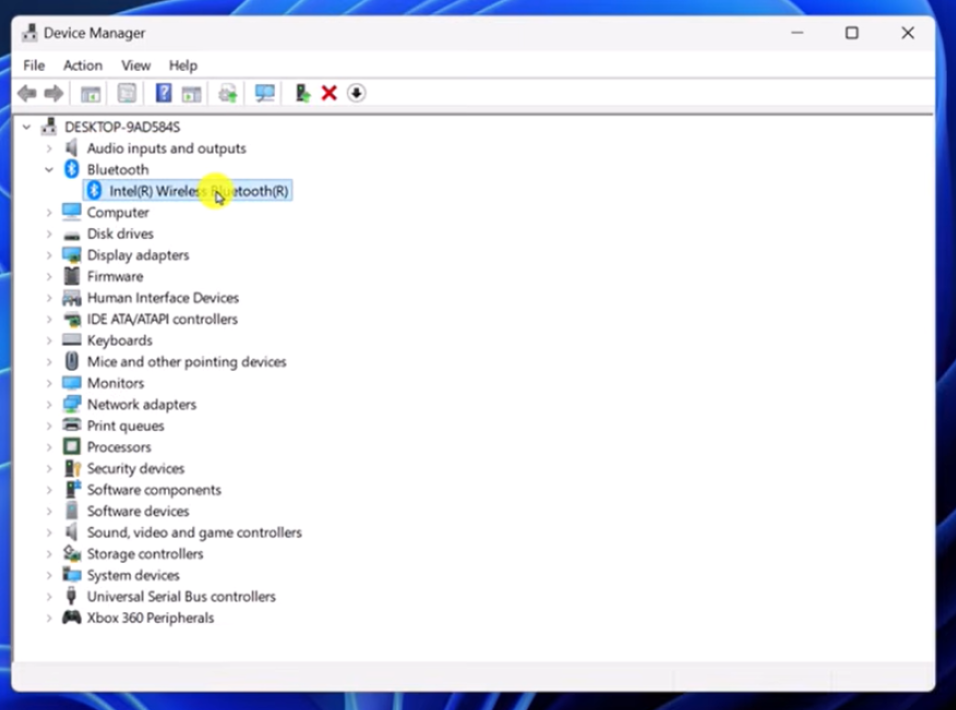
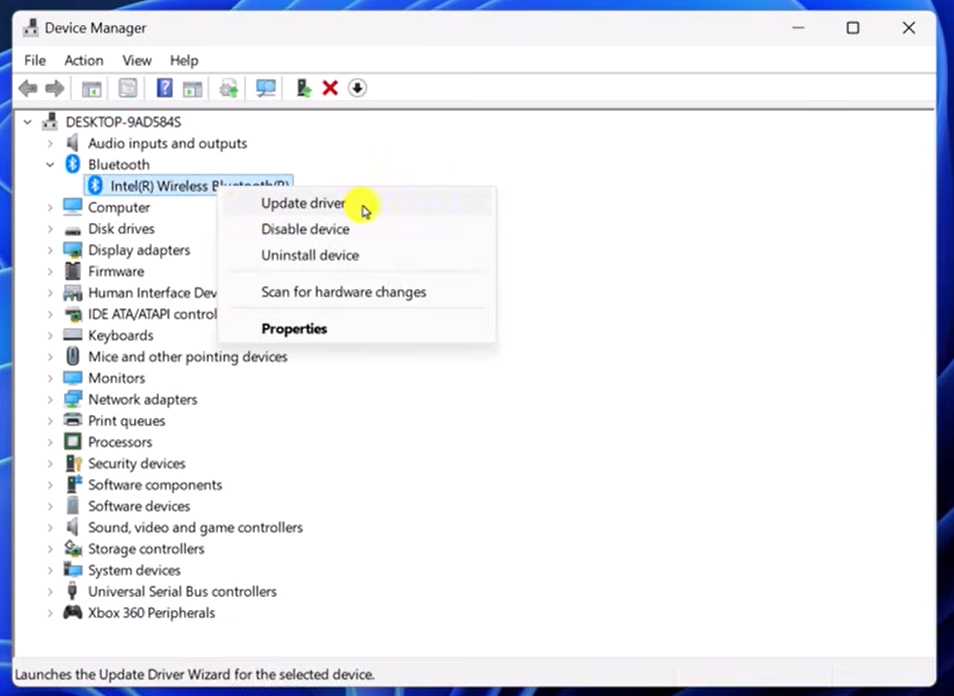
4. Update Driver: Select Update driver from the context menu.
5. Search Automatically: Choose Search automatically for drivers. Windows will search your system and the web for the latest driver software for your device.
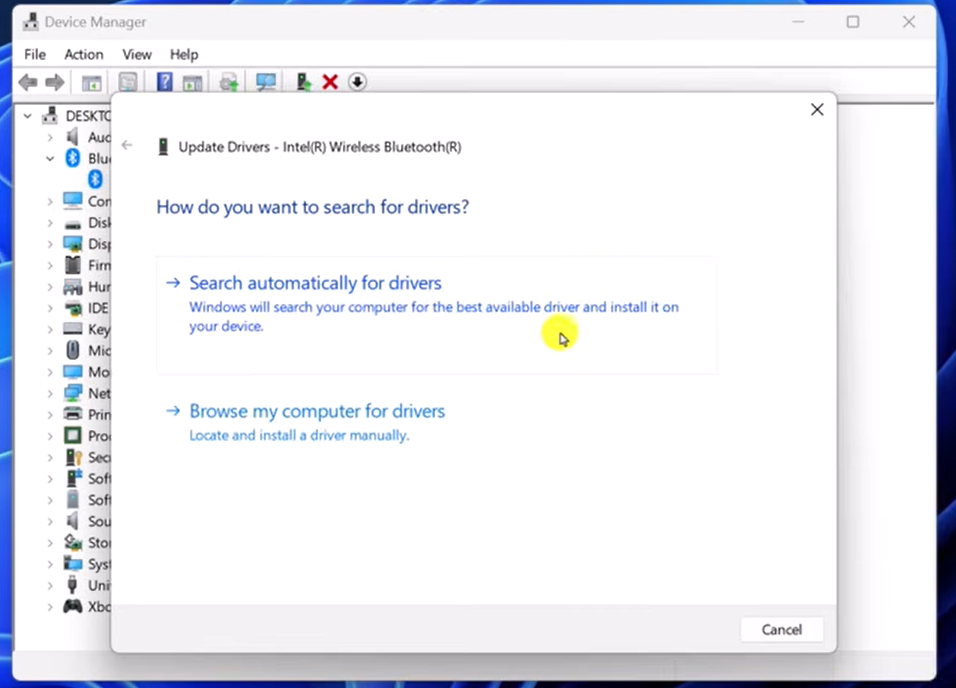
Note: While Windows Device Manager is convenient, Microsoft's online driver database isn't always updated immediately with the latest manufacturer releases. If it says "The best drivers for your device are already installed," but you are still experiencing issues, you may need to check manufacturer sites or use an automated tool listed below.
For built-in Bluetooth (common in laptops and pre-built desktop PCs), hardware manufacturers release direct driver packages on their support websites.
Step-by-Step for Manufacturer Updates:
1. Find Your PC Model or Bluetooth Chipset:
Press Win + R, type msinfo32, and press Enter to find your System Model and System Manufacturer.
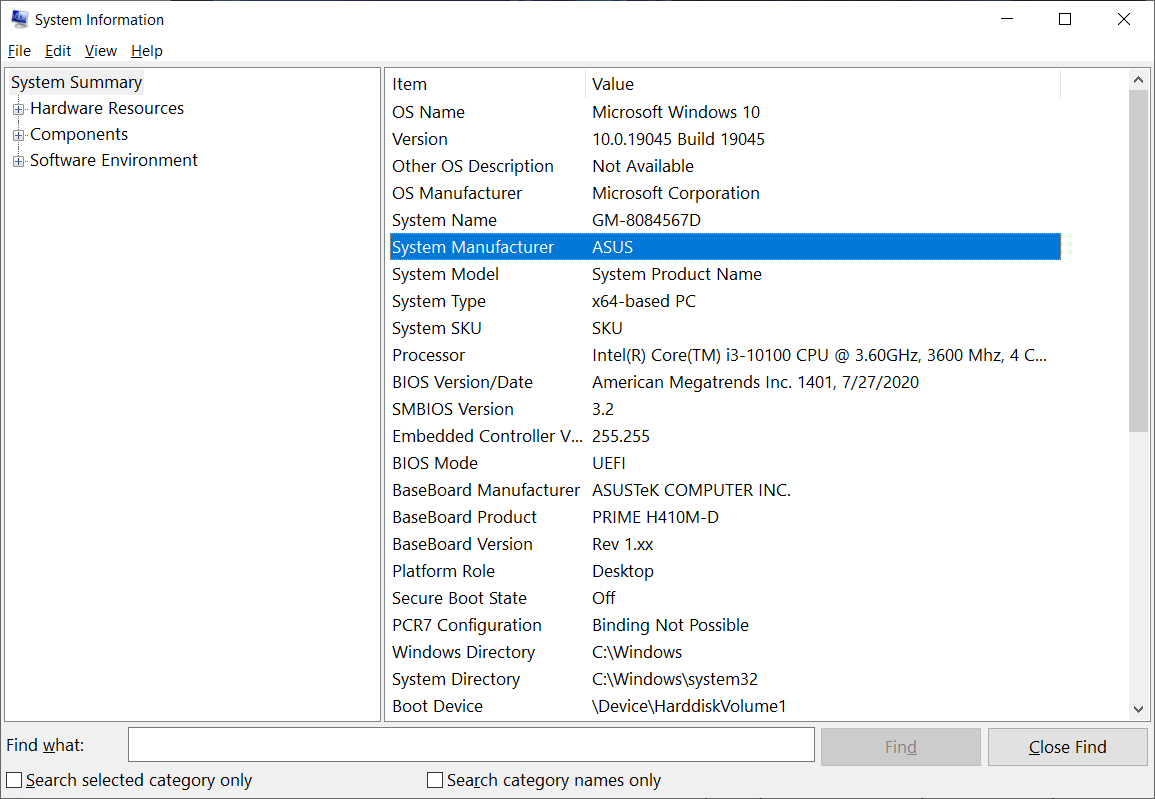
Alternatively, check Device Manager under "Bluetooth" to see if your chip is Intel, Realtek, Qualcomm, or Broadcom.
2. Visit Official Support Portals:
Intel: Intel Driver & Support Assistant
Dell: Dell Support
Lenovo: Lenovo Technical Support
3. Search & Download: Enter your PC model or select your Bluetooth adapter model, select your version of Windows (Windows 10 or Windows 11), and download the latest executable driver file (.exe or .msi).
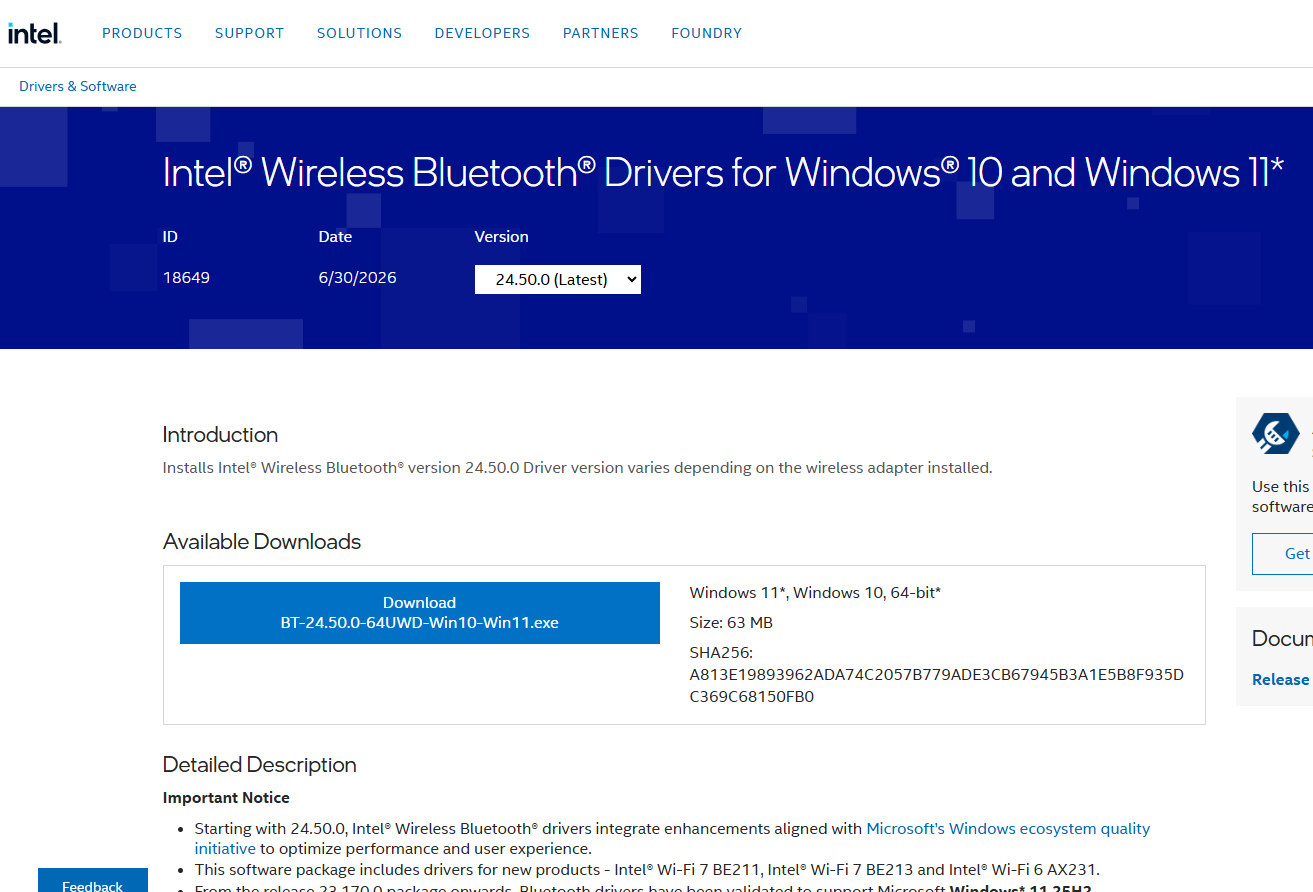
4. Install and Reboot: Double-click the installer, complete the wizard, and restart your PC.
If you don't know your PC's exact hardware model or don't want to spend time searching through support sites, using an automated Bluetooth driver updater tool is the fastest and safest route.
Driver Booster is designed specifically to scan your system, identify missing or outdated drivers, and update them with a single click.
Step 1. Download and install Driver Booster.
Step 2. Launch Driver Booster. Click the large SCAN button in the center of the screen.
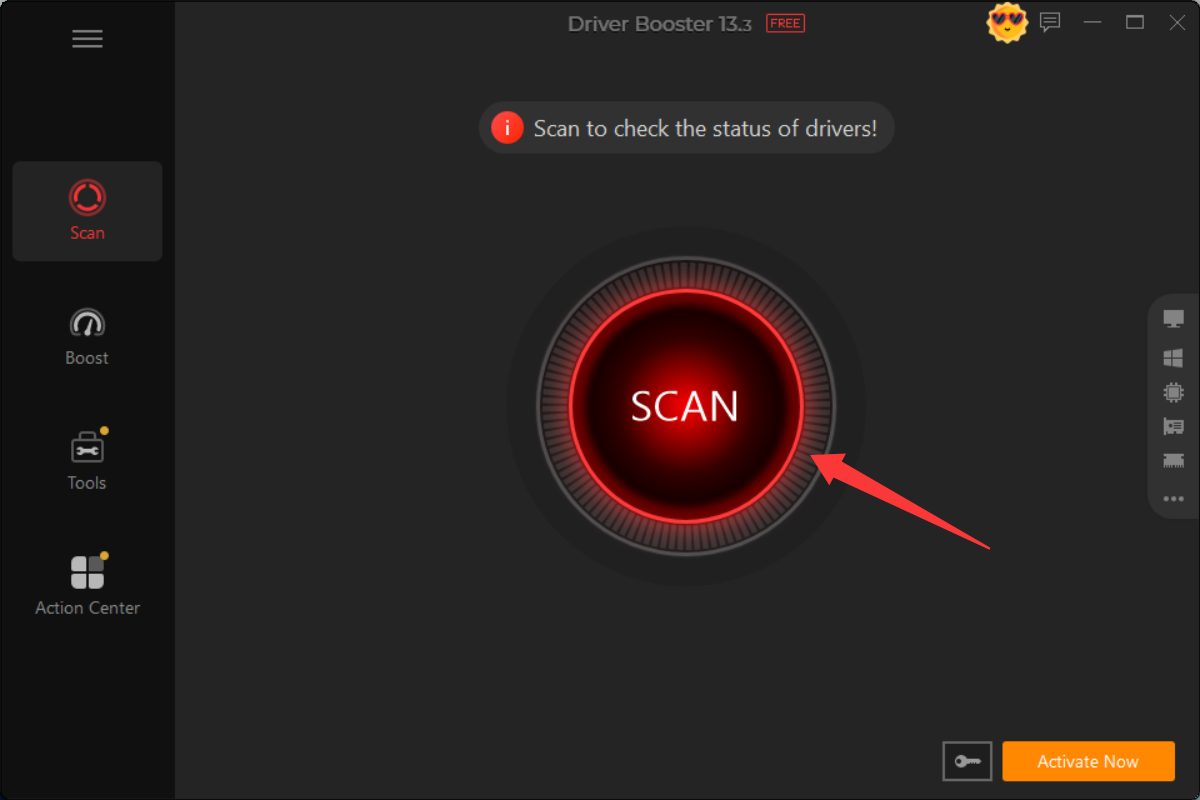
The software will perform a comprehensive scan of your entire hardware configuration—checking Bluetooth adapters, audio devices, graphics cards, and network controllers.
Step 3. Locate your Bluetooth driver and click the Update button.
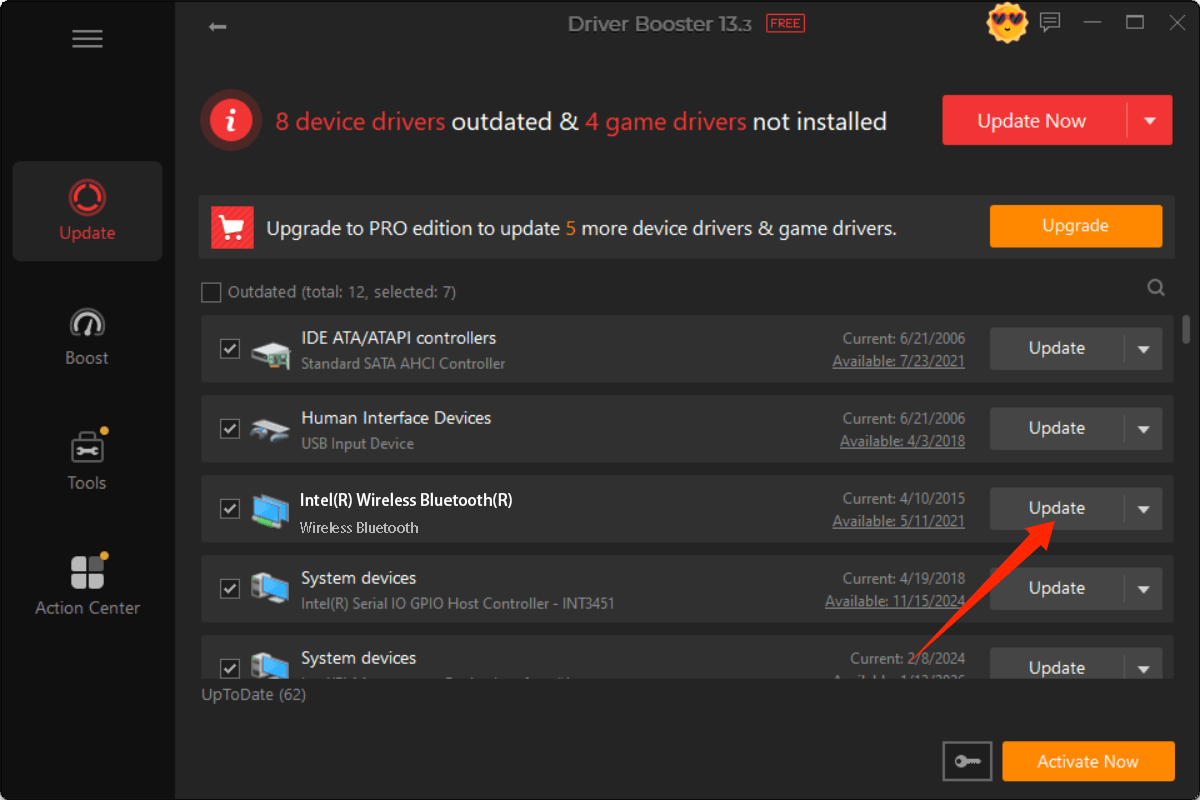
Once the scan completes, scroll through the list of outdated drivers to find your Bluetooth adapter (often listed under Bluetooth or Network Adapters, with names like Intel, Realtek, or Qualcomm). Driver Booster automatically downloads the official, WHQL-certified driver package, creates a Windows System Restore point for safety, and handles the installation.
Step 4. Restart your computer to ensure Windows properly initializes the new driver.
WHQL Certified Drivers: This best driver updater downloads drivers directly from manufacturers that pass Microsoft's Windows Hardware Quality Labs tests.
Automatic System Restore Points: Before installing any driver, it automatically creates a system restore point so you can easily revert if anything goes wrong.
Offline Driver Updater: If your network drivers or Bluetooth dongle fail completely, Driver Booster includes an offline tool to fix connectivity issues without an internet connection on the target device.
| Feature / Method | Driver Booster | Windows Device Manager | Direct Download |
| Ease of Use | Very High (1-Click) | Moderate | Technical |
| Time Required | 2–3 minutes | 3–5 minutes | 10–15 minutes |
| Driver Coverage | Comprehensive | Basic / Limited | Full Manufacturer Spec |
| Automatic Backups | Yes (Auto Restore Point) | Manual Setup Required | Manual Setup Required |
| Best For | Fast updates, multiple drivers | Quick Windows check | Custom built PCs |
Updating your driver fixes almost all software-related Bluetooth glitches. However, if your Bluetooth still acts up after an update, check these settings:
It sounds obvious, but a hotkey or airplane mode toggle can accidentally turn off Bluetooth:
Press Win + I to open Settings.
Go to Bluetooth & devices (or Devices > Bluetooth in Windows 10).
Ensure the Bluetooth toggle is turned On.
Windows services running in the background can freeze:
Press Win + R, type services.msc, and hit Enter.
Scroll down to Bluetooth Support Service.
Right-click it and select Restart (or Start if it is stopped).
Right-click it again, select Properties, and change the Startup type to Automatic.
If a specific device fails to connect after a driver update:
Go to Settings > Bluetooth & devices.
Find the problematic device, click the three dots menu, and select Remove device.
Put your device into pairing mode and click Add device to re-pair it cleanly.
All about how to update Bluetooth driver has been presented above. Keeping it up to date eliminates frustrating audio stutters, pairing drops, and connectivity bugs.
If you want a hassle-free solution that takes care of your Bluetooth driver—and all your other system drivers—in just a couple of clicks, downloading Driver Booster is your easiest path forward. For users who prefer a hands-on approach, Windows Device Manager and official manufacturer sites remain dependable fallbacks.


Keep drivers always up-to-date.
Free Download