When a PC slows down, freezes, or crashes unexpectedly, it’s best not to guess, since it can be caused by various reasons. At this point, PC diagnostic tools can be a handy choice. They can help you identify potential problems, monitor hardware health, and troubleshoot common Windows issues before spending money on repairs. This guide covers the best computer diagnostic tools for Windows 10/11. You can discover the free built-in utilities, dedicated testing software, and a professional all-in-one PC maintenance tool. Just read on to find the right option for your needs and restore smooth performance.

What is a PC Diagnostic Tool? When Do You Need It?
A PC diagnostic tool is software that examines your computer to identify potential problems. It can test, monitor, and report on the health and performance of a computer's hardware and software components.
You may need a PC diagnostic tool if you experience any of the following symptoms:
Slow startup or sluggish performance that persists even after a PC restart.
Blue screens or random crashes that interrupt your work/gaming sessions.
Overheating or loud fans, even when your PC is managing light tasks.
Memory-related problems, such as applications closing unexpectedly.
Storage issues, including unusually long loading times or file errors.
Strange noises from a hard drive that may indicate mechanical wear.
It’s worth noting that diagnostic software can not fix every problem. But it can help narrow down the possible causes, which saves you time and effort before you invest in professional repairs or hardware replacement.
5 Best Built-in Diagnostic Tools in Windows 11/10
For Windows users, you can use several built-in tools to investigate common PC problems. These tools serve as an excellent starting point for troubleshooting. Let’s check them out one by one.
1. DirectX Diagnostic Tool (dxdiag)
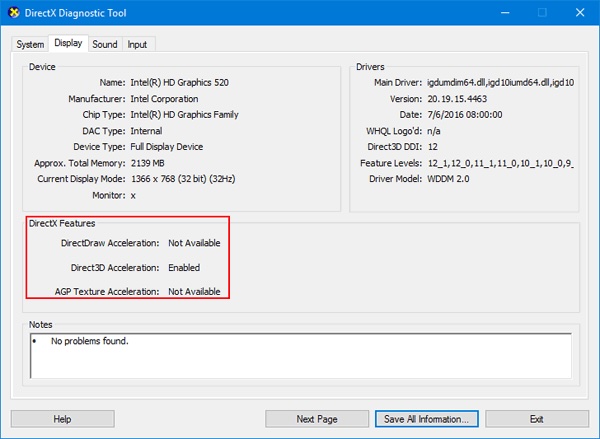
The DirectX Diagnostic Tool can check your PC's processor, memory, graphics card, and DirectX information. It’s useful for troubleshooting game crashes, graphics problems, etc.
Step 1. Press Windows + R, type dxdiag, and press Enter. Open the tabs to check processor, memory, and DirectX details.
Step 2. Select Display to view graphics card and driver information, along with error notes at the bottom.
2. Performance Monitor
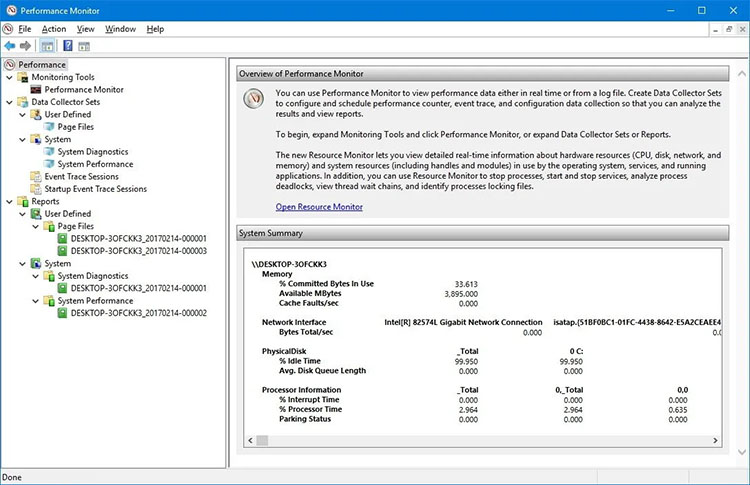
Performance Monitor collects system data and generates diagnostic reports for hardware and resource usage. You can use it to run a computer performance test and identify potential bottlenecks.
Step 1. Open Start, search for Performance Monitor, and click on it.
Step 2. On the left, you can see the navigation pane with access to Performance Monitor, Data Collector Sets, and Reports.
3. Resource Monitor
Resource Monitor displays real-time system performance data for CPU, memory, disk, and network activity. It's helpful if you want to identify which applications are consuming excessive resources.
Step 1. Press Ctrl + Shift + Esc to open the Task Manager. Select Performance > Open Resource Monitor.
Step 2. Check individual tabs to identify resource-heavy applications.
4. Windows Memory Diagnostic
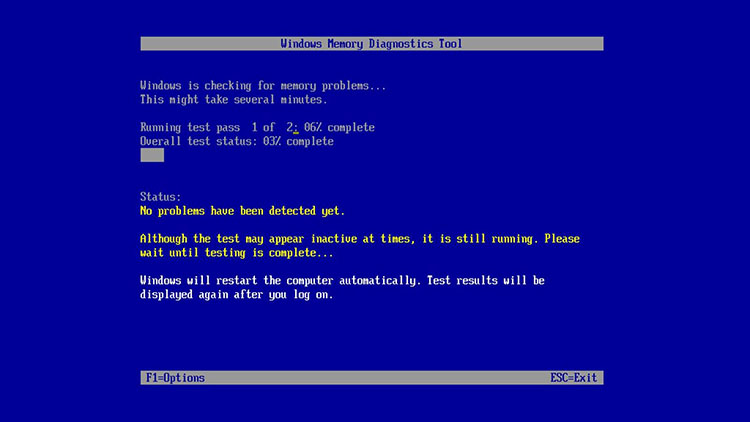
Windows Memory Diagnostic checks your computer's RAM (Random Access Memory) for hardware defects, instability, or errors that cause blue screens and crashes.
Step 1. Press Windows + R, type mdsched, and press Enter. Select Restart now and check for problems.
Step 2. Let the test finish after your PC restarts. Check the test results in the notification area.
5. Event Viewer
Event Viewer records Windows, application, and system events. You can use it to identify error messages and when an issue occurred.
Step 1. Search for and open Event Viewer. Navigate to Windows Logs > System.
Step 2. Check Error or Critical events and double-click entries for details.
5 Best Free Hardware Diagnostic Tools for Computers
While Windows’ built-in utilities can handle basic troubleshooting, they lack advanced features for more detailed data and reports. In this part, we will introduce 5 dedicated diagnostic tools for computers. First off, let's check out a brief comparison of these tools.
| Tool |
Primary Checks |
Best Suited For |
| HWiNFO |
Temperatures, voltages, fan speeds, and sensors |
Real-time hardware monitoring and logging |
| CPU-Z |
CPU, motherboard, and memory specifications |
Quick hardware identification |
| MemTest86 |
RAM errors and stability |
Diagnosing crashes and blue screens |
| OCCT |
CPU, GPU, and memory stress tests |
Testing system stability under load |
| CrystalDiskInfo |
SSD/HDD S.M.A.R.T. health |
Drive health monitoring and early failure warnings |
1. HWiNFO: Real-Time Temperature Monitoring and Sensor Monitoring
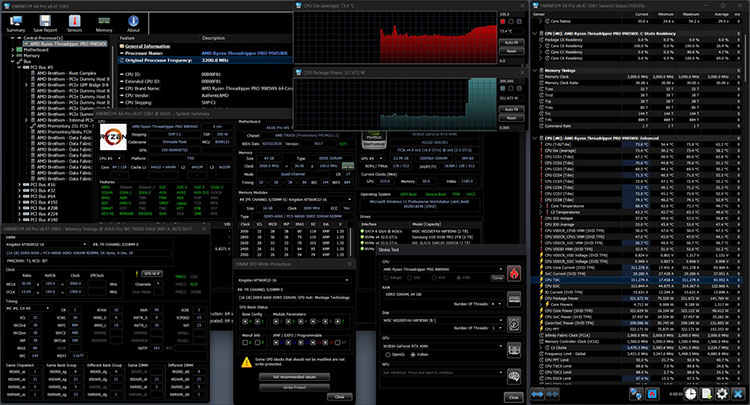
HWiNFO is a powerful PC diagnostics program for hardware analysis and real-time monitoring. It can read almost every sensor in a modern PC, for instance, temperatures, voltages, fan speeds, power consumption, and more. HWiNFO is rather useful for technicians and users who need continuous hardware monitoring AND detailed logging.
Pros
Extremely detailed reports
Portable option available
Free for personal use
Cons
Interface can feel overwhelming
Primarily focuses on monitoring
2. CPU-Z: Lightweight Tool for Quick Hardware Specs Check
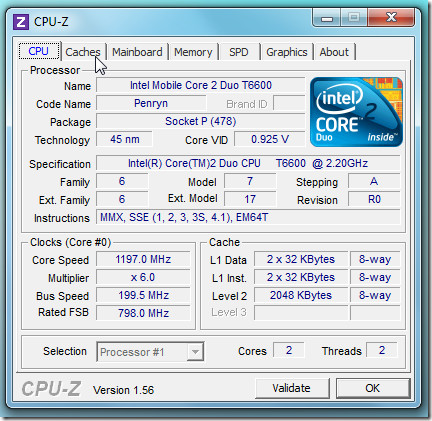
CPU-Z provides real-time details on your processor, motherboard, memory, and graphics hardware for troubleshooting. It also displays real-time core clock speeds, BIOS versions, and includes a quick built-in CPU benchmark for comparisons. It is ideal for everyday users to verify installed parts or check upgrade compatibility.
Pros
Free PC diagnostic test software
Portable version available
Accurate hardware identification
Cons
No temperature or fan monitoring
Limited benchmark depth
3. MemTest86: PC Diagnostic Tool for Finding RAM Errors Behind Crashes
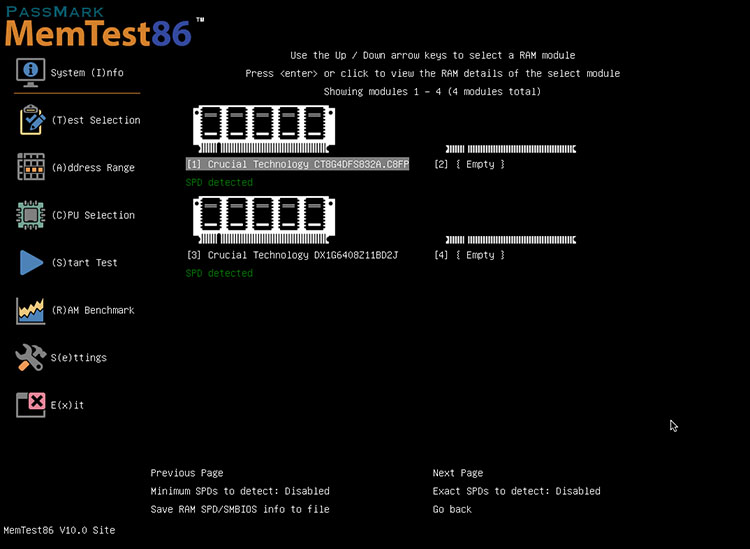
MemTest86 can boot directly from a USB flash drive to thoroughly detect hardware faults and instability in a computer's RAM subsystem. It runs multiple intensive read/write algorithms across every memory address and generates detailed HTML pass/fail reports. It is one of the best PC diagnostic tools for PC repair technicians to diagnose random crashes, freezes, or blue screens caused by faulty RAM.
Pros
Reliable testing outside the OS
High accuracy for physical faults
Broad hardware compatibility
Cons
Very time-consuming
Can not test 100% of RAM
4. OCCT: All-in-One Stress Test for CPU, GPU, and Memory Stability
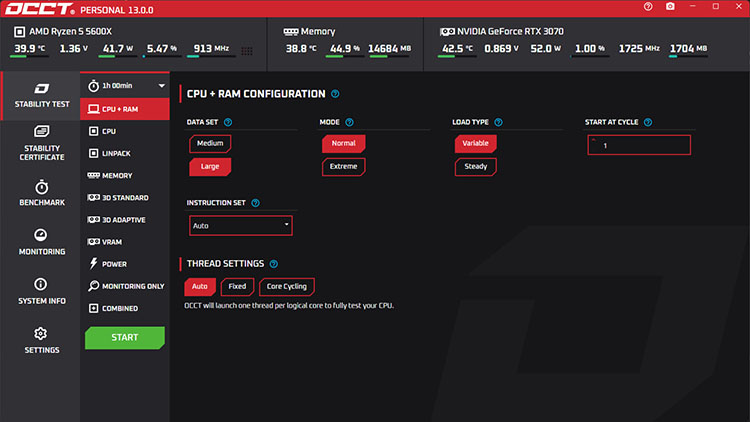
OCCT puts your CPU, GPU, memory, and power supply under intensive synthetic workloads to monitor real-time sensor data. The PC diagnostic tool offers customizable test durations and automatic error detection to help pinpoint hardware instability under heavy thermal and electrical loads. It's particularly suited to gamers and PC builders who want to verify system stability before putting their hardware into actual use.
Pros
Comprehensive component testing
Strong CPU and memory diagnostics
Free for personal use
Cons
Extreme loads generate heat
Commercial use requires a paid license
5. CrystalDiskInfo: Free PC Diagnostic Tool for SSD and HDD Health Check
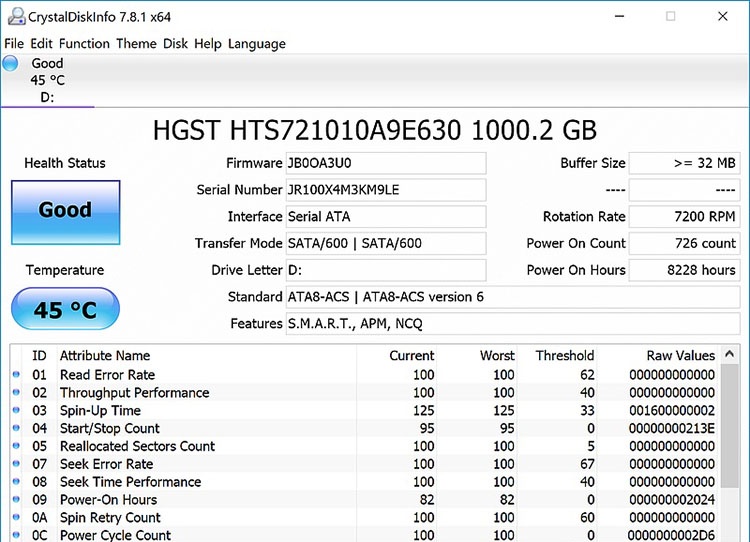 CrystalDiskInfo reads drive S.M.A.R.T. attributes and displays overall drive condition using clear status labels. It can also track live drive temperatures and support resident background monitoring, alarm thresholds, email alerts, and event logs. It’s one of the go-to computer diagnostic tools for everyday users and IT staff to monitor SSD/HDD health and spot potential warning signs before a drive fails.
Pros
Free and open source
Broad drive support
Straightforward health report
Cons
Can not catch every type of failure
Can not directly repair or optimize drives
A Simple Tool for PC Health Check and Optimization
While previous diagnostic tools for computers can help identify potential problems, not every PC slowdown is caused by failing hardware. Sometimes, accumulated junk files, unnecessary startup apps, cluttered system settings, and resource-intensive background processes can also affect performance.
However, it can be rather time-consuming to check each potential cause. At this point, an all-in-one solution, for instance, IObit Advanced SystemCare, can be the best tool that comes in handy. The software is a Windows maintenance and optimization tool that can simplify your everyday PC care. Combining junk file cleaning, performance monitoring, and system optimization in one place, it can successfully help users address common software-related performance issues.
Advanced SystemCare Free
- Clean: 420 billion traces removed & 85 EB junk files cleaned
- Protect: 80 million unauthorized access blocked & 20 million bugs fixed
- Speed Up: 6 million hours of startup time saved & Turbo boost
- Optimize: Auto clean and auto care your PC with AI mode
Key features of Advanced SystemCare
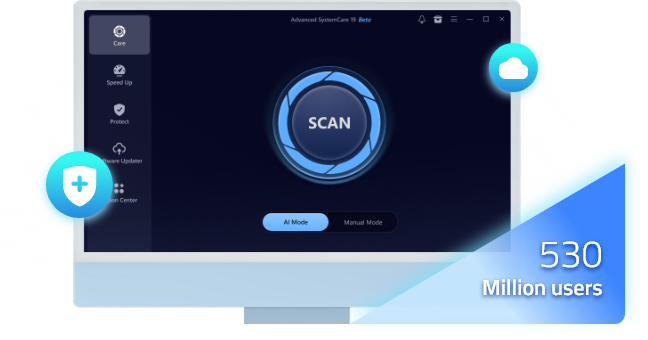
Easy One-Click Scan. With just one click, Advanced SystemCare scans your entire system and looks for performance problems, providing a clear report to help you fix everything quickly and easily.
Free Junk File Cleaning. The built-in junk file cleaner removes temporary files, caches, old logs, and browser leftovers to free up disk space. This can make your PC run smoother and improve system performance.
System Performance Monitoring. It offers real-time system performance monitoring, which tracks CPU, RAM, and disk usage. You can gain insights into resource hogs and resolve slowdowns before they affect daily tasks.
Routine Windows Optimization. As a reliable Windows optimizer, Advanced SystemCare fine-tunes startups, system settings, and background processes to improve overall responsiveness and keep your PC running at its best.
How to Use Advanced SystemCare for PC Optimization
Step 1. Download and install Advanced SystemCare. Run the installer and complete the setup.
Step 2. Launch the program. Select "AI Mode" for an automatic scan. You can also use the "Manual Mode" to choose specific modules, for instance, Junk File Clean, Registry Clean, etc.
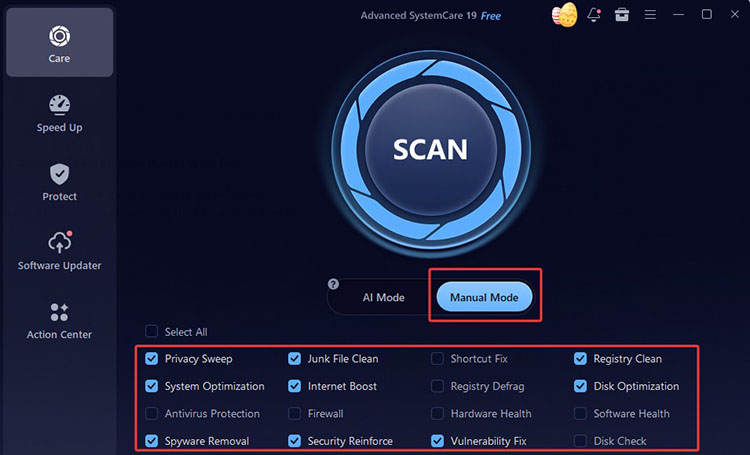
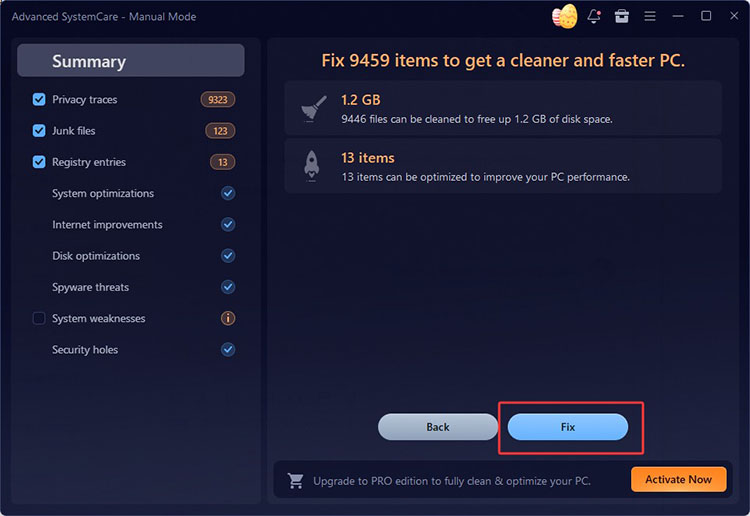
Step 3. Click the Scan button to begin. Advanced SystemCare will examine your system and display a list of detected issues. Click the Fix button to apply the optimization actions.
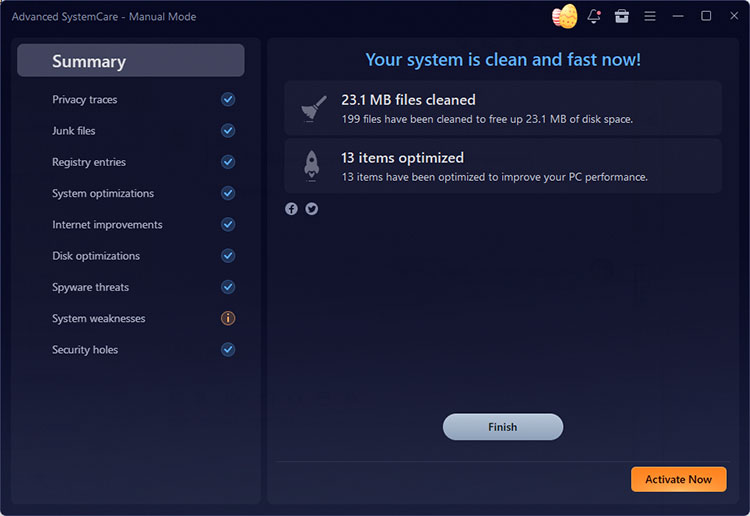
Step 4. After a while, your system will be cleaned and optimized for smoother performance.
Tip: Want more ways to boost your PC's performance? Check out our guide on how to clean PC and make it run faster.
FAQs about Computer Diagnostic Tools
If you still have more questions regarding PC diagnostic tools, check out the following FAQs for some common questions.
Q1. Which tool should I start with?
You may start with Windows built-in tools like Performance Monitor, Resource Monitor, and Event Viewer. After that, you can try the 5 recommended computer diagnostic tools like HWiNFO or CrystalDiskInfo for more detailed analysis.
Q2. Can diagnostic tools fix hardware problems?
No. PC diagnostic tools identify faults or stress-test components, not repair them. When it comes to physical hardware failures, they often require repair or replacement.
Q3. How to run full diagnostics on a PC?
You can combine Windows utilities with the 5 recommended tools to systematically check hardware specs, temperatures, storage health, RAM stability, and full-system load tolerance.
Conclusion
With the recommended PC diagnostic tools, you can better understand your computer's hardware health, identify system errors, and troubleshoot performance problems more efficiently. In addition, it’s best to combine hardware diagnostics with regular software maintenance. The PC optimization software can clear junk files, manage startup programs, and fix system clutter that slows down your daily performance. Get it to keep both your hardware and software running at peak performance now!
Advanced SystemCare Free
- Clean: 420 billion traces removed & 85 EB junk files cleaned
- Protect: 80 million unauthorized access blocked & 20 million bugs fixed
- Speed Up: 6 million hours of startup time saved & Turbo boost
- Optimize: Auto clean and auto care your PC with AI mode