A slow laptop can make everyday tasks frustrating, whether you're browsing the web, working with multiple applications, or playing games. Fortunately, poor performance doesn't always mean your laptop needs an upgrade. Simple adjustments to Windows settings, system resources, and background processes can make a noticeable difference. In this guide, you'll discover seven effective ways to optimize laptop speed on Windows 11/10.
Why Is Your Laptop Running So Slowly?
Before trying to improve laptop speed, understanding what causes the slowdown can help you choose the right solution, avoid unnecessary changes, and save time. Different performance problems require different fixes, so identifying the cause is the first step toward effective optimization.
Here are some common reasons your laptop may run slowly:
Too Many Background Programs: Unnecessary applications consume CPU and RAM resources.
Limited Storage Space: A nearly full drive can affect system responsiveness.
Outdated Drivers: Old drivers may cause compatibility and performance issues.
Overheating: High temperatures can reduce CPU performance.
Slow Internet Connection: Weak Wi-Fi signals or network congestion can delay online activities.
Once you understand the possible causes, you can apply the following methods to make your laptop run faster and more efficiently.
Method 1. Optimize Laptop Speed Automatically with Advanced SystemCare
If your laptop suffers from slow startup, excessive background activity, or accumulated system clutter, using a dedicated optimization utility can simplify routine maintenance. Instead of manually checking multiple Windows settings, IObit Advanced SystemCare provides a centralized interface for cleaning unnecessary files, managing startup applications, and adjusting selected performance settings.
Advanced SystemCare Free
- Clean: 420 billion traces removed & 85 EB junk files cleaned
- Protect: 80 million unauthorized access blocked & 20 million bugs fixed
- Speed Up: 6 million hours of startup time saved & Turbo boost
- Optimize: Auto clean and auto care your PC with AI mode

Key Features for Improving Laptop Speed
Speed Up Laptop Startup and Login: Startup optimization helps identify unnecessary applications that launch when Windows starts, potentially reducing boot delays.
Free Up Resources for Active Applications: Performance optimization tools help manage selected background activity so more CPU and memory resources remain available for everyday tasks.
Improve Responsiveness During Heavy Multitasking: A RAM optimizer Windows 11 tool can help reduce unnecessary memory consumption, allowing laptops to handle multiple applications more smoothly.
Remove Files That Slow System Maintenance: Junk file cleaning identifies temporary files, obsolete caches, and other unnecessary data, helping maintain adequate free storage space.
Monitor Laptop Resource Usage More Easily: Performance monitoring helps users track CPU, memory, and disk activity, making it easier to identify bottlenecks and determine when a computer performance test may be useful.
How to Speed Up Your Laptop with Advanced SystemCare
Step 1. Download and Install Advanced SystemCare
Visit the official IObit website or click the button below to download Advanced SystemCare, and follow the installation instructions. Once installed, launch the application.
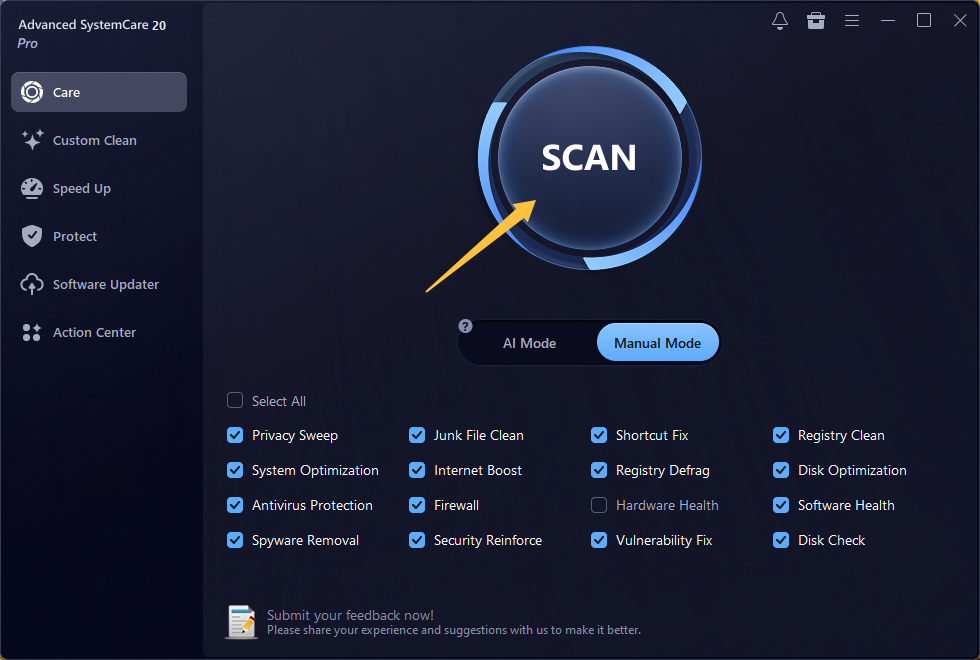
Step 2. Scan Your Laptop for Performance Issues
Navigate to the Care tab and select AI Mode. Click SCAN to check for unnecessary files and selected system optimization issues.
Step 3. Clean Up Unnecessary Files
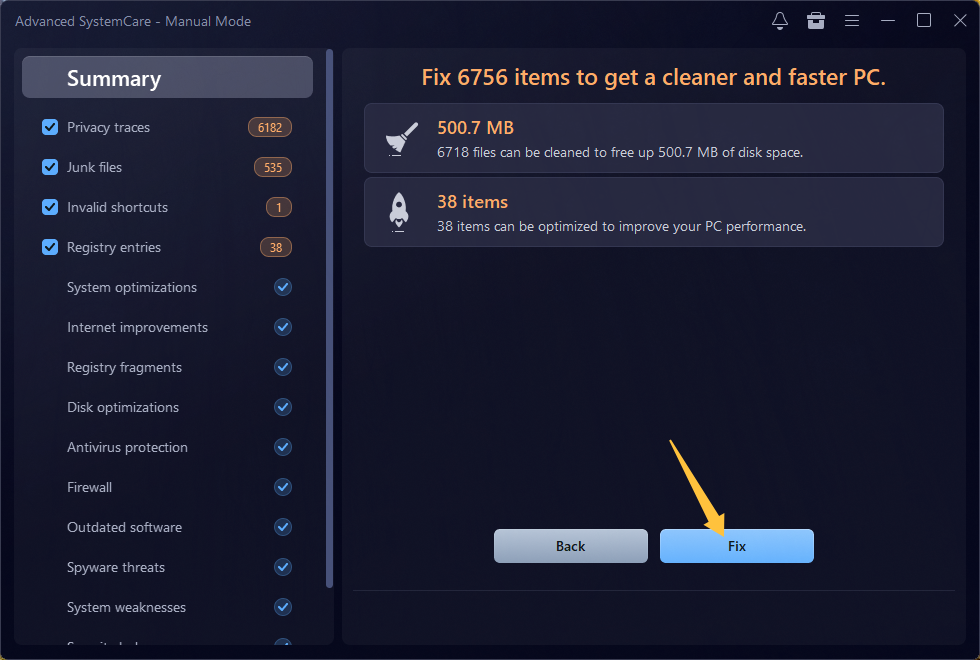
After scanning, review the detected items and click Fix to apply your selected cleanup and optimization actions. Avoid deleting files or changing settings you still need.
Step 4. Optimize Laptop Startup
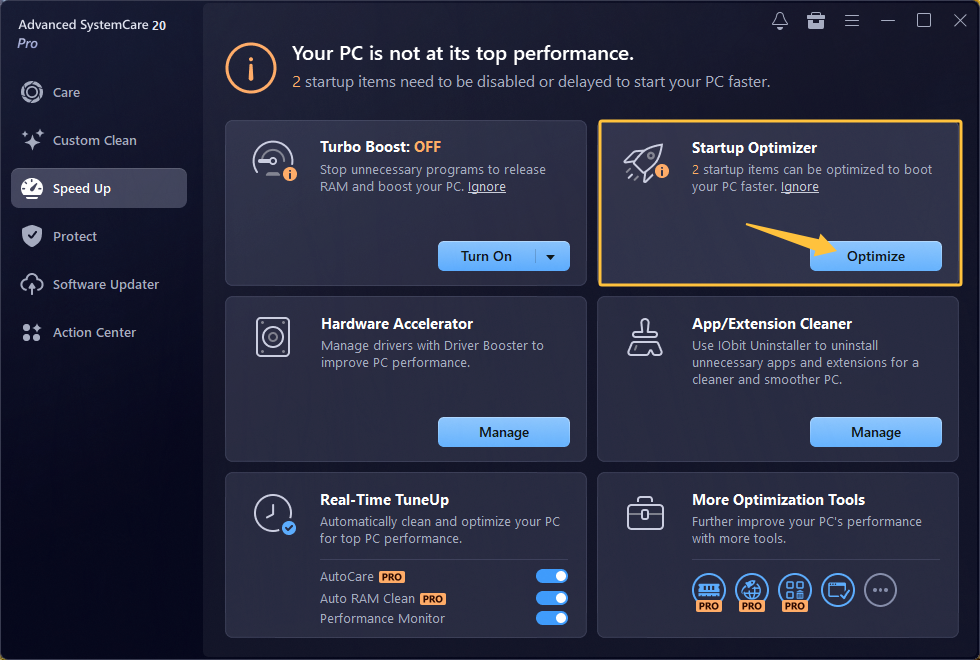
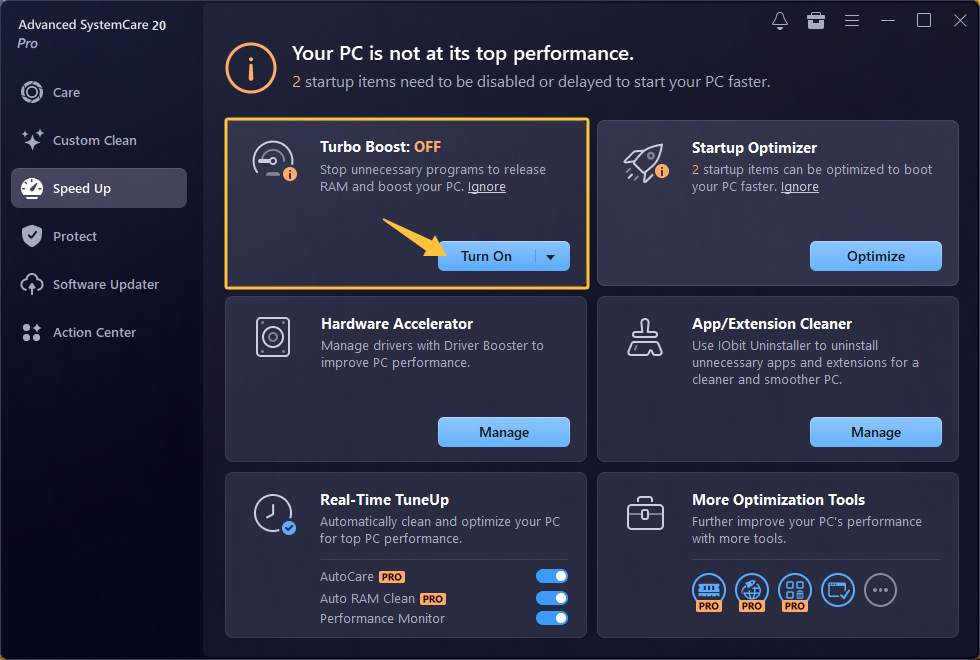
Open Speed Up and find Startup Optimizer. Click Optimize, review startup applications, and disable unnecessary items to help your laptop boot faster.
Step 5. Enable Turbo Boost for Better Performance
Under Speed Up, locate Turbo Boost. Choose Work Mode for everyday productivity or Economy Mode for battery-conscious use. Review the services that will be disabled, then activate the boost.
Once finished, restart your laptop and check whether startup speed and everyday responsiveness have improved. Actual results depend on your laptop's hardware and the causes of its slowdown.
Method 2. Disable Unnecessary Startup Apps and Background Programs
When too many applications run simultaneously, they compete for CPU time, RAM, and disk access. This can make your laptop feel sluggish even when you're performing simple tasks. Disabling unnecessary startup apps and closing resource-intensive programs is one of the most effective ways to optimize laptop speed Windows 11 without installing additional software.
Step 1. Press Ctrl + Shift + Esc to open Task Manager.
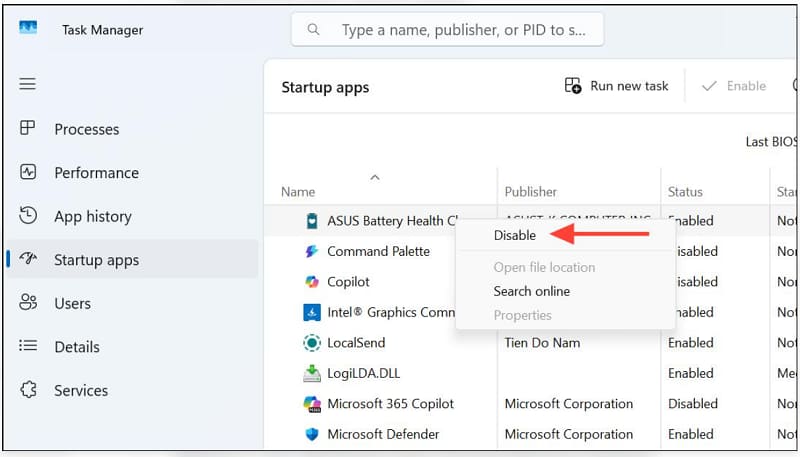
Step 2. Select Startup apps and identify applications you don't need immediately after signing in.
Step 3. Right-click an unnecessary startup application and select Disable.
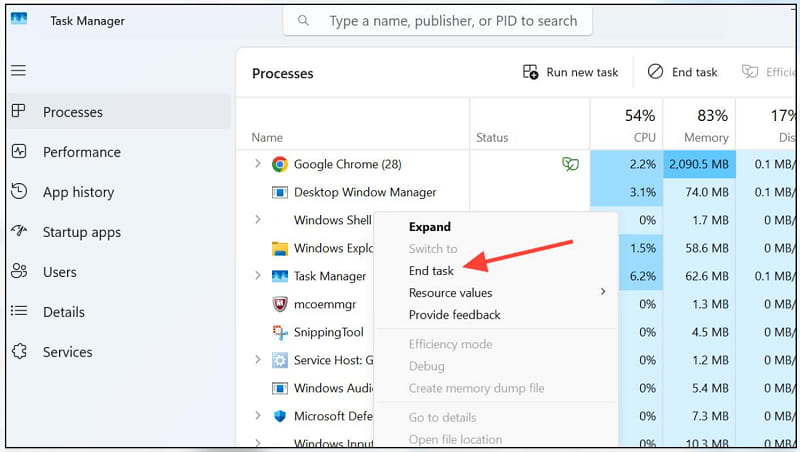
Step 4. Go to the Processes tab and click the CPU or Memory column to identify applications consuming the most system resources.
Step 5. Select an unnecessary application and click End task to stop it temporarily.
 Note: Avoid ending unfamiliar Windows processes or disabling essential security applications.
Method 3. Increase Laptop CPU Performance with Windows Settings
If you’re wondering how to increase laptop CPU speed, optimizing your laptop's power settings is a practical first step. Windows may limit processor performance to conserve battery life, particularly when your laptop is unplugged. Switching to a performance-focused power mode and maintaining proper cooling can help your CPU operate more efficiently, reduce performance drops, and deliver smoother performance during demanding tasks and gaming.
Step 1. Press Windows + I to open Settings.
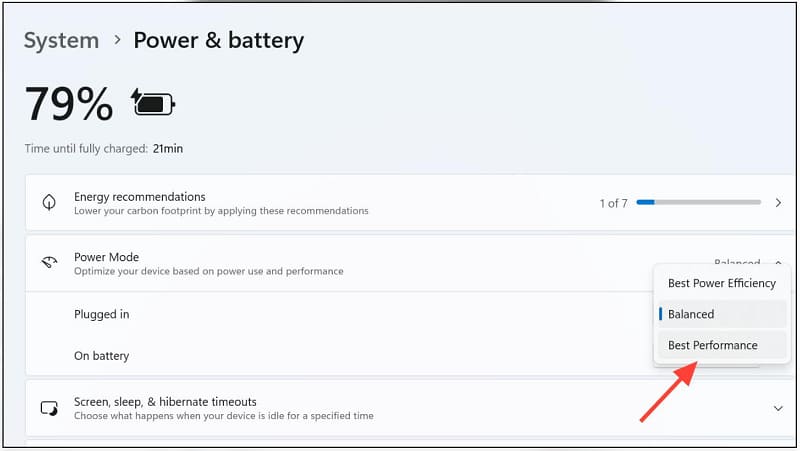
Step 2. For Windows 11, open Settings > System > Power & battery. If you're using Windows 10, go to Settings > System > Power & sleep to find the relevant power options.
Step 3. Under Power mode, select Best performance, if available. On Windows 10, choose an appropriate higher-performance power option.
Step 4. Connect your laptop to its charger when running demanding applications.
Step 5. Ensure the ventilation openings are unobstructed and clean away accessible dust safely.
Method 4. Free Up Storage Space and Remove Unnecessary Files
A laptop with very little free storage may struggle to download updates, create temporary files, and handle everyday system operations efficiently. Removing unnecessary files can restore working space and improve overall usability. Windows includes built-in storage management tools, making this a straightforward option for users looking for how to boost laptop speed Windows 11 without third-party utilities.
Step 1. Open Settings (Press Windows + I) > System > Storage.
Step 2. Select Temporary files and wait for Windows to calculate available cleanup items.
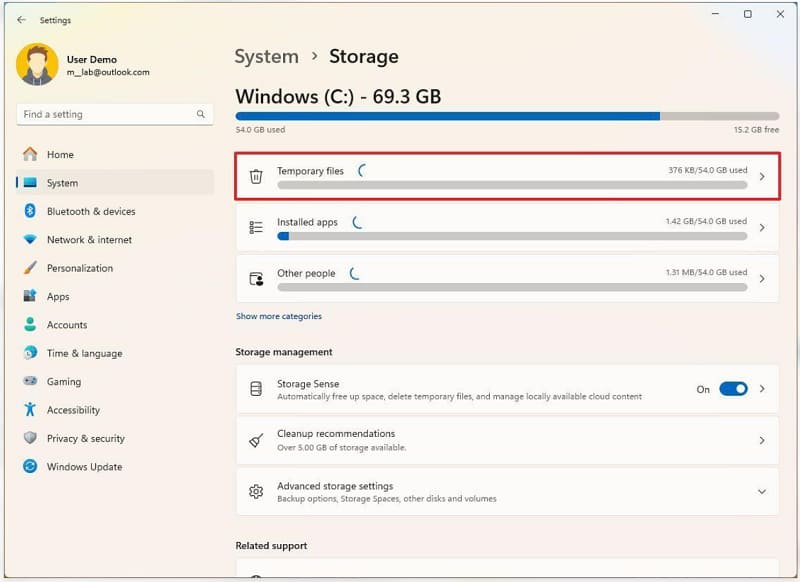
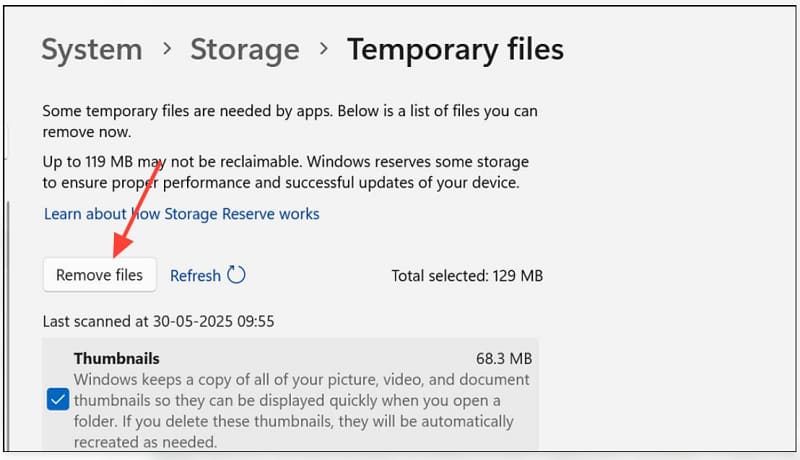
Step 3. Review the categories and uncheck anything you want to keep, especially Downloads if it appears.
Step 4. Click Remove files to delete the selected items.
Step 5. Return to Storage and enable Storage Sense to automate supported cleanup tasks.
Method 5. Improve Internet Speed on Laptop by Optimizing Network Settings
Sometimes a laptop seems slow because websites take too long to load, downloads are interrupted, or online games experience high latency. These problems are different from CPU or memory limitations. To improve Internet speed on laptop, focus on Wi-Fi signal quality, network congestion, and adapter settings rather than general system cleanup alone. Restart your router and reconnect your laptop to Wi-Fi.
Improve Wi-Fi Signal Quality: Position your laptop away from physical obstructions and electronic interference, and choose a suitable Wi-Fi frequency band for a more stable connection.
Reduce Network Resource Consumption: Check bandwidth usage in Task Manager and close unnecessary applications that may affect internet performance.
Limit Background Internet Activity: Temporarily disable automatic downloads, cloud backups, and other bandwidth-intensive tasks when you need a faster connection.
Keep Network Drivers Updated: Install compatible Wi-Fi or Ethernet driver updates to address potential connectivity issues and improve network stability.
Evaluate Network Performance: Compare download speeds, upload speeds, and latency before and after making changes to determine whether the adjustments are effective.
For online gaming or large downloads, an Ethernet connection can offer greater stability than a weak Wi-Fi signal.
Method 6. Update Windows and Hardware Drivers
Outdated drivers and unresolved Windows issues can cause compatibility problems, freezes, and unexpected performance drops. Keeping Windows and essential hardware drivers updated helps maintain system stability and improve laptop responsiveness.
To simplify driver maintenance, you can use IObit Driver Booster to scan for outdated drivers and install compatible updates for graphics cards, network adapters, and other hardware components. Although updates won't automatically make every laptop faster, they can resolve known issues affecting graphics performance, internet connectivity, and overall system operation.
Driver Booster Free
- Automatically scan and update drivers.
- Update game ready drivers for peak gaming performance.
- Identify and fix various common of hardware issues.
- Boost 30% of system performance for fast & smooth running.

Here are the steps.
Step 1. Visit the official Driver Booster website, download the installer, and follow the on-screen instructions to install the software.
Step 2. Launch Driver Booster and click SCAN. Wait for the software to identify outdated, missing, or potentially faulty drivers.
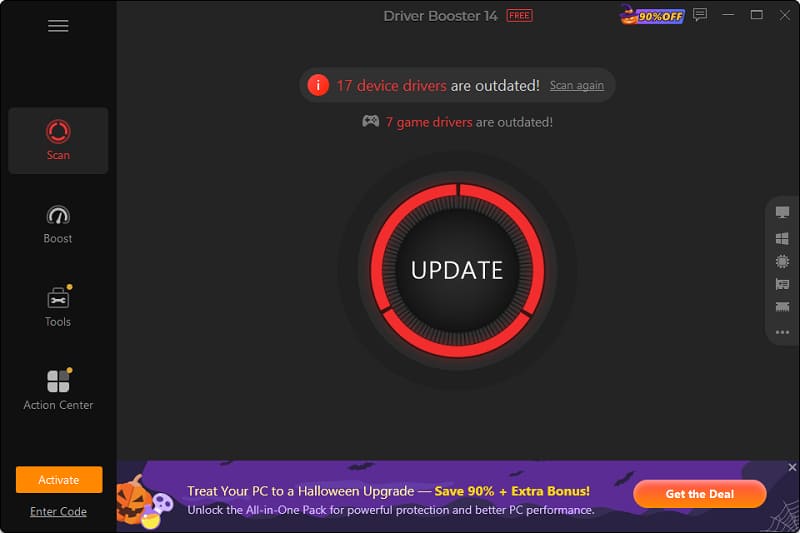
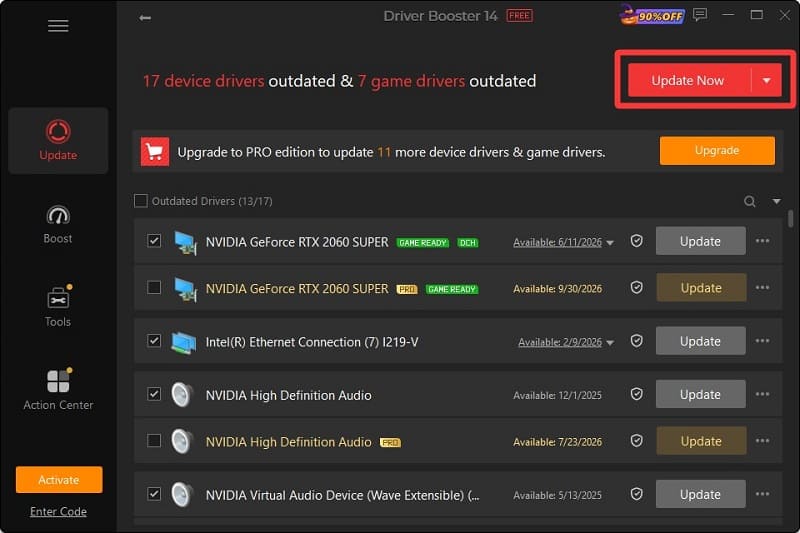
Step 3. Review the scan results and select the drivers you want to update. Prioritize drivers related to the performance issues you're experiencing. Click Update next to an individual driver or Update Now to install selected updates.
Tip: You can also update Windows through Settings. All you need is to press Windows + I to open Settings. Select Windows Update (Windows 11) or Update & Security (Windows 10). Then, click Check for updates and download and install available updates.
Method 7. Optimize Your Laptop for Smoother Gaming
Gaming places additional demands on your laptop's processor, graphics hardware, memory, and cooling system. When these resources become overloaded, you may experience FPS drops, stuttering, or delayed responses. If you're searching for how to optimize laptop for gaming Windows 10, combining Windows gaming settings with sensible graphics adjustments can improve performance without requiring immediate hardware upgrades.
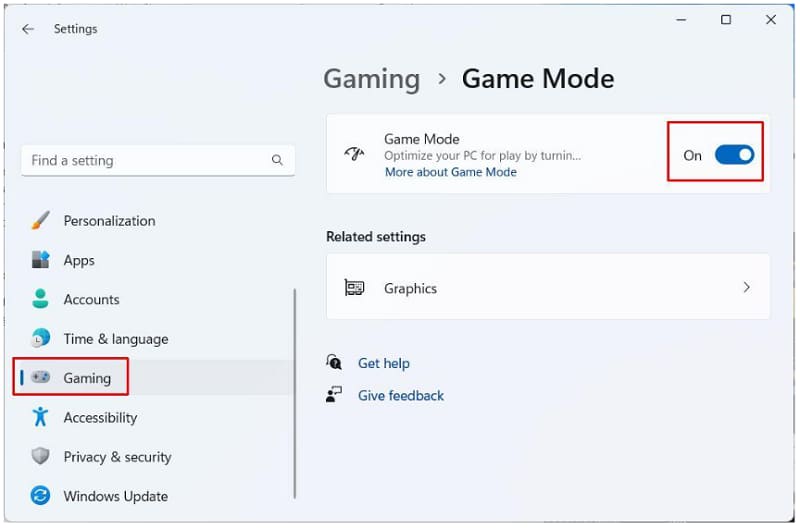
Step 1. Enable Windows Game Mode
Open Settings > Gaming > Game Mode.
Enable Game Mode to let Windows apply supported gaming-focused optimizations.
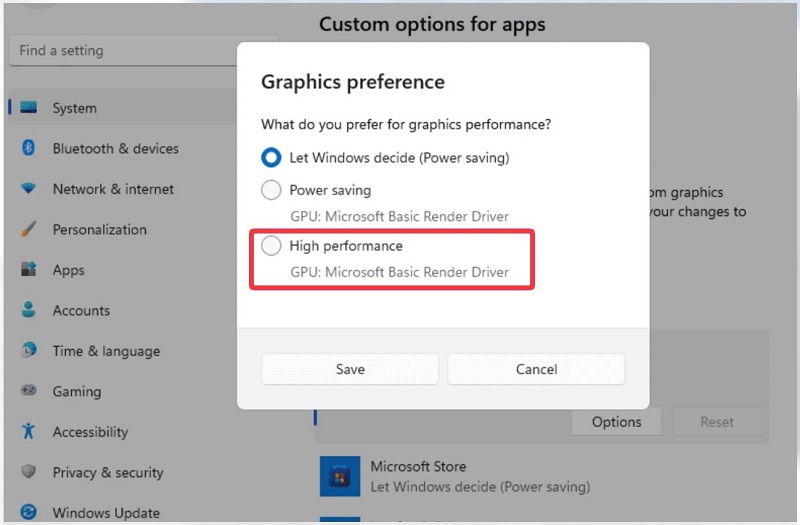
Step 2. Assign Games to the Dedicated GPU
Go to Settings > System > Display > Graphics.
Select your game from the application list, or add its executable file.
Click Options, choose High performance, and select Save.
FAQs About Optimizing Laptop Speed
Q1. How can I make my laptop faster without upgrading hardware?
Start by disabling unnecessary startup programs, closing resource-heavy applications, cleaning temporary files, updating Windows, and checking for overheating. Advanced SystemCare can also simplify selected maintenance tasks.
Q2. Does increasing RAM improve laptop speed?
Yes, if your laptop regularly runs out of available memory. Additional RAM can improve multitasking and reduce reliance on slower disk-based virtual memory, but it may have little effect when RAM capacity is already sufficient.
Q3. Can I improve laptop CPU speed without overclocking?
Yes. Selecting an appropriate power mode, improving cooling, reducing unnecessary CPU usage, and resolving driver problems can help the processor sustain its intended performance without overclocking.
Conclusion
Learning how to optimize laptop speed doesn't have to be complicated. Start by identifying the cause of slow performance, then manage startup applications, adjust power settings, free storage space, and keep essential drivers updated. For easier routine maintenance, this PC optimizer, IObit Advanced SystemCare, brings several cleanup and optimization tools together in one place, helping you maintain a more responsive Windows laptop.