



Kevin Hart
Kevin is an experienced editor focused on tech blog writing. Familiar with all kinds of PC software on the market. All the topics he chooses are aimed at bringing more benefits to users.
Expert in
PC Health Solution

All-in-one PC health solution: clean, optimize and secure

Comprehensive PC cleaning, optimization and protection

Keep drivers always up-to-date

More stable performance with less system crashes

Protect millions of computers against malware

Top computer security with full-round protection

Protect against viruses & boost PC performance
Clean: 420 billion traces removed & 85 EB junk files cleaned
Protect: 80 million unauthorized access blocked & 20 million bugs fixed
Speed Up: 6 million hours of startup time saved & Turbo boost
Optimize: Auto clean and auto care your PC with AI mode

Discover the 5 performance monitors Windows 11 to track your CPU, RAM, etc. Learn how to diagnose system lag and discover an alternative to boost your PC for work and gaming.

Kevin Hart


When your computer starts lagging, stuttering during tasks, or freezing unexpectedly, you need a way to track what is happening under the hood. A performance monitor acts like a diagnostic dashboard for your PC, tracking hardware usage—like your CPU, RAM, and Storage—in real time to help you spot bottlenecks.
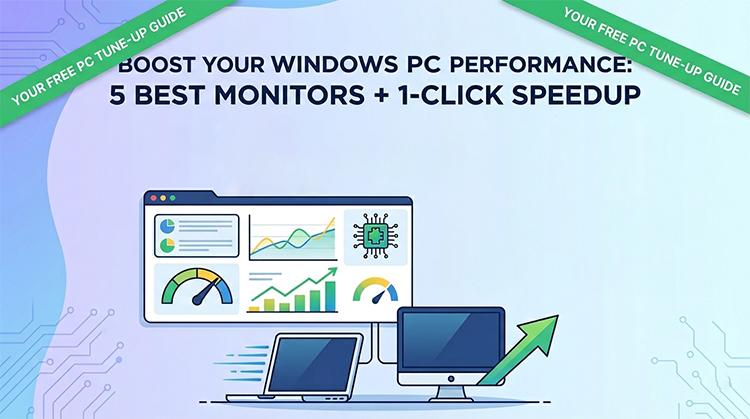
Rather than guessing why your PC is slow, using a reliable PC performance monitor Windows 11 gives you deep insights into exactly how your computer's hardware is handling its workload. Here are 5 high-rated performance monitors tailored for diverse system-tracking needs.
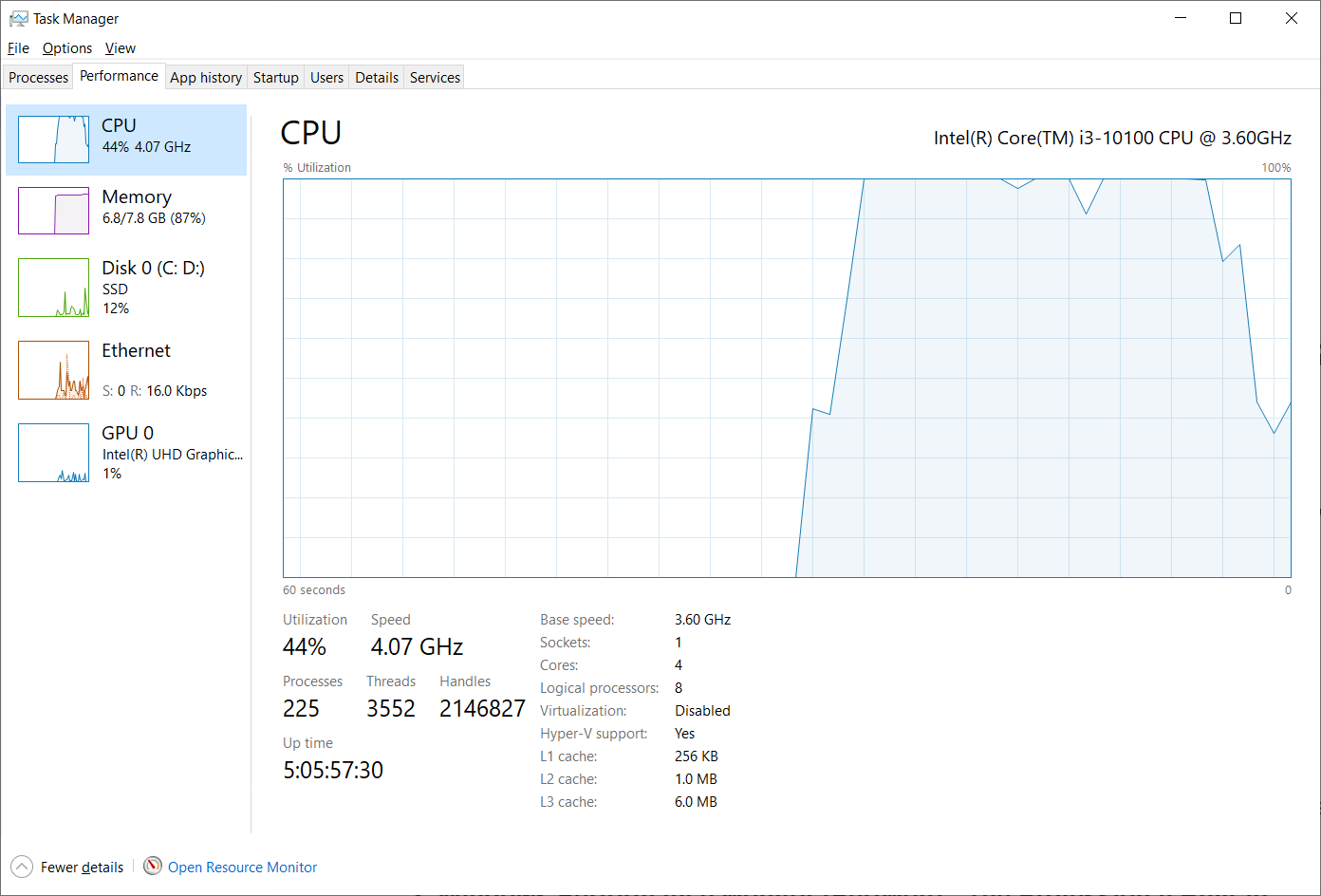
Task Manager is the quickest, built-in PC performance monitor available on every Windows device. By simply pressing Ctrl + Shift + Esc, you can access a live "Performance" tab that tracks your CPU, Memory, Disk, Wi-Fi, and GPU usage in simple, clean line graphs. It also lists exactly which active apps are draining your resources.
Entirely free and built into Windows
Requires no installation
Very lightweight
Provides basic data
Lacks long-term logging and advanced hardware deep-dives
Windows Task Manager is the best for casual users who need a quick, instant check on what is currently lagging their PC.
For users who need more than basic data, Windows also offers Performance Monitor (perfmon). This PC performance test tool allows you to build custom tracking graphs using hundreds of specific hardware "counters." It can also generate detailed, 60-second system health and diagnostic reports automatically. You can use it by searching the Performance Monitor in the Start Search box.
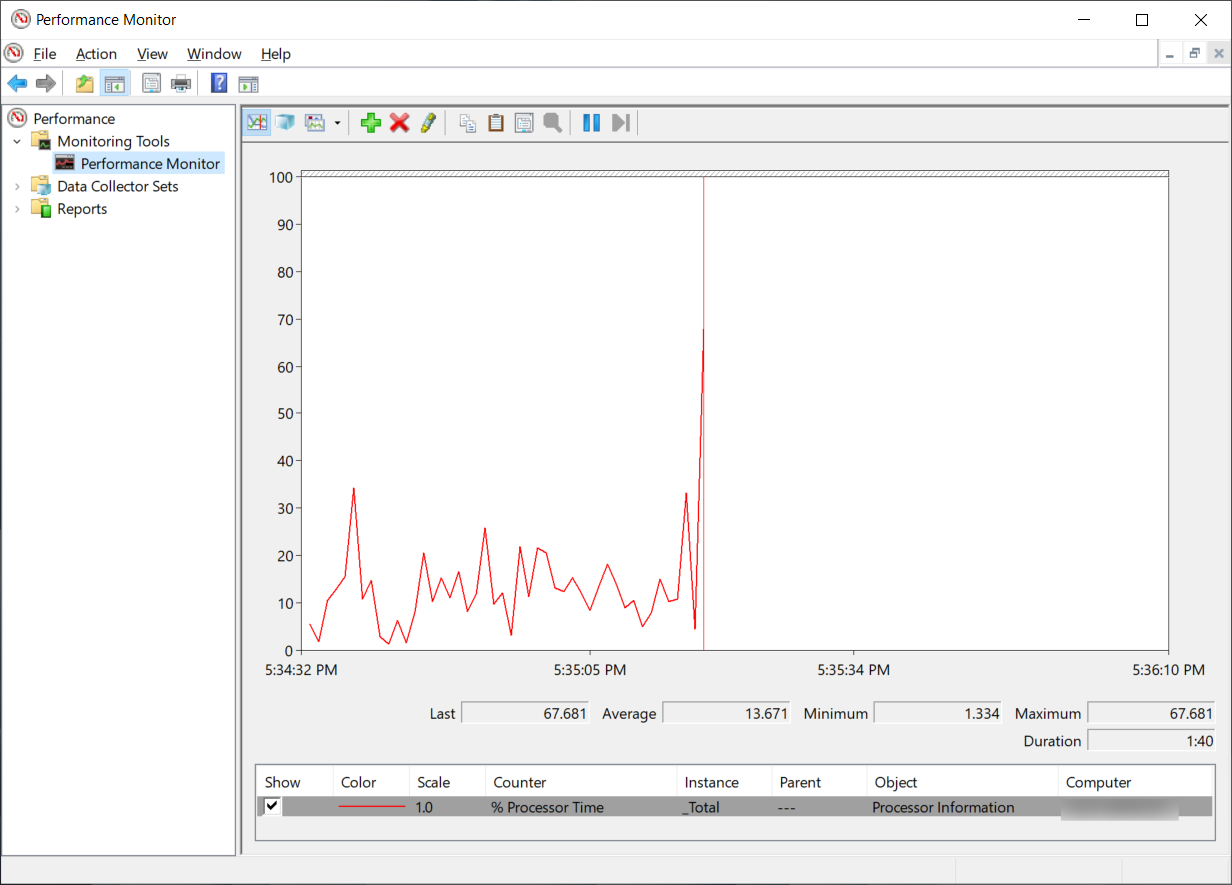
Highly customizable
Includes automated diagnostic reports
Excellent for long-term data logging
Interface is outdated and complex
Steep learning curve for beginners
It is the best PC performance monitor for advanced users and IT professionals who want deep system diagnostics without third-party software.
Developed by CPUID, HWMonitor is a lightweight hardware monitoring program that reads your PC’s primary health sensors. It tracks live voltages, fan speeds, clock speeds, and critical temperatures for your CPU and graphics card, helping you catch overheating issues before they cause system crashes.
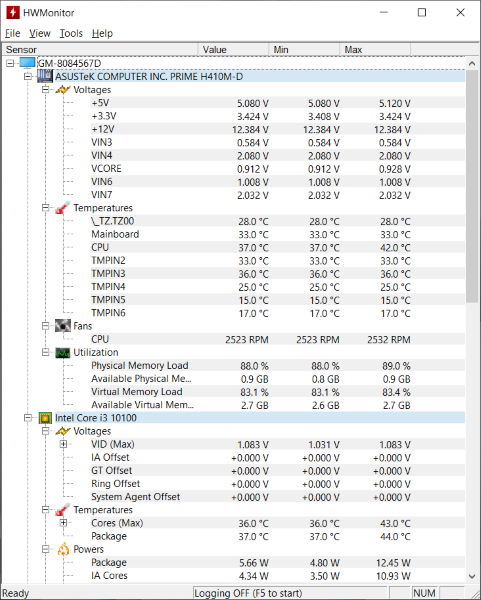
Very clean
Organized list view
Displays precise temperatures and voltages
Consumes almost zero system resources
Text-heavy interface with no visual graphs
Does not track software or background processes
HWMonitor is excellent for hardware enthusiasts and gamers who want to ensure their components aren't throttling due to overheating.
Part of Microsoft’s official Sysinternals suite, Process Explorer is essentially a Task Manager on steroids. It shows you a detailed tree-structure of every active process running on Windows, tracking exactly which files, folders, and registry keys are being gripped by which software.
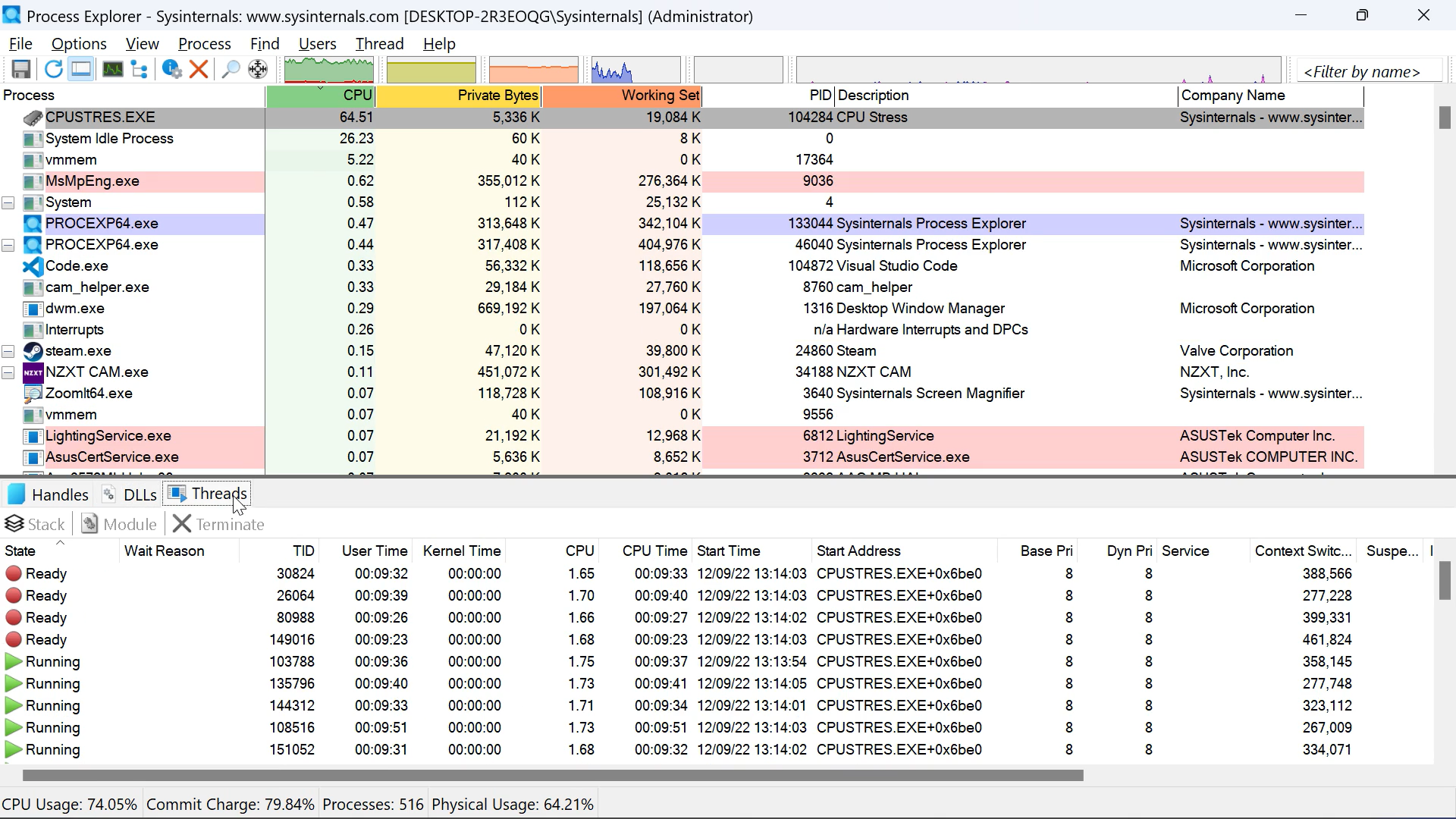
Shows hidden background processes
Tracks precise resource leaks
Identifies the source of stubborn pop-ups
Overwhelming amount of data for casual users
Visual graphs are very small
Process Explorer is absolutely the best tool for troubleshooting stubborn software bugs, memory leaks, and hidden background resource hogs.
Rainmeter is a desktop customization tool that allows you to display live performance metrics directly onto your Windows wallpaper. Using various downloadable "skins," you can create beautiful, stylized desktop widgets that track CPU load, RAM usage, network speeds, and disk space in real time.
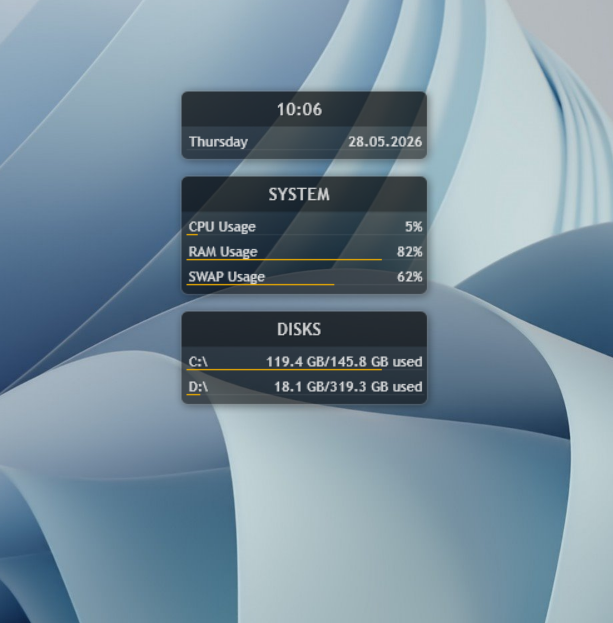
Highly customizable aesthetics
Keeps performance stats visible on your desktop at all times
Requires manual setup and skin configuration
Takes up slightly more background memory than standard monitors
Rainmeter is perfect for users who want to monitor their system resources continuously while adding a modern, visual look to their Windows desktop.
While performance monitors for Windows are excellent for identifying and diagnosing issues, they only point out the problems—they do not fix them. If you want a tool that doesn't just watch your PC but actively speeds it up, Advanced SystemCare is a much better, comprehensive solution.
Instead of forcing you to manually dig through graphs and guess which background services to disable, Advanced SystemCare features an all-in-one, 1-click optimization engine. Its specialized Turbo Boost feature includes a dedicated "Game Mode" and "Work Mode" that instantly stop unneeded background programs, release trapped RAM, and raise disk efficiency automatically.
Here’s how you can make use of this tool:
Step 1. Download Advanced SystemCare from the official website and install it.
Step 2. Click the large SCAN button in the center of the screen.
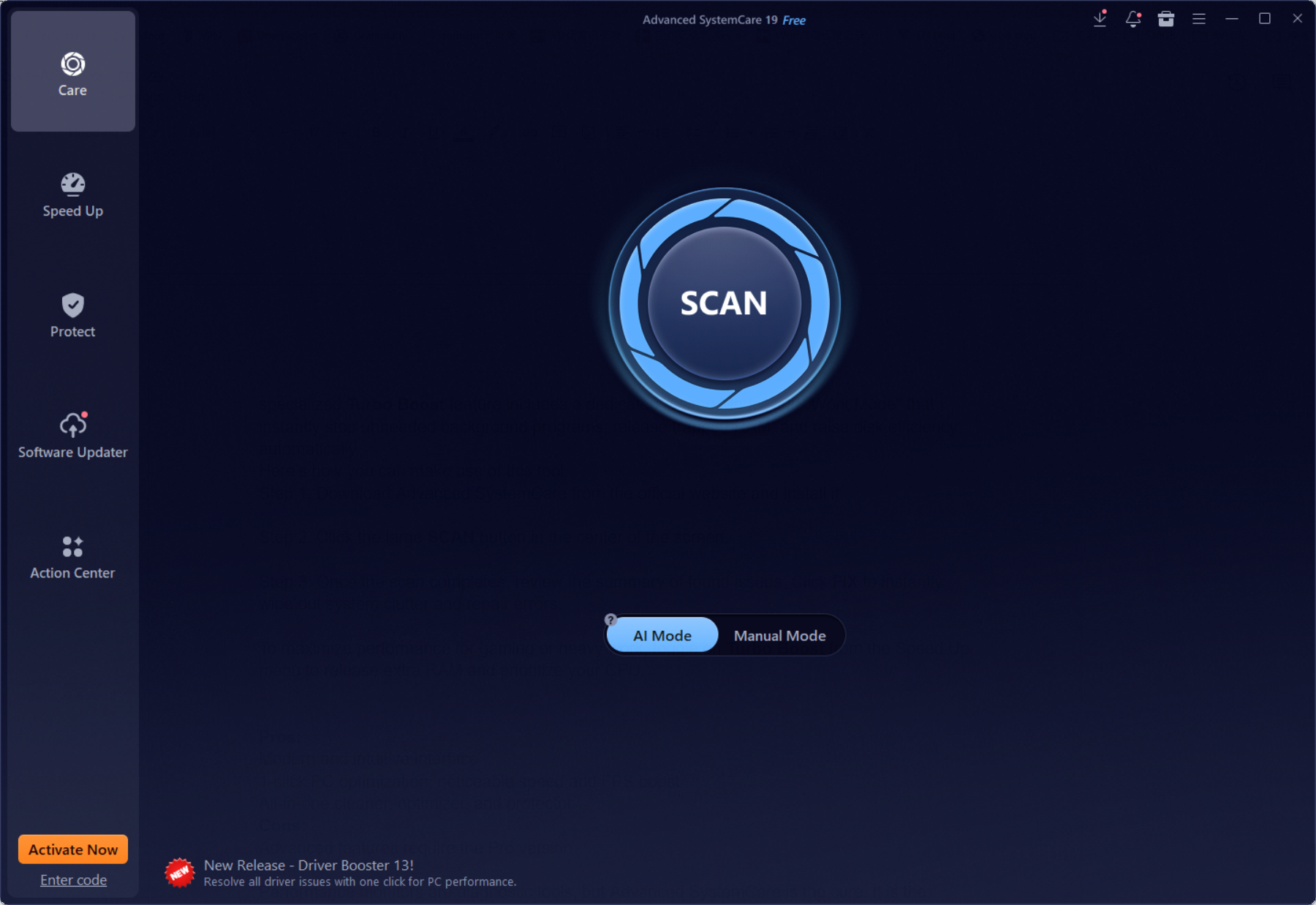
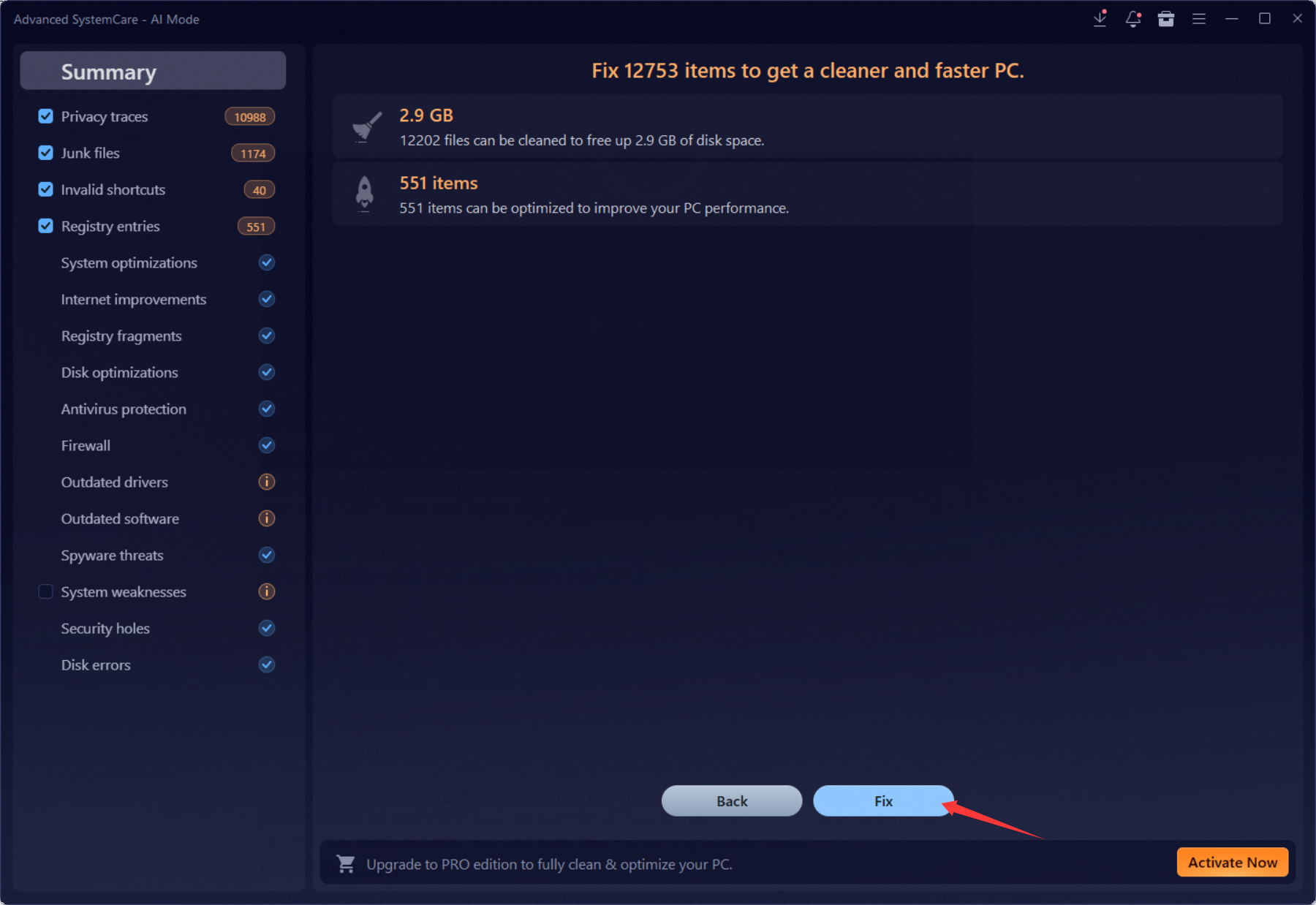
Step 3. Once the scan completes, review the summary of found issues. Click FIX to instantly wipe out system clutter and repair errors.
Besides speeding up your PC, this RAM optimizer Windows 11 can maximize performance for gaming or heavy work, just toggle on Turbo Boost from the Speed Up menu to release extra RAM and prioritize your CPU.
Modern and intuitive interface
1-click PC optimization
Noticeable speed and FPS boost
All-in-one cleaner, optimizer, and protector
Advanced features require the Pro version
Performance monitors are PC performance monitoring tools, but Advanced SystemCare is the cure. It is the perfect choice for users who want an automated, hassle-free solution to reduce background interference, clean out junk files, and keep their PC running at peak speed.
Monitoring your PC’s performance is the first step toward a smoother Windows experience, but identifying a resource bottleneck is only half the battle. While performance monitor Windows 11 like Task Manager or HWMonitor give you the data to diagnose lag, they still leave the tedious work of cleaning and optimizing to you. If you want to skip the manual troubleshooting and instantly restore your PC's speed, an automated optimizer like Advanced SystemCare is the superior choice. It bridges the gap between diagnosis and repair, keeping your system clutter-free and running at peak performance with a single click.


All-in-one PC health solution.
Free Download