Your computer screen can quickly become a maze of icons. While some are useful, others are forgotten or point to unused apps. A desktop shortcut provides quick access to files without duplicating them. Too many links cause clutter and slower navigation. Wondering how to remove shortcuts from desktop without deleting your original files?
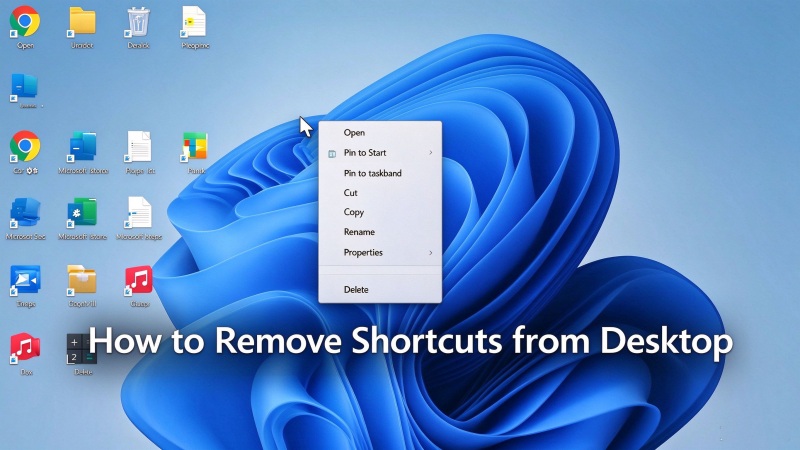
This guide shows how to safely remove unwanted shortcuts in Windows 11/10, including how to delete multiple shortcuts, hide desktop icons, and clean up invalid shortcuts. Read on to master your desktop organization.
Part 1. How to Delete Desktop Shortcuts in Windows 11/10
Tidying up a crowded screen improves workflow speed and removes visual clutter. Fortunately, learning how to remove desktop shortcuts in Windows is simple. Explore the 3 fast, built-in methods below to organize your workspace in seconds.
Method 1: Right-click and Delete
Step 1. To delete a desktop shortcut, locate the unwanted icon anywhere on your screen.
Step 2. Right-click the shortcut to display the standard context menu options.
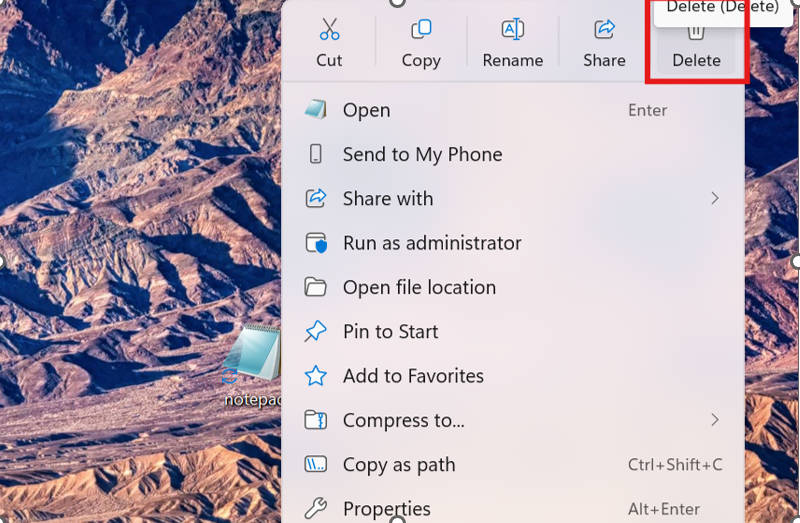
Step 3. Click the trash can icon in Windows 11, or select Delete in Windows 10.
Step 4. Confirm the prompt to send the selected shortcut to the Recycle Bin.
Method 2: Drag the Shortcut to the Recycle Bin
Step 1. Click and hold the left mouse button directly on the shortcut icon.
Step 2. Move the selected icon across your screen until it hovers over the Recycle Bin.
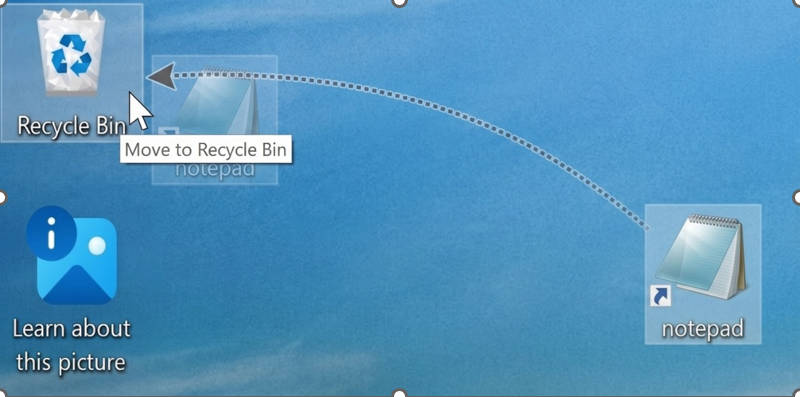
Step 3. Hover over the Recycle Bin until its highlight effect activates properly.
Step 4. Release your left mouse button to immediately drop the shortcut into storage.
Method 3: Select Multiple Shortcuts and Delete Them
Step 1. Click on an empty space and drag your cursor over multiple shortcuts.
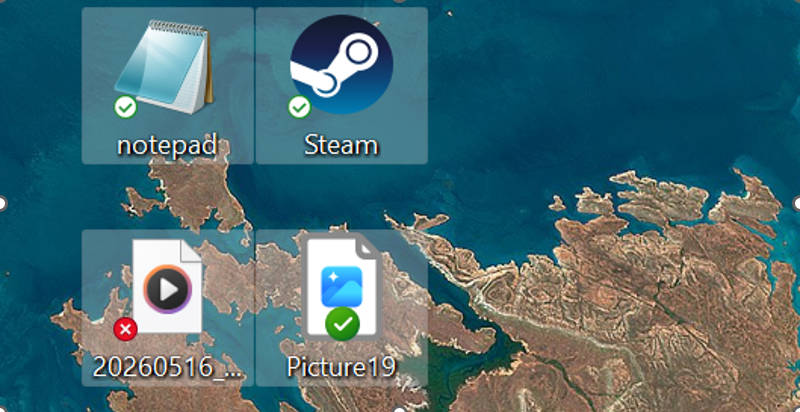
Step 2. Alternatively, hold down the Ctrl key while clicking each individual icon desired.
Step 3. Right-click any highlighted shortcut and choose the Delete option from the list.
Step 4. Press the Delete key on your keyboard to instantly remove every chosen item.
Part 2. How to Remove Desktop Shortcuts Without Deleting the Original File?
After clearing those cluttered icons, you might worry about losing the actual software. A shortcut is simply a visual link pointing to the original item, allowing quick access from your screen.
Deleting a shortcut only removes this temporary link. It does not uninstall the program or erase the original file from your hard drive. Therefore, you can safely delete desktop shortcuts without harming the underlying applications. To completely remove the software and free up disk space, you must navigate to Settings > Apps and uninstall it there.
Tip: If you are unsure whether an icon is a shortcut, right-click it and select Properties. Check the Target field to verify exactly where the shortcut points.
Part 3. How to Hide Desktop Icons Without Deleting Them?
Those preferring to keep shortcuts accessible for later while maintaining a cleaner, less cluttered workspace have another great option. You can simply hide them instead of choosing to remove desktop shortcuts entirely. This provides an uncluttered screen immediately, serving as a perfect temporary solution for presentations, screen sharing, or recording video tutorials.
If you are still wondering how to remove shortcuts from desktop visually without deleting them, here is a detailed guide on how to remove icons from desktop Windows 11 and Windows 10:
Step 1. Right-click on any completely empty area of your desktop.
Step 2. Place your pointer over the "View" selection in the menu that appears.
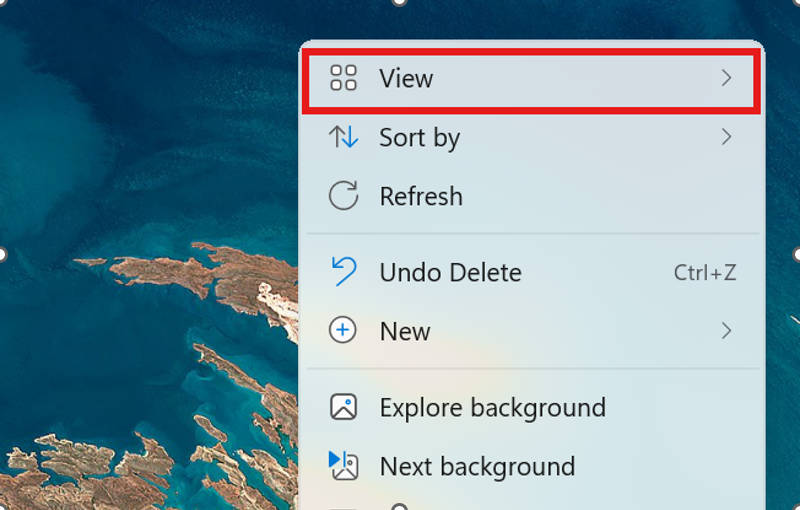 Step 3. Locate the Show desktop icons entry in the extended sub-menu.
Step 4. Click Show desktop icons to uncheck it and hide every icon immediately.
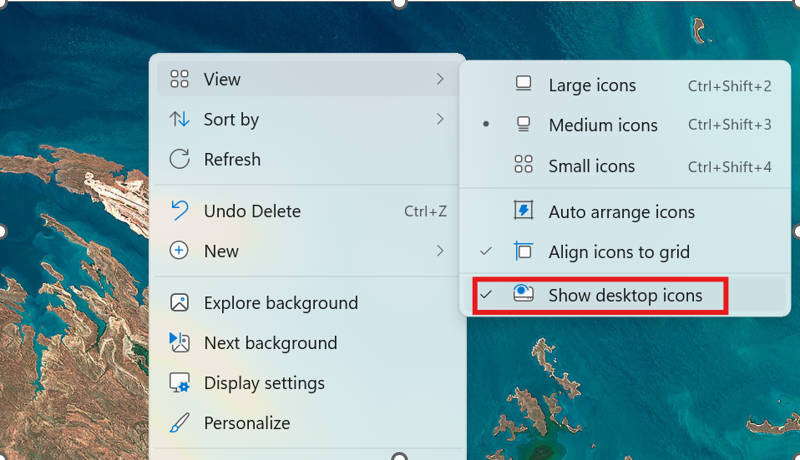 Step 5. Repeat these exact steps and check the option again to restore them instantly.
Part 4. How to Fix or Remove Invalid Desktop Shortcuts?
Sometimes your workspace remains cluttered with icons that simply fail to open. An invalid or broken shortcut points to a file, folder, or program that has been moved, renamed, or deleted. Common causes include deleting or moving the original file, uninstalling an associated program, changing the file path, or finding desktop shortcuts not working because an external drive was disconnected.
How to Tell if a Shortcut is Invalid?
Checking a shortcut is a simple process:
Right-click the shortcut > Properties > Check the "Target" field.
A target path pointing to a location that no longer exists or displaying an error message indicates the shortcut is broken.
Clean Invalid Shortcuts Automatically with Advanced SystemCare
Users can manually delete desktop shortcuts that are broken in the same way as normal icons. However, when the desktop or Start Menu has accumulated dozens of invalid shortcuts over time, removing them one by one can be tedious. This is where a dedicated cleanup tool like Advanced SystemCare can help. Beyond fixing dead links, this versatile Windows optimizer keeps your computer operating smoothly.
Advanced SystemCare Free
- Clean: 420 billion traces removed & 85 EB junk files cleaned
- Protect: 80 million unauthorized access blocked & 20 million bugs fixed
- Speed Up: 6 million hours of startup time saved & Turbo boost
- Optimize: Auto clean and auto care your PC with AI mode

Key features of this tool include:
Free Invalid Shortcut Cleaner: Broken desktop and Start Menu shortcuts get scanned and resolved in one pass, clearing out dead paths and registry discrepancies across all storage volumes.
Automatic Broken Shortcut Detection: Its deep scanner identifies orphaned links created by relocated files, renamed directories, and uninstalled applications without missing obscure locations.
One-Click Desktop Shortcut Clean: Advanced SystemCare allows users to fix or wipe broken links in bulk, eliminating repetitive manual searching and deletion tasks.
Comprehensive Junk File Cleanup: It also acts as an effective junk file cleaner that purges temporary logs, cache buildup, and invalid system registry data safely.
Complete System Performance Care: Acting as a RAM optimizer Windows 11 users can rely on, it keeps the system responsive and trims down active memory overhead.
Follow these steps to clean invalid shortcuts using Advanced SystemCare:
Step 1. Download and install this optimization software on your PC.
Step 2. Launch the program and click the Toolbox icon located in the top-right corner of the main dashboard.
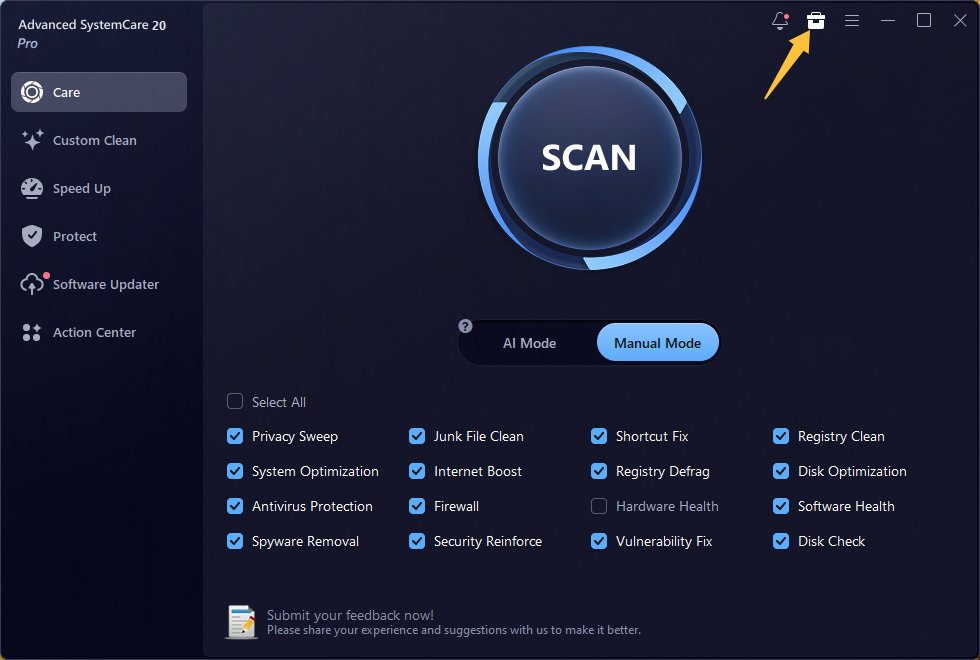 Step 3. Locate the Shortcut Fixer module among the available tools and open it.
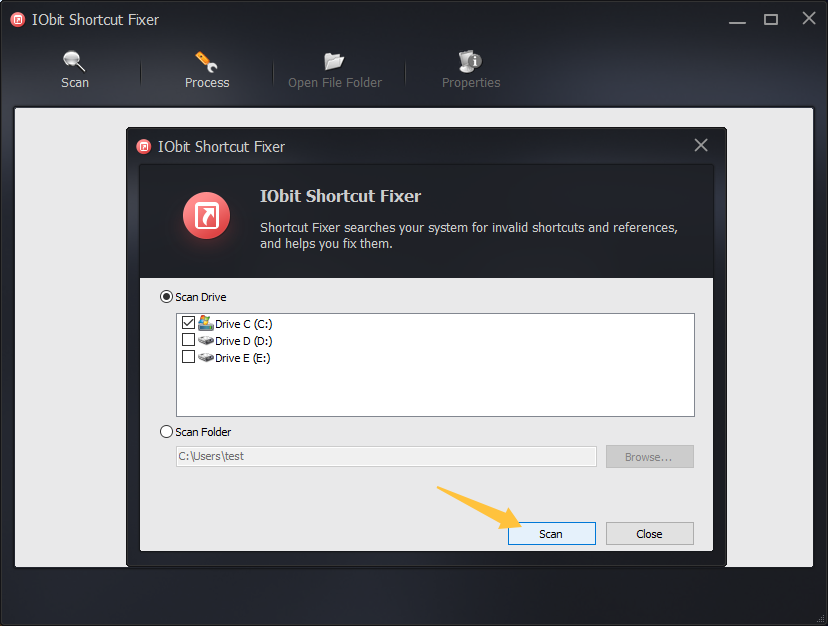
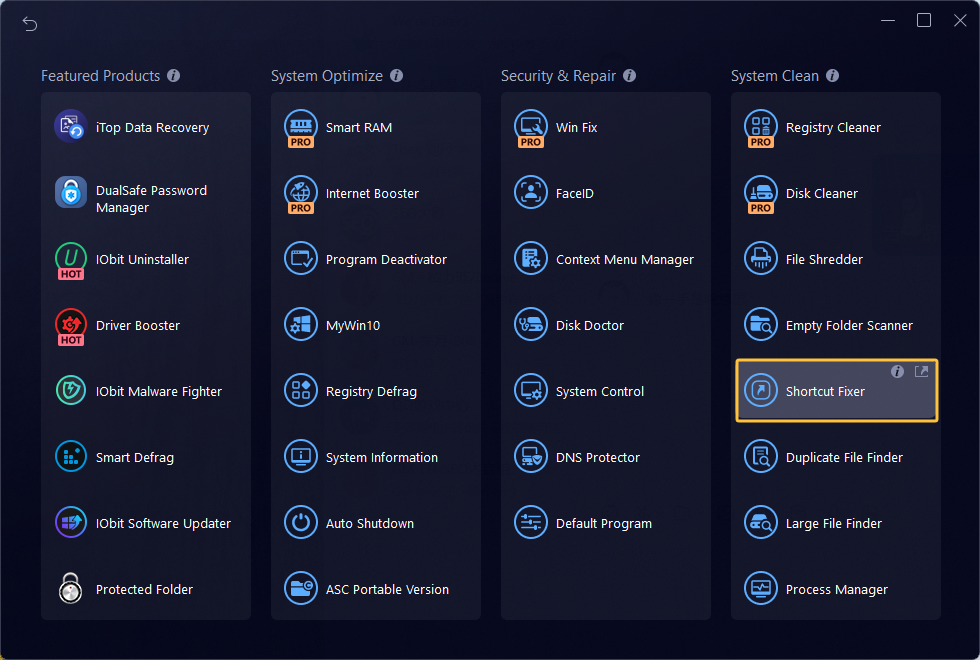 Step 4. Allow the Shortcut Fixer to scan your system for any broken or invalid links using Scan Drive or Scan Folder.
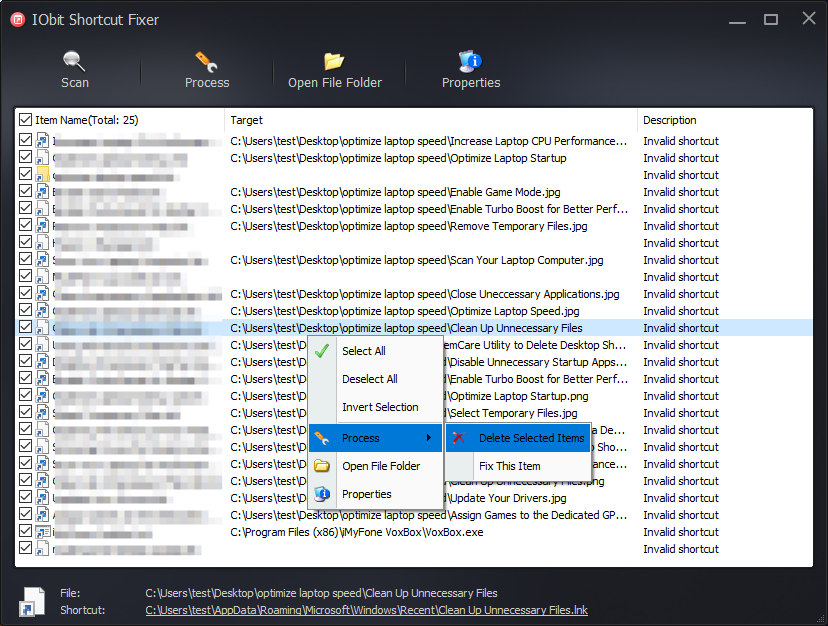
 Step 5. Review the list of detected invalid items once the scan finishes. Simply right-click the problematic links and navigate to Process > Delete Selected Items to clear them out permanently.
FAQs on How to Remove Shortcuts from Desktop
1. Why can't I delete a shortcut that says "file doesn't exist"?
This issue happens when Windows Explorer encounters caching conflicts or registry glitches regarding the path. Restarting the system usually fixes the problem. You can also run a Windows clean up disk routine to purge outdated temporary indices.
2. How to delete a shortcut from desktop that cannot delete?
When learning how to remove shortcuts from desktop, you may encounter an icon that refuses standard deletion. Open Command Prompt as administrator. Navigate directly to your desktop directory using the change directory command and run the delete command targeting the exact shortcut name to force removal.
3. How do I remove a shortcut after uninstalling a program?
Right-click the leftover icon on your desktop and select Delete. Since the main software has already been uninstalled, deleting this remaining icon is completely safe and won't affect your computer.
4. How do I stop shortcuts from automatically appearing on my desktop?
When installing a piece of software, opt for the "Advanced" or "Custom" installation path. Uncheck the checkbox stating "Create a desktop shortcut" before proceeding to complete the installation process.
5. How do I remove shortcut icons on Mac?
Click and drag the alias icon directly from your desktop into the Trash bin situated on the Dock. Releasing the mouse button clears the alias without touching the original application.
Final Thought
Managing your desktop improves daily productivity and eliminates unwanted screen clutter. Whether your goal is to organize active icons or remove dead pathways, knowing how to remove shortcuts from desktop ensures a neat workspace. For automated maintenance without the manual hassle, try Advanced SystemCare to clean dead shortcuts and keep your system running at peak performance.
Advanced SystemCare Free
- Clean: 420 billion traces removed & 85 EB junk files cleaned
- Protect: 80 million unauthorized access blocked & 20 million bugs fixed
- Speed Up: 6 million hours of startup time saved & Turbo boost
- Optimize: Auto clean and auto care your PC with AI mode