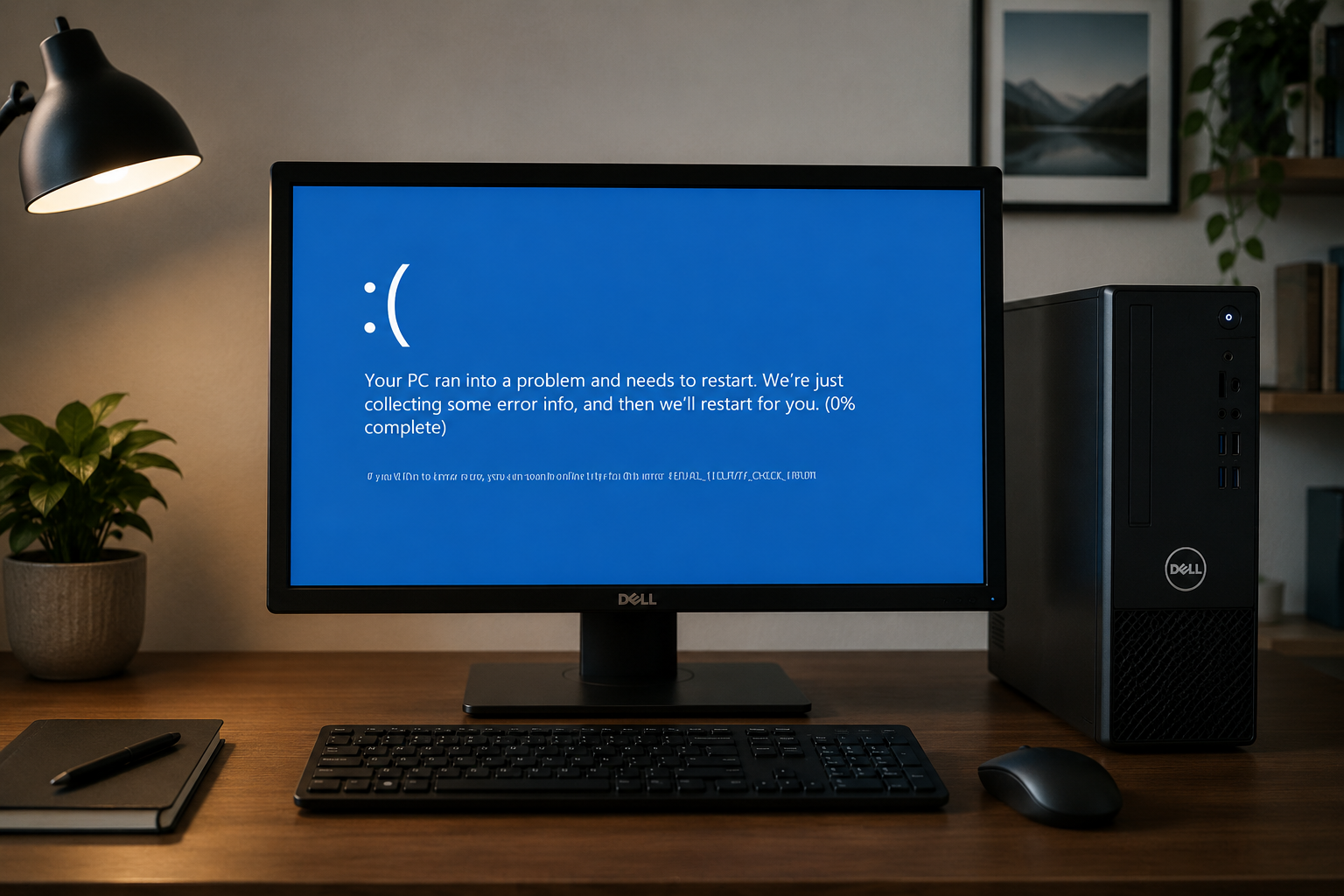
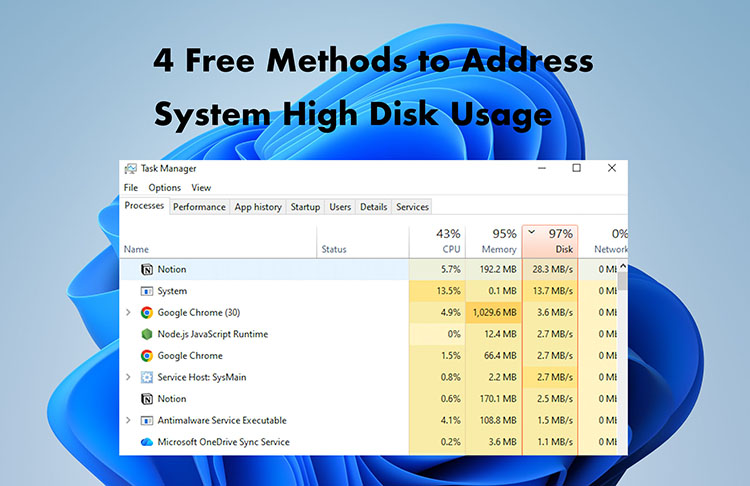
A slow PC may be caused by temporary files, full startup lists, high usage background tasks, inadequate memory space, or old hard drive. Here is how to clean up PC and make it run faster by identifying the bottleneck and choosing an appropriate software fix or hardware upgrade.
Common Factors Causing Your PC to Run Slow
Before deciding how to clean up PC and make it run faster, separate software clutter from hardware limitations. Removing unnecessary information may help save space and cut down on the activities in the background, but they cannot make an old CPU new again.
Games, applications, browsers, and Windows create temporary files. Browser caches and cookies, application caches, duplicate downloads, old Windows Update files, unused installation packages, and leftovers from uninstalled programs can consume disk space. A nearly full system drive leaves less room for updates, temporary operations, and paging.
Startup apps and background processes also compete for CPU, memory, disk, and network resources. If Task Manager reports system high disk usage, identify the active process first. Learn how to disable startup programs instead of turning off unfamiliar services.
RAM shortage makes Windows depend a lot on slower virtual memory located on the hard disk. A hard drive, an old processor or motherboard, an overheated part of the system, or a weak graphics card can also become a performance bottleneck. A one-click cleaning utility can tell you if getting rid of unnecessary stuff improves your computer speed. For users researching how to clean up PC and make it run faster, trying these no-cost software fixes first can help avoid an unnecessary hardware purchase.
How to Clean Up PC and Make It Run Faster: Free PC Cleaner
IObit Advanced SystemCare is an all-in-one Windows cleaner and optimizer. Its Free edition combines junk detection, startup optimization, privacy cleanup, and performance tools.
For users researching how to make your laptop faster Windows 10, these tools can help reduce software clutter and unnecessary background activity before a hardware upgrade is considered.
How to Use Advanced SystemCare to Clean Up a PC
Step 1. Download Advanced SystemCare from IObit’s official website, install it, and open Care.
Step 2. Choose Manual Mode and select Junk File Clean. Registry Clean is separate; enable it only when needed and create a restore point first.
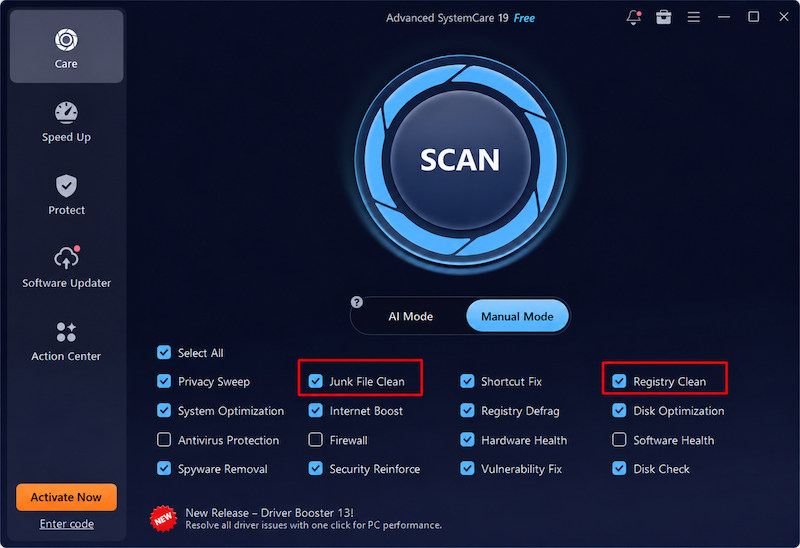
Step 3. Close important work, click Scan, and wait for the selected modules to finish.
Step 4. Review the results, deselect anything you want to keep, click Fix, and check the summary.
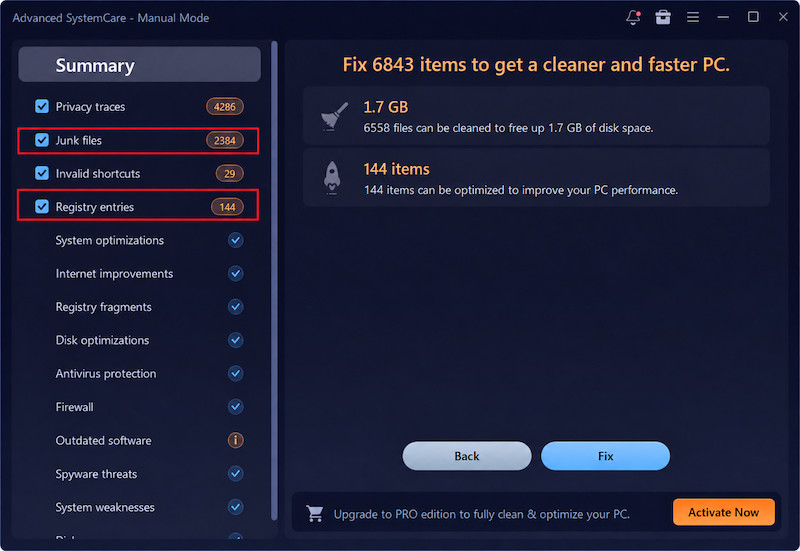
What Can Advanced SystemCare Do to Speed Up Your PC?
• One click cleanup: Searches for and deletes temporary files, cache, log and leftovers from applications.
• Turbo Boost: Temporarily stops selected nonessential services and background apps to free system resources.
• Startup and process management: Helps disable or delay unnecessary startup items and manage resource-consuming background processes.
• Security and privacy safeguarding: Detects spyware among selected threats and Privacy Sweep deletes supported browser and application tracks.
The upside: Advanced SystemCare provides all of the above utilities under one interface. Some of the advanced utilities need Pro.
How to Clean Computer to Run Faster: Windows Built-in File Cleaner
For users searching how to clean up computer to run faster Windows 10, cleanmgr.exe, better known as Disk Cleanup, removes selected unnecessary files without another installation. Windows 11 also provides the newer Settings > System > Storage > Temporary files interface.
For anyone asking how to clean up computer to run faster Windows 7, Disk Cleanup offers a similar built-in way to remove selected temporary and system files.
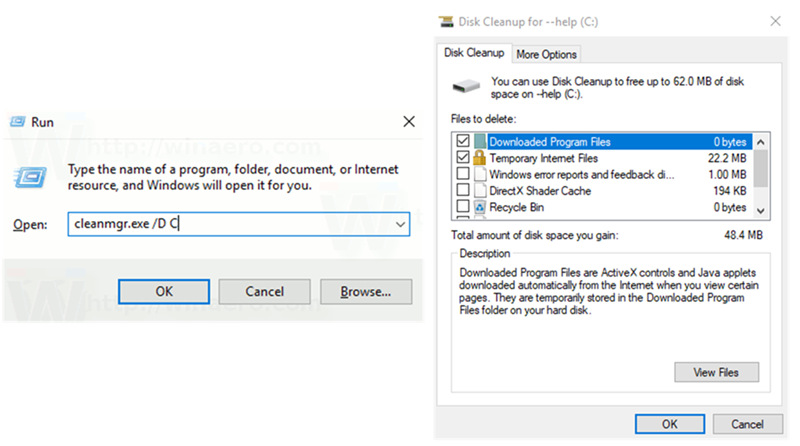
What Can Cleanmgr.exe Do?
1. Remove temporary files: These may be unnecessary after an app or Windows task finishes.
2. Empty the Recycle Bin and delete thumbnails: Check the bin first for files you need.
3. Clean update files: Clean up system files can expose Windows Update Cleanup when applicable.
4. Preview categories: Disk Cleanup shows the space associated with each selection.
Search Start for Disk Cleanup, choose the system drive, select categories, and confirm. See how to delete temporary files in Windows for alternatives. This answers how to clean up computer to run faster Windows 10 free.
The downside: It does not manage CPU priorities, optimize startup broadly, or fix insufficient RAM.
How to Clean Up Computer to Run Faster: CPU Optimizer
Process Lasso does not clean junk files. Instead, it manages how running processes use CPU resources. It is relevant to how to clean up PC and make it run faster only when “clean up” means reducing process-related congestion rather than deleting data. Check Windows Resource Monitor first to confirm whether CPU, memory, disk, or network activity is actually the bottleneck.
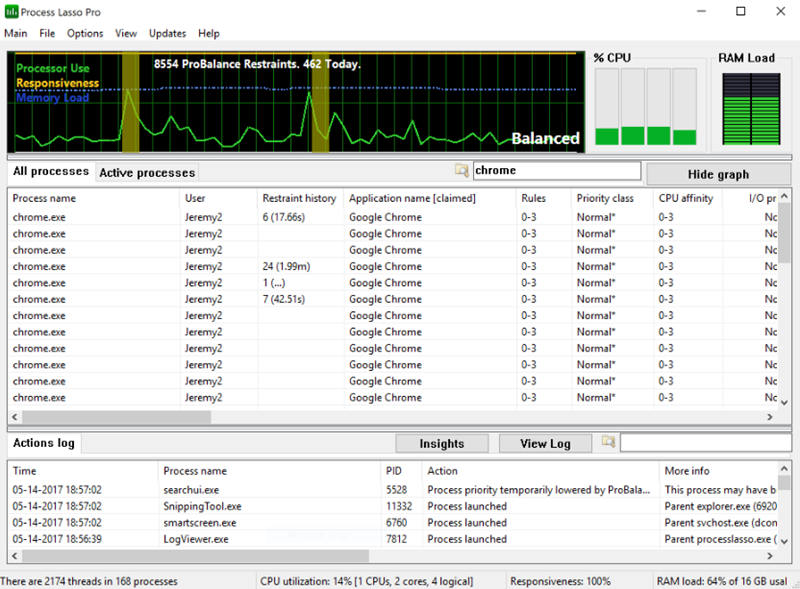
What Can Process Lasso Do?
1. Apply ProBalance: Bitsum’s ProBalance algorithm temporarily restrains processes that may be harming responsiveness without permanently terminating them.
2. Set persistent process rules: Users can define CPU affinities, priorities, and related rules for specific executables.
3. Use Efficiency Mode controls: On Windows 11, Process Lasso can persistently enable or disable Efficiency Mode for selected processes that should be treated as non-performance-critical.
4. Automate performance profiles: Process Lasso can apply power-plan or process rules when particular applications start.
The downside: it will not free up storage space, and setting high priority or affinity levels could lower performance. Some features are technical in nature, and some are only available with Process Lasso Pro.
How to Clean Up Laptop and Computer: Microsoft PC Manager
Microsoft PC Manager groups maintenance and security shortcuts in one dashboard. It supports Windows 10 build 19042.0 and later and Windows 11. For readers asking how to clean up computer to run faster Windows 10, it is simpler than opening several Windows utilities. Modules can vary by release and region.
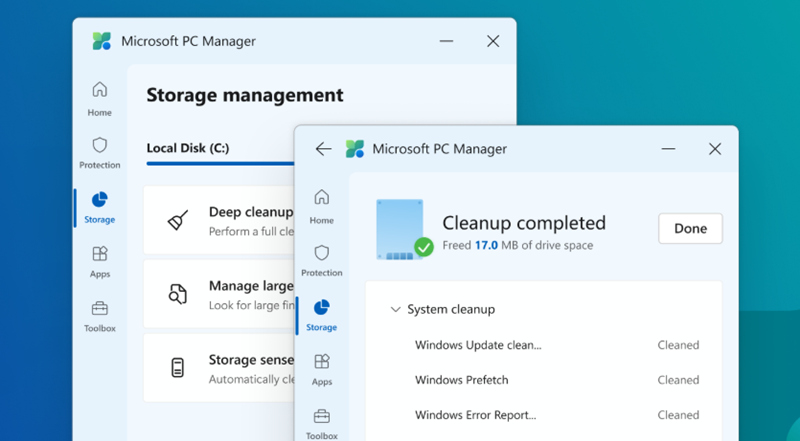
What Can This Software Clean?
1. PC Boost: Clears selected temporary data and releases occupied memory.
2. Deep Cleanup: Scans caches, update-related data, temporary files, and other removable categories.
3. Storage Management: Provides large-file tools, downloaded-file cleanup, Storage Sense, and related options.
4. Health Check: Combines cleanup suggestions, startup-app review, and security status.
Microsoft PC Manager helps users clean Windows 11 for free, offering free yet profound system clean functions to users.
The downside: PC Boost may provide temporary relief, and detailed tuning controls are limited. A Microsoft software cleanup tool addresses a different problem.
Bonus Tip: Directly Upgrade RAM/SSD/CPU/GPU to Make Your Computer Run Faster
When software cleanup cannot resolve poor performance, the answer to how to clean up PC and make it run faster may involve upgrading the hardware. The right upgrade can provide a more noticeable and lasting improvement than repeatedly removing temporary files.
1. RAM: Increase RAM if memory use reaches its limit on a frequent basis. Higher-speed RAM will be beneficial too, but only when supported by the motherboard and the CPU.
2. SSD: Replace an HDD with an SSD to improve startup, application loading, and file access. If the PC already uses a SATA SSD, a compatible NVMe SSD can deliver faster transfers.
3. CPU: Opt for new or better CPU in case high CPU usage happens due to the operation of resource-hungry applications.
4. Graphics Card (GPU): Buy a more powerful GPU for gaming, video processing, 3D rendering and other graphics-heavy tasks.
5. Motherboard: Replace the motherboard when newer CPUs, faster RAM, NVMe storage, or newer PCIe standards are not supported.
Bonus: For most older PCs, replacing an HDD with an SSD is the most cost-effective upgrade. If the computer already has an SSD but frequently runs out of memory, adding RAM may provide better value.
The downside: Hardware upgrades cost money, require compatibility checks, and may be difficult on laptops with soldered components. These limitations also apply when researching how to make my laptop faster Windows 11.
Conclusion
Learning how to clean up PC and make it run faster starts with identifying whether storage clutter, background activity, or hardware is responsible. Use Windows tools for basic maintenance or Advanced SystemCare for a centralized cleanup and optimization workflow. Always review detected items before clicking Fix.
Advanced SystemCare Free
- Clean: 420 billion traces removed & 85 EB junk files cleaned
- Protect: 80 million unauthorized access blocked & 20 million bugs fixed
- Speed Up: 6 million hours of startup time saved & Turbo boost
- Optimize: Auto clean and auto care your PC with AI mode