Keeping your Windows drivers updated helps your PC run well, improves gaming, and fixes common hardware problems. Lots of Windows users find Norton Driver Updater while searching for driver tools. However, many of you may not know much about it. This Norton Driver Updater review explains its features, operation, and compares it with useful options such as Driver Booster for Windows 10 and 11.
What Is Norton Driver Updater
Norton Driver Updater is a paid driver update tool for Windows developed by Norton. It is mainly used to detect and update various hardware drivers on your computer. As an add-on feature of Norton security suites, it cannot be purchased separately, and an active Norton subscription is required to unlock its full driver update capabilities.
To help you understand its functions clearly, here are its main features:
Full driver scan: This tool scans Windows PC for outdated, missing, or corrupted hardware drivers, including GPU, audio, network, and peripheral devices.
Large driver database: It provides access to a database with more than 50 million malware-free driver files.
Driver backup & rollback: It backs up existing drivers and lets you restore old versions if new updates cause problems.
How to Update Drivers Using Norton Driver Updater
Understanding its features is only the first step. Now, you may wonder exactly how Norton Driver Updater works in practice. Follow the complete steps to update drivers.
Step 1. Complete your Norton Driver Updater download and subscribe to the Norton security suite.
Step 2. Launch it, then click Scan drivers or Scan again in the main interface.
Step 3. When the scan ends, select the target drivers and click Update all to install available updates.
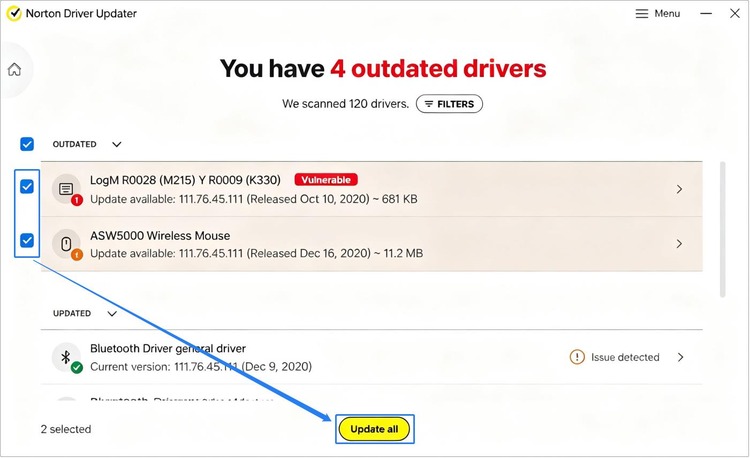
Step 4. When the installation finishes, click Done and restart your PC if it prompts you to do so.
Is Norton Driver Updater Worth It? Let’s Evaluate
Is Norton Driver Updater smooth from download through practical use? When you hit obstacles, you might ask yourself: Is Norton Driver Updater Worth it? Keep reading to find the answer.
As mentioned above, this tool scans for outdated and vulnerable drivers, draws from a database of over 50 million malware-free driver files, and supports driver backup and rollback for smoother Windows performance. It can be a worthwhile tool for users ready to pay for driver updates or those who already own a Norton subscription.
Even so, there are a few key points to consider before using Norton Driver Updater.
Bundled-only licensing: As previously mentioned, it works standalone yet comes with the Norton security suite and cannot be bought separately; you need a full Norton subscription to use it.
Regional access restrictions: This tool uses region-locked licensing, and some features are not available in all geographic markets, such as mainland China, France, etc.
Limited hardware-system compatibility: According to official system requirements, the tool does not support Windows-on-ARM devices.
Extra repair tools lack: It focuses only on driver tasks, with no built-in tools to fix audio, network or general system errors.
Given these limitations, Norton Driver Updater for Windows may not fit all users. To help you overcome these limitations and better resolve driver issues, here is a more flexible, dedicated driver-update tool as an alternative: Driver Booster.
Norton Driver Updater Alternative: Driver Booster
These two driver tools are both excellent for Windows, but they differ in terms of features and usability. To help you quickly tell them apart, check the comparison below first.
Norton Driver Updater vs Driver Booster
|
Norton Driver Updater |
Driver Booster 13
|
| Purchase option |
Only in Norton suite, no stand-alone buy |
Stand-alone: Free / Pro |
| Starting annual price |
$44.99 (1 PC) |
$22.95 (3 PCs) |
| Windows-on-ARM (ARM64) |
Not supported |
Supported |
| Regional access |
Limited in some areas |
Global availability |
| Other driver repair tools |
None |
Built-in hardware error fixes |
The table above highlights their key differences. To better understand why Driver Booster stands out as a reliable alternative, let’s take a closer look at its core capabilities.
What Is Driver Booster and Its Core Capabilities
Driver Booster is a professional driver updater for Windows developed by IObit. This software focuses on Windows driver updates and system repair services.
Driver Booster Free
- Automatically scan and update drivers.
- Update game ready drivers for peak gaming performance.
- Identify and fix various common of hardware issues.
- Boost 30% of system performance for fast & smooth running.

This driver updater brings great convenience for Windows users, offering a usable free edition for pre-purchase testing. Since its release in 2013, it has helped tens of millions to over a hundred million Windows users worldwide resolve PC system issues caused by outdated or missing drivers and hardware malfunctions. To better understand this tool, check out its core capabilities.
Driver-focused design: Unlike tools bundled with security suites, it focuses on driver maintenance, with more targeted features for more usage scenarios.
Large verified driver database: It has over 12 million WHQL-certified and manually checked drivers for most PC hardware brands.
Broad system compatibility: It supports popular Windows OS including modern Windows-on-ARM devices, fixing compatibility limits of many traditional driver tools.
Useful protection & scan features: This automatic driver updater offers driver backup, rollback, and scheduled auto-scans to keep your drivers up-to-date.
Built-in system repair toolkit: It fixes common PC problems such as audio issues, network issues, bad resolution, game lag, and more.
How to Update Drivers with Driver Booster
After learning its key advantages, you can find it a worthwhile tool to use. Now check out the straightforward steps below to update drivers with one click, boosting your PC’s stability and performance.
Step 1. Click the following button to download Driver Booster on your PC.
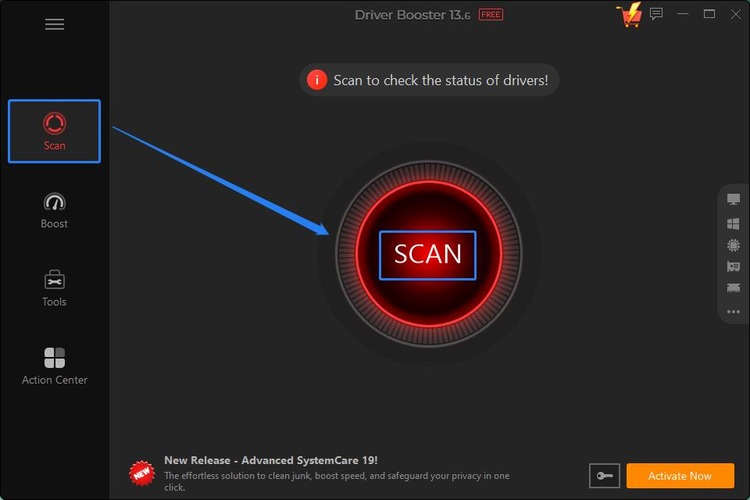
Step 2. In the Scan tab, click the Scan icon to scan for all your PC drivers. Wait for the scan process to end.
Step 3. When the scan ends, select all the drivers you want and click Update Now > OK to update them.
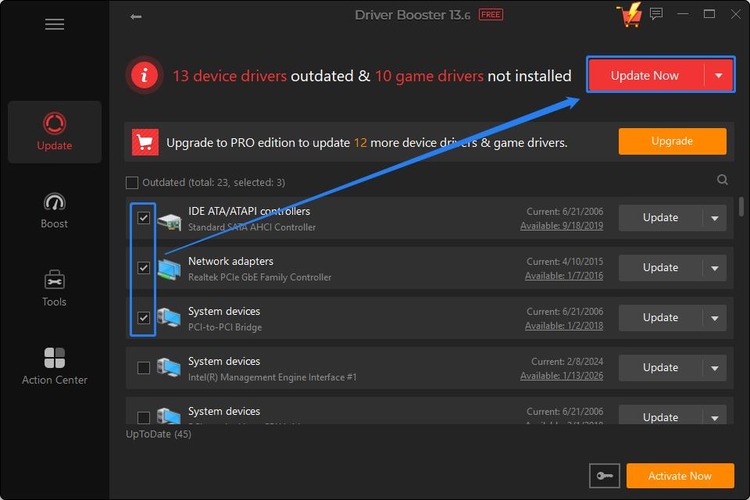
Step 4. During update, click Automatically reboot PC and wait the whole process to complete.
Beyond driver updates, it also helps when you face game lag, such as Roblox lag, or hardware-related issues. Refer to the guide to walk through each troubleshooting step.
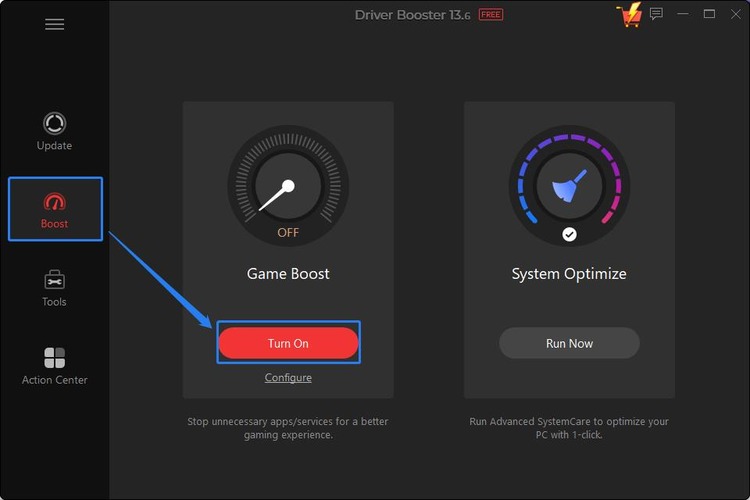
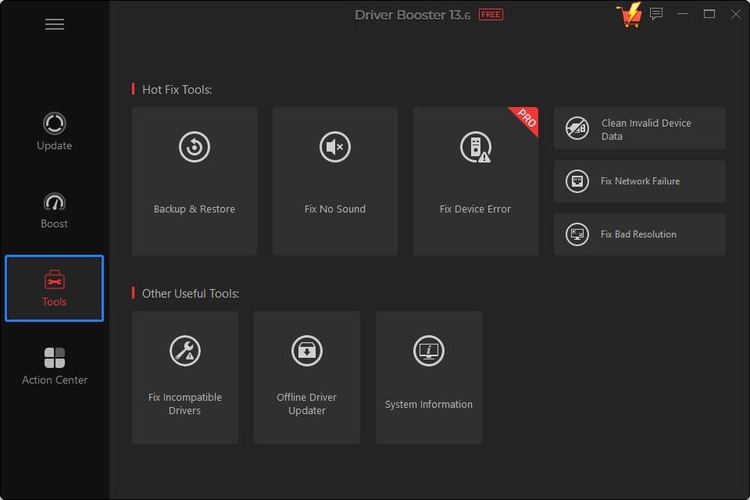
Therefore, when you encounter any game performance or hardware issues, don’t hesitate to give it a try. It can effectively scan for problematic drivers and help you fix these annoying issues.
Norton Driver Updater: Frequently Asked Questions
1. Why is Norton Driver Updater not working?
It requires an active Norton suite subscription and cannot be purchased separately. It is unavailable in some regions and does not support Windows-on-ARM hardware. Network issues or corrupted program files may also trigger failures.
2. How to fix Norton Driver Updater not working?
Ensure you have an active Norton suite subscription. Restart the tool and PC, or reinstall Norton suite. If issues persist, update drivers manually or use an alternative tool, such as Driver Booster.
3. How to get rid of Norton Driver Updater?
Since Norton Driver Updater is bundled within the Norton security suite, Windows Settings may leave leftover files and registry entries. You can uninstall Norton Driver Updater completely with IObit Uninstaller.
The Bottom Line
In a word, Norton Driver Updater requires an active subscription for full driver updates, and even its free trial needs a payment method, while Driver Booster stands out as a solid alternative, offering both free scans and updates. Choose one based on the comparison to update your drivers for better PC performance.