When your drivers are outdated or faulty, you will likely run into annoying troubles. In this case, updating drivers should be your primary solution. However, you may ask: how to update my drivers on my PC. Don’t worry. This comprehensive guide will walk you through 3 methods to update your drivers on both Windows 10/11.
When Should I Update Drivers on My PC?
Drivers are little pieces of software that let Windows work with your PC hardware, such as a graphics card, audio controller, and more. However, drivers can sometimes become outdated or corrupted, which triggers some PC-related problems.
Updating drivers can fix many of these annoying issues, but you don’t have to install every new driver that comes out. So when exactly should you update drivers on PC? Let’s find out.
When you run into obvious hardware-related troubles, including game crashes, random stutters, no sound, or unstable Wi-Fi after a Windows update.
When you have just installed new hardware on your computer.
When you need new features, performance optimizations, or security fixes from hardware vendors.
Things to Do Before You Update Drivers on PC
Updating drivers goes smoothly most of the time, yet even a small mistake can trigger unexpected system-related issues. Before learning “how to update my drivers on PC”, complete these steps to keep the operation safe.
Create a system restore point. This serves as key protection. If driver updates trigger other serious issues, you can restore your system to its stable earlier state.
Close resource-heavy background apps. They consume system resources and may conflict with driver setup, causing incomplete installations.
Note down your hardware model. If you choose to download drivers manually, matching the exact hardware model avoids version incompatibility.
3 Practical Ways on How to Update My Drivers on My PC
Once you have completed pre-update steps, it’s time to look at how to update my drivers on my computer. Here are 3 ways to update drivers to avoid PC crashes or hardware errors and improve performance.
Method 1: Update Drivers from Hardware Manufacturer’s Official Site
Getting drivers directly from hardware manufacturers is the most reliable option. Official packages are fully tested for your hardware, while Windows-provided drivers are often outdated. However, you have to check your hardware model and select the right installer manually, which takes extra time.
The following operations use Intel HD Graphics as an example.
Step 1. Right-click the Start button and choose Device Manager. Expand Display adapters and note down the Intel HD Graphics model.
Step 2. Open Google Chrome and go to the Support for Intel Graphics site. Click the Support icon and choose Download Center.
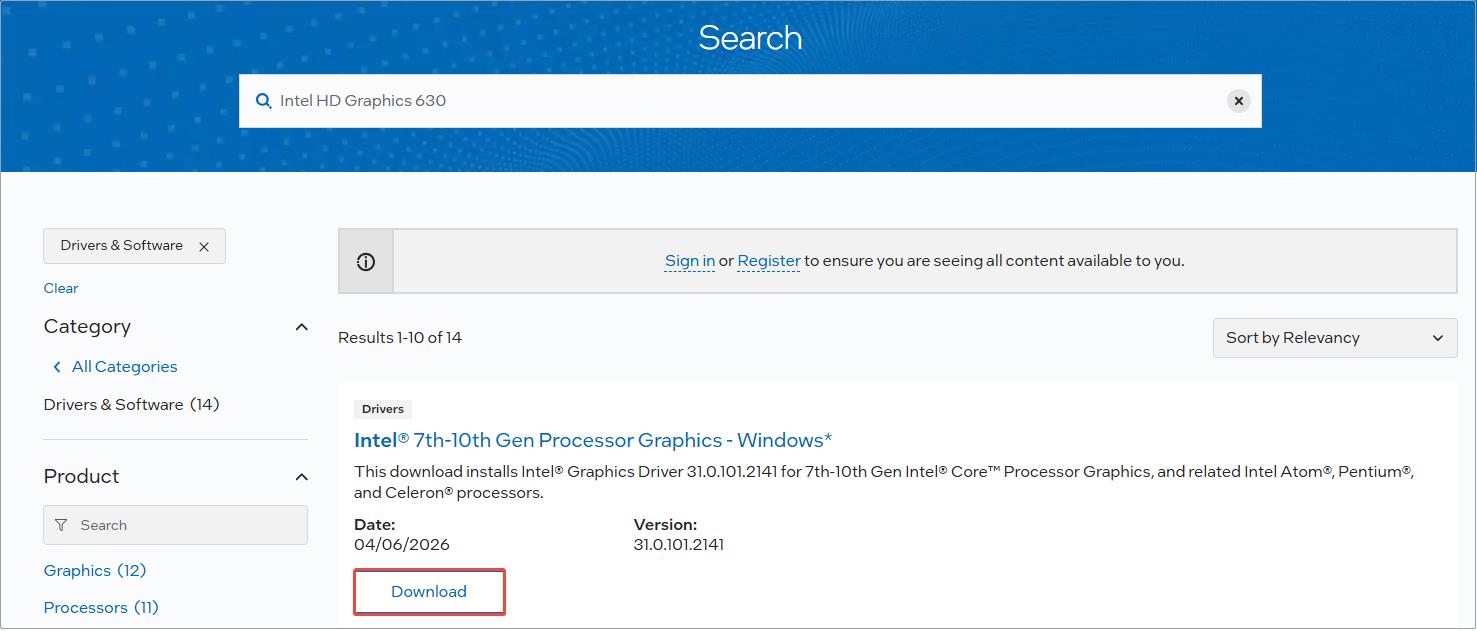
Step 3. Search for the hardware model and click Download. When it ends, follow the wizard to complete the installation.
Method 2: Update Drivers with the Built-in Utilities
For those who are wondering, “ how do I update my drivers on Windows 11/10 without downloading third-party software”, Windows comes with two built-in tools. However, they only provide generic drivers. These versions often lag behind and lack manufacturer-specific vulnerability fixes.
Two methods for using them are described below.
Option 1: Update Drivers With Device Manager
Step 1. In Device Manager, expand Display adapters, right-click the HD Graphics, and choose Update driver.
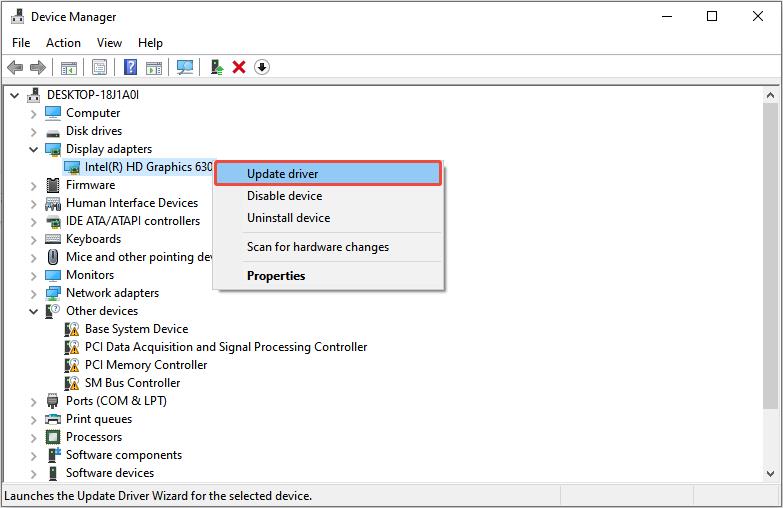
Step 2. In the pop-up window, select Search automatically for drivers. Windows will search for the latest driver. If an update exists, it downloads and installs it automatically.
Option 2: Update Drivers With Windows Update
Step 1. Press Win + I to open Settings and click Update & Security.
Step 2. Click the Check for updates button. Windows 10 automatically searches, downloads, and installs available driver updates.
Method 3: Update Drivers Using Driver Booster - the Best Driver Updater
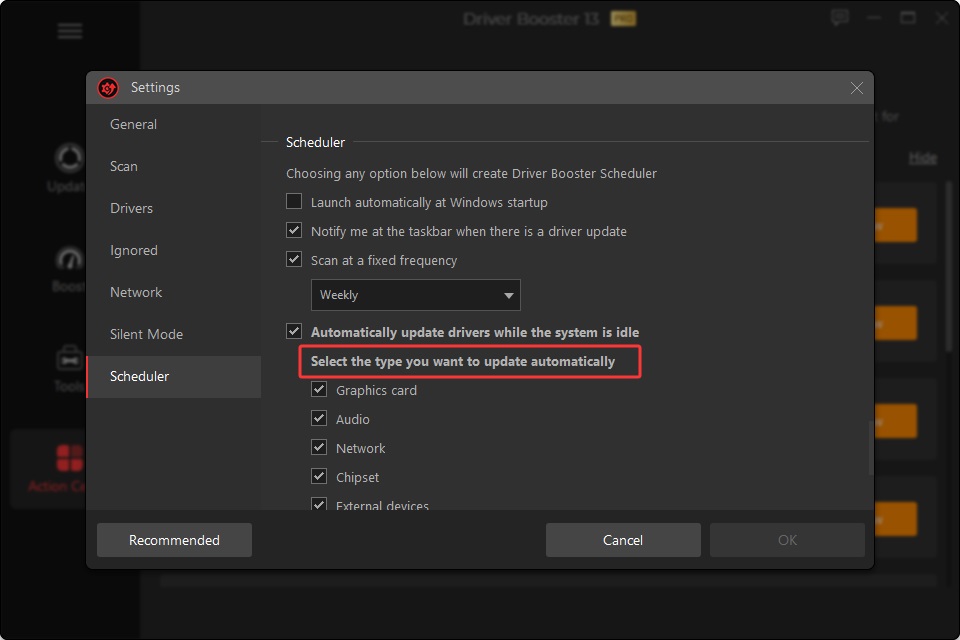
If manual official downloads or Windows built-in tools feel troublesome, Driver Booster offers a convenient automatic alternative. It is a driver update utility designed to scan, update, and manage device drivers on Windows PCs.
Driver Booster Free
- Automatically scan and update drivers.
- Update game ready drivers for peak gaming performance.
- Identify and fix various common of hardware issues.
- Boost 30% of system performance for fast & smooth running.

This tool scans your entire PC to detect outdated, missing, or corrupted device drivers and lets you fix them with one click. Instead of hunting for drivers manually across dozens of official sites and looking up hardware model details yourself.
It supports over 12 million drivers from more than 2,500 manufacturers, covering various types of hardware such as graphics cards, audio devices, and network adapters. Besides standard hardware drivers, it also provides official Game-Ready drivers for gaming performance, such as Roblox laggy boost.
And it fetches WHQL-verified driver files directly from original hardware manufacturers for safer, more stable installations. What’s more, it cleans leftover old driver files to prevent hardware issues and free up disk space.
This software features simple steps and a clean interface. Even users with no tech experience can maintain drivers easily. Now, click the following button to download this automatic driver updater!
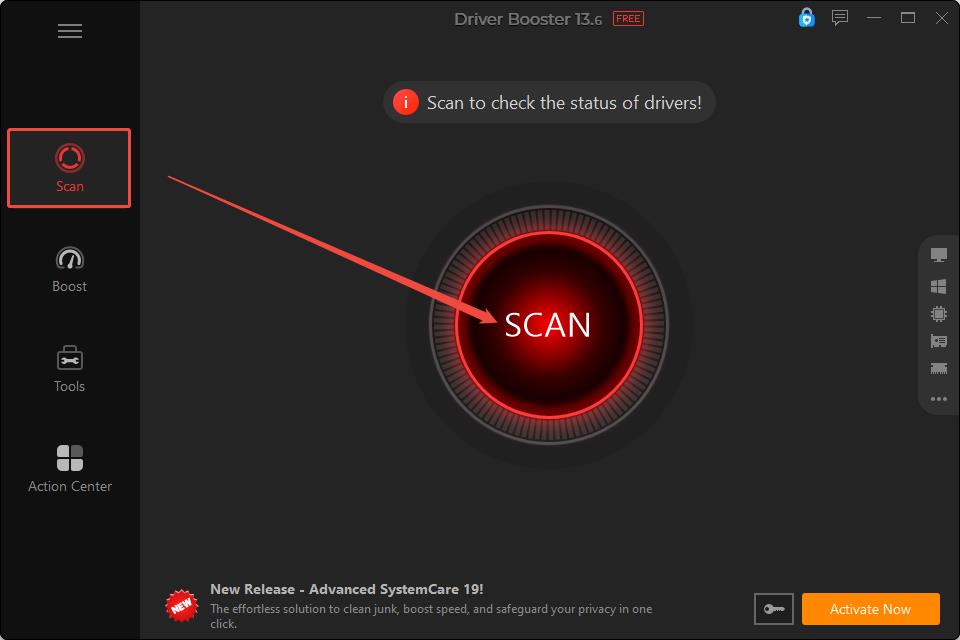
Step 1. Launch Driver Booster and click the Scan icon. The software will scan for outdated, corrupted, and missing drivers on your PC.
Step 2. When the scan ends, select the target driver and click Update Now. In the notice box, click OK to start the update. Wait for it to finish, then restart your PC.
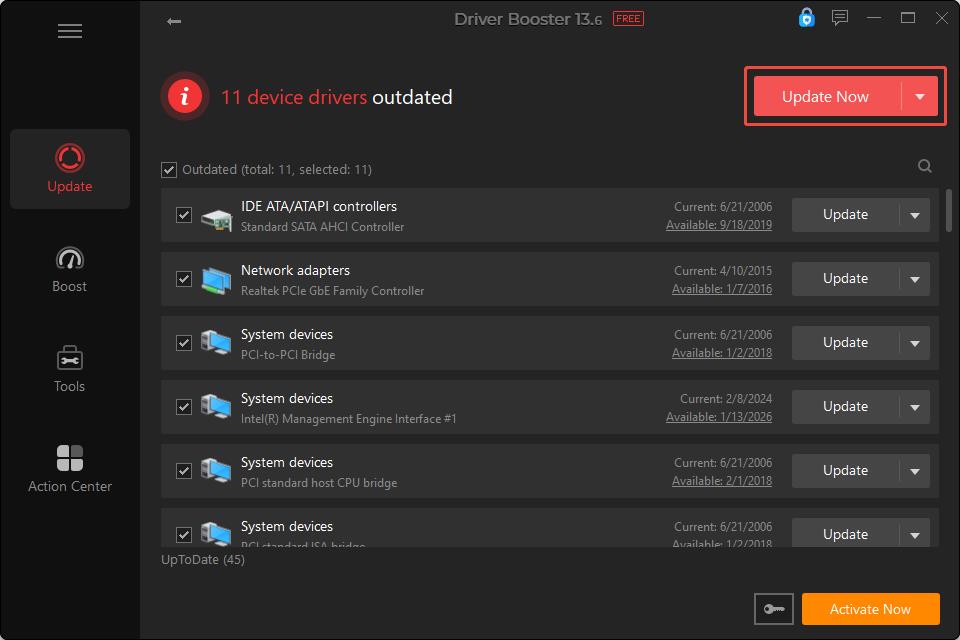
Tips: During the update, you can check Automatically reboot PC to avoid a manual reboot.
Updating drivers is its core job, but Driver Booster can do far more to keep your PC running stably.
Driver backup & quick driver recovery: Back up current drivers and create system restore points before updates. Restore your backed-up drivers and system point, even if Windows native roll-back no longer works.
Common hardware fixes: Troubleshoot frequent hardware problems: no sound, unstable network, bad resolution, etc.
Offline driver setup: Install drivers offline on computers with no internet connection.
This software helps you handle all driver-related work in one click. If you need, be sure to download this software.
Bonus: How to Roll Back the Problematic Windows Driver
No matter which method you use to update your drivers, the new version may sometimes cause compatibility issues. If the new driver causes problems, you can roll back the driver or restore Windows using a restore point.
Method 1: Roll back the driver
Windows allows you to quickly restore the previous driver version and recover normal device functionality.
Step 1. Open Device Manager, right-click the device, and choose Properties.
Step 2. Go to the Driver tab and click Roll Back Driver. Windows will install the previously saved older driver version.
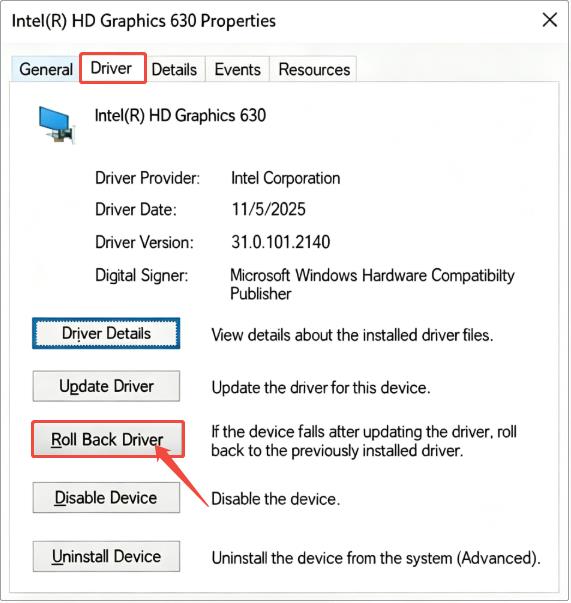
Step 3. When it ends, restart your computer for the old driver to take effect.
Method 2: Restore the system using a system restore point
If driver rollback doesn’t fix errors, use your pre-created system restore point to restore the whole Windows system.
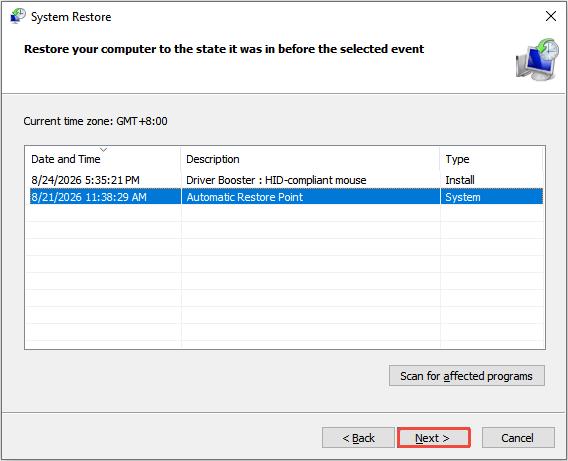
Step 1. Search for Create a restore point and press Enter.
Step 2. Click the System Restore button, then click Next to continue.
Step 3. Select the restore point and click Next > Finish. When it finishes, restart your PC.
The Bottom Line
Updating drivers resolves existing computer issues and can also boost performance. This article outlines three practical methods for addressing “how to update my drivers on my PC” and explains how to roll back the problematic driver. Try them and hope your PC can be in good condition.