


Kevin Hart
Kevin is an experienced editor focused on tech blog writing. Familiar with all kinds of PC software on the market. All the topics he chooses are aimed at bringing more benefits to users.
Expert in
PC Health Solution

All-in-one PC health solution: clean, optimize and secure

Comprehensive PC cleaning, optimization and protection

Keep drivers always up-to-date

More stable performance with less system crashes

Protect millions of computers against malware

Top computer security with full-round protection

Protect against viruses & boost PC performance
Automatically scan and update drivers.
Update game ready drivers for peak gaming performance.
Identify and fix various common of hardware issues.
Boost 30% of system performance for fast & smooth running.

Why did a video that worked fine suddenly lose sound? You may be facing the no sound on YouTube issue. This guide covers causes and fixes step by step!

Kevin Hart


Most of the time—almost every time—you want to watch a video, you open YouTube. But one day, you click on a video you're interested in and are met with nothing but moving lips and silent visuals—where did the sound go?
If you've ruled out issues with the video itself, then you're likely dealing with the no sound on YouTube problem. It can be incredibly frustrating and seriously ruin your viewing experience.
The good news is, there's no need to panic. This guide will help you quickly pinpoint the cause and walk you through step-by-step solutions. Whether it's a simple settings mistake or a more complex driver issue, you'll find the right fix here.
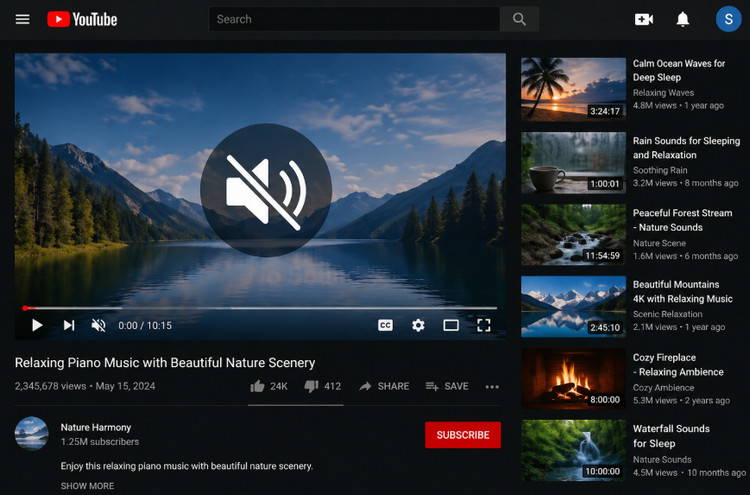
Before you start fixing the issue, it's important to understand what causes no sound on YouTube videos. Yes—the factors behind this problem can be quite diverse. Jumping straight into multiple fixes without knowing the cause can waste a lot of time.
Based on research and common cases, this guide outlines the following possible causes:
If your device isn't producing sound as expected, first check whether the volume on the YouTube app or website is turned on—you may have muted it previously and forgotten to restore it.
If YouTube's volume is fine, then check your device's media volume. It might be muted or set too low.
If those aren't the issue, see whether your device's audio output is connected to Bluetooth headphones, which could prevent sound from playing through speakers.
If you're watching via a browser, another possible reason for no sound on YouTube videos is that your browser itself may be muted.
If you've checked all volume settings and everything seems fine, you might wonder, why is my YouTube sound not working? As mentioned above, if you're using a browser to access YouTube, it's time to consider whether the browser is the problem. Issues like corrupted cache or cookies, or an outdated browser version, can lead to compatibility problems.
Have you enabled ad blockers or other filtering extensions to avoid pop-ups? These tools can sometimes conflict with YouTube or mistakenly block audio from loading, resulting in no sound on YouTube but sound on everything else.
If the sound problem isn't limited to YouTube and affects your entire system, then the issue may be deeper. Outdated, missing, or corrupted audio drivers could be the cause.
Overall, there's no need to worry too much—these common causes of no sound on YouTube are all within your ability to troubleshoot. In the next section, this guide will walk you through detailed step-by-step solutions.
After identifying several possible causes of no sound on YouTube, you can now begin a structured troubleshooting process.
This section provides a range of how to fix no sound on YouTube solutions, starting from simple checks to more advanced fixes.
If your YouTube video is playing smoothly but without sound, the first thing to check is the volume.
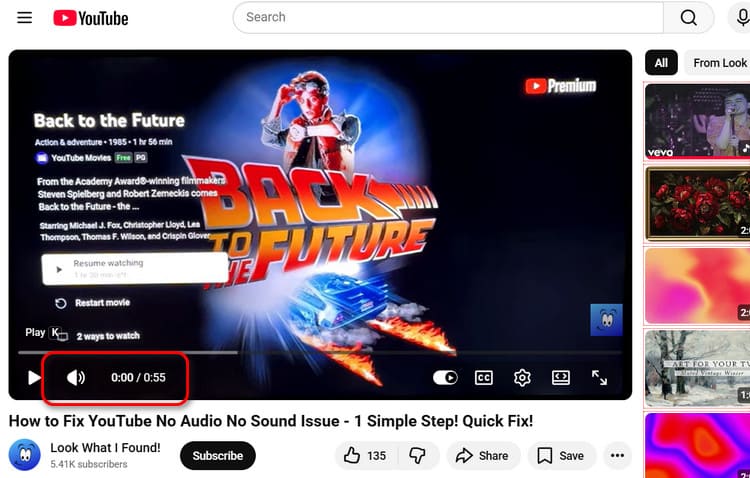
Hover your mouse over the video and look at the volume control in the bottom-left corner. Make sure it's not muted or set too low—adjust it back to a normal level if needed.
Next, click the speaker icon on your computer's taskbar and check the system volume. Again, ensure it's set to an appropriate level.
Finally, check your browser's volume settings and make sure it's not muted.
Some ad-blocking extensions or tools can interfere with audio and video playback. If you're using one, try disabling it in your browser.
Then refresh the page or restart the browser to see if the no sound on YouTube issue is resolved.
Sometimes apps or websites run into minor glitches, including no sound on YouTube. A simple restart can often fix this.
If you're using the web version, refresh the page or reopen YouTube.
If you're using the app, try clearing the cache and restarting it. You can also log out and log back into your account.
Restart your browser and reopen YouTube to see if the issue is fixed.
If not, go to your browser settings and check for updates. Install the latest version if available.
You can also clear your browser cache, which may help remove corrupted data.
If none of these steps work, try using a different browser to access YouTube.
For a long time, Adobe Flash Player was essential for video and audio playback in browsers. One possible cause of no sound on YouTube is an outdated plugin that's no longer compatible with your system.
You can visit the official website to download and install the latest version.
Beyond the scenarios above, there's another common possibility: your computer's audio driver is outdated.
However, if you look into manual methods for checking, downloading, and installing drivers, you'll quickly find the process quite complicated. Choosing the wrong version not only fails to fix the issue but may also cause new compatibility problems.
That's why this guide recommends using Driver Booster—an all-in-one tool that combines one-click driver updates with system issue repair.
If your drivers are outdated or malfunctioning, simply click “Scan,” and the software will automatically detect all drivers with available updates and list them for you to choose from.
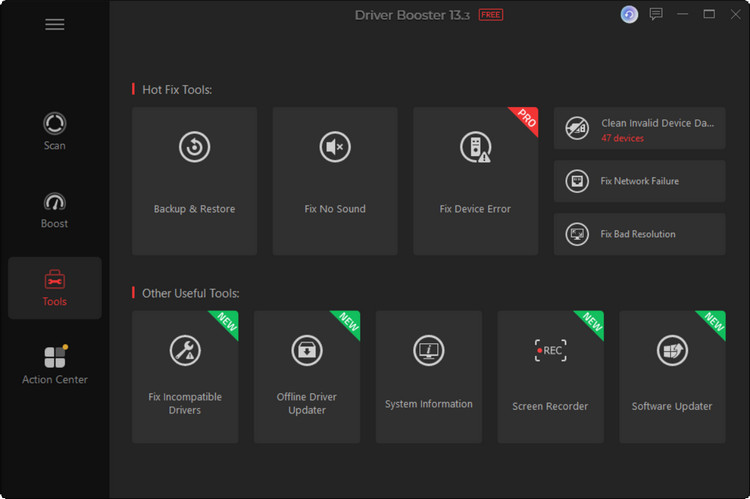
If your system has completely lost sound, you can use the built-in “Fix No Sound” tool, along with other helpful features in its toolbox.

Key Features
Smart Driver Issue Detection: Automatically scans and identifies abnormal drivers, including outdated, corrupted, or missing audio drivers—no manual troubleshooting required.
Automatic Audio Driver Updates: Matches and installs the correct driver versions to avoid compatibility issues.
System Sound Repair Tools: Includes features like Fix No Sound, allowing you to resolve common audio problems directly.
Improved System Stability and Performance: Beyond audio issues, it can also fix device errors and unstable network conditions.
How to Fix No Sound on YouTube Videos with Driver Booster
Step 1. Download and install the software.
Step 2. Go to Tools > Fix No Sound.
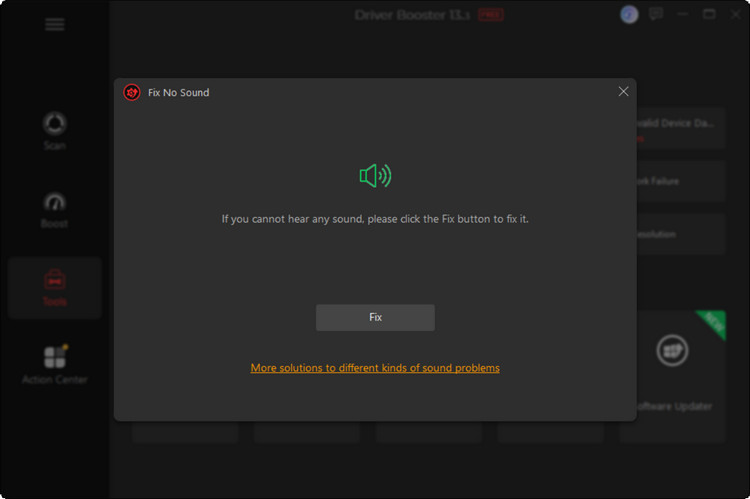
Step 3. In the pop-up window, click Fix.
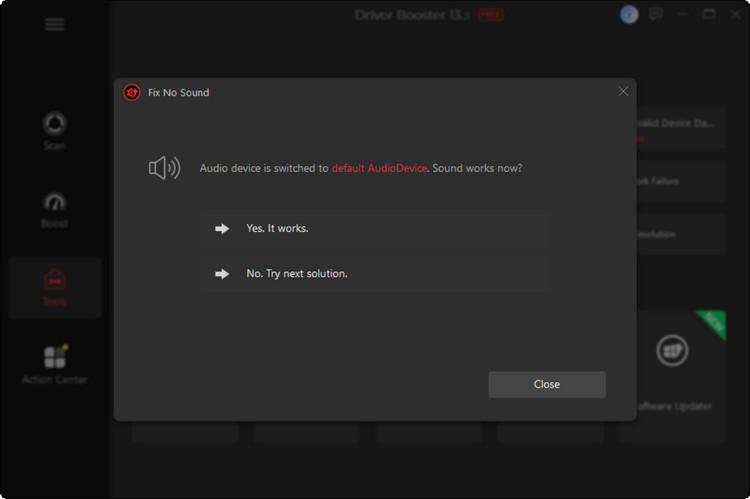
If the issue is resolved, click Yes. It works.
If the problem persists, click No. Try the next solution.
Update Audio Drivers
Here is how to update Windows drivers to fix no sound on YouTube.
Step 1. After launching Driver Booster, click Scan.
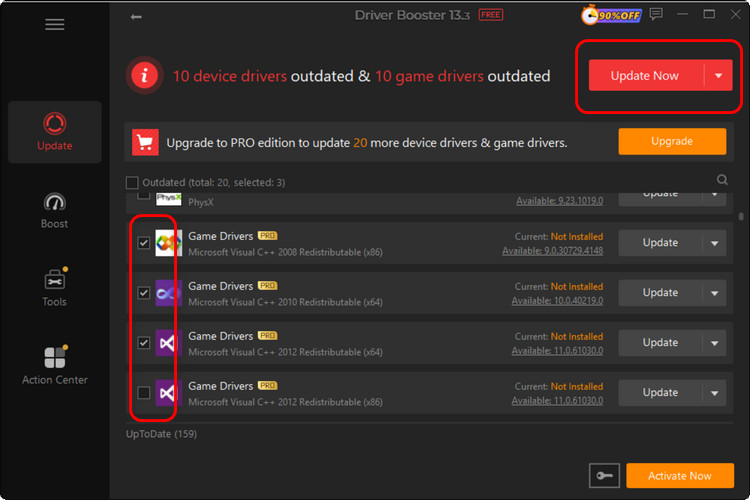
Step 2. Once the scan is complete, you'll see a list of drivers that need updating, such as Sound, video, and game controllers. Select them and click Update Now.
Why no sound on YouTube?
This can be caused by sudden issues with your browser, extensions, or audio drivers—especially after updates.
How do I get the sound back on YouTube?
Start by checking your volume settings, then move on to troubleshooting your browser, extensions, and audio drivers step by step.
Why is the video playing but no sound?
This is a typical no sound on YouTube videos issue, usually related to incorrect settings or driver problems.
How do I unmute my YouTube?
Check the video player volume, your browser tab, and your system sound settings to make sure nothing is muted.
Running into no sound on YouTube isn’t as frustrating as it seems—most cases can be fixed quickly. From checking volume settings and browser issues to clearing cache and disabling extensions, each step can make a difference.
If the problem is more stubborn—like corrupted drivers or system-related issues—using a tool like Driver Booster can save you time with a one-click fix.
Give it a try—you might have your sound back in just a few minutes.

Keep drivers always up-to-date.
Free Download