





Kevin Hart
Kevin is an experienced editor focused on tech blog writing. Familiar with all kinds of PC software on the market. All the topics he chooses are aimed at bringing more benefits to users.
Expert in
PC Health Solution

All-in-one PC health solution: clean, optimize and secure

Comprehensive PC cleaning, optimization and protection

Keep drivers always up-to-date

More stable performance with less system crashes

Protect millions of computers against malware

Top computer security with full-round protection

Protect against viruses & boost PC performance
Clean: 420 billion traces removed & 85 EB junk files cleaned
Protect: 80 million unauthorized access blocked & 20 million bugs fixed
Speed Up: 6 million hours of startup time saved & Turbo boost
Optimize: Auto clean and auto care your PC with AI mode

Get better performance with these 5 easy Marvel Rivals PC optimization tweaks to boost FPS, reduce stuttering, and smooth out gameplay, even on low-end PCs.

Kevin Hart


Marvel Rivals can become demanding when several heroes unleash abilities at once, especially on PCs with older graphics cards or limited memory. Low FPS, sudden stutters, overheating, and network lag can all disrupt a match, but they do not necessarily have the same cause.
Marvel Rivals PC optimization starts with identifying the bottleneck rather than changing every setting at random. CPU and GPU temperature monitors, along with FPS and RAM usage readings, can reveal whether the system is overheating or running out of resources. This article covers five ways to tune game settings, free up system resources, and improve performance without sacrificing more visual quality than necessary.
Tweaking a few settings can make a noticeable difference in Marvel Rivals, from steadier FPS during team fights to lower resource usage on older PCs.
Lowering visual settings and choosing a less demanding resolution can make aging graphics cards run the game more smoothly. Players who cannot maintain a stable frame rate at high settings may get more consistent gameplay by prioritizing performance over visual detail. These changes cannot overcome every hardware limitation, but they offer a sensible starting point for how to optimize Marvel Rivals for low end PC systems.
Game performance suffers when browsers, launchers, update services, and other background programs compete for CPU time and RAM. Closing unnecessary tasks and managing startup programs leave more resources available for Marvel Rivals. Some of these changes also make Windows feel more responsive during everyday work.
A high average FPS does not guarantee smooth gameplay. Frame-time spikes, thermal throttling, and network instability can still cause interruptions. A more targeted approach to performance optimization Marvel Rivals can identify the source of these problems, reduce avoidable interruptions, and make aiming and movement feel more consistent.
Not every FPS drop requires a hardware upgrade. These five methods target common performance problems, from demanding graphics settings to background processes.
The quickest place to start for Marvel Rivals FPS boost is the in-game graphics menu without third-party Windows optimizer. High-cost lighting, shadows, reflections, and effects can put considerable pressure on the GPU, particularly during crowded team fights. The right Marvel Rivals optimized settings depend on your graphics card, monitor resolution, and preferred image quality, but a performance-oriented preset gives you a useful baseline.
Step 1. Launch Marvel Rivals and open Settings. Go to the display and graphics options.
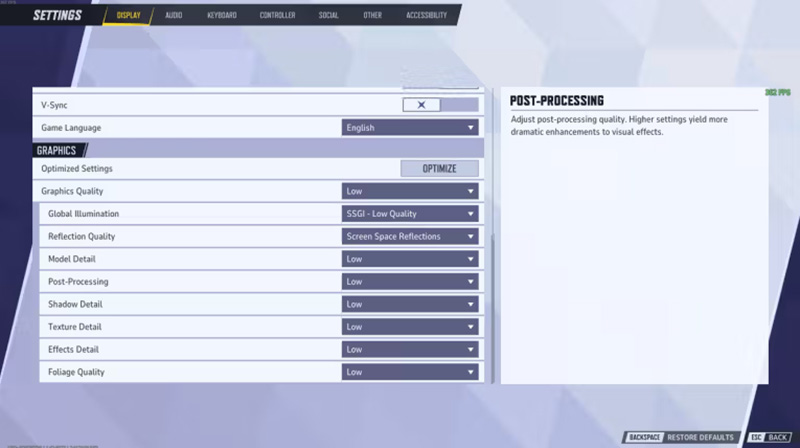
Step 2. Lower demanding settings such as Global Illumination, Shadow Detail, Reflection Quality, and Effects Detail.
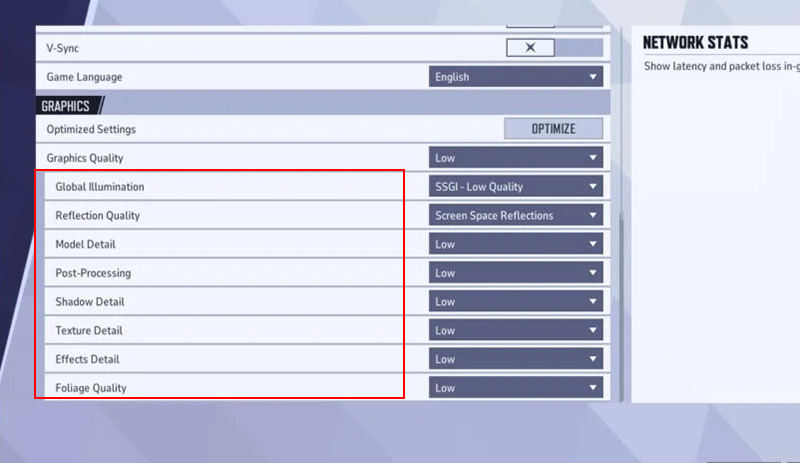
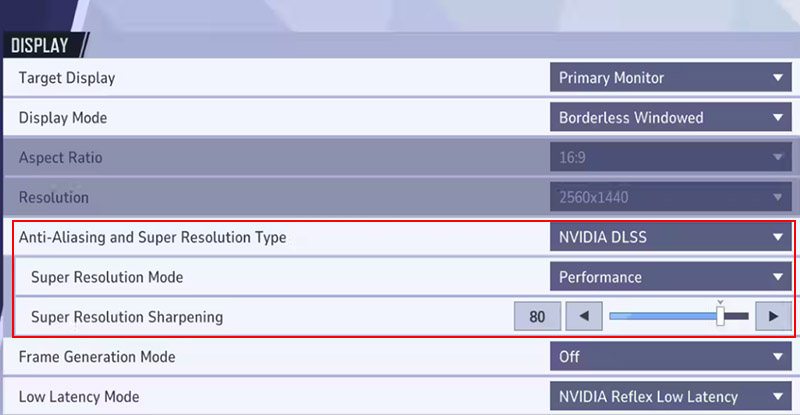
Step 3. Choose a supported upscaling option, such as NVIDIA DLSS, AMD FSR, or Intel XeSS. If FPS is still too low, reduce the resolution scale gradually.
Step 4. Turn off Motion Blur if you prefer a clearer image during fast movement. Test V-Sync and the frame-rate limit to find a balance between responsiveness, screen tearing, and frame-time consistency. These adjustments are a practical first step in Marvel Rivals PC optimization because they target the rendering workload directly.
If Marvel Rivals still suffers from unstable FPS or network lag after basic PC tweaks, Smart Game Booster brings several useful gaming tools together without complicated Marvel Rivals optimized settings. Its PC optimization and network features target smoother frame rates, lower ping, and fewer lost packets, while the In-Game FPS Monitor tracks frame rates during combat. The Temperature Monitor displays readings for components such as the CPU and GPU, to spot potential heat-related performance problems.
You can also use the built-in driver updater to check for graphics and audio driver updates, or record gameplay with customizable hotkeys. These tools easily monitor and troubleshoot your setup in one place, although actual performance.
Step 1. Download Smart Game Booster and install it if you haven’t.
Step 2. Open the application and look for Marvel Rivals in the game list.
Step 3. Select Marvel Rivals and review the Marvel Rivals PC optimization options offered by Smart Game Booster.
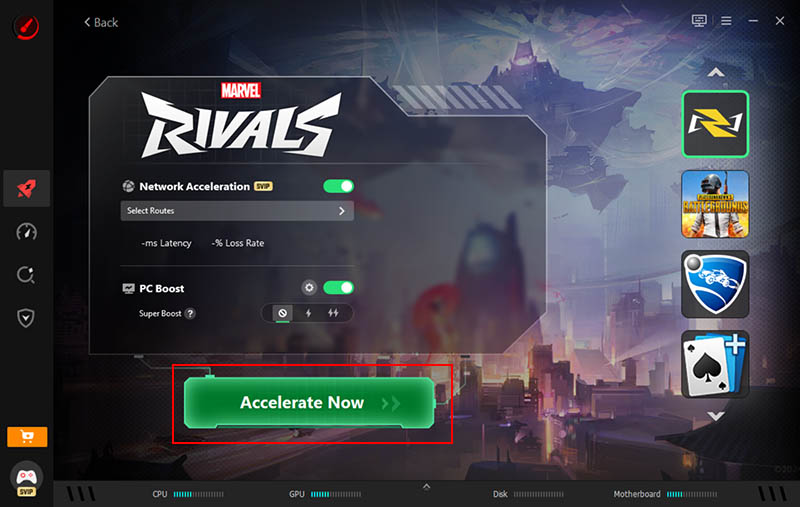
Step 4. Click Accelerate Now, review any proposed changes, and avoid disabling security software or essential Windows services just to gain performance.
For Marvel Rivals FPS boost, this method is worth trying when your PC has limited resources or many unnecessary processes running. It is not a replacement for lowering graphics settings when the GPU itself is the bottleneck.
Windows has Game Bar always running in the background with high RAM usage but useless for gaming. It is important to close it when playing games like Marvel Rivals. Here are the steps to follow:
Step 1. Press Win + I to open Windows Settings, then navigate to Gaming > Game Bar. Turn it off.
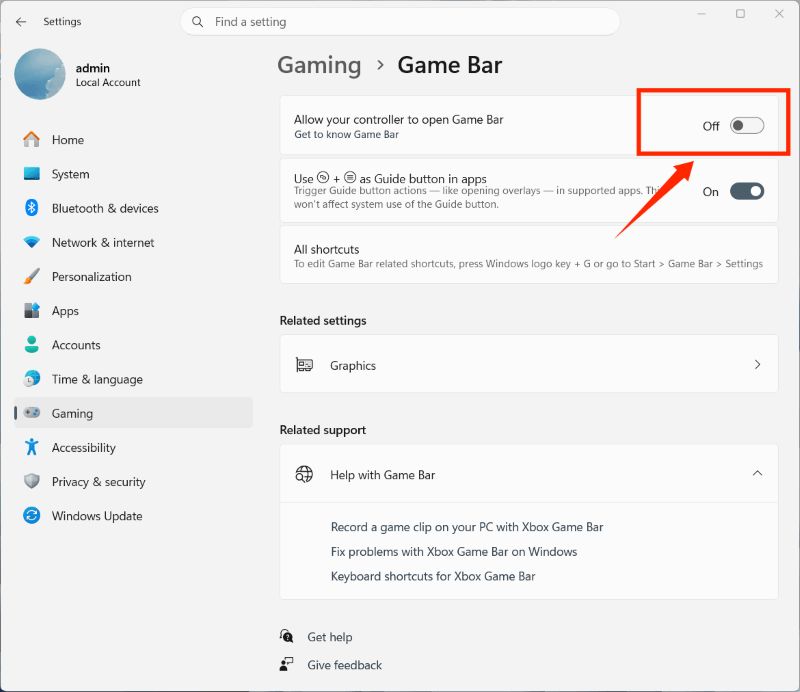
Step 2. Search Edit group policy in the Windows search bar and open it.
Step 3. Find Administrative Templates > Windows Components.
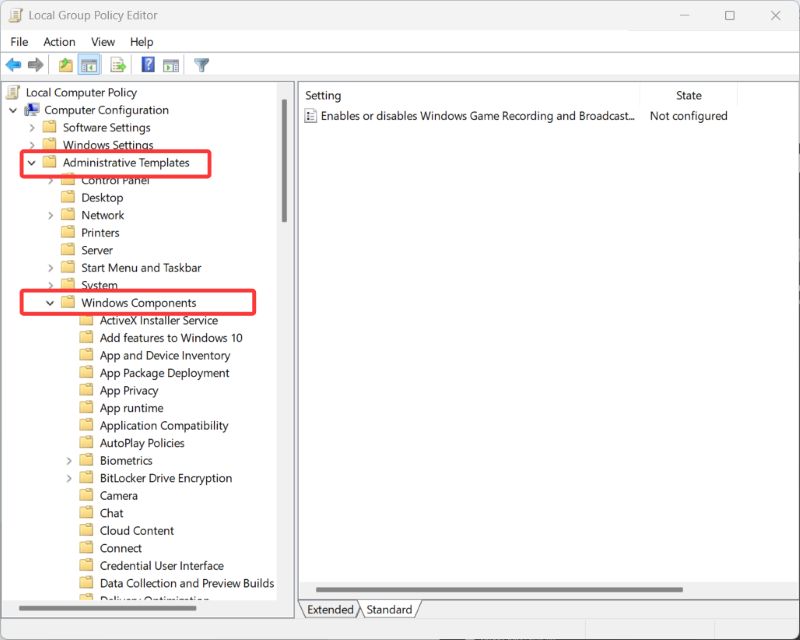
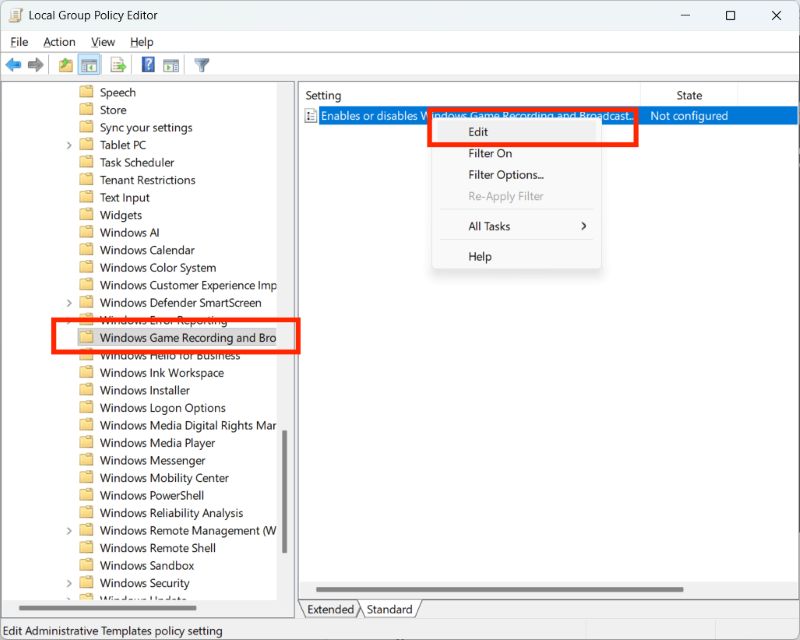
Step 4. Scroll down to find Windows Game Recording and Broadcasting, right-click Enables or disables Windows Game Recording and Broadcasting and choose Edit.
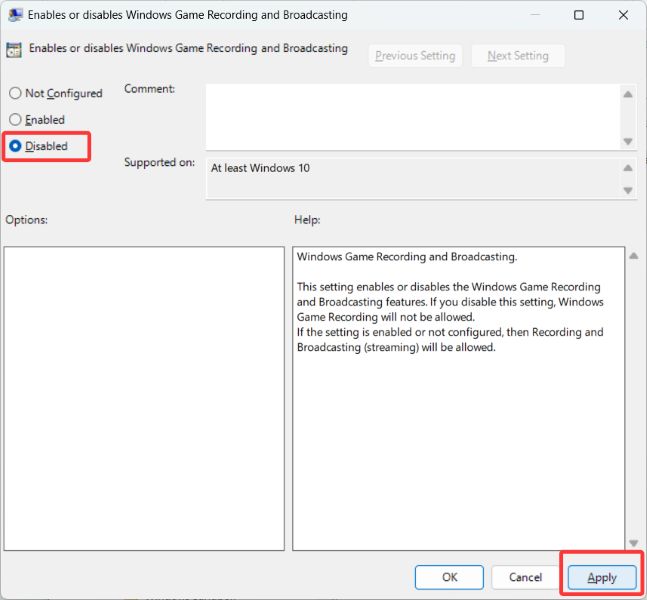
Step 5. Choose Disable and click Apply.
Edge is also a heavy background app that always demanding for PC performance, even you don't use or open it. Here's how to minimize its influence:
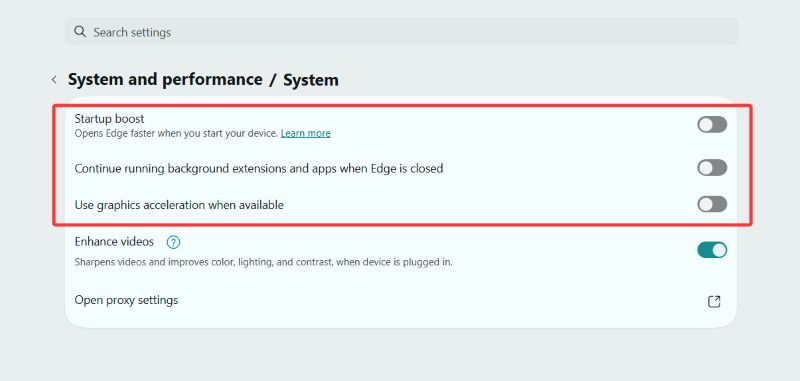
Step 1. Go to Settings > System and performance > System.
Step 2. Turn off all these 3.
If you barely use Edge, you can also close its update or uninstall it.
Also Read: How to Uninstall Microsoft Edge Permanently>>
Outdated graphics drivers can cause game crashes, rendering glitches, or inconsistent performance in Marvel Rivals. Installing a compatible driver improves game stability and addresses known GPU-related issues for performance optimization Marvel Rivals.
Step 1. Right-click the Start button and select Device Manager. Locate Display adapters and expand the list to view your graphics card.
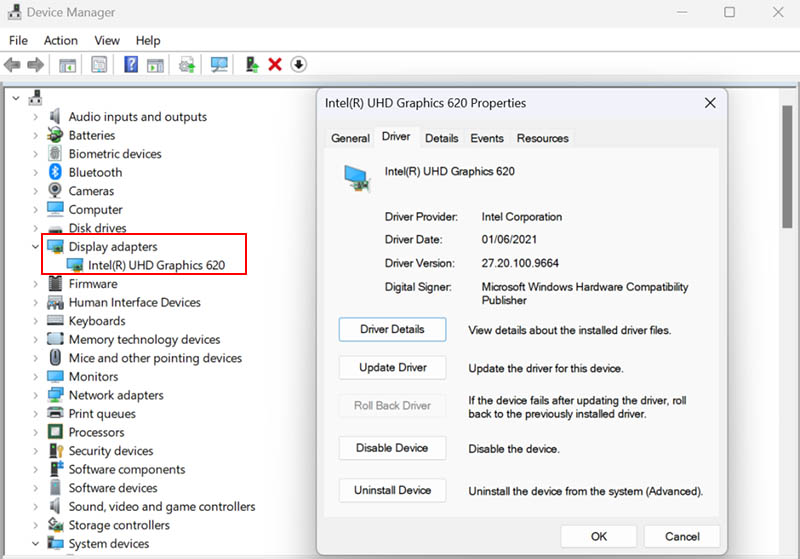
Step 2. Right-click your GPU, choose Update driver, and select Search automatically for drivers. Follow the prompts to install any update Windows finds.
Step 3. Once the process finishes, restart your computer if necessary and open Marvel Rivals. Check whether the game runs more smoothly or shows fewer graphics-related errors.
For PCs that is also sluggish outside the game, IObit Advanced SystemCare provides system cleaning and performance management features. The program offers junk-file cleanup, startup management, RAM optimizer Windows 11, and a Game Mode or Turbo Boost feature to help your PC run more efficiently during gaming. The Performance Monitor can also show resource usage and gives a one-click way to end selected tasks and release occupied memory.
Step 1. Download and install Advanced SystemCare for Marvel Rivals PC optimization.
Step 2. Open the program and look for the Speed Up tab. Find the Game Mode under Turbo Boost option drop-down menu.
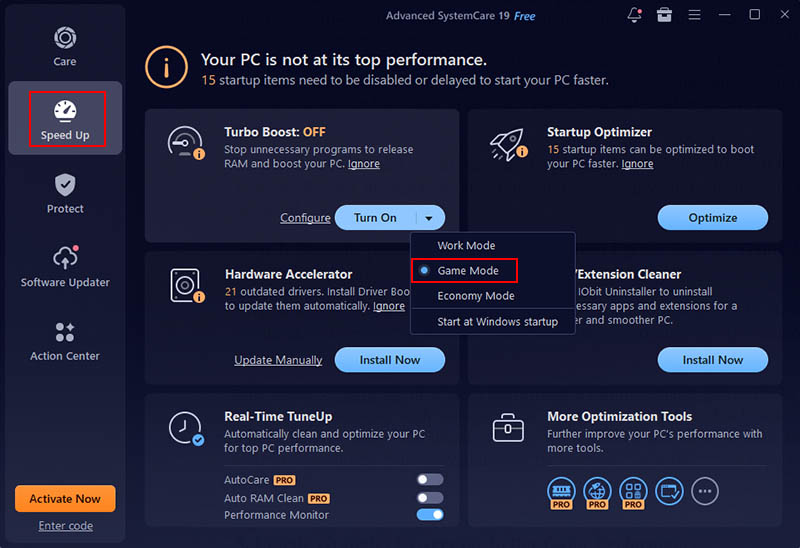
Step 3. Turn the Game Mode on, and your PC will be ready for Marvel Rivals.
This Windows optimizer also has a Performance Monitor that displays RAM usage and frees up memory with a single click. This works well when background applications consume too much memory while Marvel Rivals is running. Check RAM usage during gameplay and close unnecessary apps before clearing memory.

Marvel Rivals PC optimization begins with graphics settings, followed by sensible Windows adjustments, driver maintenance, and resource monitoring. Advanced SystemCare gives you more control over background processes and system resources while playing Marvel Rivals. Give this PC optimizer for gaming a try to let your PC run more efficiently and make better use of its available resources.

All-in-one PC health solution.
Free Download