




Kevin Hart
Kevin is an experienced editor focused on tech blog writing. Familiar with all kinds of PC software on the market. All the topics he chooses are aimed at bringing more benefits to users.
Expert in
PC Health Solution

All-in-one PC health solution: clean, optimize and secure

Comprehensive PC cleaning, optimization and protection

Keep drivers always up-to-date

More stable performance with less system crashes

Protect millions of computers against malware

Top computer security with full-round protection

Protect against viruses & boost PC performance
Automatically scan and update drivers.
Update game ready drivers for peak gaming performance.
Identify and fix various common of hardware issues.
Boost 30% of system performance for fast & smooth running.

Overwatch lagging but internet is fine? Find reasons and quick fixes for Overwatch 2 lag spikes, low FPS on high-end PCs, and console-specific lag.

Kevin Hart


A fine internet connection does not always mean a smooth Overwatch 2 match. Recent player reports describe everything from sudden ping spikes and packet loss to rubber-banding, micro-stutters, and FPS drops. Some players also notice problems appearing after an update or only during certain matches.
This guide breaks down the real causes behind Overwatch 2 lag and shows how to tell network problems apart from FPS stuttering, server issues, driver conflicts, and PC performance bottlenecks. Work through the fixes step by step to find what is actually slowing down your game instead of randomly changing settings.
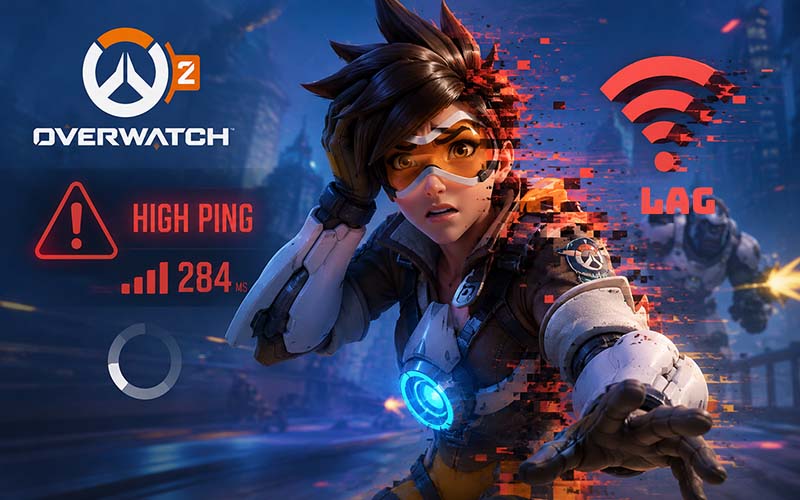
“Laggy” can mean very different things in Overwatch 2. Your character may rubber-band because of packet loss or unstable latency, while a sudden freeze with normal ping can come from frame-time spikes instead. Common reasons behind Overwatch lag include:
Unstable latency or packet loss: Wi-Fi interference, ISP routing problems, or an unstable connection can cause teleporting, rubber-banding, and delayed actions.
Server or game-side connection issues: Some players complain of severe desync or lag in Overwatch while other online games remain normal, so the problem is not always your home network.
High CPU Usage: Recent patches or background processes may overload the CPU, causing Overwatch 2 FPS drops and stuttering.
Corrupted Shader Cache: Damaged or outdated shader files can hurt FPS.
There is no single fix for every Overwatch 2 lag problem. Here are three quick ways to improve Overwatch 2 game responsiveness and find the source of the problem.
Network-related Overwatch 2 low FPS on high end PC usually shows up as packet loss, delayed actions, teleporting, or rubber-banding. Try these network tweaks first to reduce lag caused by an unstable or overloaded connection.
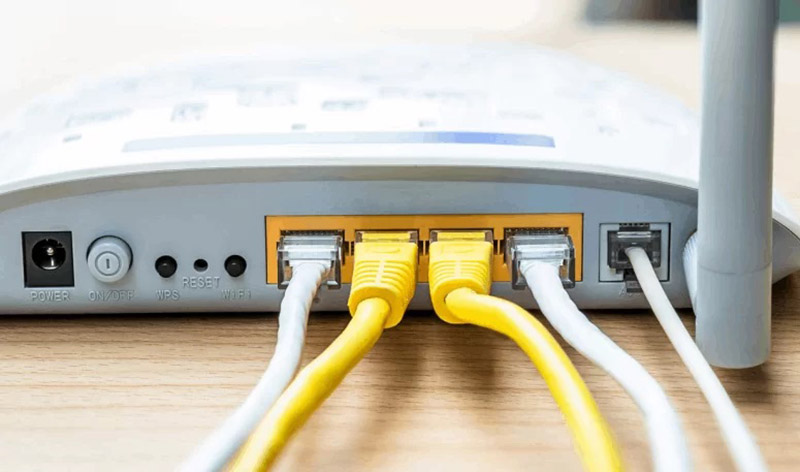
Switch from Wi-Fi to a direct Ethernet connection. A wired connection is generally more stable for competitive games because it avoids wireless interference and sudden signal fluctuations.
Pause background downloads and streaming. Check Windows Update, cloud-sync services, game launchers, browser downloads, and other devices sharing your connection. Heavy traffic can increase latency or cause packet loss during a match.
Restart your router and check the connection path. A simple router restart clears temporary connection problems. If only Overwatch is affected while other games work normally, the issue may involve the route between your ISP and the game servers rather than your PC itself.
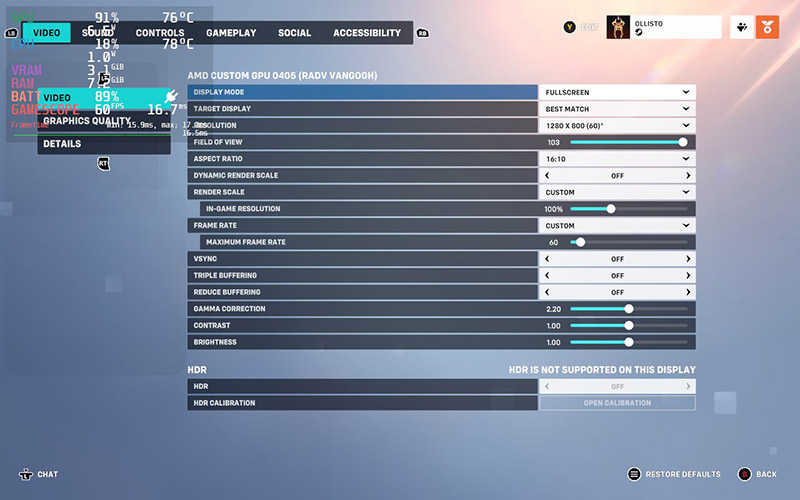
Low FPS can feel surprisingly similar to network lag. Before changing your connection again, check whether the problem is actually Overwatch 2 FPS drops or uneven frame times. Learn how to stop lag on Overwatch via in-game video settings.
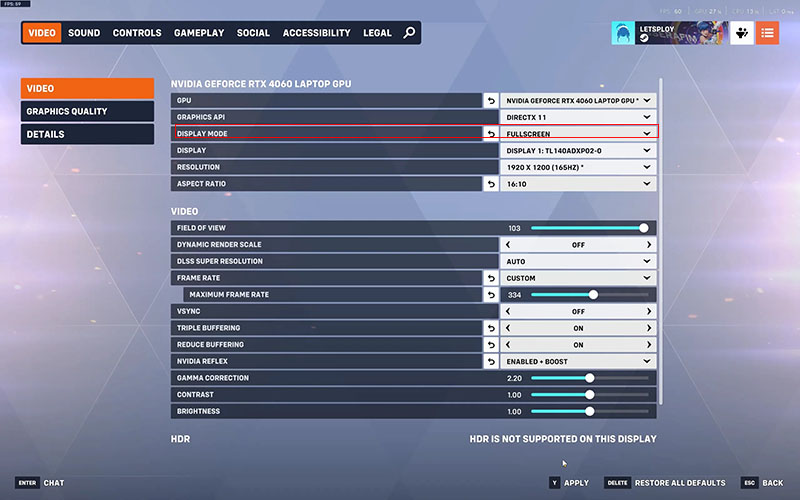
Step 1. Check your display mode and resolution. Use your monitor's native resolution and test Fullscreen mode if performance becomes inconsistent. Running the game at an unnecessarily high render resolution can put extra pressure on the GPU.
Step 2. Lower settings such as shadow detail, reflections, ambient effects, and other visually intensive options first. You do not always need to set everything to Low.
Step 3. Set Reduce Buffering to Off to lower input latency to fix Overwatch lagging with good internet.
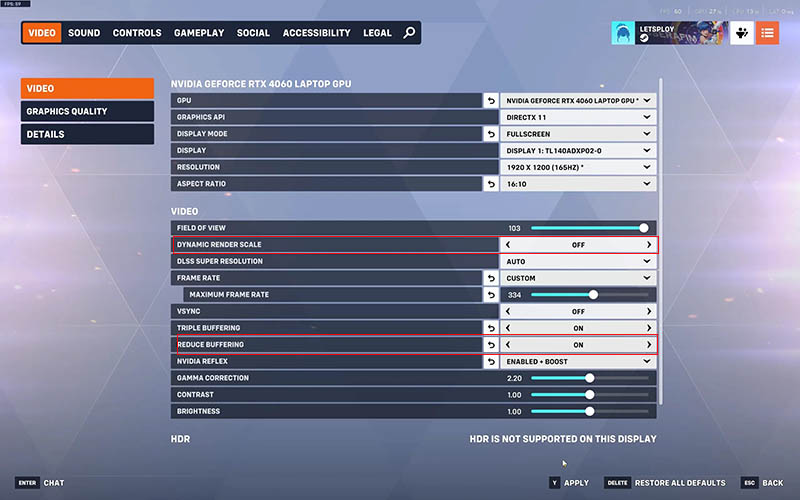
Step 4. Keep Dynamic Render Scale off unless you have a low-end PC that needs automatic resolution adjustments to maintain FPS. These adjustments can reduce local performance-related Overwatch 2 lag, but they will not fix packet loss or a poor server route.
Learn more: How to update NVIDIA driver for better gaming performance.
System-level issues are another common source of stuttering and inconsistent performance. The following Windows GPU driver optimization tips also resolve Overwatch 2 lag issues.
Step 1. Close unnecessary background programs. Disable resource-heavy applications before launching the game, especially software using significant CPU, memory, disk, or network resources.
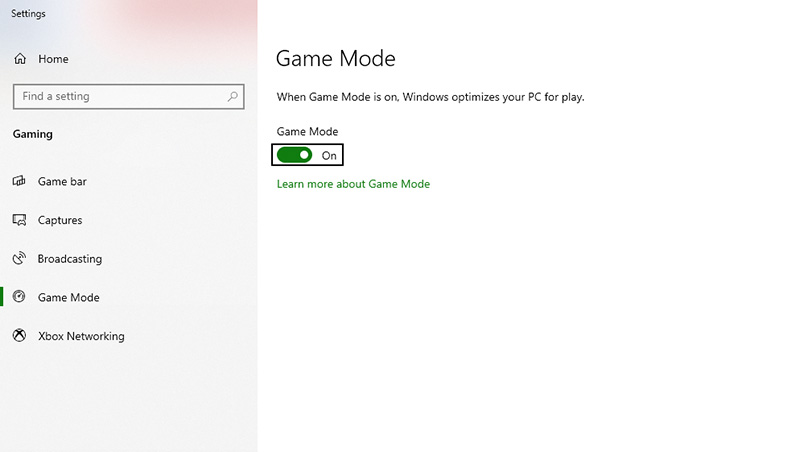
Step 2. Press the Windows key, search for Game Mode, and turn it on to prioritize gaming resources.
Step 3. Go to Settings > System > Display > Graphics > Default graphics settings and enable HAGS and Optimizations for windowed games.
Step 4. Open Control Panel > Power Options and select High Performance or Ultimate Performance, if available.
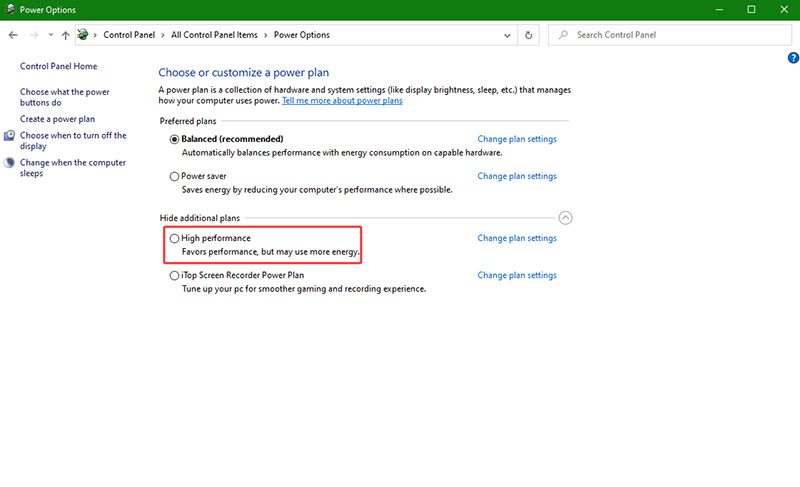
Step 5. Update your NVIDIA or AMD driver, enable supported low-latency features, and clear the DirectX Shader Cache if stuttering persists.
Manual troubleshooting across Windows settings, startup items, and figuring out how to update driver can be time-consuming. Changing the wrong system option may also create new stability problems, so back up important data before making bigger changes. If you don’t want to check every component manually, a free one-stop solution is available in the next part below.
When Overwatch 2 start stuttering, dropping frames, or responding slowly during a match, the cause is not always your internet connection. An outdated graphics driver, poorly managed background processes, or a driver conflict can also affect game performance.
Driver Booster Free provides a quick way to check these areas without manually searching for drivers from different hardware manufacturers. Its Game Boost feature can stop unnecessary background processes and services to free up system resources for fluid gameplay.
Step 1. Download and install Driver Booster Free, then launch it on your Windows PC.
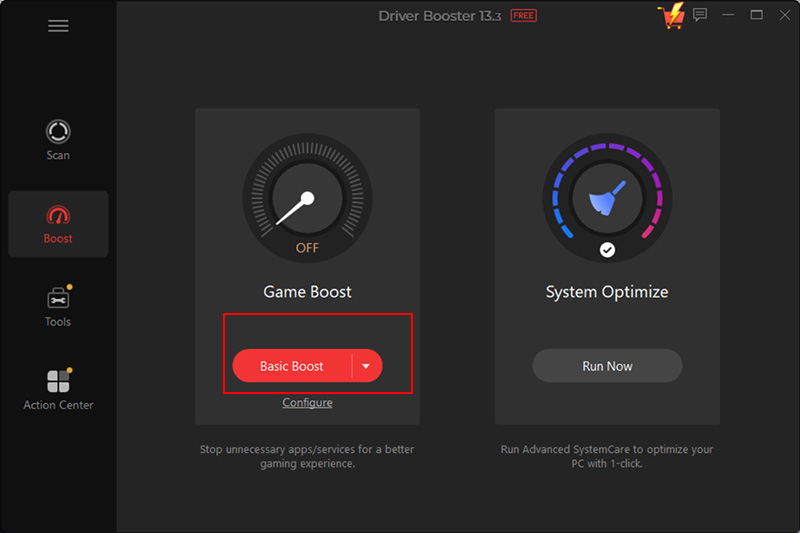
Step 2. Click the Boost tab and select Game Boost and click Super Boost or Basic Boost. Driver Booster can identify unnecessary background processes and services that may consume CPU, memory, or other system resources while Overwatch 2 is running.
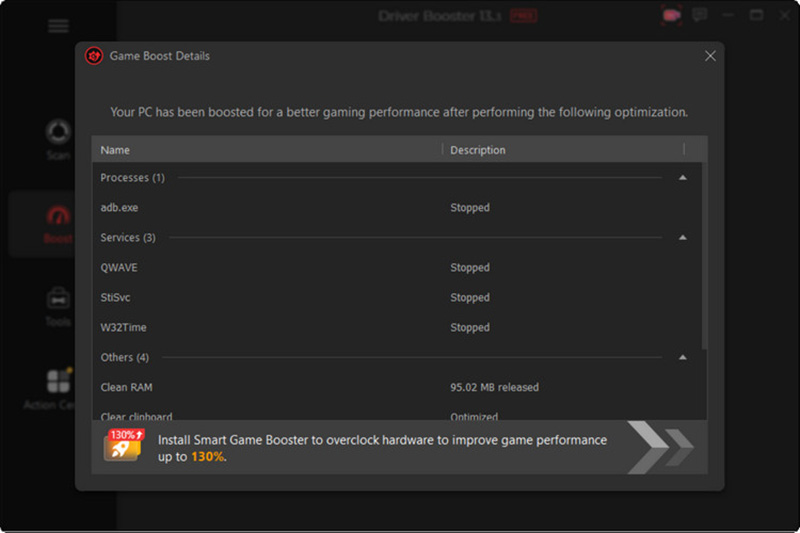
Step 3. After the boost process finishes, click Details to see which programs or processes were adjusted. This is effective when Overwatch 2 is lagging with good internet.
Step 4. Return to the main Driver Booster interface and click the SCAN button. After scanning, hit the Update Now button to upgrade all the game drivers. Keeping the graphics driver current can be particularly helpful when Overwatch 2 lag spikes begin after a game or Windows update.
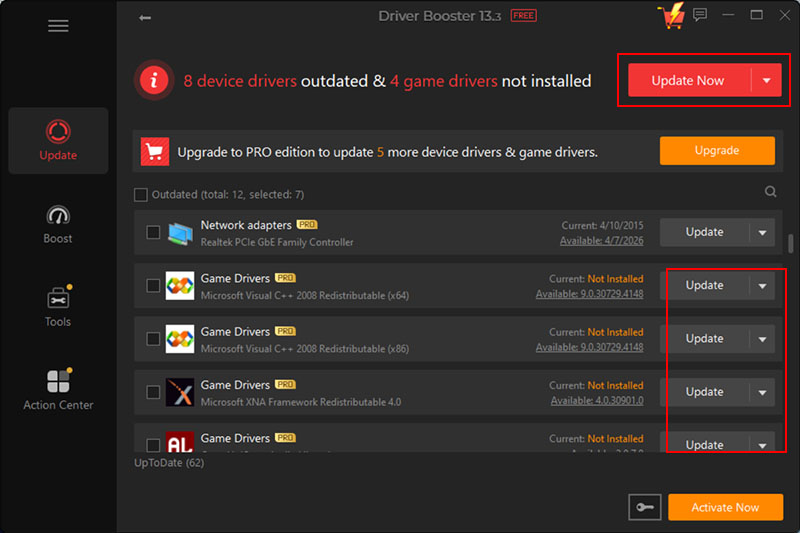
Automatic driver scanning: Checks installed hardware in one pass and highlights drivers that are outdated, missing, or potentially problematic without further learning how to update Windows drivers.
Game Ready driver updates: Helps keep graphics-related drivers updated, which can matter when new game updates introduce compatibility or performance changes. Supports graphics drivers from NVIDIA, AMD, and Intel.
System optimization: Reduces unnecessary background activity and frees system resources for smoother gameplay, fewer stutters, better graphics, and richer audio.
Hardware troubleshooting: Quickly fix common driver and device problems including no sound, internet failures, blue screens, chipset errors, offline printers, and unrecognized USB devices, by updating problematic drivers.

Console players cannot update GPU or network drivers in the same way as PC users, so troubleshooting usually starts with the TV, console system, and in-game video settings. Try these adjustments on how to increase FPS when Overwatch lagging makes aiming or movement feel less responsive.
Switching TV settings to Game Mode to remove display processing latency: Open your TV's picture settings and enable Game Mode. This reduces extra image processing, which can lower input delay and make controls feel more responsive during fast-paced matches.
Clearing console cache and system updates: Fully shut down your PS5 or Xbox rather than leaving it in rest or standby mode, then restart it to clear temporary system data. Also check for available console system updates and install the latest version of Overwatch 2.
Adjusting console video output settings: Check both the console's display settings and Overwatch 2's video options. When the game offers Framerate Mode and Resolution Mode, choose Framerate Mode when lag-free motion is more important than higher image resolution.
Overwatch 2 lag problems can come from several places, so the most useful fix depends on what you actually experience. PC players should check graphics and other hardware drivers, unnecessary background activity, and available system resources. Console players have fewer driver-related options but can still reduce display latency, improve frame-rate consistency, and clear temporary system data.
For Windows users, Driver Booster offers an effortless way to scan and update outdated drivers, while Game Boost reduces unnecessary background activity and frees up system resources for smoother gameplay.

Keep drivers always up-to-date.
Free Download