Marvel Rivals can freeze in the middle of a match, suddenly turn the screen black, and throw you back to the desktop with a “GPU crash dump triggered” message. The crash may also appear while launching the game or loading into a match, sometimes with no warning at all. Meeting the game’s system requirements doesn’t necessarily prevent it, which makes the sudden black screen and lost progress even more frustrating.
Fortunately, the cause is not always a faulty graphics card. Driver conflicts, corrupted game files, graphics settings, overlays, and Windows issues can all play a part. Start with the quick fixes for GPU crash dump triggered Marvel Rivals below, then move deeper into the driver and system settings when the usual fixes don’t work.
What Causes the "GPU Crash Dump Triggered" Error in Marvel Rivals?
A crash like this does not mean your graphics card is failing. The error can come from the driver, game files, or a sudden spike in GPU workload. Here are the most common causes behind GPU crash dump triggered Marvel Rivals errors:
GPU driver issues: An outdated, corrupted, or unstable graphics driver can make the game lose communication with the GPU and crash.
Corrupted or missing game files: Damaged or incomplete files may cause Marvel Rivals to fail when loading certain assets or game data.
Steam/Discord/NVIDIA overlays: Overlays hook into the game’s rendering process and sometimes conflict with Marvel Rivals, especially after updates.
High GPU load or graphics settings: Super high settings, uncapped frame rates, or sudden GPU usage spikes can make crashes more likely on some systems.
Windows/system-related issues: Windows updates, background software, power settings, or unstable system components can also contribute to Marvel Rivals GPU crash dump triggered errors.
Quick Fixes: Basic Steps to Stop Marvel Rivals GPU Crashes
Before changing drivers or system settings, try a few low-risk fixes first. They can clear temporary conflicts and rule out common causes of a GPU crash dump triggered error. Learn how to fix GPU crash dump triggered quickly with the following troubleshooting tips.
Verify Marvel Rivals Game Files: Open Steam and go to Library > Marvel Rivals > Properties > Installed Files > Verify integrity of game files.
Disable Steam, Discord, and NVIDIA Overlays: Turn off these overlays temporarily, then launch the game again. For example, disable the Steam Overlay under Properties > General, and turn off Discord’s Game Overlay under its settings.
Run Marvel Rivals in Compatibility Mode: Right-click the game’s executable, choose Properties > Compatibility, select Run this program in compatibility mode for, and test an available Windows version to fix GPU crash dump triggered Marvel Rivals.
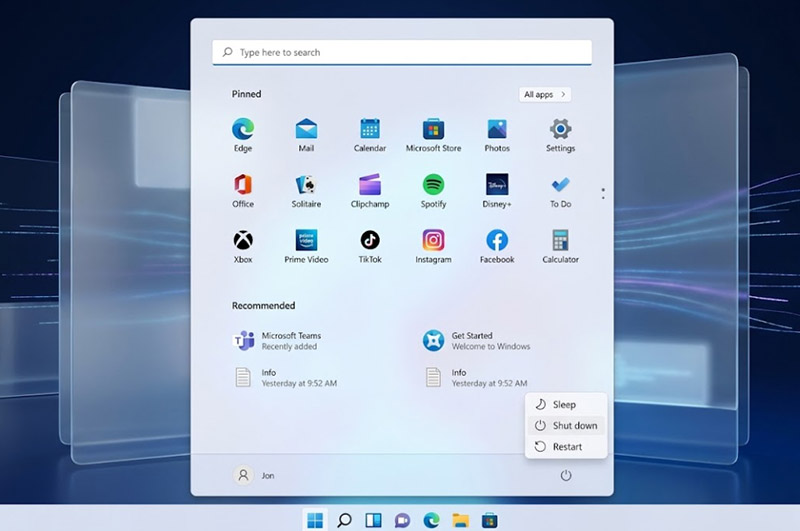
Restart Your PC and Relaunch the Game: A full restart clears temporary driver, background-process issues, and optimizes Windows 11 for gaming.
Advanced Fixes for Marvel Rivals GPU Crash Dump Triggered
Marvel Rivals keeps crashing GPU crash dump triggered? When the quick checks do not stop the crashes, the next step is to look at the graphics driver, Windows GPU scheduling, and in-game rendering settings. These changes are still reversible, so test one at a time rather than changing everything together.
Update or Roll Back Your GPU Drivers
A PC performance check and a driver update are worth trying when crashes began after a game or Windows update. If the problem appeared immediately after installing a new driver, rolling back to the previous version may be the better test.
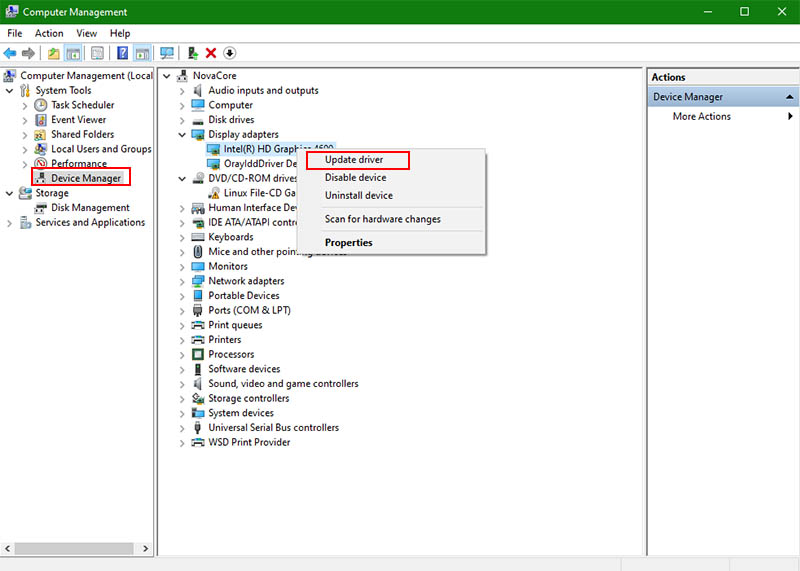
Press Win + X and select Device Manager.
Expand Display adapters, right-click your PC’s GPU, and choose Update driver.
Select Search automatically for drivers on the popping-up window and download a newer driver to resolve GPU crash dump triggered in Marvel Rivals.
Optional: For a simpler automated check, Driver Booster can scan for outdated or problematic drivers and update them without manually checking each device.
Toggle Hardware-Accelerated GPU Scheduling (HAGS)
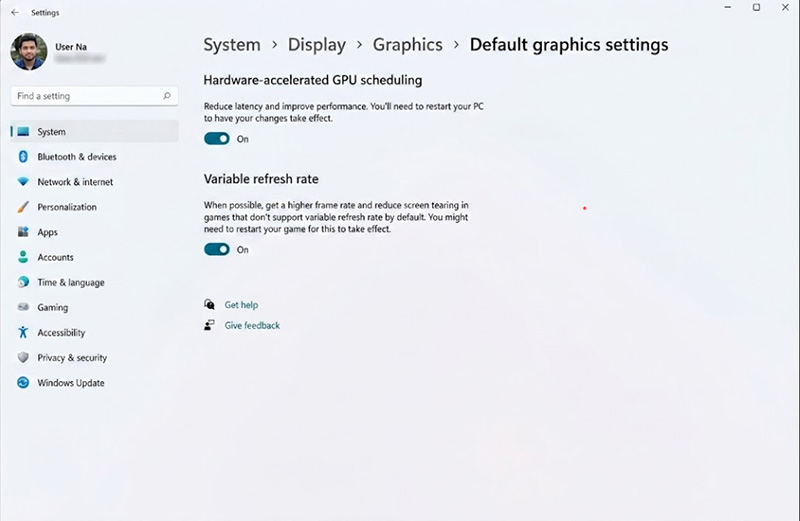
HAGS changes how Windows handles GPU scheduling. Toggling it can help determine whether GPU scheduling is involved in the GPU crash dump triggered issue.
Open Settings > System > Display > Graphics.
Select Change default graphics settings.
Find Hardware-accelerated GPU scheduling. Switch it to the opposite setting from your current one.
Adjust Marvel Rivals Graphics Settings
Reducing the GPU workload can be useful when crashes occur during demanding fights or when the GPU is running close to full utilization.
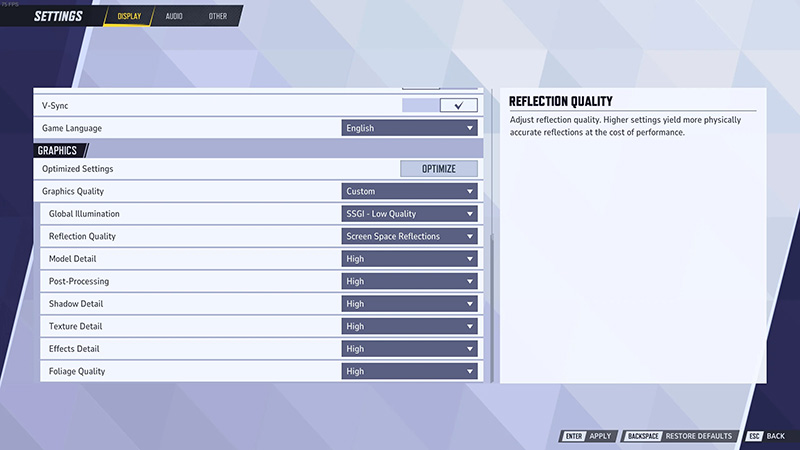
Launch Marvel Rivals and go to Settings > Graphics.
Use Full Screen and your monitor's native resolution.
Reduce Post Processing, Foliage Quality, Shadow Detail, and other demanding options to Low or Medium.
Try a Different DirectX Version
Marvel Rivals officially requires DirectX 12, so this fix only applies when the current game build or launcher provides another DirectX option.
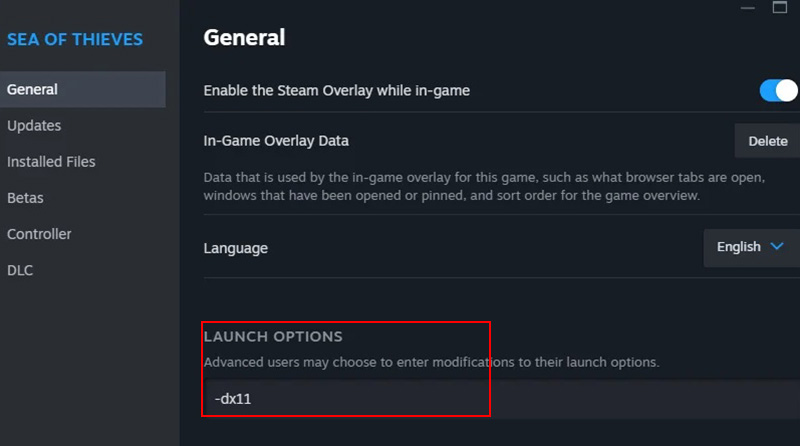
Open Steam and go to Library > Marvel Rivals > Properties.
Check the General tab for any available Launch Options.
Try the available DirectX launch option and restart Marvel Rivals to see whether it improves stability.
Tips: As a final hardware-side check, visit your GPU manufacturer's official support page and look for a VBIOS update specifically mentioning stability, compatibility, or crash fixes for your exact graphics card model.
How to Prevent GPU Crashes in Marvel Rivals?
Fixing the current crash is only half the job. Once Marvel Rivals is running again, a few maintenance habits can make another crash less likely: keep the GPU driver and Windows current, close unnecessary background programs, and watch GPU temperature and usage during demanding matches. These steps are especially useful when GPU crash dump triggered Marvel Rivals errors appear under heavy system load rather than immediately after launch.
For players who do not want to check these settings one by one, Advanced SystemCare provides a one-click way to handle several routine PC maintenance tasks. It can remove unnecessary junk files, manage startup items, optimize available system resources, and provide real-time hardware monitoring. Reducing unnecessary background activity can leave more system resources available for the game.
Advanced SystemCare Free
- Clean: 420 billion traces removed & 85 EB junk files cleaned
- Protect: 80 million unauthorized access blocked & 20 million bugs fixed
- Speed Up: 6 million hours of startup time saved & Turbo boost
- Optimize: Auto clean and auto care your PC with AI mode

Advanced SystemCare Key Features:
Free one-click PC optimizer for Marvel Rivals: Advanced SystemCare improves Windows for gaming by closing unnecessary background tasks, freeing resources, cleaning junk files, and prioritizing game processes for smoother performance.
Smart startup & RAM optimization: The PC optimizer can help control programs that launch with Windows, while RAM optimization can reduce unnecessary memory usage from background processes.
Real-time system monitoring: Performance Monitor lets you keep an eye on CPU, RAM, disk, and other system activity while the game is running.
All-in-one PC maintenance toolkit: The PC gaming optimizer offers AI-based system scanning, junk-file removal, startup management, privacy cleaning, and automatic software updates for maintaining a cleaner, safer, and more responsive PC.
How to Use Advanced SystemCare Before Playing Marvel Rivals?
Step 1. Download and install Advanced SystemCare Free on the PC where Marvel Rivals is installed. Finish the installation and open the program.
Step 2. Switch to Manual Mode. For routine cleanup, select Junk Files Clean, Internet Boost, Privacy Sweep, and Registry Clean. You can also use the AI Mode for 1-click optimization.
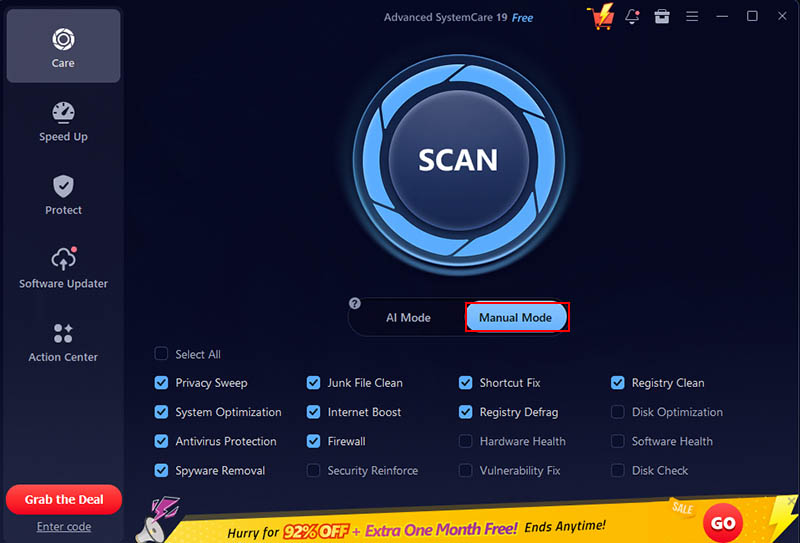
Step 3. Click SCAN and let the program check the selected areas.
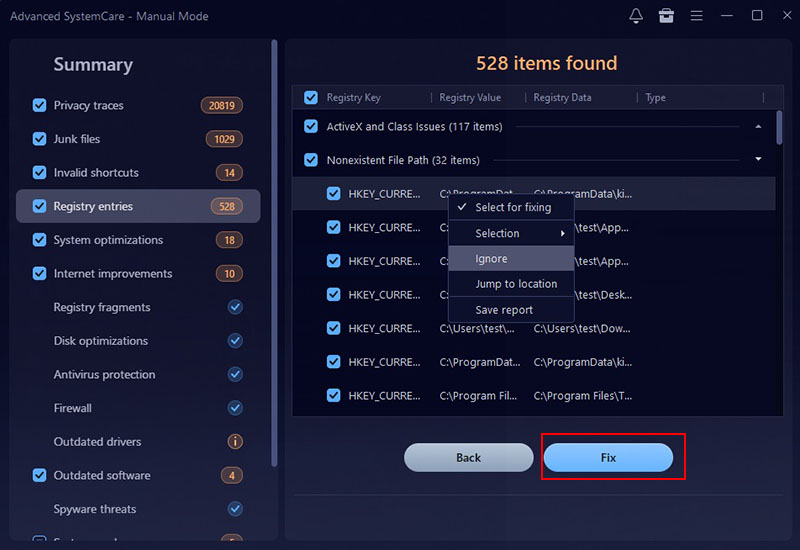
Step 4. Check the items and click Fix to apply the selected cleanup and optimization changes.
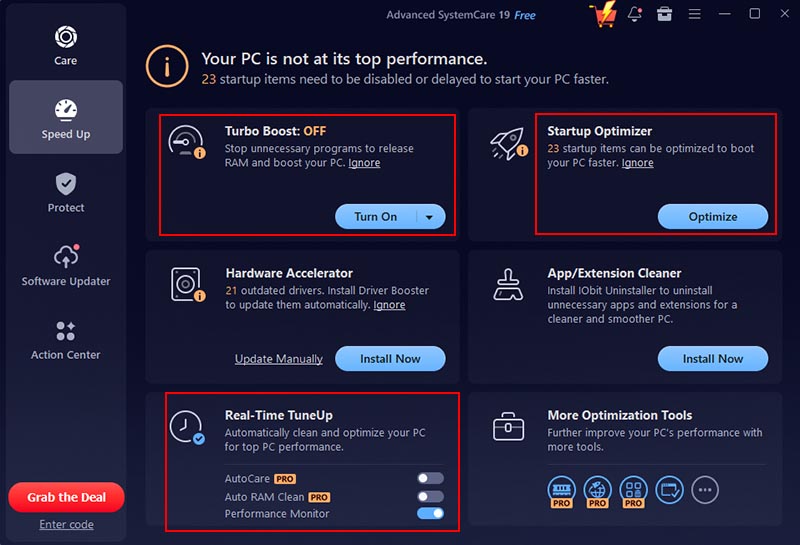
Step 5. Open Startup Optimizer and review programs that automatically start with Windows. You can also use Turbo Boost to reduce unnecessary background activity before gaming. Turn on Performance Monitor to watch CPU, RAM, and disk usage in real time while testing Marvel Rivals.
FAQs about GPU Crash Dump Triggered Marvel Rivals
1. What does “GPU Crash Dump Triggered” mean in Marvel Rivals?
“GPU Crash Dump Triggered” error in Marvel Rivals usually indicates that the game lost stable communication with the graphics driver or GPU and crashed unexpectedly.
2. Is this Marvel Rivals-specific or a general Unreal Engine issue?
This message comes from Unreal Engine and does not automatically mean your GPU hardware has failed. It usually appears when the game encounters a rendering problem or loses stable communication with the graphics processor.
3. Does “GPU Crash Dump Triggered” happen on both NVIDIA and AMD?
Yes. The “GPU Crash Dump Triggered” error can occur with both NVIDIA and AMD graphics cards.
4. Can overheating cause the “GPU Crash Dump Triggered” error?
Yes. Excessive GPU temperature may lead to instability, especially during sustained heavy workloads. Check GPU temperature and make sure the PC has adequate airflow and the fans are working normally.
Conclusion
A GPU crash dump triggered Marvel Rivals error can stem from drivers, damaged game files, overlays, graphics settings, temperature, or other system issues. Start with the simple fixes, then move to driver and graphics troubleshooting if the crashes continue. For routine PC maintenance, try Advanced SystemCare to clean unnecessary files, manage startup activity, optimize PC, and monitor system resources to prevent GPU crashes during gaming.
Advanced SystemCare Free
- Clean: 420 billion traces removed & 85 EB junk files cleaned
- Protect: 80 million unauthorized access blocked & 20 million bugs fixed
- Speed Up: 6 million hours of startup time saved & Turbo boost
- Optimize: Auto clean and auto care your PC with AI mode