Marvel Rivals is fast-paced and visually demanding, making smooth gameplay essential for competitive matches. If you're experiencing FPS drops, stuttering, or inconsistent frame rates, you're not alone. This guide covers the best Marvel Rivals FPS boost methods for 2026, including Windows optimization, graphics settings, driver updates, launch options, and more.
Whether you're searching for how to increase your FPS on Marvel Rivals, looking for a reliable Marvel Rivals FPS booster, or wondering whether a Marvel Rivals FPS boost mod is worth using, this guide has everything you need.

Why Is Marvel Rivals FPS So Low?
Before making changes, it's helpful to understand what causes poor performance, thus finding the right solutions to improve gameplay. Common reasons include:
Outdated GPU drivers
High graphics settings
Windows background processes
Shader compilation
Power-saving mode
Overlays and recording software
Old DirectX or Visual C++ components
CPU bottlenecks
Insufficient RAM
6 Best Marvel Rivals FPS Boost Methods
Before diving into specific fixes, it's important to understand that improving performance often requires a combination of small adjustments rather than a single solution. The following methods cover the most effective ways to boost FPS and ensure smoother gameplay in Marvel Rivals.
Method 1. Optimize Marvel Rivals Graphics Settings
The easiest Marvel Rivals FPS boost starts with lowering demanding graphics options that put heavy strain on your system. By adjusting settings like shadows, effects, and resolution scale, you can significantly reduce GPU workload. Even small tweaks can lead to smoother gameplay, fewer frame drops, and more consistent performance, all while maintaining a visually enjoyable experience that still looks good during fast-paced matches. Here are the steps.
Step 1. Launch Marvel Rivals.
Step 2. Open Settings.
Step 3. Go to Graphics. To change:
Display Mode → Fullscreen
Resolution Scale → 90–100%
Shadows → Low
Global Illumination → Low
Effects → Medium
Texture Quality → Medium
Motion Blur → Off
Depth of Field → Off
Anti-Aliasing → Low
View Distance → Medium
V-Sync → Off
FPS Limit → Unlimited (or monitor refresh rate)
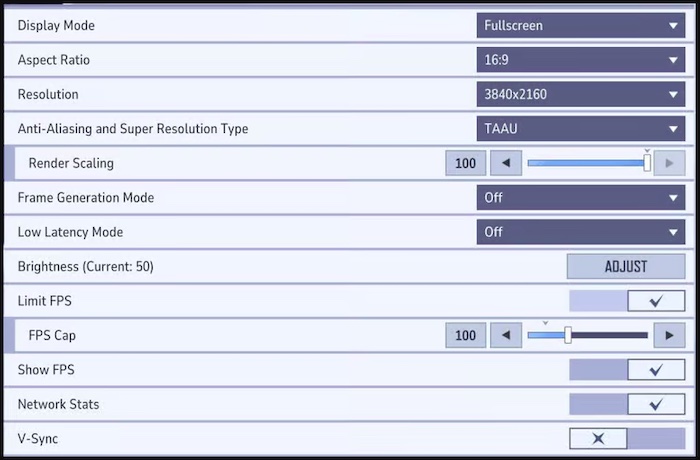
Step 4. Save changes and restart the game.
Method 2. Update Graphics Drivers with Driver Booster (Recommended)
Driver Booster can help improve Marvel Rivals' performance by keeping your PC optimized for gaming. Besides updating outdated graphics and hardware drivers, it includes gaming optimization tools that reduce unnecessary background activity, free up system resources, and help your computer deliver smoother gameplay with higher FPS. Its one-click driver updates also ensure your GPU uses the latest game-ready drivers for better compatibility and stability.
Driver Booster Free
- Automatically scan and update drivers.
- Update game ready drivers for peak gaming performance.
- Identify and fix various common of hardware issues.
- Boost 30% of system performance for fast & smooth running.

Key Features of Driver Booster:
Game Boost Mode. Its specific Game Boost mode helps optimize CPU, RAM, and background processes to minimize interruptions, reduce lag, and deliver a smoother gaming experience.
Game Ready Driver Updates. Provides the latest graphics and gaming-related drivers to enhance compatibility, stability, and performance for new games. It can also help with how to fix Roblox lag issues.
System Optimization for Gaming. Adjusts key system settings to improve responsiveness, reduce interruptions, and create a better gaming environment for players seeking reliable performance.
One-Click Driver Updates. Automatically scans, downloads, and installs outdated drivers with one click, making it a convenient solution for users looking for the best driver updater.
Large Driver Database. Includes millions of device drivers, ensuring wider hardware support and helping users quickly find compatible updates for various gaming components.
Steps to Boost Marvel Rivals FPS Using Driver Booster:
Step 1. Download and install Driver Booster on your computer.
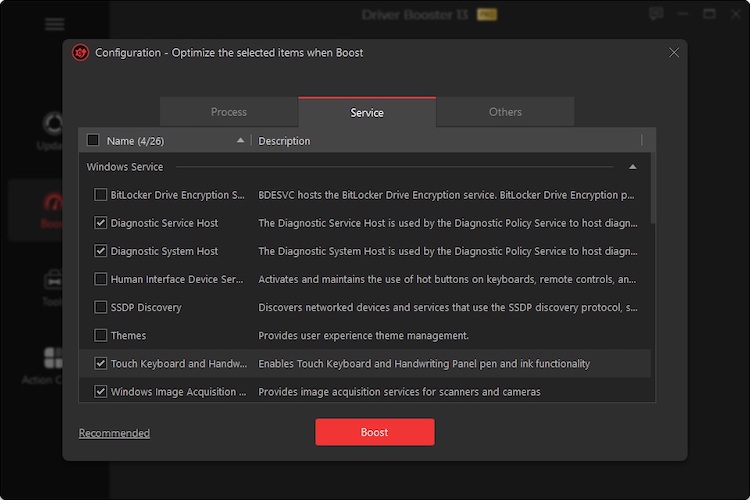
Step 2. Click Boost and click the Configure text link under the Turn On button in the Game Boost section to select the items you want to stop to boost your game performance.
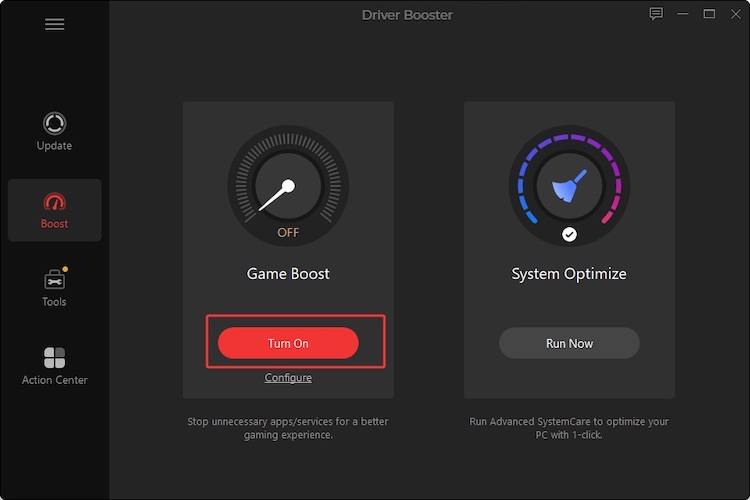
Step 2. Then, go back to the home screen and click “Turn On” to enable the Game Boost.
Method 3. Close Background Programs
Background applications consume CPU, RAM, and disk resources, often running silently in the background without your awareness. These processes can significantly reduce available system performance for gaming.
Closing unnecessary software, such as browsers, launchers, or overlays, can free up valuable resources and provide a noticeable Marvel Rivals FPS boost, especially on mid-range PCs where hardware limitations are more apparent.
Step 1. Press Ctrl + Shift + Esc to open Task Manager.
Step 2. Click More details if Task Manager opens in the simplified view.
Step 3. Select the Processes tab to view running applications and background processes.
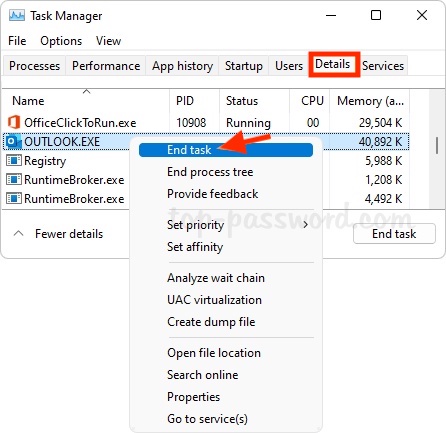
Step 4. Find programs that are using high CPU, Memory, or Disk resources. Right-click the unwanted program and select End Task to close it.
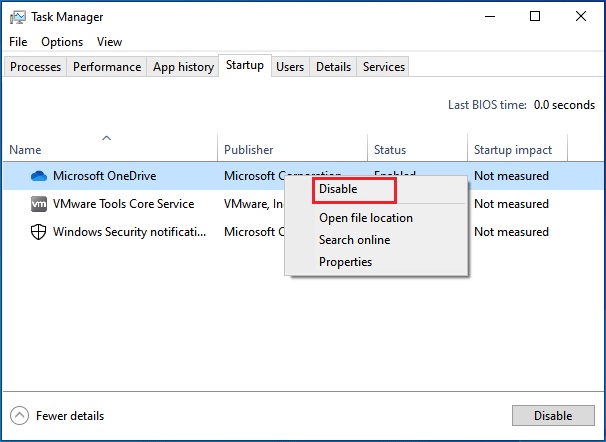
Step 5. Also in the Task Manager, go to the Startup apps tab.
Step 6. Select apps that you do not need when Windows starts.
Step 7. Right-click the app and choose Disable.
Method 4. Enable Windows Gaming Features
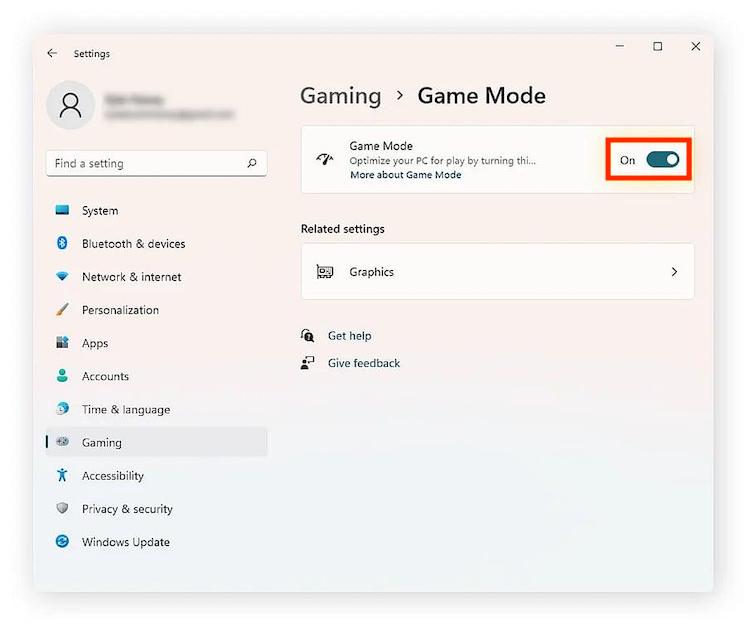
Windows includes several built-in gaming optimizations that many players overlook. Enabling these features can improve GPU scheduling, reduce input latency, and enhance overall system responsiveness. Tools like Game Mode and Hardware Accelerated GPU Scheduling help prioritize gaming performance by allocating resources more efficiently, ensuring smoother gameplay and more consistent frame rates during intense gaming sessions.
Step 1. Press Windows + I to open Settings.
Step 2. Go to Gaming > Game Mode, and toggle Game Mode to On.
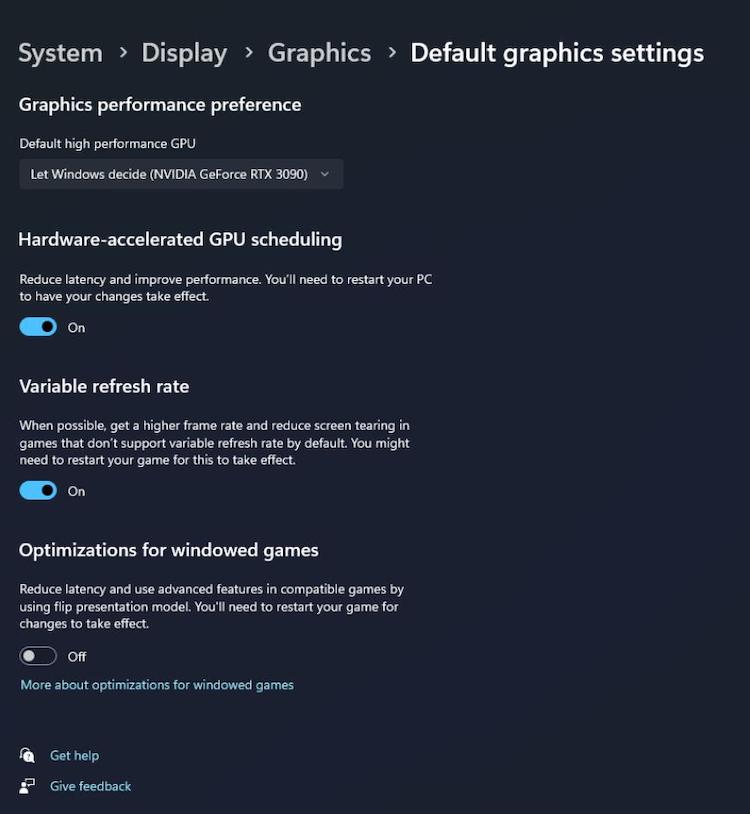
Step 4. Still in Settings, navigate to System > Display > Graphics.
Step 5. Click Advanced graphics settings.
Step 6. Turn on Hardware-Accelerated GPU Scheduling, Variable Refresh Rate, and Optimizations for Windowed Games.
Method 5. Use the Best Marvel Rivals FPS Boost Config
Many competitive players improve performance by using optimized configuration settings tailored to their hardware. A carefully adjusted Marvel Rivals FPS boost config can reduce visual overhead, minimize unnecessary effects, and stabilize frame rates without significantly affecting gameplay or visual clarity.
Step 1. Launch Marvel Rivals.
Step 2. Click Settings from the main menu.
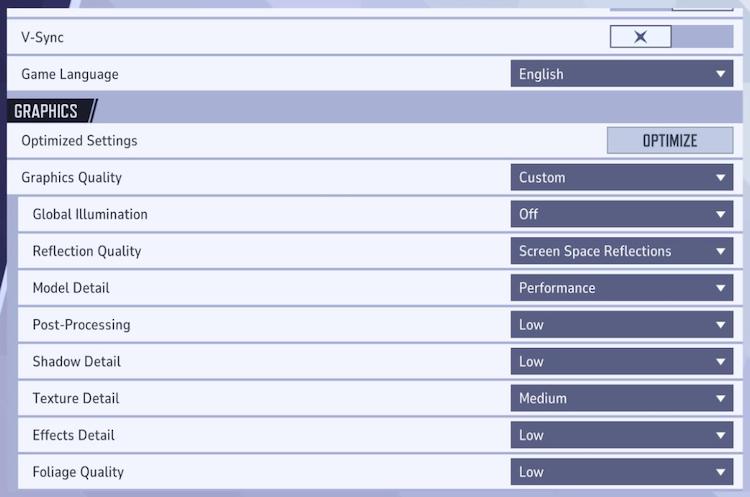
Step 3. Select the Graphics tab, then configure the following settings for the best balance of FPS and visibility:
Graphics Quality: Custom
Model Detail: Low
Post-Processing: Low
Shadow Detail: Low
Effects Detail: Low
Foliage Quality: Low
Texture Detail: Medium (or Low if using a GPU with limited VRAM)
Motion Blur: Off
Depth of Field: Off
V-Sync: Off
Chromatic Aberration (if available): Off
Film Grain (if available): Off
Step 4. Save the configuration and restart the game.
Note: Always edit configuration files carefully and avoid changing unknown values.
Method 6. Adjust NVIDIA or AMD Control Panel Settings
Your graphics card software offers additional performance optimizations beyond the in-game settings. By adjusting advanced options such as power management, texture filtering, and latency settings, you can better utilize your GPU’s capabilities. Tweaking these options can further increase FPS, improve stability, and deliver a smoother overall gaming experience.
For NVIDIA Graphics Cards:
Step 1. Right-click an empty area on your desktop and select NVIDIA Control Panel.
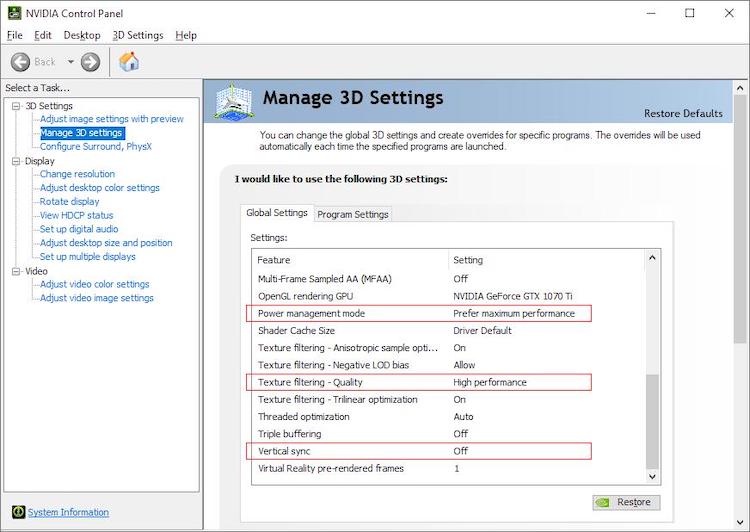
Step 2. Click Manage 3D Settings in the left pane.
Step 3. Under Global Settings or Program Settings (select Marvel Rivals), change the following:
Power Management Mode: Prefer Maximum Performance
Low Latency Mode: Ultra
Texture Filtering – Quality: High Performance
Vertical Sync: Off
Max Frame Rate: Off (or match your monitor's refresh rate)
Preferred Refresh Rate: Highest Available
Step 4. Click Apply in the lower-right corner and restart Marvel Rivals to use the new settings
For AMD Graphics Cards:
Step 1. Right-click your desktop and select AMD Software: Adrenalin Edition.
Step 2. Go to Gaming > Graphics, configure these options:
Radeon Anti-Lag: On
Radeon Boost: On (supported games)
Radeon Image Sharpening: On (optional)
Wait for Vertical Refresh (V-Sync): Always Off
Texture Filtering Quality: Performance
Surface Format Optimization: On
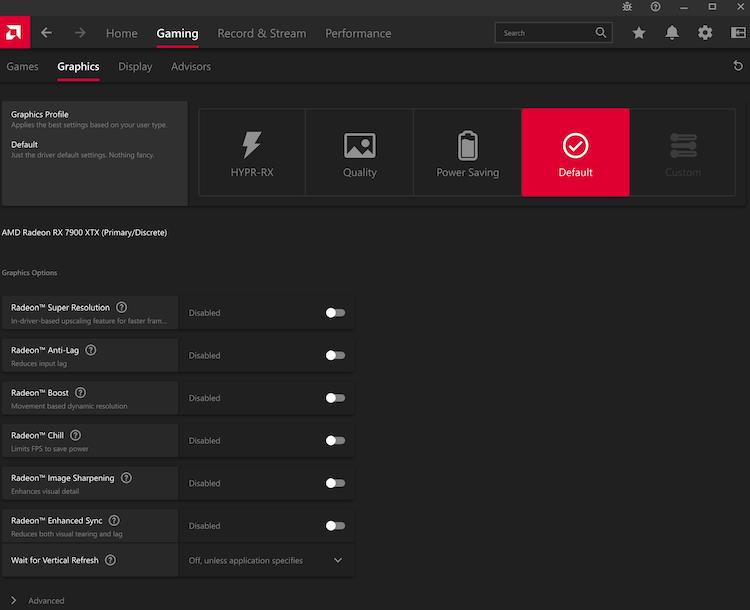 Step 3. Close AMD Software and launch Marvel Rivals.
Also Read: AMD Driver Updater: Download Latest Drivers for Better Performance >>
FAQs about Marvel Rivals FPS Boost
How do I get a Marvel Rivals FPS boost?
Lower graphics settings, update GPU drivers, enable Windows Game Mode, close background apps, optimize your GPU control panel, and use an optimized configuration file.
How to increase your FPS on Marvel Rivals without upgrading your PC?
Reduce demanding graphics settings, update drivers with Driver Booster, disable unnecessary startup programs, and enable Hardware Accelerated GPU Scheduling.
Is there a Marvel Rivals FPS booster?
Yes. Several optimization tools exist, but many players use Driver Booster as a Marvel Rivals FPS booster because updated graphics drivers often improve performance and stability.
Is a Marvel Rivals FPS boost mod safe?
Some configuration-based mods are relatively harmless, but many unofficial mods can conflict with anti-cheat systems or become incompatible after updates. Use them carefully and always back up your files.
Does updating drivers really improve FPS?
Yes. Graphics driver updates often include game-specific optimizations that improve stability, reduce stuttering, and increase FPS in newly released games.
Conclusion
Getting a stable Marvel Rivals FPS boost doesn't require expensive hardware upgrades. By optimizing graphics settings, updating drivers with Driver Booster, closing background programs, enabling Windows gaming features, using a proper Marvel Rivals FPS boost config, and avoiding risky mods, you can enjoy smoother gameplay and higher frame rates. Try these seven methods to achieve the best performance in Marvel Rivals FPS boost 2026.
Driver Booster Free
- Automatically scan and update drivers.
- Update game ready drivers for peak gaming performance.
- Identify and fix various common of hardware issues.
- Boost 30% of system performance for fast & smooth running.