A slow or unstable internet connection can ruin online gaming, delay downloads, and interrupt video streaming. Whether you're dealing with high ping, packet loss, or inconsistent Wi-Fi, using a reliable network optimizer can significantly improve your online experience.
In this guide, you'll learn what a network optimizer is, what features to look for, and the internet booster best solutions to improve your internet performance. Keep up!
What is a Network Optimizer?
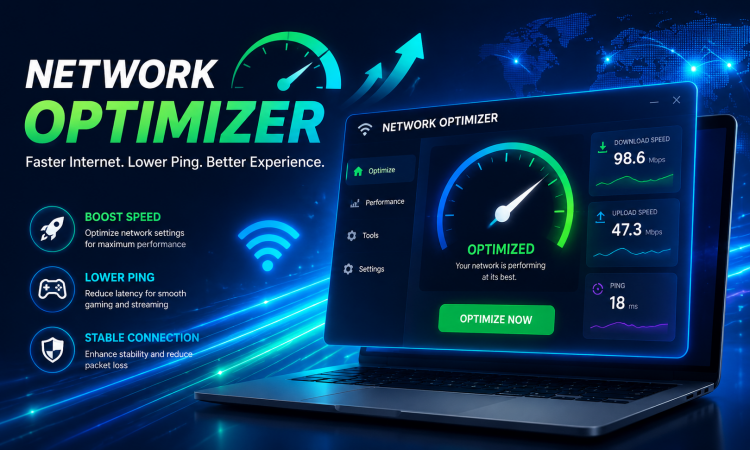
An internet optimizer is software that improves network performance by adjusting system and network settings. Unlike simply increasing your internet plan, these tools focus on making better use of your existing bandwidth, reducing unnecessary background traffic, and improving connection stability.
Many users searching for the best internet speed booster solution want lower latency while gaming, faster browsing, and smoother streaming. A quality optimizer can often achieve these goals without requiring expensive hardware upgrades.
What Makes the Best Internet Booster?
Not every optimization tool delivers the same results. The best internet booster software should provide practical features that improve both speed and reliability.
Look for these capabilities:
Network traffic optimization
Background application management
Startup program optimization
Privacy cleanup
Automatic system maintenance
Easy one-click optimization
A good network optimizer should also be beginner-friendly while offering advanced customization for experienced users.
4 Best Network Optimizers for Windows to Boost Internet Speed
Below are several popular network optimizers that can help improve network performance. By using them, you can enhance network speed, stability, and overall efficiency of network operations.
#1. Advanced SystemCare - Best Internet Optimizer with PC Performance Boost
Advanced SystemCare is a powerful network optimizer that improves internet stability by adjusting Windows network settings and optimizing system resources. It helps reduce latency, minimize ping spikes, and create a smoother experience for online gaming, browsing, and streaming.
With Internet booster, you can optimize Wi-Fi performance and improve connection responsiveness without complicated manual settings. For gamers experiencing unstable ping or users dealing with slow browsing speeds, Advanced SystemCare can automatically adjust network settings without requiring advanced TCP/IP knowledge.
Advanced SystemCare Free
- Clean: 420 billion traces removed & 85 EB junk files cleaned
- Protect: 80 million unauthorized access blocked & 20 million bugs fixed
- Speed Up: 6 million hours of startup time saved & Turbo boost
- Optimize: Auto clean and auto care your PC with AI mode

Key features:
Internet Booster for Network Optimization
Best Windows 11 optimizer to reduce latency, improve connection stability, and enhance overall browsing responsiveness.
One-Click Network Acceleration with TCP Optimization
Instantly applies advanced network tuning, including TCP/IP optimization and bandwidth adjustments, to boost internet speed and reduce lag for a smoother online experience.
Junk File Cleanup for Storage and Speed Optimization
Removes unnecessary and temporary files that consume disk space and slow down overall system performance.
Startup Optimization for Faster Boot and Network Readiness
Disables unnecessary startup programs, enabling quicker Windows boot times and freeing system resources for network-intensive tasks.
Cons:
Because it optimizes both Windows performance and internet settings, Advanced SystemCare is an excellent internet optimizer for everyday users who want better browsing, streaming, and online gaming without manually changing complex network configurations.
#2. TCP Optimizer - Advanced TCP/IP Network Optimizer
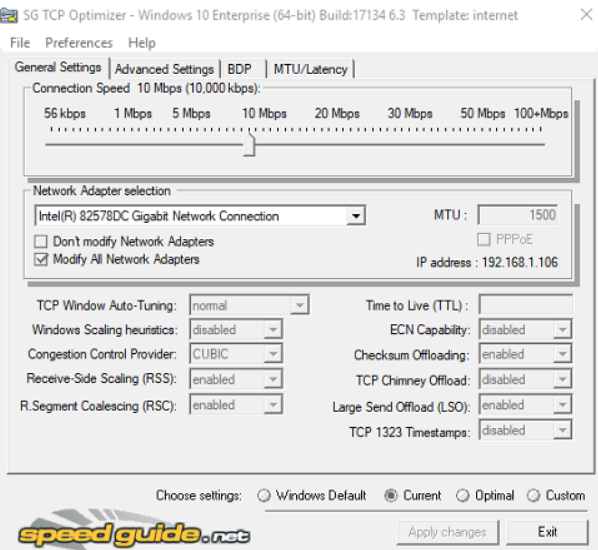
TCP Optimizer is a lightweight yet powerful utility designed to fine-tune Windows TCP/IP network parameters for maximum internet performance. It provides both automatic and advanced manual tuning options, allowing users to optimize settings such as MTU (Maximum Transmission Unit), TCP Window Auto-Tuning, congestion control algorithms, and QoS prioritization.
Pros:
Free to use.
Internet optimizer: TCP/IP tuning for lower latency and faster, more stable connections.
DNS optimization and network acceleration for improved browsing and download speeds.
Advanced networking controls.
Portable application.
Cons:
#3. NetOptimizer - One-Click Internet Speed Optimizer
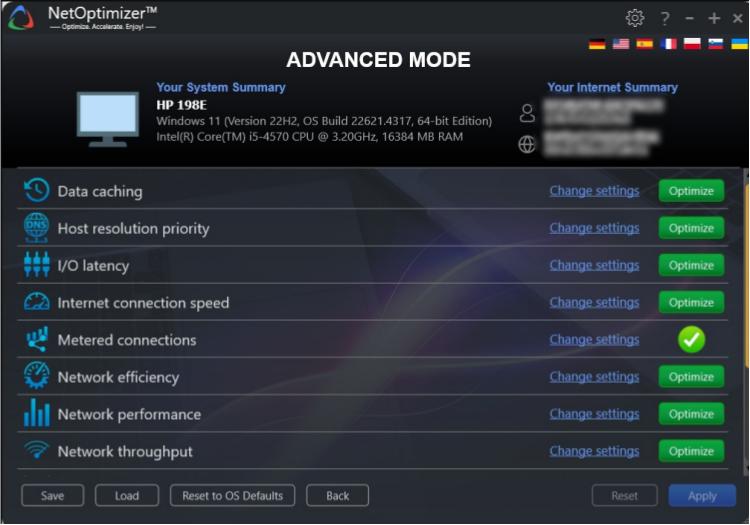
NetOptimizer automatically tunes Windows networking parameters such as TCP/IP settings, DNS configuration, and bandwidth-related registry values to improve connection stability. It focuses on reducing latency, minimizing packet loss, and improving overall internet responsiveness for browsing, streaming, and online gaming.
Pros:
Clean and intuitive interface, easy to navigate even for beginners.
One-click optimization for quick system performance improvements.
Suitable for most users, including non-technical users.
Lightweight and does not significantly impact system resources.
Provides multiple optimization modules for system, network, and gaming performance.
Cons:
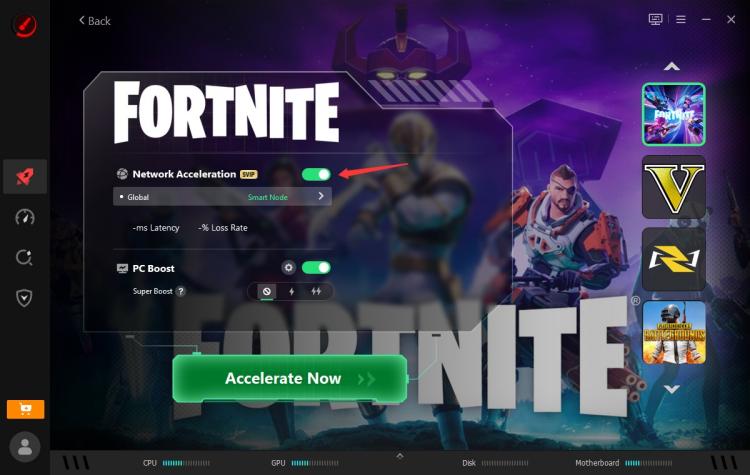
#4. Smart Game Booster - Gaming-Focused Network Optimizer
Gamers searching for an internet booster for gaming may benefit from Smart Game Booster. Besides optimizing Windows performance, it helps prioritize gaming processes and reduce unnecessary background activity. It can also help improve internet responsiveness during online matches by reducing latency spikes and ensuring more consistent connection performance, enhancing the overall gaming experience.
 Pros:
Pros:
Game Mode optimization: Prioritizes system resources for gaming, reducing latency and stabilizing FPS.
Background process management: Suspends non-essential apps to free CPU and RAM.
Easy to use: One-click interface for quick, beginner-friendly setup.
Network optimization for reduced ping: Optimizes system and network settings to improve stability and lower ping.
Real-time performance monitoring: Live CPU, memory, and system tracking to quickly spot bottlenecks.
Cons:
How to Choose the Right Network Optimizer for Your Needs
Different users have different network optimization needs. Choose the tool based on your main goal:
Best for overall PC & internet optimization: Advanced SystemCare
Ideal for users who want faster internet, better system performance, and automatic optimization in one tool.
Best for advanced network tuning: TCP Optimizer
Suitable for experienced users who want manual control over TCP/IP settings and connection parameters.
Best for beginners: NetOptimizer
A simple choice for users who prefer one-click network optimization without complex settings.
Best for gaming: Smart Game Booster
Recommended for gamers who want lower ping, fewer lag spikes, and smoother online gameplay.
How to Optimize Wi-Fi Speed with Advanced SystemCare Internet Booster
With a simple optimization process, you can boost internet speed on PC with Advanced SystemCare, reduce latency, and create a more stable connection for gaming, streaming, and daily online activities.
Step 1. Download and install Advanced SystemCare on your Windows PC. After installation, open the program and access the main interface to begin optimizing your system and network performance.
Step 2. Install it on your PC, then open it. Check the Internet Boost box, then click Scan.
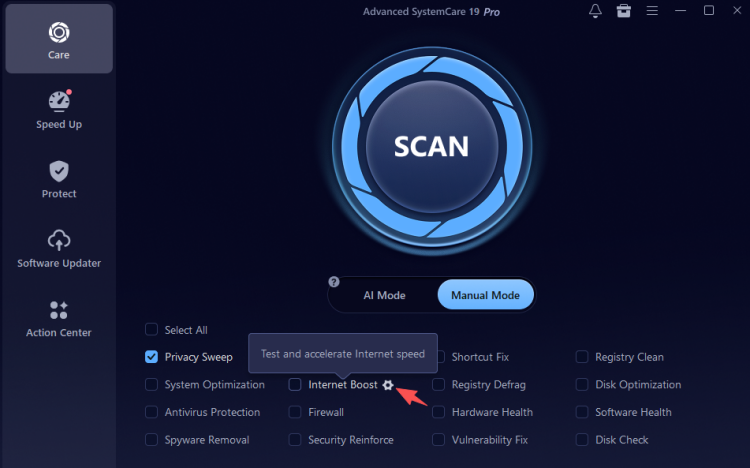
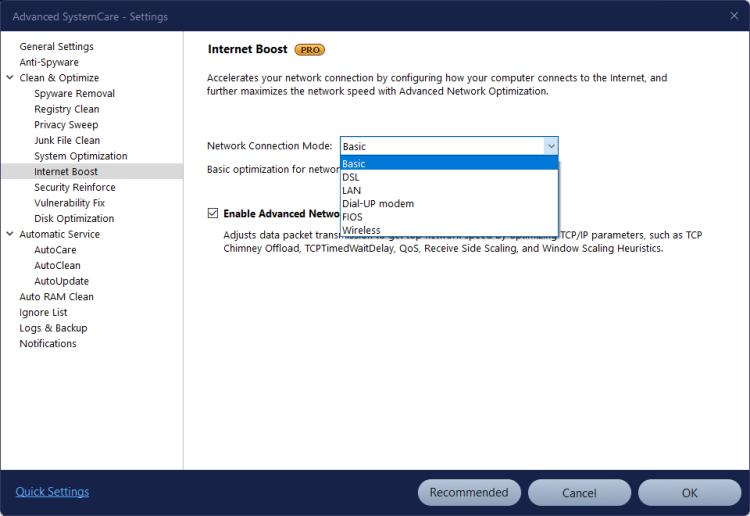
Before clicking "Scan," you can click the gear icon to configure your preferred network connection mode.
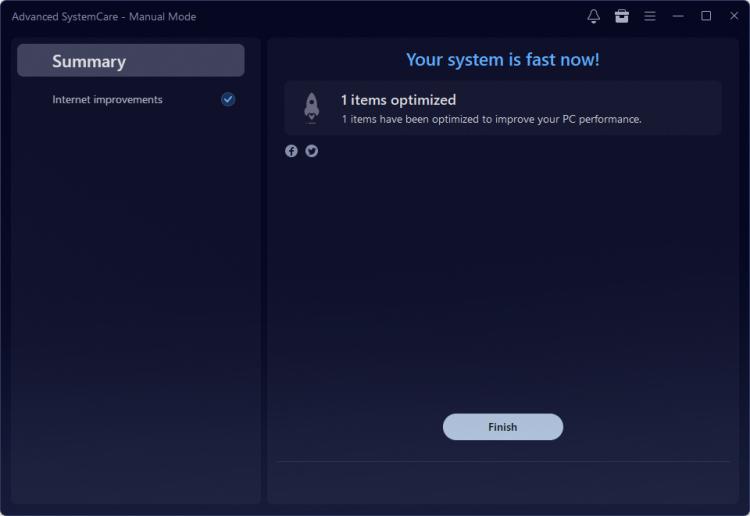
 Step 3. After optimization is complete, restart your network connection if necessary and test your internet performance.
Tips to Maximize Network Speed and Performance
If you want a complete internet speed optimizer strategy, combine software optimization with good network practices.
Use a wired Ethernet connection whenever possible.
Upgrade outdated network adapter drivers.
Restart your modem and router regularly.
Scan your PC for malware.
Limit background downloads.
Keep Windows updated.
Optimize your PC with Advanced SystemCare.
Using several optimization methods together generally produces better long-term results than relying on a single solution.
The Bottom Line
A reliable network optimizer improves connection stability, reduces latency, and speeds up the network. For the best internet booster solution, Advanced SystemCare stands out with Internet boost, AI-powered optimization, startup management, and system cleanup tools. Then you can enjoy a faster, smoother, and more responsive PC for browsing, streaming, and gaming. Whether you need an internet speed optimizer for daily browsing or a network optimization tool for gaming, choosing the right network optimizer can help improve stability and reduce unnecessary delays.