Your PC may slow down, games may crash, or your sound may stop working suddenly. In many cases, outdated drivers are to blame for these problems. If the problems remain, your system may not work properly. That’s why learning how to update drivers is important for every PC user, as it can improve performance and fix many common errors.
In this guide, you will learn how to update drivers on PC using simple and safe methods. We will show both automatic and manual ways so you can choose what works best for you.
Why Do You Need to Update Drivers
Before learning how to update drivers on pc, you should understand what drivers do. Drivers are small programs that help your hardware communicate with your system. For example, graphics drivers control your display, and audio drivers manage sound. If drivers are outdated/malfunctioned, your PC may not work correctly. That’s why you should update drivers on pc regularly.
Here are the main reasons:
Enhance performance: Updated drivers help your PC run faster. They improve gaming, video editing, and daily tasks.
Solve issues/bugs: Outdated/corrupted/missed drivers can lead to issues; updating drivers can fix them quickly.
Ensure compatibility: New software and updates need updated drivers to work properly.
Improve security: Old drivers may have security risks. Updating them keeps your system safe.
Support new features: Some updates add new functions to your hardware devices.
How to Update Drivers Automatically & Effortlessly
You may have heard about some manual methods and inbuilt features, but why bother? Why not try a faster solution? Get a simple way to update drivers on pc!
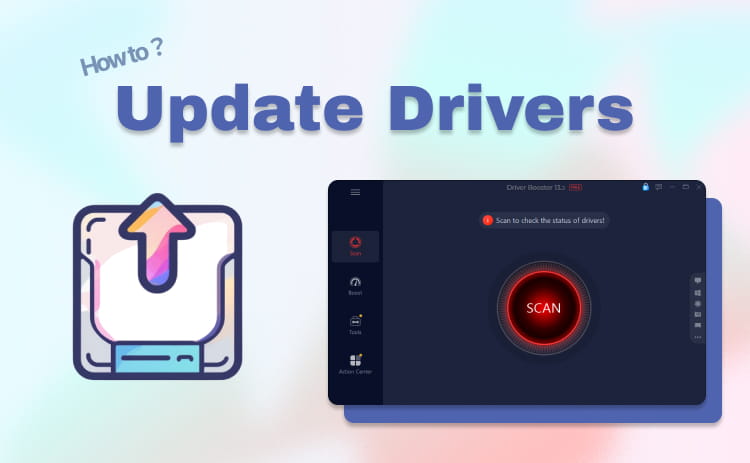
Instead of searching and installing drivers one by one, you can use IObit Driver Booster to handle everything in one place. If you are wondering “how to update drivers automatically”, this tool is one of the best options available.
Driver Booster Free
- Automatically scan and update drivers.
- Update game ready drivers for peak gaming performance.
- Identify and fix various common of hardware issues.
- Boost 30% of system performance for fast & smooth running.

• Update Drivers Automatically & Effortlessly
Driver Booster scans your PC automatically and detects outdated, missing, or faulty drivers. It updates them in one click without requiring manual search or installation. This makes it ideal for users who want a simple way to update their drivers without technical steps.
• Massive Driver Database Covers Your Needs
It supports over 12 million drivers from more than 2500 manufacturers, from graphics cards, sound devices, to network adapters, and more. No matter your device, you can easily update drivers on pc without worrying about compatibility issues.
• Update Drivers on PC Risk-Free
Driver Booster uses drivers approved by WHQL and tested by IObit. Before updating, it creates a backup and restore point. This ensures your system stays safe and lets you roll back changes if needed when learning and trying how to update drivers on pc.
• Fix Common Issues in 1 Click
The tool can fix common problems like no sound, network issues, and screen resolution errors, in just 1 click via exclusive features. No expertise is required.
How to Update Drivers on PC Effortlessly
Step 1: Download
Click the given button and download Driver Booster. Install it on your PC and launch the program to get started.
Step 2: Scan
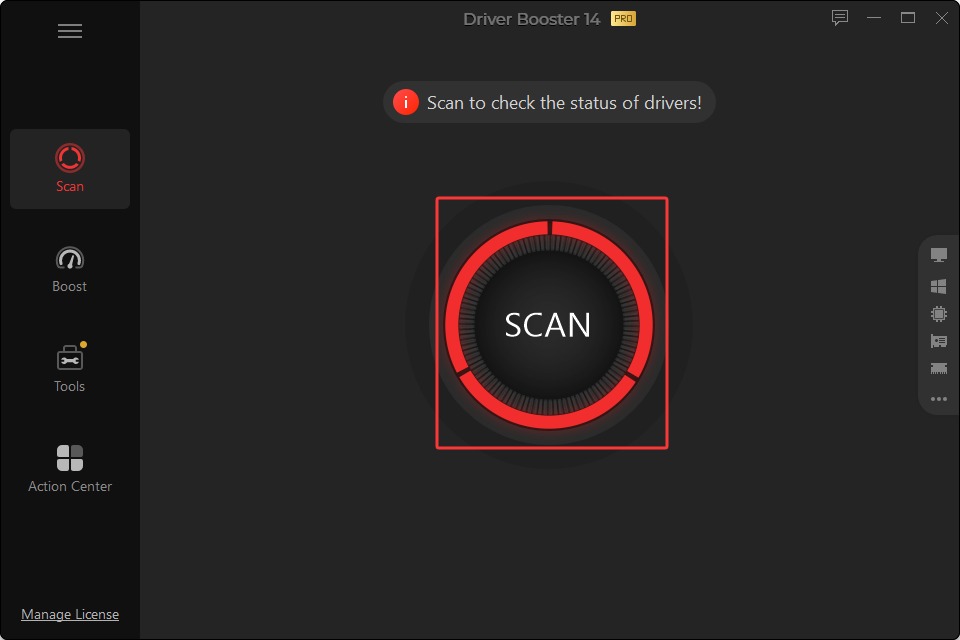
Open Driver Booster and click the “Scan” button. The tool will quickly scan your system and list all outdated or missing drivers.
Step 3: Update
Click “Update Now” to install all drivers at once. You can also update drivers individually based on your needs.
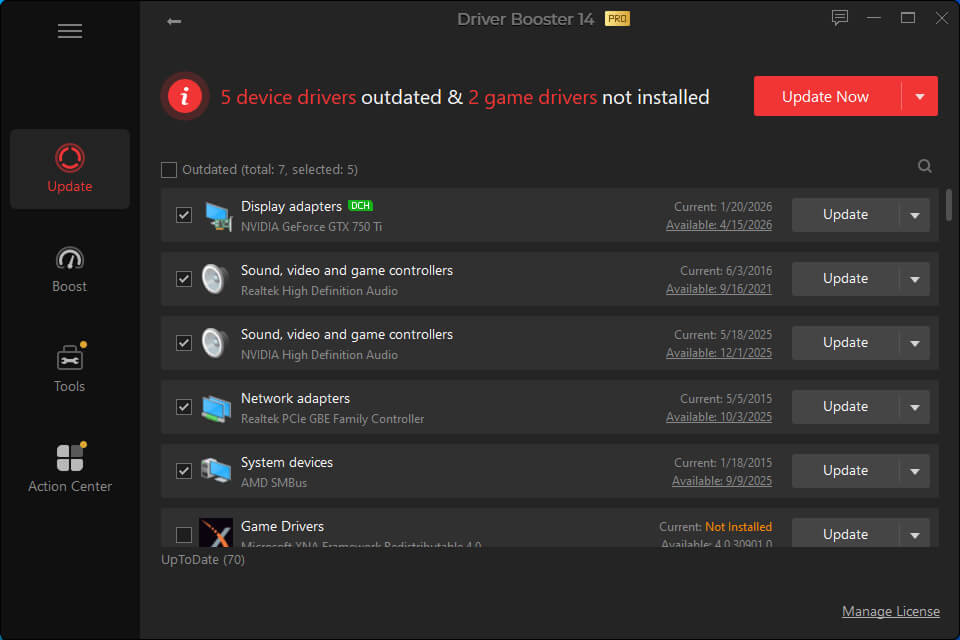
Driver Booster also offers an auto update feature in its Driver Booster Pro version. It is perfect for users who want a hands-free solution. If you want a quick and safe way to update drivers on pc, try IObit Driver Booster today and keep your system running smoothly.
How to Update My PC Drivers Manually from Manufacturers
Should automatic tools fail you, then you can use a manual one. How to update my PC driver is one of the most searched topics, as manufacturers themselves release the latest drivers with bugs fixed, security patches, and better performance.
Notice first, this method gives you full control, but it can be time-consuming and risky. You have to locate the right version of the driver and install it yourself. Choosing the wrong driver can lead to system problems or malfunctions.
How to Update My PC Drivers from Manufacturer Websites
Now, taking updating the NVIDIA graphics drivers as an example, let’s find out how to update my drivers on PC manually.
Step 1: Right-click on the Windows Start Menu button to access Device Manager > verify your graphics card model > click on Display adapters, and record the GPU name to download the right driver.
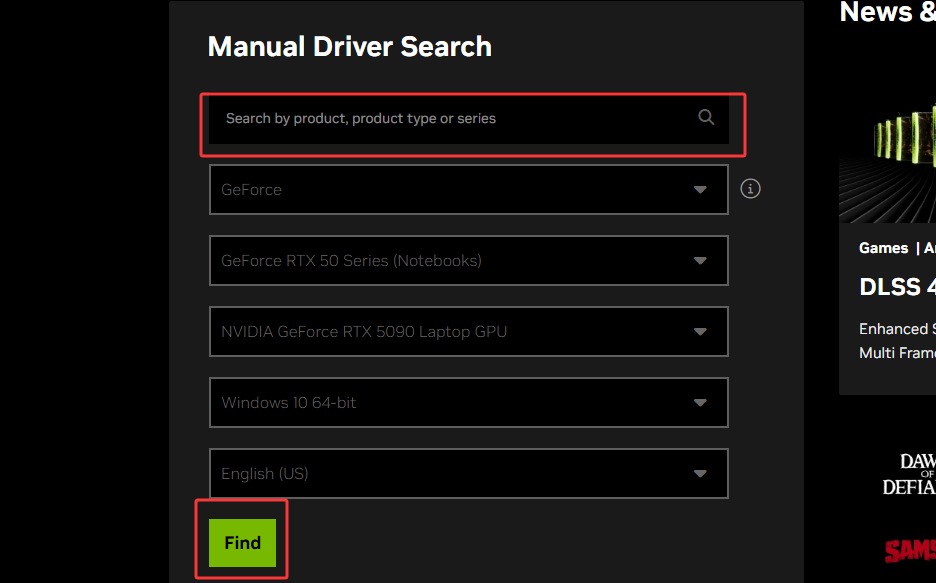
Step 2: Open a webpage of the official NVIDIA driver and access the Drivers section. Type in your model of a graphics card, version of Windows, and type of system to find the latest driver.
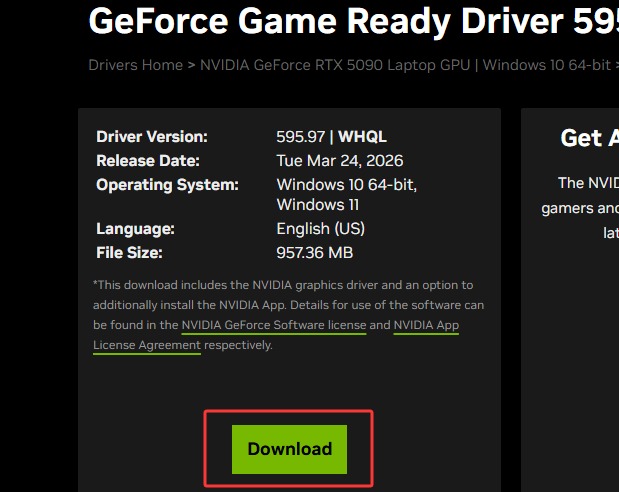
Step 3: Press the Download button and store the driver file. Ensure you have the most recent version that is compatible with your system so as to avoid compatibility issues.
Step 4: Execute the file that has been downloaded and complete the setup instructions. Once installed, restart your PC in order to make changes and properly complete the process.
The approach can be applied when you want to take full control of how you wish to update the drivers on the PC, although most users still prefer simpler approaches, like using Driver Booster.
How to Update Drivers on PC with Windows Built-in Tools
Windows provides built-in tools in case you do not wish to install any other software. Such techniques will assist you in knowing how to update the drivers on your computer. Keep on reading to find out three easy ways.
Method 1. Update Drivers with Device Manager
The most readily available is the Device Manager when searching for how to update drivers on a personal computer with built-in tools. It is a Windows service that allows one to monitor and manage all hardware. With this, you can update drivers on a PC, uninstall drivers, and correct errors. It scans the Microsoft database and installs the updates available. Nevertheless, this is not necessarily the case with the newest drivers.
How to Update My Drivers via Device Manager
Step 1: Click the Start menu and open the list of devices by right-clicking on it. You will find all types of hardware, such as display adapters and network devices.
Step 2: Locate the update device. Select the right-hand click on it and choose the option of updating the driver.
Step 3: Select the option of searching for drivers automatically. Windows will verify online and install the most suitable driver for your device.
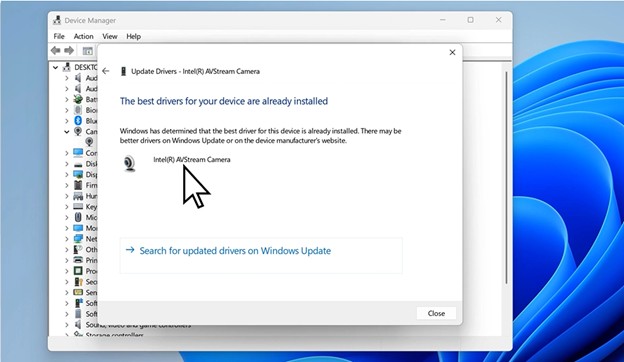
Step 4: Reboot your computer and implement changes. This measure is taken to make sure that the updated driver would not create any problems.
Method 2. Update Drivers via Windows Update
Windows update is another way to update drivers on a personal computer. This feature also automatically updates the system, security patches, and drivers. It is a background program that keeps your PC stable. Nonetheless, it might be a bit tricky and may bring issues.
How to Update Drivers on PC with Windows Update
Step 1: Click on the Start menu, open settings and then proceed to Windows Update. This is the section that manages all updates in your system.
Step 2: You will have the updated status of your PC. Click on Check for updates. Windows will search to get updates, including hardware driver updates.
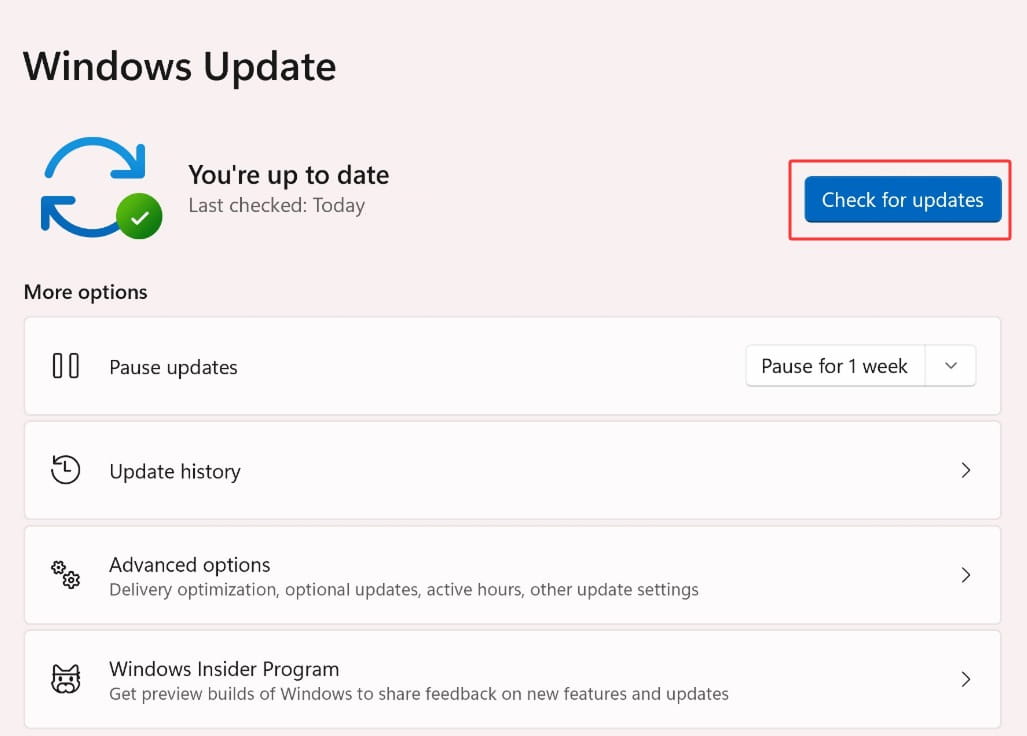
Step 3: Select updates, install them, and restart your PC. This makes sure that no updates are applied in an incorrect manner, including those of the drivers.
Method 3. Update My PC Drivers with Commands
How to update all drivers at once with commands? If you are familiar with command lines, then Command Prompt will also be an alternative. This tool is useful for bulk updates and system setups. Many IT users prefer this method to update drivers on pc quickly. However, it requires correct commands and driver files, so beginners may find it difficult.
How to Update Drivers on Windows Devices Using Commands
Step 1: Open Command Prompt as administrator. You can search “cmd” in the Start menu, then right-click and choose “Run as administrator.”
Step 2: Prepare your driver files in a folder. Make sure they include .inf files because the command uses them for installation.
Step 3: Use the cmd commands to update all drivers.
Type the command: pnputil /add-driver "E:\Drivers Backup\*.inf" /subdirs /install /reboot
Then press Enter to start the process.
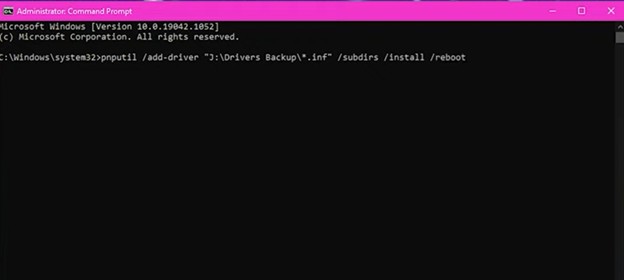
Step 4: Wait for the installation to finish and allow the system to reboot. This step completes the update and applies all drivers. This is how you update drivers using cmd.
Drawbacks
This method requires basic technical knowledge, so beginners may find it confusing when learning “how to update my driver”.
You must already have the correct driver files downloaded; otherwise, the command will not work.
A wrong command or file path can cause errors during the process.
FAQs About Updating Drivers on PC
Updating drivers can feel confusing, especially for beginners. Here are simple answers to common questions.
Q1: What Drivers Do I Need to Update for Gaming?
Graphics drivers, audio drivers, and network drivers should be updated. These drivers influence the performance and stability of the games. To improve your gaming experience, you should regularly update drivers on the pc.
Q2: When to Update Drivers on PC?
When your PC encounters issues, like errors, crashes, or slowness, you might try updating drivers. They should also be updated when significant system updates or new drivers are released.
Q3: How to Update All Drivers at Once with Commands?
Command Prompt can be used with the pnputil command. It installs several drivers simultaneously. This is very effective for advanced users who are familiar with how to update all the drivers simultaneously safely by command.
Q4: What Happens If You Don't Update Drivers?
Failure to update the drivers can slow down or crash your PC, or cause hardware failure. Plus, the level of security risks will also be higher in case drivers remain out of date.
Final Thoughts
Updating your drivers is a good way to ensure your PC runs smoothly and does not fail regularly. But “how to update drivers” should not be challenging. You may solve it via several methods easily, such as manual updates, the Windows tools, and automatic solutions. Even though any of the methods is workable, computer-assisted tools save time and make the work easier.
To make it simple, IObit Driver Booster can be your go-to. It helps with updating drivers on the computer automatically and keeping your system stable. Download IObit Driver Booster today to manage all updates easily and improve your PC performance without hassle.
Driver Booster Free
- Automatically scan and update drivers.
- Update game ready drivers for peak gaming performance.
- Identify and fix various common of hardware issues.
- Boost 30% of system performance for fast & smooth running.