Outdated NVIDIA drivers may cause several issues, decreased gaming performance, system crash, incompatibility, security risks and so on. Keeping your GPU updated is one of the solutions to maintain your PC's health. How to update NVIDIA drivers? In 2005, GeForce Experience was the main app for automatic driver updates. While in 2006, the game changed. The NVIDIA app has replaced GeForce Experience. Users need to adapt to the new platform and the new driver update method.
In this guide, we'll walk you through ways on how to update your NVIDIA drivers, both manual and automatic ways with detailed steps.
Brief Understanding: What is Custom Installation & Express Installation
Before explaining how to update the NVIDIA drivers, let's understand the difference between custom installation and custom installation. This will help users choose the installation method that best suits their needs.
Custom Installation:
It provides a menu of choices, allowing you to pick exactly what to include in your system. More importantly, you have the “clean installation” option, which resets every NVIDIA setting to factory defaults.
Express Installation:
Automatically installs or updates all available components, including the Graphics Driver, PhysX System Software, and HD Audio Drivers, and maintains your current NVIDIA Control Panel settings.
How to Automatically Update NVIDIA Graphics Drivers with NVIDIA App?
The NVIDIA app is a unified offiical software for GeForce Experience and the NVIDIA Control Panel. In this app, you can complete what you want directly. The key features of the NVIDIA app include the following.
-
Unified control center
A single interface for graphics settings, display options, and game optimization.
-
Driver management
Install the latest NVIDIA drivers. Easily switch between Game Ready drivers and Studio drivers.
-
AI filtered
AI-powered exclusive tools like RTX HDR and RTX Dynamic Vibrance to improve your gaming experience.
-
Redesigned in-game overlay
Improved user interface to quickly access features when playing games. Capturing 4K 120 FPS AVI video is available.
Follow the steps below for NVIDIA automatic driver updates.
Step 1. Download the NVIDIA App from its official site.
Step 2. Go to the “Drivers” tab on the left sidebar.
Step 3. Click “Check for updates” and then click the “Download” button to download the latest driver.
Step 4. After the download finishes, click the “Install” button. Choose “Express Installation” for a quick update or “Custom Installation” for a clean install.
How to Manually Update NVIDIA Drivers in Different Ways?
Method 1. From NVIDIA Driver Download Page
1. Go to NVIDIA driver download page.
2. Search the latest driver in the search box, according to product category, series, or operating system. Here we take GeForce as an example.
3. Then you’ll be directed to the result page, which shows the latest drivers and their information. Click “View” to the detailed page and click “Download” to download the selected driver.
4. Run the downloaded file and follow the on-screen instructions.
Method 2. Use the NVIDIA Control Panel
1. Access NVIDIA Update Control Panel by right-clicking on the windows desktop and selecting “NVIDIA Control Panel”.
2. Click “Help” on the top menu and choose the “Updates” tab to check for newer drivers.
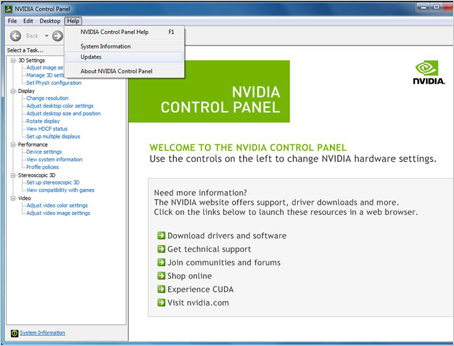
3. Download and run the file.
Method 3. From Windows Device Manager
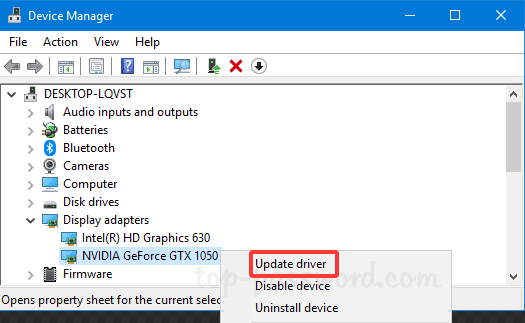
1. Right-click the Start menu and select “Device Manager” (or enter Device Manager in the search box on the task bar).
2. Expand “Display adapters” and right-click your NVIDIA GPU.
3. Select “Update driver” and choose “Search automatically for drivers”.
How to Auto Update NVIDIA Drivers with Driver Booster?
To automatically update PC drivers not only limited to NVIDIA graphics and studio drivers, Driver Booster developed by IObit is definitely a great option for its in-time and automatic driver updating. Also the free version can meet your basic needs.
Follow the steps below to update NVIDIA Drivers.
Step 1. Free download Driver Booster that supports Windows 11/10 and ARM64 devices.
Step 2. Launch Driver Booster on your PC. Click the “Scan” button to scan your computer drivers.
Step 3. On the result page, you can click the “Update” button to update the selected driver, or select several drivers to update with one-click.
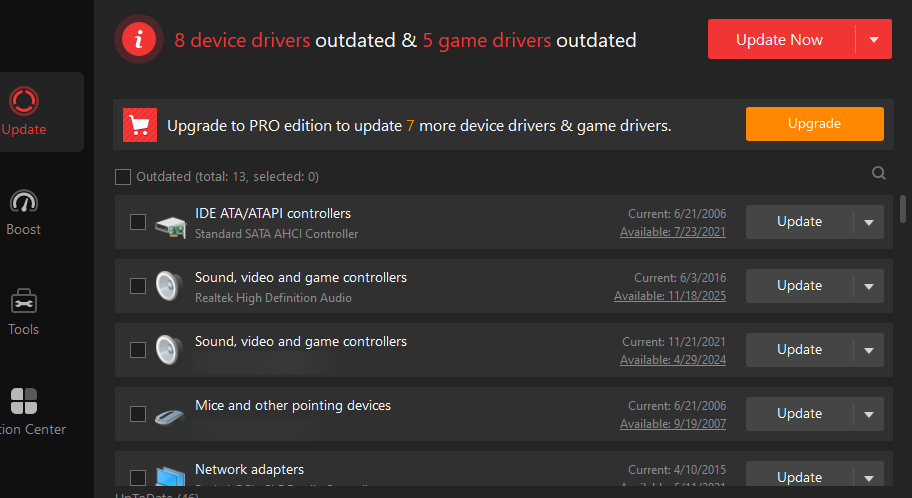
Step 4. After installation, reboot your PC to make it take effect.
Why choose Driver Booster for automatic NVIDIA driver updates?
Install drivers from NVIDIA, INTEL, AMD, etc.
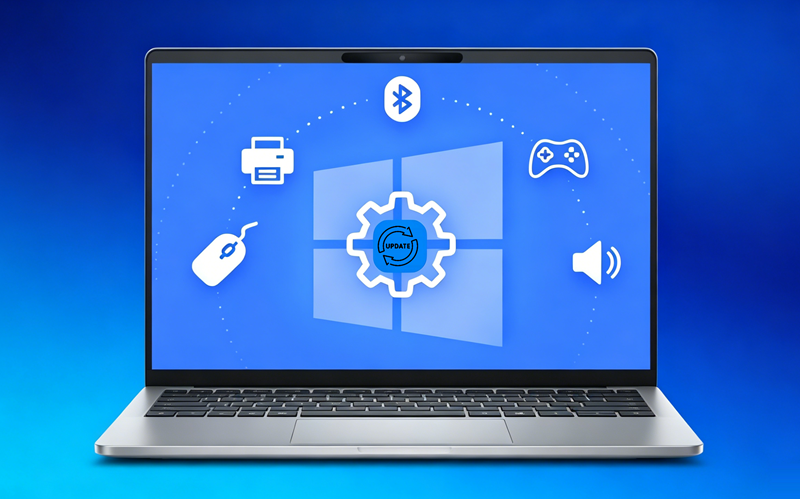
Driver Booster has a powerful driver database from 1200+ major brands. It allows you to update kinds of hardware drivers, from GeForce to printer, audio, and more. Each driver is verified with Microsoft WHQL and IObit security scan, making your every update safe.
Driver Booster Free
- Automatically scan and update drivers.
- Update game ready drivers for peak gaming performance.
- Identify and fix various common of hardware issues.
- Boost 30% of system performance for fast & smooth running.

Update multiple drivers at once
For your convenience, Driver Booster enables you to update multiple drivers with one click. Just select drivers, click the update button, and these drivers could be installed one by one automatically.
Fast divers scan and match
Another key reason we recommend Driver Booster is that it automatically scans and matches the most suitable driver version for your current device. So you can install the most appropriate driver version without manually searching and selecting.
Backup & restore
Backup drivers before installation. If any problem occurs after installing the new driver, navigate to the “Backup & Restore” part under the Tools tab to select the previous version and roll it back instantly. It is really effective when you encounter black screen after NVIDIA driver update.
FAQs about NVIDIA Drivers
What is an NVIDIA driver?
An NVIDIA driver is a kernel-mode software that acts as a bridge between an NVIDIA graphics card (GPU) and the computer's graphics subsystem. Simply speaking, it is a kind of translator to guide how your computer “talks” to the graphics card.
Why should you update NVIDIA drivers?
Updating NVIDIA drivers to the latest version is always beneficial.
Get better PC performance: games run smoother with higher frame rates.
Fix bugs: it repairs glitches, like weird flickering or crashes.
Access new features: It adds support for the latest technology and newly released games.
Types of NVIDIA Drivers
According to its features, NVIDIA drivers are mainly divided into the 3 categories.
-
Game Ready Drivers (GRD):
Prioritizes day-one optimization, stability, and performance for the latest games, especially when a major "AAA" game is launched.
-
Studio Drivers (SD):
Optimize stability and reliability for applications like Adobe Premiere, Blender, less frequent.
Conclusion
The NVIDIA app is the official app to update NVIDIA drivers automatically. Besides, you can perform driver updating without downloading any app, as we mentioned in the second part which illustrates how to manually update NVIDIA drivers. For in-time backup and restore, Driver Booster is recommended to update Windows drivers like NVIDIA and INTEL. Custom settings enable you to schedule when to update.