So, you’ve finally decided to part ways with Spotify, or maybe you are looking for how to uninstall Spotify and give it a fresh start because the app’s been acting up lately. Whatever your reason, you’re not alone. Whether it’s clearing up disk space that’s been eaten alive by cached songs, fixing persistent crashes, or doing a clean reinstall to resolve playback glitches, removing the app properly is the first step. Here’s the thing, though: simply clicking “Uninstall” doesn’t always get the job done. Leftover files, registry entries, and cached data can stick around and take up space long after the app is “gone.” That’s why in this guide, we’ll introduce multiple ways to uninstall Spotify completely, whether you’re on Windows or Mac.
How to Uninstall Spotify on PC Completely Without Leftovers
Now, before we get into the manual stuff, let me introduce you to something that’ll save you a ton of headaches: IObit Uninstaller. If you’ve ever uninstalled a program only to find random folders and registry keys still hanging around, you know exactly why a dedicated uninstaller is worth its weight in gold.
IObit Uninstaller is widely regarded as the best uninstaller for Windows 11,10, and more, because it doesn’t just remove the app: it hunts down every single trace and wipes it clean, which is totally different from Windows’ built-in tool.
IObit Uninstaller Free
- Complete forced uninstallation for stubborn programs.
- Uninstall a batch of programs at once.
- Scan and remove leftover files, folders, and registry entries.
- Support the management of Universal Windows Platform apps.

Clean Uninstall Spotify and More Apps for Free in 1 Click
With this free program uninstaller, you can uninstall Spotify along with registry keys, caches, and all leftover folders in 1 click. Plus, you can uninstall multiple apps at once and remove them in batch.
Scan for Leftovers After Uninstalling Spotify
IObit stands out with its Software Health feature, which scans for leftover files, outdated caches, and unnecessary notifications after uninstalling Spotify.
Remove Stubborn Apps with Uninstall Issues
Ever searched “how to uninstall Spotify on PC” only to see an error message or find the Uninstall button grayed out? IObit Uninstaller can help. Its Force Uninstall and Stubborn Program Remover features are designed to remove apps that won’t uninstall normally.
How to Uninstall Spotify Completely
Step 1: Download the latest version of IObit Uninstaller, and install it.
Step 2: Once the program is open, you’ll see a list of all your installed apps. Use the search bar at the top to type “Spotify”.
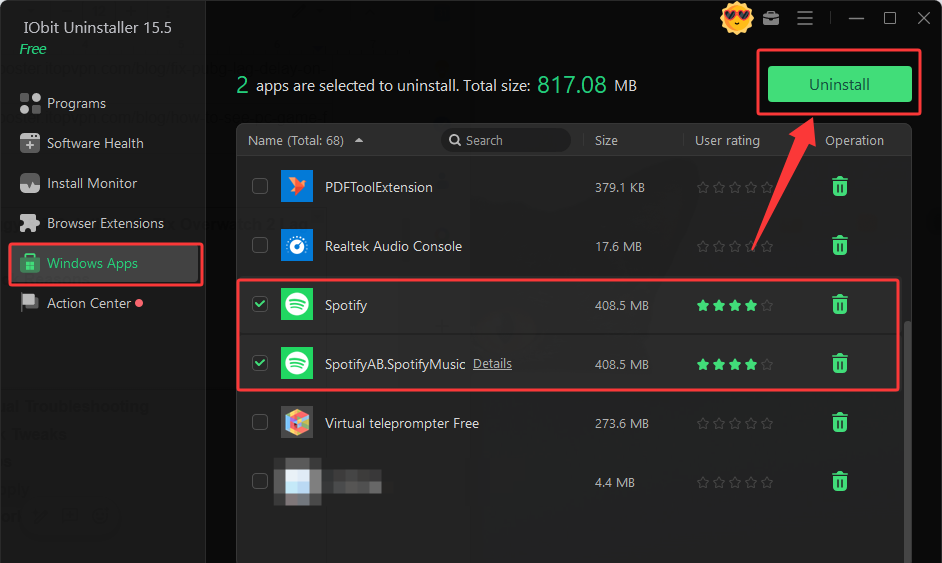
Step 3: Or, go to Windows Apps if you have installed the app from the Microsoft Store. Find Spotify from the list and click the trash can button to uninstall it.
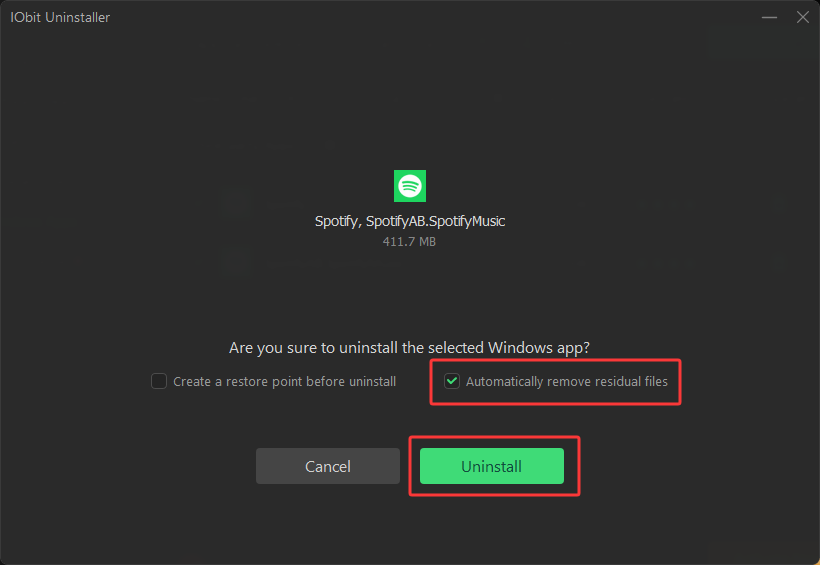
Step 4: Tick the boxes for “create a restore point before uninstall” or “automatically remove residual files” if you like, then hit the Uninstall button. The program will automatically clean all registry keys, useless configuration files, and unwanted info.
And don’t forget to head over to “Software Health” to catch any remaining junk from other apps uninstalled previously. This is how you uninstall Spotify and the apps you don't want. Plus, it also uninstalls browser extensions easily.
How to Uninstall Spotify on Windows
Alright, so maybe you don’t want to download third-party software, and that’s totally fine. Then we can turn our attention to the next method about how to uninstall Spotify on Windows. But fair warning—these methods aren’t perfect, and they usually leave leftovers behind. Still, if you’re in a pinch, they get the job done.
1. Uninstall Spotify in Windows Settings
The most straightforward way to uninstall Spotify on PC and that includes how to uninstall Spotify Windows 11and 10 is through the Windows Settings menu. Windows has a built-in feature called “Apps & Features” (or “Installed apps” on Windows 11) that lets you manage and remove programs.
The downside? It only removes one app at a time, and it doesn’t do a great job of cleaning up leftovers. Registry entries, cache files, and user data often stick around even after the app is supposedly gone. But for a quick removal, it works. Let's see the details about how to uninstall Spotify on PC via Windows settings.
Step 1. Press Windows + I to open Settings.
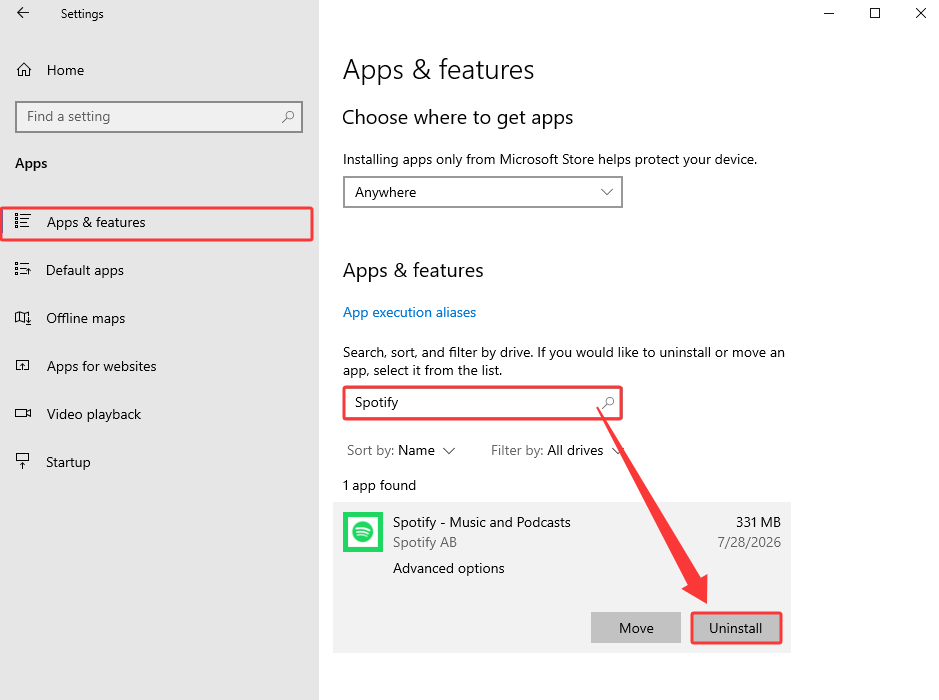
Step 2. Go to Apps > Installed apps in Windows 11, and Apps $ features in Windows 10.
Step 3. Scroll down or use the search bar to find Spotify.
Step 4. Click the three dots (⋮) next to Spotify and select Uninstall. Confirm when prompted.
2. Uninstall Spotify from Microsoft Store
If you installed Spotify through the Microsoft Store, you can also uninstall it directly from there. This method is pretty similar to the Settings approach, but it’s worth knowing in case the Settings menu isn’t cooperating. It's kind of like when you need to uninstall Microsoft Edge – there's a specific way to do it through the Store, and the same logic applies here.
The Microsoft Store version of Spotify can sometimes be tricky to remove—some users have reported errors like 0x80073cfe when trying to uninstall. If that happens, you might need to force uninstall programs to power through the issue and get rid of it.
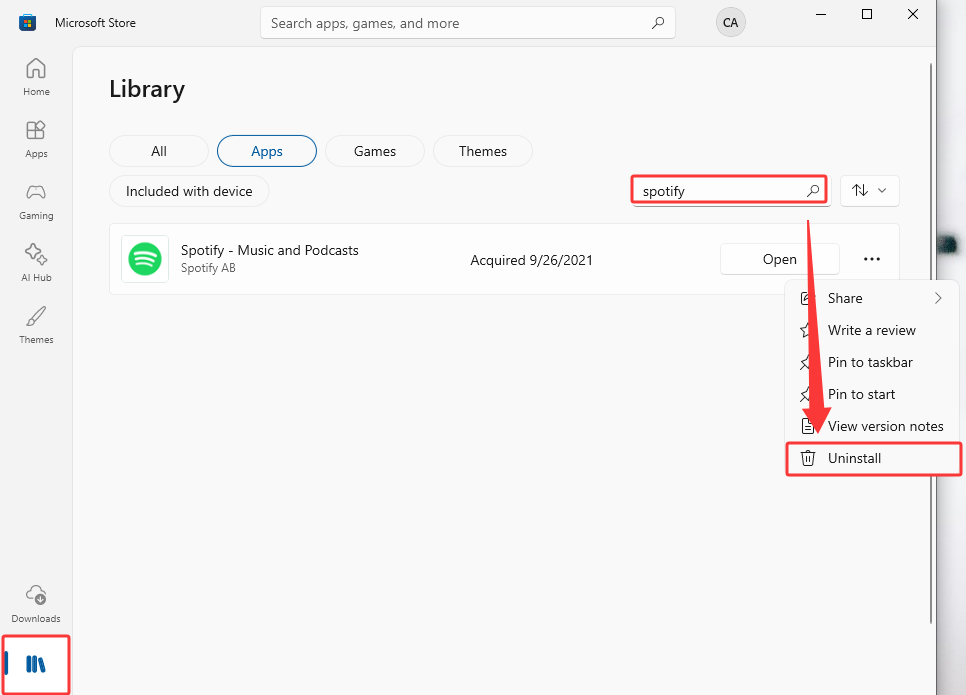
How to uninstall Spotify from Windows via Microsoft Store? Here are the steps.
Step 1. Open the Microsoft Store app.
Step 2. Click on your profile picture in the top right and select Library.
Step 3. Find Spotify in your list of installed apps.
Step 4. Click the Uninstall button next to it.
3. Clean Leftovers Manually
Okay, so you’ve uninstalled Spotify using one of the methods above. But if you want a truly clean slate, you’ll need to roll up your sleeves and dig into the hidden folders where Spotify likes to stash its files. This is especially important if you're deleting Spotify downloads that might still be taking up space even after the app itself is gone – those cached songs don't always disappear on their own.
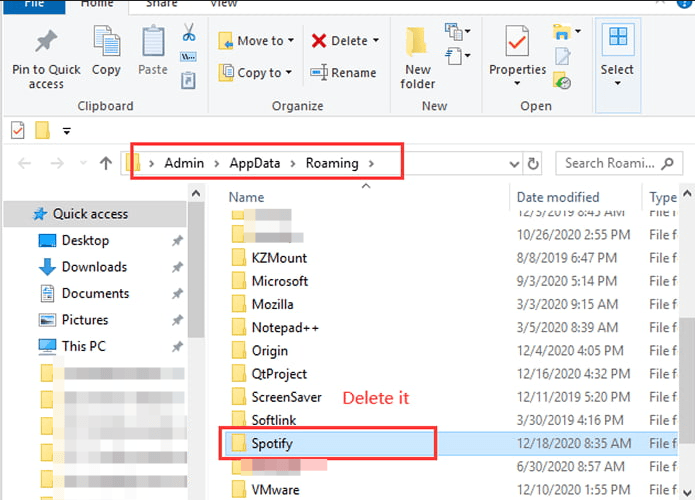
Step 1. Hit Windows + R on your keyboard – that’ll pop open the Run box.
Step 2. Type %appdata% and hit Enter. This opens the Roaming folder. Look for a folder named Spotify and delete it if it’s still there.
Step 3. Go back to the Run dialog and type %localappdata%. Delete any Spotify folder you find there as well.
Step 4. Clear the Recycle Bin to delete the files permanently.
Pro tip: If you’re familiar with the registry, you can also open regedit and search for any remaining Spotify entries—but be careful, as messing with the registry can cause system issues if you’re not sure what you’re doing.
How to Uninstall Spotify from Mac
Now, if you’re on a Mac, the process is a bit different—but the same principle applies: dragging the app to the Trash isn’t enough. Spotify leaves behind cache files, preferences, and support data in various hidden folders that can take up significant space over time. So how to uninstall Spotify from Mac?
Step 1. Quit Spotify completely. Click on Spotify in the menu bar and select Quit Spotify. If it won’t quit, you can force quit via Activity Monitor.
Step 2. In Finder, go to the Applications folder, right-click on Spotify, and choose Move to Trash.
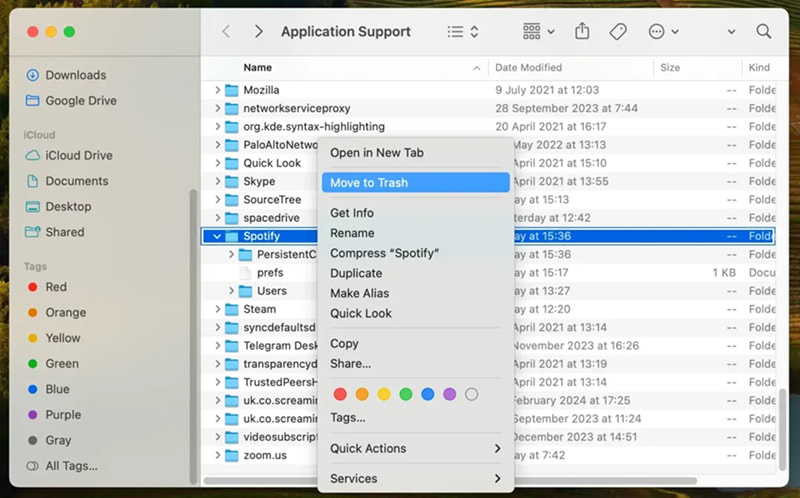
Step 3. Now for the hidden files. In Finder, press Cmd + Shift + G and paste the following paths one by one, deleting any Spotify-related folders or files you find:
~/Library/Application Support/Spotify
~/Library/Caches/com.spotify.client
~/Library/Preferences/com.spotify.client.plist
Step 4. Right-click the Trash icon in your Dock and select Empty Trash to permanently delete everything.
FAQs About Uninstalling Spotify
Now, it’s time to tackle some common questions that pop up when people try to figure out how to uninstall Spotify.
Q1: What Happens If I Uninstall Spotify?
Your Spotify account stays intact—uninstalling the app doesn’t cancel your Premium subscription or delete your playlists. Those are stored in the cloud and will be there if you ever reinstall. However, any songs you’ve downloaded for offline listening will be gone, and you’ll lose your local cache files.
Q2: Can’t Uninstall Spotify, What to Do?
If you can’t uninstall Spotify through the normal methods—maybe the Uninstall button is grayed out, or you keep getting error messages—your best bet is to use IObit Uninstaller’s Force Uninstall feature. It’s designed specifically for stubborn apps that refuse to leave.
Q3: Why Is Spotify Not Showing in Control Panel?
If you installed Spotify from the Microsoft Store, it won’t show up in the traditional Control Panel under “Programs and Features.” Instead, you’ll need to go through Settings > Apps > Installed apps on Windows 11, or use the Microsoft Store’s Library to uninstall it.
Q4: Does Uninstalling Spotify Delete My Playlists?
Nope! Your playlists, liked songs, and listening history are all tied to your Spotify account, not your device. As long as you remember your login credentials, everything will be waiting for you when you reinstall.
Q5: How Do I Perform a Clean Reinstall of Spotify?
A clean reinstall means uninstalling the app and deleting all leftover files before reinstalling. Follow the manual cleanup steps I mentioned earlier for Windows (deleting %appdata%\Spotify and %localappdata%\Spotify) or Mac (clearing the Library folders), then download a fresh copy from Spotify’s official website or the Microsoft Store.
Final Thoughts
Still wondering how to uninstall Spotify on both Windows and Mac? By now, we have got multiple ways to do it! Whether you’re using the built-in Windows tools, going the manual route, or opting for the most thorough solution with IObit Uninstaller, you now have all the knowledge you need to get it done. But if you want to save time and make sure nothing gets left behind—no registry keys, no cache files, no stubborn leftovers—IObit Uninstaller is the best choice for Windows 11. Give it a try!