Xbox Game Bar is a built-in gaming overlay included with Windows that allows users to record gameplay, capture screenshots, monitor system performance, and communicate with Xbox friends while gaming. Although many players find the feature useful, others prefer removing it to reduce background processes, eliminate pop-ups, or improve gaming performance. If you are searching for how to uninstall Game Bar, there are several effective methods available.
Why Do People Uninstall Windows Game Bar?
There are several reasons why users may want to uninstall Windows Game Bar from their computers. Competitive gamers often prefer lightweight systems with fewer background services running during gameplay. Others simply do not use Xbox-related features and want to declutter Windows. Besides that, there are many other common reasons, including:
Improving gaming performance
Reducing CPU or RAM usage
Stopping recording notifications and overlays
Preventing background recording services
Removing unwanted Xbox applications
Avoiding accidental keyboard shortcuts
Whatever your reasons, you can find feasible ways to remove Game Bar from your computer. But before that, there are some things to note.
Things to Do Before You Uninstall Game Bar
Before removing Xbox Game Bar, it is a good idea to close any gaming-related background processes and save important recordings or clips stored on your computer. Since Game Bar is tied to several Windows gaming services, administrator permissions may also be required during the removal process.
Users who frequently record gameplay should back up important video clips beforehand because uninstalling Game Bar may affect access to certain capture folders or settings. Additionally, restarting your PC before uninstalling can help prevent permission conflicts or locked background services.
Properly preparing your system can make the uninstall process smoother and help prevent incomplete removals.
How to Remove Game Bar from Windows 11
How to remove Game Bar? Windows 11 includes Xbox Game Bar as part of the operating system, but Microsoft still allows users to remove or disable it in most cases. The Settings app offers a convenient way to uninstall Xbox Game Bar directly from the Installed Apps section.
For users who want a quick and beginner-friendly solution, this method is usually the easiest option. However, because Game Bar is considered a built-in Windows feature, some systems may restrict complete removal through standard Settings menus.
If the uninstall option is unavailable or fails to work correctly, more advanced methods such as PowerShell or dedicated uninstall software like iObit Uninstaller may be necessary.
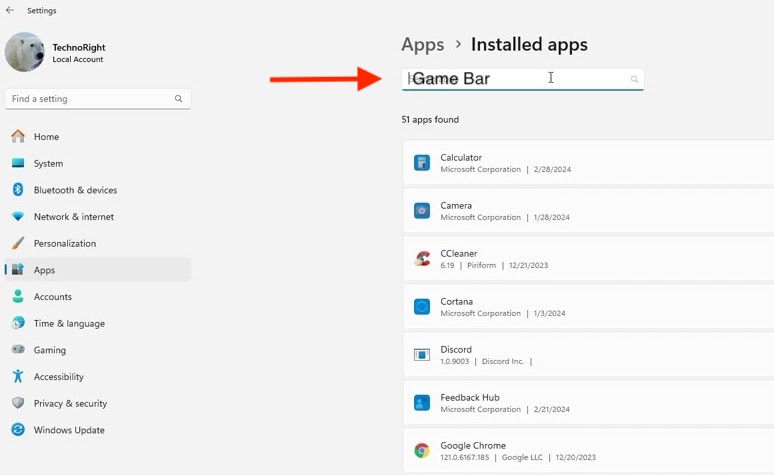
Here are the steps on how to uninstall Xbox Game Bar Windows 11.
Step 1. Press Windows key + I to open Settings.
Step 2. Go to Apps (sometimes Apps & features).
Step 3. Click Installed apps.
Step 4. In the search box, type Xbox Game Bar.
How to Uninstall Xbox Game Bar Windows 10
Windows 10 users can also remove Xbox Game Bar through the Apps & Features section in Windows Settings. This approach works similarly to uninstalling other desktop applications and is often sufficient for users who simply want to disable Game Bar functionality.
One advantage of using the built-in Windows uninstall method is that it does not require downloading additional software or using command-line tools. However, because Xbox Game Bar is integrated into the Windows gaming ecosystem, some residual files or services may remain after removal.
For users seeking a cleaner uninstall, combining this method with a dedicated uninstall tool can help remove leftover components more effectively.
Step 1. Open the Settings app by pressing Windows + I.
Step 2. Go to Apps > App & features.
Step 3. Find the Xbox Game Bar on the list.
Step 4. Select Xbox Game Bar and click Uninstall.
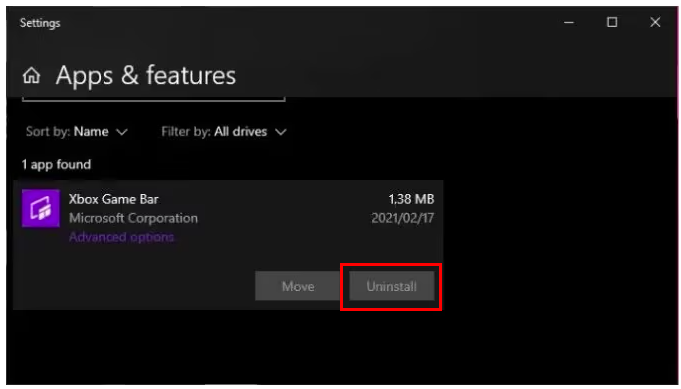
Step 5. Select Xbox Game Bar, then click Uninstall.
Tips: If you don’t see Uninstall, just go to Settings → Gaming → Xbox Game Bar. Turn Record game clips, screenshots, and broadcast using Game Bar Off. (Windows 10 may still prevent full uninstall on some systems.)
How to Uninstall Game Bar Using PowerShell
PowerShell is one of the most effective ways to completely remove the Xbox Game Bar. Since Game Bar is technically a Windows app package, PowerShell can directly target and remove the Xbox Gaming Overlay package from the system.
Many advanced users prefer this approach because it bypasses some of the restrictions found in the normal Windows Settings interface. It is also particularly useful when the uninstall button is missing or grayed out.
The main advantage of using PowerShell is that it can remove protected or stubborn Windows apps more thoroughly than the default uninstall methods. However, users unfamiliar with command-line tools may find it slightly intimidating compared to graphical uninstall options.
Despite that, PowerShell remains one of the fastest and most reliable ways to uninstall Xbox Game Bar completely.
Step 1. Right-click Start and select PowerShell (Admin).
Step 2. Enter the following command and press Enter:
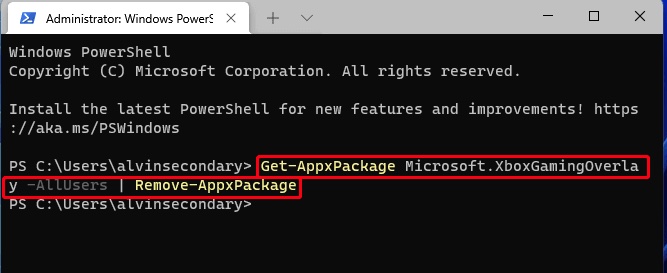
Step 3. Wait for the uninstall process to finish and then exit PowerShell.
Also Read: How to Uninstall Epic Games Launcher Completely on Windows and Mac >>
How to Completely Remove Xbox Game Bar Leftover Files
Uninstalling Xbox Game Bar removes the application itself, but some residual files, cache data, and registry entries may remain on your system. If you want a cleaner uninstall, follow these steps to locate and remove any leftover components.
Step 1. Delete Xbox Game Bar Cache and App Data
Press Win + R, type %localappdata%, and click OK.
Look for folders related to XboxGamingOverlay or Microsoft.XboxGamingOverlay.
Delete any associated folders you find.
Next, open %appdata% through the Run dialog and remove any Xbox Game Bar-related folders stored there.
Step 2. Remove Temporary Files
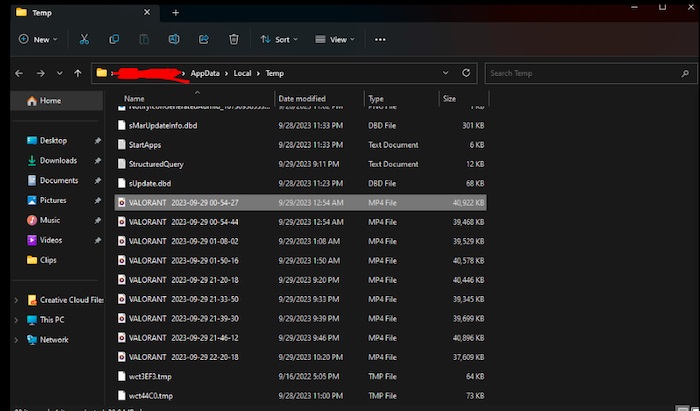
Press Win + R, type %temp%, and press Enter.
Delete temporary files and folders that reference Xbox Game Bar or Xbox services.
Step 3. Clean Up Registry Entries
Press Win + R, type regedit, and click OK.
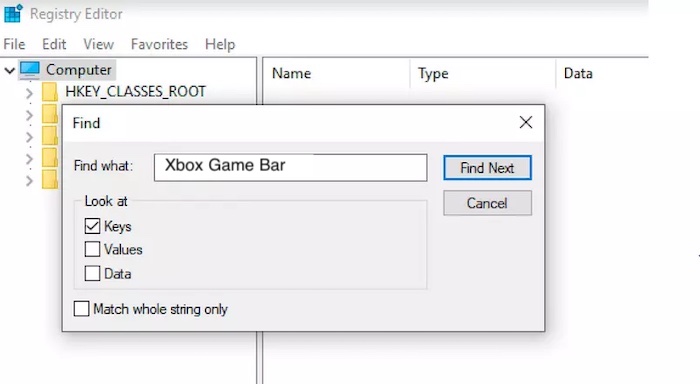
In Registry Editor, select Edit > Find.
Search for terms such as XboxGamingOverlay or Game Bar.
Note: Modifying the Windows Registry incorrectly can cause system issues. Consider creating a backup before making changes.
After removing the remaining files and registry entries, restart Windows to ensure all changes take effect and any locked files are released.
How to Uninstall Game Bar with IObit Uninstaller
For users who want a more complete and user-friendly removal solution, IObit Uninstaller is one of the best tools available. Unlike standard Windows uninstallers, it is specifically designed to remove stubborn applications, leftover files, registry entries, and hidden background services.
IObit Uninstaller Free
- Complete forced uninstallation for stubborn programs.
- Uninstall a batch of programs at once.
- Scan and remove leftover files, folders, and registry entries.
- Support the management of Universal Windows Platform apps.

One of the biggest advantages of using IObit Uninstaller is its ability to detect residual files that normal uninstall methods often leave behind. This can help free up storage space and prevent unnecessary Xbox services from continuing to run in the background.
Other than that, it includes many other outstanding features:
Complete Game Bar Removal: Uninstalls Xbox Game Bar and its associated components.
Leftover File Cleanup: Scans for and removes remaining files, folders, and cache data.
Registry Cleaning: Deletes obsolete registry entries related to Xbox Game Bar.
Force Uninstall: Removes Xbox Game Bar even when standard uninstall methods fail.
Windows App Removal: Supports uninstalling built-in Windows apps and bloatware.
Batch Uninstall: Allows you to remove multiple Xbox or Windows apps at once.
Deep System Scan: Detects and cleans residual data after uninstallation.
Software Health Check: Helps identify and remove leftovers from previous uninstalls.
Here’s how to remove Xbox Game Bar with IObit Uninstaller.
Step 1. Download and launch IObit Uninstaller from the official site on your computer.
Step 2. Open IObit Uninstaller and click Windows App from the left side bar. Find and select the Xbox Game Bar and its related files, and then click Uninstall in the upper-right corner.
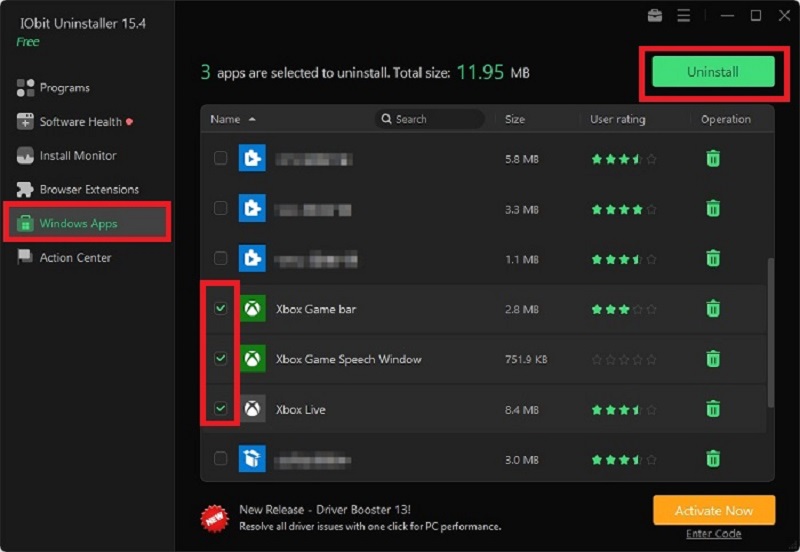
Step 3. Check the box next to “Automatically remove residual files” and click the Uninstall button to confirm your uninstall option.
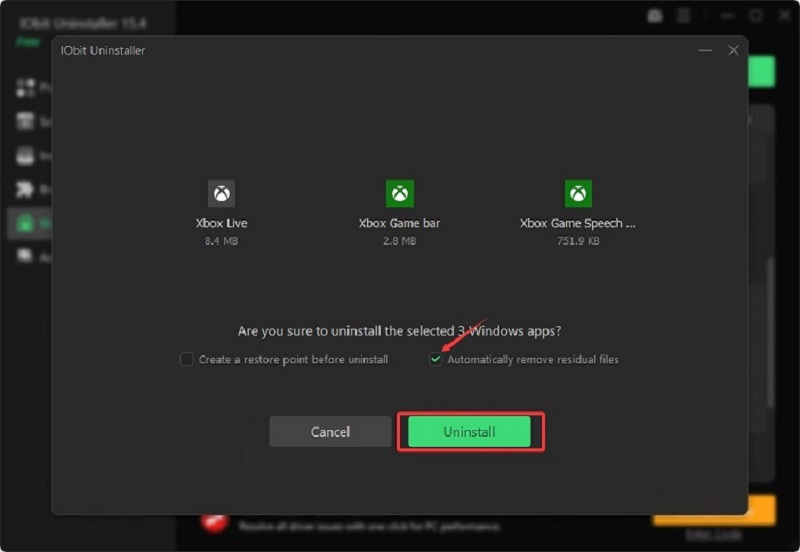
Step 4. Then, IObit Uninstaller will start removing Xbox Game Bar. Once done, click OK to exit IObit Uninstaller.
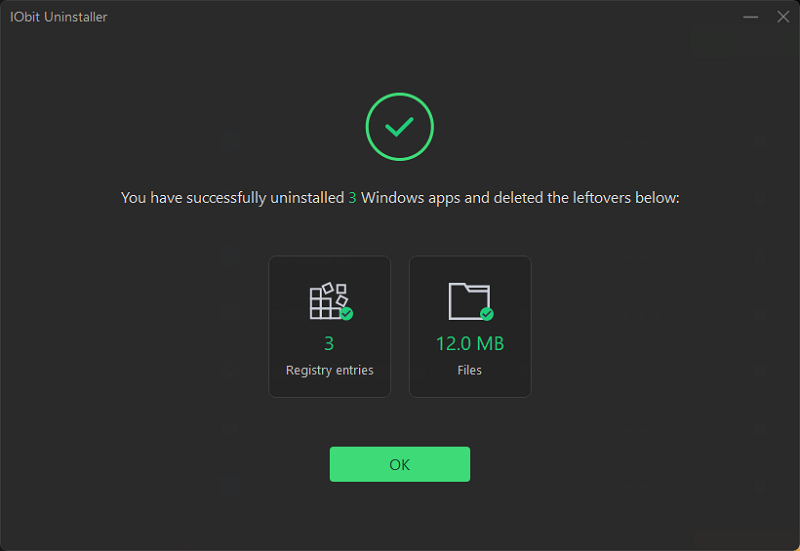
This is how you uninstall an app from your device. Besides, with this uninstaller, you can also uninstall Chrome extensions and plug-ins of other browsers.
How to Disable Xbox Game Bar Instead of Uninstalling It
Some users may not want to completely remove Xbox Game Bar but simply disable its background features. Disabling Game Bar can prevent recording pop-ups, stop keyboard shortcuts, and reduce background activity without fully removing the app from Windows.
This option is often recommended for users who occasionally use Game Bar features but do not want it constantly active. Disabling background recording and startup services can also improve system responsiveness on lower-end PCs.
Step 1. Press Windows + I to open the Settings menu.
Step 2. Click Gaming in the left sidebar, then select Xbox Game Bar.
Step 3. Toggle the option next to Record game clips, screenshots, and broadcasting using Game Bar to Off.
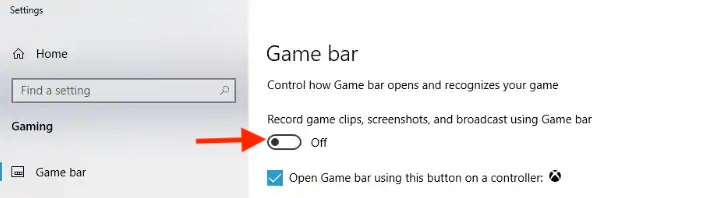
Is It Better to Disable or Uninstall Xbox Game Bar?
The answer depends on how you use your computer. Casual users who occasionally record clips may benefit more from simply disabling Game Bar rather than removing it entirely. This keeps the feature available while reducing background activity.
On the other hand, competitive gamers and users seeking maximum performance often prefer uninstalling Game Bar completely to minimize unnecessary processes and overlays.
Fortunately, Xbox Game Bar can always be reinstalled later through the Microsoft Store if needed.
Conclusion
Learning how to uninstall Game Bar is useful for anyone looking to reduce background processes, improve gaming performance, or remove unwanted Xbox features from Windows 10 and Windows 11. While the built-in Windows uninstall options work for many users, PowerShell offers a more advanced removal method for stubborn systems.
For the cleanest and easiest experience, IObit Uninstaller provides a convenient solution by removing leftover files, hidden services, and registry entries automatically. Whether you choose to disable or completely uninstall Xbox Game Bar, you can always reinstall it later if you decide to use Microsoft’s gaming features again.
IObit Uninstaller Free
- Complete forced uninstallation for stubborn programs.
- Uninstall a batch of programs at once.
- Scan and remove leftover files, folders, and registry entries.
- Support the management of Universal Windows Platform apps.