Microsoft OneDrive is a built-in cloud storage tool in Windows that syncs files across devices. While useful, some users choose to remove it to free up system resources, stop automatic syncing, or address privacy concerns. If you don’t rely on cloud backups, uninstalling it can simplify your system and reduce background activity. Anyway, removing OneDrive can offer many benefits. If this is what you want, this guide will show you how to uninstall OneDrive with all possible methods.

What to Know Before Uninstalling OneDrive
Before you go ahead to learn how to uninstall OneDrive on Windows 11 and 10, there are a few important things you should understand. Since OneDrive is deeply integrated into Windows, uninstalling it isn’t always the same as removing a regular app. Taking a moment to review these key points can help you avoid data loss and decide whether to uninstall or simply disable OneDrive.
Unlike removing ordinary applications, which deletes the data as well, uninstalling OneDrive does not wipe your data stored online/locally. Plus, a pre-step is recommended when removing OneDrive: unlinking, while normal apps don’t require any similar steps.
Uninstalling OneDrive VS Disabling OneDrive: Uninstalling removes the app entirely from your system, while disabling simply stops it from running or syncing—without deleting the application.
Make sure all your files are safely stored locally or backed up elsewhere before removal to prevent accidental data loss.
4 Regular Methods to Uninstall OneDrive
Now that you know the key things to consider before removing OneDrive, let’s look at the standard ways to uninstall it. Windows provides several built-in methods that are simple and effective for most users.
Whether you prefer using the Settings app, the traditional Control Panel, or command-line tools like Command Prompt, the following methods will guide you through uninstalling OneDrive step by step.
Notice: Uninstalling without unlinking first can cause sync issues, mess up your local and online files, and lead to broken paths. Therefore, please consider unlinking first based on your needs. To check how to unlink OneDrive, please move on to the 5th part.
1. Via Settings (Windows 11 & 10)
Step 1. Click the Start menu and select the gear icon.
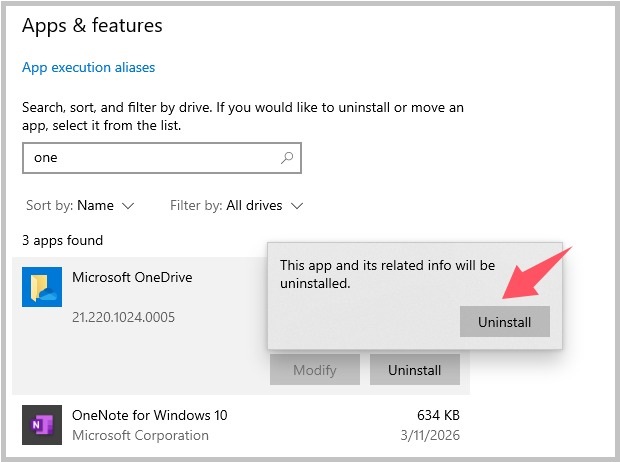
Step 2. Click on Apps, then select Installed apps (or “Apps & features” on Windows 10).
Step 3. Look up OneDrive in the search bar.
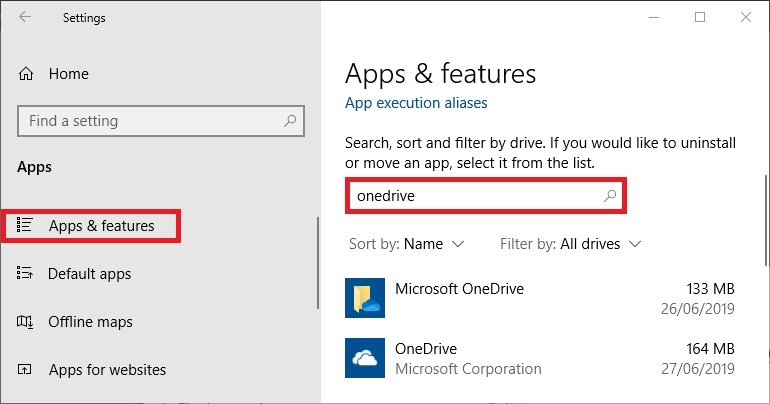
Step 4. On Windows 11, you can click the three dots next to it and choose Uninstall to remove it. On Windows 10, you can directly click it and choose “Uninstall” to remove it. If required, click the Uninstall button again to confirm your operation. This is how does Windows 11 uninstall OneDrive with Apps & features.
2. Using Control Panel
If you prefer a more traditional approach, the Control Panel is another reliable way to uninstall OneDrive. This method works especially well for users who are more familiar with classic Windows tools and want a straightforward way to remove programs.
Step 1. Press Win + R, type Control, and press Enter to open Control Panel.
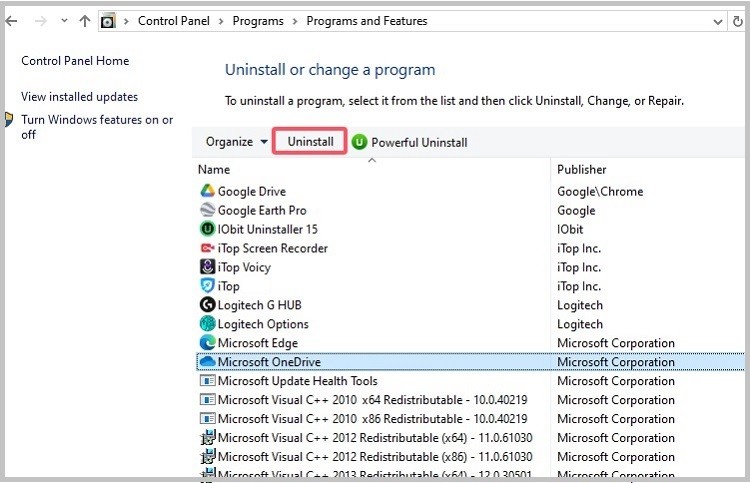
Step 2. Click Programs > Programs and Features.
Step 3. Find Microsoft OneDrive in the list.
Step 4. Right-click it and select Uninstall. Or you can select it and click Uninstall in the top menu to uninstall it.
3. With Command Prompt
If the standard methods don’t work or you want a more direct way to remove OneDrive, you can use Command Prompt. This method is especially useful for advanced users or when OneDrive doesn’t appear in the usual uninstall lists. Here are the steps.
Step 1. Click the Start button and type cmd to find Command Prompt.
Step 2. Right-click it and select Run as administrator.
Step 3. First, terminate any running OneDrive process: taskkill /f /im OneDrive.exe.
Step 4. Then run the uninstall command based on your system type:
For 64-bit Windows:
For 32-bit Windows:
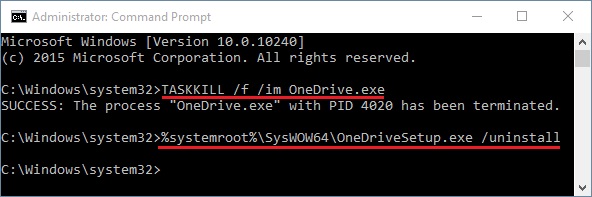
Step 5. Press Enter and wait for the process to complete.
4. Using a Reliable Uninstaller
If Windows 11 uninstall OneDrive doesn’t work or leaves behind residual files, it may be time to switch to a more thorough approach. A dedicated tool like IObit Uninstaller is designed to scan for leftover files, registry entries, and hidden components that standard uninstall options often miss. In the next section, we’ll show you how to use it to completely remove OneDrive and ensure no traces are left behind.
How to Uninstall OneDrive Completely
As introduced above, using a dedicated uninstaller can save you a lot of time finding the hidden files. If you’re looking for a faster and more thorough way to remove OneDrive, using IObit Uninstaller is a good option. It goes beyond the default Windows methods by not only uninstalling the program but also cleaning up leftover files, registry entries, and hidden remnants that are often missed. That makes it especially useful for people who want a clean, hassle-free removal without manually tracking down leftover files.
IObit Uninstaller Free
- Complete forced uninstallation for stubborn programs.
- Uninstall a batch of programs at once.
- Scan and remove leftover files, folders, and registry entries.
- Support the management of Universal Windows Platform apps.

Here are more features of IObit Uninstaller:
Uninstalls OneDrive along with all associated files and folders
Automatically scans for and deletes leftover data after uninstallation
Remove multiple unwanted programs at once
Eliminates stubborn or partially uninstalled apps
Tracks system changes during installations
Detects leftover files, invalid shortcuts, and other junk
How to remove OneDrive Windows 11 completely with IObit Uninstaller
Step 1. Download this OneDrive uninstaller on your computer.
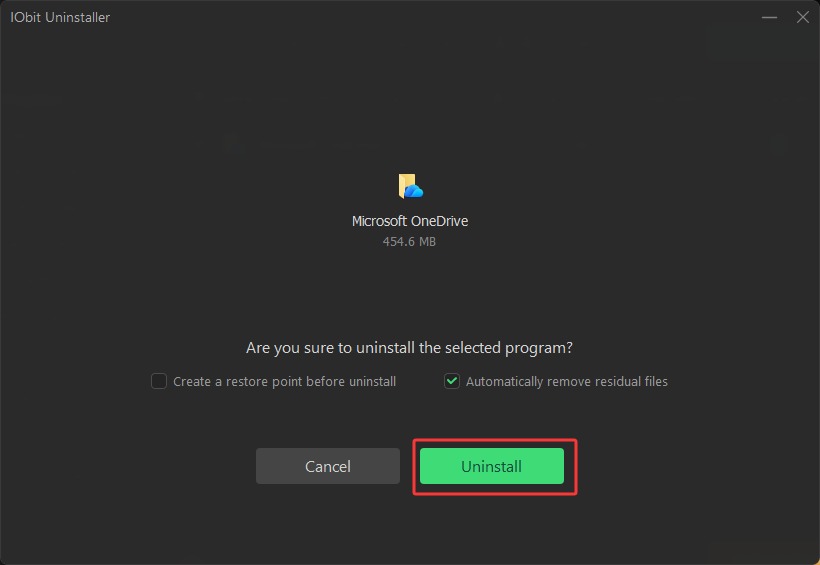
Step 2. Launch it and go to the main dashboard, where all installed apps are displayed. Type Microsoft OneDrive in the search bar. Once it appears, select it and click the Uninstall button.
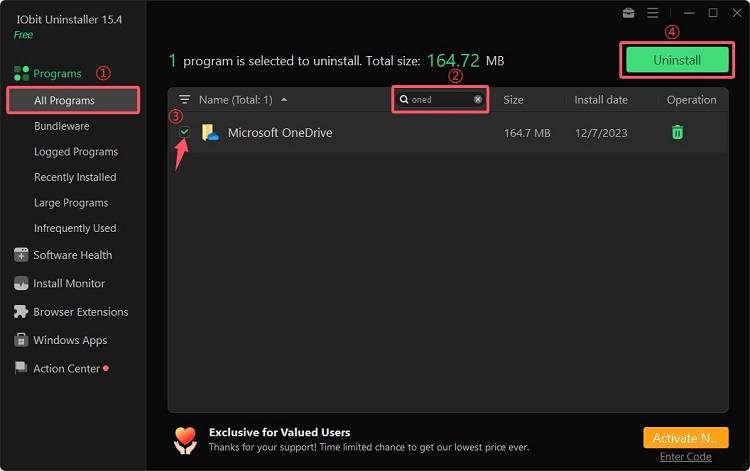
Step 3. Confirm your removal, and then IObit Uninstaller will remove OneDrive from your computer.
How to Completely Remove OneDrive Leftover Files
Even after uninstalling OneDrive, some leftover files and folders may remain on your system. These remnants can take up space or cause OneDrive to reinstall or sync unexpectedly. To ensure a complete removal, you’ll need to manually clean up these leftover files. Before deleting, ensure that you’re selecting the right folder, or you may lose important files.
1. Unlink and uninstall OneDrive
First, you’ll need to unlink OneDrive by going to Settings > Account > Unlink this PC. Then, go to Settings > Apps > Installed apps, find OneDrive, and select Uninstall.
2. Open File Explorer and delete these folders
C:\Users\YourUsername\OneDrive
C:\Users\YourUsername\AppData\Local\Microsoft\OneDrive
C:\ProgramData\Microsoft OneDrive
3. Clear registry entries
Press Win + R, type Regedit, and hit Enter.
Navigate to and delete: HKEY_CLASSES_ROOT\CLSID\{018D5C66-4533-4307-9B53-224DE2ED1FE6}
4. Clear startup entries
5. Use a cleanup tool
A tool like IObit Uninstaller can scan and remove hidden leftovers automatically, saving time and reducing risk.
IObit Uninstaller Free
- Complete forced uninstallation for stubborn programs.
- Uninstall a batch of programs at once.
- Scan and remove leftover files, folders, and registry entries.
- Support the management of Universal Windows Platform apps.
How to Disable OneDrive Without Uninstalling
If you’re not ready to remove OneDrive entirely, disabling it can be a quick and effective alternative. This option allows you to stop automatic syncing, reduce background activity, and keep the app from interfering with your workflow—without permanently deleting it from your system. Here are the steps.
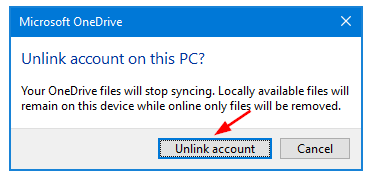
1. Unlink Account (Stop syncing)
Step 1. Click the OneDrive icon (cloud) in your taskbar notification area.
Step 2. Select the Help & Settings (gear) icon.
Step 3. Go to the Account tab and click Unlink this PC.
2. Stop Backup (Stop backup)
Step 1. Open OneDrive Settings via the gear icon.
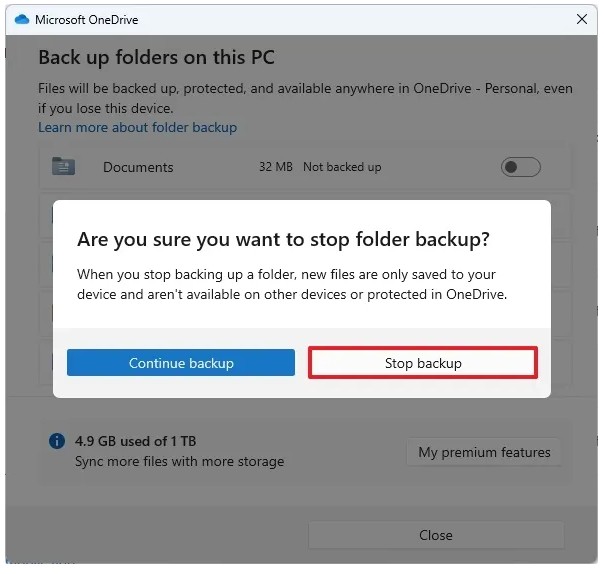
Step 2. Go to the Sync and backup tab and click Manage backup.
Step 3. Toggle off all options (Documents, Pictures, Desktop) and click Stop backup.
3. Disable OneDrive Backup
Tips: If needed, you can disable startup by opening Task Manager (Ctrl + Shift + Esc), navigating to the Startup apps tab, finding OneDrive, right-clicking, and selecting Disable.
Common Problems When Uninstalling OneDrive
Although uninstalling OneDrive is usually straightforward, it doesn’t always go perfectly. You may encounter issues like missing uninstall options, lingering files, or automatic reinstallation. Understanding these common problems in advance can help you avoid frustration and complete the process smoothly.
Problems and fixes:
OneDrive won’t uninstall - Open Task Manager and end all OneDrive.exe processes before retrying.
The uninstall option is missing - Use Command Prompt or PowerShell to force uninstall.
Files still syncing after uninstall - Open OneDrive > Settings > Account > Unlink this PC.
Leftover files are taking up space - Manually delete leftover folders, or directly use IObit Uninstaller to scan and remove them completely.
OneDrive reinstalled automatically - Disable OneDrive via Group Policy Editor or remove it again after updates.
FAQ
Can I uninstall OneDrive permanently?
How to uninstall OneDrive on Windows 10 or 11 completely? Or how to completely uninstall OneDrive? You can do it via Settings, Command Prompt, or tools like IObit Uninstaller. However, “permanent” removal isn’t always guaranteed—Windows updates or system resets may reinstall it. This also applies to how to uninstall OneDrive mac.
Why does OneDrive keep reinstalling?
This might be because:
Major Windows updates restore built-in apps
System resets or new user profiles re-enable it
OneDrive is deeply integrated into Windows
To prevent this, you can disable it by unliking your account instead of uninstalling.
Is it safe to remove OneDrive from Windows 11?
Yes, it’s generally safe. OneDrive is not required for Windows to function. Removing it won’t affect system performance or stability, but you’ll lose automatic cloud backup and sync features.
How do I stop OneDrive from syncing without uninstalling?
To stop OneDrive from syncing without uninstalling, you can pause syncing from the system tray icon or unlink your PC (Settings > Account > Unlink this PC), or disable startup via Task Manager.
Conclusion
How to uninstall OneDrive? Now you might have the answer. In this guide, we’ve covered multiple ways to uninstall OneDrive—from quick removal through Windows Settings to more advanced methods like Command Prompt and manual cleanup. While these built-in options work, they don’t always remove every leftover file or registry entry, which can lead to reinstall issues or clutter over time.
If you want a faster, cleaner, and more reliable solution, using a dedicated tool like IObit Uninstaller is a smart choice. It not only uninstalls OneDrive but also scans and deletes hidden remnants in just a few clicks.