Failed to meet the minimum system requirements of FF14? Had enough of the combat? Or simply have to remove it to regain large amounts of disk space? No matter what made you quit playing FFXIV, now you decide to uninstall it.
While simply removing it is not difficult at all, the leftovers, residual files, and blank folders are still eating up drive space and are annoying. If you are facing the same problem, stay tuned and learn how to uninstall FF14 completely in this blog.
How to Uninstall FFXIV Completely
Windows comes with a bunch of built-in features and tools to help users manage their applications, but to uninstall unwanted programs completely, the process will immediately become complex and sometimes dangerous if done via system commands.
Rather than manually removing apps, locating, identifying, and deleting residual files, why not turn to a professional app uninstaller that automatically does these for you? IObit Uninstaller automatically scans, detects, and deletes useless leftovers, duplicate data, and registry entries, freeing up your system space efficiently.
IObit Uninstaller Free
- Complete forced uninstallation for stubborn programs.
- Uninstall a batch of programs at once.
- Scan and remove leftover files, folders, and registry entries.
- Support the management of Universal Windows Platform apps.

Key features and edges:
• Uninstall FF14 for free without subscription plans; no credit card required.
• Automatically identify leftovers and clean thoroughly.
• List all on-device apps in 5 categories: large programs, recently installed, infrequently used, bundleware, and logged programs. Users can sort apps as they like.
• Bulk uninstaller that allows choosing multiple apps to remove in 1 go.
• Remove not only unwanted apps but also browser extensions and Windows pre-installed applications.
• Monitor all installations, logging system changes for future management.
Check how to delete FFXIV from PC easily without residual files left.
Step 1. Download and install IObit Uninstaller on your device. This program uninstaller is compatible with almost all Windows versions: Windows 11/10/8/8.1/7/Vista/XP.
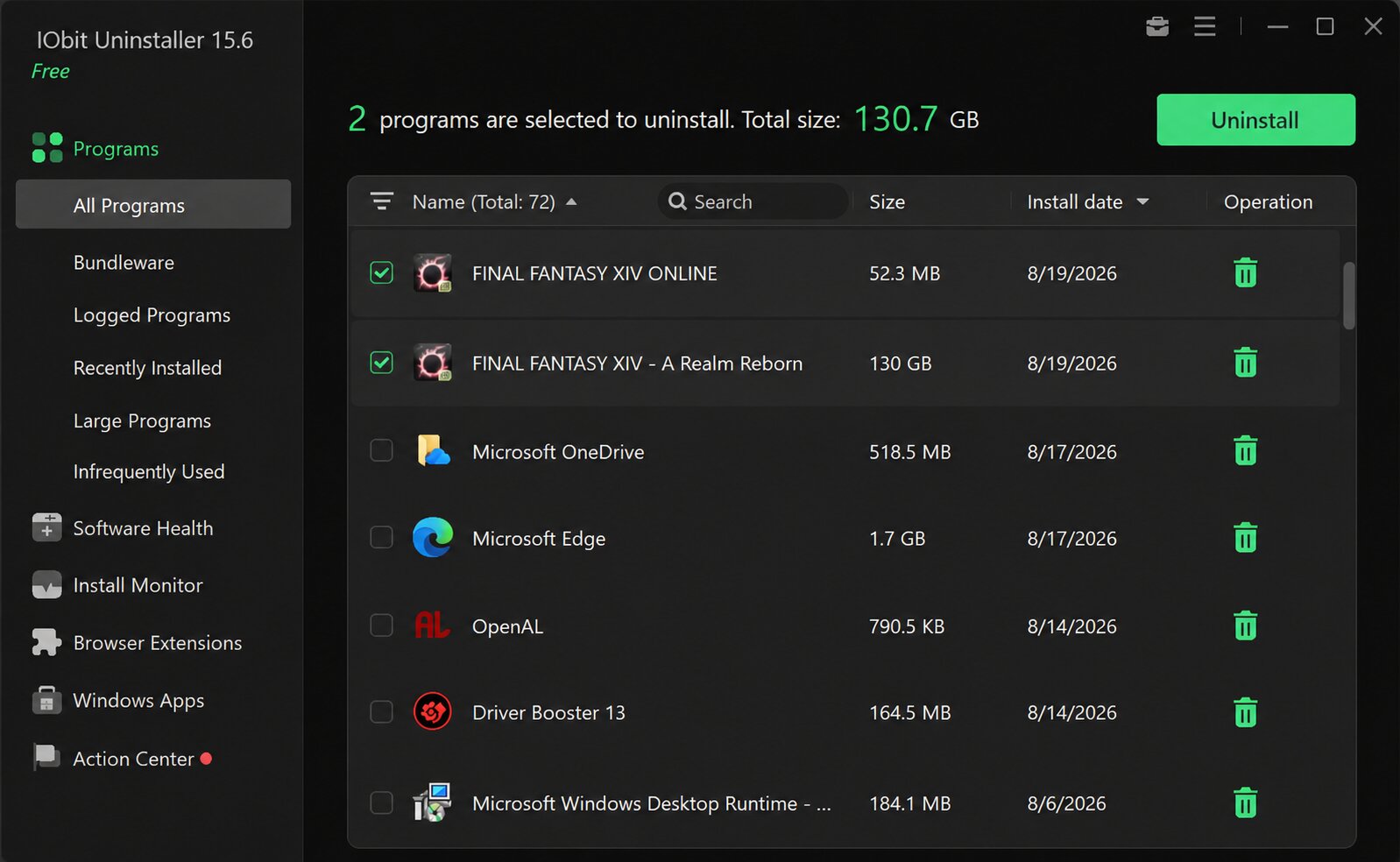
Step 2. Start the program; it will list all the applications you installed. In the All Programs, you might search for “Final Fantasy …” or sort the list by name, size, install date, etc., to locate them quickly. Then choose the FF14 games and launcher > click Uninstall.
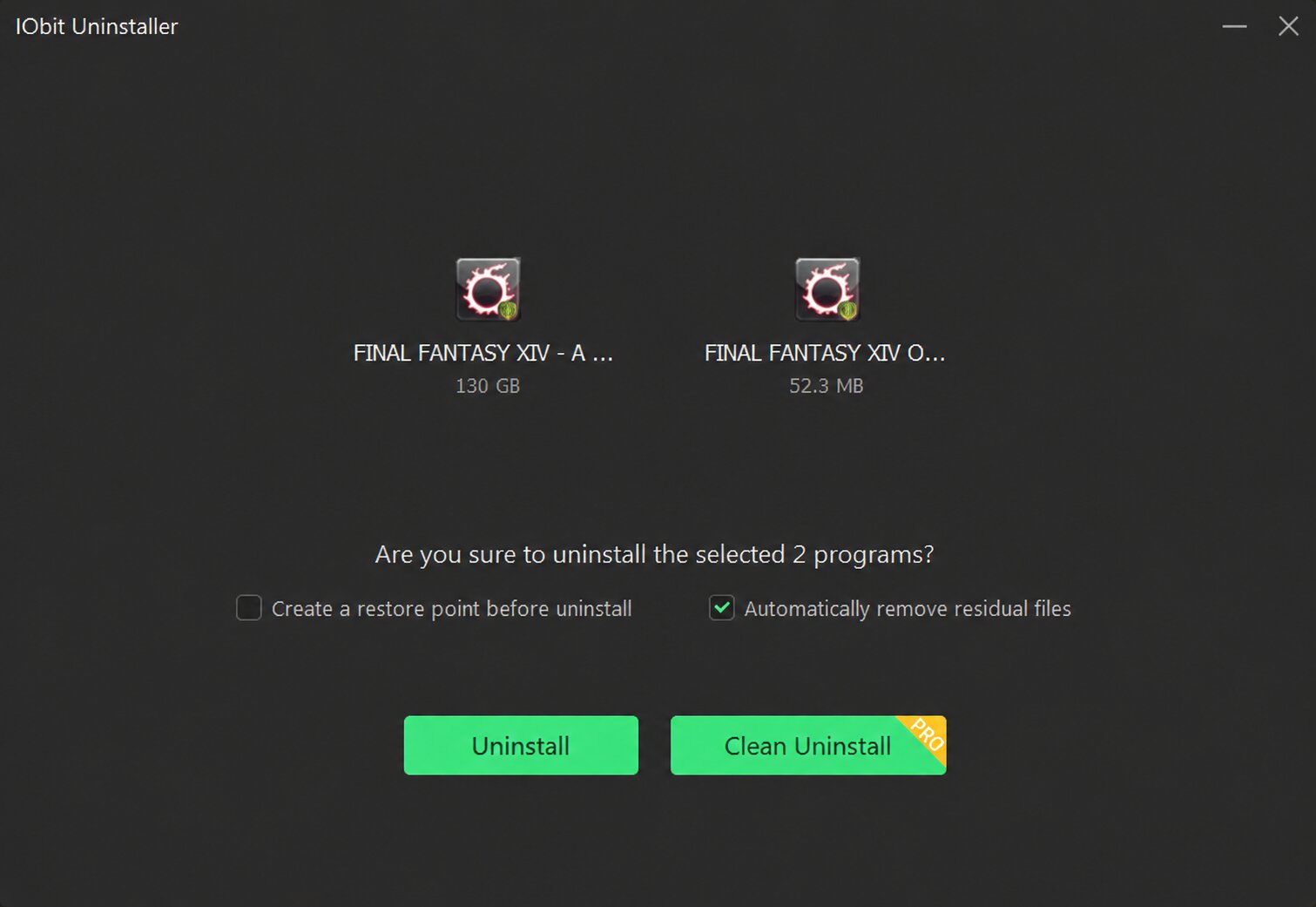
Step 3. Make sure the option “Automatically remove residual files” is toggled > click Uninstall. Tick “Create a restore point before uninstall” based on your preferences and needs.
Step 4. Wait for the uninstaller to process your files. When finished, click OK.
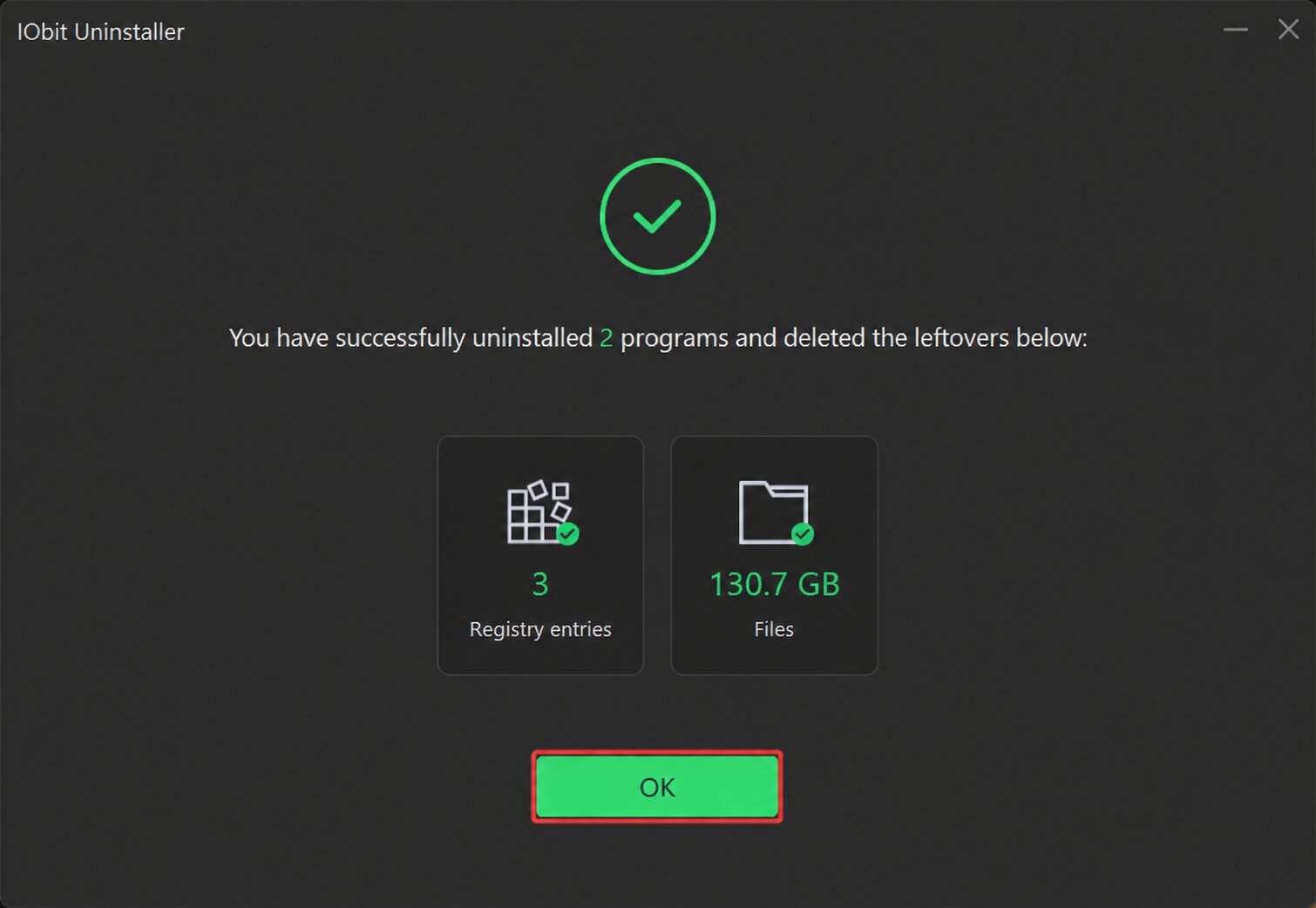
This is how to uninstall FFXIV along with leftovers and residual files. With this app remover, you can also easily uninstall Norton completely and any other programs as well.
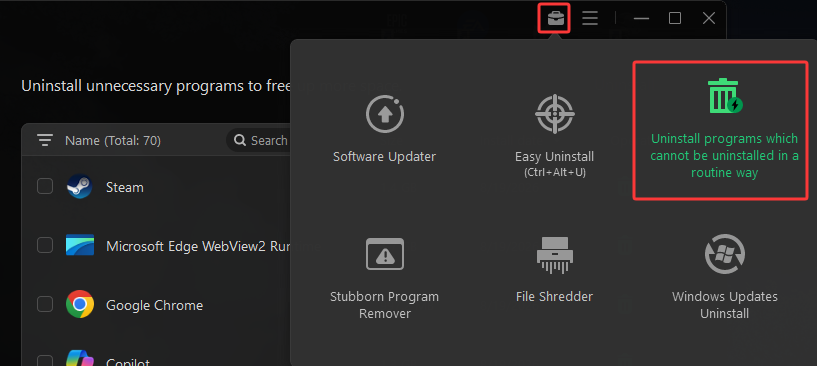
If any app runs into uninstallation issues, fails to uninstall, … simply force uninstall the program with the built-in Force Uninstall feature.
How to Uninstall Final Fantasy XIV Without Software
Can you uninstall FF14 without using any software? Of course, yes, just with a few more processes and manual operations. Check the following 3 manual methods.
1. Uninstall FF14 from Windows Settings
Windows provides a built-in app management feature, allowing users to modify and remove apps. This method is safe and easy to follow, while the most obvious shortcoming is that it does not allow users to batch uninstall multiple apps at once, so you have to remove unwanted programs 1 by 1.
Check how to uninstall FF14 via Windows Settings.
Step 1. Press Win+I or click the Windows Start Menu > Settings.
Step 2. Go to Apps > under Apps & features, search for Final Fantasy XIV in the app list.
Step 3. Click Uninstall to remove the app. If the FF14 uninstallation notice pops up, confirm your choice.
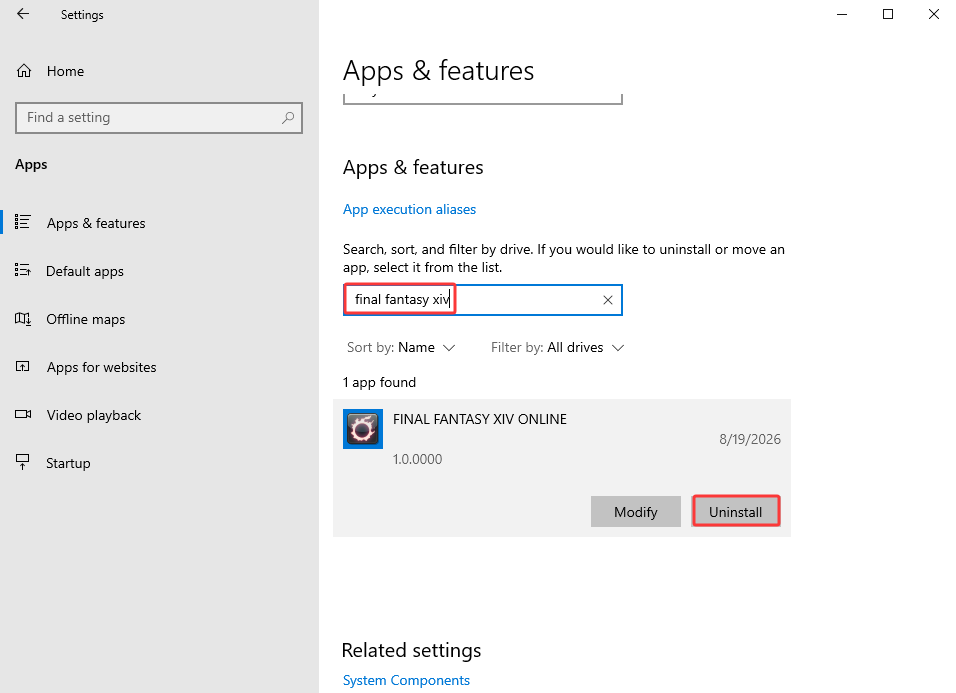
Follow the same process to uninstall the related launcher and game apps.
2. Uninstall Final Fantasy XIV from Control Panel
Control Panel is another versatile system management tool pre-installed on your Windows devices. It assists users in backing up and restoring Windows, adjusting appearance and personalization settings, managing user accounts, as well as uninstalling applications on Windows.
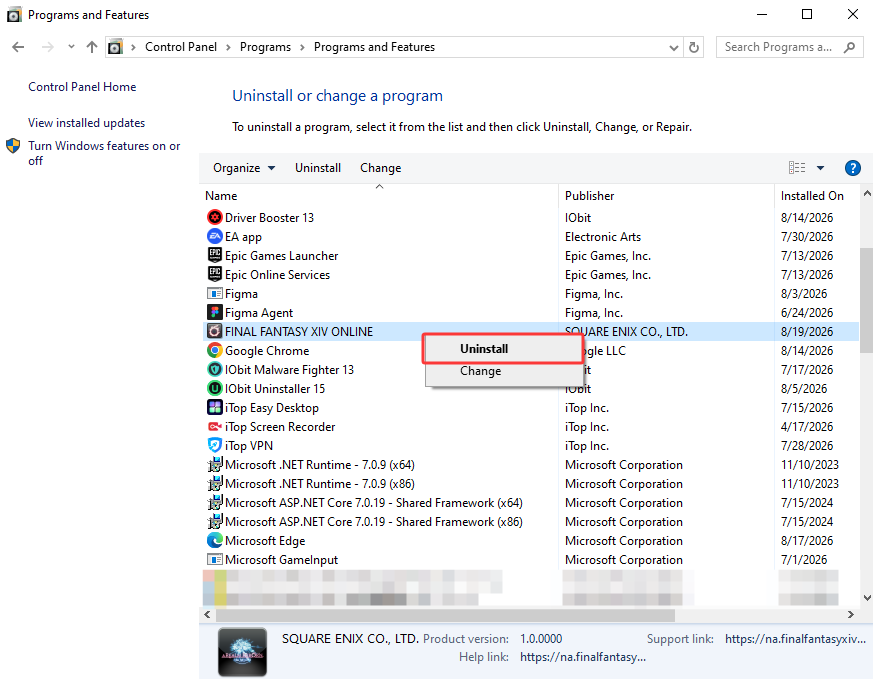
Check how to uninstall FF14 with Control Panel features.
Step 1. Input Control Panel in the Windows Search Bar > click to run it.
Step 2. Go to Uninstall a program under Programs.
Step 3. Find Final Fantasy XIV-related apps from the app list > right-click on them > Uninstall.
3. Uninstall FFXIV from Steam (If You Installed It from Steam)
How to uninstall FFXIV Steam? Some players installed FFXIV from Steam, instead of from the official site. They can also uninstall FF14 via Steam.
Step 1. Start Steam > go to Library.
Step 2. Find FF14 > right-click on the game > Manage > choose Uninstall.
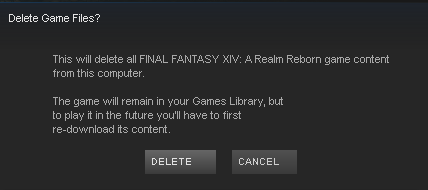
Step 3. This is not the end. Go to the game install folder and manually delete the related game files.
Troubleshoot: Can't Uninstall FF14
If you failed to uninstall Final Fantasy 14, simply check if the client is currently still running in the system tray, quit it, and try uninstalling it again; or, there might be some problems in the registry or configurations.
If so, head over to Windows Settings > Apps > find Final Fantasy XIV > Advanced Options > Repair. See if it can help fix the potential issues.
If not help, try another solution: Manually delete the whole FF14 folder from your drive. Navigate to the exact place where the game was installed.
If you haven’t changed the installation path, check the following.
If you have installed the Standard/Windows version: C:\Program Files (x86)\Square Enix\FINAL FANTASY XIV - A Realm Reborn
If you installed it from Steam: C:\Program Files (x86)\Steam\steamapps\common\FINAL FANTASY XIV Online
*Remember to empty the Recycle Bin to free up the disk space at last.
FAQs About Playing & Uninstalling FF14
Have more questions about Final Fantasy XIV? Check the following answers.
Can I Uninstall FFXIV from Launcher?
Actually, no. FF14 does not provide an uninstall feature within its launcher. If you are referring to the Final Fantasy XIV Online - InstallShield Wizard, it only appears after you start the uninstallation process through other methods, like Control Panel, Settings, etc.
Can I download FFXIV Without Subscriptions?
Yes. FFXIV provides a free trial, which allows users to level up to 70 for free, with some limitations (no trading, sending invites, PVP, etc.). After you buy the full game, a monthly subscription is required.
Will My Subs Go on After Uninstalling FF14?
Yes. Your subscription will keep running and charging even if you have uninstalled it. To cancel your subscription, go to the SE account management system page, find Service Account Status, and cancel the subscription.
Final Thoughts
The question “How to uninstall FF14” is generally regarded as a simple task; however, the key point is to remove the app completely. If using the Windows pre-installed features and tools, remember to delete the related files manually. On the other hand, to skip the complex manual work, download and try the best uninstaller for Windows, IObit Uninstaller, to help you remove unwanted apps completely without residual files left, and uninstall stubborn programs, apps that have uninstall issues, etc.
IObit Uninstaller Free
- Complete forced uninstallation for stubborn programs.
- Uninstall a batch of programs at once.
- Scan and remove leftover files, folders, and registry entries.
- Support the management of Universal Windows Platform apps.