ReShade is a popular post-processing tool that improves game visuals with effects like sharpening, color correction, ambient lighting, and depth of field. However, some players may want to remove it because of performance issues, compatibility problems, game updates, or simply because they prefer the original graphics settings.
If you are looking for how to uninstall ReShade, the process is usually simple, but removing all related files can be confusing. This guide explains the official removal method, shows how to uninstall ReShade from a game, and covers special cases like how to uninstall ReShade from DBD. We'll also introduce an easier way to remove ReShade-related files and leftovers completely.
Why Uninstall ReShade from Game?
Before learning how to uninstall ReShade on a game, it is helpful to understand why players remove this graphics enhancement tool. Although ReShade can improve image quality, it may sometimes cause unwanted problems.
Common reasons to uninstall ReShade from game include:
The game crashes or won't launch after installing ReShade.
Performance has dropped because of post-processing effects.
ReShade conflicts with game updates or anti-cheat systems.
You want to reinstall a newer version.
You no longer need custom shaders.
Method 1. How to Uninstall ReShade on a Game Manually
The most direct way to uninstall ReShade from a game is to remove the files it added to the game's installation directory. Before deleting anything, close the game and its launcher to prevent files from being locked.
Step 1. Open the Game Installation Folder
Find the folder where the game’s executable (.exe) file is located. For example:
Step 2. Find the ReShade Files
ReShade typically installs several files beside the game's executable. Depending on your ReShade version and graphics API, remove files such as:
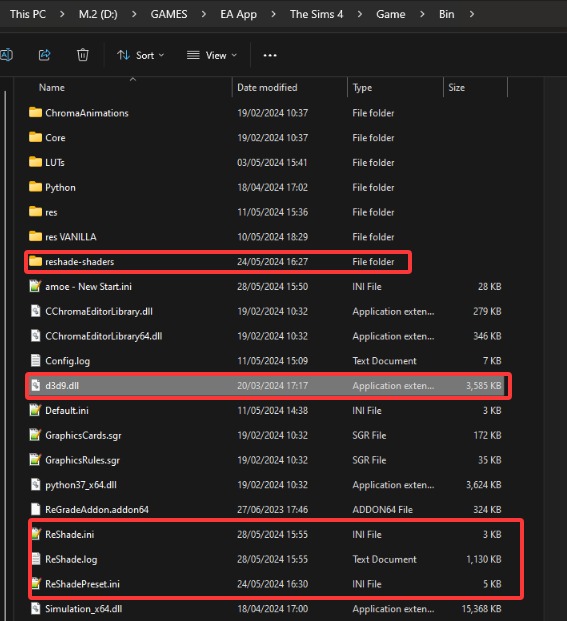
The exact files vary, so don't assume every DLL with a familiar name belongs to ReShade. If you're unsure about a file, check when it was created or modified and confirm that it was added when ReShade was installed.
Step 3. Delete the ReShade Components
Once you've identified the files added by ReShade, select them and press Delete. You can also right-click the selected files and choose Delete.
Remove the ReShade shader folder and configuration files if they were created by your installation. For DLL files, only delete those that you have confirmed are ReShade components.
Step 4. Launch the Game
Start the game normally. If ReShade has been removed successfully:
The ReShade startup banner will no longer appear.
Shader effects disappear.
The game launches normally using its original graphics.
This is the standard answer for how to uninstall ReShade on a game.
Method 2. How to Uninstall ReShade from DBD
If you're specifically searching for how to uninstall ReShade from DBD or how to delete ReShade DBD, the basic process is similar.
Because Dead by Daylight is an online multiplayer game, removing third-party graphics modifications before troubleshooting launch or compatibility problems can be a sensible step.
Step 1. Open the Dead by Daylight Installation Folder
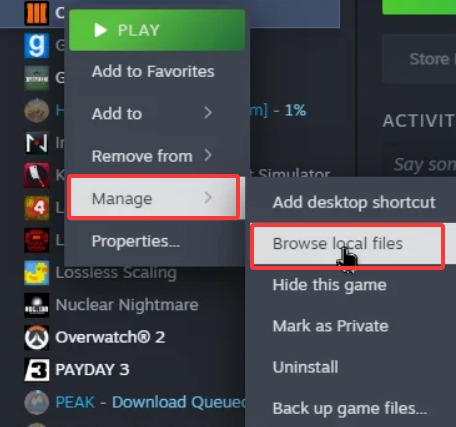
Go to Steam Library > Right-click Dead by Daylight > Manage > Browse local files.
Step 2. Remove ReShade Files
Delete any ReShade components inside the game directory, including:
Don't delete unrelated game files simply because they are DLLs. Only remove files you can identify as belonging to ReShade.
Step 3. Verify DBD’s Game Files
After removing ReShade:
Open Steam.
Right-click Dead by Daylight.
Select Properties.
Go to Installed Files.
Click Verify integrity of game files.
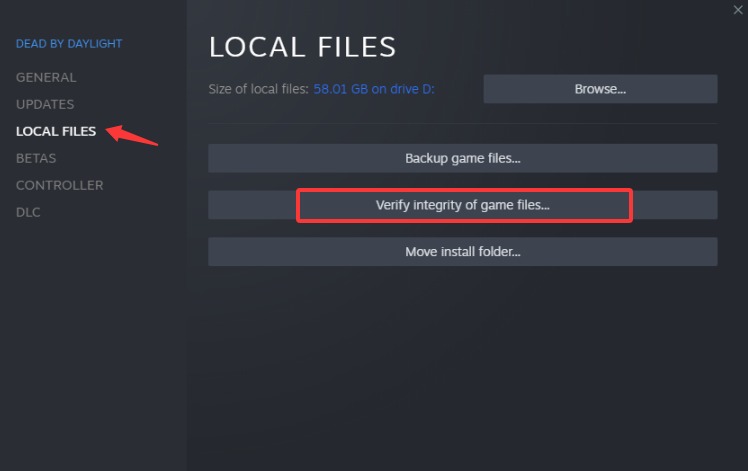
After verification finishes, launch Dead by Daylight again and check whether ReShade is gone.
What If ReShade is Still There After Manual Removal?
In most cases, removing ReShade's files from the game directory is enough. However, some users may find that ReShade still appears after they have deleted the files they could identify. Others may simply be unable to determine which DLL or configuration files belong to ReShade.
This can happen because ReShade's files vary depending on the game's graphics API and how ReShade was installed. If you are not sure which files are safe to remove, don't keep deleting files at random. Removing an important game file could cause the game to crash or fail to launch.
Instead, if you want a clean start, you can consider uninstalling the entire game and reinstalling it.
Method 3. Uninstall Entire Games with ReShade via IObit Uninstaller
If you can't find all the ReShade files or ReShade continues to load after manual removal, uninstalling the entire game is a simpler alternative. Since ReShade components are stored inside the game's installation directory, removing the game removes that directory and the ReShade files stored there as well.
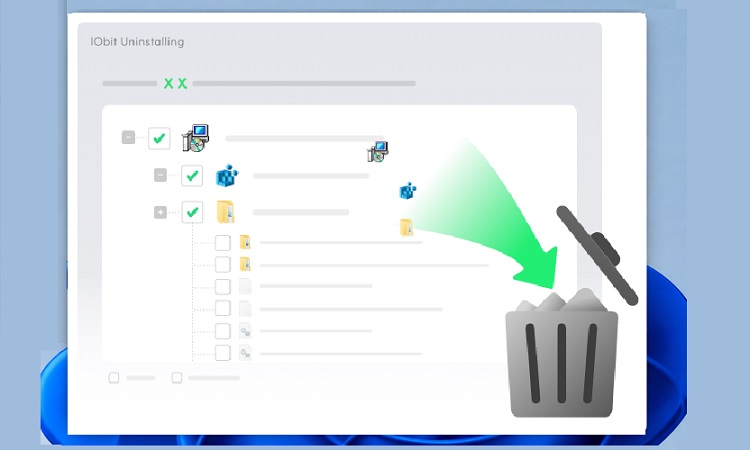
This is where IObit Uninstaller can make the process easier. IObit Uninstaller can automatically detect installed programs and list them in one place, allowing you to find and uninstall Steam games and other games without manually searching through Windows settings.
IObit Uninstaller Free
- Complete forced uninstallation for stubborn programs.
- Uninstall a batch of programs at once.
- Scan and remove leftover files, folders, and registry entries.
- Support the management of Universal Windows Platform apps.

How to uninstall a game with ReShade using IObit Uninstaller:
Important: Uninstalling a game can remove local saves, configurations, screenshots, or custom files depending on how that game stores them. Back up any important local data first. If the game supports cloud saves, make sure your latest progress has been synchronized before uninstalling.
Step 1. Download and Install IObit Uninstaller
Click the button to download and install the best uninstaller on your PC.
Step 2. Locate and Uninstall the Game
Open IObit Uninstaller and go to the installed programs list. Search for the game that contains ReShade. Here is an illustration of how to uninstall ReShade from DBD together.
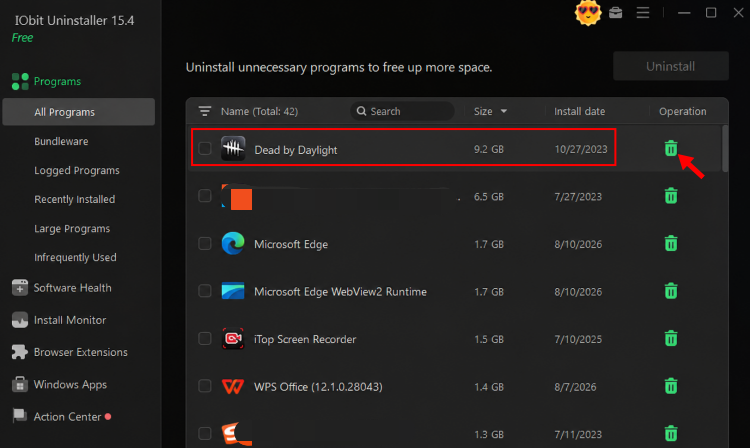
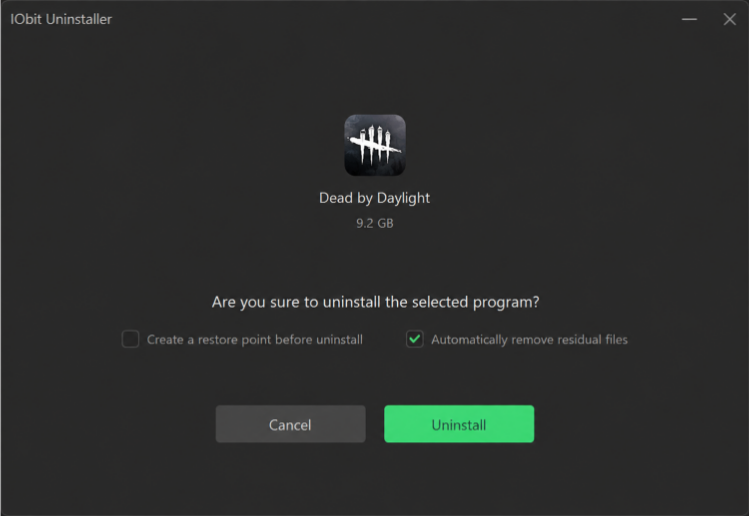
Step 3. Scan for Leftovers
Follow the on-screen instructions to complete the normal uninstallation process. After the standard uninstaller finishes, IObit Uninstaller can scan for leftover files and folders associated with the game.
Step 4. Reinstall the Game
Once the game has been completely removed, download and install it again through your usual game launcher. A fresh installation creates a new game directory without the ReShade files from your previous installation.
When you only need to remove ReShade, uninstalling an entire game may seem excessive. However, it can be a practical solution when you cannot identify all ReShade components or when manual removal doesn't work.
IObit Uninstaller is particularly useful to uninstall games with ReShade because it:
Automatically Lists Installed Games: IObit Uninstaller finds the affected game in one centralized program list instead of manually locating its installation folder.
Simplifies Complete Uninstallation: It removes the game and its installation directory with ReShade through a guided uninstall process. You can also uninstall Norton completely with the same process.
Force Uninstall ReShade-Related Programs Easily: IObit Uninstaller can force-remove problematic applications and then scan for leftover files, folders, and registry entries, helping you completely clean up ReShade-related components without manually hunting them down.
Scans for Leftovers: After the game is uninstalled, scan for remaining files and folders associated with it, including ReShade-related files. This can also apply to uninstall Battle.net completely.
Makes Reinstallation Cleaner: After the old installation and its ReShade files are removed, reinstall the game to create a fresh game directory.
Also Read: How to Uninstall Microsoft Edge Permanently on Windows 10/11 >>
Situations Where You Need to Choose a Method
The best method depends on what you actually installed:
| Situation |
Recommended solution |
| Remove ReShade from a game |
Delete ReShade files from the game folder |
| Uninstall ReShade from DBD |
Remove ReShade files, then verify game files |
| Remove the specific game with ReShade installed |
IObit Uninstaller |
| ReShade still appears |
Check for remaining ReShade files |
| Game has problems after removal |
Verify or reinstall the game |
Know More about Uninstalling ReShade from Game
Can I uninstall ReShade from Windows Settings?
Usually, no. ReShade is commonly installed directly into a game's directory rather than registered as a traditional Windows application. That's why you may not find it under Apps & Features or Installed apps.
Why is ReShade still showing after I deleted the files?
A ReShade DLL or configuration file may still exist in the game directory. Search for files like dxgi.dll, d3d11.dll, ReShade.ini, or the reshade-shaders folder and remove them if they belong to ReShade.
Does uninstalling ReShade delete my game files?
No. Removing ReShade only deletes its additional files and shaders. Your saved games and original game files should remain unchanged.
How do I know if ReShade is completely removed?
Start the game after removal. If the ReShade overlay does not appear and visual effects are gone, it has likely been removed successfully. You can also check the game folder for remaining ReShade files.
Conclusion
Learning how to uninstall ReShade is simple when you know where ReShade stores its files. Whether you remove it through the installer, manually delete files, or use IObit Uninstaller to clean leftovers, these methods can help restore your game’s original graphics and improve compatibility. For a more complete removal experience, using a dedicated best uninstaller can save time and prevent leftover files from affecting future game performance.