Battle.net is Blizzard’s official game launcher used to manage popular titles such as World of Warcraft, Diablo IV, and Overwatch 2. However, if you want to switch to another gaming platform or need to free up disk space, you can choose to uninstall it.
If you're searching for how to uninstall Battle.net completely without leftovers, this guide will walk you through the fastest and most reliable methods step by step.
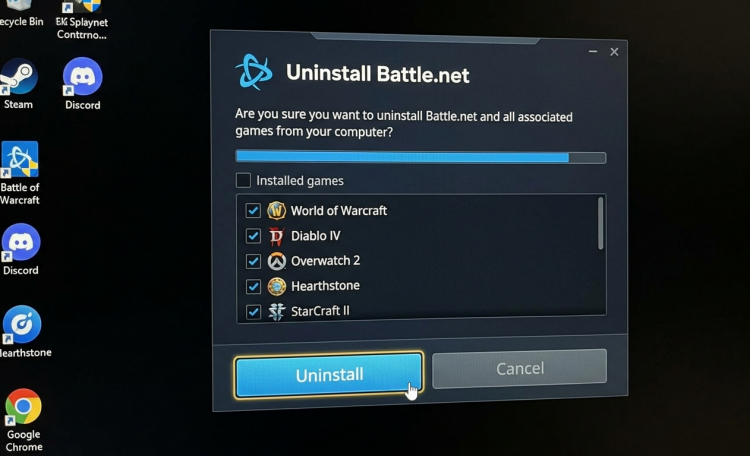
How to Uninstall Battle.net - Best Way for Clean Removal
If you want the cleanest and most hassle-free way to remove Battle.net, the most reliable option is using IObit Uninstaller. IObit Uninstaller is designed specifically to remove not only the program itself but also the hidden traces it leaves behind. This is especially important for Battle.net, which can leave residual Blizzard folders, cache files, and registry entries.
Battle net how to uninstall with IObit Uninstaller:
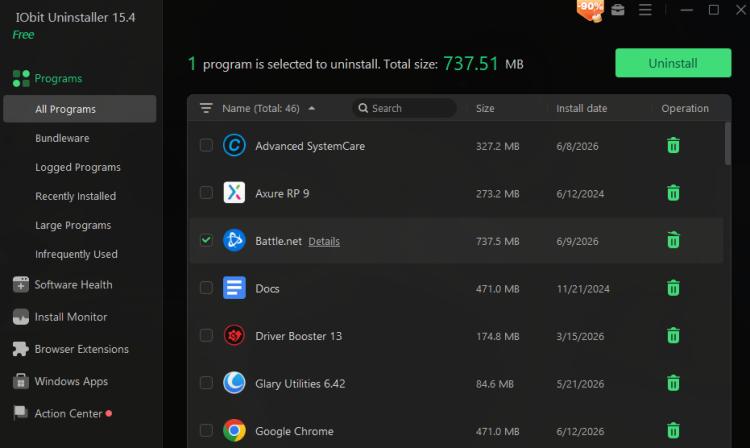
Step 1. Install IObit Uninstaller on your computer, then open it.
Step 2. Within this program, locate Battle.net in the list. Click Uninstall.
Step 3. It will prompt you to create a restore point before uninstalling, so that if there are any problems, you can immediately restore to the state before uninstallation. Confirm Uninstall again.
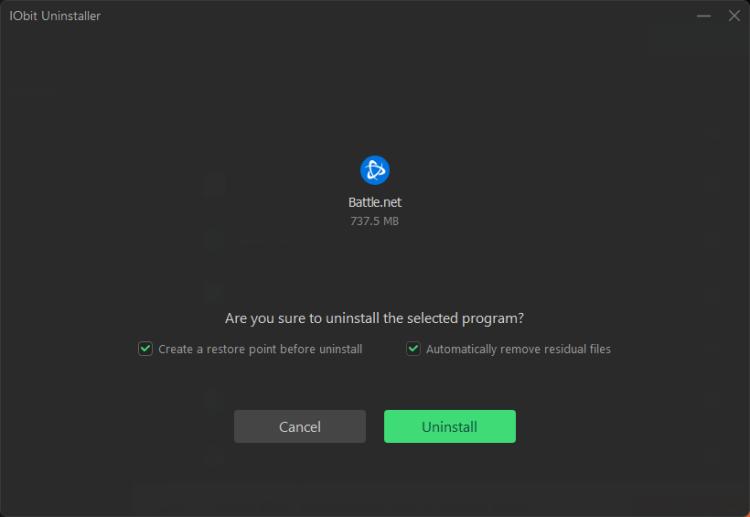
After uninstall completes, it will delete all detected leftovers and remove them.
Key Features That Make IObit Uninstaller Effective:
Complete Program Removal. IObit Uninstaller performs a standard uninstall first, then scans deeper to remove: hidden program files, residual folders in system directories, registry entries linked to the software.
Powerful Scan for Leftover Files. It not only removes the program, but also clean temp files, cache and update logs, Blizzard-related leftover components. This is also effective to uninstall Epic Games launcher.
Forced Uninstall for Stubborn Programs. If Battle.net refuses to uninstall normally due to errors or corrupted files, IObit offers a force uninstall mode that removes broken installations completely.
Automatic System Restore Point Creation. It can prompt you to create a system restore point before uninstalling, helping you roll back changes if needed.
Batch Uninstall Capability. Users who also want to remove multiple Blizzard or game-related tools can uninstall them together, saving time.
Clean & Lightweight Interface. Even non-technical users can remove Battle.net in just a few clicks, without needing to manually search system folders or registry entries.
IObit Uninstaller Free
- Complete forced uninstallation for stubborn programs.
- Uninstall a batch of programs at once.
- Scan and remove leftover files, folders, and registry entries.
- Support the management of Universal Windows Platform apps.

Battle.net How to Uninstall Games Separately
If you only want to remove one game from Battle.net to free up disk space, there is no need to uninstall Battle.net. This is the most common scenario. You’re still playing World of Warcraft but haven’t touched Call of Duty in six months. Or Diablo IV is taking up 100+ GB of SSD space that you desperately need back.
Follow the steps for how to uninstall Battle net games inside launcher:
Step 1. Open Battle.net.
Step 2. Select the game you want to remove. Click the gear icon (Options). Choose Uninstall.
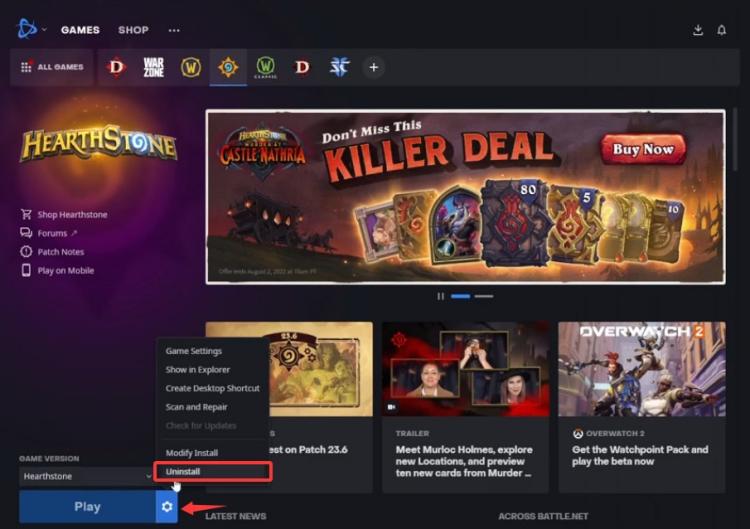 Step 3. Confirm the uninstallation action again.
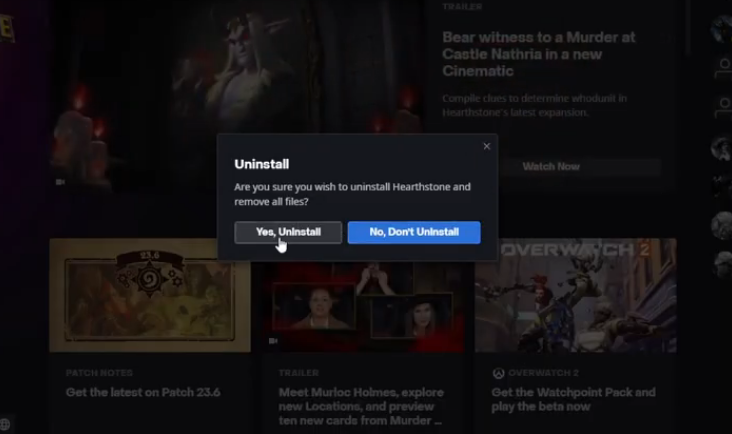
And that’s it. The Battle.net app itself stays intact, and your other games remain completely unaffected.
How to Uninstall Battle.net Using Windows Settings
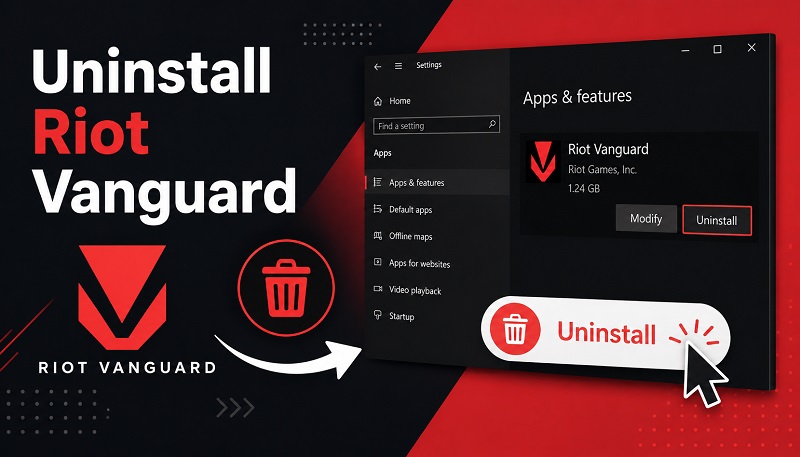
If you prefer not to use third-party tools, Windows provides a built-in method for Battle.net how to uninstall.
Step 1. Open Settings. Go to Apps > Installed Apps. Locate Battle.net app.
Step 2. Click the three-dot menu. Select Uninstall.
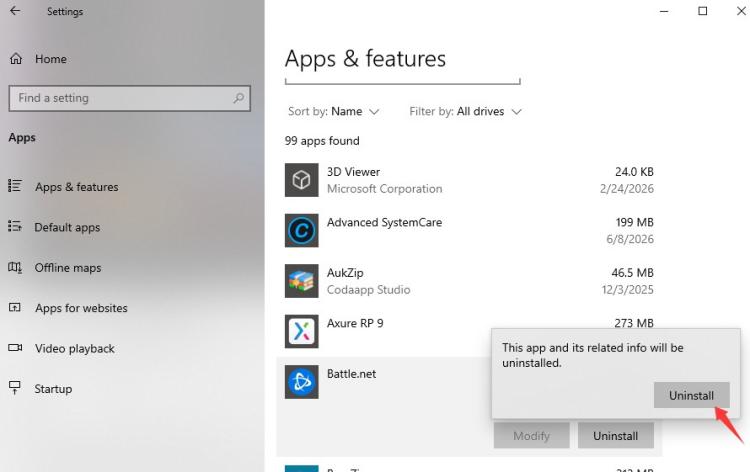
Follow Blizzard’s uninstaller prompts. Once finished, Battle.net will be removed from your system list.
How to Remove Leftover Battle.net Files Manually
Even after uninstalling, leftover files may still exist. It might leave behind screenshots, configuration files, or user data. These leftover files do not affect gameplay, but removing them helps free up storage and prevent reinstall conflicts. Here’s where to check:
Open the Run dialog (Windows + R) and type each of these paths. Delete every folder named “Battle.net,” “Blizzard,” or “Blizzard Entertainment” you find:
%PROGRAMDATA% — system‑wide app data
%LOCALAPPDATA% — local app cache
%APPDATA% — roaming preferences and settings
%TEMP% — installation temp files
C:\Program Files (x86)\Battle.net — leftover program files
Then restart your PC to clear anything held in memory.
What If Battle.net Won’t Uninstall? (Launcher Stuck)
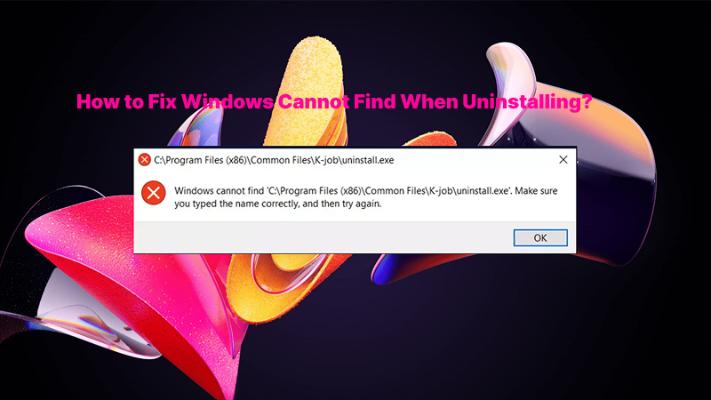
Sometimes the app throws an error like BLZBNTBNU00000007 or something like BLZBNTBNU00000004 or the uninstaller simply freezes, try these fixes in order. Don’t panic.
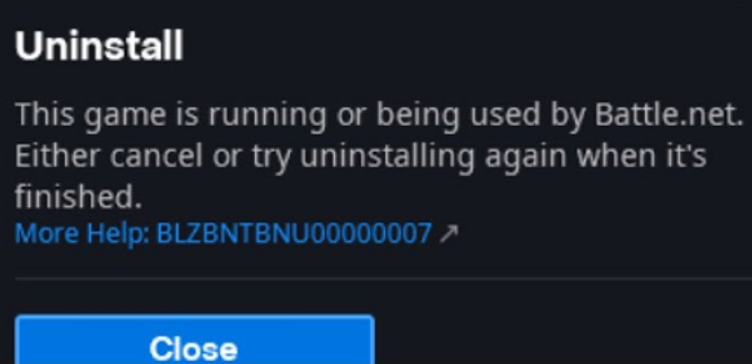
End all Blizzard processes – Open Task Manager and kill Battle.net, Agent.exe, and Blizzard Update Agent.
Restart your PC – This releases locked files.
Run the uninstaller as Administrator – Right-click the uninstall tool (or Windows Settings) and select “Run as administrator”.
Use IObit Uninstaller’s Force Uninstall – This bypasses the broken uninstaller and removes Battle.net even when it’s corrupted.
Boot into Safe Mode – Prevents third-party processes from interfering, then uninstall normally.
FAQs: How to Uninstall Battle Net
Q: Does uninstalling Battle.net delete games?
Your game progress, skins, mounts, and purchases are all tied to your Blizzard account, not your local device. Uninstalling Battle.net or any game will not delete your account data. You can reinstall later and pick up right where you left off.
Q: Is IObit Uninstaller safe?
Yes, this best uninstaller for Windows 11 is safe to remove programs and leftover files, and is widely used for deep uninstall.
Q: Can I reinstall Battle.net later?
Yes, you can download it anytime from Blizzard’s official website.
Conclusion
How to uninstall Battle.net fast and completely? Uninstalling Battle.net can be simple or advanced depending on your needs. If you only want to remove a game like Diablo IV or Overwatch 2, the launcher provides a direct uninstall option.
However, if your goal is a complete system cleanup with no leftovers, the best solution is using IObit Uninstaller, which removes Battle.net and its hidden traces in one automated process. In the end, choosing the right method depends on whether you want convenience, control, or a fully clean system.
IObit Uninstaller Free
- Complete forced uninstallation for stubborn programs.
- Uninstall a batch of programs at once.
- Scan and remove leftover files, folders, and registry entries.
- Support the management of Universal Windows Platform apps.