Most users only perform a basic Firefox uninstall without proper system cleanup, which leaves hidden leftover files, old profiles, and registry entries on Windows. These residual files cause some system issues and risks. This comprehensive tutorial focuses on how to uninstall Firefox completely, covering manual uninstall and automated one-click removal to help you remove it with no leftovers.

Why Can’t You Uninstall Firefox Completely?
Most users only use Windows built-in Firefox uninstaller to uninstall Firefox, yet these tools only remove the main program and ignore hidden user data folders, registry entries, and scattered resource files. Before learning how to remove Firefox completely, understand why default removal cannot be thorough.
Hidden user data folders: Firefox stores user profiles and personal data in hidden folders, which default Windows uninstallers never delete.
Invalid registry entries: Standard uninstall leaves invalid Firefox registry entries stored in the Windows system.
Independent resource files: Browser caches, plugin data, and preferences are stored independently, separate from the main program.
What Happens when You Don’t Uninstall Firefox Completely
As mentioned above, a normal Firefox uninstall will leave residual files on your Windows PC. These leftovers will cause a series of hidden troubles for your Windows system and browser use. The following are common problems you may encounter.
Reinstallation issues: Residual profiles keep old bookmarks, history, and settings, ruining a clean Firefox reinstall.
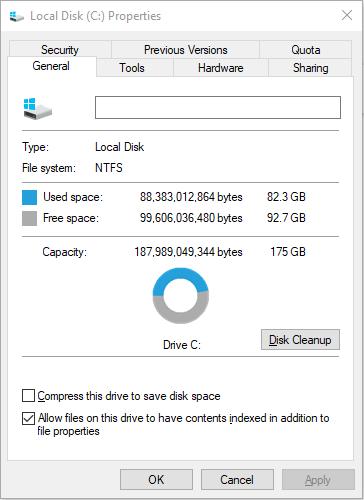
Disk space waste: Unremoved cache and junk files take up unnecessary system storage.
How to Uninstall Firefox & Remove Its Leftovers Manually
Now that you know the causes and problems of incomplete Firefox uninstalls, stop relying on basic Windows removal tools. Here is a manual method to help you uninstall Firefox completely. It requires you to manually delete the main program and complete extra system cleanup to wipe leftover folders and registry entries. Follow the steps below.
Phase 1: Uninstall the main program
Step 1. Close Firefox completely, search for Firefox in the Windows Search bar, right-click it, and choose Uninstall.
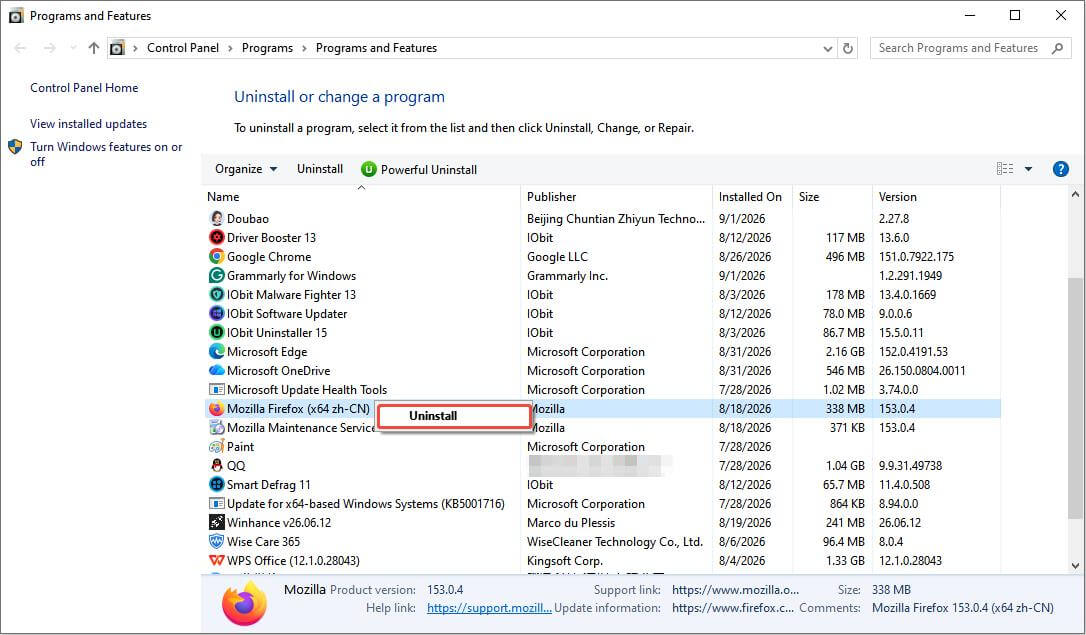
Step 2. In the new window, select Firefox, right-click it, and choose Uninstall. Then, follow the on-screen wizard to remove it.
Phase 2: Delete leftover folders and registry entries
Step 1. Press Win + R, type the following path, and press Enter after each to delete all folders:
Step 2. Press Win + R, type regedit and press Enter to open Registry Editor. Then, locate the following entries one by one, right-click the folder, and choose Delete to remove registries.
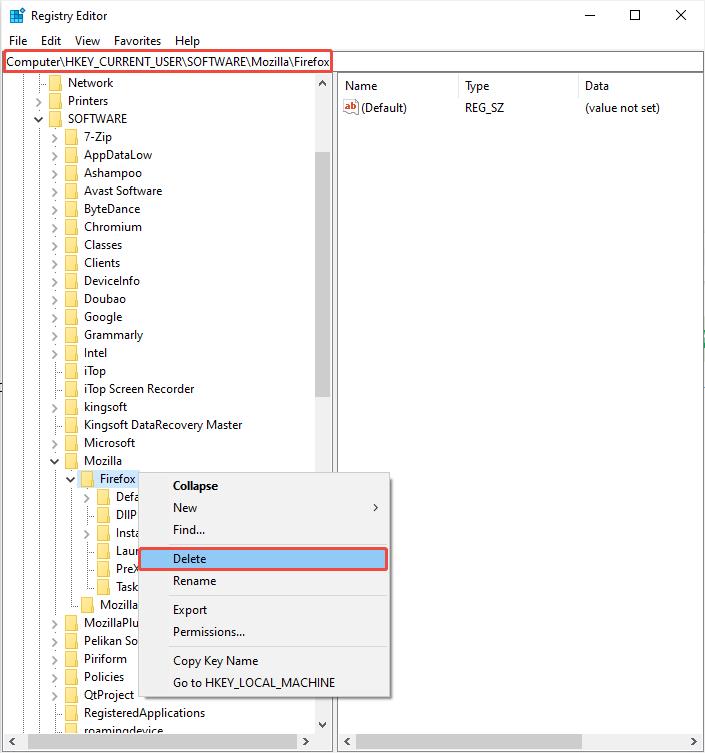
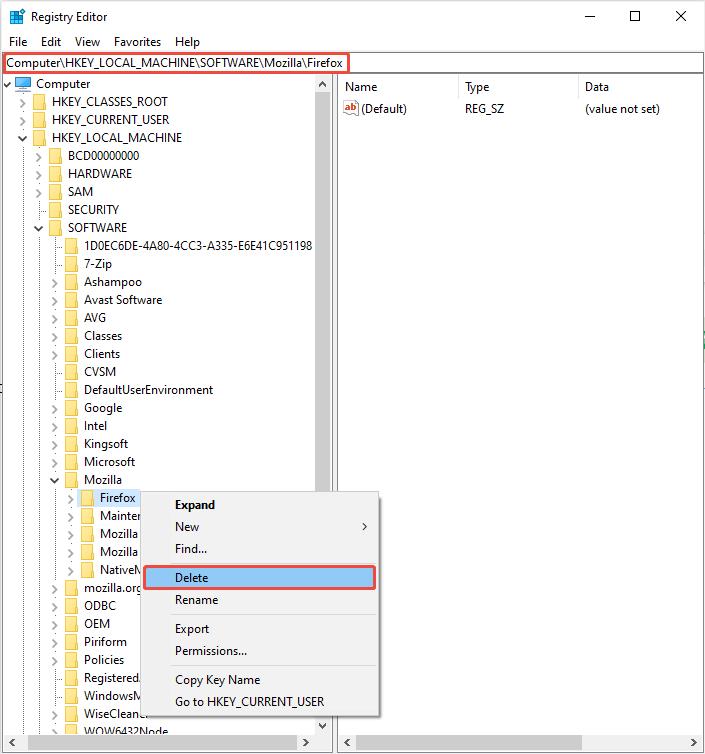
Warning: Editing the registry carries risks. Do not modify unknown entries.
Manual uninstall gives you full control over every file and registry key you delete. However, even with careful operation, some scattered leftover entries may still stay behind, and improper registry deletion can bring unexpected system risks. To avoid these issues, here is a reliable automated solution. Keep reading!
How to Uninstall Firefox Completely with an Automated Uninstall Tool
Manual removal can easily leave hidden traces, cause system issues, and take time. For a quick, clean, and safe way to uninstall Firefox completely, IObit Uninstaller, an all-in-one Windows uninstall utility designed to completely uninstall programs, is the best choice.
IObit Uninstaller Free
- Complete forced uninstallation for stubborn programs.
- Uninstall a batch of programs at once.
- Scan and remove leftover files, folders, and registry entries.
- Support the management of Universal Windows Platform apps.

Why Choose IObit Uninstaller to Uninstall Firefox
As one of the best uninstaller, it combines program uninstall and deep residual scan in one workflow. This software can remove the Firefox main program and automatically scan for its leftover profiles, cache files, and related registry entries, allowing you to delete them. With this automated tool, you don’t need to manually delete registry entries, reducing disks.
Moreover, it comes with the Force Uninstall feature to force uninstall programs. This feature still works when Firefox gets corrupted, its built-in uninstaller breaks, or you cannot remove it via Windows utilities.
Besides Firefox, this tool also works for other browsers, such as Google Chrome, Microsoft Edge, Opera, and other unwanted software. It also allows you to select multiple programs, Windows apps, and bloatware to remove them all in one run.
Steps to Uninstall Firefox in IObit Uninstaller
After knowing that this free software can cover nearly all uninstall needs, download it to remove Firefox completely!
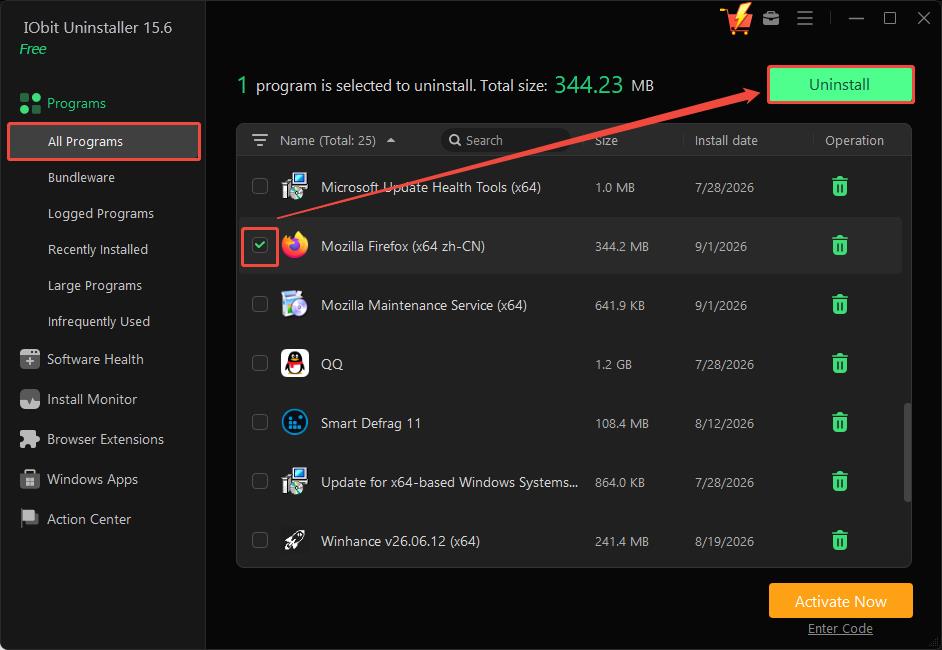
Step 1. Launch this Firefox uninstall tool on your computer and enter the All Programs interface by default.
Step 2. Find and select the Firefox program and click the green Uninstall button in the top-right corner.
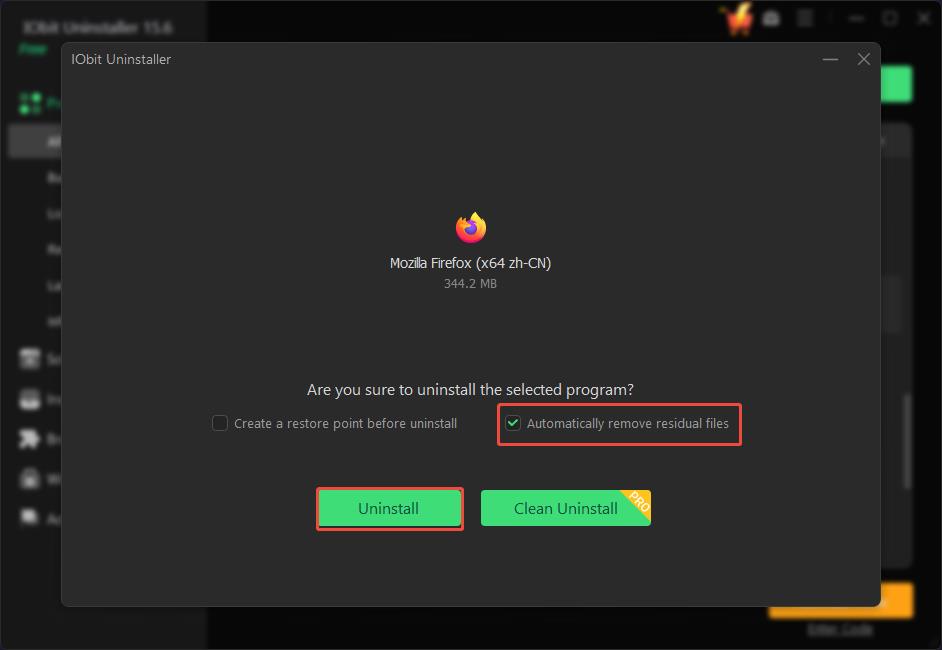
Step 3. In the pop-up window, check the box for Automatically remove residual files and click Uninstall to start uninstalling.
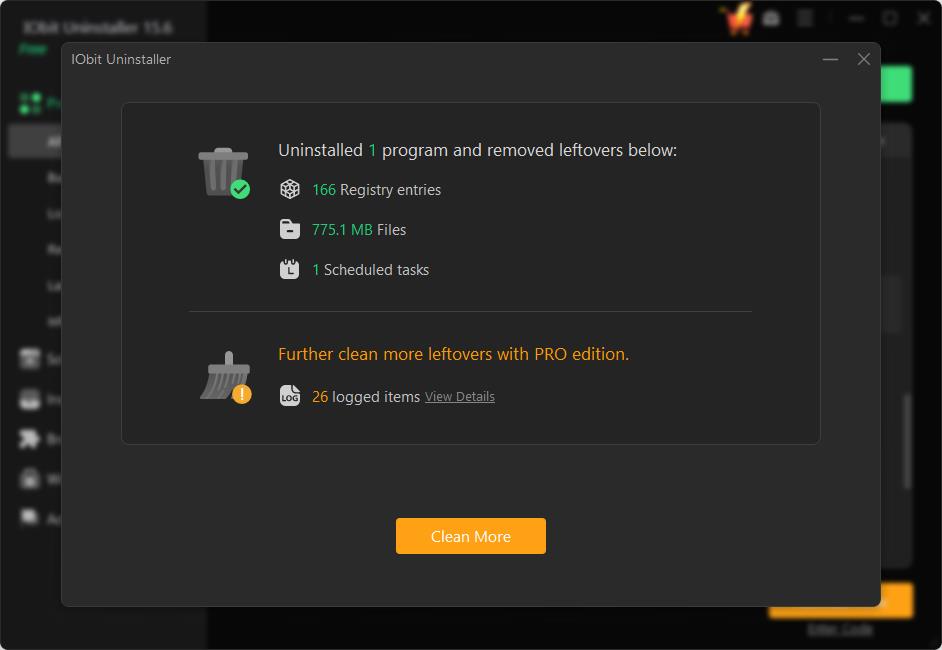
Step 4. When it ends, it shows you a confirmation that the software has been successfully uninstalled, along with how many leftovers have been deleted.
Beyond complete uninstallation, it also offers many practical extra features to maintain your computer.
Manage browser extensions: It also lets you remove browser extensions and clear browser cache to keep your browsing environment clean.
Software Health: It cleans junk files, stops unused apps, blocks pop-ups, and detects risky or old software to make your PC safer and run faster in one click.
Install Monitor: It tracks system changes during software setup to help fully reverse modifications later.
Whether you want to uninstall apps or do other needs, download IObit Uninstaller for safe and complete software maintenance.
FAQs about How to Uninstall Firefox Completely
1. Will uninstalling Firefox delete everything?
No. A standard uninstall only removes Firefox program files. Firefox bookmarks, passwords, and profile data remain on your computer. Use an automated uninstall tool to erase all related traces fully.
2. How do I completely uninstall Firefox?
You can uninstall Firefox and then delete residual folders manually. Alternatively, use IObit Uninstaller to remove Firefox and wipe all leftovers in one go.
3. Why can’t I uninstall Firefox?
This usually happens when Firefox background processes keep running, or its uninstall files get corrupted. If Windows removal fails, try IObit Uninstaller’s Force Uninstall to uninstall Firefox completely.
4. How to uninstall Firefox?
Close Firefox first. Press Win + I to open Settings and navigate to Apps. Under Apps & features, find and click Firefox, choose Uninstall, then complete the on-screen steps.
The Bottom Line
Learning how to uninstall Firefox completely is essential for every Windows user. It helps you avoid system conflicts and privacy risks from residual files. This guide shares manual and automated methods to fully remove Firefox and all leftovers, keeping your Windows system clean, smooth, and secure.