Have you ever wondered how to make Google my homepage? Well, look no further! In this article, we'll show you the simple steps to make Google your homepage, whether you're using Chrome, Firefox, Mircrosoft Edge, or any other browser. You'll also learn why it's advantageous to have Google as your homepage. So let's get started!
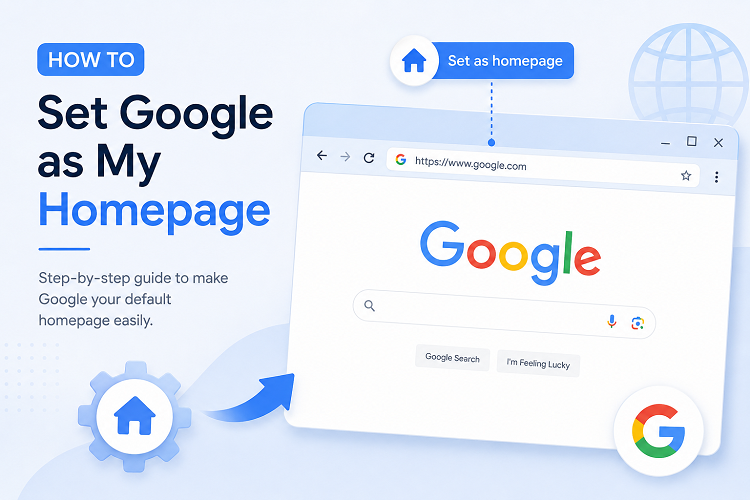
How Do I Make Google My Homepage on Chrome?
Follow these simple steps below to set Google as your homepage in the Google Chrome browser:
Step 1. Open Google Chrome browser
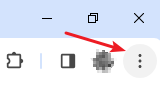
In your browser, look for the three vertical dots icon in the top-right corner of the window. Click it to open the browser menu.
Step 2. Access the homepage settings
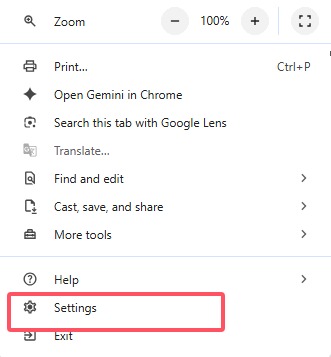
Click Settings from the drop-down menu.
Step 3. Set Google as your homepage
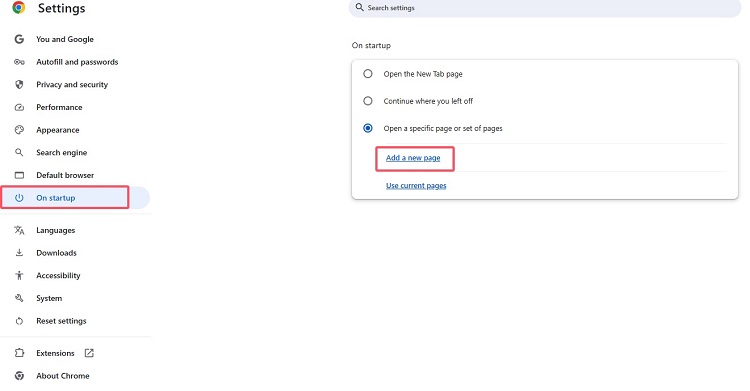
On the left side of the screen, click On startup. Select the bubble that says Open a specific page or set of pages. Click Add a new page.
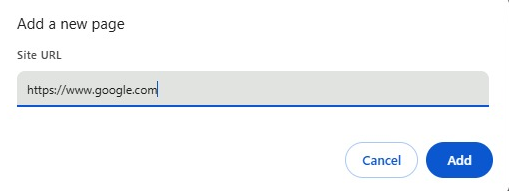
Type https://www.google.com into the Site URL box and click Add.
How to Make Google My Homepage in Firefox?
If you prefer a faster method to make Google your homepage in Firefox, here's another option:
Step 1. Open Mozilla Firefox browser
Click the menu button (three horizontal lines) in the top-right corner.
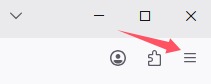
Step 2. Open Firefox Settings
Click Settings from the drop-down menu.
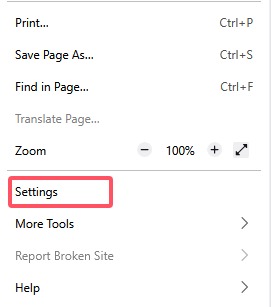
Step 3. Paste the Google site as the homepage
Click the Home tab in the drop-down menu. Under the "New Windows and Tabs" section, locate the "Homepage and new windows" drop-down menu.Change the setting to Custom URLs... Type https://www.google.com into the text box.
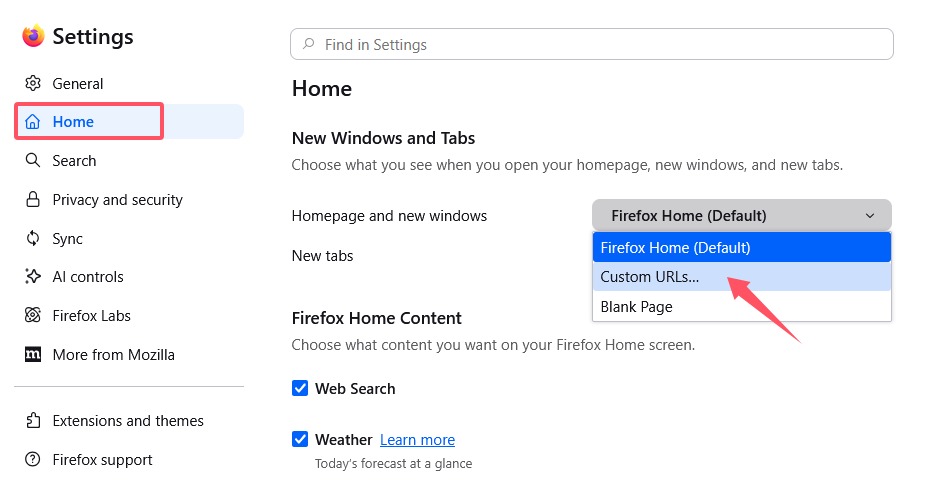
The changes will save automatically. Next time you launch Firefox or open a new window, it will load Google directly. You can start searching instantly, without any hassle!
How to Set Google As My Homepage on Microsoft Edge?
Step 1. Open Microsoft Edge. In the upper right corner of the browser, click the three dots (⋯) in the top-right corner, select Settings.
Step 2. Click Start, home, and new tab page in the left sidebar. Under On startup in the right, select Open custom sites, and then click Add site.
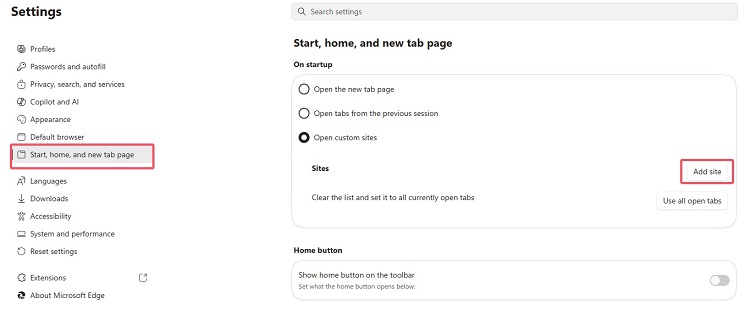
Step 3. Type https://www.google.com into the URL field, then click Add.
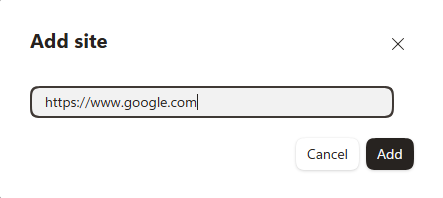
To quickly jump to this section, you can also paste edge://settings/startHomeNTP directly into the Edge address bar.
Note
How can you prevent someone from changing your homepage without you noticing?
It's unlikely your homepage will be changed without your knowledge, but it's essential to stay vigilant and take steps to protect your browser against malware or unwanted extensions. Use reliable security software to protect your computer against online threats, including malware. Additionally, you can use Advanced SystemCare , which will alert you immediately if your homepage has been modified, allowing you to change it in time.
Advanced SystemCare Free
- Clean: 420 billion traces removed & 85 EB junk files cleaned
- Protect: 80 million unauthorized access blocked & 20 million bugs fixed
- Speed Up: 6 million hours of startup time saved & Turbo boost
- Optimize: Auto clean and auto care your PC with AI mode

Set up A Series of Tabs to Open When You Start Your Browser
If you want multiple pages to load automatically when you open your browser (for example, Google, Gmail, News, etc.), you can configure a series of tabs to open automatically. This method is ideal for optimizing your workflow and having immediate access to your favorite sites. Below, we show you how to do this in different browsers:
Go to Settings > On startup, select “Open a specific page” and add the URLs you want, such as https://www.google.com.
In Options > Home, enter the URLs separated by the symbol |( example: https://www.google.com|https://www.gmail.com) .
Go to Settings > On startup, choose “Open these pages” and add the addresses you want to open.
With these simple steps, you will ensure that when you start your browser, all the tabs you have selected will open automatically, allowing you to access your favorite sites quickly and easily.
Advantages of Setting Google as My Homepage
Why set Google as your homepage? Google is one of the most popular and widely used search engines in the world. It offers a fast, accurate, and comprehensive search experience. By setting Google as my homepage, you can quickly access all of Google's search features as soon as you open your browser. You'll no longer need to type "google.com" into the address bar every time you want to perform a search. It's simple, convenient, and efficient!
Now that you know how do I make google as my homepage, let me tell you about the advantages it offers:
By setting Google as your homepage, you can perform searches quickly without having to manually type the Google URL each time. Just open your browser and you're ready to search for whatever you want.
By reducing the steps required to access Google, you save valuable time. You no longer need to type "google.com" or search for Google in your bookmarks or favorites. With Google as your homepage, you gain precious seconds with every search.
Google is known for its simple and user-friendly interface. By setting Google as your homepage, you'll enjoy a familiar and easy-to-use search experience. You can quickly access search results, Google services like Gmail, Google Maps, YouTube, and much more.
Google has become a fundamental part of the web. It's used by millions of people worldwide. By setting Google as your homepage, you ensure you're always up-to-date with the latest features and improvements Google offers. You stay connected to the most popular and trusted search platform.
Conclusion
How to set Google as my homepage is a simple process that will transform your daily productivity. Don't let a slow setup hold you back. Trust IObit 's technology to ensure your browser and operating system always perform at their best. Configure your search engine today and let IObit handle the rest!
Advanced SystemCare Free
- Clean: 420 billion traces removed & 85 EB junk files cleaned
- Protect: 80 million unauthorized access blocked & 20 million bugs fixed
- Speed Up: 6 million hours of startup time saved & Turbo boost
- Optimize: Auto clean and auto care your PC with AI mode
FAQs
Is it possible to set Google as the homepage in any browser?
Yes, you can change Google as your homepage in most popular browsers like Chrome, Firefox, Safari, etc. The steps may vary slightly from browser to browser, but the process is generally similar.
Does setting Google as my homepage slow down my browser?
No, Google is like a homepage and doesn't slow down your browser. The homepage loads quickly and doesn't significantly impact your browser's overall performance.
How can I remove Google from my homepage?
To remove Google from your homepage, you need to access your browser settings and change the homepage URL to another address to set a new homepage.
Does setting Google as my homepage affect my online privacy?
No, setting Google as your homepage doesn't directly impact your online privacy. However, be sure to use appropriate privacy settings in your browser to protect your personal information when using Google or other online services.
How do I set Google as my homepage?
To set Google as your homepage, follow these steps in Chrome: Go to Settings > Click On startup > Select Open a specific page or set of pages > Click Add a new page. Type https://www.google.com into the Site URL box and click Add.
How to reset the Google homepage?
If your homepage has changed without your permission or has become corrupted, you can reset it from your browser's settings menu by looking for the "Reset settings" or "Clean up computer" option. This will remove any suspicious extensions that might be blocking Google. If the problem persists, a background process is likely interfering with your network settings; in this case, performing a deep clean with an optimization tool can restore speed and stability to your search.
Why doesn't Google appear on my home screen?
There are two main reasons for this: 1. Lack of shortcut: On mobile devices (Android/iOS), you may have deleted the widget or icon. You should go to the Google app and select "Add to Home screen." 2. Browser hijacking: If you mean that when you open your browser, another unknown search engine appears instead of Google, your PC may have adware or a malicious extension installed. To prevent this and protect your privacy, we recommend enabling the Browsing Protection feature in Advanced SystemCare, which automatically blocks any unauthorized attempts to change your homepage or default search engine.