Using an outdated version of Firefox can cause a lot of inconvenience. In this case, the Firefox update is essential for a better browsing experience. However, many users are unsure how to check the version, update Firefox, and handle related issues. This article walks you through all the important key points step-by-step.
Firefox is a free, open-source web browser developed by Mozilla, known for its privacy protection and extensive range of extensions. Mozilla regularly releases Firefox updates to enhance security, fix vulnerabilities, and add new features.
Now, learn everything about Firefox updates, and discover how to update Firefox on Windows 11/10 with the instructions below.
The Things You Need to Know for Firefox Update
This section teaches you how to check for Firefox updates and introduces highlights of the recent release.
How to Check Firefox Update Version
Firefox released version 153.0.4 on August 11, 2026. Now, check if your Firefox update version is the latest according to the following two methods.
Method 1: Via the Menu
Step 1. Open Firefox and click the Open application menu icon in the top-right corner.
Step 2. Click Help > About Firefox. The new window will show the current version.
Method 2: Via the Address Bar Command
In Firefox, type about:support in the address bar and press Enter. The version is listed under Application Basics.
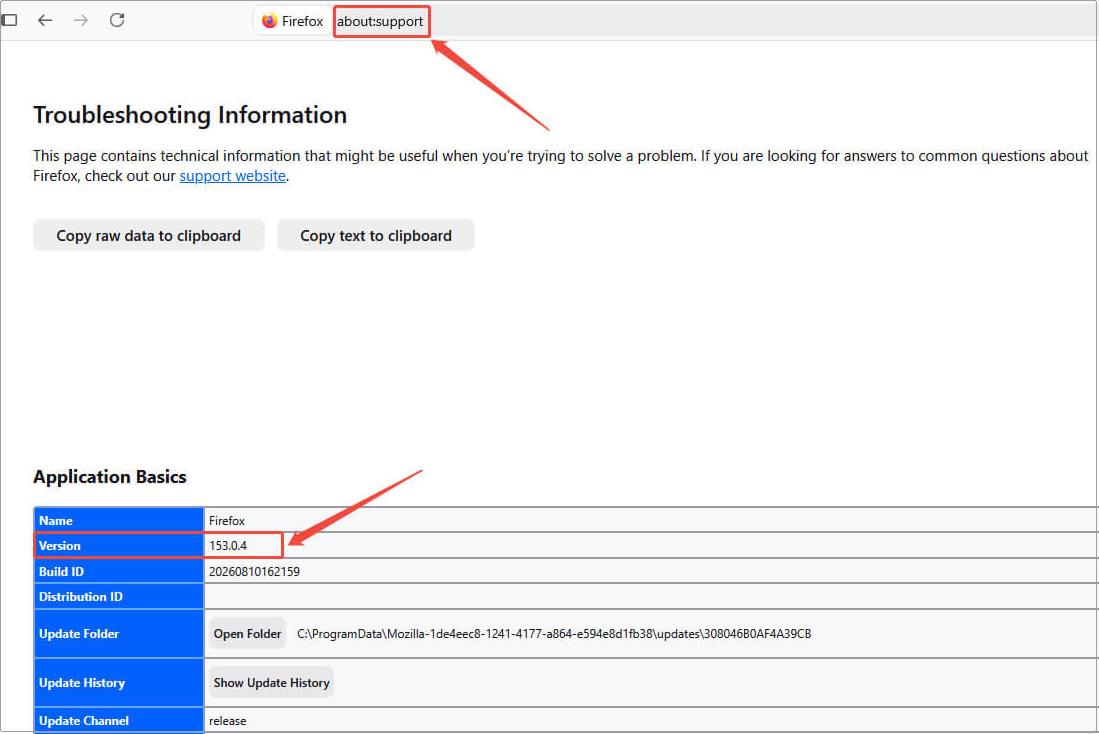
If a Firefox update check reveals you are not on the latest version, you need to update it. Before doing so, let’s take a look at the features of the new version.
What’s New in the Recent Firefox Update
This new version fixed an issue where Firefox would stop responding when clearing browsing history, and this issue could also result in the loss of website data.
Version 153.0.4 is a minor version iteration, focusing on bug fixes and offering no new features. Here’s a list of highlights from the parent version 153.0 released on July 21 to help you better understand and use it.
Enhanced sidebar: One-click bookmarks, history, synced tabs, and private built-in AI.
Vertical tabs: Vertical sidebar tabs to avoid overcrowding.
Tab grouping: Tab categorization, color-coding and collapsing for tidy layouts.
PDF editor upgrade: PDF merging and image insertion without third-party tools
Picture-in-Picture optimization: Stable floating video across tab switches.
Apart from these features, what else makes the update worth it? Continue reading the next section.
Why You Should Get a Firefox Update
This section explains why you need to update your Firefox. Here are some of the core benefits.
Enhance security: Patches browser vulnerabilities and protects against information theft by malicious websites.
Ensure web compatibility: Supports the latest web standards, preventing layout issues and extension malfunctions.
Improve performance and stability: Fixes bugs, optimizes memory usage, and reduces browser errors.
Upgrade privacy and features: Strengthens anti-tracking privacy protections, adds useful features, and improves the browsing experience.
After learning the basic information about the Firefox update, it’s time to update it for better browsing.
How to Get a Firefox Update Within the Browser
This section explains how to update Firefox automatically and manually within the browser.
Enable Automatic Firefox Updates
Firefox updates automatically by default, but this process can be blocked by antivirus software or permission settings. To prevent missing updates, check if the automatic updates feature is enabled.
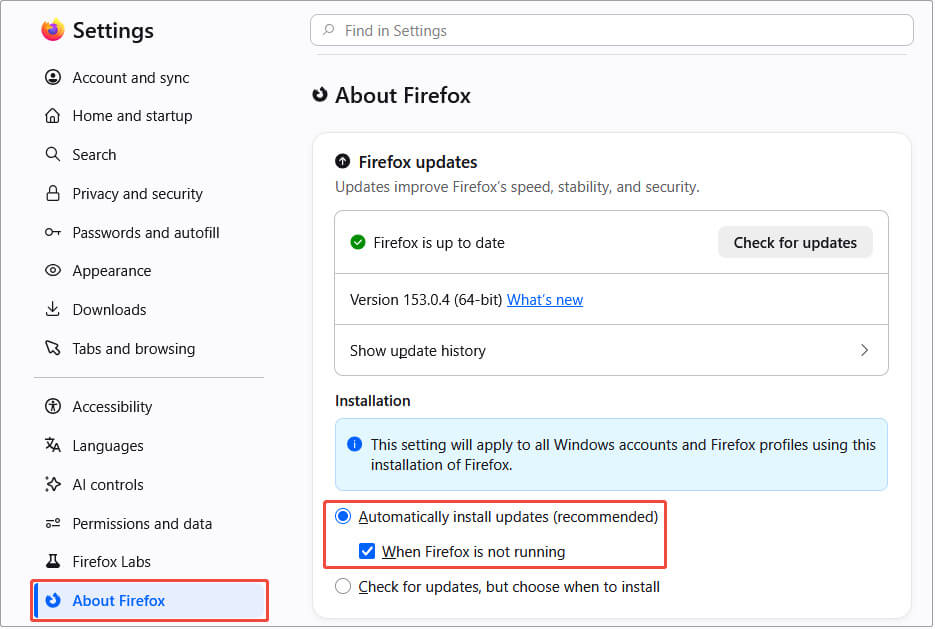
Step 1. In Firefox, click the Open application menu icon, then choose Settings.
Step 2. Switch to the About Firefox tab, check Automatically install updates (recommended), and restart Firefox.
Manually Download a Firefox Update
Manual updating is a conservative approach. To manually get a Firefox update download in the browser, follow the instructions below.
Step 1. Open Firefox and click the Open application menu icon.
Step 2. Click Help > About Firefox. Then, it automatically detects the version and downloads it in the background.
Step 3. When the download completes, click the Restart to Update Firefox button to install it.
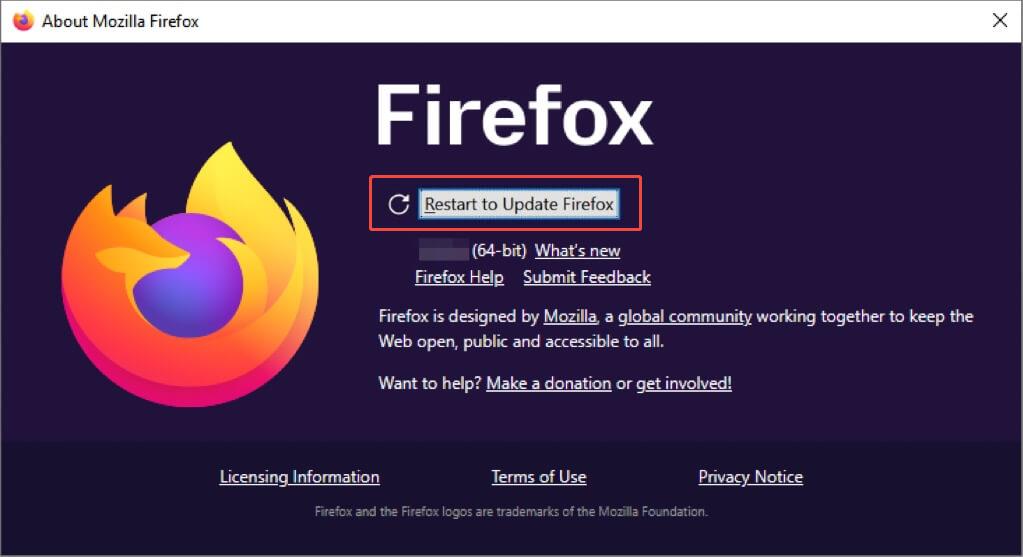
If you don’t want to miss any updates and update them manually, the following software is well worth a try. With just one click, you can ensure Firefox stays up-to-date.
Automation: Get a Firefox Update with Advanced SystemCare
While you can update Firefox from the official website, Advanced SystemCare, a popular Windows PC optimization utility, simplifies the process with its built-in “Software Updater”.
Advanced SystemCare Free
- Clean: 420 billion traces removed & 85 EB junk files cleaned
- Protect: 80 million unauthorized access blocked & 20 million bugs fixed
- Speed Up: 6 million hours of startup time saved & Turbo boost
- Optimize: Auto clean and auto care your PC with AI mode

This feature is designed to detect and update installed software on your computer, such as Firefox, Google Chrome, Microsoft Edge, and more, helping keep them up-to-date while enhancing security and compatibility.
This program updater detects outdated Firefox and offers an update option directly within the program. With this automation feature, you won’t have to update it manually or worry about missing updates.
Now, click the following button to install this software on your computer to update Firefox.
Step 1. Find Advanced SystemCare and double-click to launch it.
Step 2. In the main interface, switch to the Software Updater tab.
Step 3. In the left pane, find Firefox and click the Update button to get the latest version.
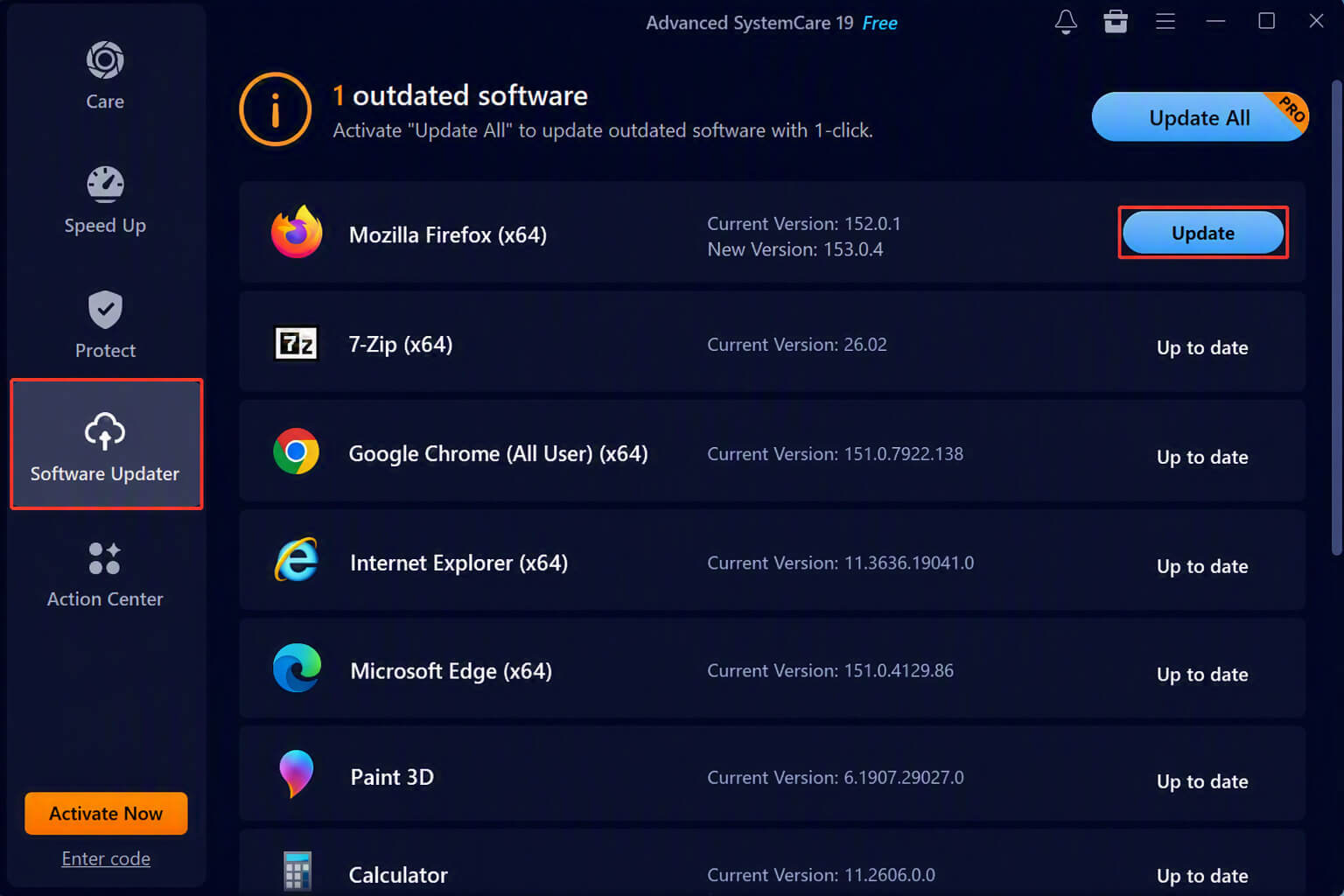
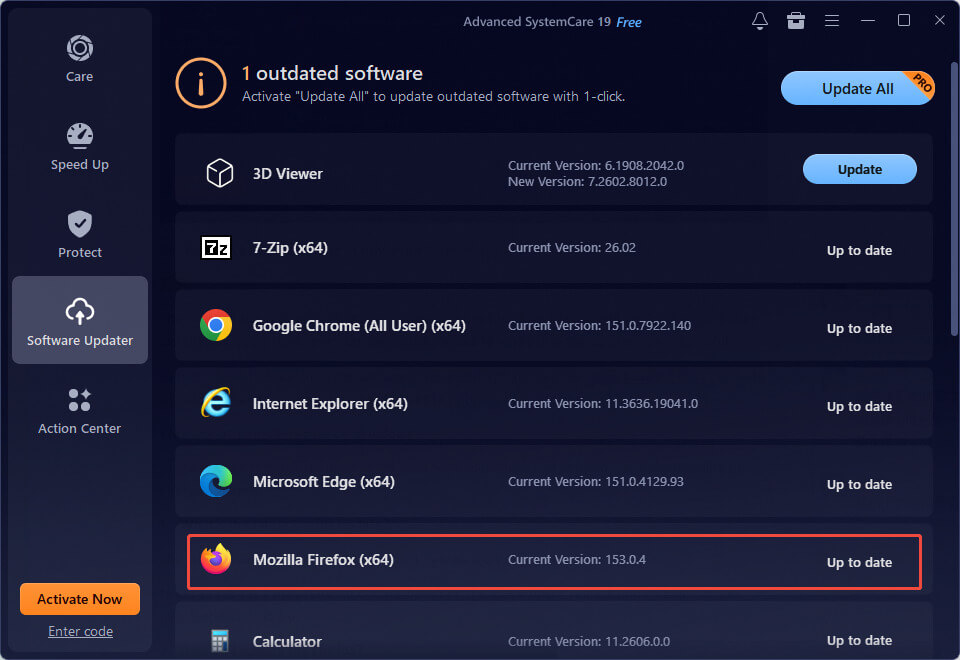
Step 4. The tool will begin downloading the installer, attempt to close Firefox, and perform an overwrite installation. When update completes, you can see that the original “Update” button has changed to “Up to date”.
In addition to Firefox updates, Advanced SystemCare can bring you further benefits as follows.
Supports other software update: Apart from browser updates, it can also update built-in Windows tools and other downloaded software.
Clean browsers: It can be used as a browser cleaner, which can clear Firefox cache, cookies, and browsing history.
Wipe system and repair registry: This tool offers system cleanup and maintenance service, including cleaning junk file and repairing registry.
Boost PC performance: It provides startup item optimization and real-time performance tuning to improve your PC performance..
Finally, if you have the needs mentioned above, remember to download Advanced SystemCare for maintenance.
FAQs about Firefox Update on Windows
In the end, go through some common questions users have and deepen the understanding of Firefox updates.
1. What’s the latest Firefox update?
The latest stable version is Firefox 153.0.4, released on August 11, 2026.
Note: 153.0.4 is a maintenance update based on the 153.0 major release and includes all the new features of 153.0.
2. How do I update my Firefox?
This article offers 3 methods for you to update your Firefox:
Enable the automatic updates feature.
Manually update it within the browser.
Update it using Advanced SystemCare.
3. Does Firefox browser update automatically?
Yes, Firefox updates automatically if the automatic updates feature is enabled.
4. What to do if Firefox update failed or Firefox cannot launch after update?
5. Is it safe to update using the third-party tool?
Advanced SystemCare is a long-established, well-regarded tool and is generally considered safe. You can use it to complete Firefox update automatically with confidence.
The Bottom Line
This post displays all information about Firefox update, including version check, new features, update benefits, and update approaches. After learning these, we hope you enjoy improved stability, enhanced privacy protection, and a smoother online experience.