Slow-loading pages, laggy tabs, and downloads that seem to crawl can make Chrome frustrating to use. If you are searching for how to speed up Chrome, the best approach is to check both the browser and the Windows system behind it. This guide covers seven practical methods, from Chrome’s built-in performance settings to browser cleanup, task management, malware scanning, and PC optimization.
Way 1. How to Speed Up Chrome via Settings: Maximize Chrome Speed
Chrome includes several built-in performance options that can improve responsiveness without installing extra software. If you want to know how to make Chrome faster, start with page preloading, Memory Saver, startup behavior, and graphics acceleration.
1. Turn on Preload Pages
Chrome Preload Pages can prepare pages it predicts you may visit next, helping browsing and search results feel faster. Google currently places this option under Performance settings.
Step 1. Open Chrome, click the three-dot More menu, and select Settings.
Step 2. Choose Performance from the left menu and turn on Preload pages.
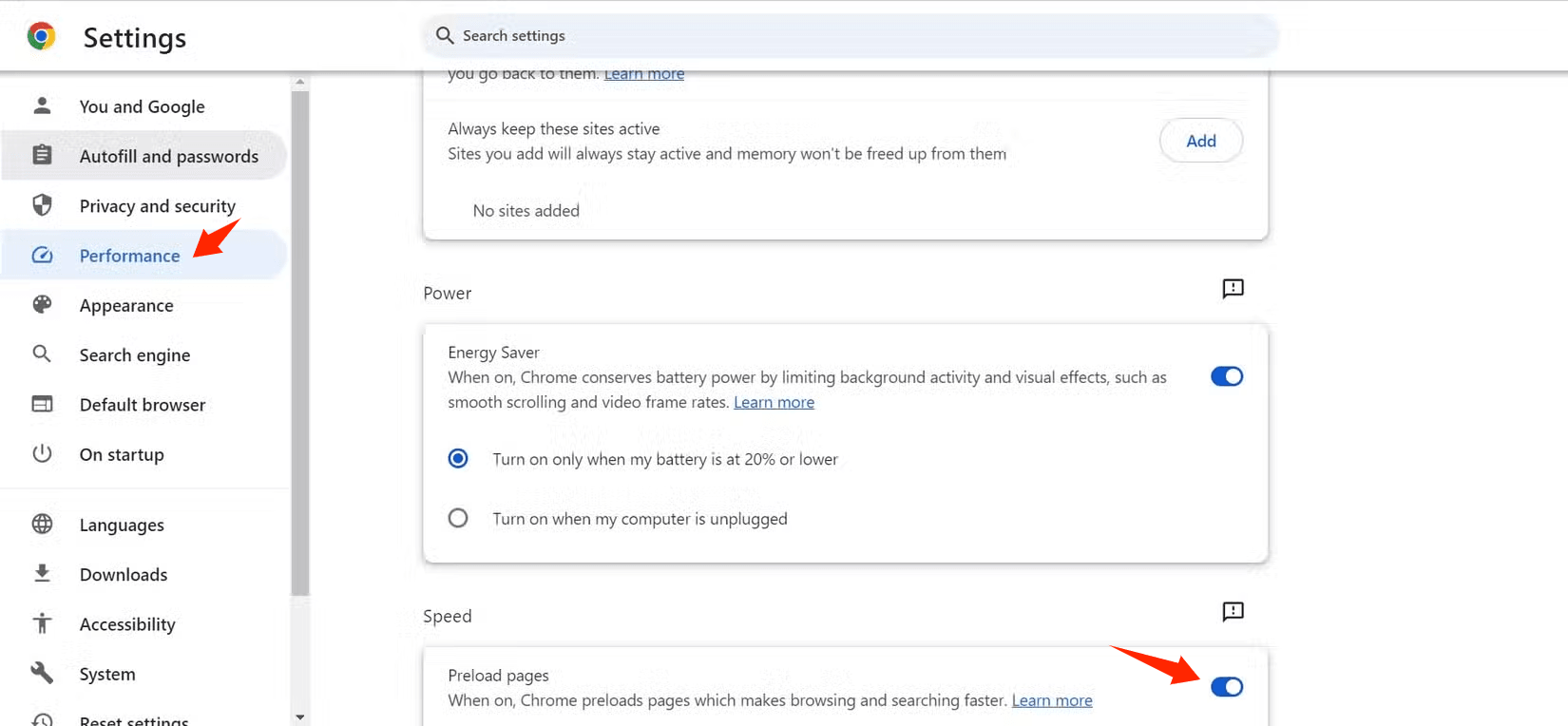
Step 3. Select the available preload option that suits your needs. More extensive preloading may make predicted pages load sooner, although it can also use more network resources.
2. Enable Memory Saver
Memory Saver reduces the memory used by inactive tabs so active tabs have more resources. Chrome currently provides Moderate, Balanced, and Maximum levels, with Balanced listed as the recommended option.
Step 1. Open Chrome Settings > Performance.
Step 2. Turn on Memory Saver.
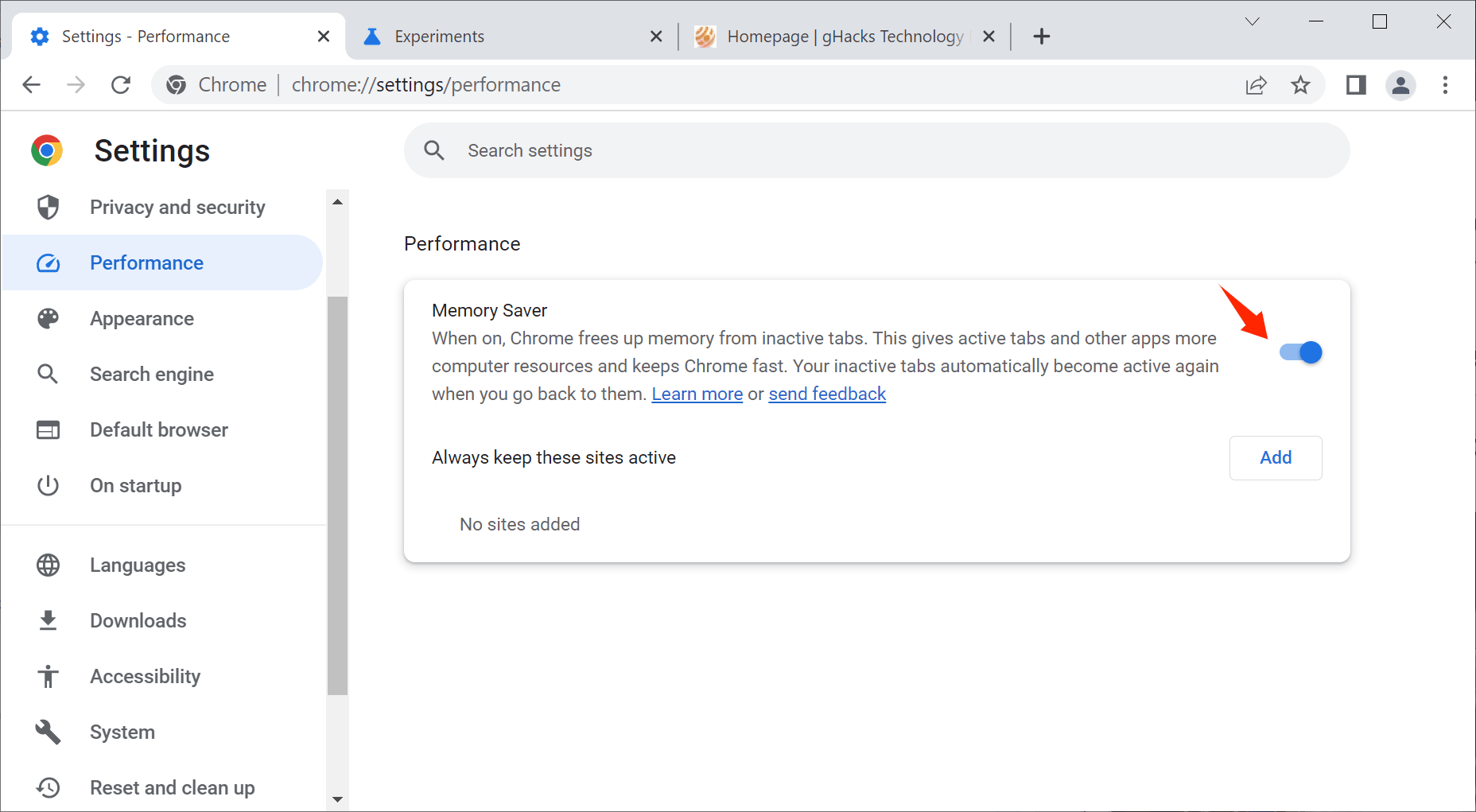
Step 3. Choose Balanced for everyday use, or Maximum if you want unused tabs to become inactive sooner and save more memory.
3. Optimize Startup Pages
Opening several websites whenever Chrome launches creates additional startup work. If you do not need Chrome to restore multiple pages, a simpler startup configuration can reduce that workload.
Step 1. Go to Settings > On startup.
Step 2. Select Open the New Tab page if you do not need multiple webpages to launch automatically.
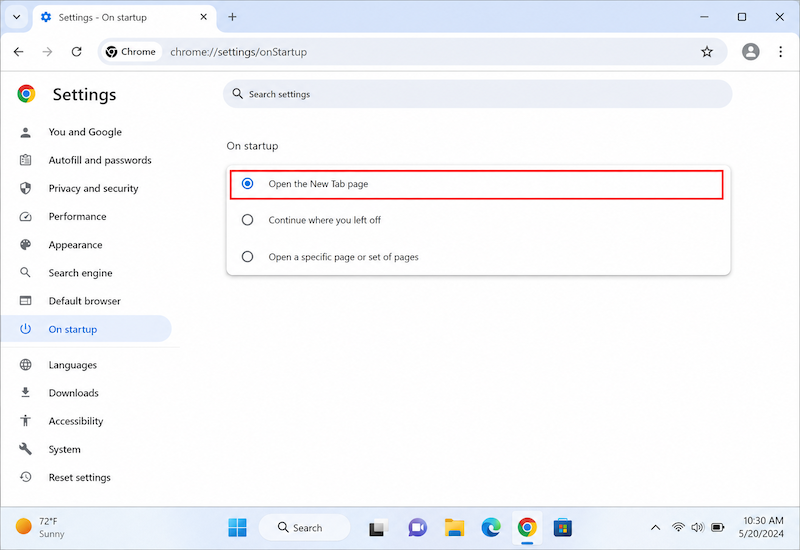
Step 3. If you use Open a specific page or set of pages, remove unnecessary startup pages. Chrome officially provides these startup controls in its Settings menu.
4. Use Hardware/Graphics Acceleration
Chrome can use your GPU for compatible graphics and rendering workloads. In current Chrome versions, the option is labeled Use graphics acceleration when available.
Step 1. Enter chrome://settings/system in the address bar.
Step 2. Turn on Use graphics acceleration when available.
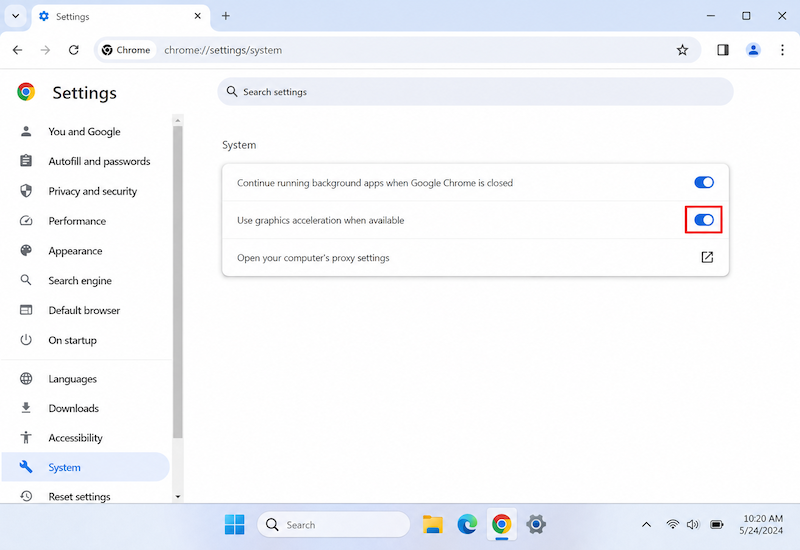
Step 3. Relaunch Chrome. If you notice flickering, black screens, or unusual rendering problems afterward, test Chrome again with graphics acceleration disabled.
Together, these settings provide a useful built-in answer to how to speed up Google Chrome browser on Windows without extra optimization software.
Way 2. Update Your Google Chrome to Speed Up Chrome
Built-in performance settings work best when the browser itself is current. Chrome normally updates automatically in the background, but you can manually check for pending updates when troubleshooting performance.
For users asking how to speed up Google Chrome, this should be one of the first checks.
Step 1. Open More > Help > About Google Chrome.
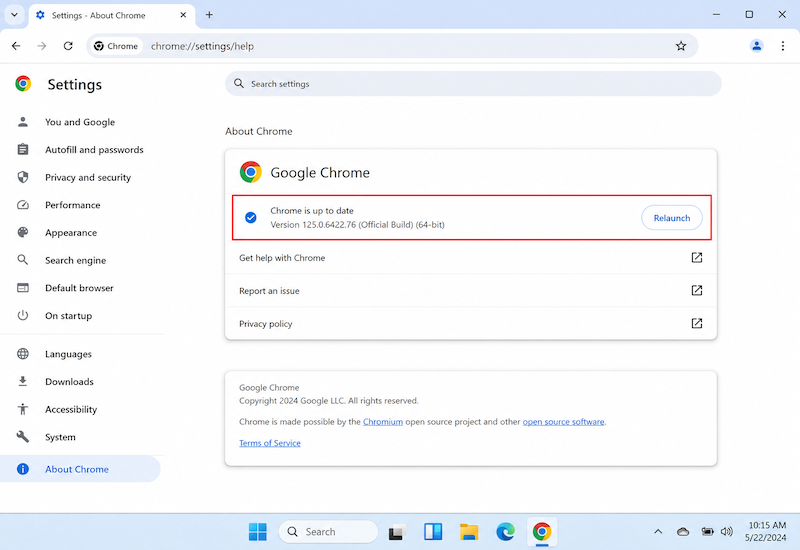
Step 2. Chrome automatically checks for an available update when you open this page.
Step 3. Click Relaunch if prompted. If the Relaunch option does not appear, you are already using the latest available version.
If Chrome is up to date but the entire computer still feels sluggish, a computer performance test can help determine whether CPU, RAM, disk activity, or another system resource is the actual bottleneck.
Way 3. Clean up Browsing Data to Boost Your Google Chrome
If Chrome is current but still feels sluggish, accumulated or problematic browsing data is the next area to inspect. Cache normally helps websites load faster, so deleting it is not a universal speed boost. However, corrupted cache, outdated site data, or excessive browser traces can sometimes contribute to loading problems.
For readers researching how to speed up Chrome while also improving Windows performance, Advanced SystemCare combines browser privacy cleanup with broader PC maintenance.
Advanced SystemCare Free
- Clean: 420 billion traces removed & 85 EB junk files cleaned
- Protect: 80 million unauthorized access blocked & 20 million bugs fixed
- Speed Up: 6 million hours of startup time saved & Turbo boost
- Optimize: Auto clean and auto care your PC with AI mode
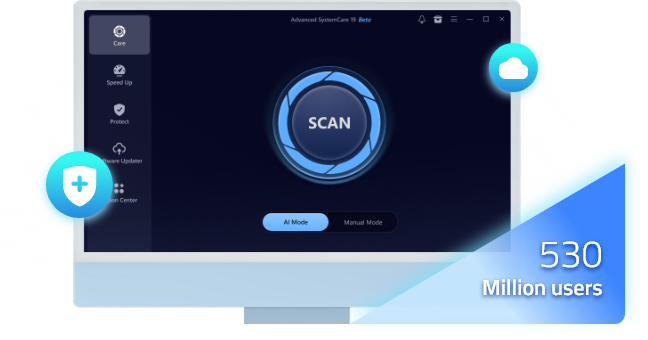
Step 1. Download Advanced SystemCare, launch it, and open the Care page.
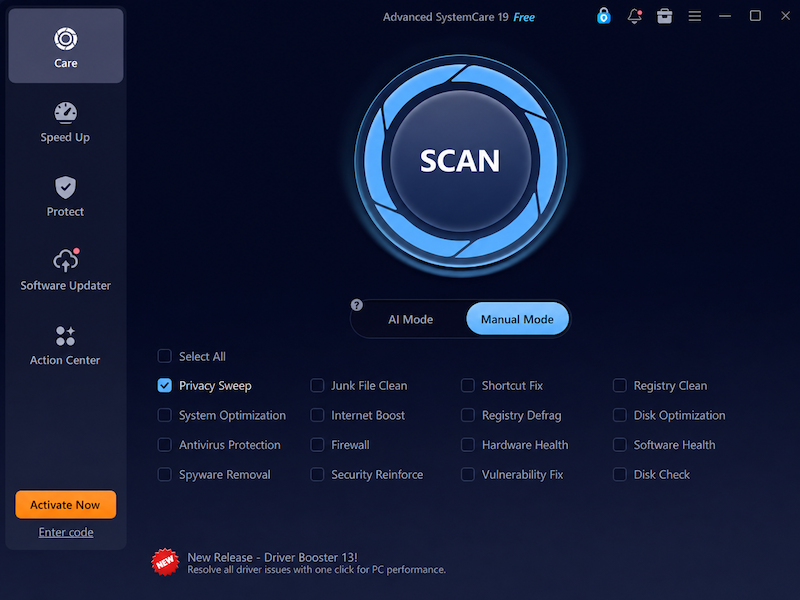
Step 2. Switch to Manual Mode and select Privacy Sweep. Close Chrome before starting the scan.
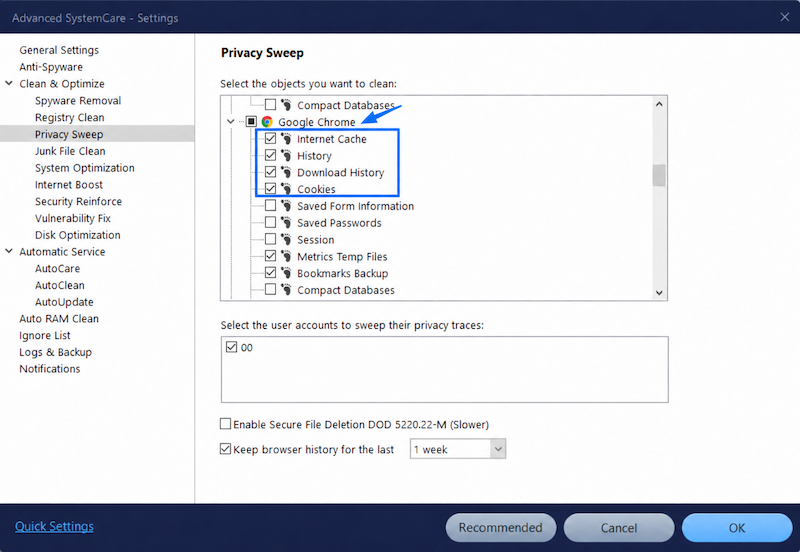
Step 3. Open Privacy Sweep settings, locate Google Chrome, and choose the data you actually want to remove, such as cache, browsing history, download history, or cookies. Avoid removing saved passwords or useful cookies unless you intend to delete them.
Step 4. Start the scan, review the detected items, and click Fix to clean the selected results.
Advanced SystemCare allows users to review scan results before applying fixes. A hard disk cleaner can also help when low free storage and accumulated junk are affecting the whole PC rather than Chrome alone.
More Features of Advanced SystemCare to Boost Chrome Performance
Turbo Boost to Speed up Chrome Downloads Free: Turbo Boost temporarily disables unnecessary services and background applications to release system resources, which helps Chrome remain responsive during large downloads.
AI-Powered PC Clean & Optimization: AI Mode provides broader PC cleanup and optimization, while Manual Mode includes modules such as Privacy Sweep, Junk File Clean, System Optimization, Registry Clean, etc.
Real-Time TuneUp for Top PC Performance: Real-time TuneUp enables Performance Monitor and Auto RAM Clean to monitor and release system resources.
Startup Optimizer for Faster PC & Chrome: Startup Optimizer lets users disable or delay unnecessary startup items and manage browser startups, services, and scheduled tasks, reducing unnecessary activity after Windows starts.
Strong Browser Protection for Chrome Surfing: Browser Protection includes Email Protection, Ads Removal, Surfing Protection, and Homepage Advisor for advanced virus protection.
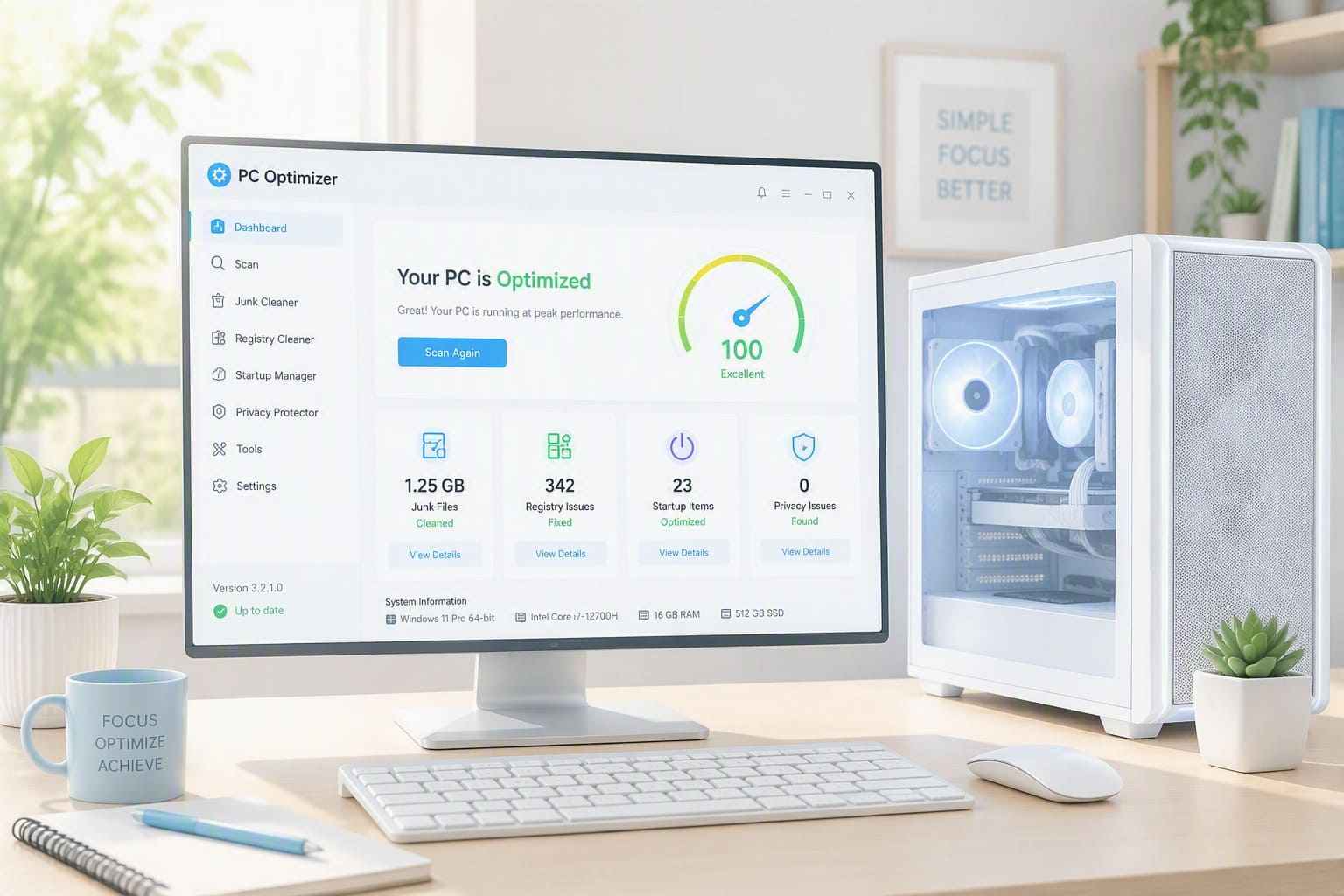
These features are especially useful when slow Chrome performance is partly caused by Windows resource pressure rather than the browser alone.
If you are considering a RAM optimizer Windows 11 solution, first check whether low available memory is actually contributing to Chrome slowdown.
Way 4. How to Make Chrome Faster with Task Manager
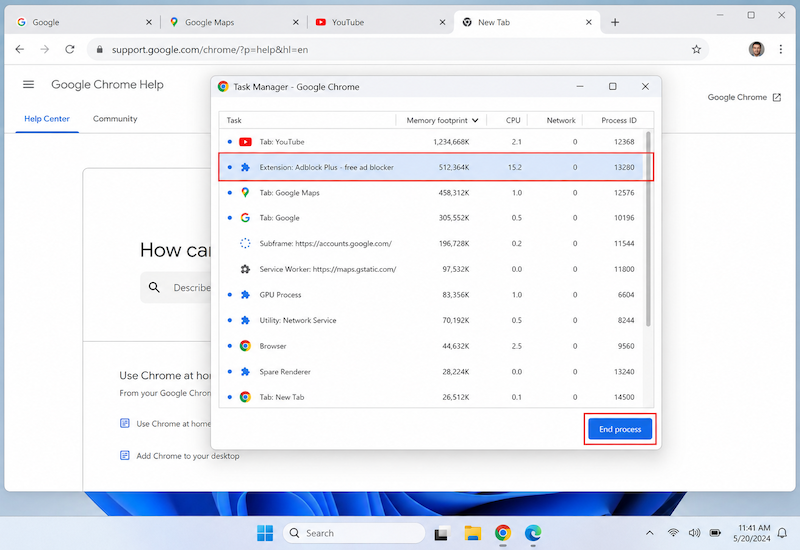
Chrome’s built-in Task Manager shows the memory usage of individual browser tasks and lets you stop tasks you no longer need.
Step 1. Open Chrome and press Shift + Esc, or select More > More tools > Task Manager.
Step 2. Sort tasks by Memory and identify tabs, extensions, or background pages using unusually high resources.
Step 3. Select an unnecessary task and click End process. Save unfinished work first because ending a process may close the associated webpage or app.
Way 5. Remove Unused Extensions & Tabs for Faster Browsing
Every active tab consumes resources, while some extensions continue running background tasks. If you are wondering how to speed up my Chrome browser, removing unused tabs and extensions is one of the simplest answers to how to speed up Chrome without changing Windows settings.
Step 1. Close tabs you no longer need.
Step 2. Open More > Extensions > Manage extensions.
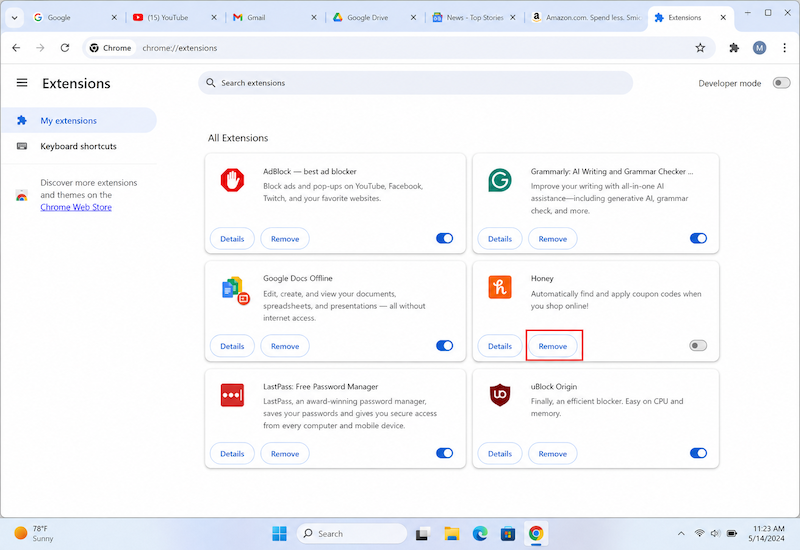
Step 3. Disable extensions temporarily to test them, or select Remove for extensions you no longer use. Google also recommends turning off or removing unnecessary extensions when troubleshooting a slow Chrome browser.
If you are also troubleshooting “100 disk usage Windows 11,” address that disk bottleneck first. Browser tweaks cannot fully compensate for constant storage contention.
Way 6. How to Speed up Chrome by Malware Scanning
When Chrome remains unusually slow even after unnecessary tabs and extensions are removed, unwanted software or malware is worth ruling out. Malicious programs can consume system resources, alter browser settings, trigger redirects, and interfere with normal web browsing.
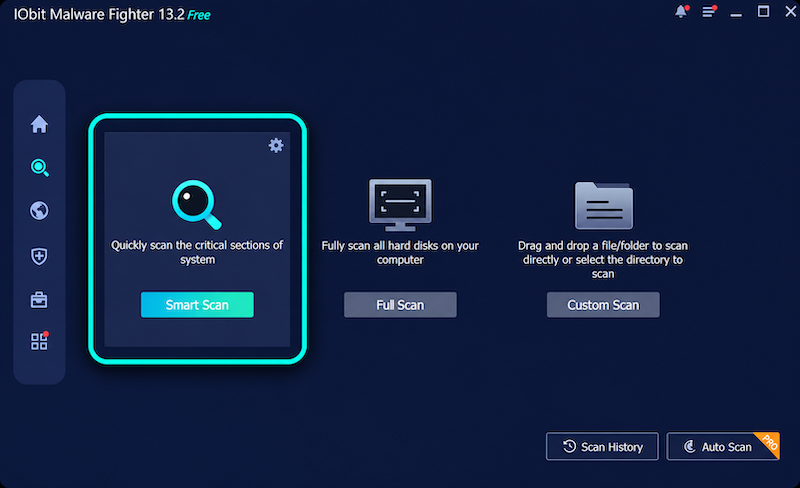
IObit Malware Fighter provides Smart Scan, Full Scan, and Custom Scan modes for different security-checking needs.
Step 1. Download and launch IObit Malware Fighter, then update the threat database if an update is available.
Step 2. Run Smart Scan for critical system locations, Full Scan to inspect all hard disks, or Custom Scan to check selected files or folders.
Step 3. Review detected threats before removing or quarantining them. Restart Chrome afterward and compare its performance.
A malware scan is not a direct browser-speed booster, but it can resolve slowdowns when malicious or unwanted software is responsible.
Way 7. Reset Chrome Settings to Speed Up Chrome Downloads
If no threats are found and the slowdown continues, resetting Chrome is a reasonable final troubleshooting step. It does not directly increase network bandwidth, but it can reverse unwanted settings changes caused by extensions, apps, or other software.
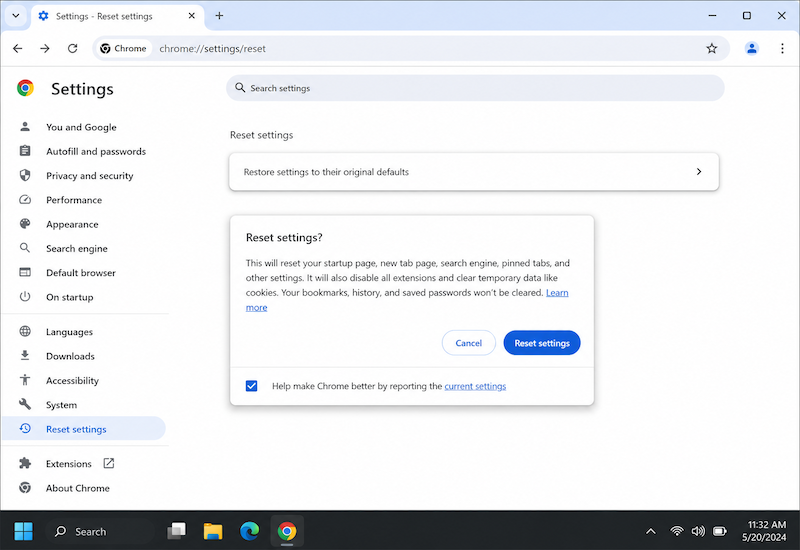
Step 1. Open Chrome Settings > Reset settings.
Step 2. Select Restore settings to their original defaults.
Step 3. Click Reset settings, restart Chrome, and test browsing and downloading before re-enabling extensions.
Google states that resetting Chrome does not delete or change saved bookmarks and passwords, although a number of browser settings are restored to their defaults.
For readers searching how to speed up Chrome downloads or how to increase Chrome download speed, remember that Chrome is only one part of the download path. Wi-Fi quality, ISP bandwidth, the source server, security scanning, and other simultaneous downloads can all limit actual throughput.
FAQs About How to Speed Up Chrome
1. Why is Chrome Running So Slow on My Computer?
Chrome may become slow because of too many active tabs, resource-heavy extensions, low available RAM, high CPU or disk usage, outdated software, malware, or a slow website.
2. How to Check If Your Chrome is Slowing Down?
Press Shift + Esc to open Chrome Task Manager and compare memory use across tabs, extensions, and background pages. If Chrome is not consuming excessive resources, check Windows Task Manager to see whether another application or system process is creating the bottleneck.
3. How Do I Speed Up My Google Chrome on Windows 11?
Start with Memory Saver, Preload pages, fewer startup pages, an updated Chrome version, and fewer unnecessary extensions. If Windows itself is also sluggish, a Windows optimizer can help investigate startup programs, background processes, storage use, and other system-level issues.
4. Why is my browser so slow but my internet is fast?
A fast internet connection does not guarantee fast browser rendering. Chrome can still be limited by high CPU usage, low available memory, problematic extensions, corrupted browser data, graphics-driver issues, malware, or slow processing on the website’s own server.
The Bottom Line
Knowing how to speed up Chrome means checking browser settings, Windows resources, and network conditions rather than relying on one tweak. Start with Chrome’s built-in options, then update, clean browsing data, reduce extensions, scan for malware, and reset settings if necessary. Advanced SystemCare adds broader cleanup, startup, memory, and system optimization for Windows users.
Advanced SystemCare Free
- Clean: 420 billion traces removed & 85 EB junk files cleaned
- Protect: 80 million unauthorized access blocked & 20 million bugs fixed
- Speed Up: 6 million hours of startup time saved & Turbo boost
- Optimize: Auto clean and auto care your PC with AI mode