Whether files or folders you shared or shared by others can become crowded over time. Old spreadsheets, shared folders, presentations, and documents often pile up. Thus, many people want to know how to delete shared files from Google Drive.
Google Drive treats shared files differently based on your permissions. In this post, you'll learn how to remove shared files from Google Drive whether you're the owner or shared by others, and how to stop sharing files you own with others.
Can You Delete Shared Files from Google Drive?
Before learning how to remove a shared file from Google Drive, you need to know who owns them. Your options depend on where the file is stored:
If You're the Owner
You can move the file to Trash, permanently delete it, or stop sharing it. Once permanently deleted, collaborators can no longer access it unless another copy exists.
If Someone Shared the File with You
You can't permanently delete another person's file. Removing it from your Drive or Shared with me only removes your access, while the owner and other collaborators can still use it.
If It's in a Shared Drive (Google Workspace)
Shared Drive files follow organization permissions. Managers can delete files, while other roles have different deletion privileges based on assigned permissions.
How to Delete Shared Files from Google Drive - You Are the Owner
how to delete shared files from Google Drive that is created by yourself? When you're the owner of a shared file or folder, you have complete control over its lifecycle. That means you can remove it from Google Drive by moving it to the Trash and permanently deleting it later.
Step 1. Open Google Drive and open your drive. Click the People filter to select your account. Then here will list all files and sheets you created.
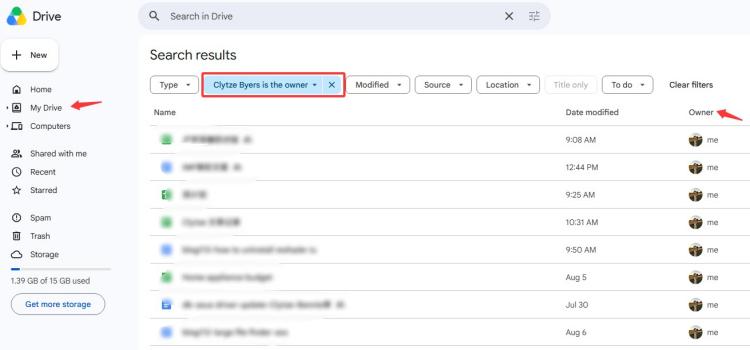
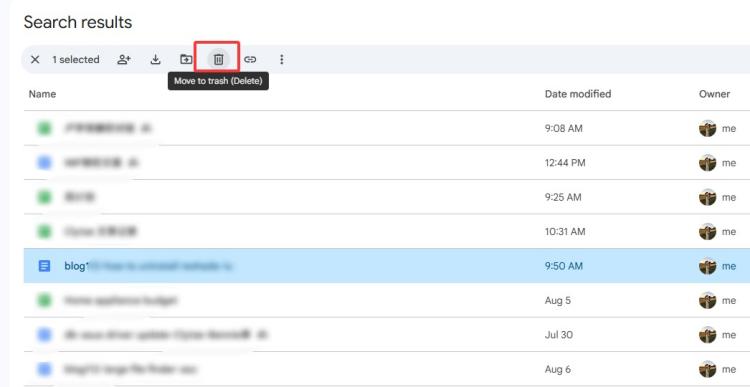
Step 2. Click to highlight it, then click the Trash icon on the toolbar. Open Trash from the left navigation panel and review the deleted item. Click Empty trash or select Delete forever for the specific file.
Step 3. Once the file is permanently deleted, everyone you previously shared the files with will lose access.
Helpful notes:
Files normally remain in Trash for approximately 30 days before automatic deletion.
You can restore a file from Trash at any time before it is permanently deleted.
Download a backup copy before deleting shared file contains important information permanently.
How to Remove Shared Files from Google Drive - You Are Not the Owner
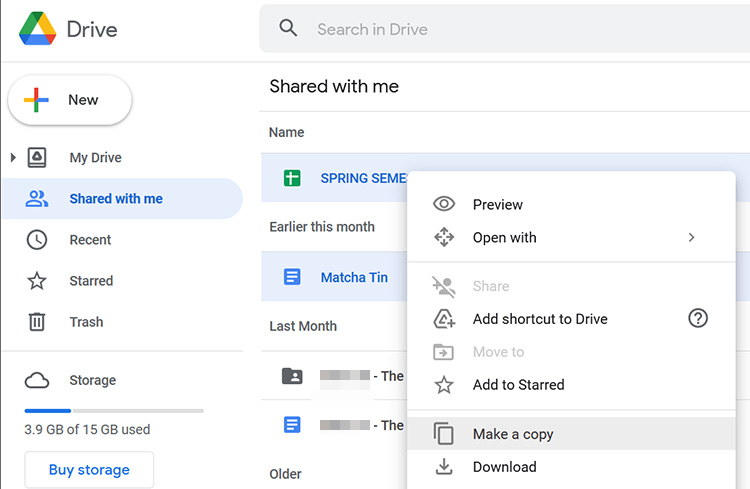
Can't remove shared files from Google Drive you don’t own? You can remove it from your own view to keep the Shared with me section organized if another person owns the file. The original file remains unchanged and is still available to its owner and other collaborators. Here’s how to remove a shared file from Google Drive you don’t own.
Step 1. Sign in to Google Drive and select Shared with me from the left navigation pane.
Step 2. Browse the list or search for the shared file you no longer want to keep in your account.
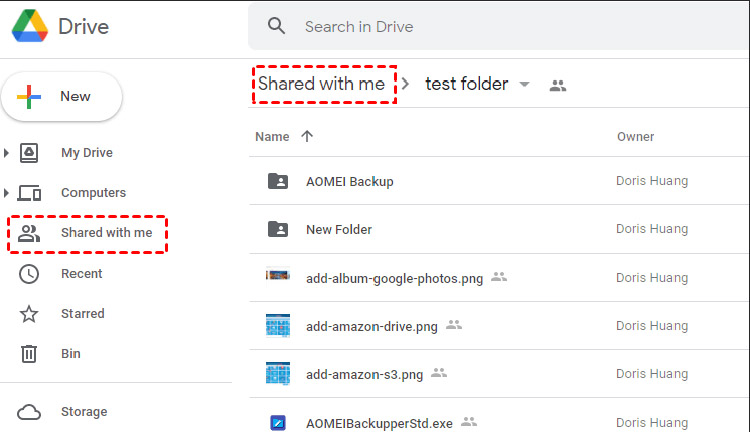
Step 3. Right-click the file and choose Remove. The file is removed from your personal view.
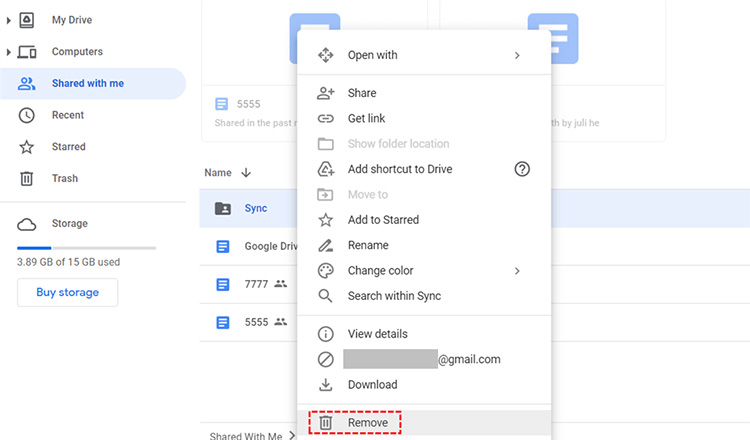
Keep in mind that this action only hides the file from your account. It does not delete the original document. If you receive a new sharing invitation or open the same shared link again, the file will appear in your Google Drive once more.
How to Stop Sharing Google Drive Files with Others (Still Need the File)
Sometimes, the goal isn't to delete a file but to prevent other people from opening or editing it. The actual need is to remove someone else's access while keeping the file in their own account.
How to stop sharing files with others while keeping them on your Drive:
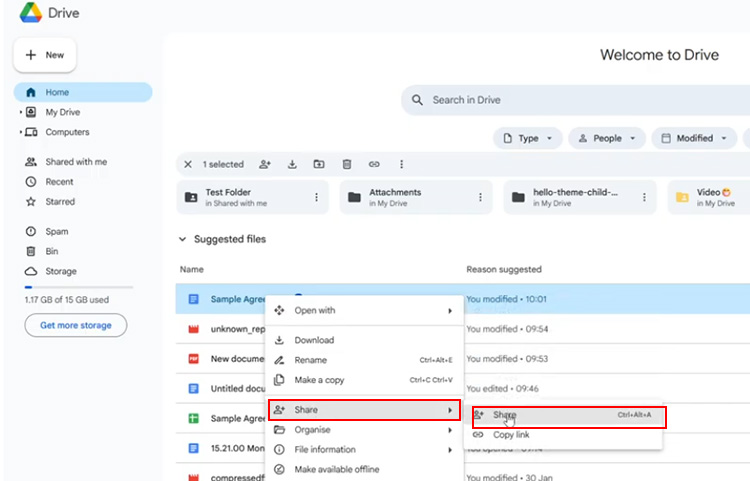
Step 1. Go to Google Drive and locate the file or folder you want to manage. Right-click it (or select it and click Share) to open the sharing settings.
Step 2. Under People with access, find the user you want to remove. Click the permission menu next to their name and choose Remove access.
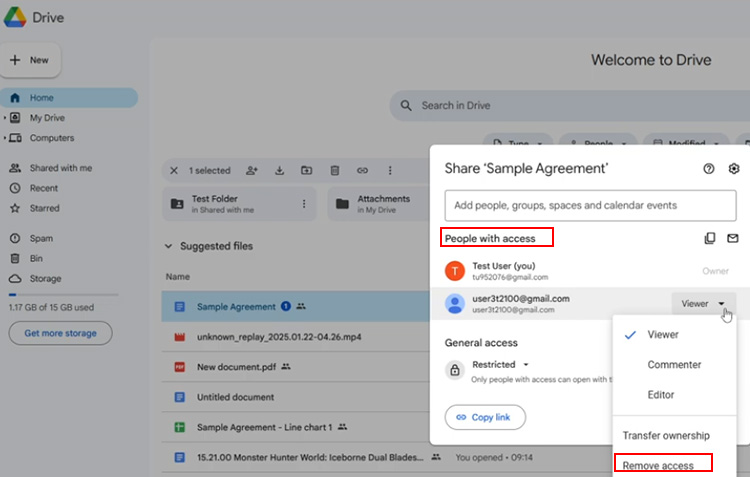
Step 3. Click Save to apply the new sharing permissions. The selected user will immediately lose access to the file or folder.
Removed collaborators will no longer be able to view, edit, or comment on the file. Any public or previously shared links will stop working for people who no longer have permission, while the file itself remains safely stored in the owner's Google Drive account.
Tip: Review your file sharing permissions every few months, especially for work or personal documents containing sensitive information. Regular permission check and PC health check reduce the risk of unintended access.
Clean up Shared File Traces on Your PC with Advanced SystemCare
After learning how to delete shared files from Google Drive, many users assume every trace of those files disappears automatically. In reality, your Windows computer may still retain local traces created during everyday use, such as temporary files, cached thumbnails, browser cache, or obsolete registry entries. These leftovers won't restore access to the original Google Drive file, but they can consume disk space, reduce system efficiency.
While you've already completed how to delete shared files from Google Drive and want to clean up your PC afterward, Advanced SystemCare can help. Rather than managing Google Drive permissions or deleting cloud files, it focuses on removing unnecessary Windows data associated with file activity. Its cleanup and optimization tools reclaim storage, improve privacy, and keep your computer running smoothly.
Advanced SystemCare Free
- Clean: 420 billion traces removed & 85 EB junk files cleaned
- Protect: 80 million unauthorized access blocked & 20 million bugs fixed
- Speed Up: 6 million hours of startup time saved & Turbo boost
- Optimize: Auto clean and auto care your PC with AI mode

Key Features of Advanced SystemCare
One-Click Clean Up Shared File Traces: Removes temporary files, browsing data, recent file records, and other Windows traces created while accessing shared documents.
Remove Invalid Registry Entries: Scans for obsolete or broken registry entries left behind by uninstalled apps, invalid file associations, and missing references.
Securely Delete Local File Remnants: Clears remaining local file traces, temporary data, and hidden remnants that regular deletion may leave behind.
File Shredder – Destroy Files Securely: Supports secure data sanitization methods to permanently erase files and prevent recovery of sensitive information.
Hard Disk Cleaner – Deep Google Drive Junk File Removal: Finds cache files, temporary downloads, thumbnails, and other unnecessary Windows files to free up storage.
Boost PC Performance After Cleanup: Removes system clutter and optimizes Windows to improve responsiveness and reduce unnecessary background overhead.
Note: Advanced SystemCare does not delete files from Google Drive, remove shared permissions, or revoke collaborator access. The RAM optimizer Windows 11/10 complements Google Drive by cleaning local Windows traces and unnecessary system data after file activity.
How to Clean Up Shared File Traces with Advanced SystemCare
Step 1. Download and install Advanced SystemCare on your Windows PC for shared file removal.
Step 2. Launch Advanced SystemCare and go to the main interface. Click the Care tab, switch to Manual Mode, and select “Registry Clean”.
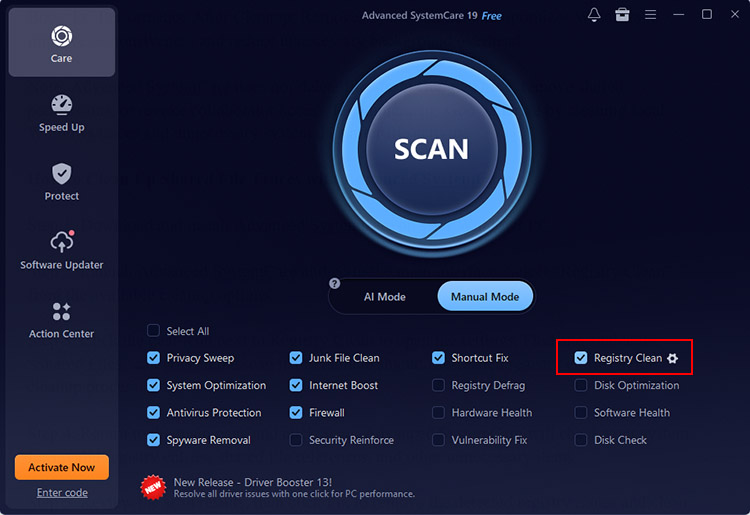
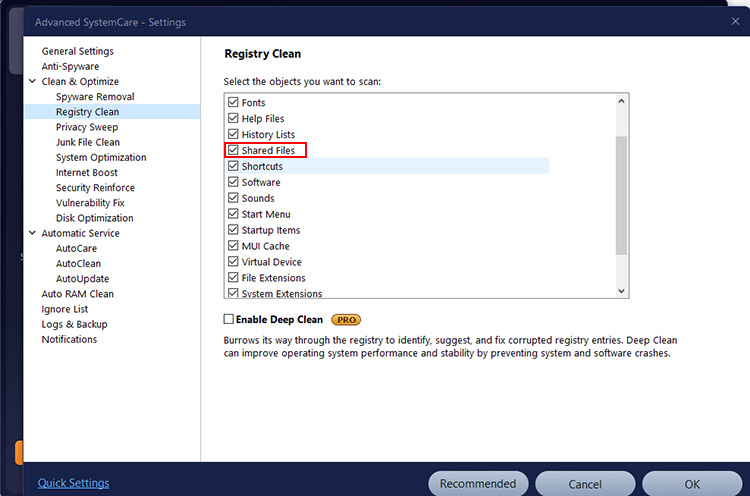
Step 3. Click the gear icon next to Registry Clean to open the settings. Find and enable the “Shared Files” category in the list to include shared file-related registry entries in the cleanup process.
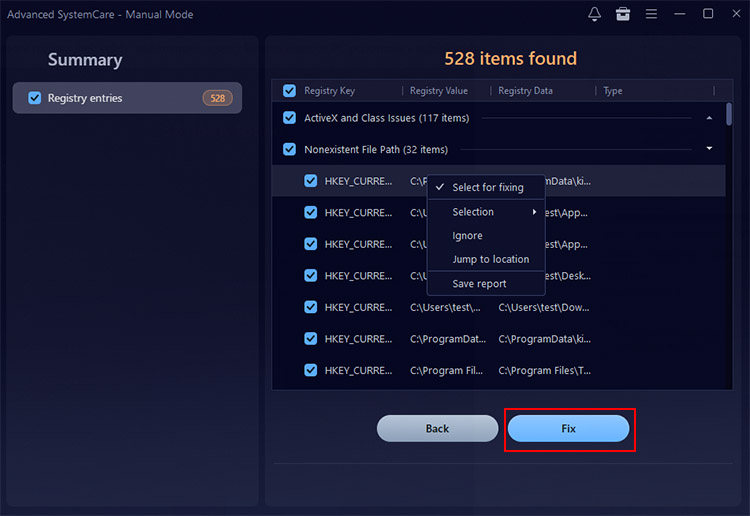
Step 4. Return to the main page and click Scan. Advanced SystemCare will check your system for invalid registry entries, shared file references, and other unnecessary items. Review the scan results, then click Fix to remove shared files.
Final Words
Knowing how to delete shared files from Google Drive helps you manage shared content, protect privacy, and remove unwanted files safely. However, it doesn't erase the local traces that may remain on your Windows PC. To clean up residual data related to file activities, remove junk files, protect privacy, and improve system performance, try the best Windows optimizer - Advanced SystemCare.