Minecraft creates an immersive world for you with its smooth animations, mind-soothing sound effects, and unmatched freedom. But this could be destroyed with merely a low FPS. You will find that all animations are so choppy that it displays like a slideshow. Well, you need an FPS boost in Minecraft. Move on and find the suitable solutions for you!
Symptoms & Reasons for Low FPS in Minecraft
The F3 Debug Screen is the most direct way to check your current FPS. Apart from that, there are also some subtle or obvious signs that show that you have low FPS in Minecraft.
Screen stuttering: your screen suddenly freezes; the visuals may be choppy; all animations are inconsistent.
Texture pop-in: the world loading slower than you are moving; invisible chunks; blank spaces;
Rubber banding: other players move in choppy, teleporting bursts but not smooth movement animations.
Action delay: the keys you press or the mouse clicks are processed after a noticeable delay.
What about the reasons? Check them out.
Overloaded entities, such as too many mods, item frames, etc.
Hardware overloads/bottleneck of the GPU/CPU.
Outdated drivers, especially the GPU drivers.
Unoptimized in-game settings may cause a heavy burden.
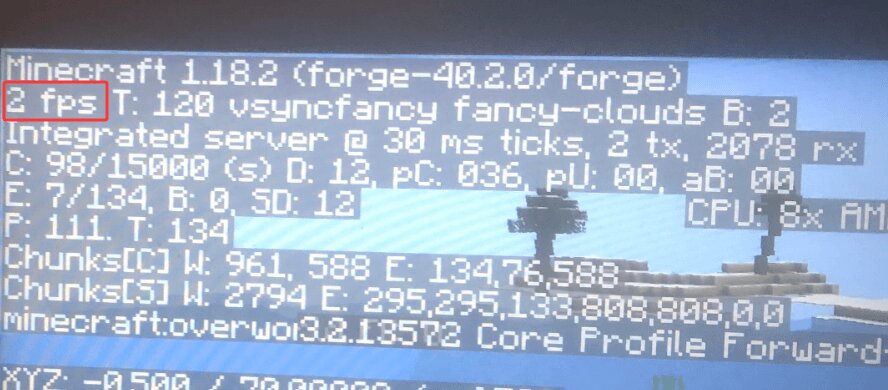
Low FPS in Minecraft Pic by User FxxkThisLife878 from Reddit
4 Proven Methods for FPS Boost in Minecraft
Are there any feasible solutions to fix this? Can you boost FPS in Minecraft? Of course, you do. Now that you have identified that you are experiencing a low FPS in Minecraft, we can move on to the practical methods to boost FPS in Minecraft.
No matter how severe it is, stay calm; you will be able to increase your FPS with correct solutions and tools, from the mods made by talented Minecraft players, driver updates, in-game video and other settings adjustments, and also some system-level tweaks. Choose and try out based on your own very situation.
1. Boost Minecraft FPS via Exclusive Minecraft FPS Boost Mods
The creative Minecraft community made diverse add-ons to make modifications to Minecraft games to provide better UI, add new creatures, new tech trees and magic systems, and also powerful mods to boost FPS.
These Minecraft FPS boost mods double frame rates, reduce lag spikes, smooth out gameplay, optimize RAM usage, provide greater control over visual settings, etc.
While the cross-platform, unified version Bedrock Edition may find it challenging to find a drag-and-drop mod like the original Java Edition users, they can still get some performance-enhancing packs/addons to boost Minecraft FPS.
Minecraft FPS Booster For Java Edition
Sodium
OptiFine
ImmediatelyFast
Entity Culling
FerriteCore
Minecraft FPS Booster/Packs for Bedrock Edition
Beryllium
Better FPS
FPS Booster
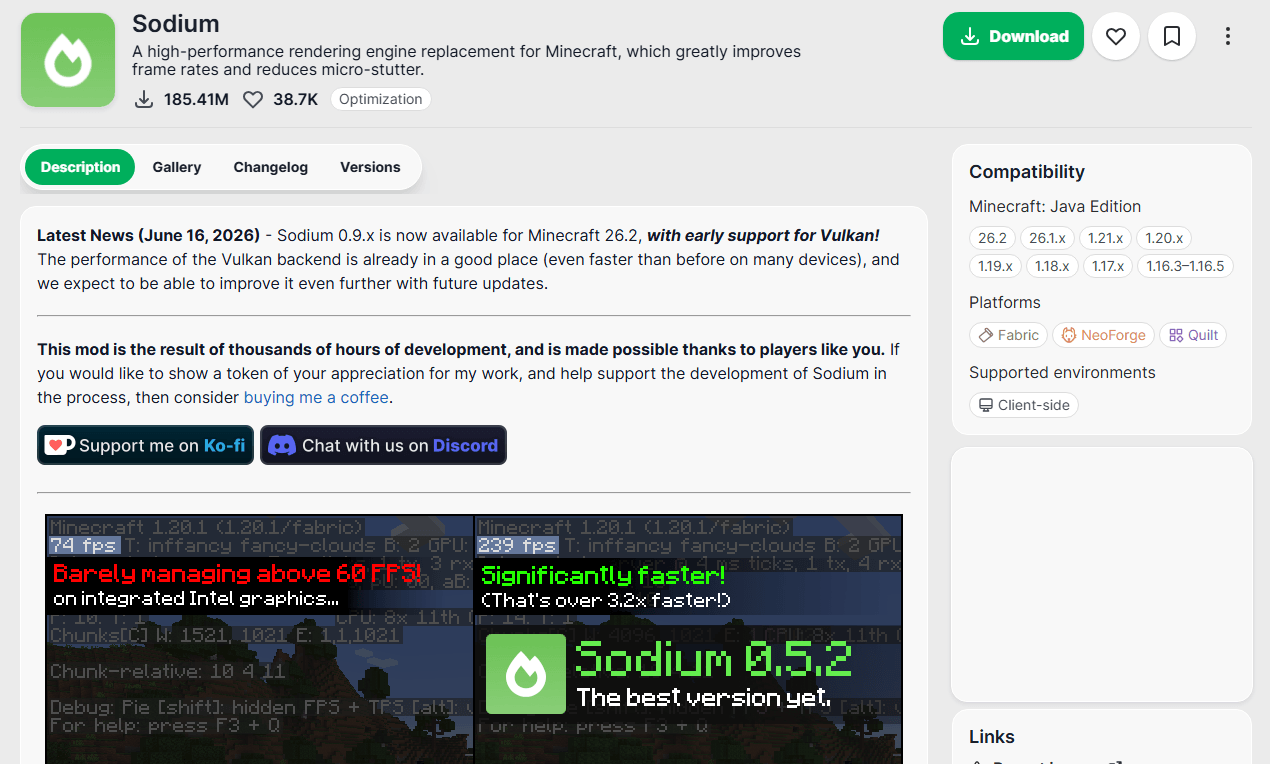
How to Increase FPS in Minecraft via Mods for Java
Step 1. Download the mods from the official websites, e.g., the OptiFine Downloads page. Download the correct version you need.
Step 2. Install the mod from the .jar file; let it process the file automatically.
Step 3. Simply launch Minecraft, choose your mod from the profile menu, and click Play to start.
How to Get More FPS in Minecraft via Mods for Bedrock PC
Step 1. Download the FPS boost packs from trusted sources.
Step 2. Choose and install the correct .mcpack file, let Minecraft import the file.
Step 3. Go to Settings > Global Resources > Active > the pack will be successfully loaded. If not, go to My Packs > select the pack > Activate.
2. Update Drivers to Minecraft FPS Boost
As aforementioned, an outdated driver can also lead to low FPS, especially for those GPU-demanding games; Minecraft is no exception. Your CPU helps calculate the block location and physics, while the GPU draws the 3D world, applies the texture, and deals with the lighting.
If the GPU drivers are outdated, missing, or corrupted, you will have to put up with low FPS, sometimes from 0 to under 10, chunk loading lag, or even game crashes.
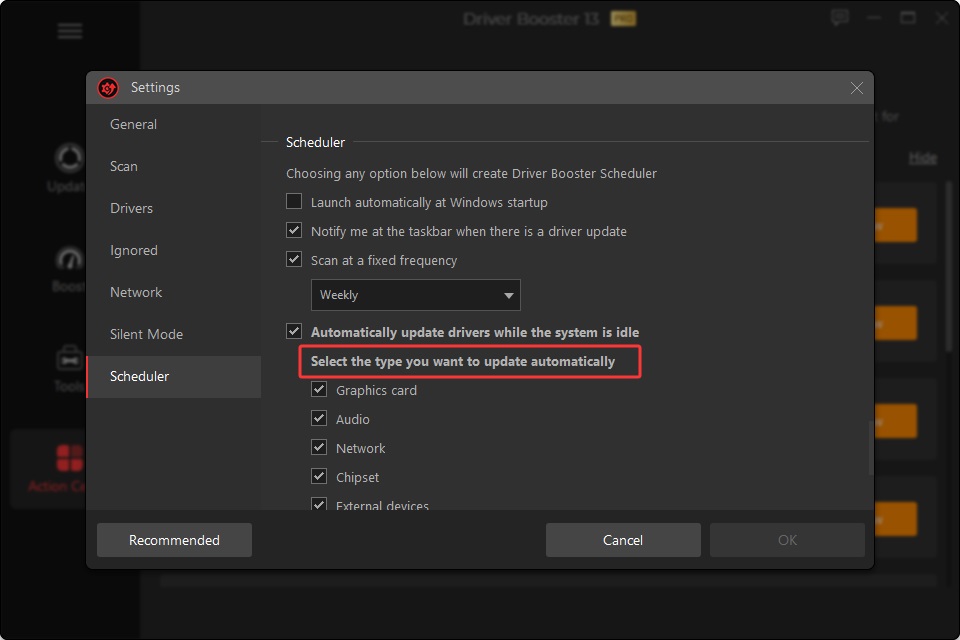
Therefore, try keeping your graphics drivers up-to-date to help boost FPS in Minecraft with professional driver updaters like Driver Booster from IObit.
This driver updater for Windows holds a huge 12M+ driver database, covering drivers for GPU, audio device, network adapter, motherboard, etc., which scans and updates GPU drivers efficiently in 1 click or automatically.
Plus, it comes with an exclusive Game Boost feature to stop unnecessary apps/services, releasing RAM and resources for Minecraft and other games running. With this automatic driver updater, Minecraft players won’t need to worry about FPS drops caused by outdated drivers.
Driver Booster Free
- Automatically scan and update drivers.
- Update game ready drivers for peak gaming performance.
- Identify and fix various common of hardware issues.
- Boost 30% of system performance for fast & smooth running.

Check the features you can enjoy:
• Update game-ready drivers to optimize graphics card drivers to boost game performance.
• Update 26 essential game components in 1 click to improve your gaming visuals.
• “Latest First” mode to acquire updates immediately for gamers who pursue performance and “Stability First” mode for users who prefer safety.
• Fix common game-related issues like No Sound error, network failure, bad resolution, etc.
How to Boost Minecraft FPS via Updating GPU Drivers
Step 1. Download and install Driver Booster. It works for Windows devices from Windows XP to Windows 11.
Step 2. Click the SCAN button to check the status of your drivers.
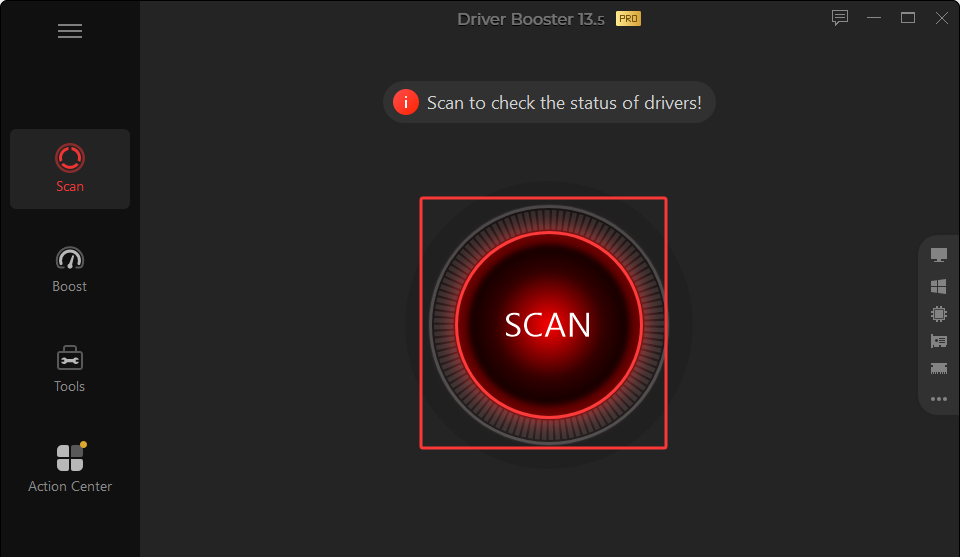
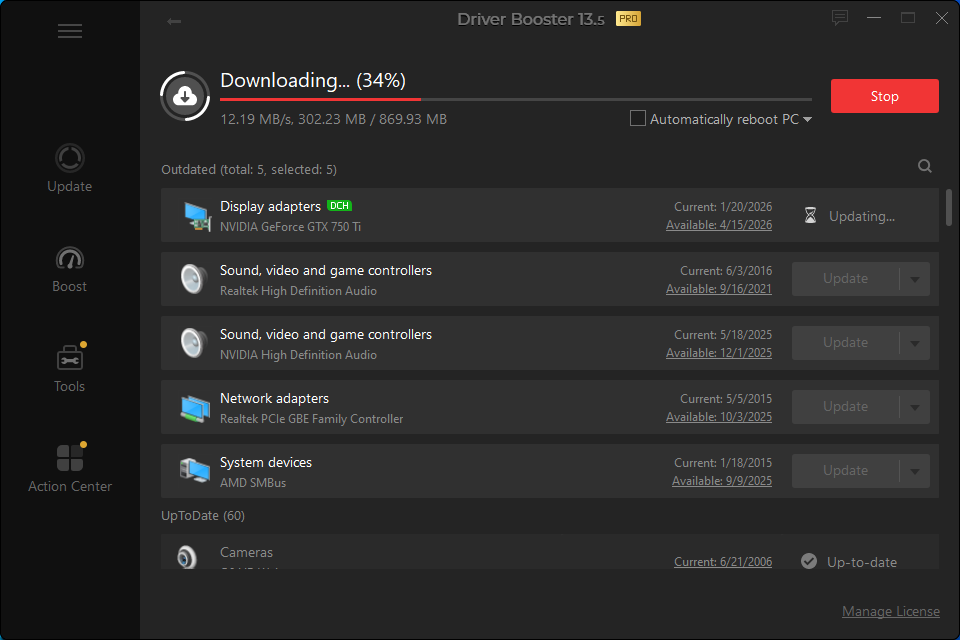
Step 3. When the driver updates for Display Adapters are found, choose and click Update, and let it download and install the drivers for you.
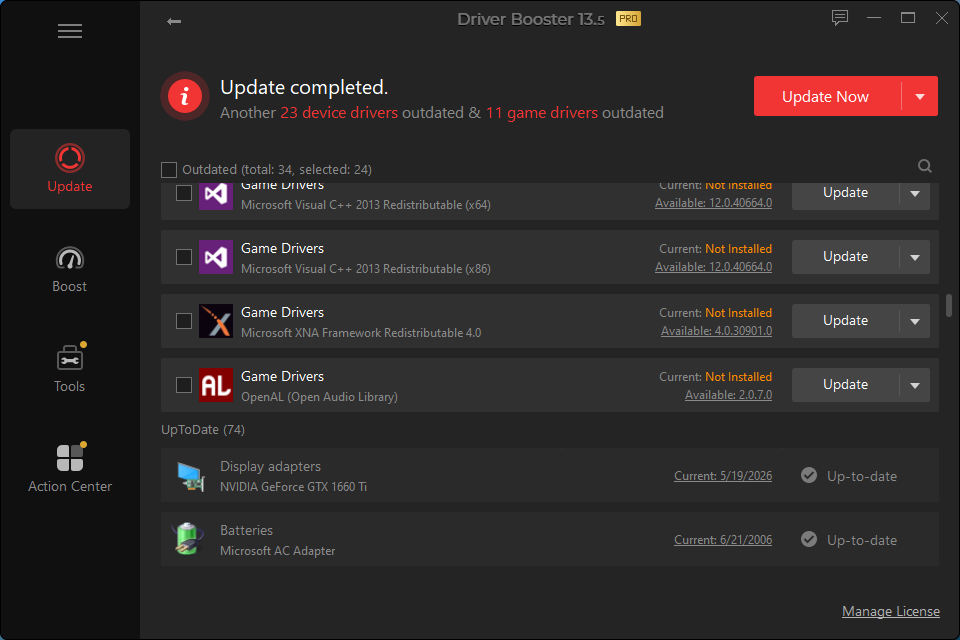
Step 4. Also, you may have scanned the Game Ready drivers; choose and update as you need.
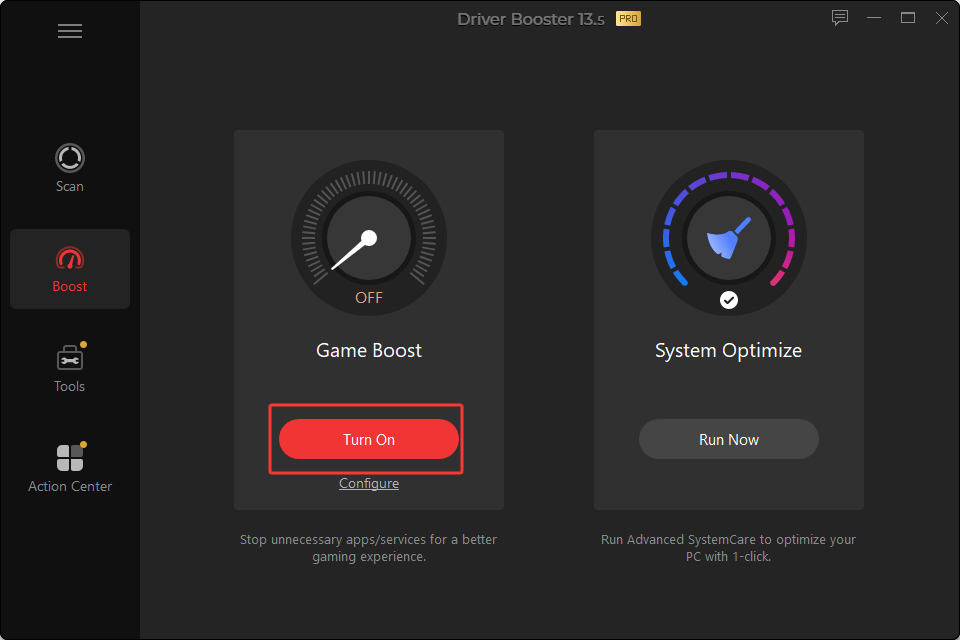
Don’t forget to turn on the Game Boost feature to build a better game-running environment: go to Boost> turn on Game Boost or configure it first, customizing the apps and services that you want to keep or close while gaming. When all is finished, try restarting your game and see if you still get low FPS in Minecraft.
This is how to increase FPS in Minecraft, which is also workable for other games. For instance, you can also get more FPS in Fortnite by updating the graphics driver with this tool.
3. Adjust In-Game Settings to Boost Minecraft FPS
Apart from the above efficient methods, you can also make some changes in your game to improve your FPS, especially for Bedrock Edition players who may struggle to find optimal mods for FPS boost in Minecraft. If so, check the following modifications you can do.
For Java:
Change the Graphics setting to Fast.
Set the Max Framerate to Unlimited.
Turn off or lower the Mipmaps Levels, Clouds, Particles, etc.
Turn off VSync. This may also help you fix Roblox lag or latency in other games.
Lower the Render Distance to 8-12 chunks.
For Bedrock:
Set Graphics Mode to Simple.
Set Anti-Aliasing to 1.
Set frame rate to Unlimited.
Use Window mode/switch off Full Screen, if possible.
Set the Render Distance to 15 or so.
Turn off or minimize the Beautiful Skies, Smooth Lighting, Fancy Leaves, etc., if you are okay with the visuals.
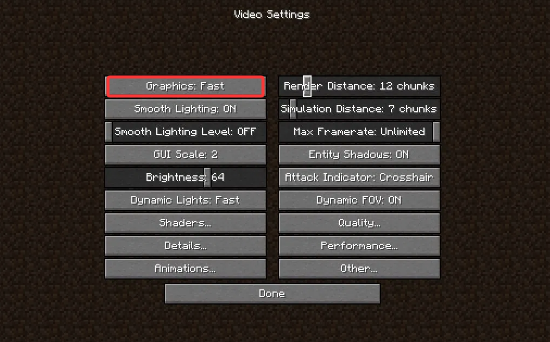
Changing only 1 or 2 may not give a huge FPS bump, but still worth trying with several altogether. Some of these adjustments can also work for other FPS-sensitive games, so if you are experiencing CS2 FPS drops, try and see if these fixes are useful as well.
4. FPS Boost in Minecraft via System Tweaks
Apart from making some in-game settings changes, you can also adjust PC system settings and devices. Check the following options.
Plug in your charging cable, especially if you are using the laptop. The On Power/Power Save/Balanced modes decide how much energy your CPU/GPU can use.
Close unnecessary background apps. They consume your hardware resources, like RAM and CPU, competing with your game.
Allocate more RAM for Minecraft. It provides breathing room for rendering distance chunks, heavy resource packs, mods, etc.
Final Thoughts
FPS boost in Minecraft won’t be challenging, as long as with proper tools and methods.
Minecraft FPS boost mods will be of great help for both Java Edition and Bedrock Edition users; adjusting in-game settings also works well and is worth trying. As for FPS drops and low FPS caused by outdated drivers, a powerful driver updater, Driver Booster, is an optimal choice. Try them and boost your Minecraft gaming experience!
Driver Booster Free
- Automatically scan and update drivers.
- Update game ready drivers for peak gaming performance.
- Identify and fix various common of hardware issues.
- Boost 30% of system performance for fast & smooth running.