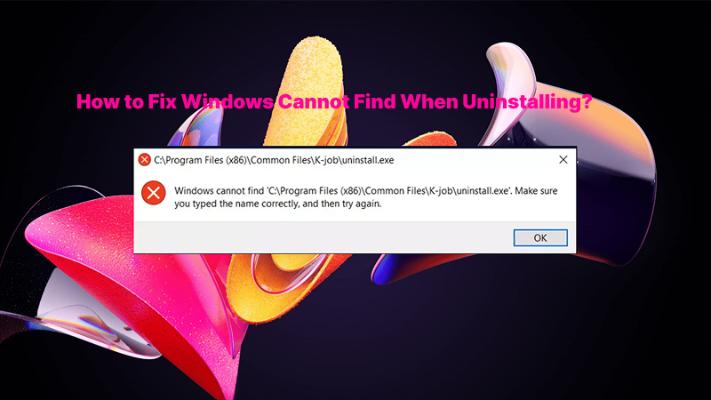
Software uninstallation does not always remove every trace of it from Windows. Sometimes, you may find registry entries left behind after software is removed. In most cases, they do not cause immediate problems, but outdated entries may lead to installation conflicts or unnecessary system clutter.
So, how to delete registry keys? In this guide, you can learn what registry keys and entries are, whether you really need to delete them, and how to delete a registry key using four practical methods.
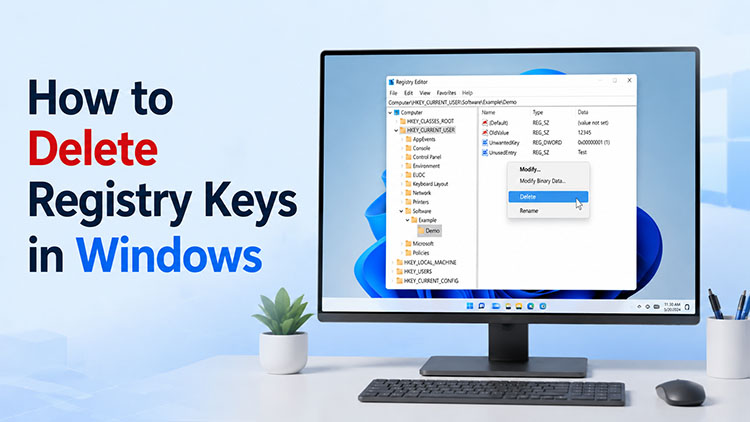
What Are Registry Keys and Registry Entries?
The Windows Registry is a hierarchical database that stores settings for hardware and software. Registry keys act like folders, while registry values store data such as file paths and preferences.
Common software-related locations include:
HKEY_CURRENT_USER\Software: Settings for the current user.
HKEY_LOCAL_MACHINE\Software: Software settings for all users.
Uninstall registry keys: Store app names, versions, and uninstall paths.
Installing software may create registry keys and values. Although uninstalling usually removes them, some leftover entries may remain.
Should You Delete Registry Keys?
Now that you know what registry keys are, you may wonder whether you should clean them. You can remove leftover registry entries, especially after you uninstall stubborn software or want to delete leftovers from programs you no longer use.
However, you should never delete registry keys randomly. Windows and installed applications rely on the registry to store important configuration data and settings. It may cause software errors or even make Windows unstable if you remove the wrong key/value.
So, how to delete registry keys when you need to? Just read on to discover 4 practical methods that can remove unwanted registry entries safely.
How to Delete Registry Keys Completely in 4 Safe Ways
There are various methods to remove registry keys. If you are a beginner, an automated uninstaller can simplify the process and reduce the risk. If you know exactly which registry keys belong to a removed program, you can use the built-in Registry Editor for more precise control. Let’s see how to delete registry keys with 4 practical methods.
Way 1. Remove Registry Entries Automatically with IObit Uninstaller (Recommended)
If the registry entries belong to software you have already uninstalled, or a program cannot be removed through Windows Settings/Control Panel, a dedicated uninstaller can make the cleanup process much easier. In this case, IObit Uninstaller is your best bet. It can uninstall programs and scan for leftover files, folders, and registry entries, helping you remove software remnants effortlessly.
How to remove a registry entry with IObit Uninstaller:
Step 1. Download IObit Uninstaller from the official website and install it on your Windows PC.
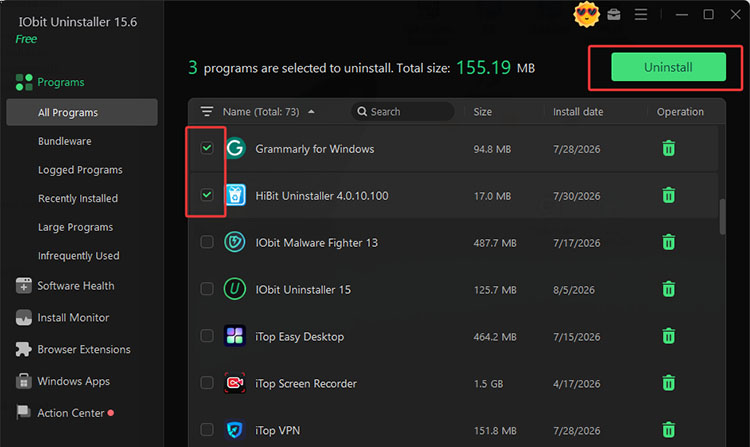
Step 2. Launch it. Go to Programs > All Programs. Select the apps you want to remove. Click Uninstall in the top right to proceed.
Step 3. Tick the box for Automatically remove residual files. This will remove the residual files along with uninstallation.
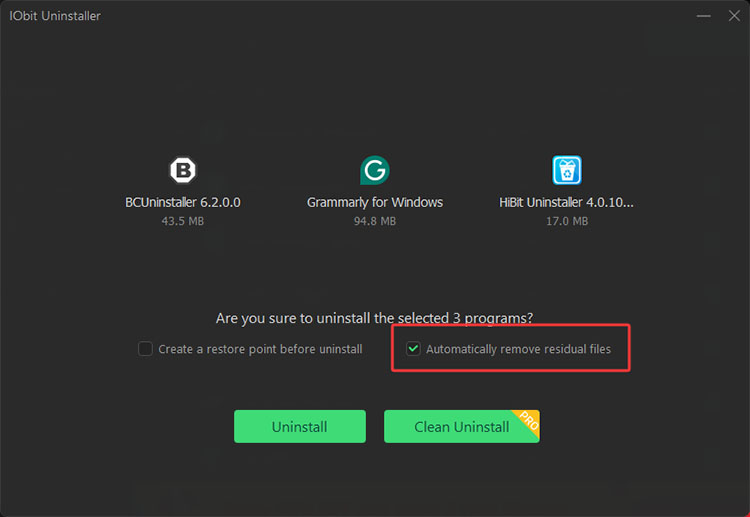
Step 4. Click Uninstall and allow the program to scan for leftover files and registry entries.
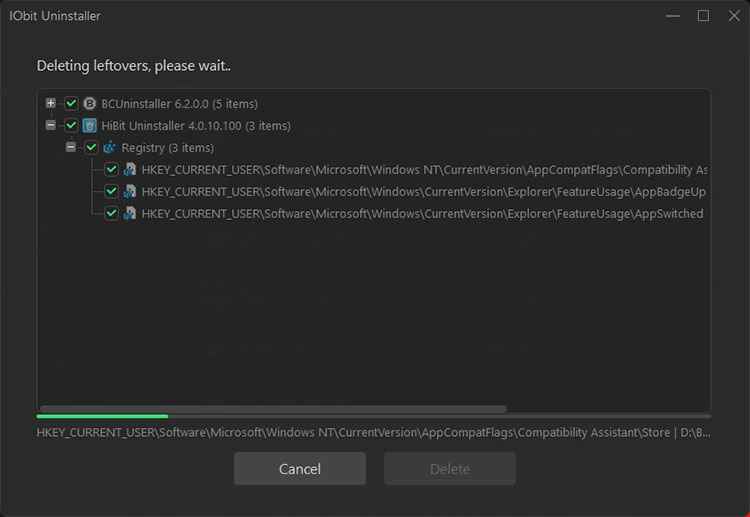
Step 5. You will have a report showing the files and leftovers deleted.
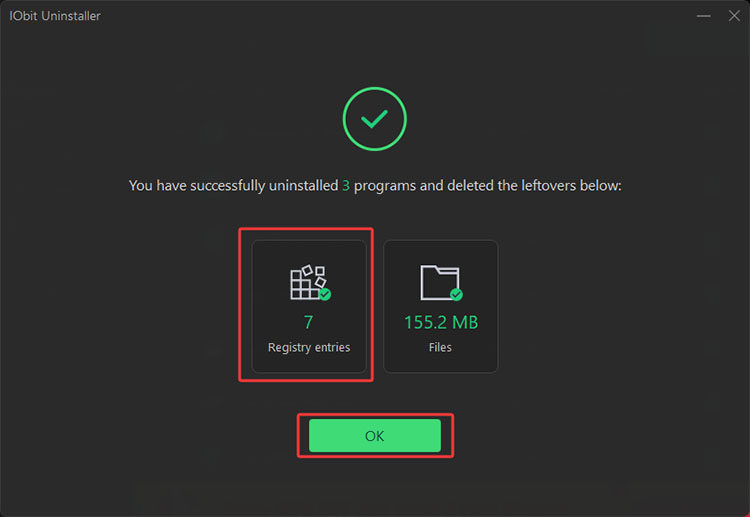
That’s how to remove registry entries without the risk of deleting critical Windows keys. It’s also the simplest way to deep uninstall apps on Windows 11 thoroughly.
Why choose IObit Uninstaller:
Automatically Uninstalled Software with No Registry File Left
Removes programs along with related registry entries, files, and folders to prevent leftover traces.
Remove Software Registry Files Completely and Fast
Scans and deletes related registry keys and configuration data, while force uninstall a program handles stubborn programs.
Deep Scan for Leftovers, Registry Entries, Temp Files
How to clean up temp files after uninstalling software? IObit Uninstaller’s deep scan feature checks your system for hidden traces, for instance, temporary files, invalid registry entries, and other leftover data.
One-Click Registry Residual Cleanup, No Editing Required
There is no need to open the Registry Editor or manually search/edit for registry keys. IObit Uninstaller simplifies registry cleanup, which lets you remove registry keys and files in one click.
Batch Uninstall, Remove Residues at Once
The software allows you to select and uninstall multiple programs simultaneously. It’s the best uninstaller for Windows 11/10 to complete large-scale software cleanup easily and more efficiently.
IObit Uninstaller Free
- Complete forced uninstallation for stubborn programs.
- Uninstall a batch of programs at once.
- Scan and remove leftover files, folders, and registry entries.
- Support the management of Universal Windows Platform apps.

Way 2. Delete Registry Keys Manually Using Registry Editor
If you know exactly which registry key belongs to a program you no longer use, you can learn how to delete registry keys remove it manually with the built-in Registry Editor. Before making any changes, create a registry backup and make sure you understand which entries are related to the uninstalled program.
How to delete a registry key:
Step 1. Search for Registry Editor from the Windows Start menu, right-click it, and select Run as administrator.
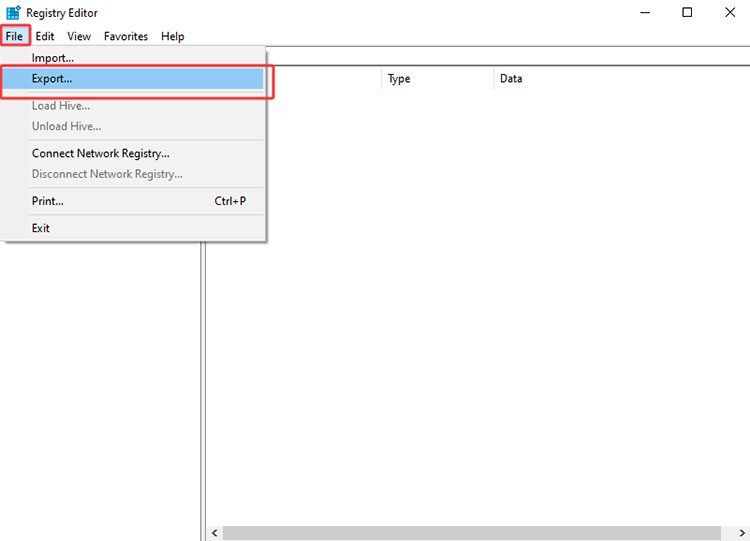
Step 2. In the Registry Editor, click File > Export to create a backup of your current registry settings.
Step 3. In the left pane, navigate to the registry key you want to remove. For example, go to HKEY_LOCAL_MACHINE\Software and find the folder related to the program you want to delete. Right-click the target registry key, select Delete, and confirm the action.
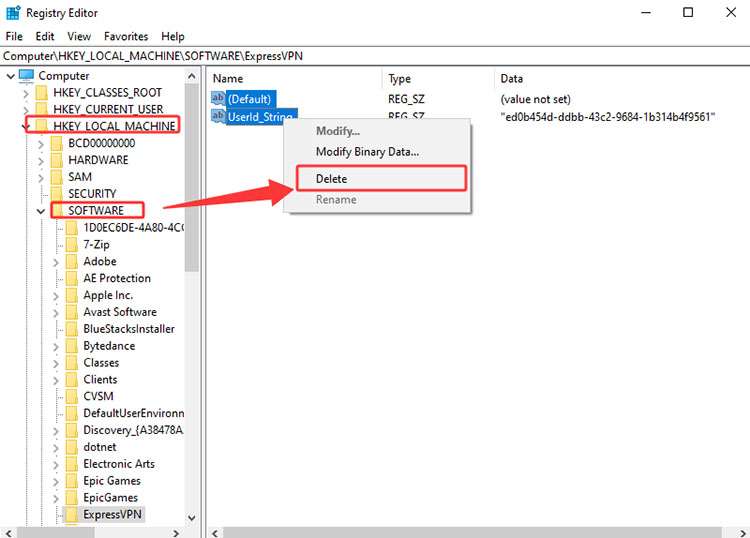
That’s how to delete a registry key natively. Please only delete registry keys that you no longer use. If you are not sure what a key does, leave it alone rather than risking your system or application problems.
Way 3. How to Remove Registry Entries for Uninstalled Software
Even after you uninstall a program normally, some related registry entries may remain in Windows. These leftovers include configuration settings and other references to the removed software. Here’s how to delete registry keys of uninstalled software easily.
Step 1. Similar to the previous method, search for the uninstalled software and locate its related registry entries in the Registry Editor.
Step 2. Review the results carefully and delete only the registry keys/entries that you have confirmed belong to the uninstalled software.
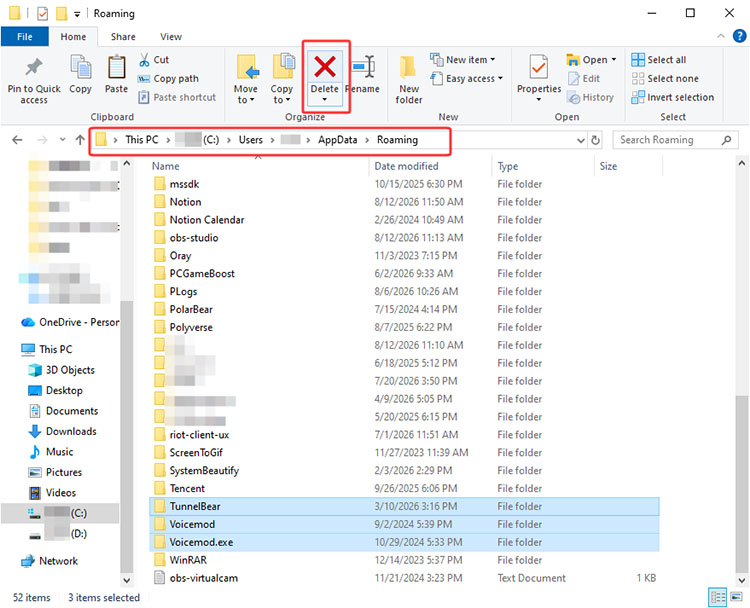
Step 3. After that, go to C:\Users\YourUsername\AppData. Remove folders related to the uninstalled software.
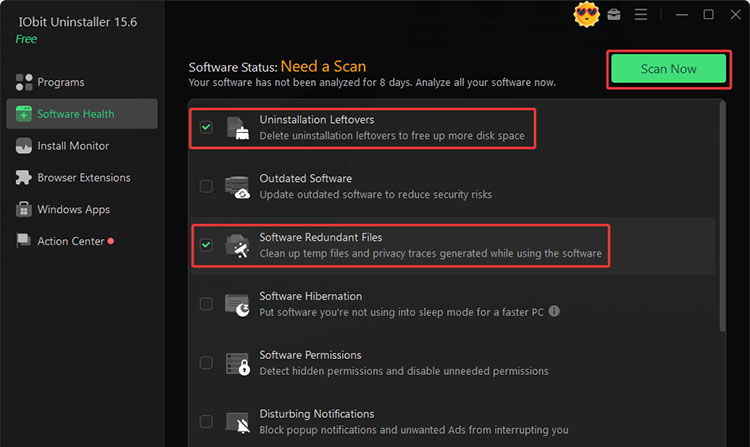
IObit Uninstaller also allows you to remove residual registry entries of uninstalled software. Just go to Software Health, tick Uninstallation Leftovers and Software Redundant Files, and let IObit Uninstaller do the heavy lifting.
 Tips: Want to uninstall an unnecessary, heavy third-party app like Norton? Learn more via how to remove Norton from PC.
Way 4. Clean Invalid Registry Entries with Advanced SystemCare
If you are not trying to remove leftovers from a specific program but want to clean outdated/invalid registry items, the method could be a bit different. In this case, Advanced SystemCare is what you need, offering a dedicated Registry Cleaner feature that can remove obsolete registry entries left behind caused by software changes, broken shortcuts, and system updates.
How to delete registry entries of uninstalled software:
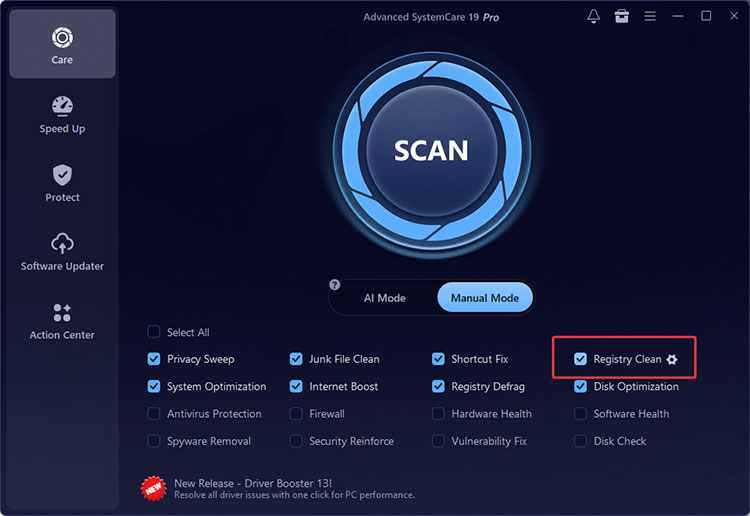
Step 1. Download and install Advanced SystemCare. Go to Care > Manual Mode. Click the Settings icon next to the Registry Clean option.
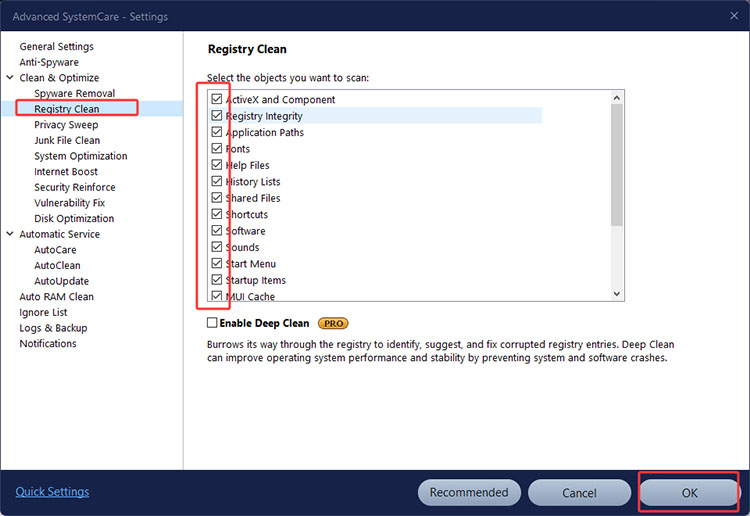
Step 2. In the settings window, select Registry Clean from the left menu. Choose the registry items you want to scan and click OK.
Step 3. Return to the main interface and click Scan to start checking your system. After the scan finishes, review the detected registry issues. Click Fix to proceed.
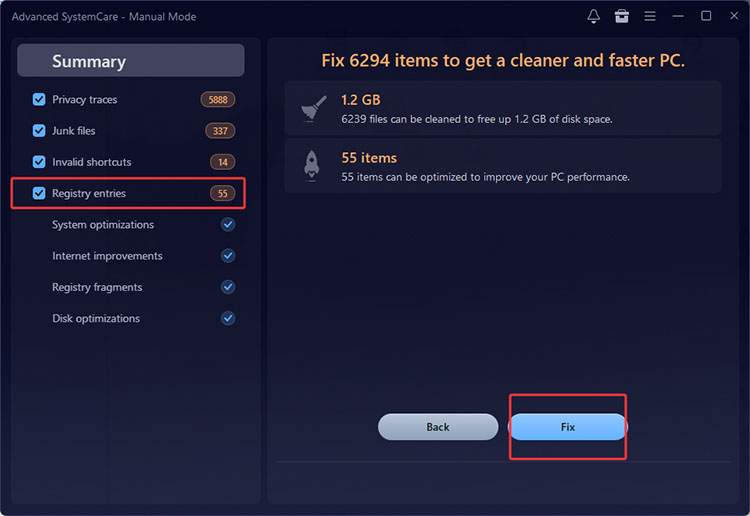
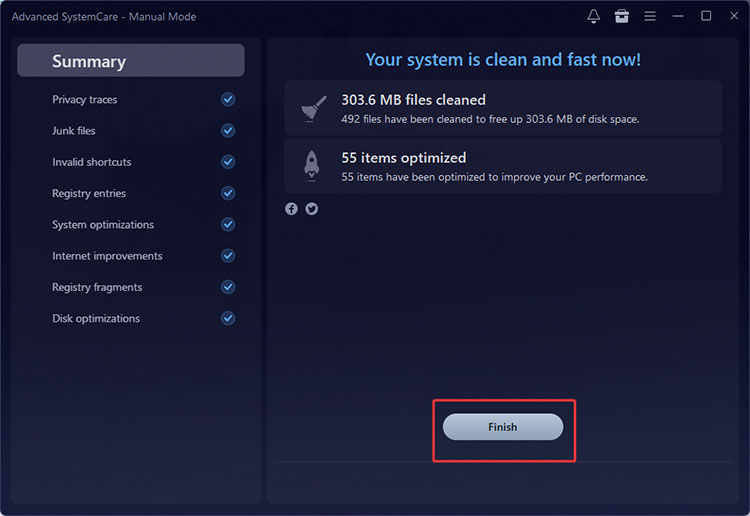
Step 4. All your obsolete and broken registries will be cleaned in a few minutes.
Key Benefits:
Automatically detects invalid registry entries.
Safely repairs registry issues with automatic built-in backups.
Removes obsolete references to improve system stability.
Combines registry cleaning with junk cleanup, privacy protection, and startup optimization.
Creates backups for easy registry restoration when needed.
FAQs about How to Remove Registry Entry
Is it safe to delete registry keys?
Yes, if you have verified they belong to uninstalled or outdated software. Deleting random keys may cause application or Windows problems, so always back up the Registry first.
Does deleting registry entries improve PC performance?
Not usually. Removing a single entry has little effect, but cleaning many invalid entries may help resolve software conflicts, system errors, and improve performance in some cases.
Can I recover deleted registry keys?
Yes. If you created a backup, you can restore an exported registry file or use a Windows System Restore point to undo changes.
Are registry entries and registry keys the same?
No. A registry key is like a folder that stores related settings, while a registry entry (value) contains the actual data, such as file paths and preferences.
Conclusion
How to delete registry keys? You can remove unwanted registry entries in several ways. Just keep in mind that manual registry editing requires caution because it may affect Windows stability if you delete the wrong entries/key. If you want to remove software completely and safely, try IObit Uninstaller. It helps uninstall unwanted programs, removing leftover registry entries, residual files, folders, and temporary data in one process.