If you have ever adjusted Chrome settings, optimized gaming performance, or explored newer AI PCs, you may have come across the term hardware acceleration. A hardware accelerator helps a computer handle certain demanding tasks more efficiently by shifting them away from the CPU to specialized hardware such as a GPU or NPU.
But what does that mean in everyday use, and should you keep hardware acceleration enabled? This guide explains how a hardware accelerator works, the most common types, how to manage acceleration in Chrome and Windows, and what you can do if your PC still feels slow afterward.

What Is a Hardware Accelerator and How Does It Work?
If you are wondering what is a hardware accelerator, it is specialized hardware designed to handle specific computing tasks faster and more efficiently than a general-purpose CPU.
Instead of relying on the CPU to process every task, supported software can send certain workloads to dedicated hardware. This helps reduce CPU workload and allows the system to process demanding tasks more efficiently.
Hardware accelerator vs. hardware acceleration:
Common Types of Hardware Accelerators
Different hardware accelerators are designed for different workloads. Common types include:
GPU Hardware Accelerator: Handles graphics rendering, gaming, video playback, and other parallel computing tasks.
AI Hardware Accelerator: An AI hardware accelerator speeds up machine-learning workloads such as image recognition, neural networks, and generative AI. Common examples include GPUs, NPUs, and TPUs.
Other Specialized Accelerators: FPGAs, video encoders, cryptographic accelerators, and digital signal processors handle more specific computing tasks.
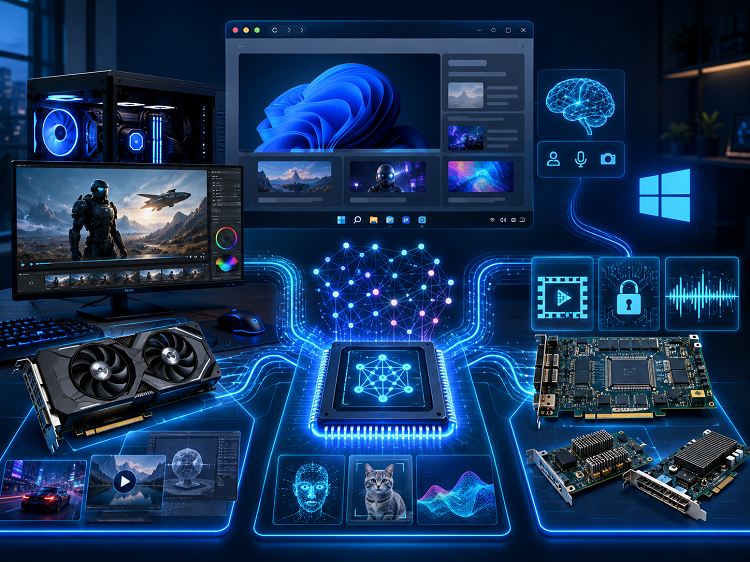
For most Windows users, hardware acceleration is commonly encountered through GPUs, browsers such as Chrome, and newer AI-enabled PCs. An AI hardware accelerator is also becoming more common as more applications move AI processing onto dedicated hardware.
Hardware Accelerator Chrome: How to Enable or Disable It
People searching for hardware accelerator chrome usually want to know how Chrome uses their GPU and where the related setting is located. Chrome can use graphics acceleration for supported visual and video workloads instead of relying entirely on CPU processing.
How to Enable Hardware Acceleration in Chrome
Follow these steps:
Open Google Chrome. Click the three-dot menu in the upper-right corner and select Settings.
Select System from the sidebar, or enter chrome://settings/system in the address bar.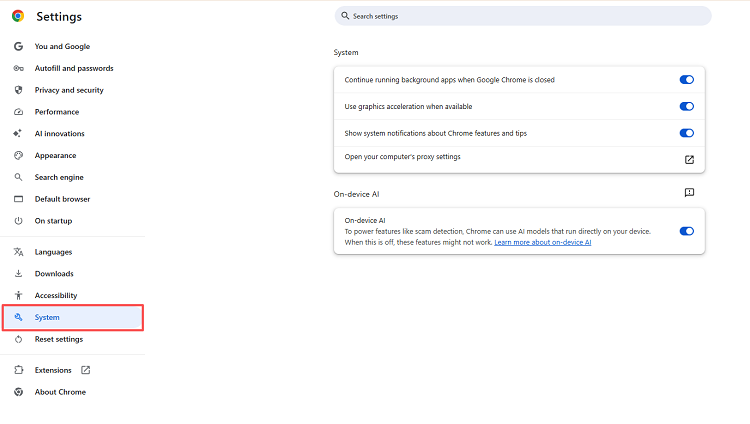
Turn on Use graphics acceleration when available.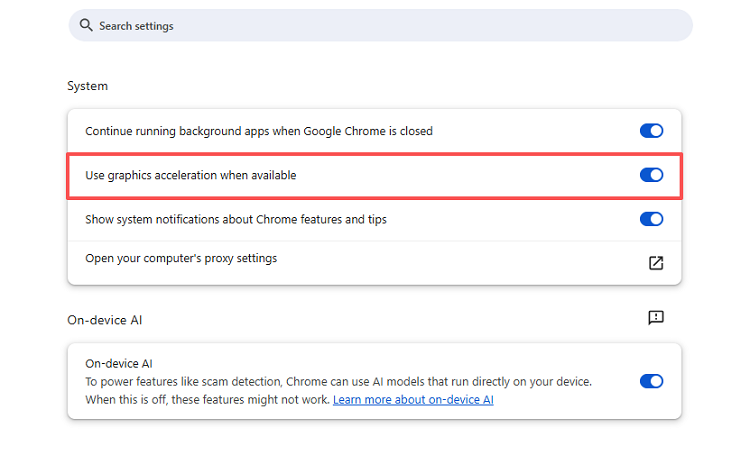
Click Relaunch to restart Chrome and apply the change.
Enabling hardware acceleration can help Chrome use available GPU resources for demanding web graphics, high-resolution video, browser games, and other supported tasks. If Chrome still feels sluggish, try these additional ways to speed up Chrome.
How to Disable Hardware Acceleration in Chrome
If Chrome starts showing screen flickering, graphical artifacts, freezes, video playback problems, or other compatibility issues, try turning the feature off:
Open Chrome > Settings > System.
Disable Use graphics acceleration when available.
Relaunch Chrome.
Although hardware accelerator Chrome searches often lead users directly to instructions for enabling the feature, temporarily disabling it can also help identify GPU- or driver-related problems.
What Is Hardware Accelerated GPU Scheduling in Windows?
Another closely related question is what is hardware accelerated GPU scheduling. Hardware-Accelerated GPU Scheduling, often shortened to HAGS, is a Windows graphics feature that allows supported GPU hardware to take over more of the scheduling work involved in managing graphics tasks.
This is different from Chrome hardware acceleration:
On a supported Windows 11 PC, you can check the feature through:
Open Settings. Go to System > Display > Graphics.
Open Change default graphics settings.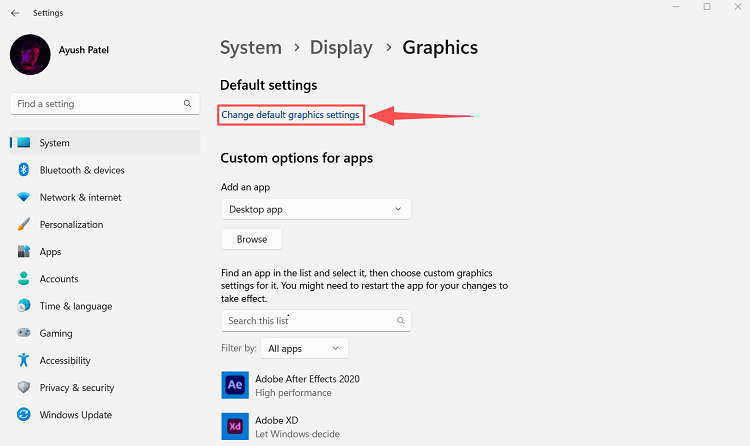
Turn Hardware-accelerated GPU scheduling on or off.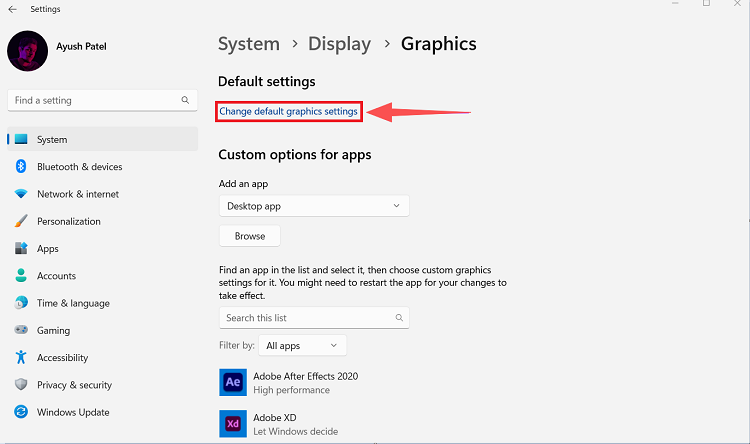
Restart the PC if required.
The feature depends on compatible graphics hardware and drivers. If the option does not appear, unsupported hardware or an outdated or incompatible graphics driver may be the reason.
HAGS should not be treated as a guaranteed FPS booster. Results can vary depending on the GPU, driver, game, and workload. If you want better graphics performance, you can also learn how to boost GPU performance through other Windows and GPU optimizations.
Should Hardware Acceleration Be On or Off?
For most users with compatible hardware and stable graphics drivers, hardware acceleration is worth keeping on because supported applications can shift appropriate tasks away from the CPU.
However, enabling it is not always the best choice for every PC.
Keep It On When |
Consider Turning It Off When |
Video and web graphics run smoothly |
Chrome crashes or freezes |
GPU drivers are stable |
Screen flickering appears |
You use graphics-heavy applications |
Graphical glitches occur |
Games and browsers use the GPU normally |
Problems begin after enabling it |
If everything works normally, there is usually little reason to change the setting. If graphical or stability problems begin, turn hardware acceleration off temporarily and compare the results.
Because each hardware accelerator works together with specific software and drivers, testing both settings is often more useful than following a universal recommendation.
How to Check If Hardware Acceleration Is Working
Chrome provides a convenient way to inspect its graphics status. Enter: chrome://gpu in the address bar and look under Graphics Feature Status. You can see which graphics features are hardware accelerated, software only, or unavailable.
You can also monitor GPU activity in Windows:
Press Ctrl + Shift + Esc to open Task Manager.
Select Performance. Click GPU.
Play a video, open a graphics-heavy webpage, or run another supported application.
Watch the GPU activity.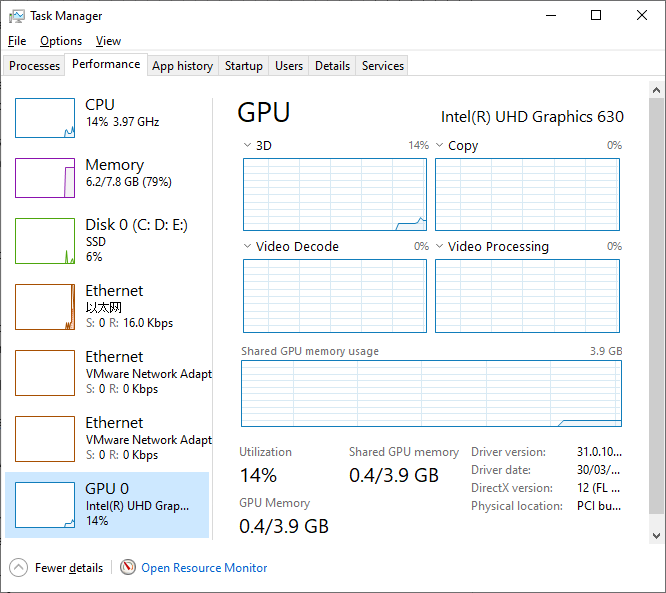
GPU usage alone does not prove that every acceleration feature is enabled, but it can help show whether an application is using graphics resources.
If you want to evaluate more than GPU activity, you can also run a PC performance test to check CPU, GPU, memory, disk, and overall system performance.
Do You Need a Hardware Accelerator Program? Optimize Your PC Further
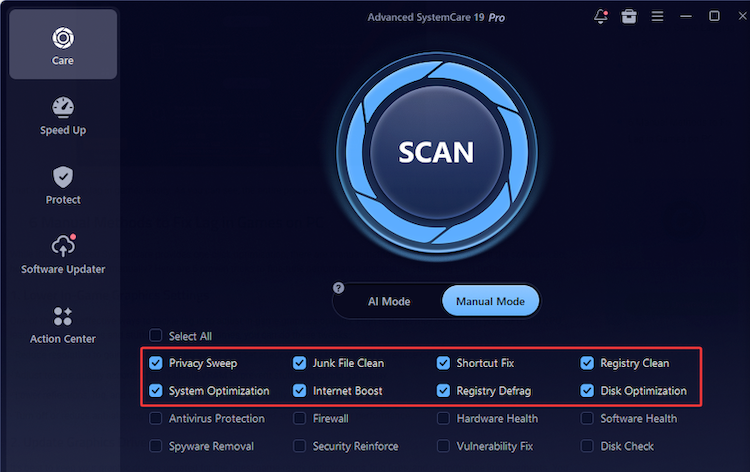
A hardware accelerator program cannot add a missing GPU, NPU, or other accelerator to your PC, since hardware acceleration depends on supported hardware, drivers, and system settings. However, if your PC still feels slow after enabling hardware acceleration, IObit Advanced SystemCare can help optimize other factors that affect Windows performance.
Advanced SystemCare Free
- Clean: 420 billion traces removed & 85 EB junk files cleaned
- Protect: 80 million unauthorized access blocked & 20 million bugs fixed
- Speed Up: 6 million hours of startup time saved & Turbo boost
- Optimize: Auto clean and auto care your PC with AI mode

It can help reduce common slowdowns caused by high RAM usage, unnecessary startup programs, background processes, and system junk. Its key performance tools include:
Turbo Boost: Stops unnecessary services and background processes.
Startup Optimizer: Manages programs that unnecessarily launch with Windows.
Real-time TuneUp: Helps optimize CPU and RAM usage in real time.
AI Mode: Scans junk files and common system issues for customized optimization.
If memory consumption remains unusually high, you can also check this RAM optimizer Windows 11 guide for more ways to free and manage RAM.
Using Advanced SystemCare is simple:
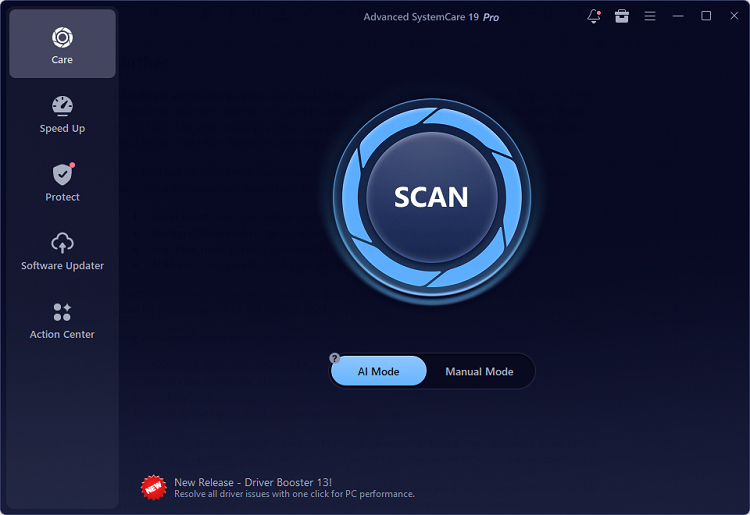
Step 1. Download and launch Advanced SystemCare.
Step 2. Open Care and run an AI Scan.
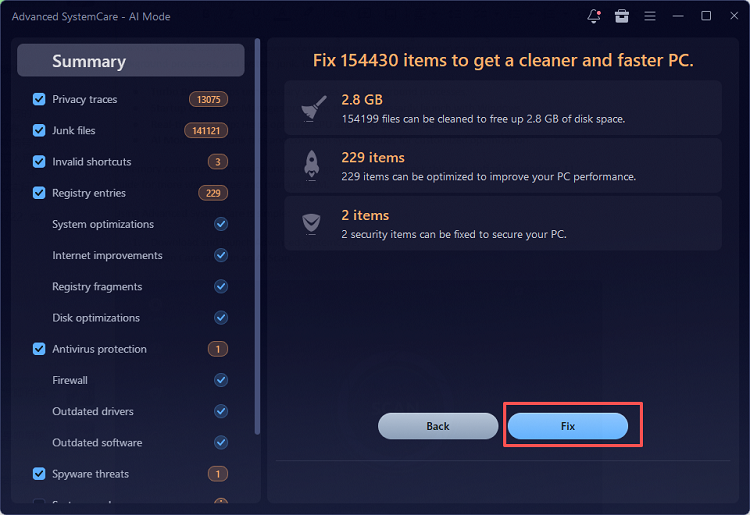
Step 3. Click Fix after scanning.
Step 4. Open Speed Up for additional performance optimization.
For users dealing with multiple Windows performance issues rather than a single hardware acceleration problem, this PC optimizer guide covers additional ways to improve overall PC speed and responsiveness.
Advanced SystemCare does not replace a hardware accelerator. Instead, it helps optimize the rest of the system so hardware acceleration can work alongside a smoother Windows environment.
Final Thoughts
A hardware accelerator can make supported workloads more efficient by shifting specialized tasks away from the CPU. Chrome uses graphics acceleration for browser workloads, Windows offers Hardware-Accelerated GPU Scheduling on supported PCs, and modern AI systems increasingly rely on GPUs and dedicated AI processors.
If hardware acceleration is configured correctly but your PC still feels slow, try Advanced SystemCare to reduce unnecessary background processes, clean system junk, and optimize overall Windows performance with just a few clicks.