Google Chrome is one of the fastest and most popular web browsers, but it can gradually become sluggish after months of use. You may notice slow page loading, delayed responses, or frequent freezes. Fortunately, most performance issues can be fixed without replacing your computer.
This guide explains how to speed up browser Chrome using 7 proven methods. These tips will help you enjoy a smoother and faster browsing experience.
Why is Chrome Running So Slow?
Chrome relies heavily on your computer's CPU, memory, and storage. As you install more extensions, accumulate browsing data, and open dozens of tabs, Chrome requires more system resources. Outdated software, malware, or unnecessary background applications can also affect browsing speed.
If Chrome feels slow, start with the methods below before considering more advanced troubleshooting. Now, let’s start exploring how to speed up download in Google Chrome.
Method 1. How to Speed up Browser Chrome by Updating It
Running an outdated version of Chrome may cause slow performance, security issues, and website compatibility problems. Google regularly releases updates that improve speed, fix bugs, and optimize memory usage. Checking for updates only takes a minute and is one of the easiest ways to improve Chrome's performance.
How to speed up internet browser Google Chrome:
Step 1. Open Chrome and go to Settings by clicking the three-dot icon in the upper-right corner.
Step 2. Choose About Chrome from the left sidebar.
Step 3. Chrome will automatically search for updates.
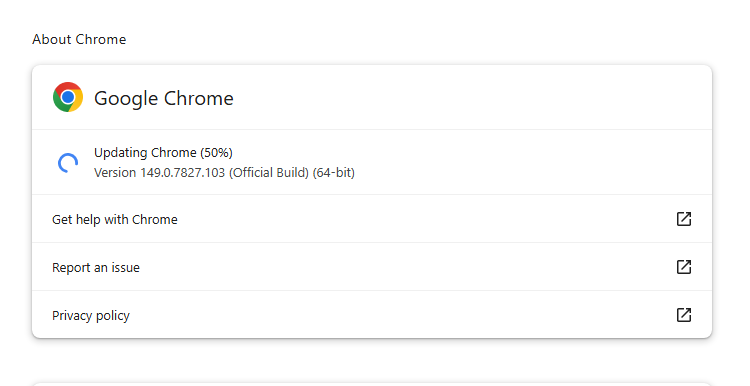
Step 4. Click Relaunch to finish installing the update.
Method 2. How to Speed up Browser Chrome By Removing Unused Extensions
Extensions make Chrome more powerful, but too many can consume memory and CPU resources. Removing extensions you no longer use reduces background activity and helps Chrome launch and browse faster.
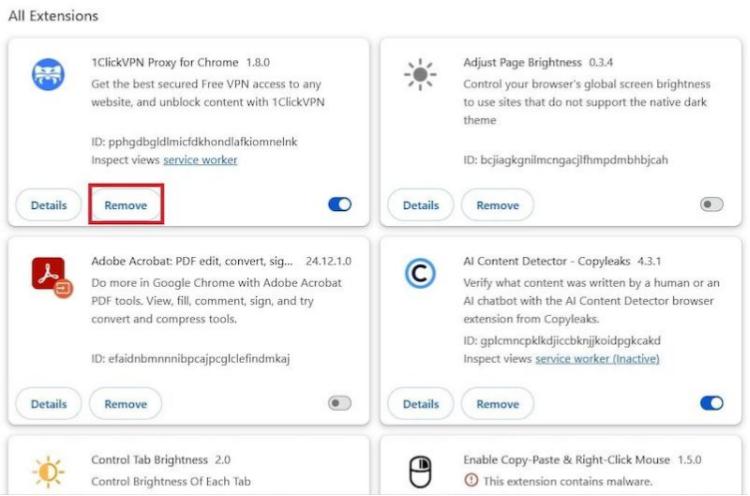
Step 1. Open the extensions page by typing chrome://extensions into the address bar and pressing Enter.
Step 2. Look for extensions you rarely use or no longer need.
Step 3. Click Remove to uninstall unnecessary extensions, or use the toggle switch to disable them temporarily.
Method 3. How to Speed up Browser Chrome by Clearing Cache and Cookies
Over time, Chrome stores cached images, cookies, and other browsing data to speed up websites. However, excessive cached files can become outdated or corrupted, causing slow loading and browsing issues. Clearing them regularly helps Chrome perform more efficiently.
Step 1. Press Ctrl + Shift + Delete or navigate to Settings > Privacy and Security > Delete browsing data.
Step 2. Choose Cached images and files.
Step 3. Wait for Chrome to finish removing the selected files.
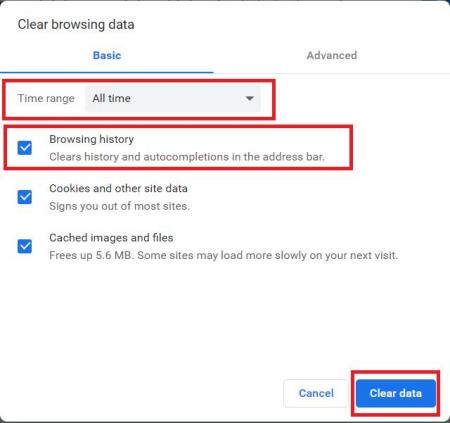 Step 4. Close and reopen Chrome to check whether browsing feels faster.
Method 4. Enable Memory Saver and Disable Background Apps
How to speed up Chrome browser on Windows 10/11? Even after clearing unnecessary data, Chrome may still use excessive memory if inactive tabs and background processes continue running. Chrome's built-in Memory Saver frees RAM from unused tabs, while disabling background apps prevents Chrome from consuming system resources after you close the browser.
Step 1. Launch Chrome and click the three-dot menu > Settings.
Step 2. Go to Performance and enable Memory Saver to reduce memory usage for inactive tabs.
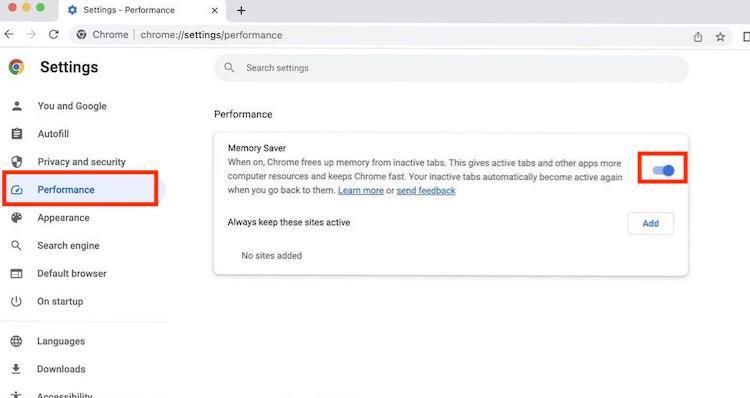
Step 3. Navigate to System and turn off Continue running background apps when Google Chrome is closed.
Step 4. Close Chrome completely and reopen it to apply the changes.
Method 5. Scan for Malware and Reset Chrome
How to speed up browser Chrome on PC? Browser hijackers, adware, and malicious extensions can significantly slow Chrome by displaying unwanted ads, changing search settings, or consuming system resources. If Chrome remains sluggish after trying the previous methods, scanning for malware and resetting the browser can restore its original performance.
Step 1. Open Windows Security, choose Virus & threat protection. Check the Full Scan option and click Scan now to proceed.
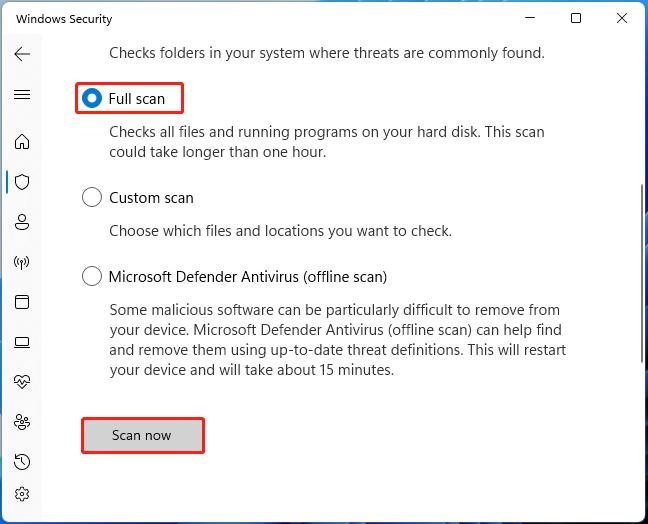
Step 2. Open Settings > Privacy and Security> Safety Check, then click Check now to identify harmful extensions or unsafe settings.
Step 3. Go to Settings > Reset settings, select Restore settings to their original defaults, and confirm the reset.
Tip: Resetting Chrome removes temporary settings and disables extensions but does not delete your bookmarks, saved passwords, or browsing history.
Method 6. Optimize Windows with IObit Advanced SystemCare
If Chrome is still slow after adjusting its settings, the issue may lie with Windows rather than the browser itself. Temporary files, fragmented registries, excessive startup programs, and background processes can reduce your PC's overall performance, causing Chrome to lag as well.
Instead of fixing these problems one by one, IObit Advanced SystemCare provides a comprehensive solution. Its AI-powered optimization engine automatically detects performance issues, cleans unnecessary files, repairs system errors, and optimizes Windows with a single click. As a result, Chrome can launch faster, use memory more efficiently, and deliver smoother browsing.
Advanced SystemCare Free
- Clean: 420 billion traces removed & 85 EB junk files cleaned
- Protect: 80 million unauthorized access blocked & 20 million bugs fixed
- Speed Up: 6 million hours of startup time saved & Turbo boost
- Optimize: Auto clean and auto care your PC with AI mode

More Features of Advanced SystemCare:
AI-Powered System Optimization
Advanced SystemCare automatically detects and fixes performance issues, helping Chrome run faster by optimizing Windows resources and improving overall PC efficiency.
Support Multiple Browsers & One-Click Browser Cleanup
It enables you to clean browsing history, cookies, cache, downloads, and other privacy traces from multiple browsers, including Google Chrome, Microsoft Edge, Mozilla Firefox, Internet Explorer.
Smart RAM Management
The built-in RAM optimizer Windows 11 releases unused memory, reduces background resource usage, and helps Chrome handle multiple tabs more smoothly.
Startup Program Control
Advanced SystemCare disables unnecessary startup apps to shorten boot time, free system resources, and improve browser responsiveness after launching Windows.
Junk File And Privacy Cleanup
This hard disk cleaner removes temporary files, browsing traces, and unnecessary data that slow down your PC, creating more storage space for better Chrome performance.
PC Health Monitoring and Performance Test
The computer performance test feature analyzes system conditions, identifies bottlenecks, and provides optimization suggestions to maintain faster browsing and smoother Windows operation.
How to speed up download in Google Chrome with Advanced SystemCare:
Step 1. Download and install IObit Advanced SystemCare, then launch the program.
Step 2. Select AI Mode for automatic optimization, or switch to Manual Mode if you want to customize the scan. Then, select optimization items.
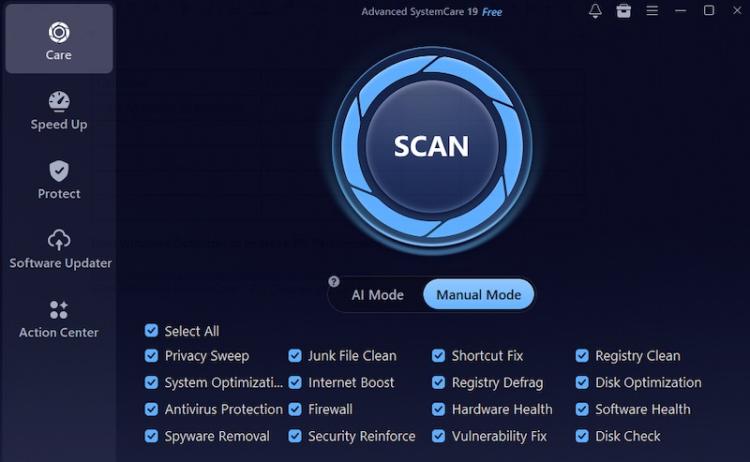
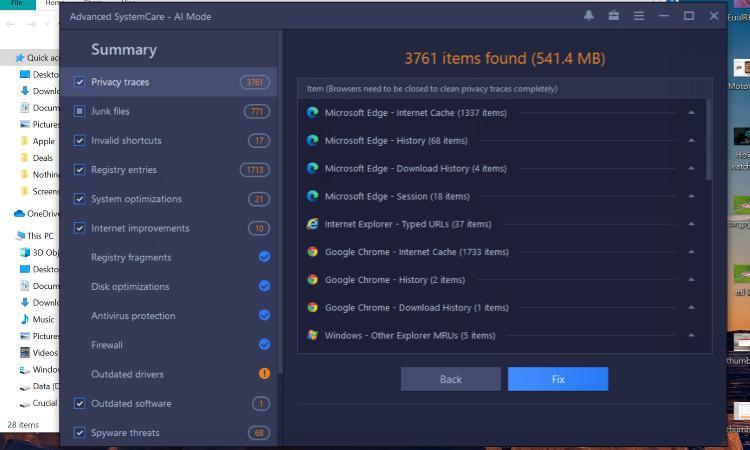
Step 3. Once done, click SCAN to start scanning. Then, Advanced SystemCare will list all detected items. Click Fix to repair all detected issues.
Method 7. How to Speed up Internet Browser Google Chrome by Reinstalling Google Chrome
If none of the previous solutions improve Chrome's performance, reinstalling the browser can remove corrupted files and restore all core components. This is especially helpful if Chrome frequently crashes or behaves abnormally.
Step 1. Open Settings > Apps > Installed Apps, locate Google Chrome, and uninstall it.
Step 2. Visit Google's official website and download the newest version of Chrome.
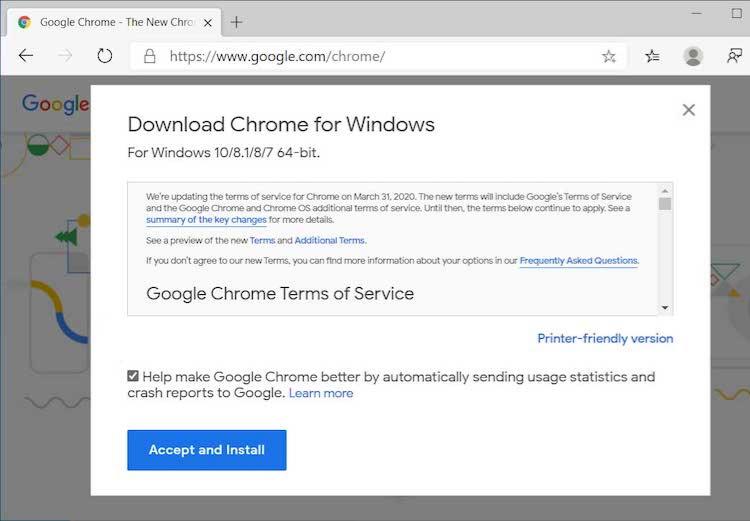
Step 3. Complete the installation and sign in with your Google account to restore bookmarks and synced data.
Bonus Tips to Make Chrome Even Faster
Even after applying the seven methods above, a few simple habits can help Chrome stay fast over the long term. Regular browser maintenance and smart browsing practices reduce resource usage, improve responsiveness, and prevent future slowdowns. Follow these bonus tips to keep Chrome running smoothly every day.
Keep Chrome updated regularly.
Limit the number of open tabs.
Remove extensions you rarely use.
Restart your PC every few days.
Enable Memory Saver.
Free up storage space on your SSD or HDD.
Close unnecessary background applications.
Use IObit Advanced SystemCare regularly for PC health check.
Avoid installing unknown browser extensions.
FAQs about How to Speed up Chrome Browser
Why is Chrome so slow even though my internet is fast?
Slow Chrome is often caused by excessive extensions, cached files, high RAM usage, or background applications instead of your internet connection.
Does clearing cache make Chrome faster?
Yes. Removing outdated cache files can improve page loading speeds and resolve browsing issues caused by corrupted data.
Can too many extensions slow Chrome?
Absolutely. Every extension consumes memory and processing power, even when you're not actively using it.
How often should I optimize Chrome?
For the best experience, clear your browser cache monthly, review installed extensions regularly, and perform a full system optimization with IObit Advanced SystemCare every few weeks.
Conclusion
How to speed up browser Chrome? Updating Chrome, removing unnecessary extensions, clearing cached data, enabling Memory Saver, and scanning for malware can solve most browser slowdowns in just a few minutes.
If Chrome still feels sluggish, consider optimizing your entire Windows system with IObit Advanced SystemCare. This Windows 11 optimizer cleans junk files, optimizes startup items, repairs registry issues, and frees valuable system resources, helping Chrome—and your PC—deliver faster, smoother performance every day.