Are you dealing with lag, random frame drops, or your game suddenly stuttering right when things get intense? Yes, it’s frustrating. Whether you are gaming, editing videos, or using heavy software, a slow GPU can easily ruin the whole experience. That’s why so many users are looking for ways to fix the issue when their PCs can not keep up.
So, how to boost GPU performance? There is no need to rush to get a new one. In fact, you can often get better performance with a few simple tweaks. This guide will introduce practical ways to improve your GPU, from updating drivers and adjusting in-game settings to using powerful optimization tools. Just keep reading to find them out!
Why GPU Performance Matters for Gaming and Daily Use?
Before diving into how to boost GPU performance, it's crucial to know its impact on your overall experience. Here are the common signs of poor GPU performance.
FPS drops and lag during gameplay: You might see sudden frame rate drops that make games feel unresponsive, which is rather common in fast-paced scenes.
Stuttering, screen tearing, or delayed rendering: Stuttering or screen tearing will disrupt your gameplay immersion and make movements look choppy or out of sync.
Overheating and unstable performance under heavy workloads: High temperatures caused by heavy workloads can force your GPU to slow down, causing unstable performance and frequent drops in speed.
Reduced responsiveness in video editing, streaming, or 3D software: You will find tasks take longer to process, previews lag, and overall workflow becomes slower and less efficient during demanding creative work.
What Affects GPU Performance?
Now you might be wondering: how to optimize GPU performance for gaming and daily use? Before applying the fixes, let’s check out the factors that might limit your GPU's efficiency.
Outdated GPU drivers: Outdated drivers can cause performance drops, crashes, and poor game optimization, preventing your GPU from running efficiently.
Too many background applications: When you have browsers and various apps running in the background, they might consume GPU and system resources, reducing available power for demanding tasks.
High in-game graphics settings: Ultra settings, high resolutions, and advanced effects in-game can overload your GPU and significantly lower frame rates.
Overheating and poor cooling: Excessive heat will force your GPU to throttle performance to prevent damage, which leads to unstable FPS and reduced overall efficiency.
Limited system resources or storage issues: Low RAM, slow storage, or cluttered disks can bottleneck performance and prevent your GPU from handling intensive workloads.
How to Boost GPU Performance: 6 Effective Methods
Now that you understand why GPU optimization matters, the next step is to take action. This part will introduce how to boost GPU performance with 6 effective methods. While some require Windows settings and manual adjustments, others adopt third-party optimization tools to handle the process more easily.
1. Update GPU Drivers to Improve Performance
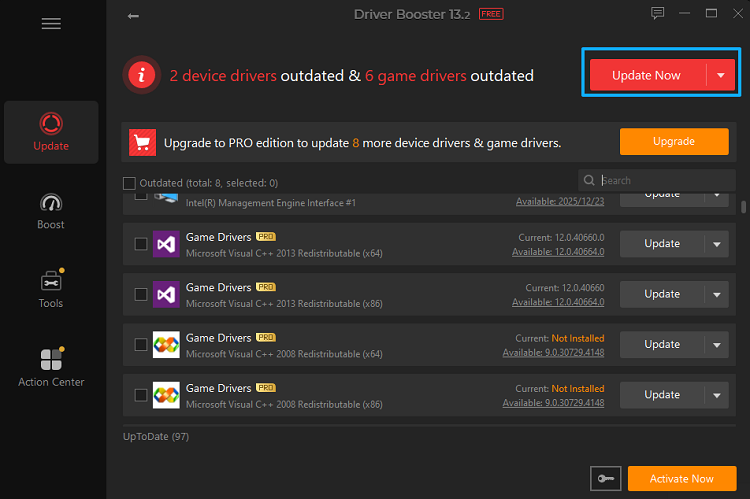
Outdated drivers are one of the most common reasons behind poor GPU performance. Hence, you see FPS drops, crashes, and games not running properly. Once you keep your GPU drivers up to date, it can help fix bugs, improve stability, and even boost performance in newer titles.
If you don’t want to deal with manual updates, Driver Booster is the best tool that comes in handy. So, how to boost GPU performance with it? It’s simple. The tool automatically scans your system, detects outdated drivers, and updates them for you. The entire process takes just one click, which can save you so much time and effort!
2. Adjust In-Game Graphics Settings for Better FPS
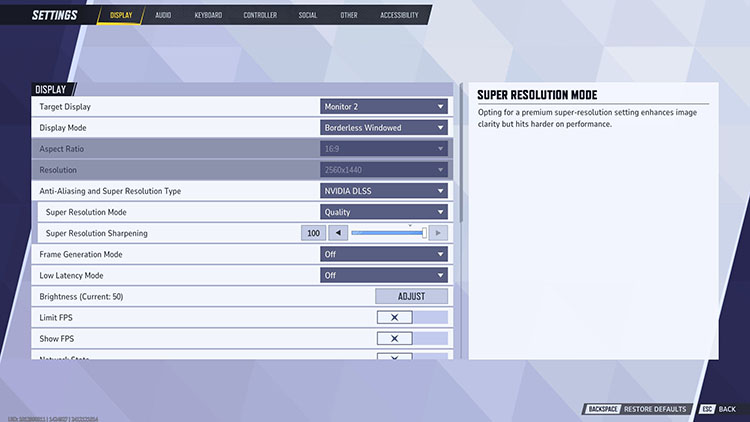
Even high-end GPUs can struggle if your graphics settings are pushed too far. Want to know how to boost GPU performance via in-game settings? You can tweak a few options to reduce the load and improve frame rates, for instance, shadows, anti-aliasing, motion blur, and ambient occlusion.
Meanwhile, try to lower render resolution or enable DLSS or FSR, which can also give you a noticeable performance boost with minimal visual loss. The key is to find the right balance between visuals and performance. With the right settings, you can keep gameplay smoother and more responsive.
3. Optimize Windows Graphics Settings
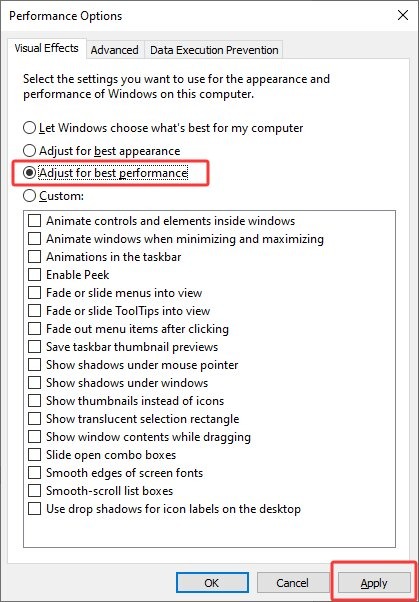
Windows already provides built-in features that help improve GPU performance. For instance, Game Mode limits background activity and allocates more system resources to your active game for smoother FPS. Hardware-Accelerated GPU Scheduling shifts more graphics processing directly to the GPU, reducing CPU overhead and improving responsiveness in supported games.
The “best performance” setting forces Windows to use maximum power for demanding applications, which helps the GPU deliver more consistent performance under load. If you want to know how to optimize GPU for gaming, these simple tweaks are definitely worth trying.
4. Close Background Apps and Reduce GPU Load
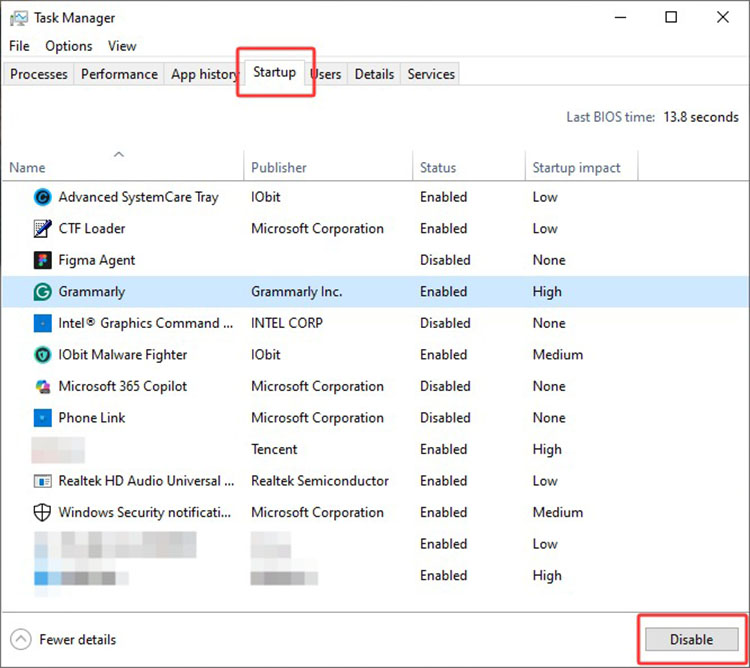
Background programs often consume more resources than you expected. Browsers with multiple tabs, chat apps, and startup software can all take up valuable GPU and CPU power. Hence, it’s best to remove these unnecessary processes through Task Manager, so you can free up resources for games and other demanding tasks. This also helps prevent sudden stutters and keeps overall performance more stable during gameplay.
5. Improve Cooling to Prevent GPU Thermal Throttling
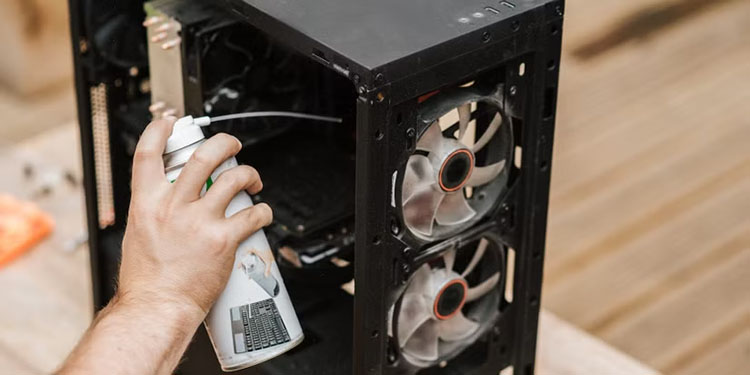
When your system gets too hot, the GPU automatically slows down to prevent damage, a process known as thermal throttling. This often results in lower FPS and unstable performance. There are a few practices that can help improve cooling. Regular dust cleaning, better airflow inside your case, and proper fan control can all keep temperatures in check. With better cooling, your GPU can run more consistently and deliver smoother performance.
6. Use Advanced SystemCare to Optimize GPU Performance
Looking for a quicker and more beginner-friendly way to boost GPU performance? Advanced SystemCare Free is what you need. You don’t have to dig through settings manually because this tool handles optimization for you! It offers plenty of useful features, for instance, junk file cleanup, startup optimization, RAM cleaner, Turbo Boost, and more, which can help you boost GPU performance easily.
With Advanced SystemCare Free, you can free up disk space and system resources to make your GPU focus more on demanding tasks. This will eventually lead to smoother performance, faster response times, and a more stable experience. For those who want to know how to boost internet speed on PC, the software can also optimize settings to speed up internet connection dramatically!
Advanced SystemCare Free
- Clean: 420 billion traces removed & 85 EB junk files cleaned
- Protect: 80 million unauthorized access blocked & 20 million bugs fixed
- Speed Up: 6 million hours of startup time saved & Turbo boost
- Optimize: Auto clean and auto care your PC with AI mode

How to Boost GPU Performance Advanced SystemCare
How to Optimize GPU Performance with Advanced SystemCare
How to boost my GPU performance? The previous sections have introduced 6 useful methods. As you can see, Advanced SystemCare is definitely the simplest one, which helps you optimize system responsiveness before gaming. It’s also the most powerful RAM booster for Windows 11, helping your PC run more smoothly under heavy load. Now let’s see how to optimize GPU for gaming with it step by step.
Step 1. Free download and install Advanced SystemCare. The software is compatible with major Windows OS versions.
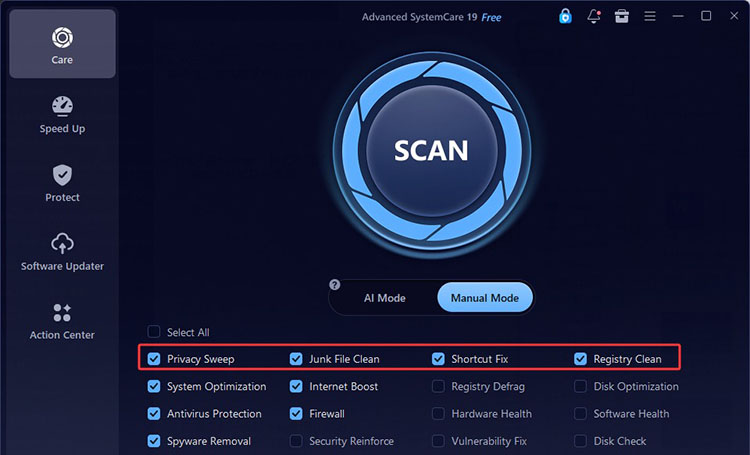
Step 2. Launch the software to clean junk files first. Go to Care and choose Manual Mode. Tick the options below and click on the big Scan button.
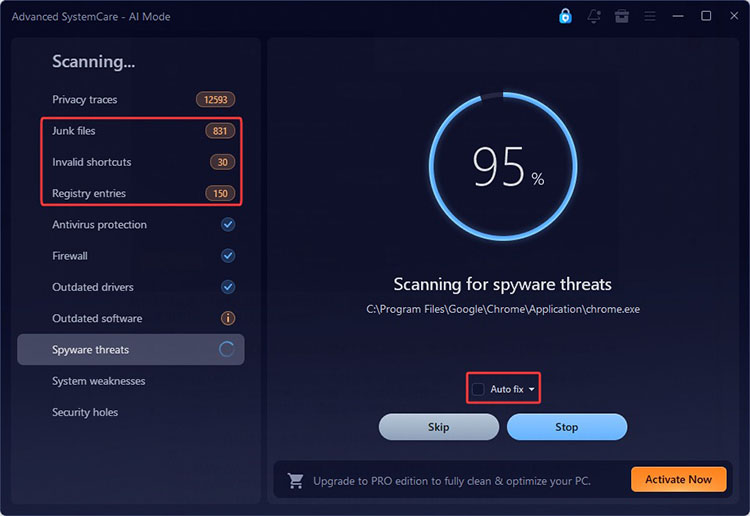
Step 3. Run a scan to remove junk files, invalid shortcuts, etc. that might slow down your system and GPU performance. Click Auto Fix to proceed.
Step 4. Go back to the main interface > Speed Up > Startup Optimizer. Click the Optimize button to disable startup apps and reduce system load.
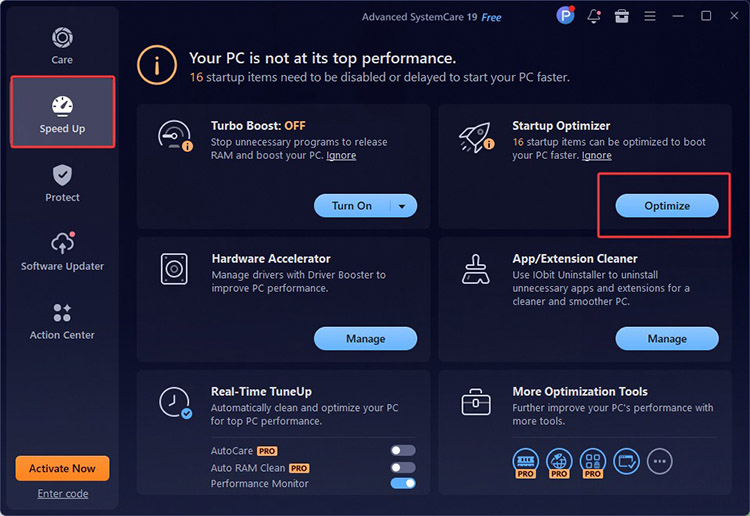
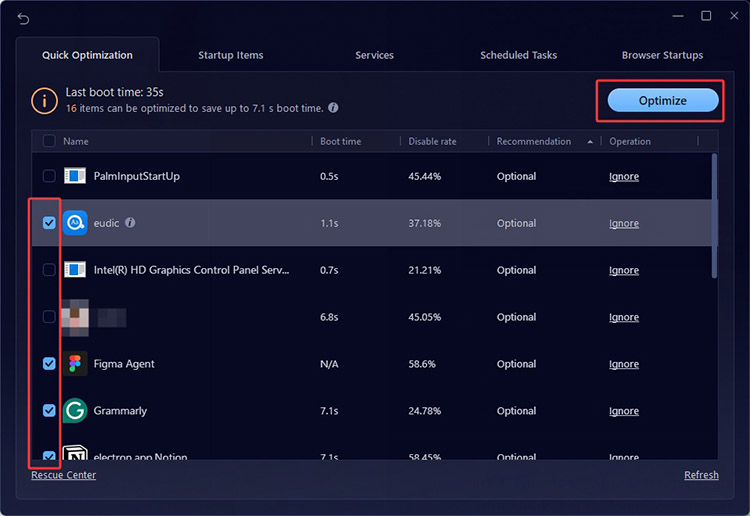
Step 5. From the Quick Optimization tab, you can see a list of startup programs. Select the apps you don’t need at startup and apply the optimization.
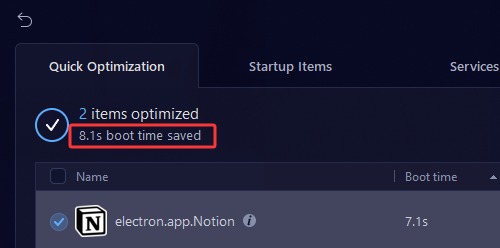
Step 6. Advanced SystemCare will automatically disable the selected startup items, and you can immediately see the boot time saved.
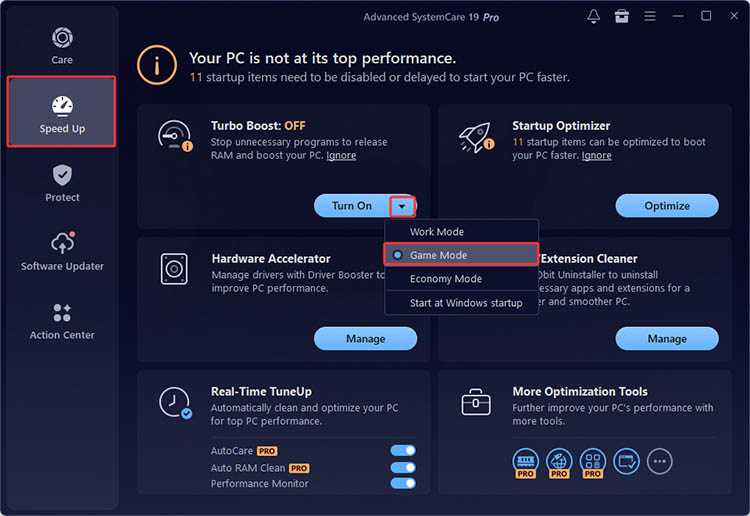
Tip: Advanced SystemCare also includes a Game Boost mode that optimizes system resources specifically for gaming. Just make sure to turn on Turbo Boost before gaming to temporarily shut down unnecessary processes and get smoother gameplay!
Useful Advanced SystemCare Features for Gaming Performance
Turbo Boost: It temporarily shuts down non-essential apps and services to free up RAM, CPU, and GPU resources. You can choose from different modes for work, gaming, or economy saving.
Startup Manager: You can control which programs run at startup, which helps reduce initial system load and make it faster from the moment it boots.
AI Mode Optimization: Its AI scan mode can intelligently analyze your system based on real-time conditions, giving a more precise and efficient performance improvement without manual tuning.
Deep System Cleanup: It can also remove junk files and unnecessary data to reduce overall system strain for smoother and more efficient performance.
Real-Time System Monitor: The performance monitor tracks CPU, GPU, and RAM usage in real time. You can easily spot issues and adjust settings for better performance.
Spyware Removal/Security Protection: Advanced SystemCare can even help you detect and remove malware, preventing hidden threats from affecting overall performance.
FAQs About How to Boost GPU Performance
● Does boosting GPU performance improve FPS?
Yes, better GPU performance usually leads to higher FPS. When your graphics card runs more efficiently, it can render frames faster and more consistently. This can effectively reduce stuttering, improve smoothness, and make gameplay feel more responsive.
● How do I optimize GPU for gaming?
You can start with basics, for instance, GPU driver updates, in-game settings, and Windows graphics performance adjustments. Meanwhile, you can close unnecessary background apps and make sure your system stays cool to avoid performance drops. In addition, you can use third-party software to optimize your GPU performance, which can usually make a noticeable difference.
● Can software improve GPU performance?
Yes, optimization software can help a lot. While it won’t upgrade your hardware, it can free up system resources, reduce background activity, and fine-tune settings automatically. Here, Advanced SystemCare is the best tool that comes in handy, which can make your GPU run more efficiently and deliver smoother overall performance.
Final Words
If you have read this far, you should know how to boost GPU performance with 6 proven methods. Boosting the GPU does not mean spending money on expensive hardware upgrades. In most cases, you can optimize its performance via a few tweaks as introduced earlier. But if you want to make noticeable improvements hassle-free, Advanced SystemCare Free is a great choice. With its all-in-one optimization features, it helps free up system resources, improve performance, and keep your PC running smoothly for gaming and everyday use. What are you waiting for? Get it to enjoy a faster PC experience from now on!