Gigabyte is a leading vendor of motherboards, gaming laptops, graphics cards, monitors, and other PC hardware. It provides reliable performance and continuous innovation to users worldwide. To keep your Gigabyte hardware functioning properly, it is important to perform Gigabyte driver update when in need, helping maintain stability and overall system performance. Here, we will introduce the best ways to update Gigabyte drivers quickly and easily.
Gigabyte Driver Update - Methods at a Glance
There are several easy ways to update Gigabyte drivers. While the manufacturer offers official methods, Windows built-in utility and a professional third-party driver updater can also update Gigabyte drivers. Here are the major ones.
1. Use Gigabyte Control Center App [Automatic]
2. Download from Official Download Center [Manual]
3. With Device Manager in Windows [Manual]
4. Update with Driver Booster [Automatic]
Next, follow the step-by-step instructions to keep your Gigabyte drivers up to date for better performance.
Gigabyte Driver Update in Gigabyte Control Center App
Gigabyte Control Center (GCC) is a unified software platform that allows you to configure and perform Gigabyte driver updates on Windows. This all-in-one Gigabyte driver update tool allows you to launch all Gigabyte apps installed on your system, check related updates online, and download the apps, drivers, and BIOS.
Here's how to make a Gigabyte driver update with it in simple steps.
Step 1. Download the latest Gigabyte Control Center from the official Gigabyte website or your product’s support page.
Step 2. Navigate to the Update Center section on the left (the bottom icon). The app will scan and display available updates for drivers, utilities, BIOS, and firmware related to your Gigabyte hardware.
Step 3. Select the drivers and applications you want to install. Wait for the installation to complete and follow any on-screen instructions if prompted.
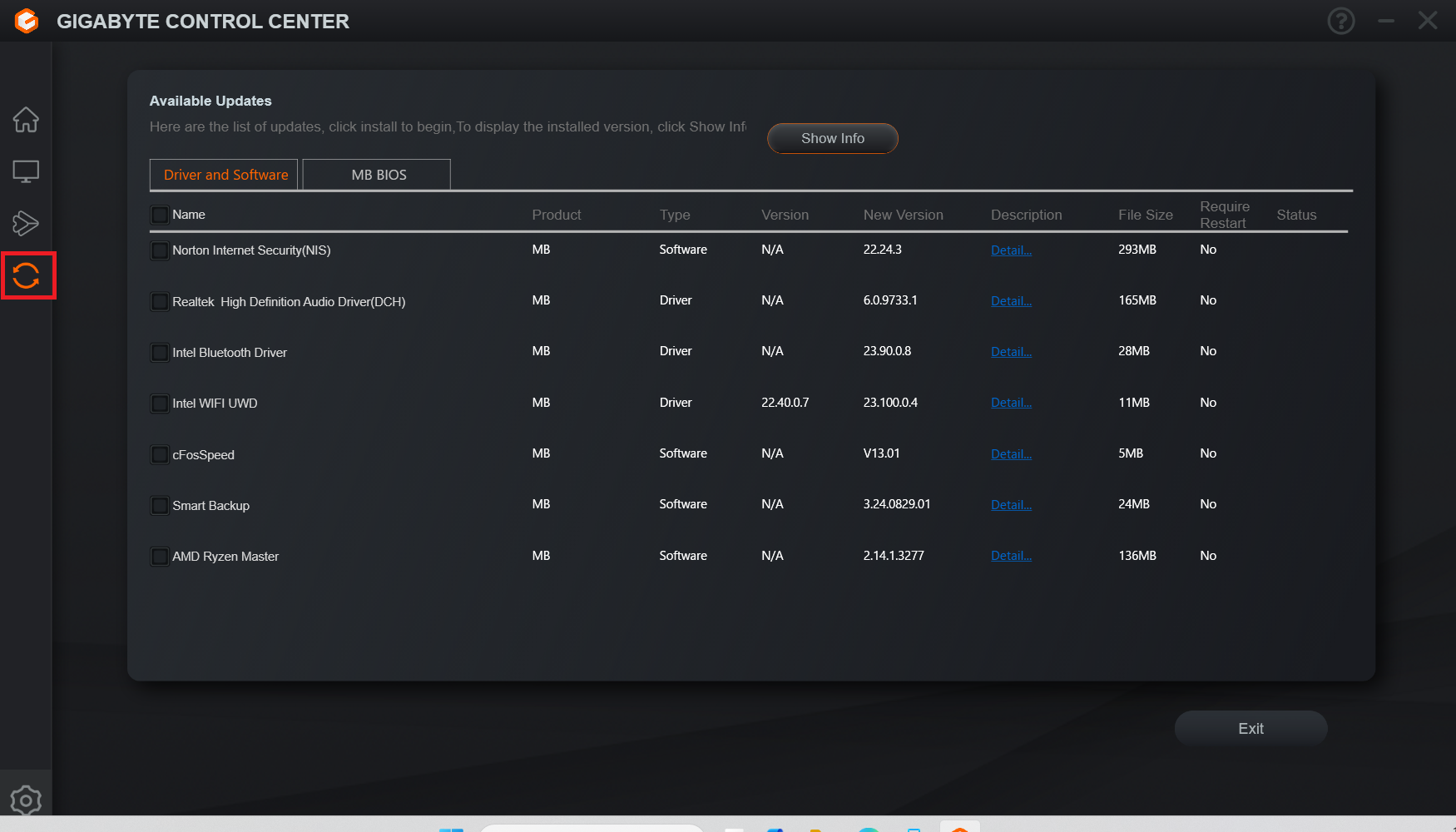
This official method is convenient and largely automatic for supported Gigabyte products, which allows you to receive manufacturer-verified drivers and utilities in one place. It is quite suitable for beginners and users with multiple Gigabyte components. However, many users report that GCC can consume system resources or cause conflicts and slow internet access. In addition, the Gigabyte driver updater often tries to push or auto-install unwanted utility programs/partner software.
Gigabyte Driver Update by Getting the Latest Version from Official Download Center
Gigabyte's official Download Center is where you can find the latest software, BIOS versions, drivers, and firmware for motherboards, laptops, graphics cards, and other components. For many users, this is the most direct way to perform an accurate Gigabyte driver update recommended by the manufacturer.
Now let's see how to update Gigabyte drivers with it easily.
Step 1. Visit the Gigabyte Download Center. Enter your product model name or serial number. Alternatively, you can input Product Line, Series, Category, and Model Name to locate your device.
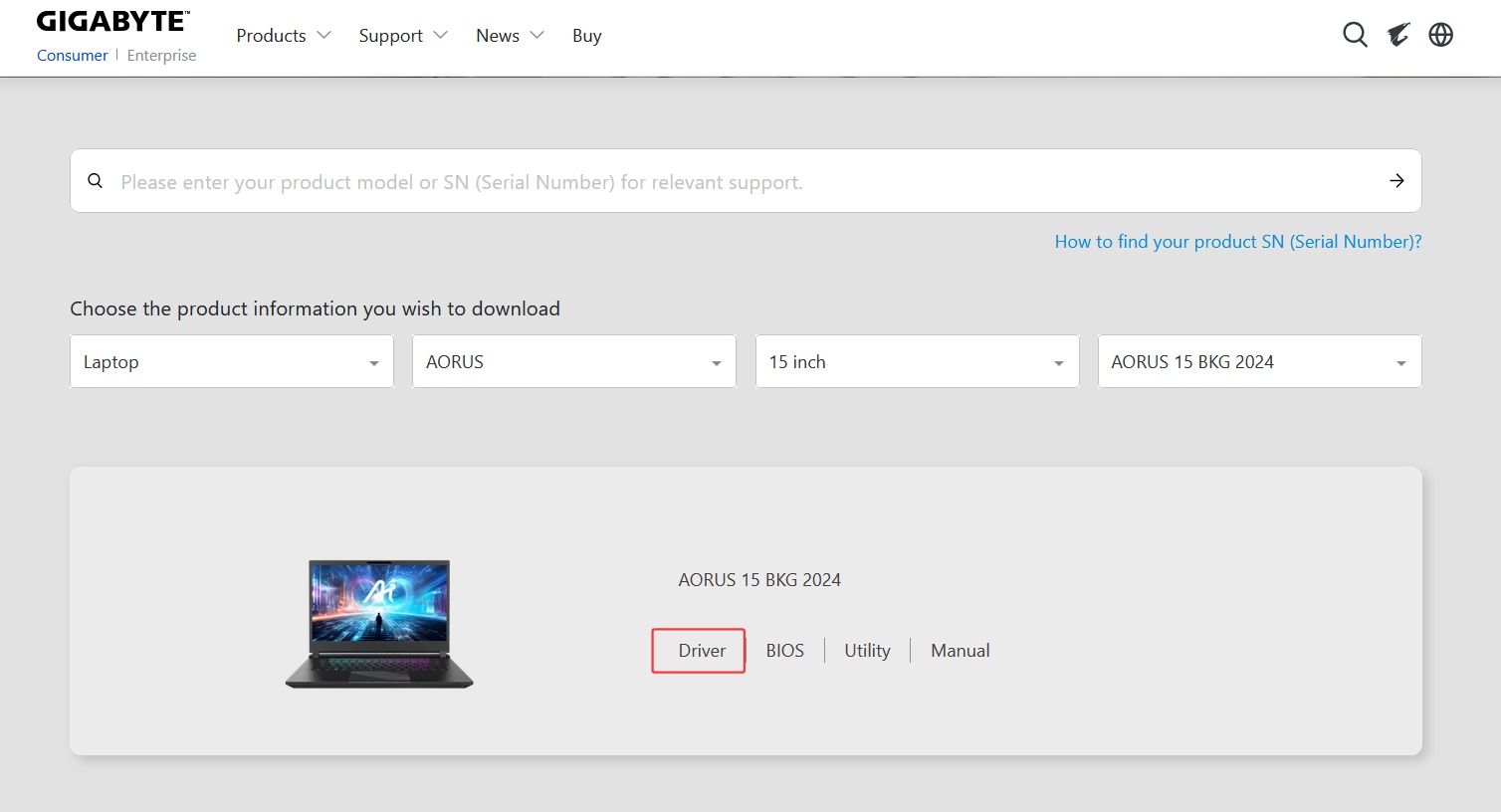
Step 2. You will then see the product appear. Click the Driver tab and download the latest driver packages you need (audio, chipset, LAN, etc.)
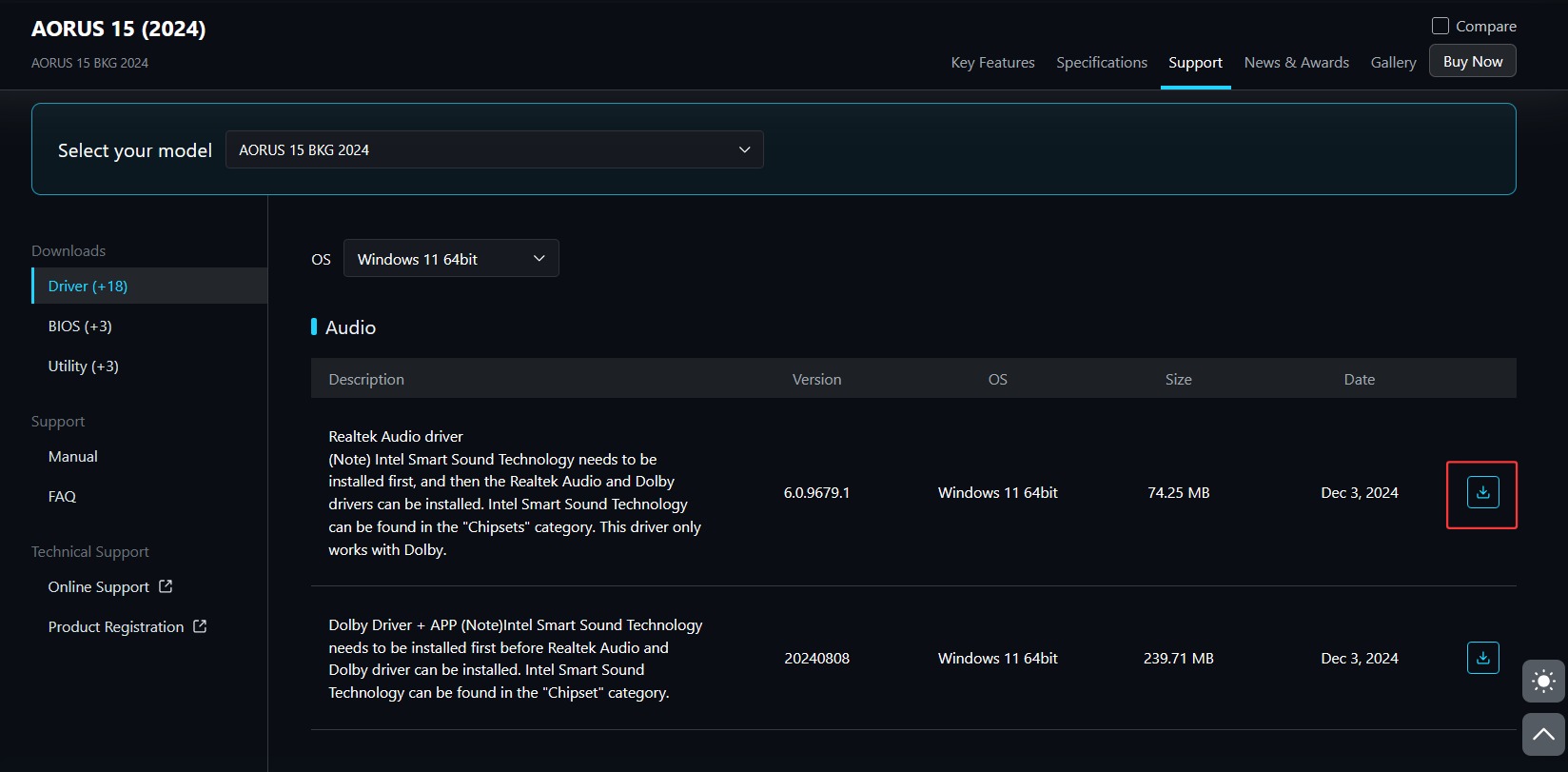
Step 3. Extract the downloaded files and run the installer as an administrator. Follow the installation wizard to complete the installation.
This method is reliable enough, providing compatible drivers directly from Gigabyte. It is an excellent choice for critical updates or when automatic driver updaters fail to find a suitable driver. However, the process is basically manual. You will need to identify the exact hardware model, select the correct version, and download each required driver individually, which might take more time and effort.
Gigabyte Driver Update Using Device Manager in Windows
Windows Device Manager is a built-in function that allows you to view and manage the hardware devices installed on your Gigabyte PC. You can easily search for newer driver versions online or install drivers from local files to perform a Gigabyte driver update.
Here’s how to update Gigabyte drivers with it easily.
Step 1. Search for Device Manager and open it. Expand different categories, for instance, Audio inputs and outputs, Display adapters, Network adapters, etc.
Step 2. Locate the Gigabyte-related device. Right-click on it and select Update driver.
Step 3. Choose "Search automatically for drivers". Windows will search for an available updated driver. You can also select "Browse my computer for drivers" and point to a folder that contains drivers you previously downloaded from Gigabyte.
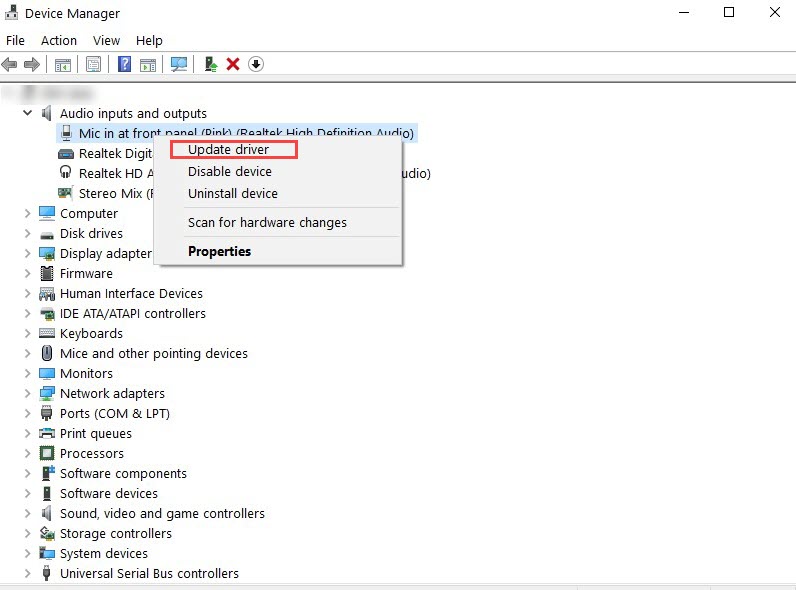
Device Manager is free and intuitive to use. There is no need to download additional software, and it works with hardware from virtually any manufacturer. It is definitely one of the most cost-efficient ways to update drivers. However, it may not always find the newest manufacturer-specific drivers, and you can only update devices one at a time. As a result, it can be less comprehensive and efficient than dedicated driver updater software.
Gigabyte Driver Update with Driver Booster
When it comes to reliable Gigabyte driver update software, Driver Booster is often recommended for Windows users. This professional tool automatically scans your system and updates drivers for a wide range of hardware, including Gigabyte motherboards, laptops, GPUs, and peripherals. With Driver Booster, you can not only perform a Gigabyte driver update but also update drivers for other hardware in one place!
How to Use Driver Booster to Update Gigabyte Drivers
Step 1. Free download Driver Booster and install it on your Windows PC.
Step 2. Click the Scan button to find outdated Gigabyte drivers on your computer.
Step 3. Select the outdated Gigabyte driver and click Update Now to proceed.
Step 4. Driver Booster will install a compatible Gigabyte driver update soon.
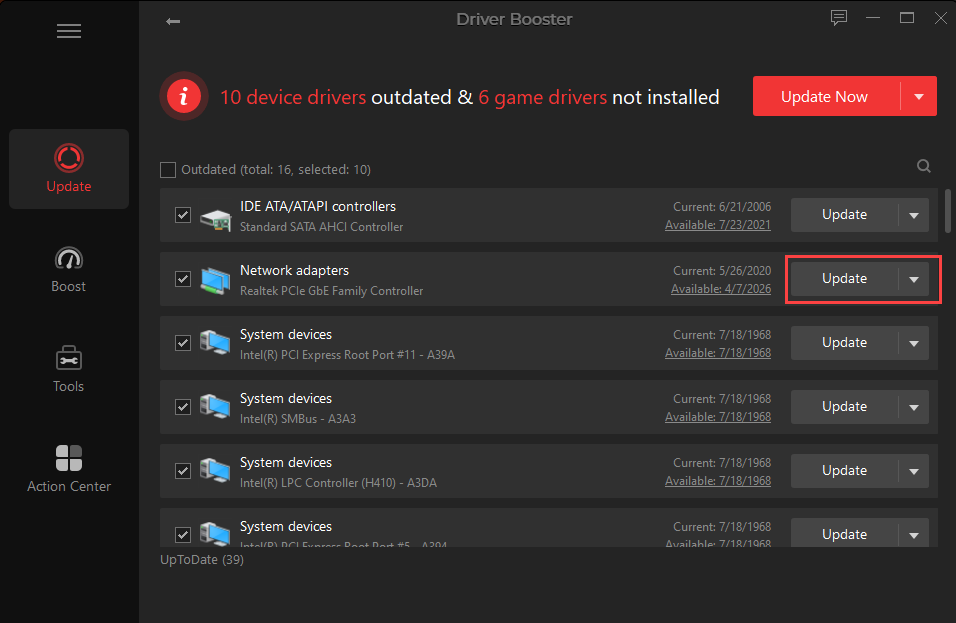
Why Choose Driver Booster for Gigabyte Driver Update
Driver Booster is not just the best choice for Gigabyte driver updates. The free driver updater offers several useful features that can help you manage and maintain drivers for your entire Windows system.
Detect & Check Outdated Drivers: Driver Booster scans your system and accurately identifies outdated Gigabyte drivers. You can easily perform Gigabyte driver updates for motherboards, laptops, GPUs, and more.
Update (Multiple) Drivers in 1-Click: You don't have to make Gigabyte driver updates one by one; Driver Booster lets you update multiple drivers with one click, which significantly reduces time and effort.
Offer a Large Driver Database for All Hardware: With a massive database covering millions of drivers from over 1,200 brands, Driver Booster supports Gigabyte components as well as almost any other hardware you may have installed on your Windows PC.
Deliver Verified Driver Updates: Driver Booster checks drivers for Microsoft WHQL certification and performs additional security checks. It ensures the Gigabyte driver update is safe and compatible with your system.
Driver Booster Free
- Automatically scan and update drivers.
- Update game ready drivers for peak gaming performance.
- Identify and fix various common of hardware issues.
- Boost 30% of system performance for fast & smooth running.

Gigabyte Driver Update FAQs
What is a Gigabyte driver update?
A Gigabyte driver update is the process of installing the latest software, which allows your operating system to communicate properly with Gigabyte hardware.
Why and when should you update Gigabyte drivers?
You should update Gigabyte drivers when you experience system instability, poor performance, missing features, or compatibility problems, and after installing a new Windows version/hardware component. It helps improve compatibility, stability, and overall performance.
How often should you update Gigabyte drivers?
Generally, it is a good idea to check for Gigabyte driver updates every 1-3 months or whenever Gigabyte releases new drivers for your specific model.
What should you do if a Gigabyte driver update fails?
If a Gigabyte driver update fails, restart your PC and try again. If the issue persists, roll back the driver through Device Manager, or reinstall the appropriate driver from the official Gigabyte Download Center.
The Bottom Line
Overall, you can update Gigabyte drivers manually or automatically. While Device Manager is the most cost-efficient approach, the official download center can give the most reliable version for a Gigabyte driver update. For beginners who prefer a simpler approach, Gigabyte Control Center and Driver Booster are excellent choices. But if you want a more convenient way to keep your entire Windows system up to date, Driver Booster provides a large driver database and lets you update drivers on Windows in one click. Download Driver Booster and keep your Gigabyte drivers up to date with ease.
Driver Booster Free
- Automatically scan and update drivers.
- Update game ready drivers for peak gaming performance.
- Identify and fix various common of hardware issues.
- Boost 30% of system performance for fast & smooth running.