Outdated or missing drivers can cause various problems on Acer laptops and desktop PCs, from hardware errors to poor performance. An Acer driver update regularly ensures that your device components work well with Windows. Whether you own an Acer Aspire, Predator, Swift, or Nitro series laptop, keeping drivers updated is essential for system stability. This guide explains different ways to update Acer drivers, including reliable software for managing drivers automatically.
What Is an Acer Driver Update and Why Is It Important?
An Acer driver update means installing newer versions of software that allow Windows to communicate correctly with your laptop hardware. Drivers control important components such as graphics cards, network adapters, sound devices, touchpads, Bluetooth modules, and chipsets.
When Acer drivers become outdated, you may experience:
Slow system performance and frequent freezes
Wi-Fi or Bluetooth connection problems
No sound or unstable audio output
Screen flickering or graphics crashes
Reduced gaming performance on Acer Nitro and Predator laptops
Hardware devices not being recognized properly
Acer driver updates can prevent unexpected system issues nad help your laptops running smoothly. For gamers using Acer Nitro 5 laptops, updating GPU, chipset, and network drivers is especially important. New driver versions often include performance improvements and better compatibility with modern games.
How to Update Acer Drivers on Windows 11/10
There are several methods to complete an Acer driver update, depending on whether you prefer manual control or automatic workflow. Windows provides built-in tools, while third-party driver updater can simplify the process.
Method 1. Update Acer Drivers Through Device Manager
Windows Device Manager provides a straightforward way to check and update drivers on Acer laptops, desktop PCs. You can scan for outdated drivers for components such as graphics, audio, network adapters, USB, etc., helping resolve hardware problems and maintain compatibility with Windows.
Step 1. Press Windows + X and select Device Manager.
Step 2. Find the Acer hardware you want to update.
Step 3. Expand the relevant category, such as Display adapters, Sound, video and game controllers, or Network adapters.
Step 4. Right-click the hardware device and choose Update driver.
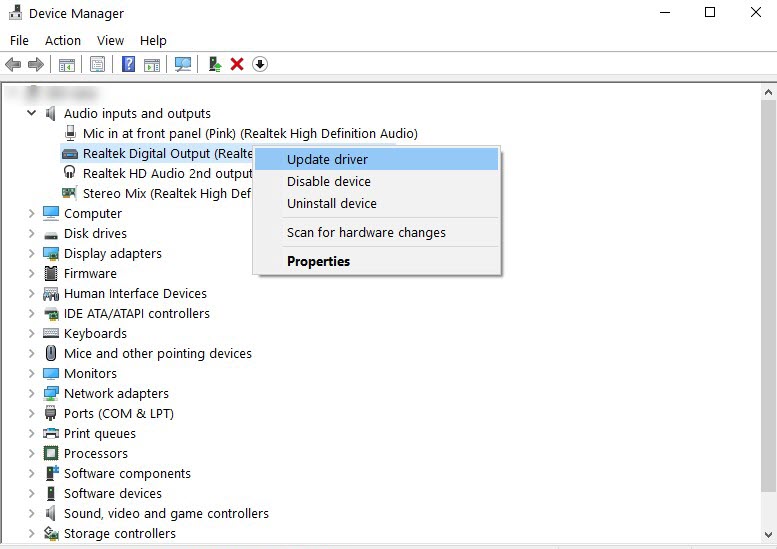
Step 5. Select Search automatically for drivers. Windows will search for an available compatible driver.
Step 6. If an updated driver is available, follow the prompts on the screen to complete the installation.
Step 7. Restart your Acer device after installation.
Notice: While this method works well for basic updates, it may not always find the newest drivers because Windows only searches its available driver database.
Method 2. Download Acer Drivers from the Official Website
Acer provides official drivers based on your specific laptop model, ensuring you receive the most compatible and stable updates tailored to your hardware configuration. With official update, you can unblock full functionality of all built-in components.
Steps to download Acer drivers manually:
Step 1. Open your browser and go to Acer Driver and Manuals.
Step 2. Locate Acer Driver and Manuals. Enter your Serial Number, SNID, or Part Number (P/N).
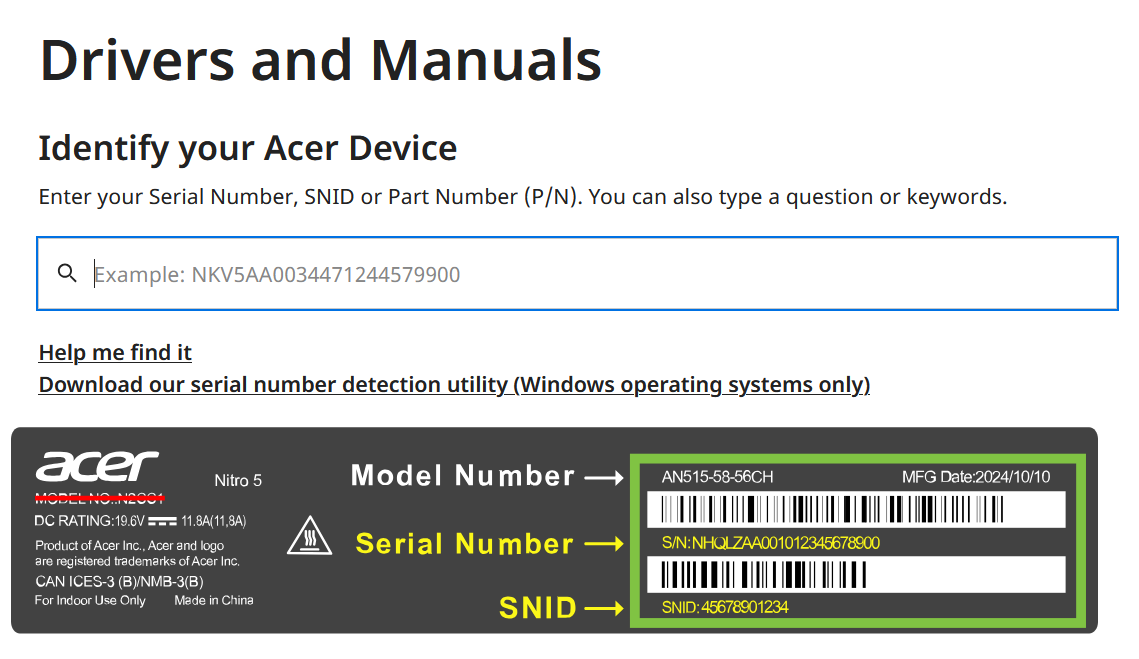
Step 3. Select your exact Acer device from the results.
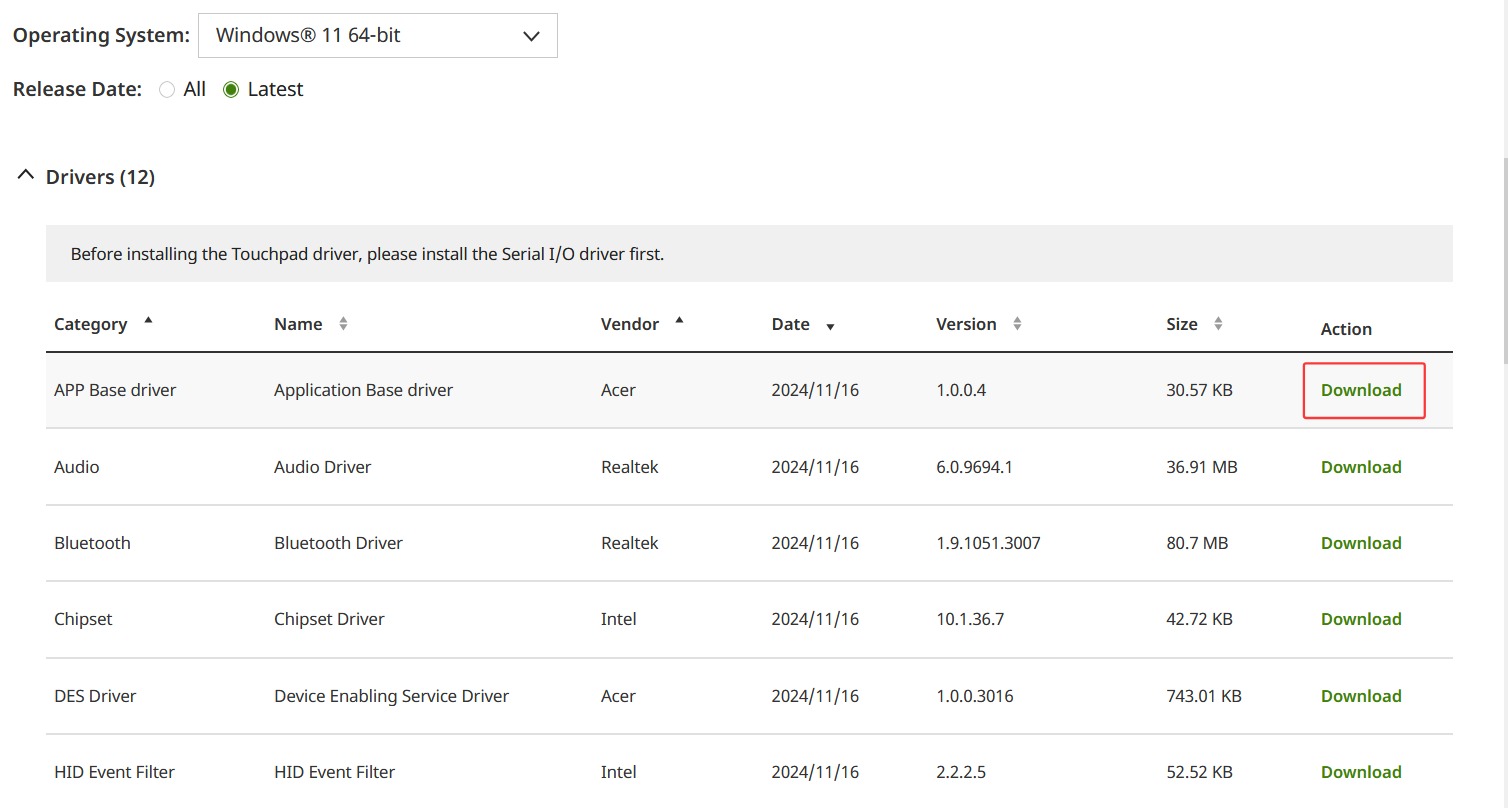
Step 4. Find the Drivers section for your Acer model and select your installed operating system, such as Windows 11 64-bit or Windows 10 64-bit.
Step 5. Review the available driver categories, such as Audio, VGA, Chipset, LAN, WLAN, or Touchpad.
Step 6. Find the driver you need and click Download.
Step 7. Install them manually and restart your PC.
Notice: This approach is useful when you need specific drivers, such as Acer Nitro 5 GPU drivers or motherboard-related updates. However, finding every outdated driver manually can take time, especially when multiple components require updates.
Method 3. Use the Best Free Acer Driver Update Tool: Driver Booster
It seems a bit complicated for non-technical users to find and install the correct driver on Acer PCs. Luckily, a dedicated driver update tool can automatically detect outdated drivers and install compatible replacements.
Driver Booster is a popular tool designed to simplify driver updates for Windows computers. It scans your system, identifies outdated drivers, and helps install the latest versions in a single click.
Driver Booster Free
- Automatically scan and update drivers.
- Update game ready drivers for peak gaming performance.
- Identify and fix various common of hardware issues.
- Boost 30% of system performance for fast & smooth running.

Unlike traditional update methods, the free driver updater can automatically scans your Acer laptop and detects outdated drivers for update. It provides a large driver database covering essential components, and ensure installing the newest yet stable drivers compatible with almost all Acer computers, from common work/study models to gaming laptops (like Acer Nitro 5). In a single click, you can update certain hardware drivers on Acer, no manual search, download and installation.
Driver Booster also gives a focus on security. Every driver update is verified and reliable. The automatic driver updater also enables you to create backups before update for later restore if compatibility issues occur.
Steps to update Acer Driver with Driver Booster
Step 1. Download and install Driver Booster on your Acer laptop or desktop.
Step 2. Launch the program after installation and click Scan on the main interface. Then, this software automatically scans your system.
Step 3. Once it finishes, review the results to see which Acer hardware drivers are outdated or missing. Click Update next to an individual driver, or select Update Now to update multiple drivers.
Verdict: For beginners, finding the right Acer driver update tool can make driver maintenance much easier, especially for users who own gaming laptops like Acer Nitro 5. Although Windows and Acer's official website provide reliable update methods, they often require users to manually check each hardware component and download drivers one by one.
FAQs: About Acer Driver Update
1. How often should I perform an Acer driver update?
There is no fixed schedule for driver updates, but checking for updates every few months is recommended. You should also update drivers when experiencing hardware issues, installing a major Windows update, or noticing reduced gaming performance.
2. What drivers should I update on Acer Nitro 5?
For gaming performance, prioritize updating graphics, chipset, network, and audio drivers. These components directly affect FPS stability, online gaming performance, system responsiveness, and overall gameplay experience.
3. Is there a free Acer driver update software?
Yes. Some driver updater programs provide free scanning and updating features. Driver Booster offers a free version that helps users detect outdated Acer drivers and install necessary updates more conveniently.
4. Can outdated Acer drivers affect gaming performance?
Yes. Old graphics, chipset, and network drivers can cause FPS drops, game crashes, input delays, and unstable connections. Performing regular Acer driver updates can improve compatibility and maintain better gaming performance.
Conclusion
Keeping your Acer laptop drivers up-to-date helps improve system stability, hardware compatibility, and overall performance. Whether you need an Acer driver update for daily use or an Acer Nitro 5 drivers update for gaming, using the right update method saves time and prevents driver issues. Tools like Driver Booster make it easier to scan, update, and manage Acer drivers automatically for smoother Windows 10 and Windows 11 performance.
Driver Booster Free
- Automatically scan and update drivers.
- Update game ready drivers for peak gaming performance.
- Identify and fix various common of hardware issues.
- Boost 30% of system performance for fast & smooth running.