




Kevin Hart
Kevin is an experienced editor focused on tech blog writing. Familiar with all kinds of PC software on the market. All the topics he chooses are aimed at bringing more benefits to users.
Expert in
PC Health Solution

All-in-one PC health solution: clean, optimize and secure

Comprehensive PC cleaning, optimization and protection

Keep drivers always up-to-date

More stable performance with less system crashes

Protect millions of computers against malware

Top computer security with full-round protection

Protect against viruses & boost PC performance
Automatically scan and update drivers.
Update game ready drivers for peak gaming performance.
Identify and fix various common of hardware issues.
Boost 30% of system performance for fast & smooth running.

Having your network drivers updated is essential for maintaining a stable WiFi and Ethernet connection on your Windows 10 computer. In this article, you'll learn how to update network drivers.

Kevin Hart


Dealing with slow Wi-Fi or constant disconnects? The culprit is often an outdated network driver, the essential software that connects your PC to the internet. Keeping it updated ensures a stable, fast connection. Here is how to update network drivers on Windows, both manually and automatically.
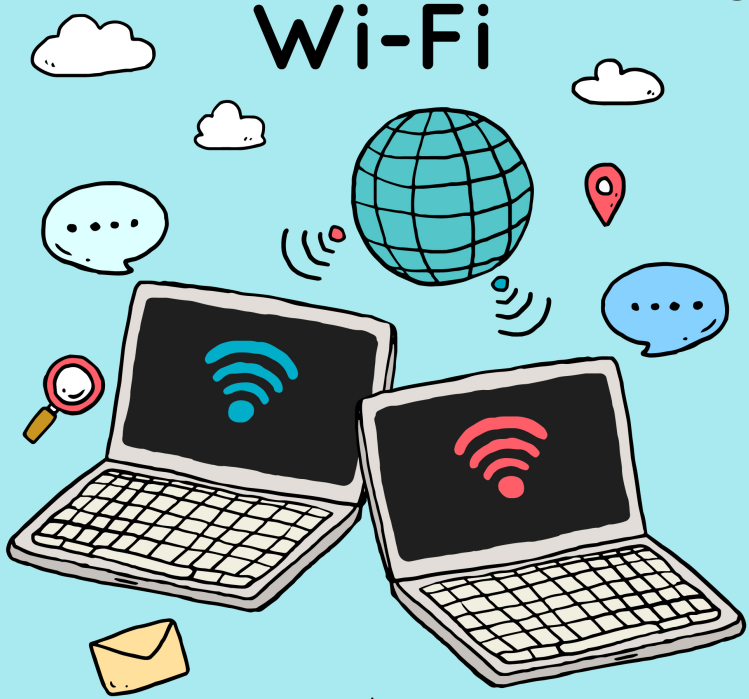
Network drivers are programs that allow the operating system to recognize and communicate with network devices, such as your Wi-Fi adapter or Ethernet network card. Without these drivers, you wouldn't be able to connect to the internet or local networks.
WiFi drivers enable wireless network connections, while Ethernet drivers enable wired connections. Both are important for different types of connections and should be updated regularly.
Updating network drivers is essential if:
You are experiencing connection problems.
You have reinstalled the operating system.
You have updated your network hardware.
You want to improve the speed and stability of your connection.
Having the latest drivers offers benefits such as:
Greater stability and fewer disconnections.
Improved connection speed.
Greater security against vulnerabilities.
Right-click the Start button and select Device Manager.
Expand the Network Adapters category.
Right-click on your network adapter and select Properties.
Go to the Driver tab to see the version and date of your current driver.
Open Device Manager.
Right-click on the network adapter and select Update driver.
Choose the automatic search option to have Windows search for the update online.
Programs like Driver Booster make updating drivers easier . These programs scan your system and download the correct drivers, preventing compatibility issues .
Driver Booster is a tool specifically designed to make updating drivers on your computer easier, including network drivers for Wi-Fi and Ethernet. This automatic driver updater scans your system for outdated or missing drivers and offers the option to update them with just one click, which is especially useful if you're not experienced in manually searching for drivers.

Step 1. Download Driver Booster from the official IObit website and follow the instructions to install it on your computer.
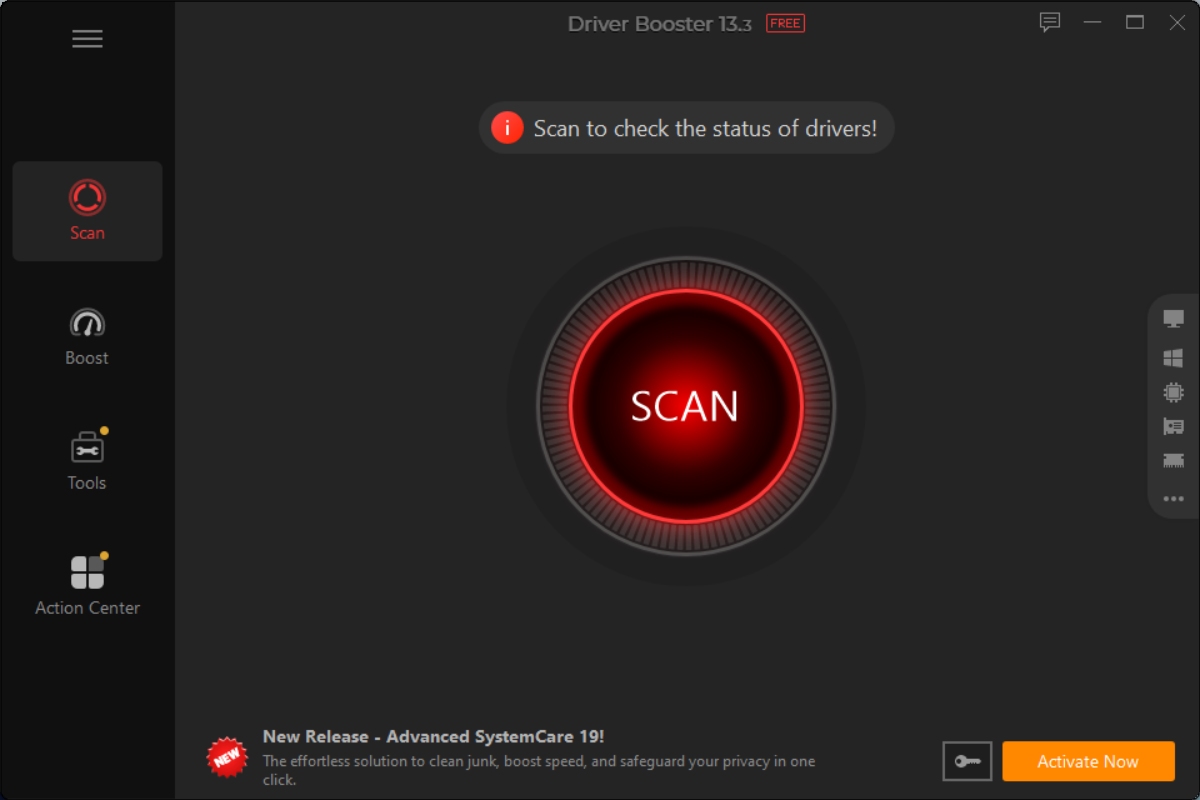
Step 2. Open Driver Booster and click the Scan button.
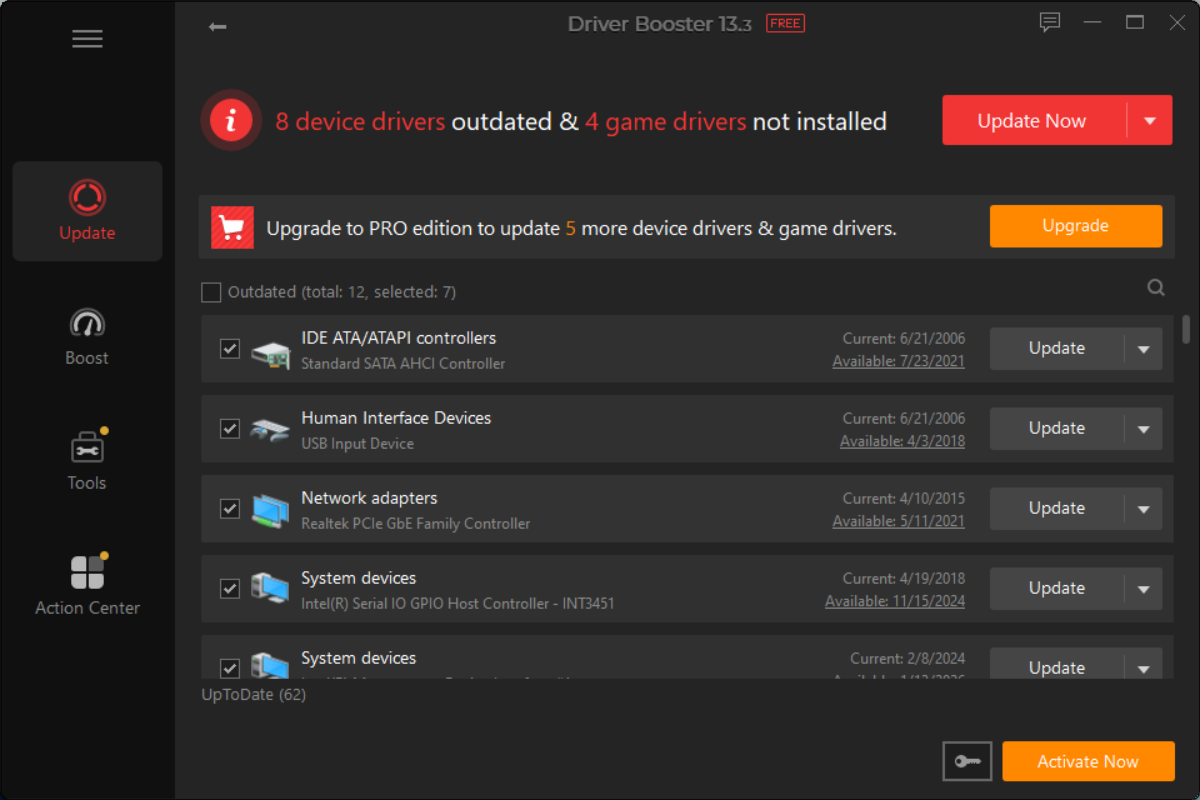
Step 3. Select the network driver and update it.
Once Driver Booster has installed the driver, it is recommended to restart your computer for the changes to take effect and for your system to correctly recognize the new driver.
That's all about how to update network drivers, and downloading updated network drivers on Windows 10 is essential for maintaining a stable and fast connection. Following these steps will ensure your connection runs smoothly and you enjoy a better online experience.

Keep drivers always up-to-date.
Free Download